






How to Use App Launch Tracking in Windows 11
Hi everyone, Today, we are discussing a new topic: How to Use App Launch Tracking in Windows 11. Windows 11 is one of the most famous operating systems to date. It is best known for its features and tools and significantly impacts users’ day-to-day lives.
We use our OS for various needs and many Apps in daily life. Setting the App launcher track plays an essential role in those apps. App launch tracking refers to the operating system’s monitoring and recording of the applications you open and use on your device.
Do you like it when you are working on your system? Does it offer preference apps in your Start Menu? I think it is the best option because it works in your daily life and reduces the time spent searching for the apps you have installed.
Windows 11 customizes your Start menu based on the apps you use the most, making it simpler to find and open your favourite applications. It also improves search results by providing the most used apps. This post discusses the app launcher’s importance and how it turns off or on.

- Start Menu Stop Working in Windows 11 Insider Preview Build
- Personalization Settings Option in Windows 11
- System Settings Options in Windows 11
- How to Create and Use Passkeys in Windows
- Start Menu Issues of Third-Party UI Customization Apps in Windows 11
- Fix No Internet Issue in Mobile Hotspot Connection in Windows 11
- How to Find Network Adapter Connection Speed in Windows 11
Table of Contents
What is the Importance of App Launch Tracking in Windows 11?
How to Use App Launch Tracking in Windows 11
Above, we discussed the overall use of the app launch tracker in Windows 11. This feature allows the start menu to display the apps used most by the user, helping the user access their favourite apps quickly. In another way, we can say that the system detects the autosuggest history for this. So, let’s check how to Enable the App Launch Tracking in Windows 11 using different methods.
See More: Intune Guide to Turn Off Tracking App Launches
1. Enable the App Launch Tracking Through Windows Settings
You all know that when we have trouble or need to change some settings, we first go to the System Settings, right? The app launcher track can be easily turned on or off using the Windows settings. To do so, follow the steps below.
- First, open Windows Settings using the Win +R key.
- Select the Privacy and Security option from the Settings.
- Then select the General option from the right pane
See More: Privacy and Security Settings in Windows 11
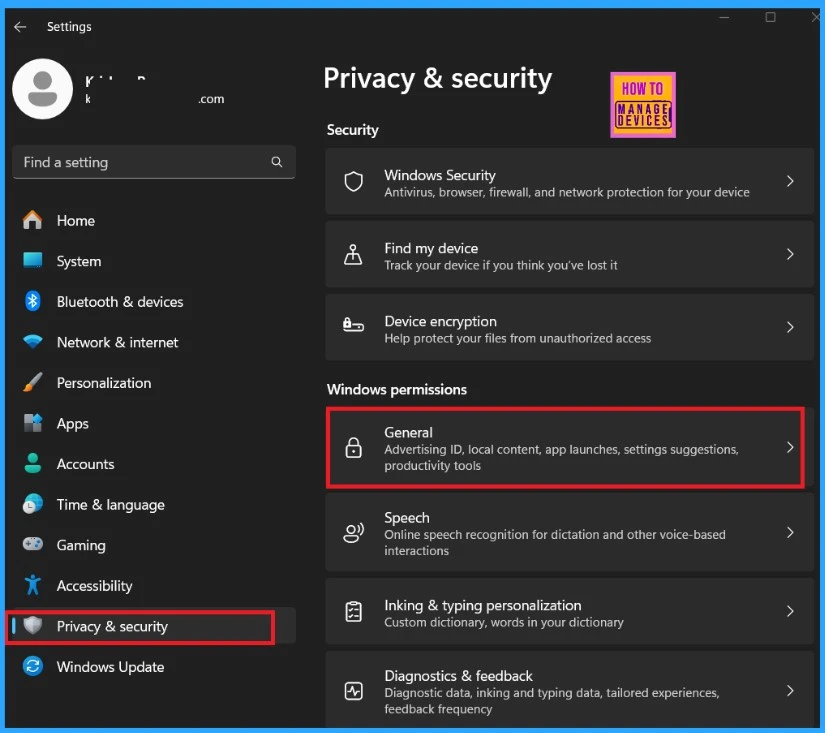
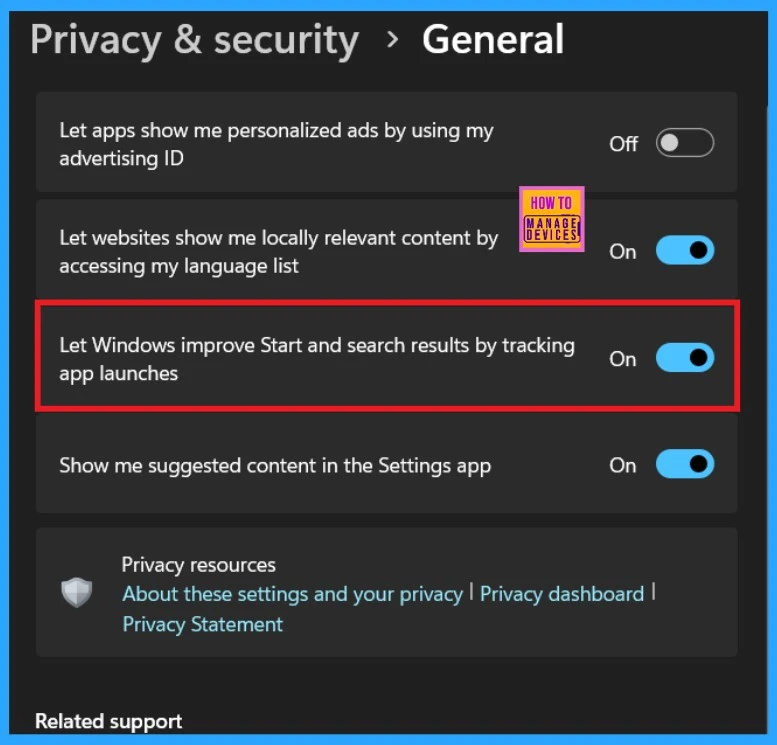
After selecting the general option, you may get many options that are related to the advertising ID, local content, app launches, setting suggestions and productivity tools. Here, you can see the option ”Let Windows improve start and Search results by tracking app launches”.
- You can Enable this option by toggling the pane to the Left to the Right
- You can Disable this option by Toggling the pane from the Right to the Left
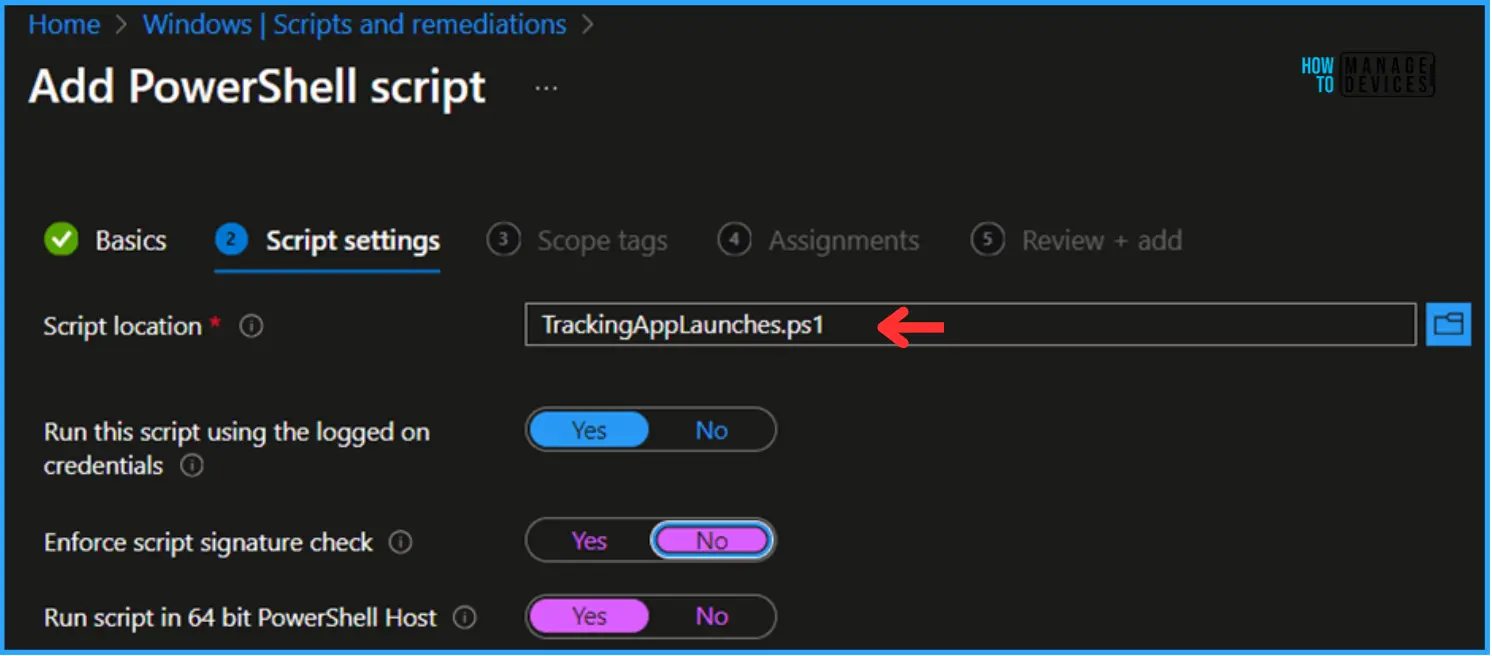
Create a Script to Turn Off Tracking App Launches with Intune
Follow these steps to create a PowerShell script to remove Microsoft Teams Personal using Intune. Log in to the Microsoft Intune Admin Center.
- Go to Devices > Windows > Scripts and Remediations.
- Select Platform Scripts.
- Click on +Add to start creating your script.
See More: Intune Guide to Turn Off Tracking App Launches
2. Enable the App Launch Tracking Through Windows Registry
The other step is the registry editor, and this option is very easy, like system settings. Using the Windows registry, we can make changes in the Windows database. So, let’s check how to Enable App Launch Tracking.
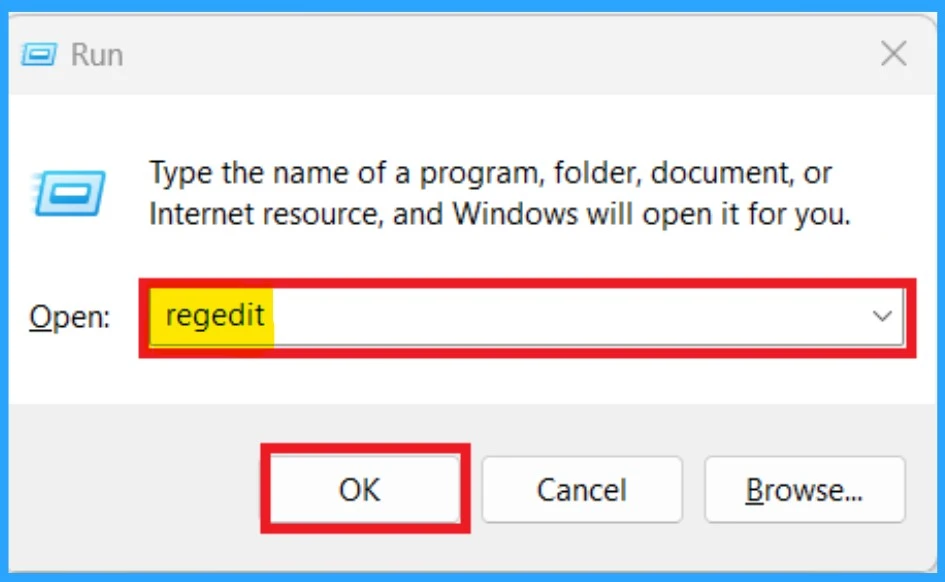
- Open the Registry By clicking on the shortcut key Win+R.
- Type regedit
- Click Ok
When the Registry opens, you must provide the appropriate Path. If you need to make specific settings, you also need the correct path. So you can follow the path below.
Copy this: Computer\HKEY_CURRENT_USER\Software\Microsoft\Windows\CurrentVersion\Explorer\Advanced
- After entering the path, you can see the Advance option in the left pane, so you can Right click on that
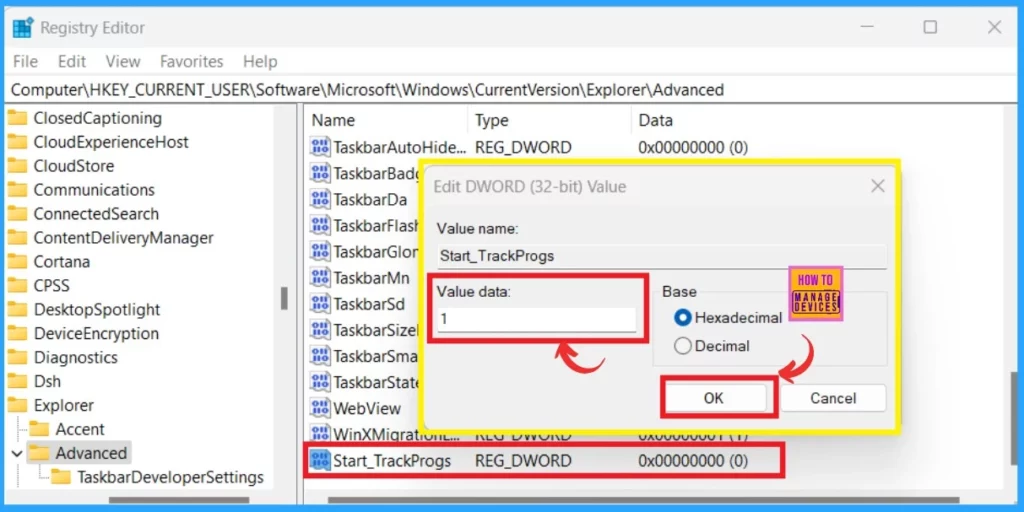
- You have to create a new value as the Start_TrackProgs
- When you Right click, you will get the option New>DWORD (32-bit) Value.
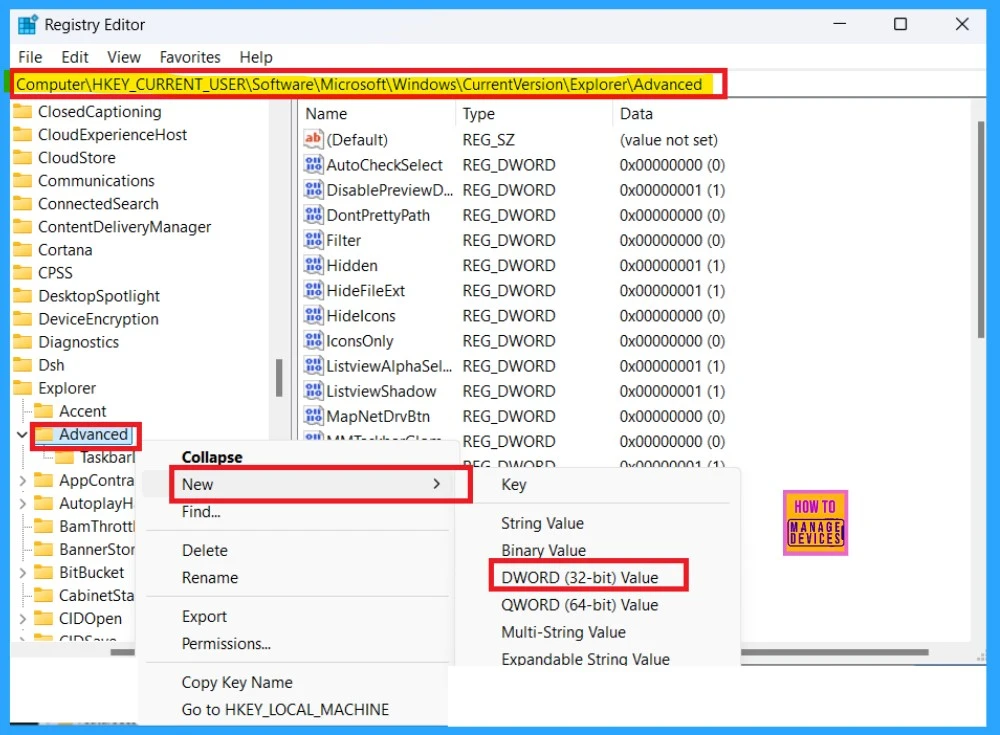
After giving the new value (DWORD (32-bit) Value) the name Start_TrackProg, right-click on that new value to get a small context menu. Here, you can set the value. I gave the value 1 to enable the App Launch Tracking.
| Value | Info |
|---|---|
| Value as 0 | For Disabling the App Launch Tracking. |
| Value as 1 | For Enabling the App Launch Tracking. |
3. Enable the App Launch Tracking Through Group Policy
Another method is using the Group Policy; users can easily manage the Windows operating system. Enabling the App Launch Tracking is easily done through the Group Policy. The first step is to open the Group Policy by using Win+R.
- Type gpedit. msc, and press Enter.
- Then go to User Configuration > Administrative Templates > Windows Components > Edge UI.
- Select the option called ”Turn off tracking of app usage from the right side”
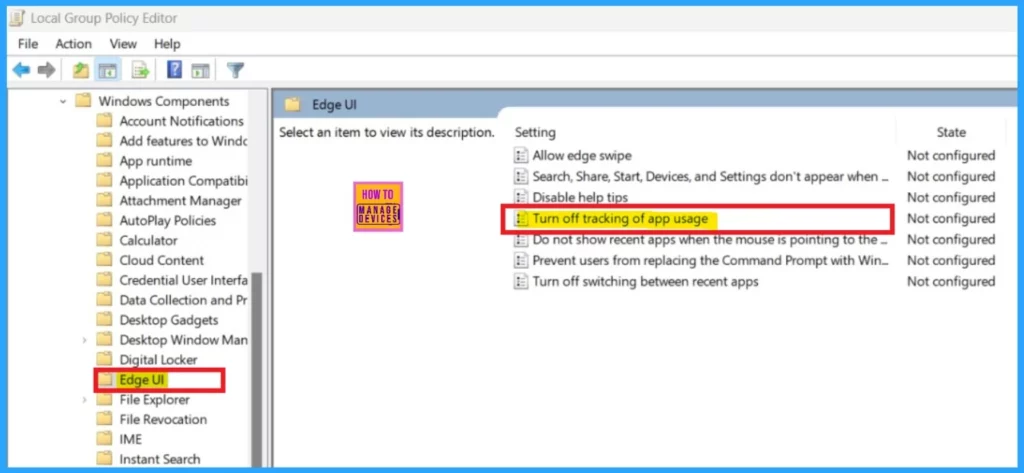
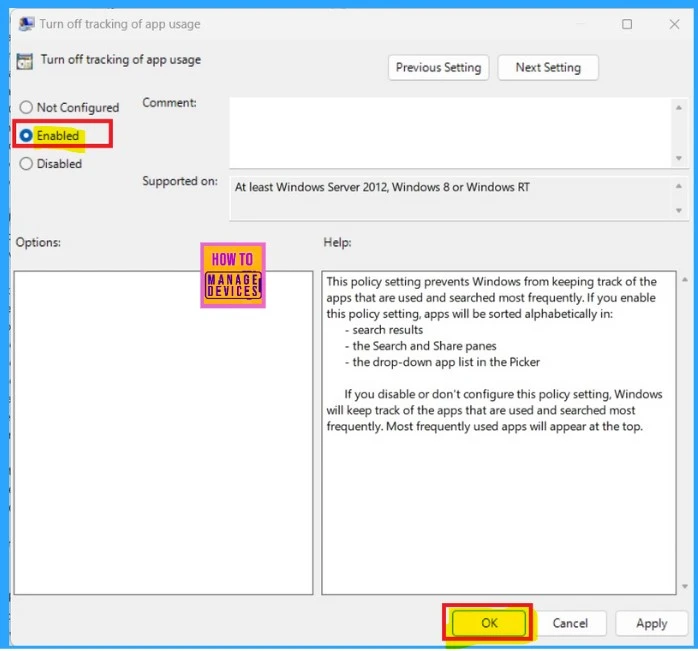
After selecting the option, Turn off app usage tracking from the right side pane. You will get the settings window for Enabling and disabling App Launch Track. Select the option For Enable and click Ok. The app launch track is defaulted as Not configured.
| App Launch Track Settings Options | Info |
|---|---|
| Not configured | This is the default setting |
| Enabled | Windows improves start and Search results by tracking app launches |
| Disabled | When it is disabled, Windows does not improve start and Search results by tracking app launches. |
We are on WhatsApp now. To get the latest step-by-step guides, news, and updates, Join our Channel. Click here. HTMD WhatsApp.
Author
Anoop C Nair has been Microsoft MVP from 2015 onwards for 10 consecutive years! He is a Workplace Solution Architect with more than 22+ years of experience in Workplace technologies. He is also a Blogger, Speaker, and leader of the Local User Group Community. His main focus is on Device Management technologies like SCCM and Intune. He writes about technologies like Intune, SCCM, Windows, Cloud PC, Windows, Entra, Microsoft Security, Career, etc..




Discussion