






Brand Identity Advanced Customization Options for Microsoft Edge Browser for Business
Discuss the Brand Identity Advanced Customization Options for Microsoft Edge for Business. The Microsoft Edge management service enables administrators to customize and enhance the browser appearance to align with their organization’s branding.
Using this service, administrators can manage and personalize the appearance of Microsoft Edge for Business, including integrating logos, color schemes, and other visual elements. This helps maintain a uniform and professional appearance for the browser.
You can easily customize the browser to fit your organization’s branding standards. You can manage these settings through the Microsoft 365 Admin Center, where you can view and implement customizations to ensure the browser reflects your company’s brand identity.
This post will cover all the details on how to customize your organization’s branding using the Microsoft Edge management service. More details are explained below.

Table of Contents
Why is My Taskbar Icon Overlay not Updating?
The taskbar icon overlay is not supported on macOS devices. If you use a supported platform and still don’t see the updated icon, try restarting your device several times. It may take some time for the changes to appear.
What Assets from the Microsoft Entra Admin Center are used for Branding Icons?
1. Displays the header logo. If the header logo is unavailable, the favicon will be used.
2. Utilize the square logo. If the square logo is not provided, the favicon will be used.
Brand Identity Advanced Customization Options for Microsoft Edge for Business
Follow the below steps to customize the Microsoft Edge browser with your organization’s branding assets. This will boost the browser’s ability to reflect your organization’s branding, providing a consistent and professional user experience.
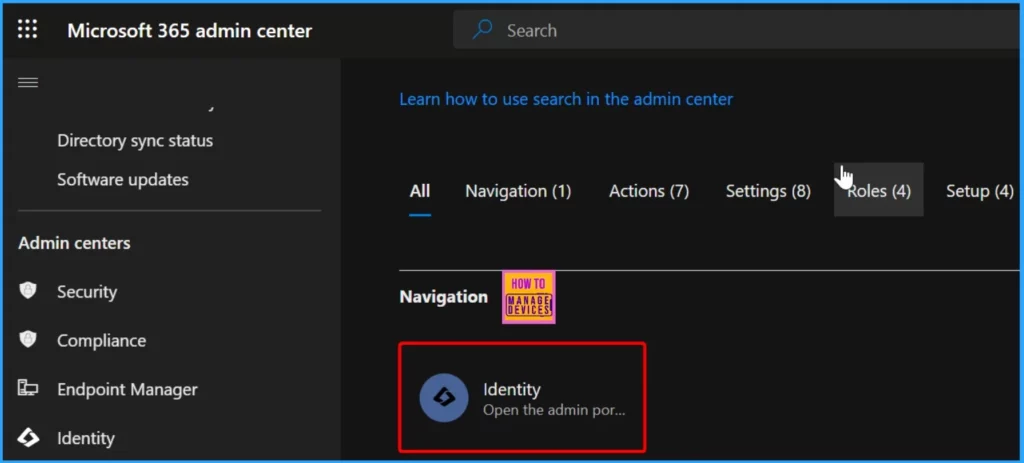
- Log into the Microsoft 365 Admin Center, the central hub for managing various Microsoft services for your organization.
- Go to the Settings section on the Left side of the Admin Center and select Org Settings.
- Find the Customization section in the Organization Settings.
- Select the Edge Browser Configuration Profile
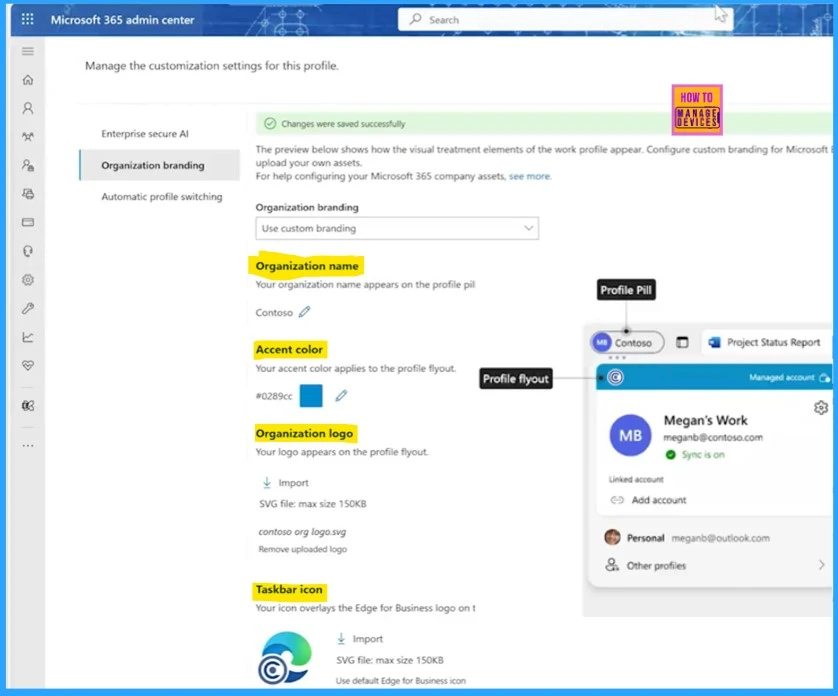
- In the Organisation Branding tab, upload your organization’s logo, background images, and other visual elements.
- The page will show a preview, allowing you to see how the branded elements look on a user’s account.
- Once satisfied, save your changes, and the custom branding will be applied across users’ browsers.
- Check a user’s Edge browser to confirm the branding is correctly applied.
- Importance to Add Name for MS Edge Browser Windows
- MS Edge Browser Automatic Options to Organize Tabs Stay Organized with Tab Groups
- The New Magnify Feature on Microsoft Edge Browser
- Disable URL Copy Paste Feature in Microsoft Edge
If no branding policies are enabled, Microsoft Edge for Business will show the default branding provided by Microsoft. To customize the browser appearance with your organization’s branding, follow the below steps.
Choose Custom Branding – This allows you to replace the default look with your organization’s branding assets.
When you choose custom branding, any existing branding assets associated with your Microsoft Entra ID will be automatically imported. After importing the branding assets, you will see a preview of how these elements will appear in the Edge browser. The custom branding will not be applied to users until you click Save Changes.
- 5 Methods Open Microsoft Edge InPrivate Browsing Window
- New Text Prediction and other Features in MS Edge Browser
- Method to Start Close Read Aloud in Microsoft Edge
Customizing Browser Elements with Branding Assets
Let’s discuss how to customize browser elements with branding assets. The table below provides more details.
| Element | Description |
|---|---|
| Organization Name | Displayed in the profile pill. |
| Accent Color | Appears in the profile flyout header. |
| Organization Logo | Shown in the profile flyout header. |
| Taskbar Icon | Overlays the Edge for Business icon on the taskbar. |
- Manage Microsoft Edge Browser on Android Devices using Intune
- Guide to Enable Efficiency Mode in Microsoft Edge using Intune
Limitations of Organization Branding
The customization options available through the Edge management service do not extend to the following platforms. The list below provides more details.
- Microsoft Edge Mobile
- Microsoft Edge for Business on unmanaged PCs and macOS
- Customers with an Office 365 GCC or Office 365 GCC High and DoD plan
We are on WhatsApp now. To get the latest step-by-step guides, news, and updates, Join our Channel. Click here. HTMD WhatsApp.
Author
Anoop C Nair has been Microsoft MVP from 2015 onwards for 10 consecutive years! He is a Workplace Solution Architect with more than 22+ years of experience in Workplace technologies. He is also a Blogger, Speaker, and Local User Group Community leader. His primary focus is on Device Management technologies like SCCM and Intune. He writes about technologies like Intune, SCCM, Windows, Cloud PC, Windows, Entra, Microsoft Security, Career, etc.
Discussion