






Review Office365 Backup Solution from Altaro – Part 2
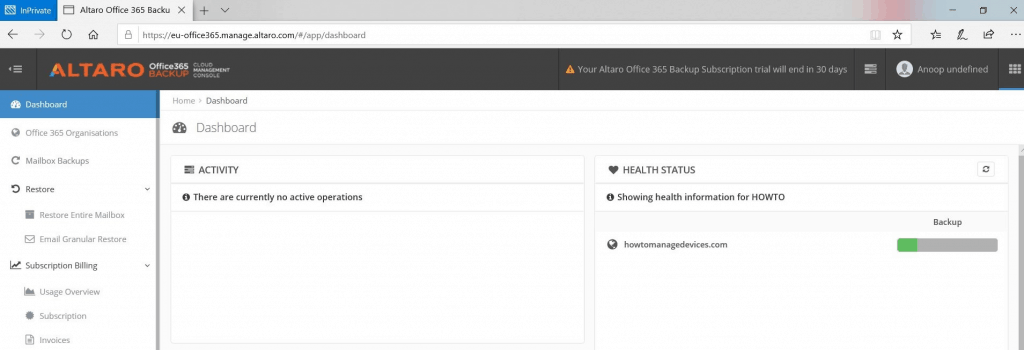
Let’s discuss the Review Office365 Backup Solution from Altaro – Part 2. In this post, learn how to restore Microsoft Office 365 mailboxes using Altaro Office365 backup.
In the first part of this series of posts, Altaro Office365 Backup Guide Step by Step Video Part 1, you learned how to back up Microsoft Office365 mailboxes using the Altaro Office365 Backup solution. This was part 2 of the Altaro Office365 Backup Guide.
In this post, Review Office365 Backup Solution from Altaro – Part 2, we will cover how to restore Microsoft Office 365 mailboxes using Altaro Office365 backup and discuss various configuration options for the Altaro Office365 cloud backup solution.
I’m using the 30 days FREE trial version of the Altaro Office365 Backup solution in this post. You can request for Altaro Office365 Backup solution trail from here.

Restore Microsoft Office 365 Mailboxes
In the previous post, you learned how to connect & configure Altaro Office365 backup for your Office 365 subscription. In this post, you will see:
- How to Add New Office 365 Mailbox to backup
- How to RESTORE Office 365 Mailboxes
- How to check AUDIT Logs of Office 365 Mailboxes from Altaro Office365 Backup
- How to setup ALERTS options from Altaro Office365 Backup
How to Add New Office 365 Mailbox to backup
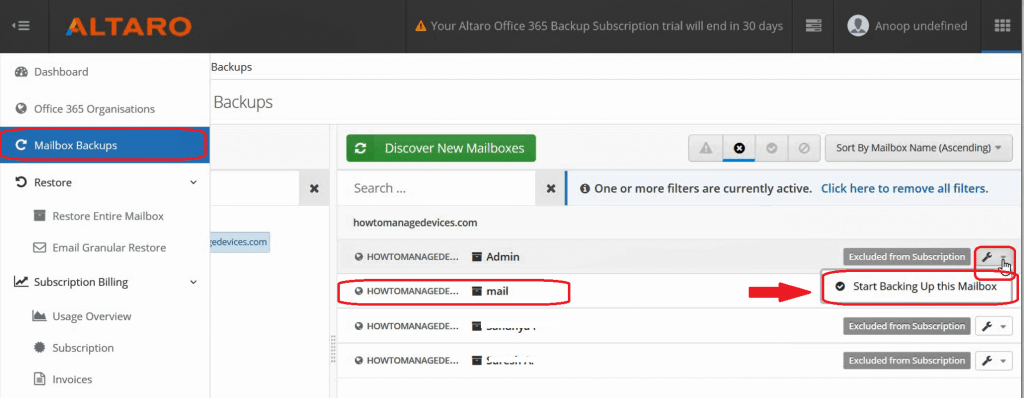
You can add a new Office 365 mailbox to the Altaro Office365 backup solution. From Altaro Cloud Management Console (CMC):
- Navigate to Mailbox Backups
- Click on the Office 365 Organisation “HowtoManageDevices.com”
- Choose the Mailbox from the list and click on the Settings icon to Start Backing Up this Mailbox
How to Restore Microsoft Office 365 Mailboxes
Two (2) Office 365 Mailbox restore options are available in the Altaro Office365 backup solution.
- Restore Entire Mailbox
- Email Granular Restore (explained in this post)
NOTE! I have selected the option “Email Granular Restore” to explain the Office 365 restore scenario in this post. This option is useful for many situations like a user accidentally deleting a mail from the mailbox and deleting items. It is also valid for many other scenarios, like tracing users’ deleted emails for auditing or complacency requirements.
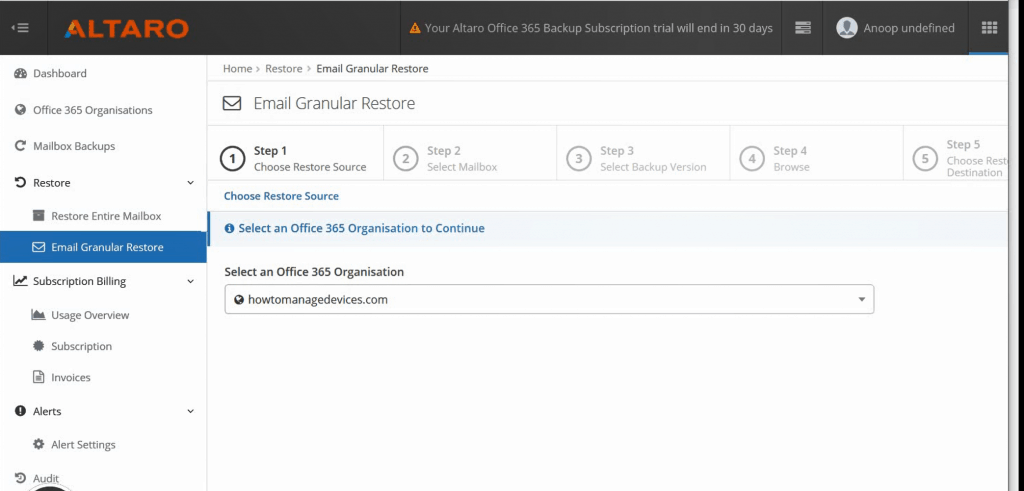
Here are the available options for Restore Microsoft Office 365 Mailboxes
- Step 1 – Choose Restore Source – Organisation = howtomanagedevices.com.
- Step 2 – Select Mailbox – Select the Office 365 Mailbox – Anoop
- Step 3 – Select Backup Version – Browse through the Office 365 backups.
- Step 4 – Browse the Mailbox – Select the mail(s)/folders to restore.
- Step 5 – Choose Restore Destination. The following are the options to restore the destination:
- Restore the PST file (This is the option I selected for this post)
- Restore to ZIP Archive
- Restore Selected Items to the same Mailbox
- Restore Selected Items to a different Mailbox
- Step 6 – Restore Options
- Select Account, where the ZIP Archive download link will be sent once the restore operation is completed.
- Select Account:- XXX@howtomanagedevices.com
- The PST File will be placed inside a ZIP Archive and will be Encrypted with the Passphrase.
- Step 7 – Finish – Summary
NOTE! – More details and screenshots are available in the following tutorial
How to Check AUDIT Logs
You can view and export Office 365 Mailbox audit logs stored in the Altaro Office365 backup solution. You can change this from the Altaro Cloud Management console – Audit Tab.
How to Setup ALERTS
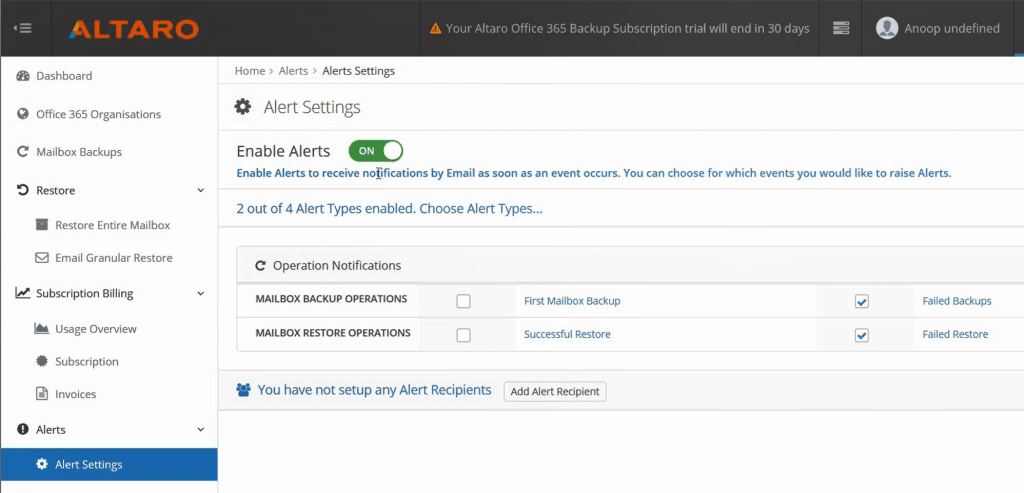
As I explained in the video here, you can also set the Alerts for Altaro Office365 backup from the Altaro cloud console.
Video – Restore Microsoft Office 365 mailboxes Guide
In the video, we will see how to Restore Microsoft Office 365 mailboxes and what the options are for restoring mailboxes.
Resources
- Check out the Trial Version of Altaro Office365 Backup
- How to Get access to Office 365 Mailbox and back up a former user’s data
We are on WhatsApp. To get the latest step-by-step guides and news updates, Join our Channel. Click here –HTMD WhatsApp.
Author
Anoop C Nair is Microsoft MVP! He is a Device Management Admin with more than 20 years of experience (calculation done in 2021) in IT. He is a Blogger, Speaker, and Local User Group HTMD Community leader. His main focus is on Device Management technologies like SCCM 2012, Current Branch, and Intune. He writes about ConfigMgr, Windows 11, Windows 10, Azure AD, Microsoft Intune, Windows 365, AVD, etc.
Discussion