






Sign-in to Microsoft Apps with Passkey on Android using Authentication Broker Intune Company Portal
Let’s discuss the Sign-in to Microsoft Apps with Passkey on Android using Authentication Broker Intune Company Portal. Microsoft Entra ID users can now use a passkey to sign into Microsoft apps on Android devices. This feature works if an authentication app, like Microsoft Authenticator or Microsoft Intune Company Portal, is installed on your device.
Microsoft Entra ID authentication methods offer users a secure way to sign in and verify their identities. These methods include multi-factor authentication, biometric identification, and passwordless options, all strengthening account security.
Suppose you want to know more about Microsoft Entra ID passkey (FIDO2) authentication in apps, browsers, and systems. In that case, you can follow our blog post titled Entra ID Auth Methods WHfB Authenticator Push Authenticator Passwordless Authenticator Passkey.
This blog post presents a detailed overview of the sign-in process with passkeys using Microsoft Authenticator with Microsoft Entra ID.

Table of Contents
Passkeys in Microsoft Authenticator
The public preview of passkeys in Microsoft Authenticator now involves additional features. Admins have the option to require attestation during the registration of a passkey. Moreover, Android native apps now support signing in with passkeys using the Authenticator. Users will also be prompted to sign in to the Authenticator app to register a passkey when they initiate the process from MySignIns. The passkey registration within the Authenticator app guides users through all necessary prerequisites before they attempt to register.
- New External Authentication Methods In Microsoft Entra ID
- Compare Hybrid Vs Entra Joined For Autopilot Avoid Using Entra Hybrid Joined With Autopilot
- Free Entra Training Videos | Start Learning Entra ID Azure AD
Authentication Methods Migration Tool
To move from the old Multi-Factor Authentication (MFA) and Self-Service Password Reset (SSPR) policies to the new converged policy, use the Authentication Methods Migration Guide in the Microsoft Entra admin center. The old MFA and SSPR policies will stop managing old methods in September 2025. Organizations used to migrate methods manually, but now they can do it easily with just a few selections.
Sign-in to Microsoft Apps with Passkey on Android using Authentication Broker
Your Android device must run Android 14 or later to sign in with a passkey in Microsoft Authenticator. Three different methods exist to sign in with Passkeys in Authenticator for Android.
| Methods to sign in with Passkeys in Authenticator for Android |
|---|
| Same-device authentication in a browser |
| Cross-device authentication (Android) |
| Same-device authentication in native Microsoft applications |
Same-device Authentication in a Browser
To improve your experience with Microsoft Entra ID, follow the steps to sign in using a passkey in the Microsoft Authenticator app on your Android device. Same-device authentication in a browser is an easy method of login.
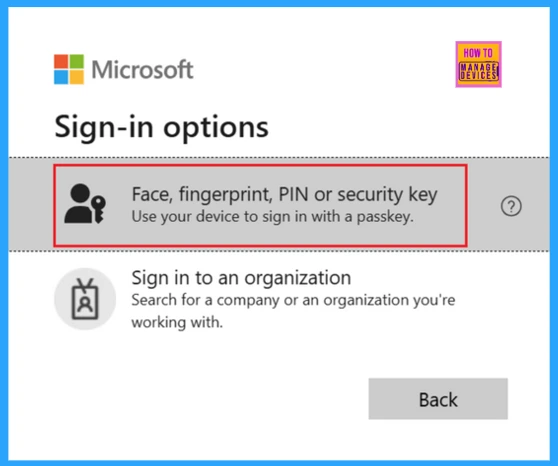
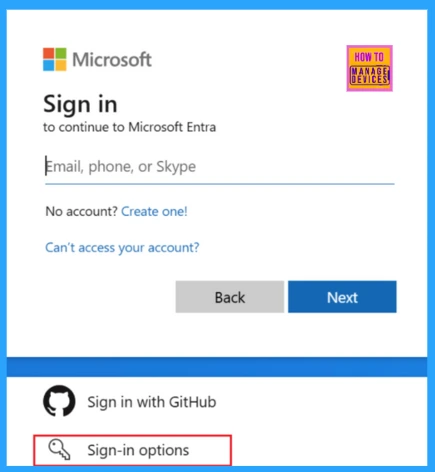
To access My Security Info on your Android device, open your browser and navigate to the resource. When prompted to sign in, you have two options: without a username, which can be more convenient than entering your username. You can choose Sign-in options and where to select Face, Fingerprint, PIN, or Security key.
To choose your passkey, follow the prompts on your Android device. Then, confirm your identity by scanning your face, using your fingerprint, or entering your device’s PIN or unlock gesture. Now you are signed into Microsoft Entra ID.
Cross-device Authentication (Android)
To use passkey authentication between devices, ensure that both your Windows and mobile devices are Bluetooth-enabled and Internet-connected. If your organization has restrictions on Bluetooth, an administrator can allow cross-device sign-in for passkeys. They can permit Bluetooth pairing specifically for FIDO2 authenticators that support passkeys.
To sign in to Microsoft Entra ID on another device with a passkey, follow the steps below using Microsoft Authenticator on your Android device.
- To sign in to Microsoft Entra ID on another device, go to the resource you want to access.
- You can enter your username to sign in
- If you used a passkey last time, you’ll be asked to use it again.
- Otherwise, click on Other ways to sign in and choose Face, fingerprint, PIN, or security key.
To sign in more easily, use the Sign-in options feature to avoid entering a username. Sign-in options include facial recognition, fingerprint, PIN, or a security key.
To start cross-device authentication, follow the prompts on your operating system or browser. On Windows 11 23H2 or newer, select your iPhone, iPad, or Android device.
A QR code will show on your screen. Open your camera app and point it at the QR code to scan it with your Android device. You can also use the camera in the Authenticator app. Just go to the passkey account icon and click on it. In the Passkey details section (preview), you will see a button in the bottom-right corner to scan the QR code.
- Choose your passkey on your Android device, then confirm your identity with your face, fingerprint, or PIN.
Same-device Authentication in Native Microsoft Applications
Using the same device to log in to Microsoft apps. You can use the Authenticator app on your Android phone to quickly sign in with a passkey for other Microsoft apps, such as OneDrive, SharePoint, and Outlook.
| Operating System | Chrome | Edge | Firefox |
|---|---|---|---|
| Windows | Supported | Supported | Supported |
| ChromeOS | Supported | Not available | Not available |
| macOS | Supported | Supported | Supported |
| Android | Supported | Supported | Not Supported |
| iOS | Supported | Supported | Supported |
| Linux | Supported | Not Supported | Not Supported |
FIDO2 Authentication is now supported with Microsoft Entra ID
Microsoft Entra ID now supports FIDO2 authentication. This lets users log in securely without using passwords. Microsoft applications offer preview support for FIDO2 authentication for users with an authentication broker. Third-party applications can also access FIDO2 authentication in preview.
For instance, Users can sign into Outlook using a security key if an authentication broker is installed. After they authenticate, they log in using FIDO2 and then return to Outlook, where they are already logged in.
The following table shows the authentication brokers supported by each operating system.
| Authentication broker | Operating System |
|---|---|
| Authenticator, Company Portal, or Link to Windows app | Android |
| Microsoft Authenticator | iOS |
| Microsoft Intune Company Portal | macOS |
Need Further Assistance or Have Technical Questions?
Join the LinkedIn Page and Telegram group to get the latest step-by-step guides and news updates. Join our Meetup Page to participate in User group meetings. Also, Join the WhatsApp Community to get the latest news on Microsoft Technologies. We are there on Reddit as well.
Author
Anoop C Nair has been Microsoft MVP for 10 consecutive years from 2015 onwards. He is a Workplace Solution Architect with more than 22+ years of experience in Workplace technologies. He is a Blogger, Speaker, and Local User Group Community leader. His primary focus is on Device Management technologies like SCCM and Intune. He writes about technologies like Intune, SCCM, Windows, Cloud PC, Windows, Entra, Microsoft Security, Career, etc.
Discussion