






MS Paint Image Creator Feature to Create Images using AI
Let’s discuss the MS Paint Image Creator Feature to Create Images using AI. As you know, MS Paint continues introducing exciting new features with each update. This AI functionality is particularly useful for users who want to generate images effortlessly.
We all know that MS Paint has been the most used and favourite app for 30 years. This app is very essential for users to work according to their preferences. This user-friendly nature helps to improve productivity and performance.
Image Creator feature in MS Paint uses AI to generate images from text descriptions. It’s available in Preview for all users. However, Windows 365 subscribers can use this feature at no additional cost on their subscription. Non-subscription users can use the Image Creator in MS Paint but need AI credits to generate images.
This feature can create images for professional projects and personal interests. This tool offers many features. Using artificial intelligence, you can generate amazing and unique photos by describing what you want. So in this post we can get into a detailed overview on this feature.

Table of Contents
Why Must We Sign in with a Microsoft Account to Use the Image Creator?
What are AI Credits, and How are They Used with Image Creator?
MS Paint Image Creator Feature to Create Images using AI
Above, we discussed many things about the new image creator feature in MS Paint. This feature is highly beneficial for a paint application, as it allows users to create images simply by entering their desired prompts, that helps to enhancing the image creation process.
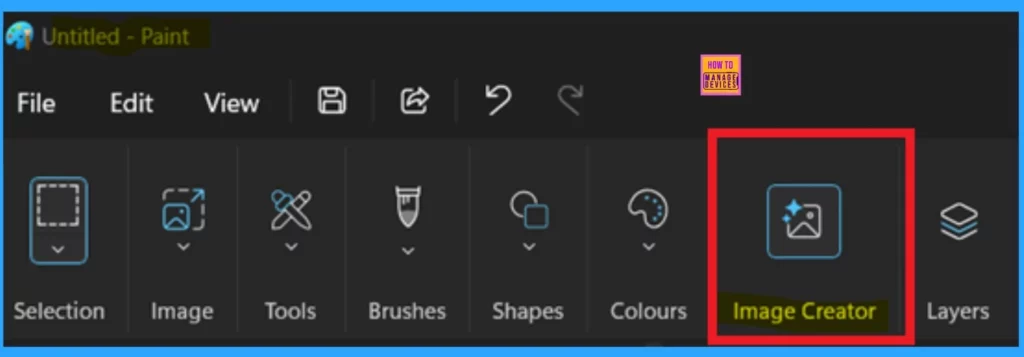
- In the screenshot below, you can see that the image creator is now available in the toolbar section.
- New MS Paint has AI Powered Fill and Erase Options
- Removal Depreciation of Paint 3D is Announced and Use 3D Viewer Instead
- Improved Brush Size Selection in Paint
How to Get Started
To get started, the process is very simple. Once you have a subscription, you can easily access the image creator. When you use the image creator for the first time, click on it, and you’ll receive a guided tutorial for creating images. This tutorial includes 4 directions, which are part of the first step.
- You have to complete the Guide page of 4.
- You don’t need to do anything else at this stage; just click “Next” to continue.
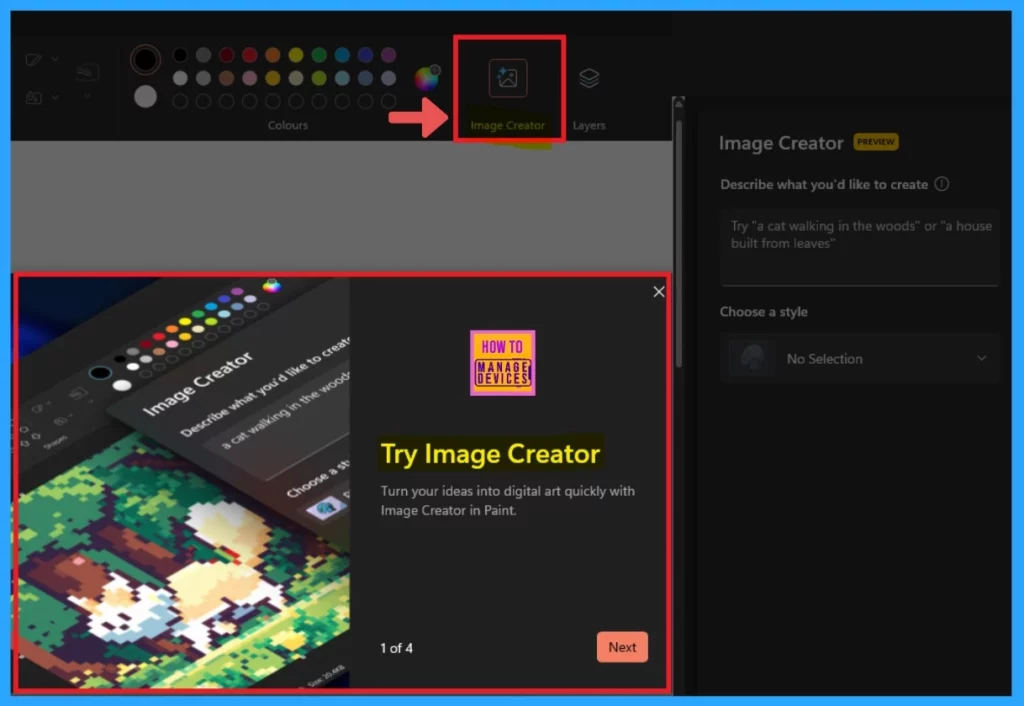
Describe Your Idea
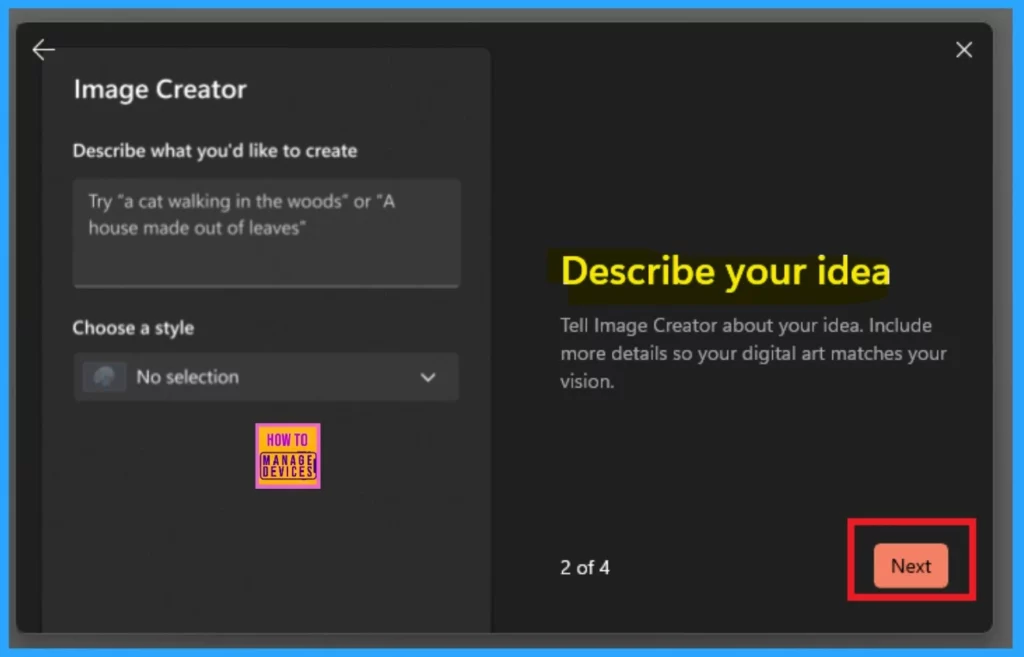
The biggest advantage of an image creator is that it works based on your ideas. It is a wonderful option for all users. This is made possible by artificial intelligence, right? If you want to create an image, share your idea with the creator and include as many details as possible. This way, your digital art will better match your vision.
- Click on the ”Next”.
Choose Your Favourite
The image creator offers a variety of style options and variations, enabling you to enhance your images with AI. Once the image creator has generated several options, please choose your favourite and edit it to add flair.
- Click on the ”Next”.
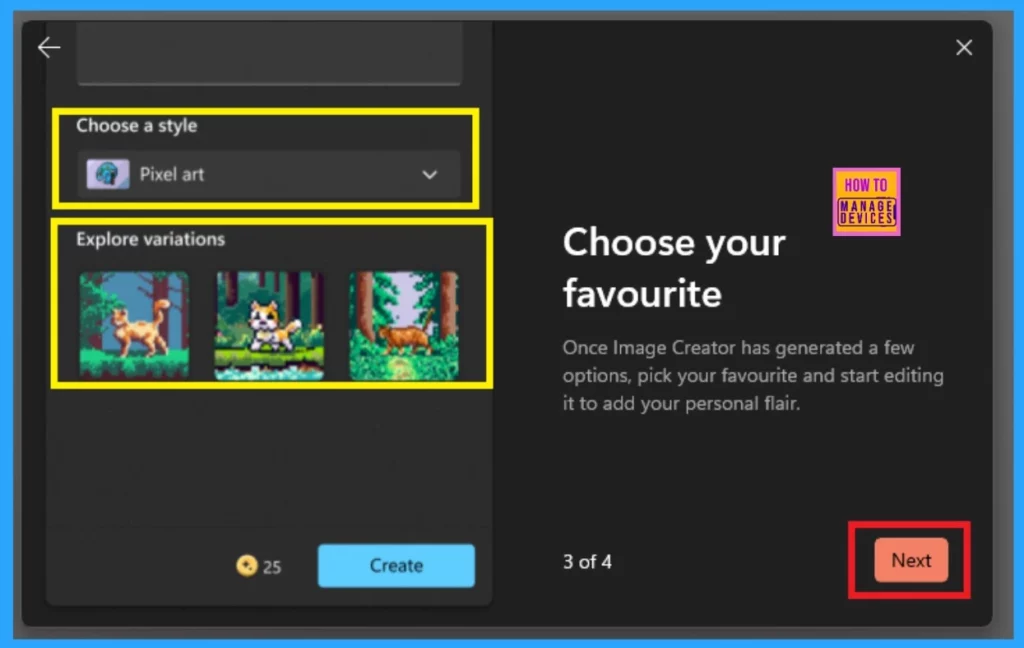
Image Creator Uses Al Credits
The image creator gives users better options with the help of Artificial Intelligence, right? So, the image creator uses credits to generate images. A credit R is included as part of a Microsoft 365 subscription. Now, you can click on the Done option to create an image with the image creator option.
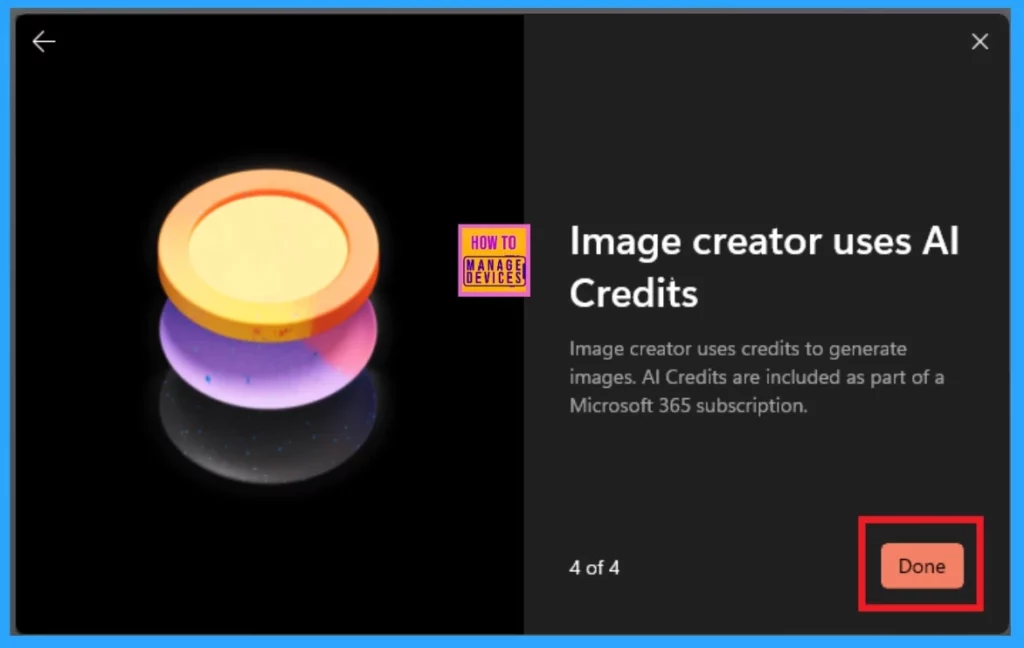
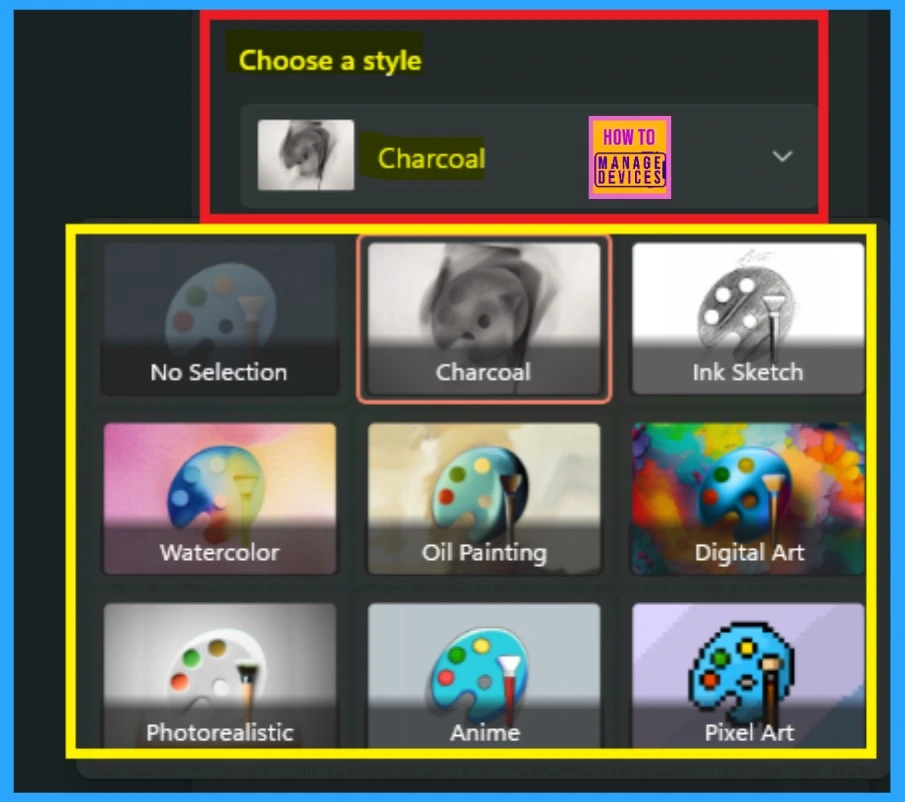
Image Creator Style Options
One of the best features of image creation is the different type of style options available, allowing you to create the perfect image based on your preferences. You can explore styles such as charcoal sketches, watercolors, and more. While you can’t create every image in every style, click on the oil painting option if you want to make an oil painting.
| Style Option |
|---|
| Charcoal |
| Ink Sketch |
| Watercolor |
| Oil painting |
| Digital Art |
| Photorealistic |
| Anime |
| Pixel Art |
End Result
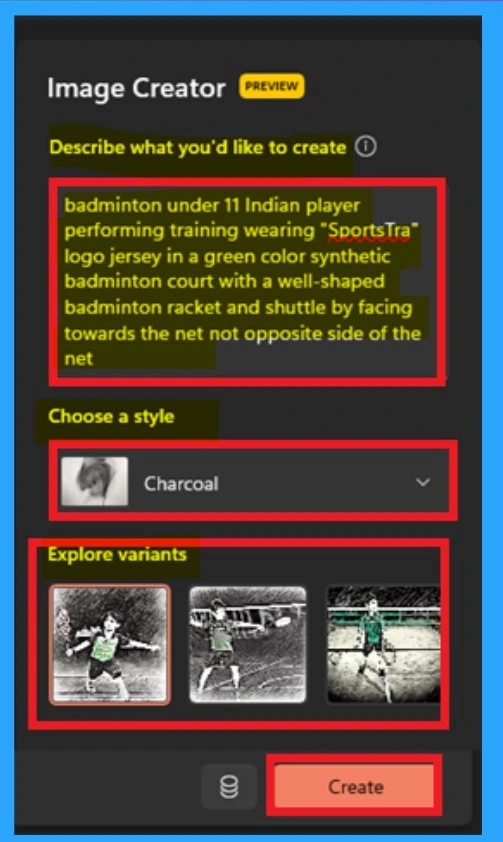
For example, I’m showing you an image as a tutorial. You can see the prompt on the image creator’s side. You just need to specify what you want to do with the image. Here, i have provided the prompt for that.
“Badminton under 11 Indian player performing training wearing “SportsTra logo jersey in a green color synthetic badminton court with a well-shaped badminton racket and shuttle by facing towards the net not opposite side of the net“.
- Here you can select the Style option for the Image I selected as Charcol effect to the Image.
- Also select the Variants.
- Then click on the Create Option.
Note: Microsoft uses filters in the AI Image Creator in MS Paint to block harmful or offensive images. If you see a bad image, report it with the feedback button.
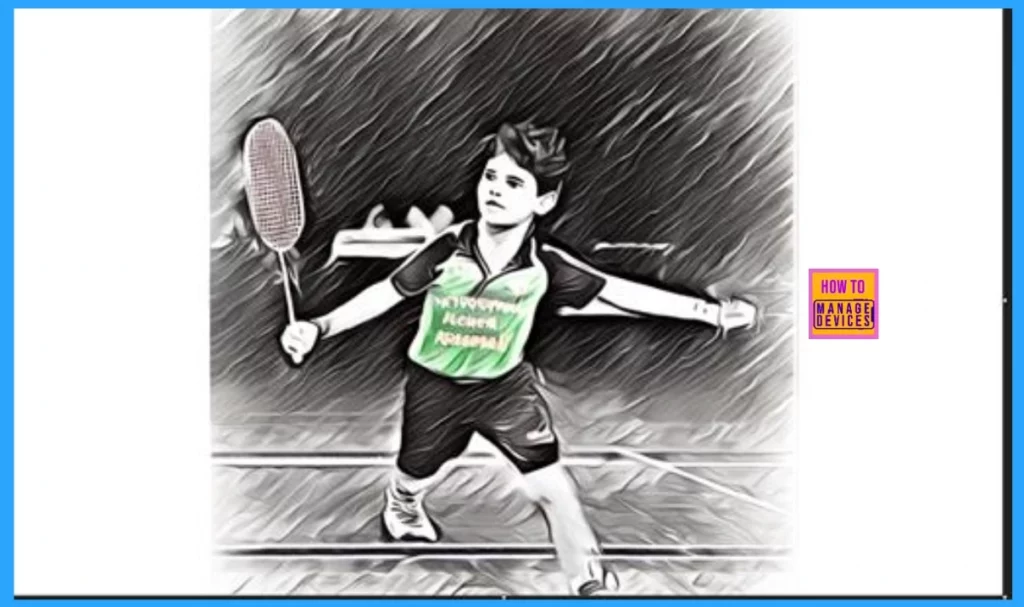
You can see the result here. The image created is what we need based on the prompt I provided. You can use this image creation feature to develop an image that reflects your ideas.
Windows 365 Subscription Users
To use the AI Image Creator in MS Paint, you must sign in with your Microsoft account. With a Microsoft 365 Personal or Family subscription, you receive 60 AI credits each month to create images. When you see the image creator icon on the paint, you don’t have a subscription.
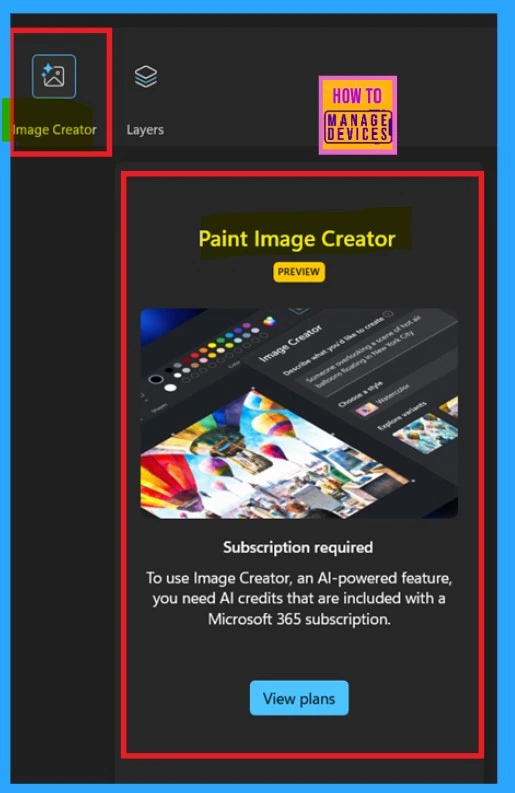
- The screen below shows how the image creator responds when you click on it.
- When you click on the image created, it shows that a subscription is required to use the image creator.
- As you can see, you need AI credits that are included with the Microsoft 365 subscription here.
- Also, see the plans.
View Plans
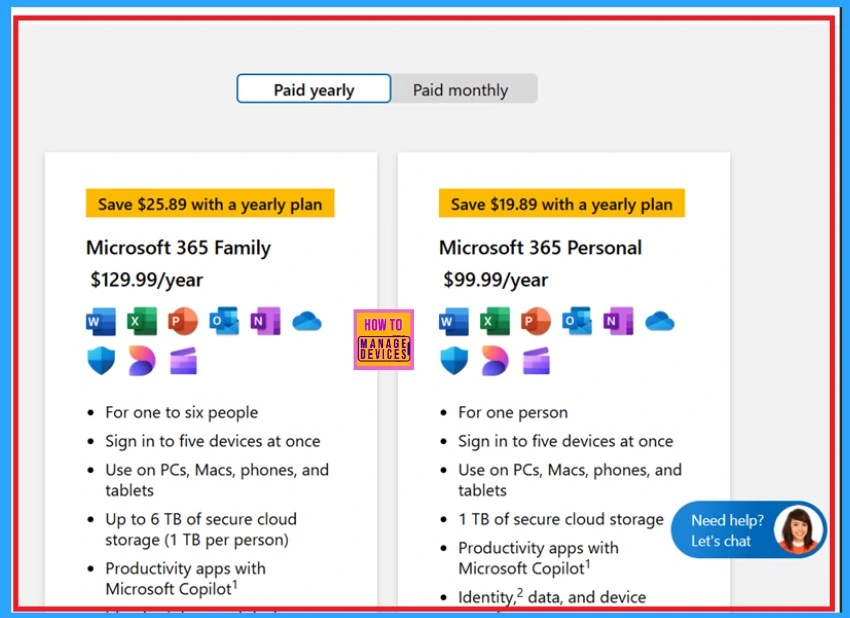
When you don’t have a subscription and click on the “View Plan Options” button, you are redirected to the Microsoft 365 purchase window. Here, you can explore the different types of plans available for your Microsoft 365 subscription if you’re interested.
Need Further Assistance or Have Technical Questions?
Join the LinkedIn Page and Telegram group to get the latest step-by-step guides and news updates. Join our Meetup Page to participate in User group meetings. Also, Join the WhatsApp Community to get the latest news on Microsoft Technologies. We are there on Reddit as well.
Author
Anoop C Nair has been Microsoft MVP for 10 consecutive years from 2015 onwards. He is a Workplace Solution Architect with more than 22+ years of experience in Workplace technologies. He is a Blogger, Speaker, and Local User Group Community leader. His primary focus is on Device Management technologies like SCCM and Intune. He writes about technologies like Intune, SCCM, Windows, Cloud PC, Windows, Entra, Microsoft Security, Career, etc.




Discussion