






Enable Edge Browser Sidebar Customize Policy using M365 Admin Center
Let’s discuss Enable Edge Browser Sidebar Customize Policy using M365 Admin Center. The Microsoft Edge Sidebar Customize policy can also be configured with the Microsoft 365 admin center configuration policy. The Edge Sidebar customizable vertical panel appears on your browser window’s right side.
Enabling Edge customization policies in Microsoft 365 offers several benefits for organizations. The most important benefit is that it provides efficient Management and enhances productivity. So, allowing this policy is essential for your organization.
Did you know that Microsoft Edge sidebar customization is possible with the M365 Edge policy? Let’s check it out in this post. Before that, you can check some more information about the Edge sidebar customization. Microsoft Edge sidebar customization allows you to add Productivity Tools, Games, Built-in Apps, etc.
We already have a similar post related to Edge Media control, which will help you know more about Edge Sidebar. In this blog post, we can go through the step-by-step process of the Edge Sidebar Customize Policy on M365 on this post.

Table of Contents
Enable Edge Browser Sidebar Customize Policy using M365 Admin Center
As mentioned above, there are many benefits to this policy. Organizations can improve overall user satisfaction and engagement by allowing employees to personalize their browsing experience. Different tools can be easily accessed with Edge sidebar customization.
- Enable Split Screen Feature in Microsoft Edge using the Microsoft 365 Admin Center Policy
- Enable Disable Search Bar Allowed in Edge Through Microsoft 365 Admin Center Policy
- Enable Alternate Error Pages in Microsoft Edge Via Microsoft 365 Admin Center Policy
Steps for Enable Edge Sidebar Customize Policy
To configure a Policy in the Microsoft 365 admin Center, you should follow different steps. You may be familiar with Creating a Policy in Microsoft Intune. M365 policy is similar to Intune, so you can easily follow the steps.
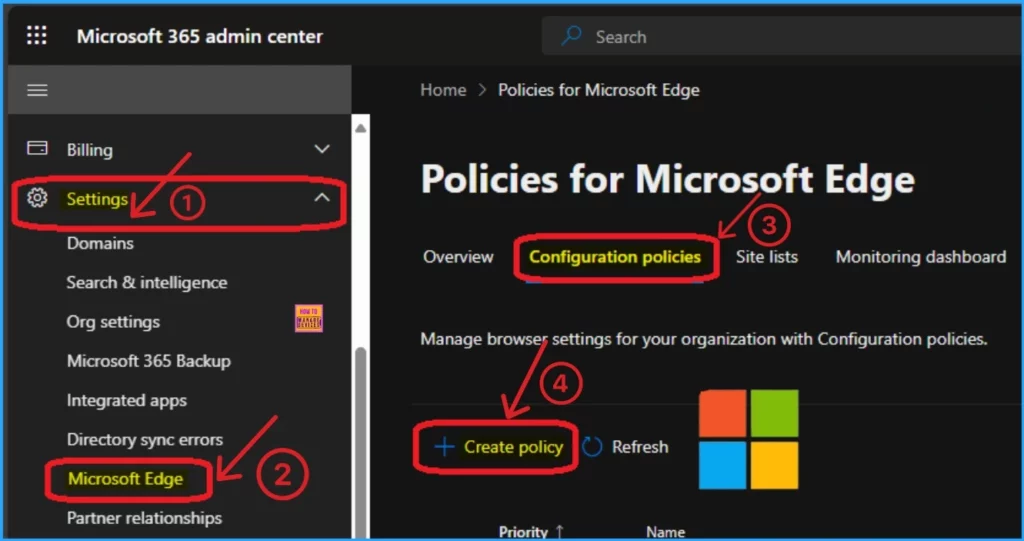
- Open the Microsoft 365 admin center
- Go to Settings > Microsoft Edge
- Under Configuration Policies, click on the +Create Policy button
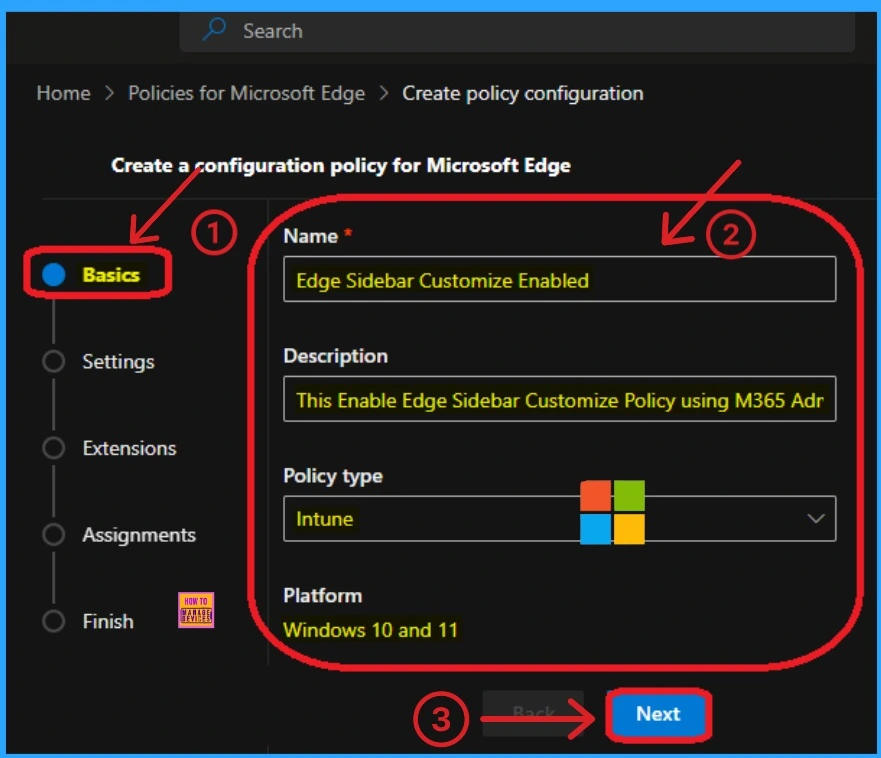
After that, you can see different tabs like Basic, Settings, Extensions, etc. We have to complete all the steps in each tab. You can add a Name and Description for the policy settings you select on the Basic tab. The Name field is mandatory, and you should give a proper name for the policy. The description is optional, but it is better to add a description.
- Name – Edge Sidebar Customize Enabled
- Description – This Enable Edge Sidebar Customize policy using Microsoft 365
- Policy Type – Intune
- Platform – Windows 10 and 11
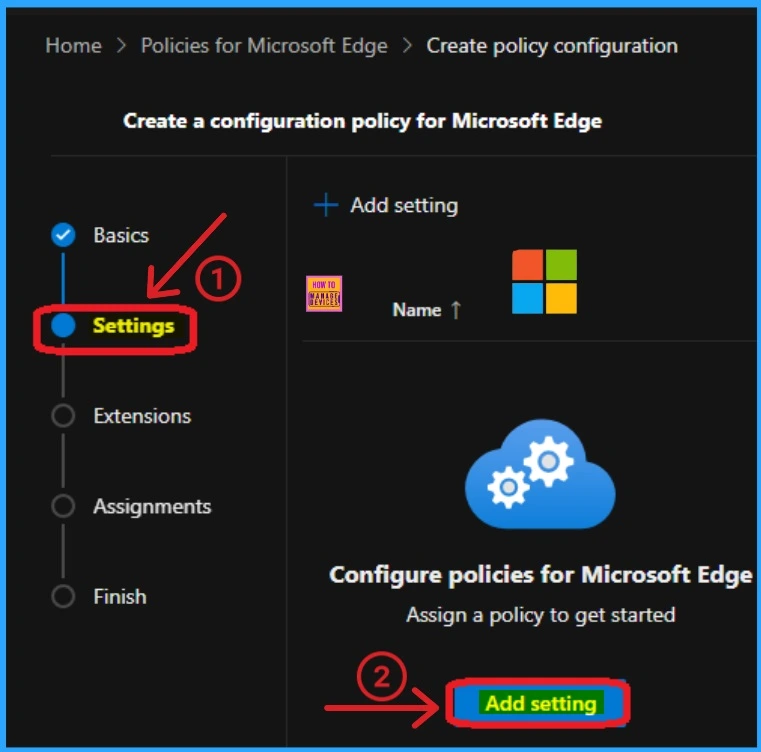
Settings Tab
The Settings Tab is a crucial step in M365 policy creation. At this step, we can select policy settings for our Edge Browser. To select a setting, click the Add Settings button in the window below. You can see two Add settings options and use any of these options.
- Click on the Add Settings
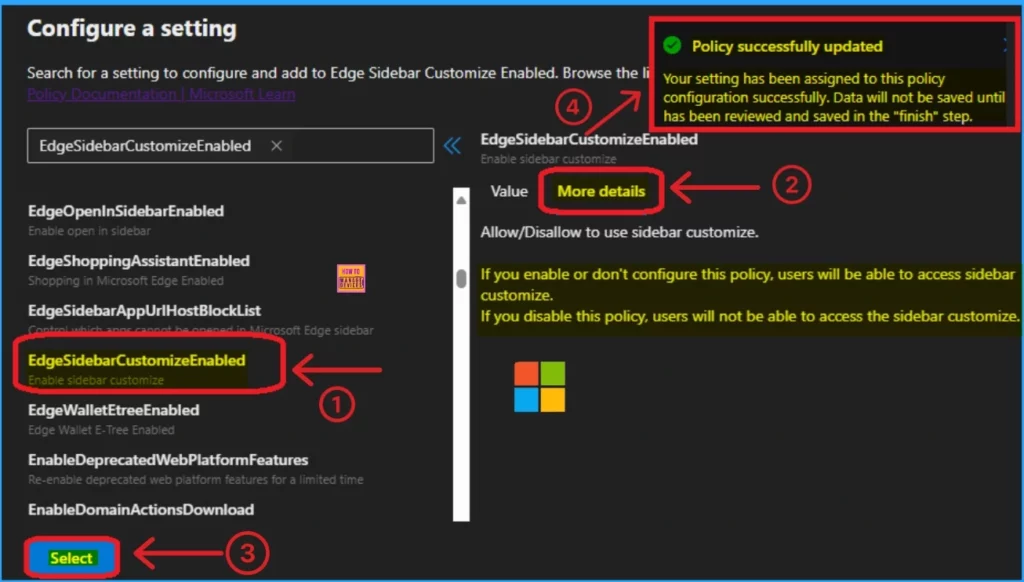
After that, you will get a Configure a setting window that shows different categories of settings, such as Additional Settings, Application Guard settings, Content settings, etc. I am going to choose a setting from the Additional Settings category.
- Select EdgeSidebarCustomizeEnable setting
- Click on the Value tab and choose the Enabled option
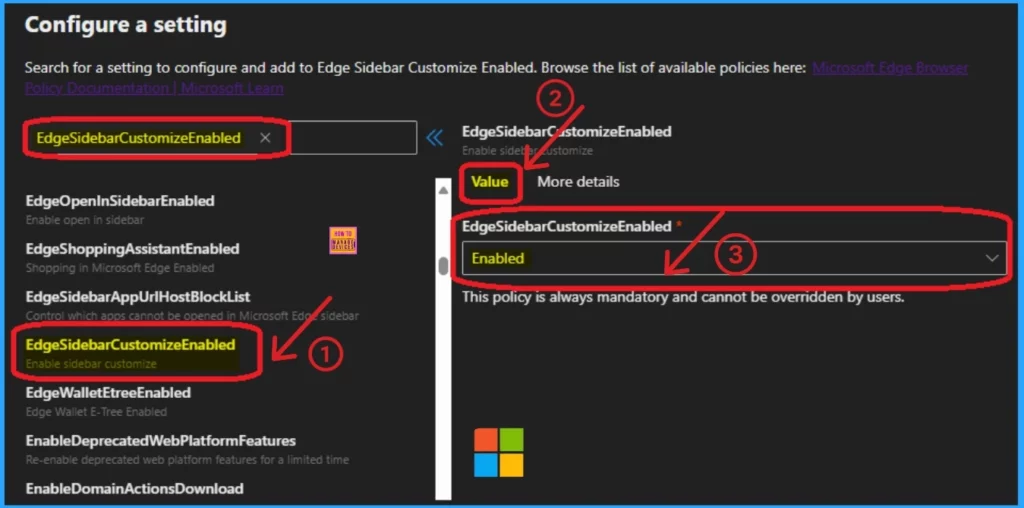
Then, you can also see the More Details tab, which shows details of the Selected setting. Click on the Next button to get a notification showing the Policy Successfully created message.
| Enabled | Disabled | Not Configured |
|---|---|---|
| If you enable this policy, users will be able to access sidebar customize. | If you disable this policy, users will not be able to access the sidebar customize. | If you don’t configure this policy, users can access the sidebar customisation. |
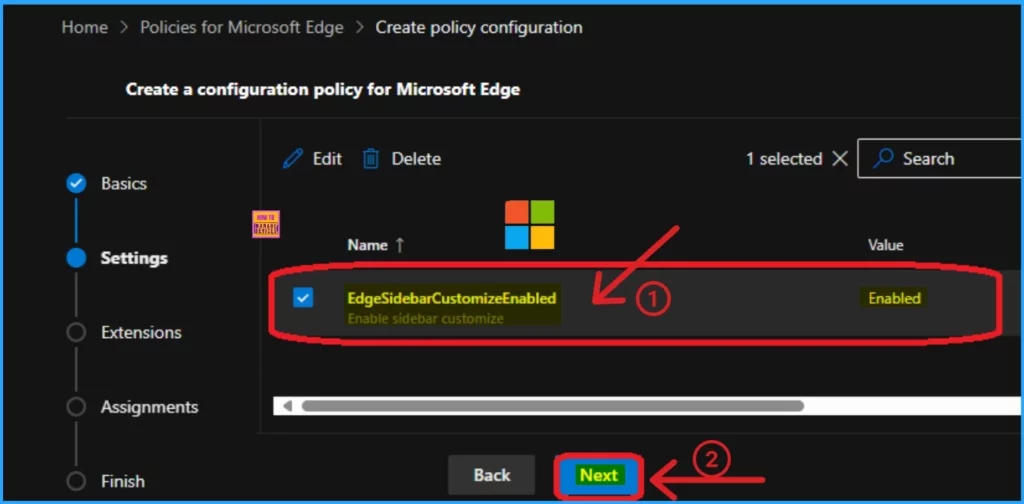
After configuring the policy, you can see the selected setting on the Settings Tab. Click on the Checkbox near the Policy name. This helps to enable the Edit and Remove button on this window. Click on the Next button to continue.
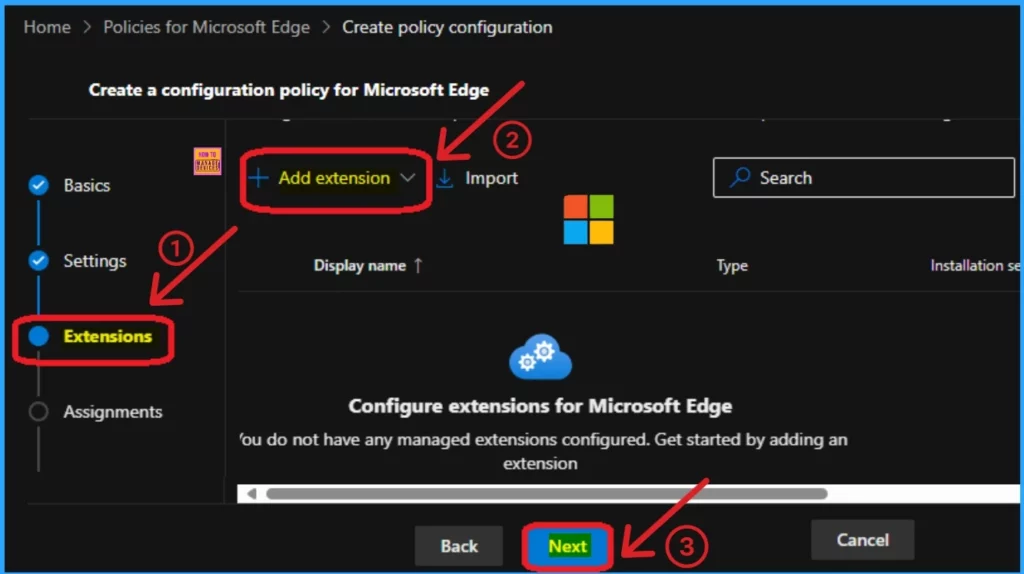
Extension
This tab shows extensions that admins can manage. It includes edge extensions users can install and use, control their permissions etc. If you want to add any extension, click on the +Add extension or the Next button.
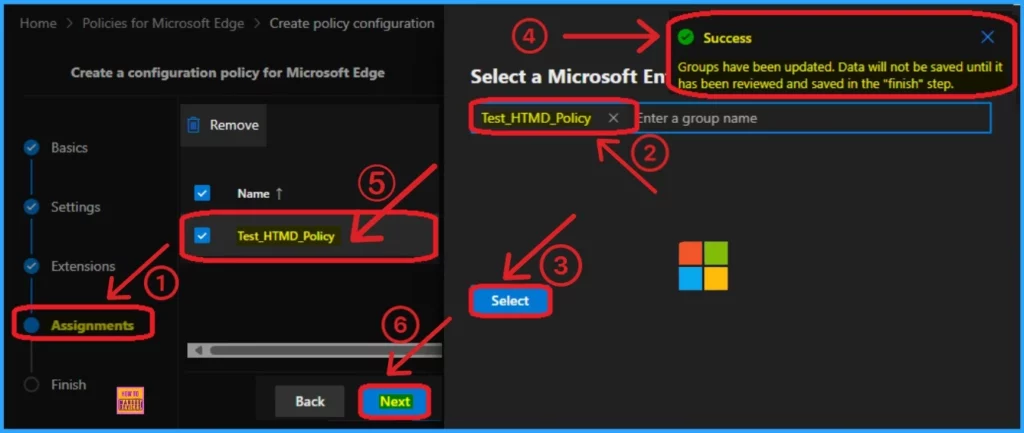
Assignments Tab
This tab is also important, like the Settings tab. You can select a particular group or different groups to configure the selected policy settings. Click on the Select Group button and select a Microsoft Entra group from the list. Click on the select button, and you will get a successful Notification.
Then, your selected group will appear on the Assignment tab. Click on the checkbox near the selected group and then click on the Next button to continue.
Finish Tab
The finished tab is the last tab that helps you to finalize your policy. In this tab you can recheck each tab details and made any changes. After checking all the details click on the Review and Create button.
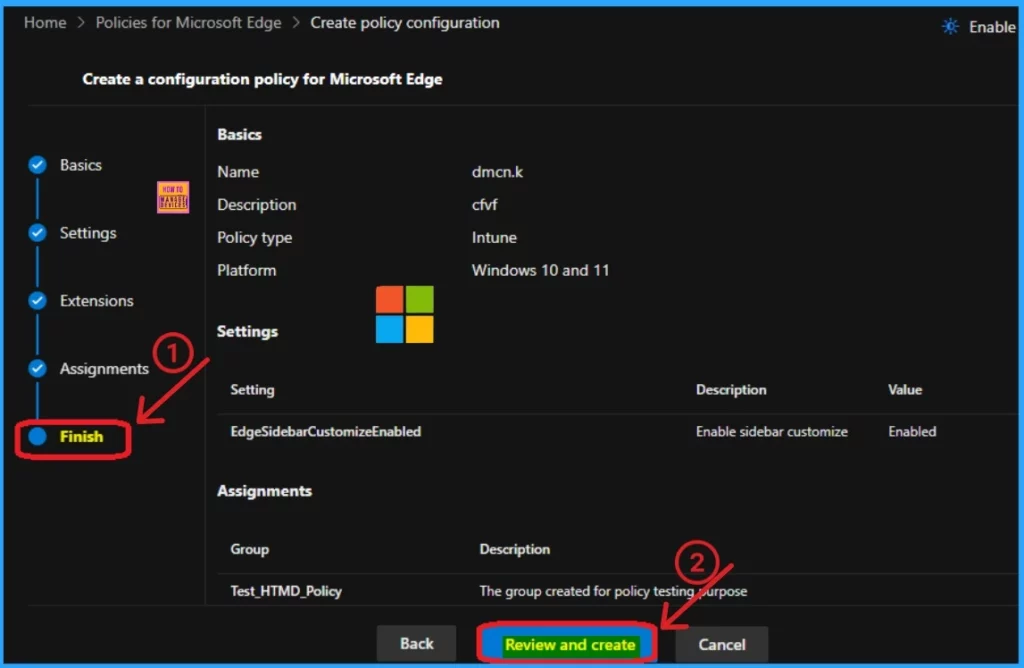
After clicking on the Review and create button, you will get a policy successfully created message on the portal. You can see the created policy under the Configuration Policies tab. Look at the window below.
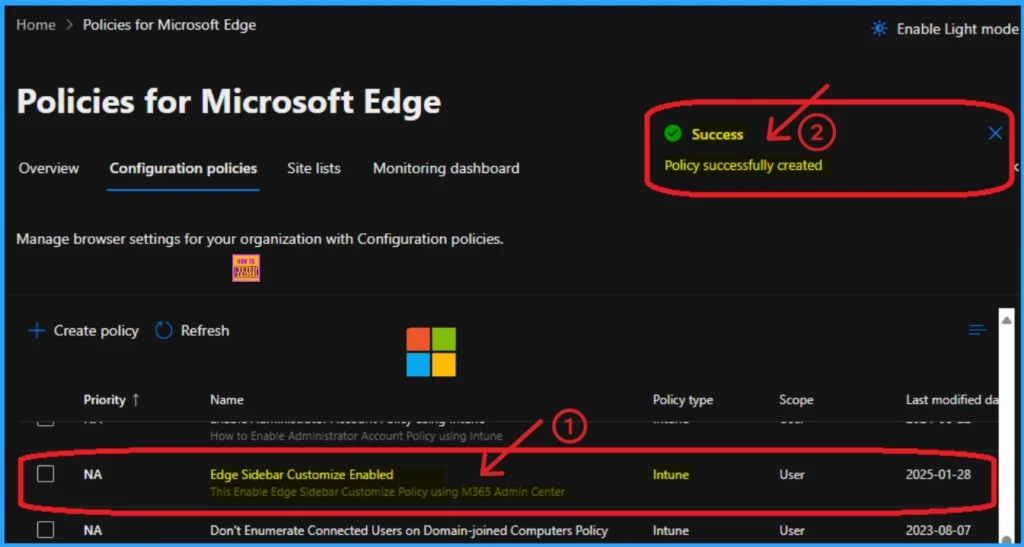
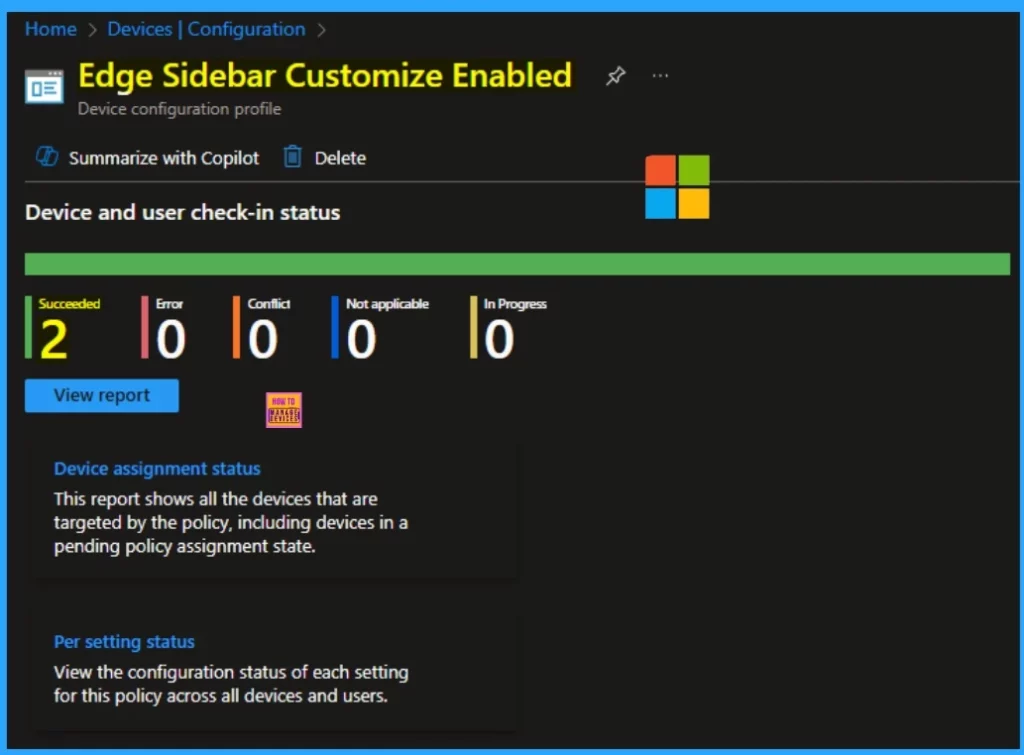
Device and User Check-in Status
After manually sync the device, you can check the device and user check-in status on the Intune Portal. Here the Edge sidebar policy is Intune type policy so you can check the status on the Intune Portal. Here you can see the succeded as 2.
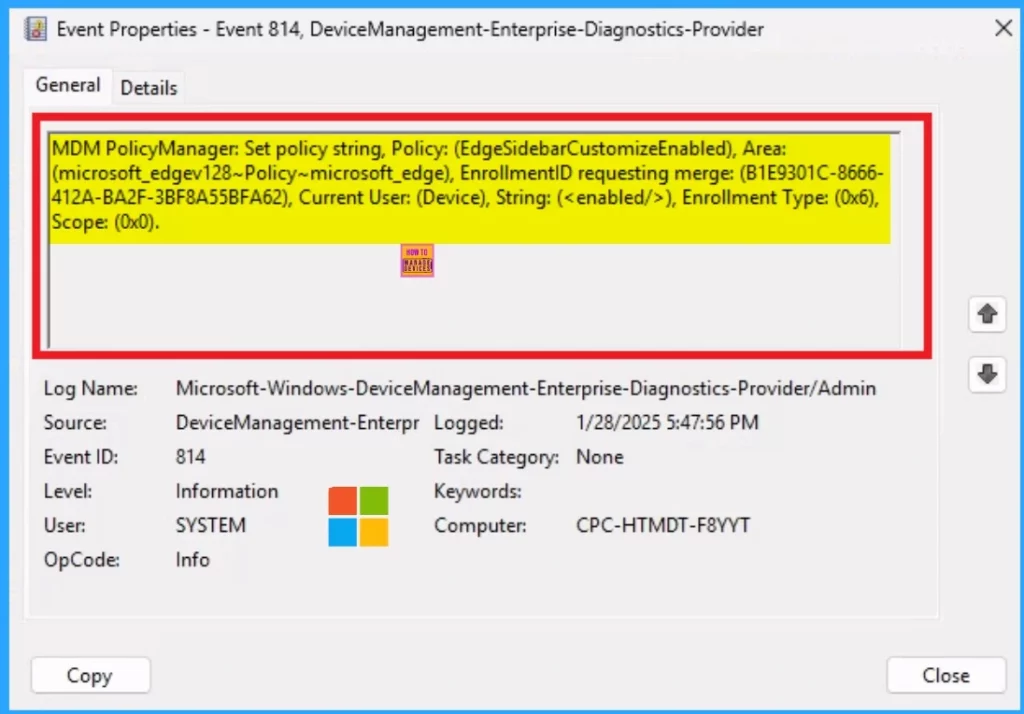
Client Side Verification – Event Viewer
As you know, you can check the client-side verification on the Event Viewer. To access the Event Viewer, navigate to the Application and Service Logs: Microsoft > Windows > Select the Device Management Enterprise Diagnostics Provider.
- The successful Event ID of the EnableEduThemes Policy is 814.
MDM PolicyManager: Set policy string, Policy: (EdgeSidebarCustomizeEnabled), Area:
(microsoft_edgev128~Policy~microsoft_edge), EnrollmentID requesting merge: (B1E9301C-8666-
412A-BA2F-3BF8A55BFA62), Current User: (Device), String: (), Enrollment Type: (0x6),
Scope: (0x0).
Need Further Assistance or Have Technical Questions?
Join the LinkedIn Page and Telegram group to get the latest step-by-step guides and news updates. Join our Meetup Page to participate in User group meetings. Also, Join the WhatsApp Community to get the latest news on Microsoft Technologies. We are there on Reddit as well.
Author
Anoop C Nair has been Microsoft MVP for 10 consecutive years from 2015 onwards. He is a Workplace Solution Architect with more than 22+ years of experience in Workplace technologies. He is a Blogger, Speaker, and Local User Group Community leader. His primary focus is on Device Management technologies like SCCM and Intune. He writes about technologies like Intune, SCCM, Windows, Cloud PC, Windows, Entra, Microsoft Security, Career, etc.




Discussion