






Install Subscribe Windows RD Client for AVD End User Step-by-Step Guide
This post contains a guide for manually installing and subscribing to the Windows RD Client for AVD. I will cover the automatic installation of the Windows RD Client for AVD in upcoming posts.
You must check the following post to learn more about Azure Virtual Desktop (AVD) web client access details. How To Connect AVD Remote Desktop Resources Client Browser. Also, AVD Troubleshooting Options Tips Tricks are useful too.
The same Remote Desktop Client (RD Client) is used for end-user connectivity or launching Windows 365 Cloud PCs. For more details, see the Windows 365 Cloud PC Web Client End User Experience Walkthrough.
NOTE! Microsoft announced that AVD is GA’d Generally Available. I’m expecting many exciting announcements at Microsoft Ignite 2019.

Download RD Client for AVD
- Download the RD Client for Azure Virtual Desktop from the following links:
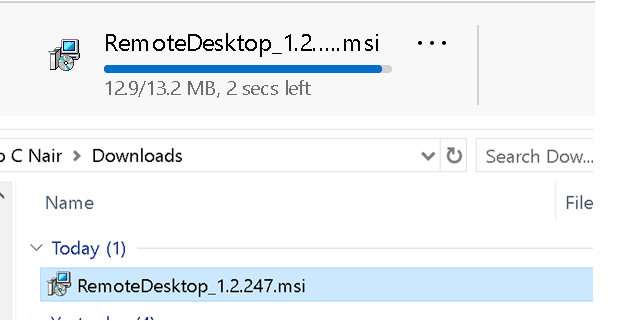
Install
Install the MSI Remote Desktop_***.msi (Admin access is required if you install it manually).
NOTE! – I will cover RD clients’ Intune/SCCM installation options for AVD in future posts.
- Click Next
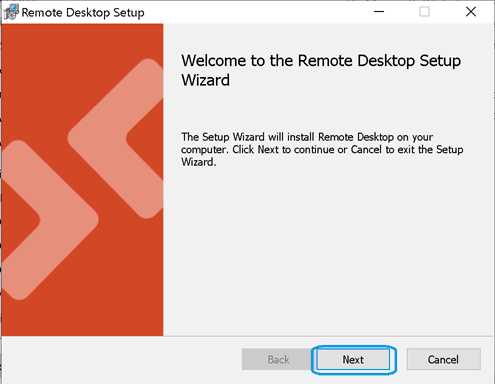
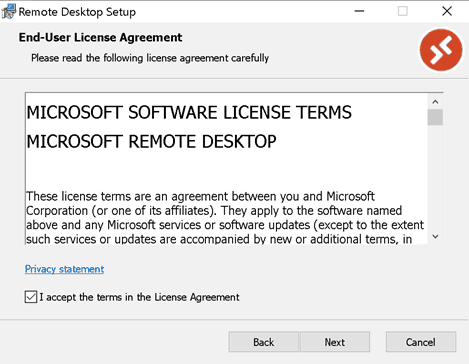
Click on Accept and Next.
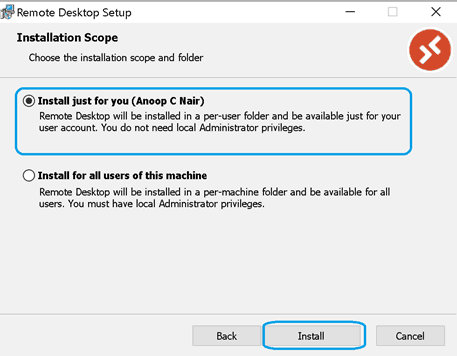
Select Install Just for you and click Next.
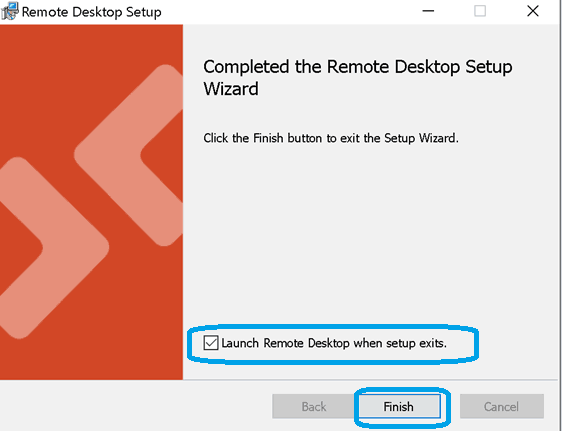
Click on Finish and Launch.
Subscribe to RD Client for AVD Feed
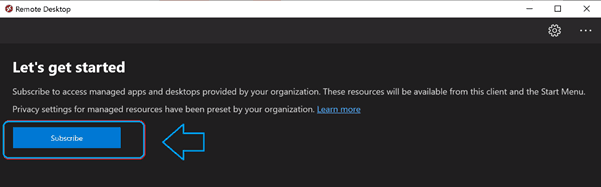
Let’s check how to subscript to the Azure Virtual Desktop feed. Click on the Subscribe Button.
NOTE! – MFA options will be available with subscription and AAD Conditional Access
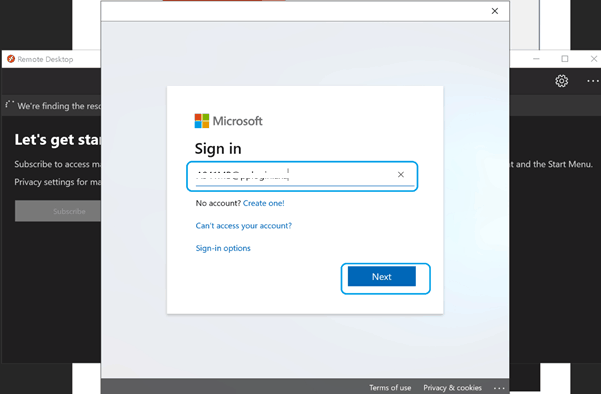
Sign in / Login with your user ID with cloud UPN (@howtomanagedevices.com) and click NEXT.
NOTE! – This will redirect to the Federated Login Page (AD FS), where you have to enter a password (username might automatically get populated) and click Sign-In
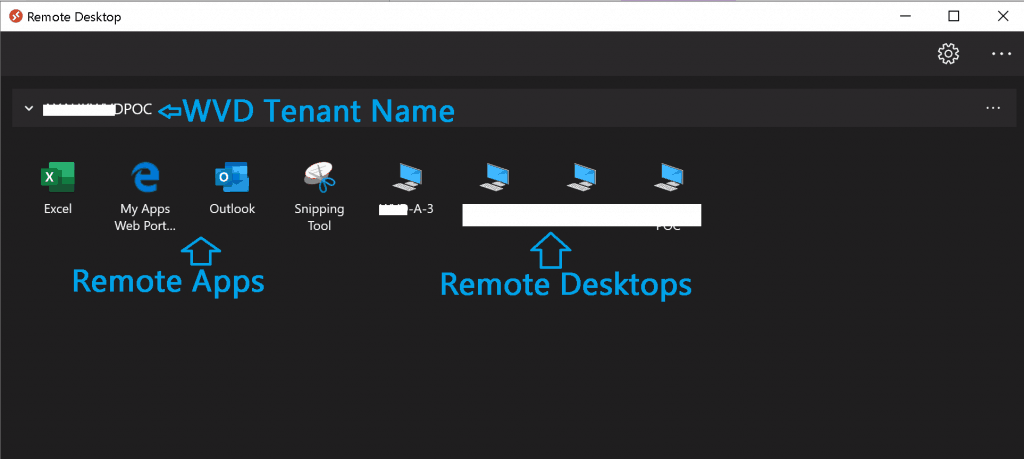
Once you have successfully signed in with your user ID, you can see the host pools and remote apps assigned to your user.
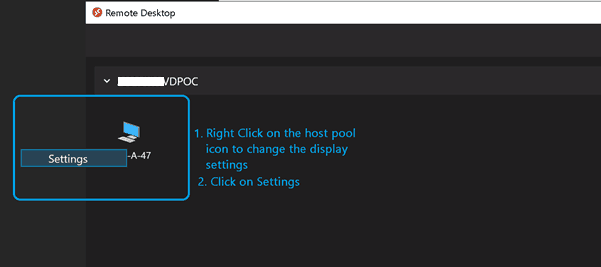
Right-click on the host pool icon to change the display settings (the default setting is FULL Screen). Click on Settings.
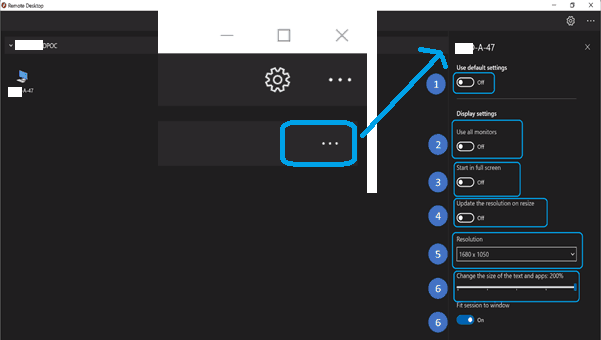
Please select the following options DISPLAY as per your preference (the following are my favourite settings).
- User Default Settings => Off
- Display Settings => Off
- Start in full screen => Off
- Update the resolution on resize => Yes
- Resolution => 200%
- Fit session to Windows => On
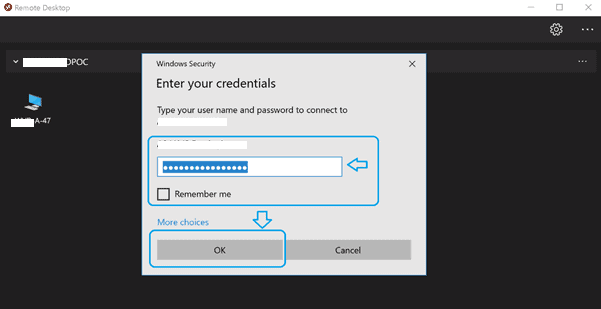
Double-click on the Host Pool icon to launch the Remote Desktop. Enter the password and click OK.
NOTE! – SSO is coming soon into RD AVD client.
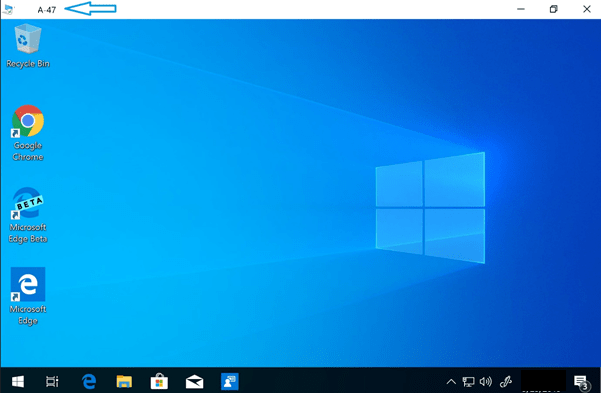
The Remote Desktop will get connected.
How to check the RD Client Update
New Windows Remote Desktop(RD) Client versions for AVD are automatically updated.
Check the version of the Azure Virtual Desktop RD Application. Click on (…) About -> Check for Updates to see if there is an update.
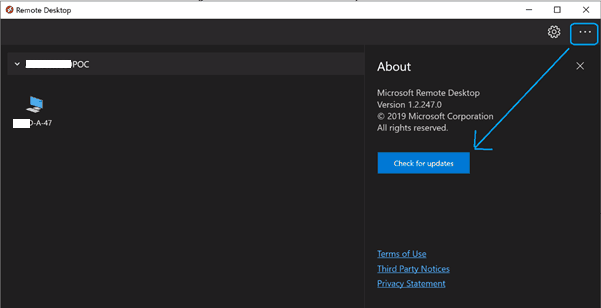
Troubleshooting – Remote Desktop (RD) Client for Azure Virtual Desktop(AVD)
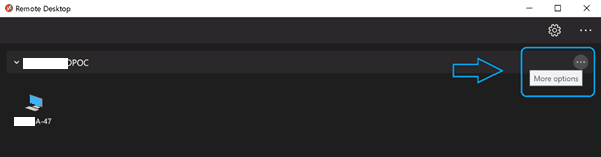
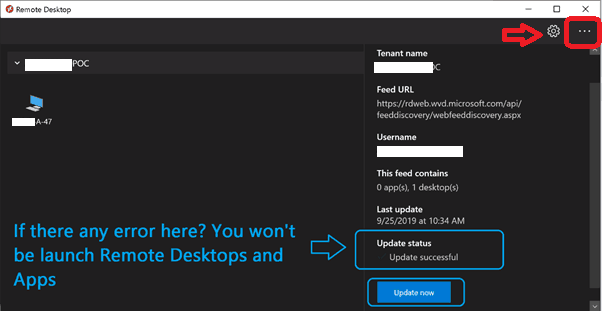
To check the version of the AVD RD Application, Click on (…) -> Update Status, then Click on Update Now.
NOTE! If there is any error here near the update status. You won’t be launching Remote Desktop and Remote Apps
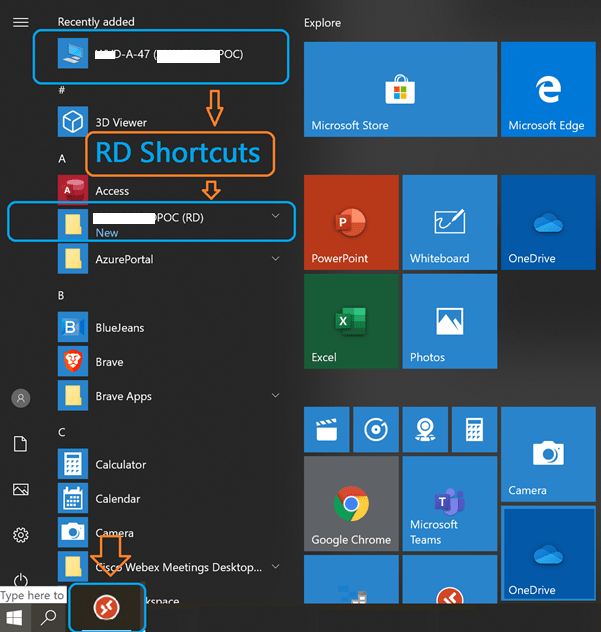
Shortcuts to Launch Remote Desktops and Apps
Let’s try to control the shortcut RD client virtual desktop and virtual app shortcuts.
Resources
- AVD Video PlayList ➡➡https://aka.ms/WVDPlaylist
- AVD AMA 28th Aug 2019 Windows Virtual Desktop Microsoft AVD FAQs from AMA
- Microsoft VDI Story AVD Concept Setup Guide Myths Known Issues
- SCCM Intune Support for Persistent Non-Persistent VDI VMs
- How to Connect AVD Remote Desktop Resources Client or Browser?
We are on WhatsApp. To get the latest step-by-step guides and news updates, Join our Channel. Click here –HTMD WhatsApp.
Author
Anoop C Nair is Microsoft MVP! He is a Device Management Admin with more than 20 years of experience (calculation done in 2021) in IT. He is a Blogger, Speaker, and Local User Group HTMD Community leader. His main focus is on Device Management technologies like SCCM 2012, Current Branch, and Intune. He writes about ConfigMgr, Windows 11, Windows 10, Azure AD, Microsoft Intune, Windows 365, AVD, etc

Hi Anoop,
Its a great article, thank you for this. At my workplace, I have been using rdweb to connect to remote desktops and servers on the browsers, it is very slow performance as I am working in the browser. Does this AVD client has any advantages in terms of speed/performance? I would like to explore this.
Thank you.
StaffIt’s worth a try. I recommend RD client over Web client. I think the performance of a remote desktop depends on many factors so I don’t think only changing the client would help. I recommend performing an end to end troubleshooting study:
1. Internet connection
2. Latency between Gateway and remote desktop
3. Performance of the OS (AVD Session host)
etc…
Hi Anoop,
If the SSO is enabled via ADFS, I’m unable to subscribe to cross domain workspace within the same forest. I login to the hardware device joined to domain a.forest.com and want to subscribe to workspace using domain b.forest.com
When I subscribe->use another account it keeps going in the loop pointing me back to the account I am logged in to my PC with (and not the cross domain account).
One workaround is to add the cross domain account as a new exchange account (select allow my organization to manage this computer). This way the account gets registered in “Access Work or School”, and then I can subscribe using this account.
The remote connection works for a day but next day when I double click on desktop icon it again goes into the loop of asking me to select user account. After I select the cross domain account couple of times, it tells me I dont have a workspace account.
StaffYes, I’ve seen this issue with some of the users as well. The inprivate window browser might work here but for the RD clients, I think it’s going to be a bit tricky.
One thing that I have not tried is to Set up email discovery to subscribe to your RDS feed https://docs.microsoft.com/en-us/windows-server/remote/remote-desktop-services/rds-email-discovery
Do you think it’s worth a try?
Thanks for your quick reply Anoop,
The email discovery will only allow it to find the feed discovery URL, however, once you click on it, it says you are already subscribed to it (as I have assignments to my locally logged in account also)
The incognito mode works for browser based clients, however not a preferred method for us.
This issue with the remote desktop client is really bothering 🙂
StaffHi Kedar – I thought so, email discovery will only help to find the feed discovery URL. I think SSO options are not very fabulous. It seems you don’t have 2-way trust between both the domains. I would recommend raising a ticket with Microsoft.