






How to Configure Minimum Password Age Security Policy using Intune
Let’s discuss How to Configure Minimum Password Age Security Policy using Intune. Intune’s Setting Catalog enables administrators to constantly enforce password age policies on Windows devices. This method ensures consistent security by preventing users from quickly changing newly set passwords.
The Minimum Password Age security setting dictates how long a password must remain in use before a user can change it. This duration, measured in days, can be configured anywhere from 1 to 998, providing flexibility for varying security needs.
You can specify that passwords never expire by setting the number of days to 0. This setting offers a balance between security enforcement and user convenience, allowing administrators to tailor password policies to their specific organizational requirements.
We have a blog post about Windows 11 password policies, which are essential for secure PC logins by enforcing password complexity and usage rules. Under the Password Policy, some options like Minimum Password Age are to customize the policy per the user’s or organization’s requirements.

Table of Contents
What is Minimum Password Age Policy?
The Minimum password age policy controls how long a password must be used before a change is required, ranging between 1 and 998 days, or set to 0 for no expiration. It must be less than the Maximum password age, unless the Maximum is set to 0.
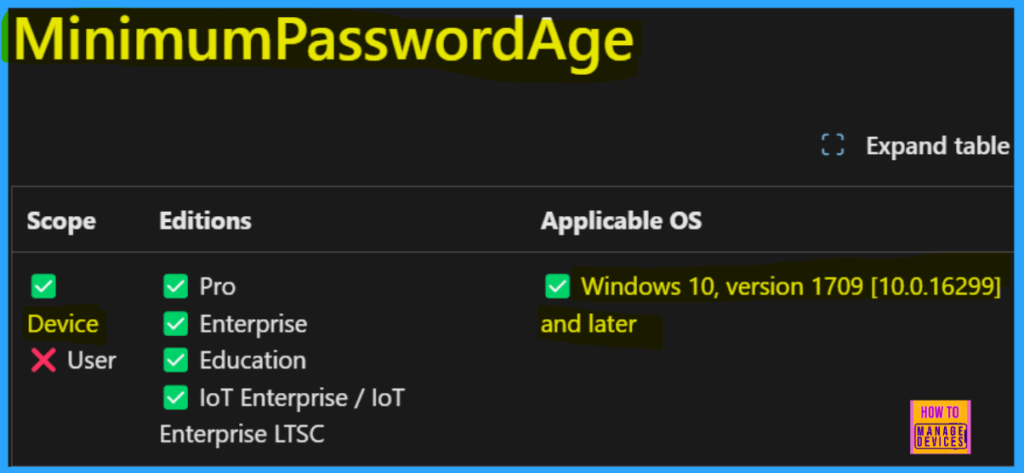
Which Supported Windows Versions are Affected by the Minimum Password Age Setting?
Windows Policy CSP – DeviceLock
The Policy Configuration Service Provider (CSP) allows organizations to manage Windows 10 and 11 policies. By utilizing this CSP, enterprises can implement and enforce various company-wide configurations across their devices. The minimum Password Age setting is under the DeviceLock settings category. The description framework properties for this setting are given below:
| Property Name | Property value |
|---|---|
| Format | int |
| Access Type | Add, Delete, Get, Replace |
| Allowed Values | Range: [0-998] |
| Default Value | 1 |
./Device/Vendor/MSFT/Policy/Config/DeviceLock/MinimumPasswordAge
- How to Use Microsoft Intune Connector with Multiple Domains Security Update Insights
- Block Or Allow Phone PC Linking Using Intune Security Policy
- Enable or Disable App Install Control Policy using Intune Setting Catalog
Configure Minimum Password Age Policy for Security in Intune using Setting Catalog
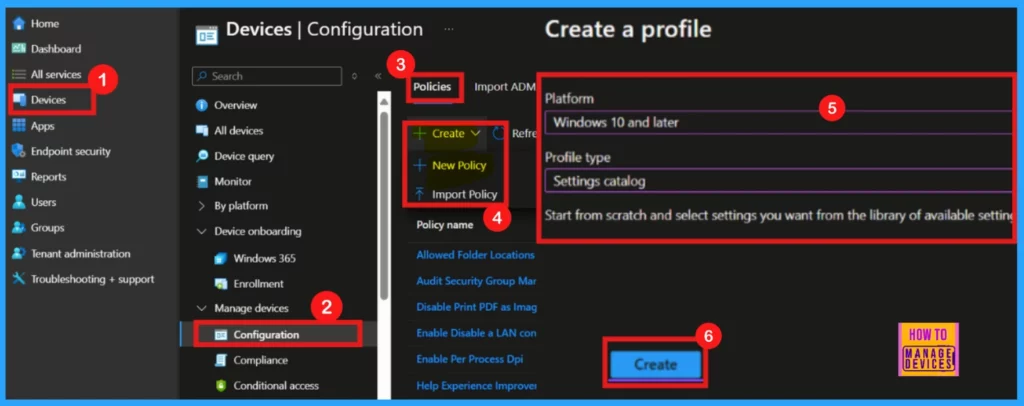
To initiate policy creation within Microsoft Intune, begin by logging into the Microsoft Intune admin center. Navigate to Devices > Configurations and select +Create > New policy under the Policies section.
- Upon clicking the +New policy option, we will get a platform and profile type area.
- There we can select the platform as Windows 10 and later set the profile type to the Setting catalog.
- Click Create to the next level.
Basics
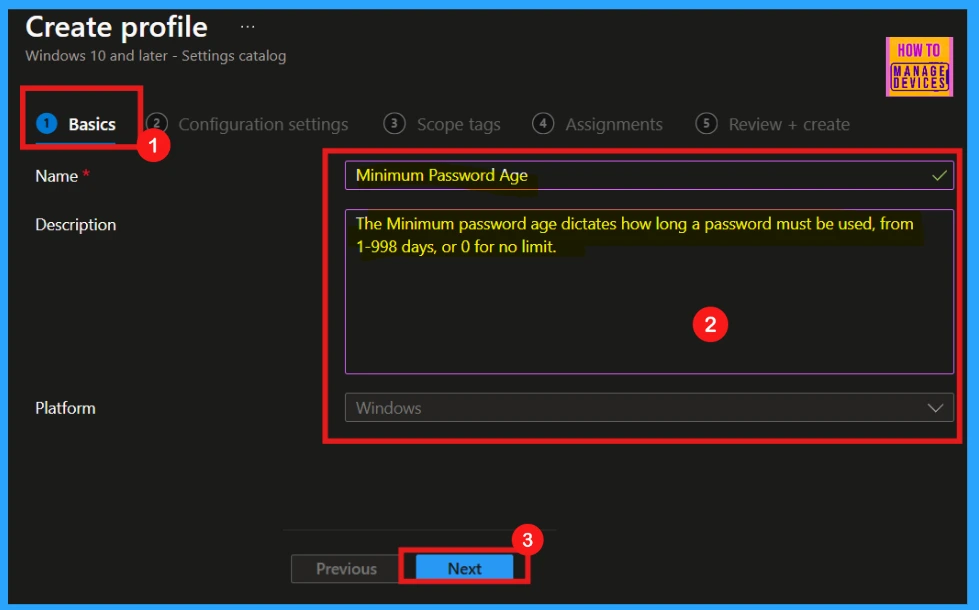
Accurate completion of the Basics details section is essential. This step requires you to provide a clear and brief name for the policy. While adding a description is optional, it’s highly recommended for future reference. Since the platform, Windows 10 and later, is already decided, no further modifications are needed in that area.
- Name of the Policy: Minimum Password Age
- Description: The Minimum Password age dictates how long a password must be used, from 1-998 days, or 0 for no limit
- Click on Next.
Configuration Settings
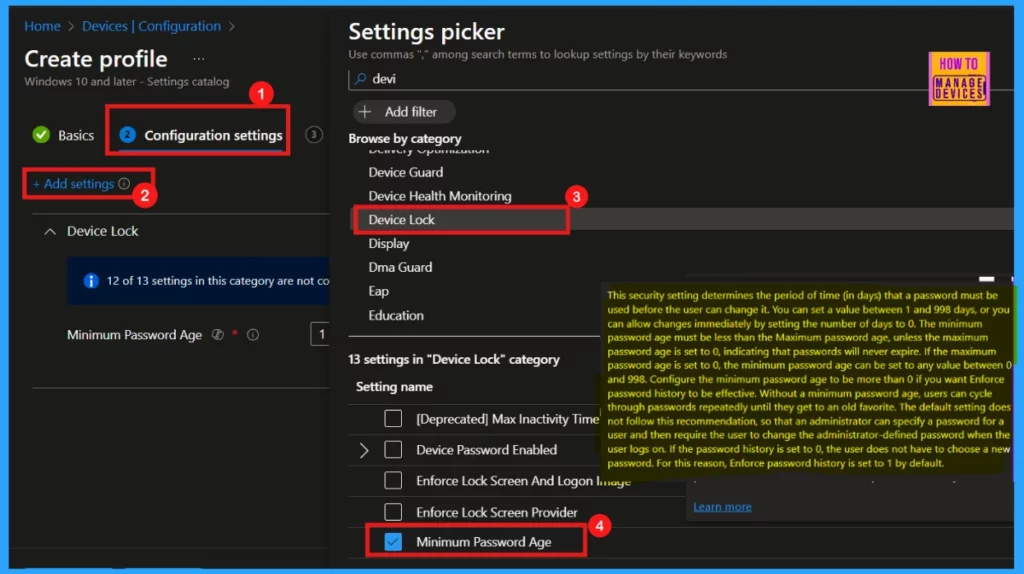
The Settings catalog in Intune allows administrators to configure device settings. By selecting +Add settings, users can explore or search a comprehensive list of available configurations, enabling granular control over managed devices. By clicking +Add settings, the Settings Picker window appears, allowing you to select settings via categories.
- Here I select the Minimum Password Age policy under the Device Task category.
- Close the Settings Picker
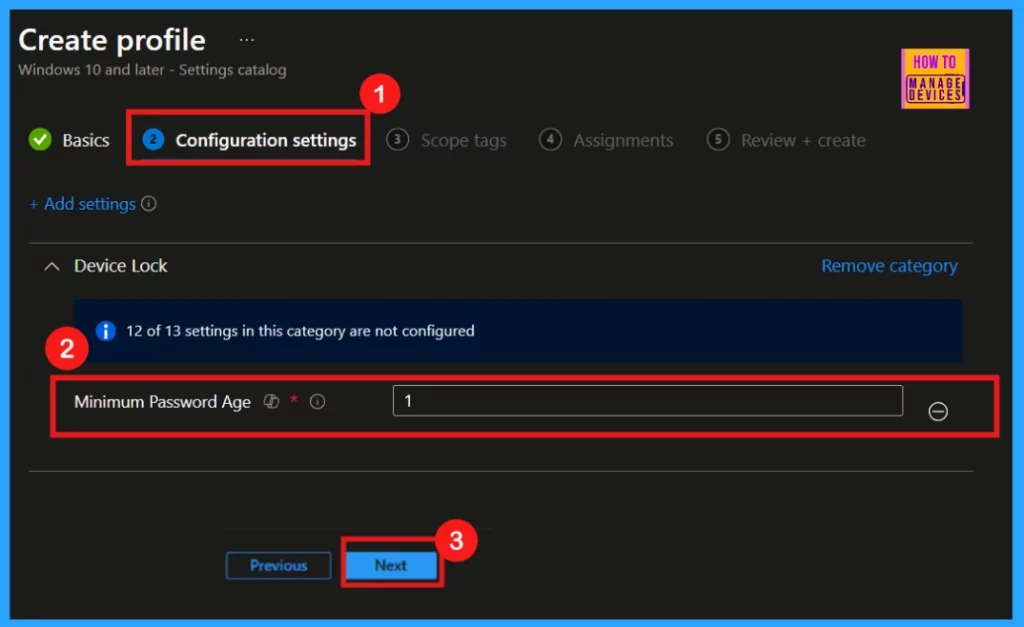
Minimum Password Age Policy Default Value 1 (day)
After closing the Settings Picker, the configuration page displays the default policy value, which is 1. For enhanced security, configure the Minimum password age to at least one day, preventing immediate password changes that could be exploited. Click Next to proceed with the policy deployment.
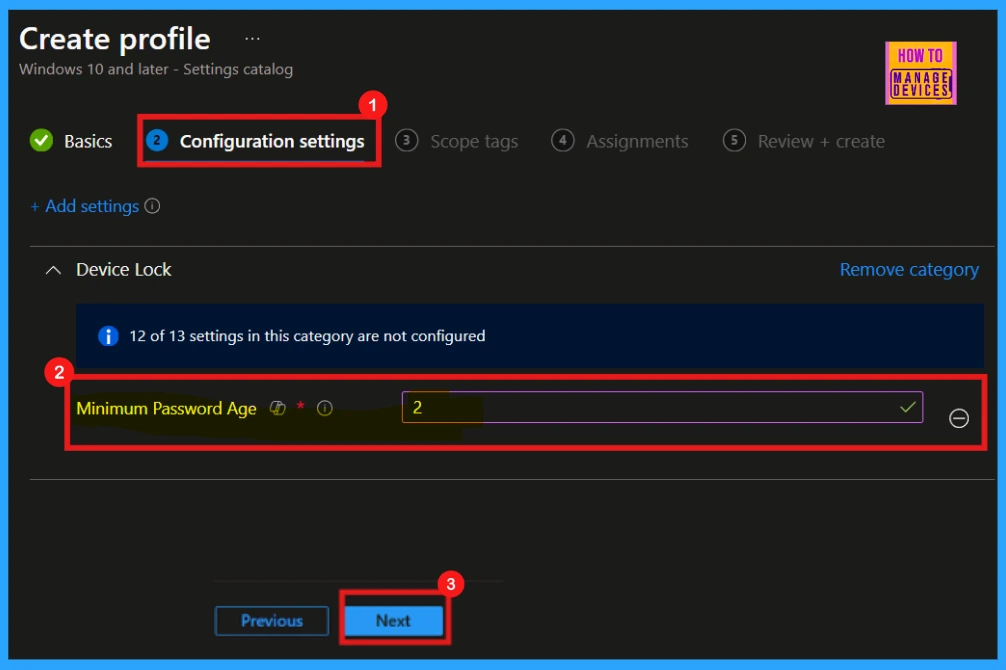
Set the Minimum Password Age Policy Value to 2 (days)
To enforce a minimum password retention period, the Minimum password age policy will be configured. This policy allows values from 1 to 998 days or 0 for no expiration. For instance, I would like to set the Minimum Password Age to 2 days, requiring passwords to remain unchanged for at least that duration.
- Click Next to proceed.
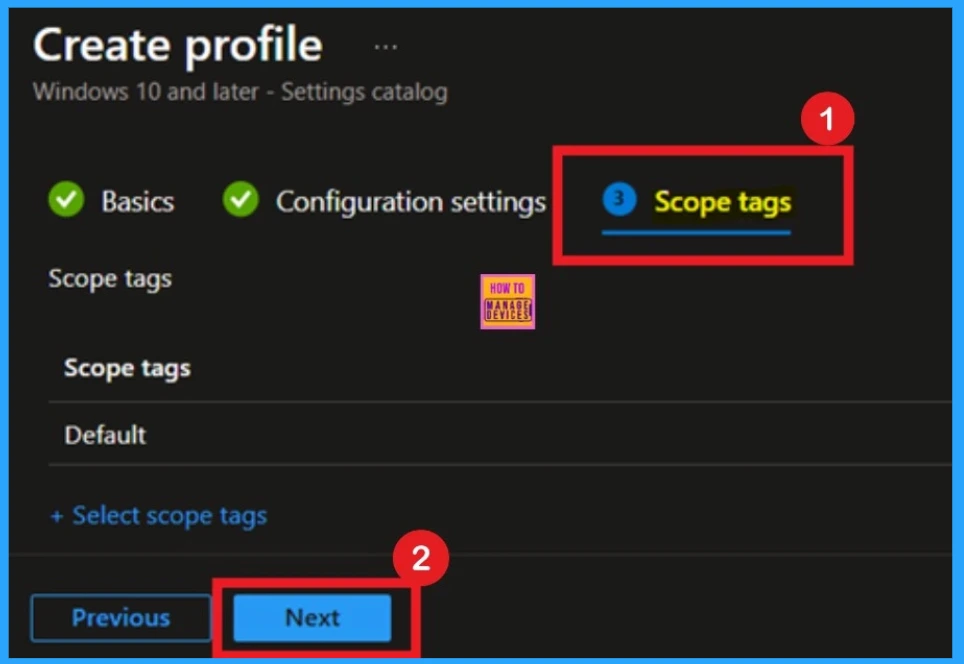
Scope Tags
To streamline policy management, Scope Tags allow for categorization and association with specific environments, though their use is not mandatory. Since scope tags are not required for this policy, this section will be skipped, and the process will continue to the next step by selecting Next.
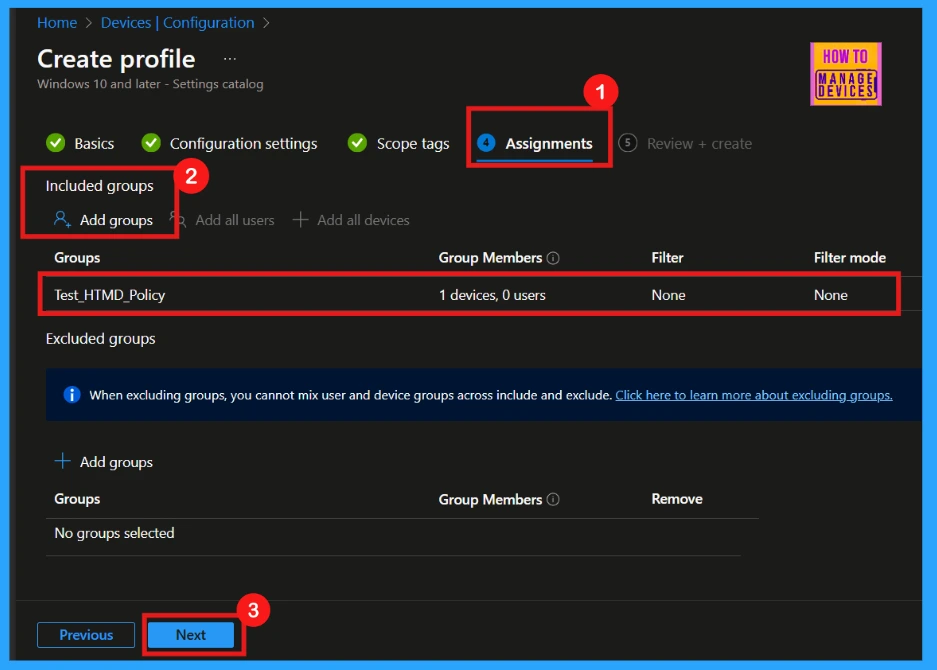
Assignments
The Assignments section is important for deploying the policy. Here, you select the target group for the policy. By clicking Add Groups under Include Groups, choosing the applicable group. Then clicking Next, you define where the policy will be applied.
Review + Create
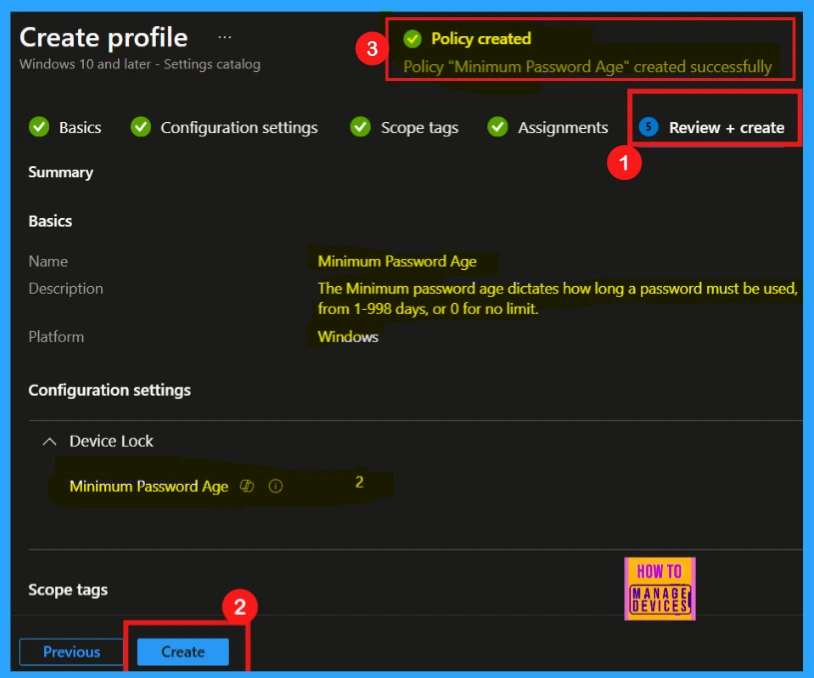
The Review + Create stage is the final step in policy creation. It allows you to verify all policy details, including basic information and configuration settings. After reviewing the summaries and confirming the settings are correct, clicking the Create button will finalize the policy deployment.
- After clicking the Create button you will get a notification saying that the Policy Minimum Password Age was created successfully.
Monitoring Status
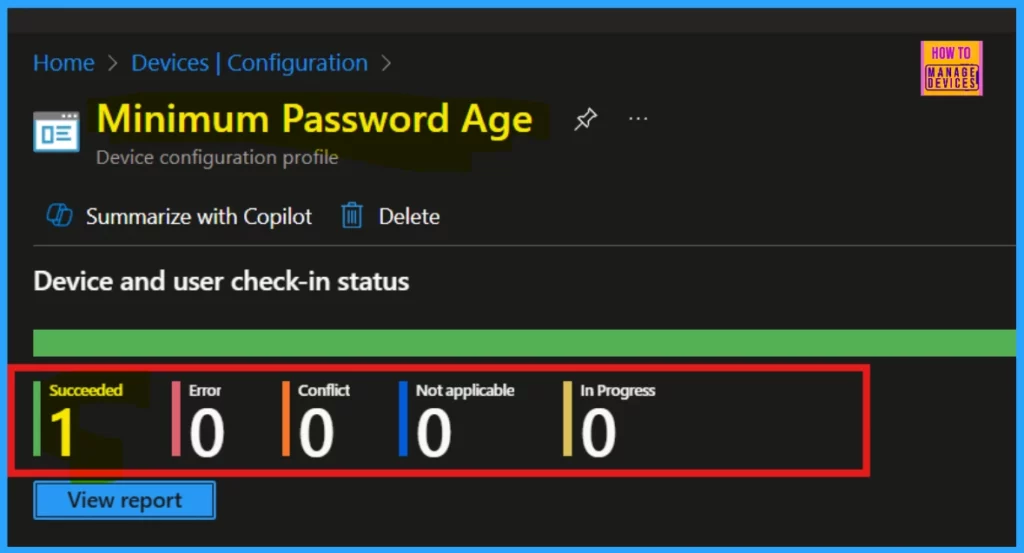
Newly created device policies generally apply within eight hours, but immediate application is possible through manual synchronization. To confirm successful implementation, navigate to the policy within Intune by going to Device > Configuration.
Client Side Verification
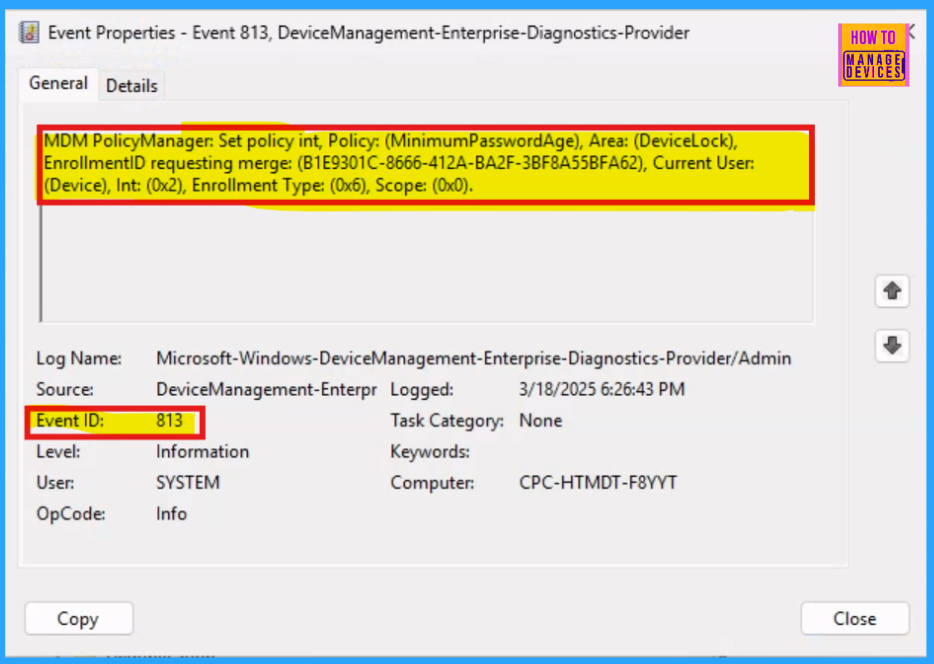
To verify Intune policy application on the client side, utilize Event Viewer. Access it via the Start menu, then navigate to Application and Services Logs > Microsoft > Windows > DeviceManagement-Enterprise-Diagnostics-Provider > Admin.
MDM PolicyManager: Set policy int, Policy: (MinimumPasswordAge), Area: (DeviceLock), EnrollmentID requesting merge: (B1E9301C-8666-412A-BA2F-3BF8A55BFA62), Current User: (Device), Int: (0x2), Enrollment Type: (0x6), Scope: (0x0).
Need Further Assistance or Have Technical Questions?
Join the LinkedIn Page and Telegram group to get the latest step-by-step guides and news updates. Join our Meetup Page to participate in User group meetings. Also, Join the WhatsApp Community to get the latest news on Microsoft Technologies. We are there on Reddit as well.
Author
Anoop C Nair has been Microsoft MVP for 10 consecutive years from 2015 onwards. He is a Workplace Solution Architect with more than 22+ years of experience in Workplace technologies. He is a Blogger, Speaker, and Local User Group Community leader. His primary focus is on Device Management technologies like SCCM and Intune. He writes about technologies like Intune, SCCM, Windows, Cloud PC, Windows, Entra, Microsoft Security, Career, etc.


Discussion