






How to Enhance your Teams Experience with Snap Resizable Panes and Zoom Controls Features
Let’s discuss how to Enhance your Teams Experience with Snap Resizable Panes and Zoom Controls Features This new feature allow users the ability to resize both the main window and individual panes.
This enhanced flexibility allows for a customizable workspace. It ensures essential communications and content remain visible while adapting to specific workflows and screen sizes. It ultimately boosts productivity and improves context retention.
Teams now offer customizable window and pane resizing, allowing users to optimize their workspace for productivity and focus. This flexibility adapts to individual workstyles and devices across Windows, Mac, and Web platforms. Users are encouraged to explore different layouts to maximize their Team experience.
Through this blog post, I will give and overview of the new update of Microsoft Teams’s new update Resize Teams windows and panes which is available now in public preview. The feature will be released between late January and late March 2025.


Table of Contents
Resizable Teams Windows and Panes
Microsoft Teams has introduced a new public preview feature allowing users to resize both the main window and individual panes. This enhancement provides greater control over workspace layout, improving productivity and context retention. The following table will show the summarising the main points:
| Feature | Details |
|---|---|
| Resizable Areas | Main Teams window, chat window, meeting stage, left/right panes |
| Minimum Size | 360 pixels width |
| Accessibility | Improved zoom capabilities, enhanced multitasking |
| Resizing Method | Drag edges or corners, Windows 11 Snap layouts |
| Rollout Period | Late January to late March 2025 |
| Admin Action | Not required (automatic rollout) |
- Microsoft Teams Meeting Join Failure After Microsoft Edge Update Disrupts Users
- Microsoft Teams on Android to Support Third-Party Meetings with SIP Integration
- Free Generic Windows 10 Product Keys from Microsoft
- Upgrade MS Teams Rooms To Windows 11 By October 14 2025 For Enhanced Features And Security
- Take Control During Screen Sharing Now Available In Teams For The Web
How to Resize Teams Windows and Panes
Teams’ new Teams Snap feature streamlines workspace organization with side-by-side app views accessed via [Win + Z], replacing constant [Alt + Tab] switching. When you’ve arranged Teams in a split-screen view with other applications, you can resize it by dragging the window’s edge.
As you shrink the Teams window, the current chat remains prominently displayed, while less frequently used options are conveniently pushed away into menus. Teams ensure you can access essential meeting elements by optimizing the display for screens as small as 360×502 pixels and zoom levels reaching 200%.
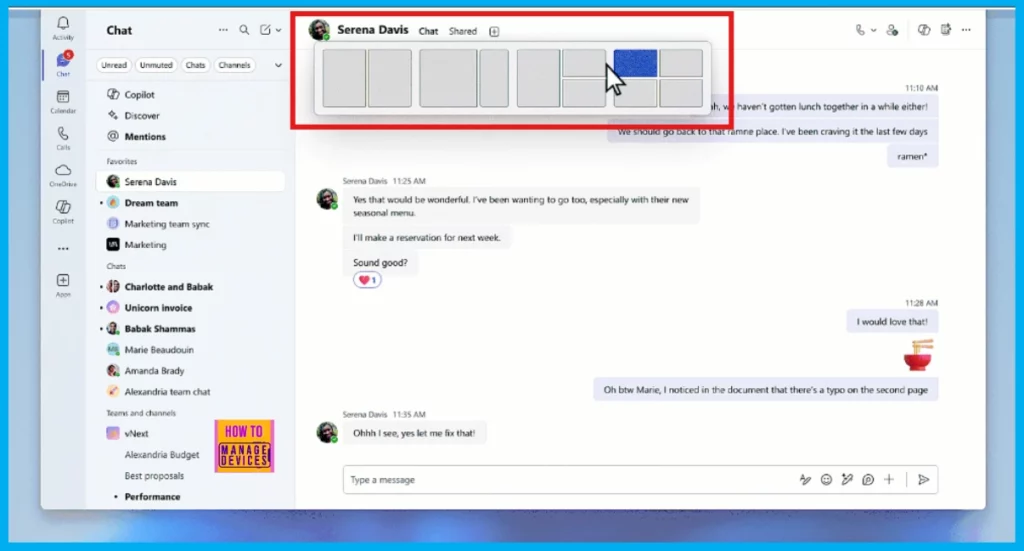
Resizing Teams Chat, Channels and Activity Panes
Teams now allow users to customize their workspace by resizing chat, channel, and activity panes. This feature dynamically adjusts the displayed content to fit the new pane size. It enables users to concentrate on specific tasks while still having access to all of Teams’ functionalities.
- Click and drag edges or corners to resize windows and panes.
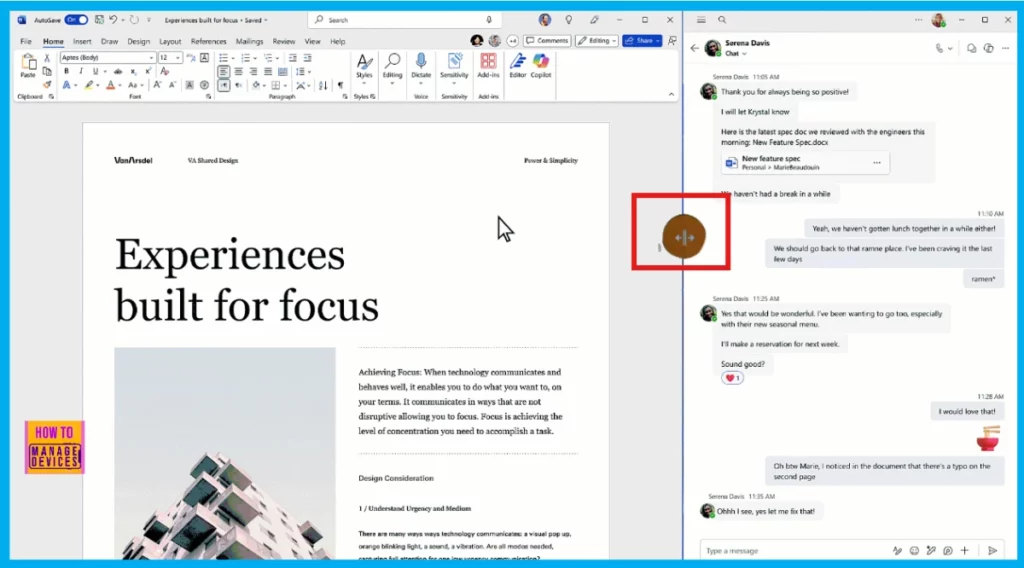
Resizing Side Panes within Meetings
Teams meetings allow users to customize their display by resizing side panes, with the layout instantly adapting to the new dimensions. For example, you can enlarge the meeting chat pane during a meeting. Just position your cursor over the pane’s edge and drag the arrows to adjust its size. In an upcoming update, Teams will save your preferred layout and use it automatically for future meetings.
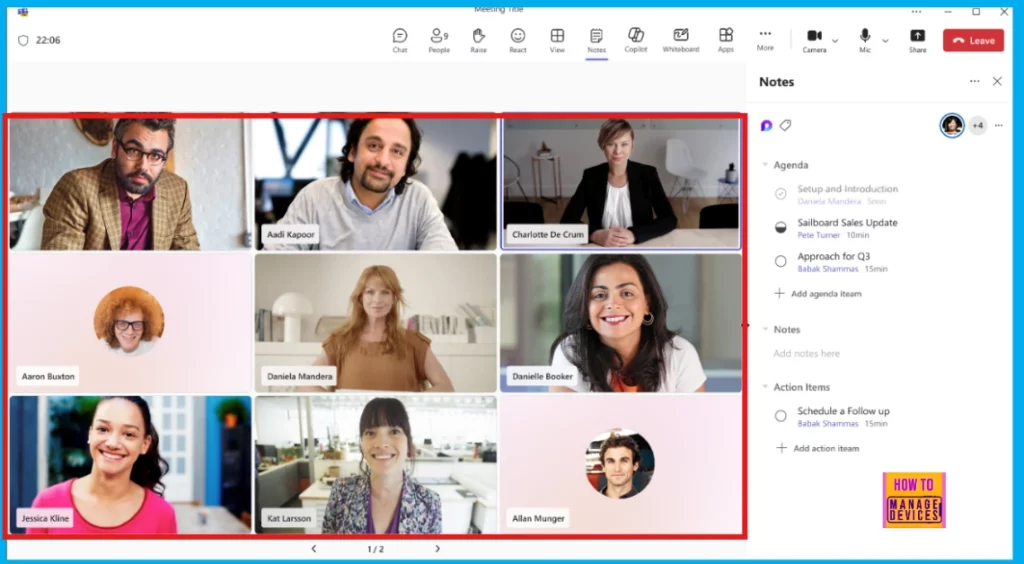
Customize Your Teams Meetings Detachable Panes Coming Soon
If you have extra screen space, you can now detach meeting panes from the main Teams window and move them for a more personalized layout. Coming in April, this functionality will expand to include chat, Copilot, notes side panes, and captions. This allows users to pop out, drag, and resize these elements, customizing their meeting view to with their needs while staying kept with all meeting activities.

Modify the Zoom Level
Microsoft Teams has expanded its zoom capabilities, allowing users to customize font size and interface elements for optimal viewing. With a wider range of zoom levels, users can easily adjust for high-resolution displays or visual accessibility needs. Using keyboard shortcuts like CTRL/CMD + + and CTRL/CMD + =, users can quickly zoom in or out. Teams’ design ensures that functionality remains intact and text readability isn’t compromised, regardless of the chosen zoom level.
References
Need Further Assistance or Have Technical Questions?
Join the LinkedIn Page and Telegram group to get the latest step-by-step guides and news updates. Join our Meetup Page to participate in User group meetings. Also, Join the WhatsApp Community to get the latest news on Microsoft Technologies. We are there on Reddit as well.
Author
Anoop C Nair has been Microsoft MVP for 10 consecutive years from 2015 onwards. He is a Workplace Solution Architect with more than 22+ years of experience in Workplace technologies. He is a Blogger, Speaker, and Local User Group Community leader. His primary focus is on Device Management technologies like SCCM and Intune. He writes about technologies like Intune, SCCM, Windows, Cloud PC, Windows, Entra, Microsoft Security, Career, etc.




Discussion