






How to Configure Files, Folders and Registry Keys Access Auditing Application Policy in Intune
Let’s discuss How to Configure Files, Folders and Registry Keys Access Auditing Application Policy in Intune. Object Access auditing focuses on tracking access attempts to defined objects or object types on a network or a computer and includes 14 subcategories for more detailed tracking.
With Advanced Audit Policy Configuration, you gain very specific control over what activities are tracked. This helps you detect both failed and successful attacks on your network and important data, and also ensures you’re meeting the required regulations for managing crucial company assets.
This security policy setting in Windows allows administrators to track and review events generated by applications that utilize the Windows auditing Application Programming Interfaces (APIs). When applications are designed to use these APIs, they log their auditing-related activities under this specific subcategory.
If an application uses this feature, this setting allows you to audit things like when an application starts, stops, or gets ready, along with other specific actions the application chooses to use Windows Auditing APIs. It helps you monitor what these particular applications are doing.

Table of Contents
What Application Actions does the Audit Application Generated Policy for Object Access Auditing Track?
When the Audit Application Generated Policy for Object Access Auditing policy is enabled, the system records specific events such as the creation, deletion, and initialization of an application client context. Additionally, it can capture other application-specific operations that utilize the Windows Auditing APIs, offering a detailed view of how applications interact with protected resources.
Object Access_Audit Application Generated Policy
This setting would be found within the Audit Policy section of the Windows CSP, specifically under subcategories related to Object Access. The following section will showcase the detailed view of the Object Access_Audit Application Generated Policy through Windows CSP.
Description framework properties
| Property name | Property value |
|---|---|
| Format | int |
| Access Type | Add, Delete, Get, Replace |
| Default Value | 0 |
Allowed Values
Allowed values are used to control which resources a webpage is allowed to load, based on specified directives and sources.
| Value | Features | Description |
|---|---|---|
| 0 (Default) | Off/None | Nothing is recorded |
| 1 | Success | Only successful actions are recorded |
| 2 | Failure | Only failed actions are recorded. |
| 3 | Success+Failure | Both successful and failed actions are recorded. |
Group Policy Mapping
Group Policy Mapping or Group Policy Analytics in Microsoft Intune helps you migrate your existing GPOs to the cloud. The following table will show the Group Policy Mapping of the Audit Application Generated Policy for Object Access Auditing in Intune.
| Name | Value |
|---|---|
| Name | Audit Application Generated |
| Path | Windows Settings > Security Settings > Advanced Audit Policy Configuration > System Audit Policies > Object Access |
./Device/Vendor/MSFT/Policy/Config/Audit/ObjectAccess_AuditApplicationGenerated
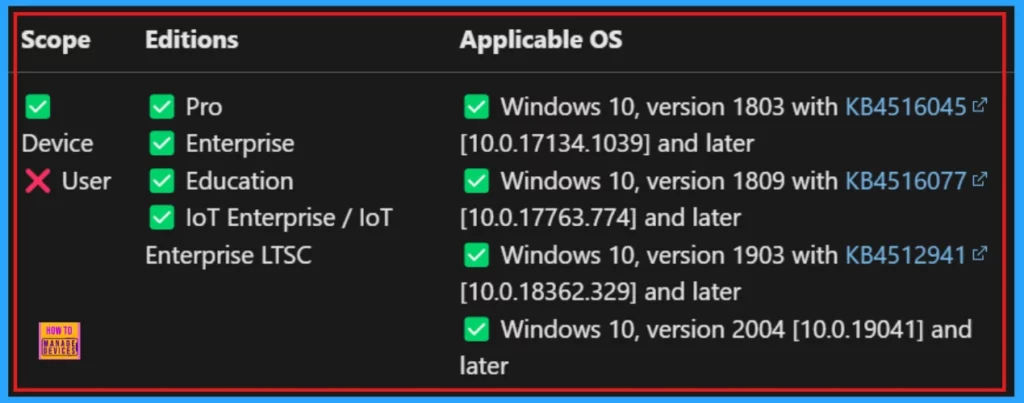
- How To Generate Intune Device Inventory Report Using Graph API
- Enable Or Disable Find My Device Using Intune Security Policy
- Custom Naming Templates For Android Enterprise Devices In Intune
Steps to Configure Files, Folders and Registry Keys Access Auditing Application Policy in Intune
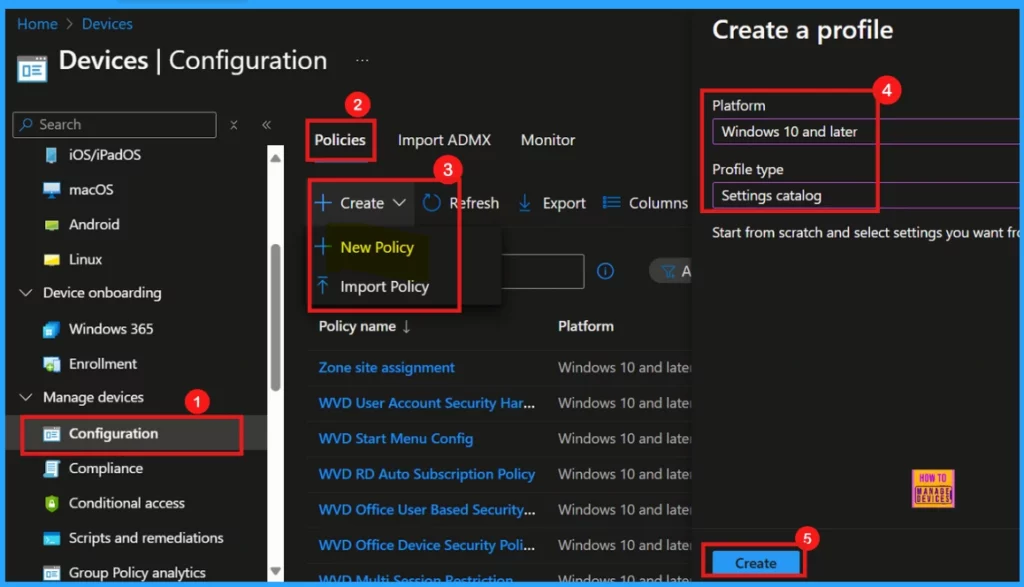
To create a new policy, begin by logging into the Intune Admin Center. Once inside, navigate to Devices and then select Configuration. Under Policies, click on the dropdown arrow next to Create and choose New policy. Next, you’ll need to specify the platform for this policy (in this instance, select Windows 10 and later). Finally, for the profile type, choose Settings catalog, and then click Create to proceed with configuring your new policy.
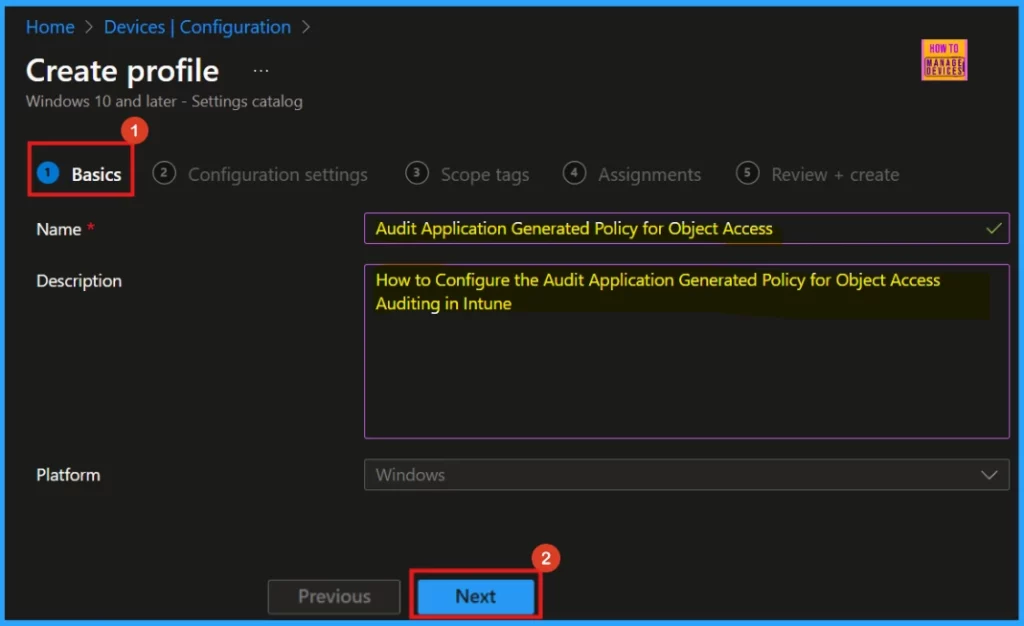
Basics
When we start creating a new policy, the Basics tab is where we begin. We must give our policy a Name here. There is also the option to add a Description. The Platform chose in the previous step will already be shown on this tab.
- Policy Name: Audit Application Generated Policy for Object Access Auditing
- Description: How to Configure the Audit Application Generated Policy for Object Access Auditing in Intune
- Platform: Windows
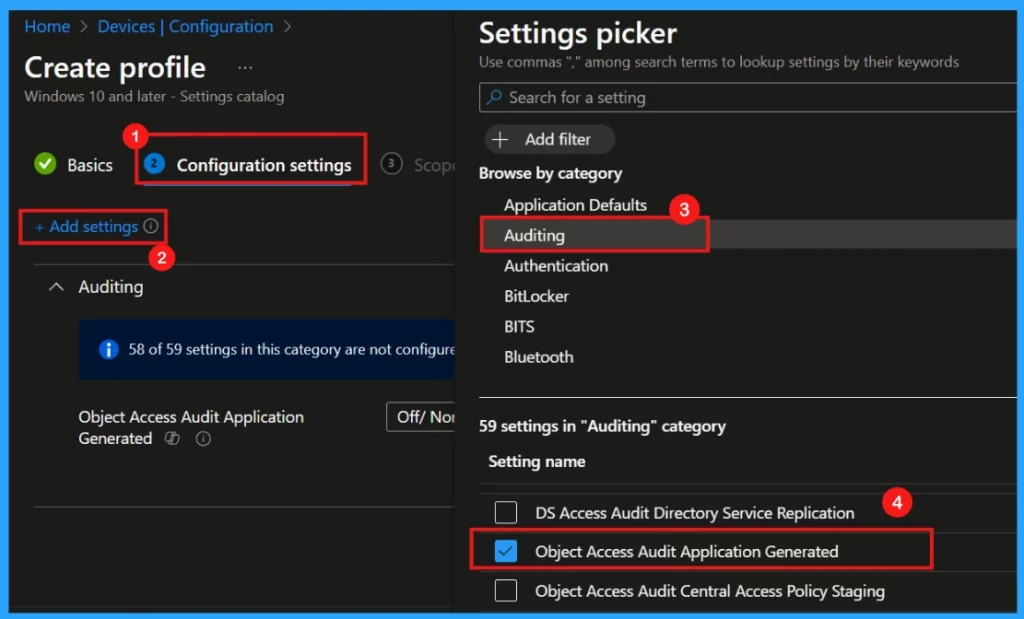
Configuration Settings
The Configuration settings area is where we define the details of our policy. To start adding these details, click Add settings on the configuration page. This will open the Settings Picker window, allowing choose different categories of settings.
- Category: Auditing
- Settings Name: Object Access_Audit Application Generated
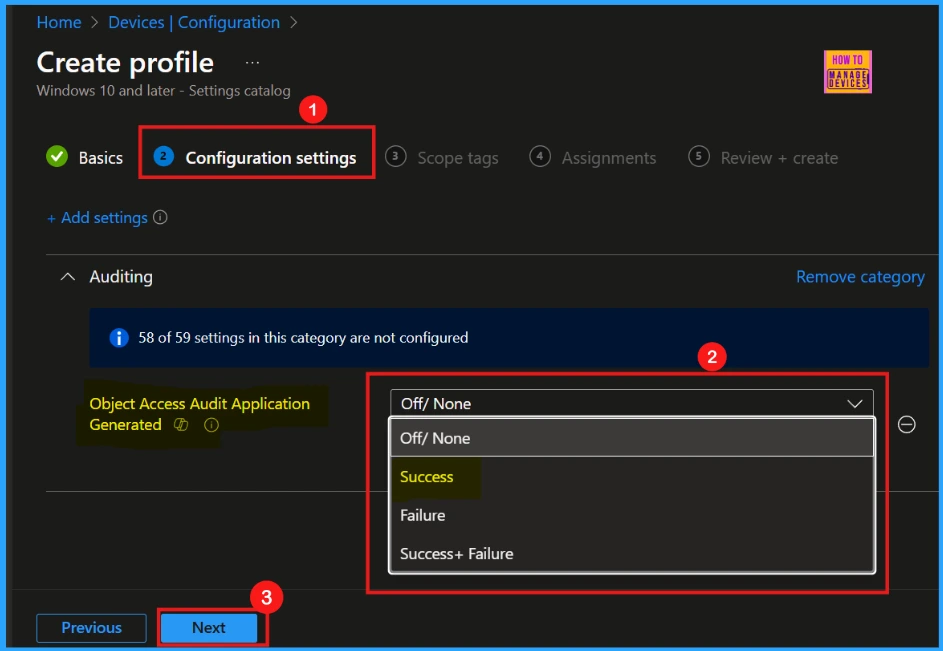
Once chosen the settings in the picker and close it, wll be redirected to the main configuration settings window. Here, we will notice that the Object Access_Audit Application Generated policy offers three configurable settings (refer to Table 2 for further details).
- Here, I select Success, which means that if we enable this setting, only successful actions are recorded.
Scope Tags
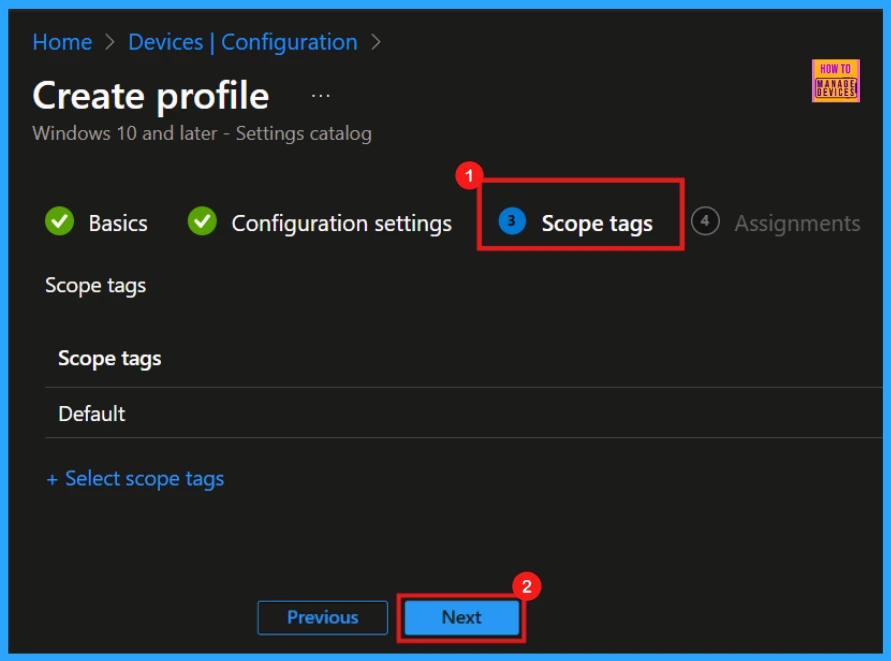
The following stage involves Scope Tags. This feature allows you to assign scope tags to the policy as part of the creation process. However, for this particular policy, applying scope tags is not required, so we will bypass this step. Click Next to continue.
Assignments
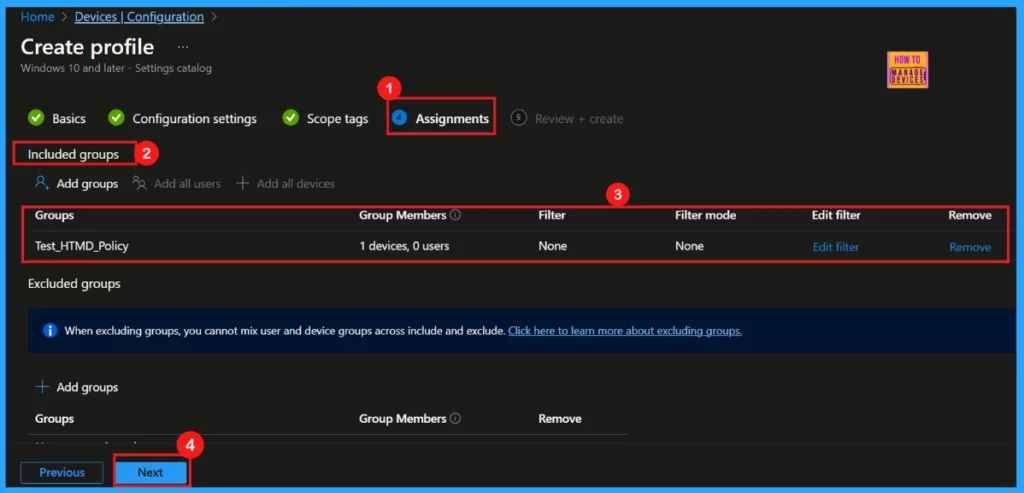
In the Assignments section, we must specify a group to be added to the Included group. This chosen group is where the policy will be applied. If we skip this vital step, the policy won’t be successfully deployed. Once we have selected the correct group, click Next to continue.
Review + Create
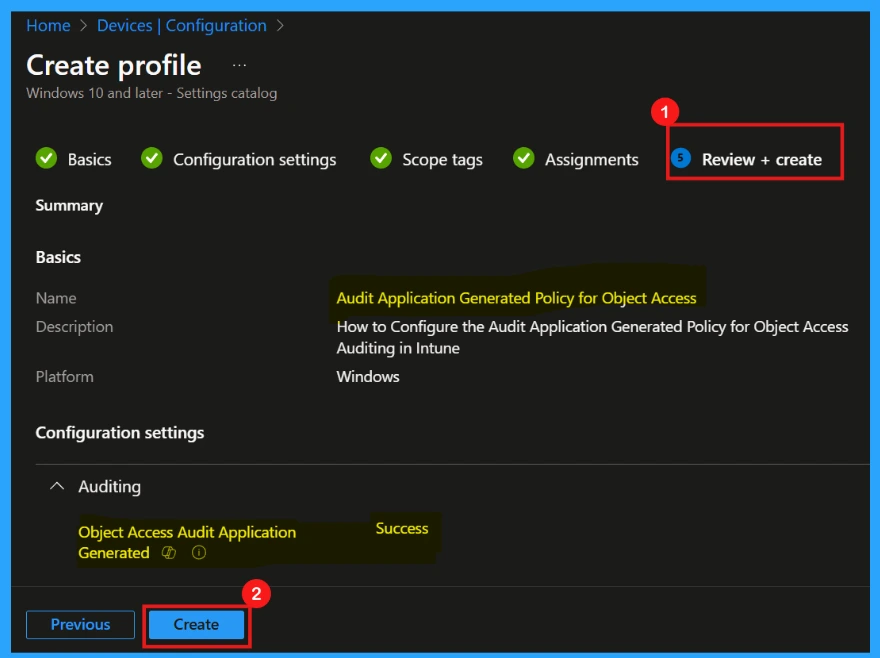
The last step before the policy implementation is Review + Create. Here, we will see a summary of everything we have set up for this policy. This includes important information like the policy’s name, any descriptions added, the chosen platform, and other relevant details.
- After thoroughly reviewing, click Create to finalize the policy.
Monitoring Status
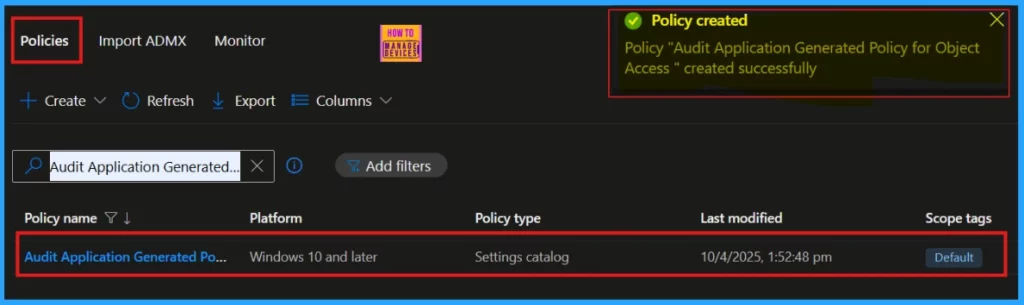
After you create the policy, a notification confirms its successful creation. You can then check the newly created Audit Application Generated Policy for Object Access Auditing policy in the Intune Portal.
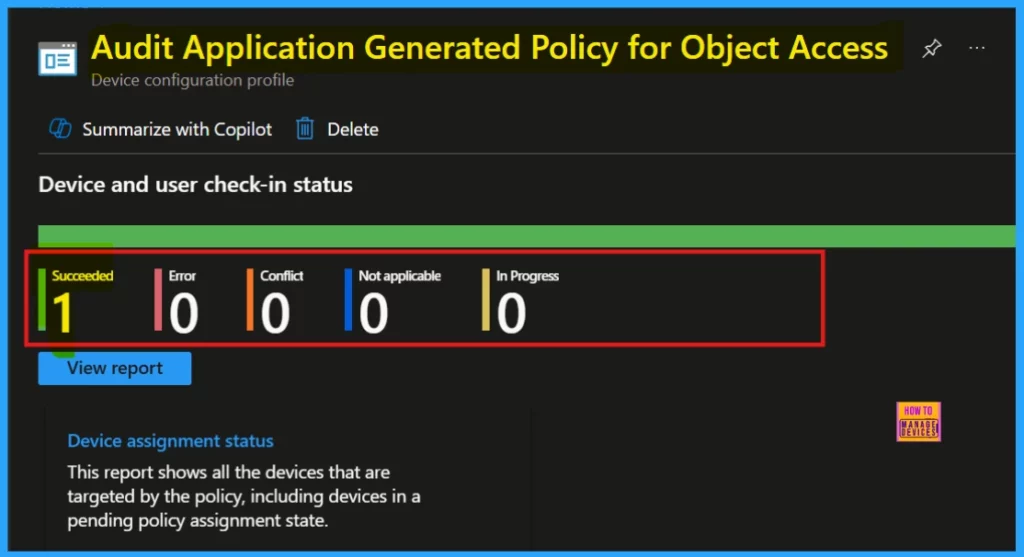
Device and User Check-in Status
New device policies take about 8 hours to apply automatically. To make it faster, we can manually sync the policies. After syncing, check if the policy was successfully applied by looking at its status under Device > Configuration in Intune and selecting the specific policy.
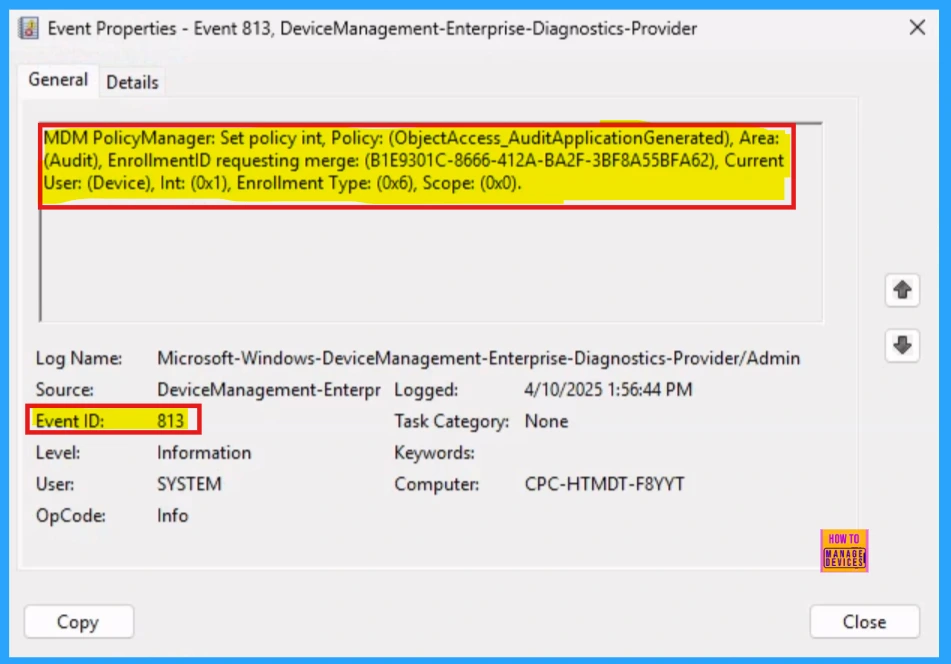
Client-Side Verification
Client-side verification involves checking the status of the policies, allowing confirmation if they’ve been applied. On Windows 11 or 10 devices, successful application of a string policy is indicated by event IDs 813 or 814, which can be found in the Applications and Services Logs > Microsoft > Windows > Devicemanagement-Enterprise-Diagnostics-Provider > Admin path.
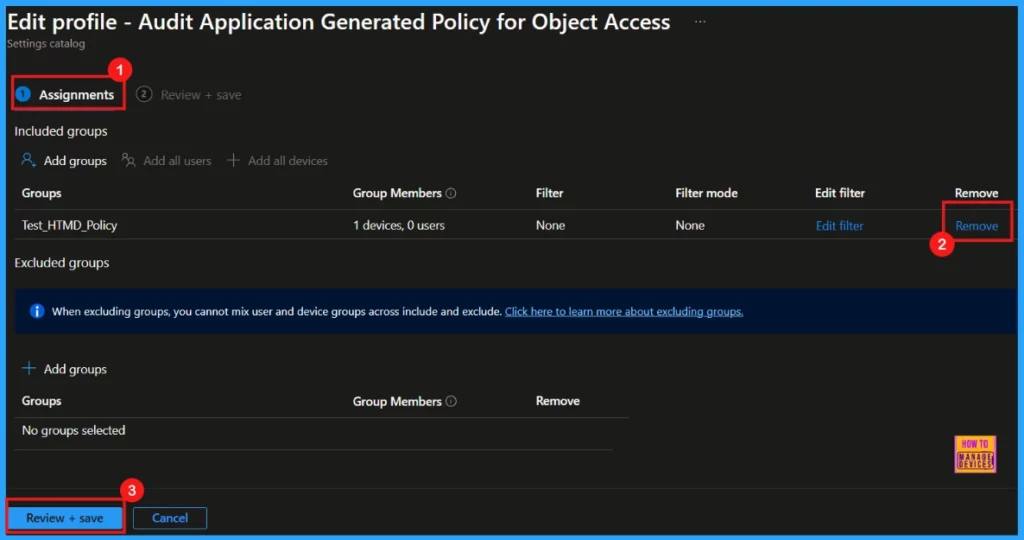
Remove Assigned Group
Removing a group from a policy assignment is often necessary for security updates or better workflow management. The image below shows how to remove a group that’s currently assigned to the policy. After the removal, be sure to click Review + Save.
For detailed information, you can refer to our previous post – Learn How to Delete or Remove App Assignment from Intune using by Step-by-Step Guide.
Deleting a Policy From Intune
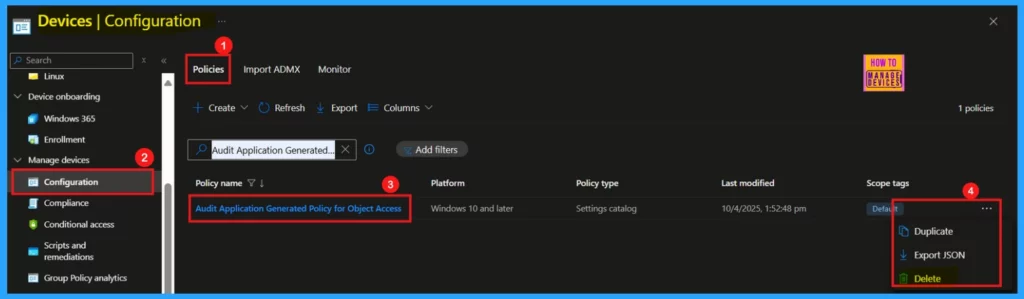
There are several reasons why we might need to delete a policy in Microsoft Intune, such as implementing security updates or refining operational processes. The screenshot below illustrates how to do this.
For detailed information, you can refer to our previous post – How to Delete Allow Clipboard History Policy in Intune Step by Step Guide.
Need Further Assistance or Have Technical Questions?
Join the LinkedIn Page and Telegram group to get the latest step-by-step guides and news updates. Join our Meetup Page to participate in User group meetings. Also, Join the WhatsApp Community to get the latest news on Microsoft Technologies. We are there on Reddit as well.
Author
Anoop C Nair has been Microsoft MVP for 10 consecutive years from 2015 onwards. He is a Workplace Solution Architect with more than 22+ years of experience in Workplace technologies. He is a Blogger, Speaker, and Local User Group Community leader. His primary focus is on Device Management technologies like SCCM and Intune. He writes about technologies like Intune, SCCM, Windows, Cloud PC, Windows, Entra, Microsoft Security, Career, etc.


Discussion