






How to Fix Intune Win32 App Deployment Failures with Error 0x87D30067
Let’s discuss how to fix Intune Win32 App Deployment Failures with Error 0x87D30067. For the past year, we have followed a solid method for delivering Win32 applications through Microsoft Intune. The approach involves creating an .intunewin package that bundles everything needed for the app installation like the setup files, PowerShell scripts, and any required configuration files.
Once deployed, these components are extracted to a temporary folder on the user’s machine. From there, a batch file (.bat) takes control. It carefully runs the installation process by calling PowerShell scripts one to prepare the system before installation (pre-install), and another to finalize tasks after the app is installed (post-install).
In the last two months, app deployments that previously worked smoothly have started failing more often. You are seeing error messages like “Error downloading content” and “Error unzipping downloaded content” (with error code 0x87D30067). The real problem lies in how Intune delivers and extracts the app package on the user’s machine. If that step fails, the app never gets a chance to install.
In this post, you will find all the details you need to understand and fix Intune Win32 app deployment failures with the error 0x87D30067. This guide will help you get your app deployments working again.


Table of Contents
How to Fix Intune Win32 App Deployment Failures with Error 0x87D30067
The error code 0x87D30067 issue means that Intune was able to download the .intunewin file, but failed to unzip it properly in the IMECACHE folder. Since this happens before any script or install logic runs, the issue lies in the delivery or extraction process, not your app packaging or detection rules.
- Intune Management Extension Health Evaluation | IME Health Issue | ClientHealthEval.exe | Task Scheduler
- Intune Management Extension Deep Dive – Win32 App Deployment Troubleshooting Help Guide
- How to Target Win32 Apps to ARM64 Devices using Intune
Workaround and Troubleshooting Steps
Let’s go over the workaround and troubleshooting steps to fix Intune Win32 app deployment failures with the error 0x87D30067. This error usually means the app could not be installed on the device.
| Action | Details |
|---|---|
| Verify Install Command | Ensure the install and uninstall commands work when run manually on the device. |
| Check Content Folders | Look in C:\Program Files (x86)\Microsoft Intune Management Extension\Content\Incoming and IMECache to see if the .intunewin file is stuck. |
| Review Detection Rules | Make sure the detection logic correctly identifies a successful install. |
| Test on Another Network | Try using a mobile hotspot or a different ISP to rule out network issues (VPN, proxy, firewall, or Delivery Optimization). |
| Check Intune Logs | Review logs in C:\ProgramData\Microsoft\IntuneManagementExtension\Logs and Event Viewer for detailed error messages. |
| Review App Dependencies | Ensure all required dependencies are installed before the app runs. |
| Use Required or Available Deployment | Test both deployment types to confirm behavior consistency. |
| Repackage the App | Recreate the .intunewin file in case of corruption or missing files. |
Test with a Simple Win32 App Package
To check if the problem is with your app packaging, try creating a simple Win32 app package for example, use the Notepad++ installer and add /S for silent install. Set up a basic detection rule, like checking if notepad++.exe exists after installation. Then deploy it through Intune and see what happens. If this simple app also fails, it means the problem is probably not with your scripts or app setup.
Repackage the Failing App
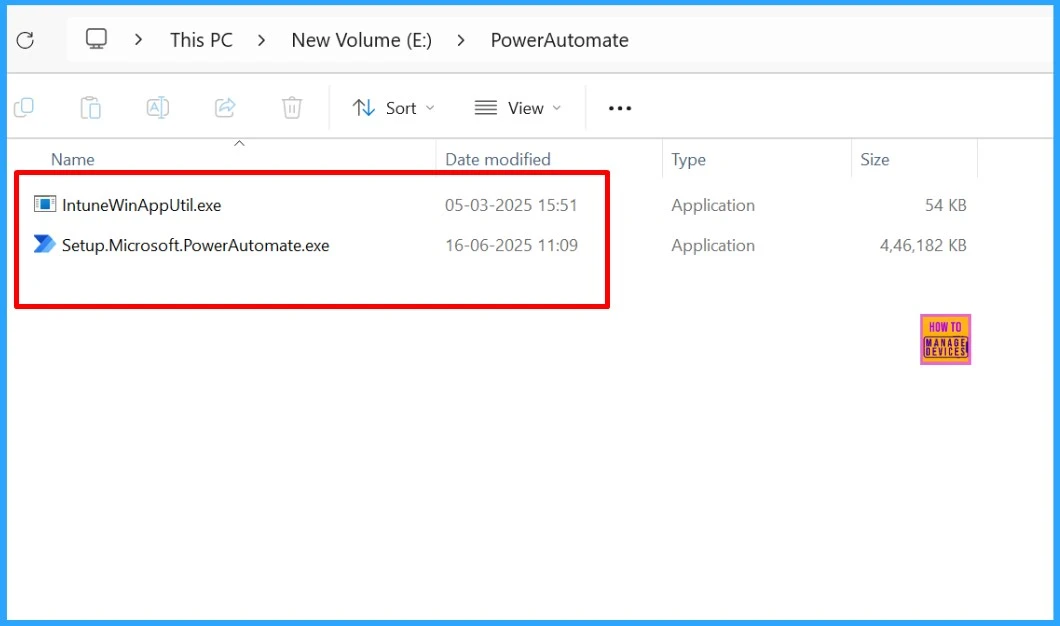
To avoid packaging-related issues, it’s a good idea to re-create the .intunewin file from scratch instead of reusing an old one. Make sure you’re using the latest version of the IntuneWinAppUtil.exe tool when creating the package.
Delete and Recreate the Intune App
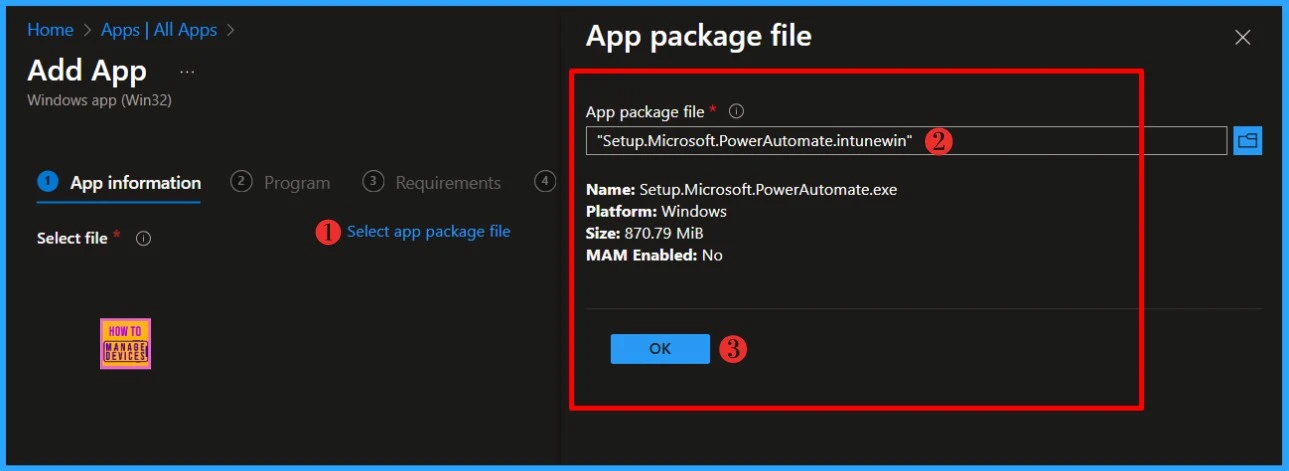
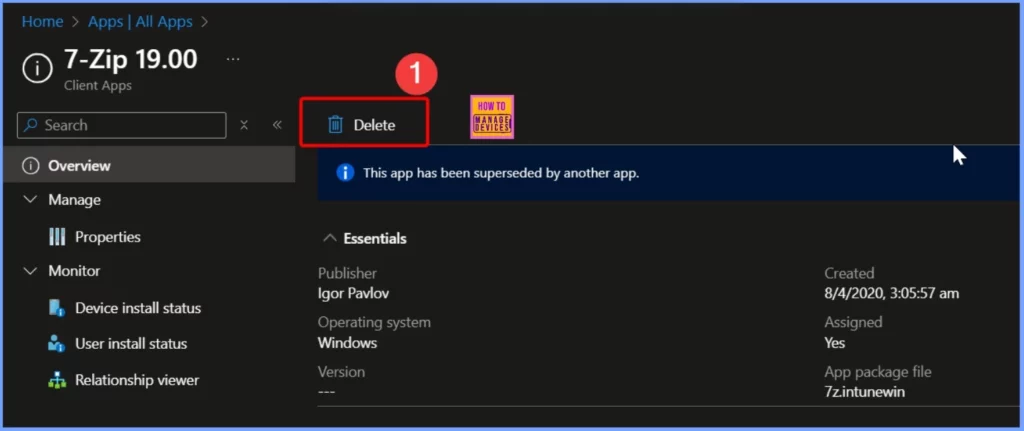
Sometimes, the app entry in Intune may become corrupted, which can lead to deployment issues. A workaround is to delete the app from Intune completely, then recreate it using a freshly packaged .intunewin file. After that, redeploy it to the same device group.
- Go to Intune admin center > Apps > All Apps > Select one Win32 app > Click the Delete Button.
Check IME Cache Folder Behavior
To fix this issue, try manually deleting all the files inside the IMECACHE folder, then restart the Intune Management Extension service. This may help Intune re-download and process the app correctly.
Use Different Network
If you can, try testing the app deployment on a different network. For example, connect the device to a mobile hotspot or use a different internet connection from another ISP or location. If the deployment works on the new network, it’s a strong sign that the issue is network-related possibly caused by a VPN, proxy settings, firewall restrictions, or a misconfigured Delivery Optimization setup.
Need Further Assistance or Have Technical Questions?
Join the LinkedIn Page and Telegram group to get the latest step-by-step guides and news updates. Join our Meetup Page to participate in User group meetings. Also, join the WhatsApp Community to get the latest news on Microsoft Technologies. We are there on Reddit as well.
Author
Anoop C Nair has been Microsoft MVP for 10 consecutive years from 2015 onwards. He is a Workplace Solution Architect with more than 22+ years of experience in Workplace technologies. He is a Blogger, Speaker, and Local User Group Community leader. His primary focus is on Device Management technologies like SCCM and Intune. He writes about technologies like Intune, SCCM, Windows, Cloud PC, Windows, Entra, Microsoft Security, Career, etc.


Discussion