






How to Collect Physical and Virtual Memory Information using Intune Properties Catalog
Hey all, today we are discussing how to Collect Physical and Virtual Memory Information using Intune Properties Catalog. As we have all done different types of setting catalog policies before now, we are trying to let you know about the properties catalog. Microsoft Intune helps IT admins collect hardware and performance details from devices that are enrolled in it.
This includes memory info like total RAM, free memory, and memory status. This information is useful for checking how well devices are working and making sure they can run new software. We all know that Memory is very important for this all so the admins always make sure the organisation’s memory information.
To use the Properties Catalog, there are some rules. The devices must be company-owned, managed by Intune, and connected to Microsoft Entra. The person setting it up must have permission to create settings and view organisation info. Also, only certain versions of Windows 10 and 11 are allowed, so the device must be updated.
Devices with low memory will cause freeze or crash when users open many apps. Knowing memory spaces time lets you avoid user complaints, and this will help the employees work better. So, in this post, Let’s look how memory information’s are collected through Intune Properties catalog.

Table of Contents
What Happens to the Collected Data After I Delete a Properties Catalog Policy?
How to Collect Physical and Virtual Memory Information using Intune Properties Catalog
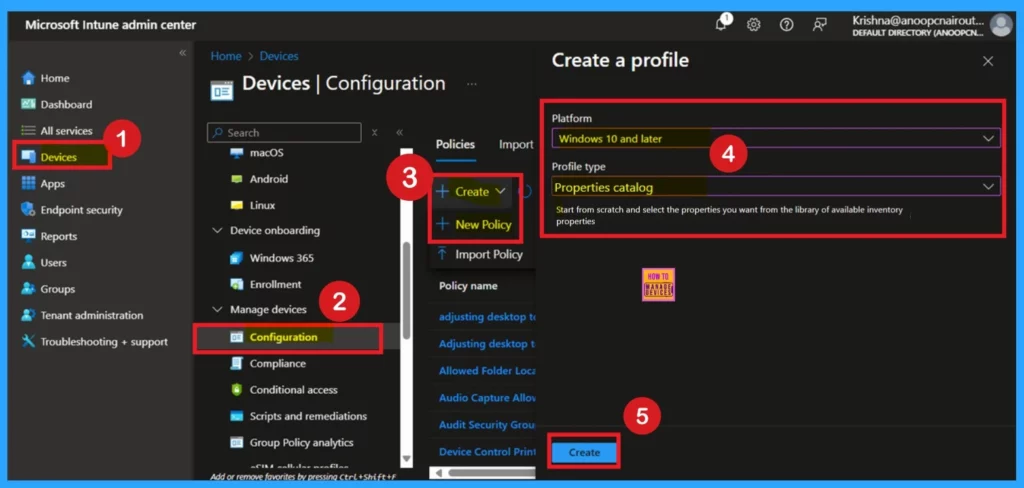
We’ve discussed many important points about the Properties Catalog in Intune. In this post, we’ll show you how to collect memory information using the Properties Catalog. First, sign in to the Microsoft Intune admin center. Then, go to Devices > Configuration >Click on Create > New policy. In the next window, select the platform as Windows 10 and later, and choose the profile type as Properties Catalog.
- Then, click Create to continue.
- Block Specific Device Classes To Take Control Of Windows Drivers Using Intune
- Enable Disable Defender SmartScreen For Microsoft Store Apps In Windows 11
- Turn On or Off Microsoft Defender SmartScreen for Microsoft Edge in Windows 11
- Enable Disable Auto Deletion of Memory Dumps on Low Disk Space in Windows 11
Basic Information
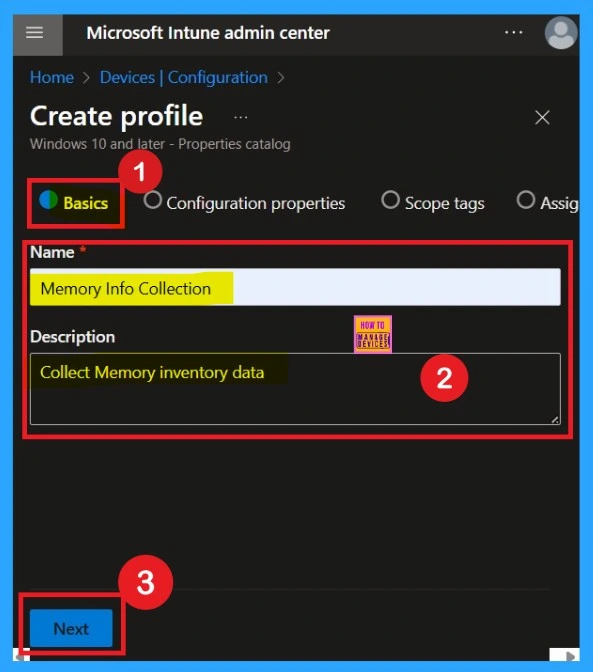
When you are creating a Properties Catalog profile, the first step is the Basics section. You may already know this step. You need to enter some basic details, such as the name and a description. For example, I entered the name as Memory Info Collection In the description, I enter Collect memory inventory data. After filling in the details, click Next to continue.
How to Add Properties
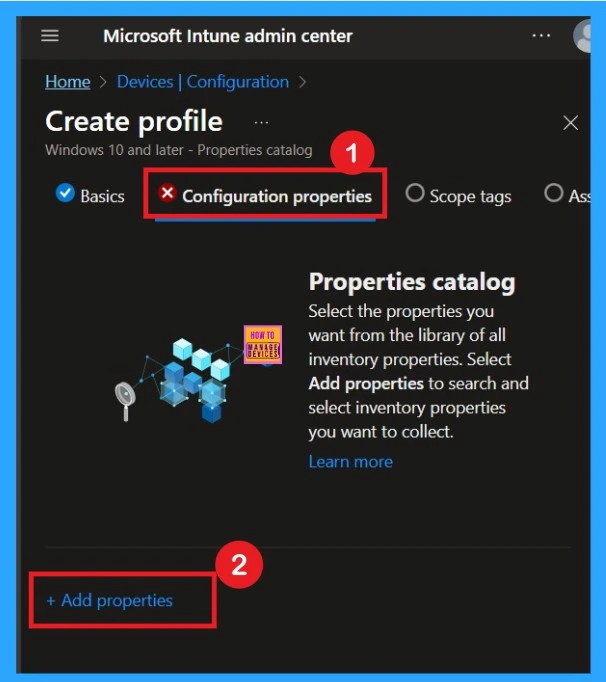
The next step is Configuration Properties here you can see that +Add properties option in a blue hyperlink click on that. Select the properties you want from the library of all inventory properties. Select Add properties to search and select inventory properties you want to collect.
Know the Properties Picker Functionality
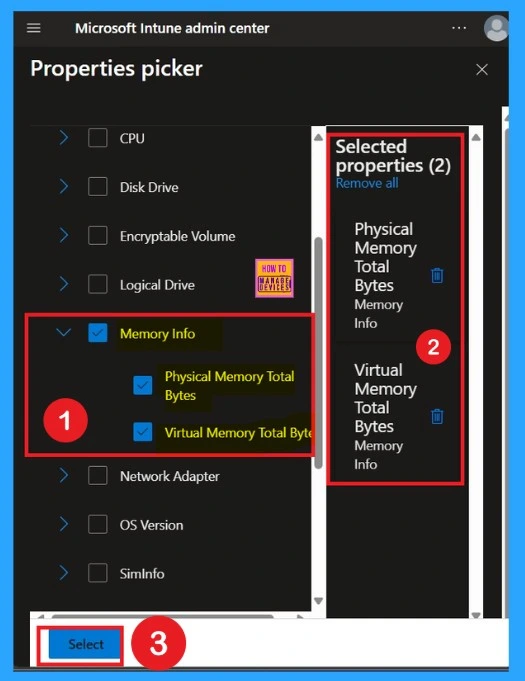
When you click on the + Add properties you will get different types of inventory collection category, and this window is called Properties picker. Here I select the memory info it also selects the Physical memory total and virtual memory total bytes. In the right pane if you want to delete any memory info category you can do that.
- In this tutorial I need both categories. So, I click on the close or select button.
| Supported Properties |
|---|
| Battery |
| Bios Info |
| CPU |
| Disk Drive |
| Encryptable Volume |
| Logical Drive |
| Memory Info |
| Network Adapter |
| OS Version |
| Sim Info |
| System Enclosure |
| Time |
| Tpm |
| Video Controller |
| Windows Qfe |
Configuration Property
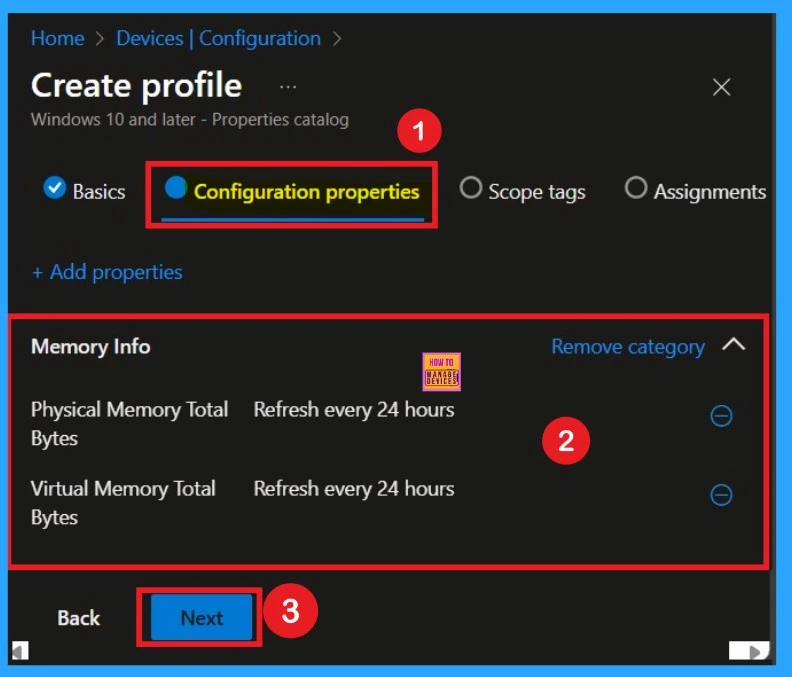
After closing the Property Picker window, you will be taken back to the Configuration Properties main screen. Here, you can see the selected Memory Info category along with a Remove category option. If you want to remove this category, simply click on Remove category.
- I want to continue with this selection; I clicked Next to proceed.
Scope Tags
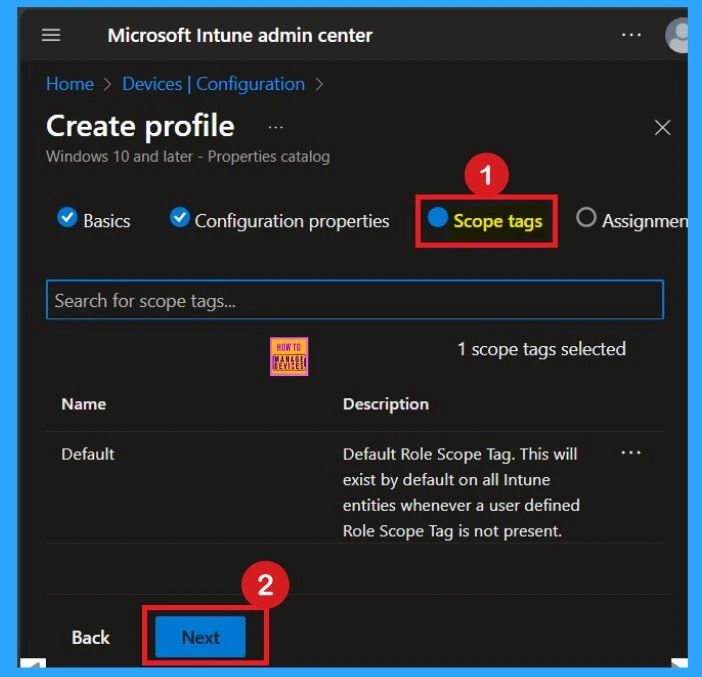
Now, you are on the Scope Tags page. If you want to add any scope tags for this configuration, you can easily do so. The Default Role Scope Tag is automatically applied. This tag exists by default for all Intune entities when a user-defined scope tag is not present.
- In this case, I chose to skip this section and clicked Next to continue.
Assignments
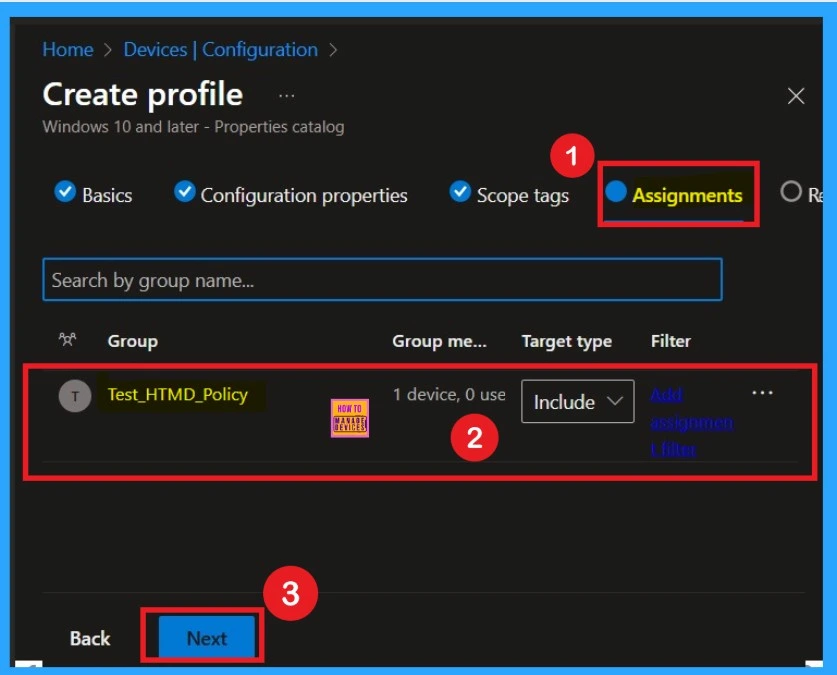
The next step is Assignments. You already know how important this section is. Here, I am adding a group so that I can collect memory information from the devices in that organisational group. After selecting the group, I clicked Next to continue.
Review + Create
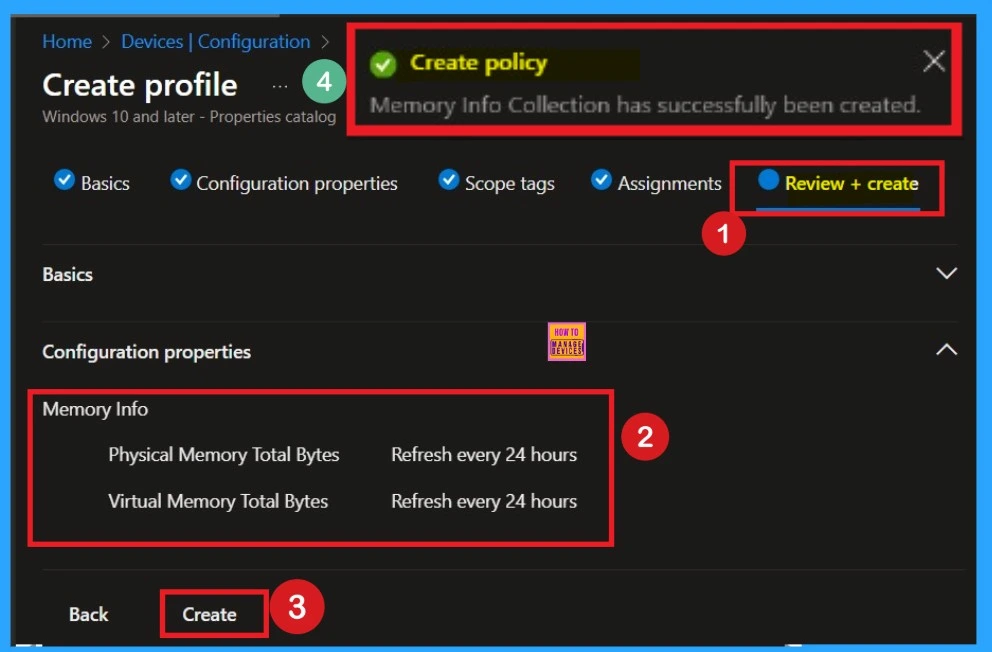
The last and final step is the Review + Create tab. Here, you can review all the details you entered for the configuration. If you need to change or edit anything, you can go back to the previous steps before clicking Create. I clicked on Create, and I was notified that the policy was created successfully.
Device and User Check in Status
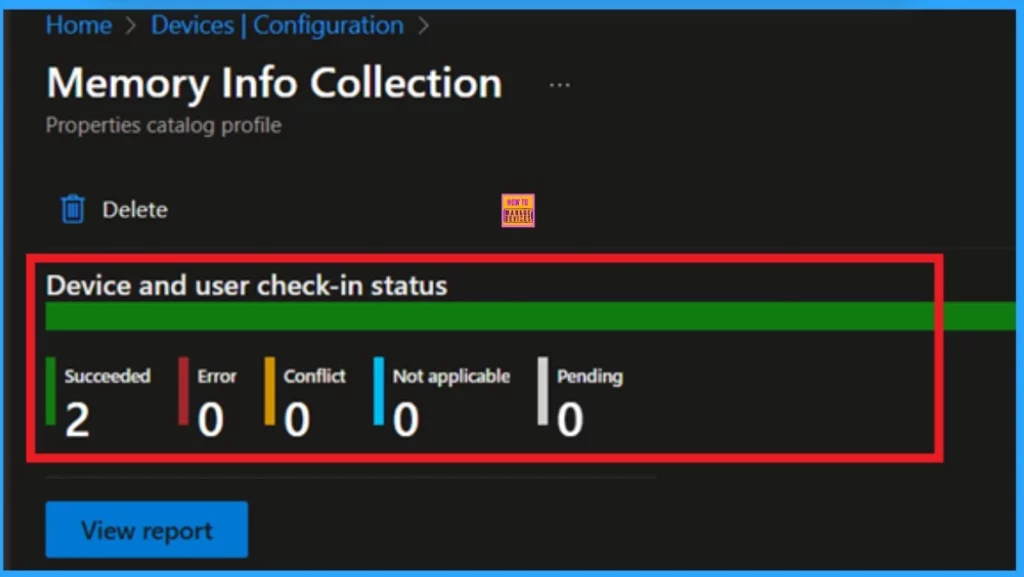
If you want to check whether the policy was applied successfully, you need to wait for up to 8 hours or sync the policy manually through the Company Portal. After that, I checked the monitoring status by going to Devices > Configuration and searching for the policy I created, called Memory Info Collection.
- Now I am able to view the results. You can see the results in the screenshot below.
How to View Collected Data
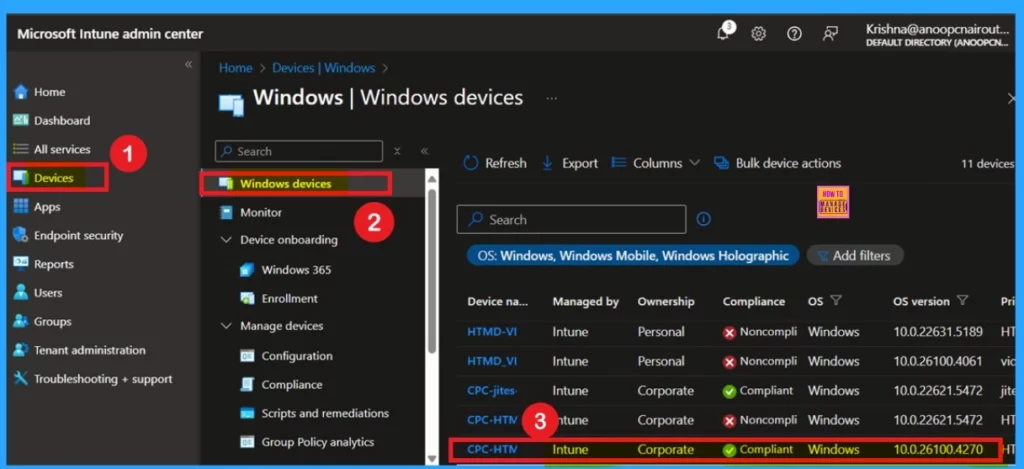
Now, I want to check the memory information of a device. To do that, go to Devices > Windows in the Intune portal, then select the specific device you want to view memory details for. You can verify the below screenshot.
Memory Info in Resource Explorer
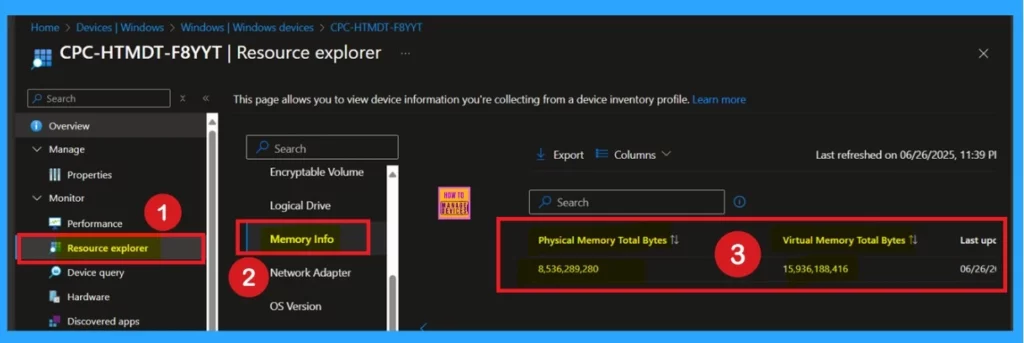
On the Selected Device page, under the Monitor section, select Resource Explorer > Hardware Information. Since I want to view the memory details, I clicked on that section. Here, you can see that the memory information is visible for the device, including details for virtual memory and total bytes available.
Need Further Assistance or Have Technical Questions?
Join the LinkedIn Page and Telegram group to get the latest step-by-step guides and news updates. Join our Meetup Page to participate in User group meetings. Also, join the WhatsApp Community to get the latest news on Microsoft Technologies. We are there on Reddit as well.
Author
Anoop C Nair has been Microsoft MVP for 10 consecutive years from 2015 onwards. He is a Workplace Solution Architect with more than 22+ years of experience in Workplace technologies. He is a Blogger, Speaker, and Local User Group Community leader. His primary focus is on Device Management technologies like SCCM and Intune. He writes about technologies like Intune, SCCM, Windows, Cloud PC, Windows, Entra, Microsoft Security, Career, etc.


Discussion