






How to Manage Outlook Out of Office Settings using Microsoft Graph API and PowerShell- A Complete Automation Guide
How to Manage Outlook Out of Office Settings using Microsoft Graph API and PowerShell- A Complete Automation Guide! Who doesn’t love escaping the daily grind for a much-needed vacation? It should be peaceful, free from constant pings on Microsoft Teams or a flood of emails. No interruptions, just pure relaxation. What are the key steps you take at work before heading off on vacation?
One essential task is setting up a well-crafted Out Of Office email. It should clearly communicate your availability, return date, and point of contact for urgent matters ensuring colleagues and customers are informed and supported in your absence.
This article will guide you through automating Outlook out-of-office settings using Microsoft Graph API and PowerShell. With this approach, you can configure your out-of-office responses in seconds, without even logging into Outlook streamlining the process and saving valuable time.
The automation is designed to allow full customization of your out-of-office message, making it easy to tailor responses based on your needs. Users can input personalized messaging as part of the automation workflow ensuring consistent and appropriate replies for both internal and external contacts.

Table of Contents
Why Use Microsoft Graph for Out-of-Office Automation
Microsoft Graph is an API (Application programming interface) that provides a single endpoint for accessing data, intelligence, and insights from Microsoft 365 and other Microsoft Cloud services. It provides a single endpoint, https://graph.microsoft.com that enables access to various data and insights in the Microsoft cloud, including Microsoft 365, Windows, and Enterprise Mobility + Security.
By using Microsoft Graph, developers can build intelligent applications that leverage the power of Microsoft 365 and other Microsoft services to enhance productivity and collaboration. In view of my enthusiasm towards automation, I have always found it intriguing to explore the Microsoft Graph API and PowerShell.
- Intune Policy Assignment Classification Easy Secrets of using Graph API with PowerShell
- Manage Intune Tasks with PowerShell Part 1
- Managing Windows Bitlocker Compliance Policy Using Intune | MS Graph | Grace Period
By providing unified access to rich organizational data spanning Outlook, Teams, Intune, SharePoint, and beyond Graph enables secure, programmatic control over everyday tasks. From user provisioning to mail and policy management, Graph API simplifies tasks and boosts productivity through seamless integration with PowerShell and Power Automate.
Get Object ID of the Target User
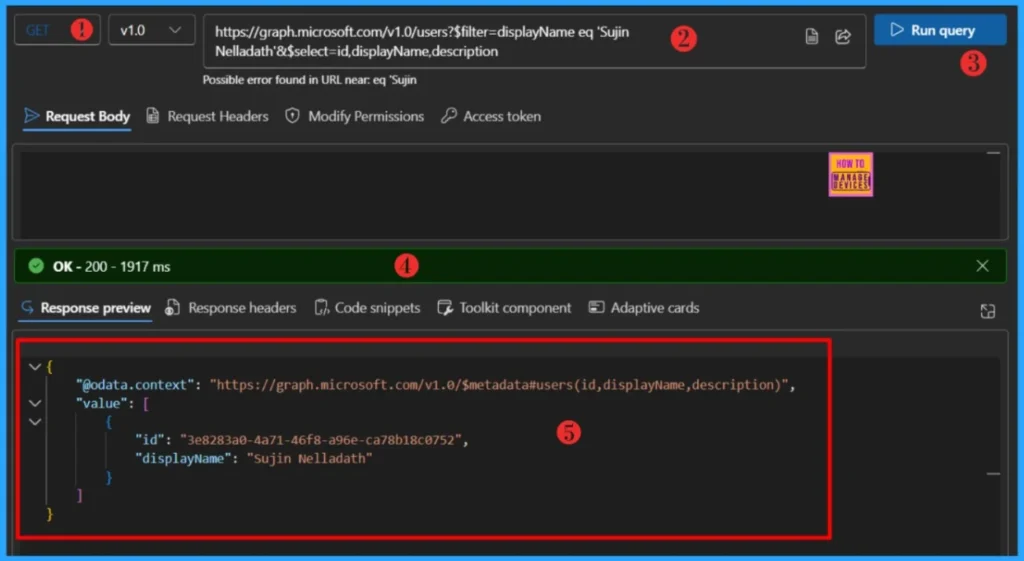
The below endpoint will retrieves the User ID details for you. Here, you should note down the Object ID of the target user to proceed further.
- Sign in to the Graph Explorer with your credentials.
- Click on Run query after typing the URL below. You should use the GET API request method. Replace the display name with your own.
https://graph.microsoft.com/v1.0/users?$filter=displayName eq 'Sujin Nelladath'&$select=id,displayName,descriptionWithin seconds of clicking Run query, you will receive a success message with the text ‘OK -200.’ The Response preview box will show the desired output. You should have at least User.ReadBasic.All permission to run the query. Make a note of the Object ID of the target user.
- Time to use Microsoft Graph Device Management PS Module Instead of MS Graph Intune Module.
- Automate Intune App Deployment using Microsoft Graph API and PowerShell
| Permission | Description |
|---|---|
| User.ReadBasic.All | Allows the app to read a basic set of profile properties of other users in your organization on your behalf. Includes display name, first and last name, email address, photo, id and security identifier. Also allows the app to read the full profile of the signed-in user. |
Automate Outlook Out Of Office Settings Using Microsoft API
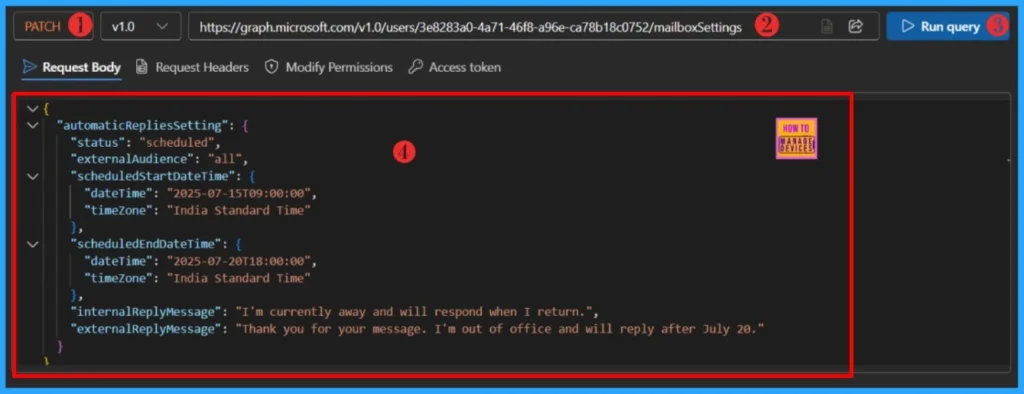
Now its the time to Automate Outlook Out Of Office Settings Using Microsoft API. Let’s Sign in to the Graph Explorer with your credentials again if you logged out. The must use the below URI to completly automate the Out Office Settings.
You should have MailboxSettings.ReadWrite permission to run the query. The below URI must be run using a PATCH call and below input. Make sure to replace the User ID with your own.
https://graph.microsoft.com/v1.0/users/{user-id/mailboxSettingsHere is the input JSON to include in the request body. Please remember to remove the externalReplyMessage settings if you are not configuring the out-of-office response for external users.
{
  "automaticRepliesSetting": {
    "status": "scheduled",
    "externalAudience": "all",
    "scheduledStartDateTime": {
      "dateTime": "2025-07-15T09:00:00",
      "timeZone": "India Standard Time"
    },
    "scheduledEndDateTime": {
      "dateTime": "2025-07-20T18:00:00",
      "timeZone": "India Standard Time"
    },
    "internalReplyMessage": "I'm currently away and will respond when I return.",
    "externalReplyMessage": "Thank you for your message. I'm out of office and will reply after July 20."
  }
}
Within seconds of clicking Run query, you will receive a success message with the text ‘OK -200.’ Below is the output that you could see in Response preview panel.
- Intune Proactive Remediation Scripts Vs PowerShell Scripts
- How to Trigger SCCM Client Agent Actions Using PowerShell Script
{
    "@odata.context": "https://graph.microsoft.com/v1.0/$metadata#users('3e8283a0-4a71-46f8-a96e-ca78b18c0752')/mailboxSettings",
    "userPurpose": "unknown",
    "automaticRepliesSetting": {
        "status": "scheduled",
        "externalAudience": "all",
        "internalReplyMessage": "I'm currently away and will respond when I return.",
        "externalReplyMessage": "Thank you for your message. I'm out of office and will reply after July 20.",
        "scheduledStartDateTime": {
            "dateTime": "2025-07-15T03:30:00.0000000",
            "timeZone": "UTC"
        },
        "scheduledEndDateTime": {
            "dateTime": "2025-07-20T12:30:00.0000000",
            "timeZone": "UTC"
        }
    }
}
Verify the Out Of Office Settings in Outlook
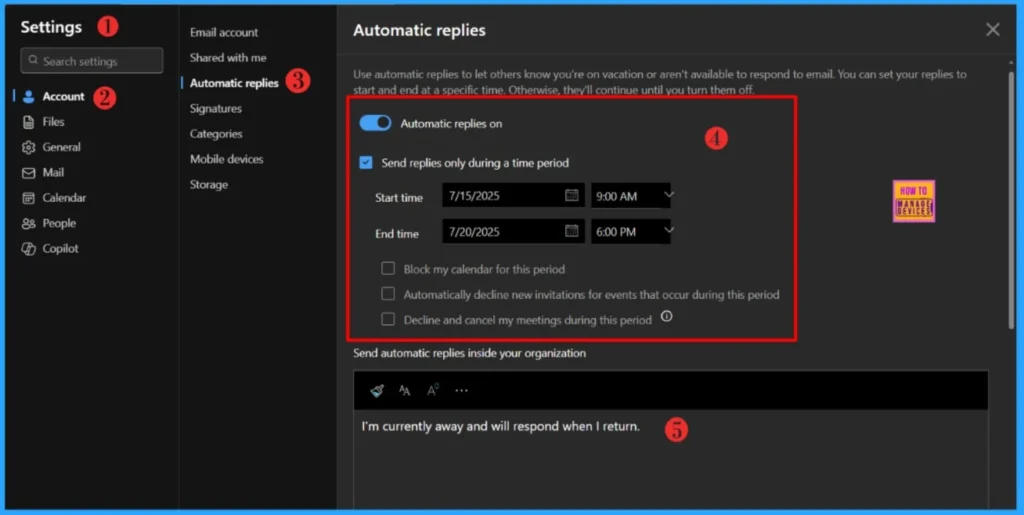
We have Automated Outlook Out Of Office Settings Using Microsoft API. Let’s verify the settings in Microsoft Outlook. To verify your Out of Office (OOO) settings in Outlook Web, here’s a quick walkthrough.
- Sign in to Outlook on the web.
- Click the gear icon in the top-right corner to open Settings.
- Click on Account and navigate to Automatic replies.
Here, you’ll see whether automatic replies are enabled, along with the configured start and end times, and the internal and external messages. Also, you can see the optional settings like blocking your calendar or declining meetings.
- Best way to Deploy Shell Scripts using Intune
- Run Remediation Script on-demand for Windows Devices using Intune
- PowerShell Script to Create a Local Admin Account using Intune
PowerShell Scrtip to Automate Outlook Out Of Office Settings
Let’s auotmate the complete process of setting up the Outlook Out Of Office. The below code will prompts for user email ID, Out of Office start and end time andOut of Office messgae as Inputs. You must install the Microsoft Graph PowerShell Modules before you use this script.
NOTE! Use the Connect-MgGraph command to sign in with the required scopes. You'll need to sign in with an admin account to consent to the required scopes.- Best Guide to Install Microsoft Graph PowerShell Modules
- Complete Guide to Install the New Microsoft Entra PowerShell Module
- How to Pause Intune Config Refresh Feature on Windows Device using Microsoft Graph API
##########################################################################

#Set-OutOfOffice.ps1
#Author : Sujin Nelladath
#LinkedIn : https://www.linkedin.com/in/sujin-nelladath-8911968a/

############################################################################

# Connect to Microsoft Graph
Connect-MgGraph -Scopes "MailboxSettings.ReadWrite", "Mail.ReadWrite"

# Collect user input
$userPrincipalName = Read-Host "Enter the user's email address"
$user = Get-MgUser -UserId $userPrincipalName
$userID = $user.id

if ($null -eq $user)
    {
        Write-Host "USER NOT FOUND.!" -ForegroundColor Red
        return
    }

#Enter Out of Office time Inputs
$startTime = Read-Host "Enter OOO start date and time (e.g. 2025-07-18 09:00)"
$endTime  = Read-Host "Enter OOO End date and time (e.g. 2025-07-18 20:00)"
$startTimeInIso = (Get-Date $startTime).ToString("yyyy-MM-ddTHH:mm:ss")
$endTimeInIso   = (Get-Date $endTime).ToString("yyyy-MM-ddTHH:mm:ss")

#Enter  Out of Office Message

$InternalMsg = Read-Host "Enter internal reply message"
$externalMsg  = Read-Host "Do you want to set an external reply message? (Yes/No)"

$externalMsg = If ($externalMsg -eq "Yes")

    {
      Read-Host "Enter external reply message"
    }

#Body

$body = @"
{
  `"automaticRepliesSetting`": {
    `"status`": `"scheduled`",
    `"externalAudience`": `"all`",
    `"scheduledStartDateTime`": {
      `"dateTime`": `"$startTimeInIso`",
      `"timeZone`": `"India Standard Time`"
    },
    `"scheduledEndDateTime`": {
      `"dateTime`": `"$endTimeInIso`",
      `"timeZone`": `"India Standard Time`"
    },
    `"internalReplyMessage`": `"$InternalMsg`",
    `"externalReplyMessage`": `"$externalMsg.`"
  }
}
"@

#Setup the OOO
$URI  = "https://graph.microsoft.com/v1.0/users/$userID/mailboxSettings"

Invoke-MgGraphRequest -Uri $URI -Method PATCH -Body $body

Write-Host "Automatic reply settings successfully applied for $userPrincipalName." -ForegroundColor Green
I have uploaded the PowerShell script to the my GitHub repository. You may access it from there for your further use.
Download : Set-OutOfOfficeI trust that this article will significantly benefit you and your organization. I appreciate your patience in reading this post. I look forward to seeing you in the next post. Keep supporting the HTMD Community.
Need Further Assistance or Have Technical Questions?
Join the LinkedIn Page and Telegram group to get the latest step-by-step guides and news updates. Join our Meetup Page to participate in User group meetings. Also, Join the WhatsApp Community to get the latest news on Microsoft Technologies. We are there on Reddit as well.
Author
About the Author: Sujin Nelladath, a Microsoft Graph MVP with over 11 years of experience in SCCM device management and Automation solutions, writes and shares his experiences with Microsoft device management technologies, Azure, DevOps and PowerShell automation.




Discussion