






Best way to Fix Classic Outlook Crashes using Intune PowerShell Remediation Script
In this article, let’s learn how to Fix Classic Outlook Crashes using Microsoft Intune PowerShell Script. It is occurring during the opening or when starting a new email. The Outlook error 0xc0000409 is commonly reported when users try to open Classic Outlook or compose a new email. This issue occurs because Outlook cannot open the Forms Library.
A quick way to begin troubleshooting is to start Outlook in Safe Mode by running Outlook.exe /Safe from the Run dialog. If Outlook opens without crashing in Safe Mode, it’s likely that an add-in is causing the issue and should be disabled from the COM Add-ins menu under File > Options > Add-ins.
Another effective fix is to repair or recreate the Outlook profile. To do this, go to Control Panel > Mail > Show Profiles, and either repair the existing profile or create a new one and set it as the default. If the issue persists, it’s also worth checking for recent Windows or Office updates, as Microsoft often releases patches for stability issues like this. Rolling back recent updates, especially if the crash started after a Windows or Office update, has resolved the issue in some environments.
For organizations using Microsoft Intune, IT admins can deploy a PowerShell remediation script to automate the fix already released by Microsoft. In enterprise environments, managing this error centrally helps ensure minimal downtime. You may be able to fix the issue by creating the FORMS2 folder. This folder is expected to exist at C:\Users\<username>\AppData\Local\Microsoft\FORMS2.


Table of Contents
Create a Remediation Script in Intune to Fix Classic Outlook Crashes
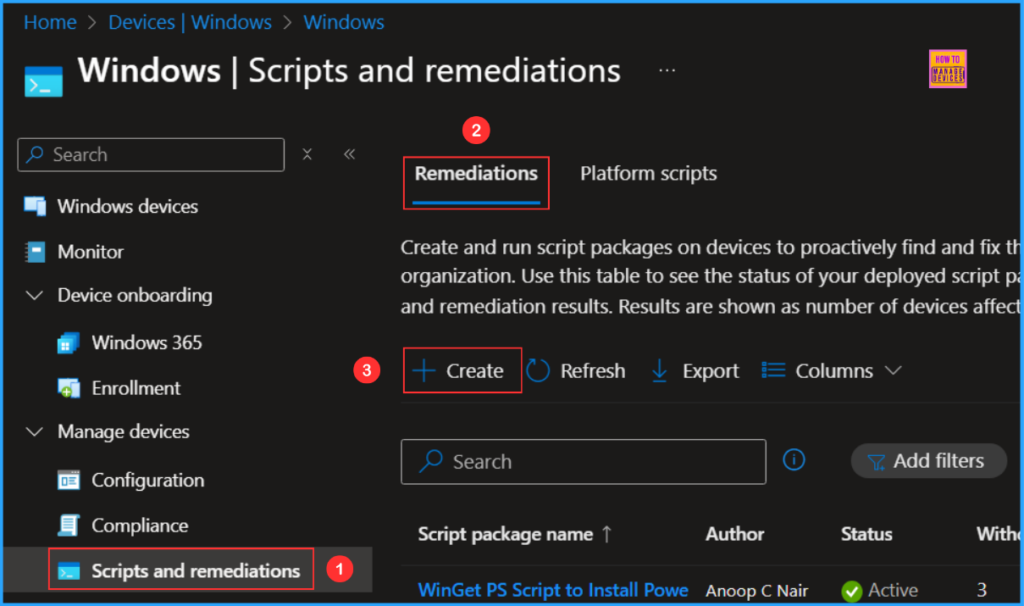
Follow these steps to fix Classic Outlook Crashes using the Intune PowerShell Script. I will be using the Remediations script to configure it. Log in to the Microsoft Intune Admin Center using your admin credentials.
- Navigate to Devices > Windows > Scripts and remediations
- Click on Remediations > +Create
- Quick Fix to your Windows OS Issues with Detection and Remediation Scripts with Intune
- Quick and Easy way to Turn on PowerShell Audit using Intune Policy
- How to Install Microsoft Defender Browser Protection Extension using Intune PowerShell Script
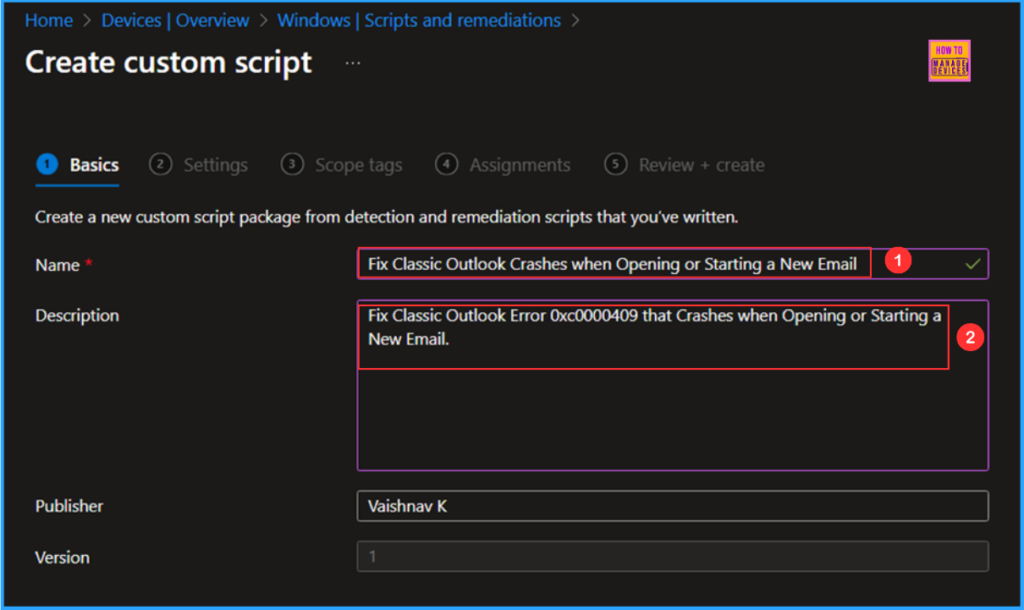
In the Basics details pane, we can name the PowerShell script as “Fix Classic Outlook Crashes when Opening or Starting a New Email” If necessary, provide a brief description of the script here am giving “Fix Classic Outlook Error 0xc0000409 that Crashes when Opening or Starting a New Email.” and click Next.
Write PowerShell Detection and Remediation Scripts to Fix Classic Outlook Crashes when Opening or Starting a New Email
Let’s write two PowerShell scripts from scratch to fix Classic Outlook Crashes when opening or starting a New Email, which we deploy in bulk. Save the scripts in a .ps1 file format. Find Microsoft’s official documentation explaining this issue, Classic Outlook crashes opening or starting a new email
Detection PowerShell Script
###############################################################################

#Fix Classic Outlook Crashes when Opening or Starting a New Email
#Author : Vaishnav K
#LinkedIn : https://www.linkedin.com/in/vaishnav-k-957b0589/
#Website: https://www.anoopcnair.com/author/vaishnavkuruvaikandy

###############################################################################

# Define the path to the Forms2 directory
$Forms2Path = Join-Path -Path $env:LOCALAPPDATA -ChildPath "Microsoft\FORMS2"

try {
    # Check if the path exists
    if (Test-Path -Path $Forms2Path -ErrorAction SilentlyContinue) {
        # Path exists - successful exit
        exit 0
    } else {
        # Path does not exist - error exit
        exit 1
    }
} catch {
    # Exception occurred - error exit
    exit 1
}
Remediation PowerShell Script
###############################################################################

#Fix Classic Outlook Crashes when Opening or Starting a New Email
#Author : Vaishnav K
#LinkedIn : https://www.linkedin.com/in/vaishnav-k-957b0589/
#Website: https://www.anoopcnair.com/author/vaishnavkuruvaikandy

###############################################################################

# Define the path to the FORMS2 directory
$Forms2Path = Join-Path -Path $env:LOCALAPPDATA -ChildPath 'Microsoft\FORMS2'

# Check if the directory exists; if not, create it
if (-not (Test-Path -Path $Forms2Path -ErrorAction SilentlyContinue)) {
    $paramNewItem = @{
        Path          = $Forms2Path
        ItemType      = 'Directory'
        Force         = $true
        Confirm       = $false
        ErrorAction   = 'SilentlyContinue'
        WarningAction = 'SilentlyContinue'
    }

    # Create the directory silently
    $null = New-Item @paramNewItem

    # Clear the variable for safety
    $paramNewItem = $null
}

# Clean exit - let Intune re-evaluate detection rules
exit 0
Note! I’ve uploaded the PowerShell Script to my GitHub Repo, so feel free to check it out for your needs. Download from here: Dectection_ClassicOutlook_Crash.ps1 & Remediation_ClassicOutlook_Crash.ps1
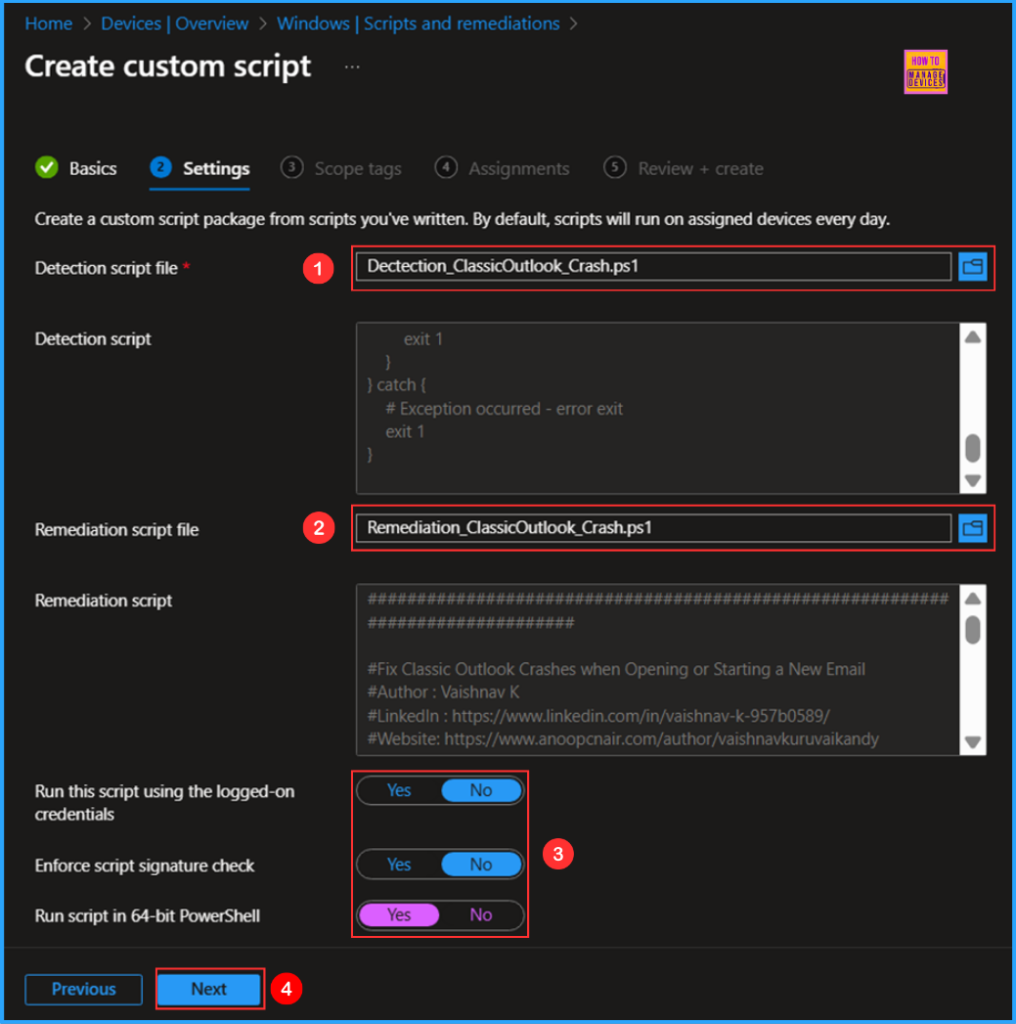
In the Script settings pane, we can set the configurations according to our requirements. The Detection script file and Remediation script file are mandatory; we must browse and select our saved PS Script here.
- Detection script file – Browse and select the saved script Dectection_ClassicOutlook_Crash.ps1
- Remediation script file – Browse and select the saved script Remediation_ClassicOutlook_Crash.ps1
- Run this script using the logged on credentials – No
- Enforce script signature check – No
- Run script in 64 bit PowerShell Host – Yes
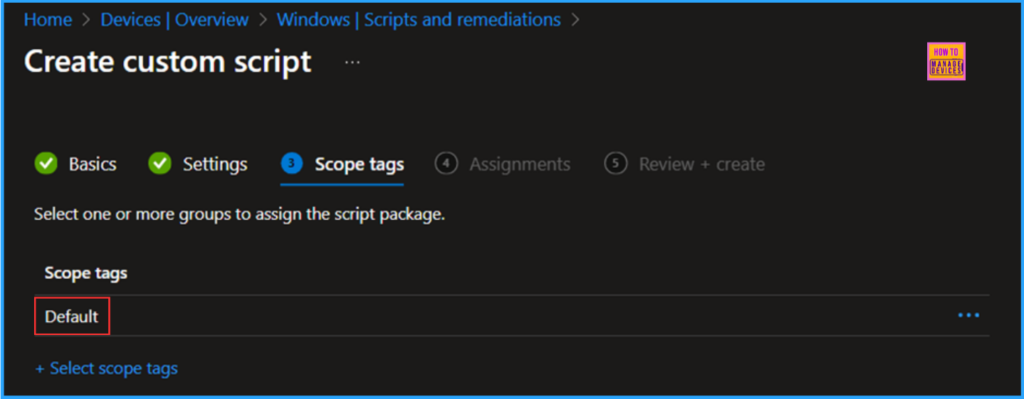
On the next page, keep the default scope tags. If any custom scope tags are available based on your requirements, you can select them for this script deployment.
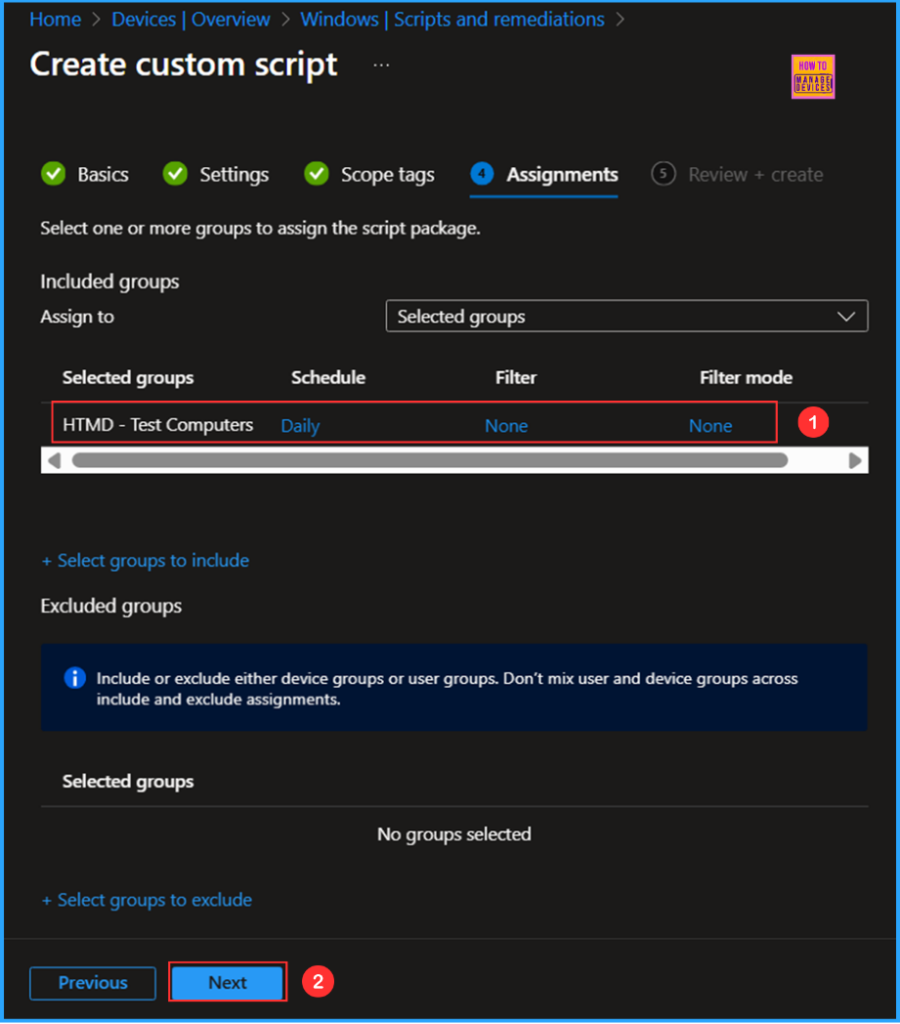
Click on Next and assign the script to HTMD – Test Computers. You can click Assign to and select the desired device group in the Selected groups section.
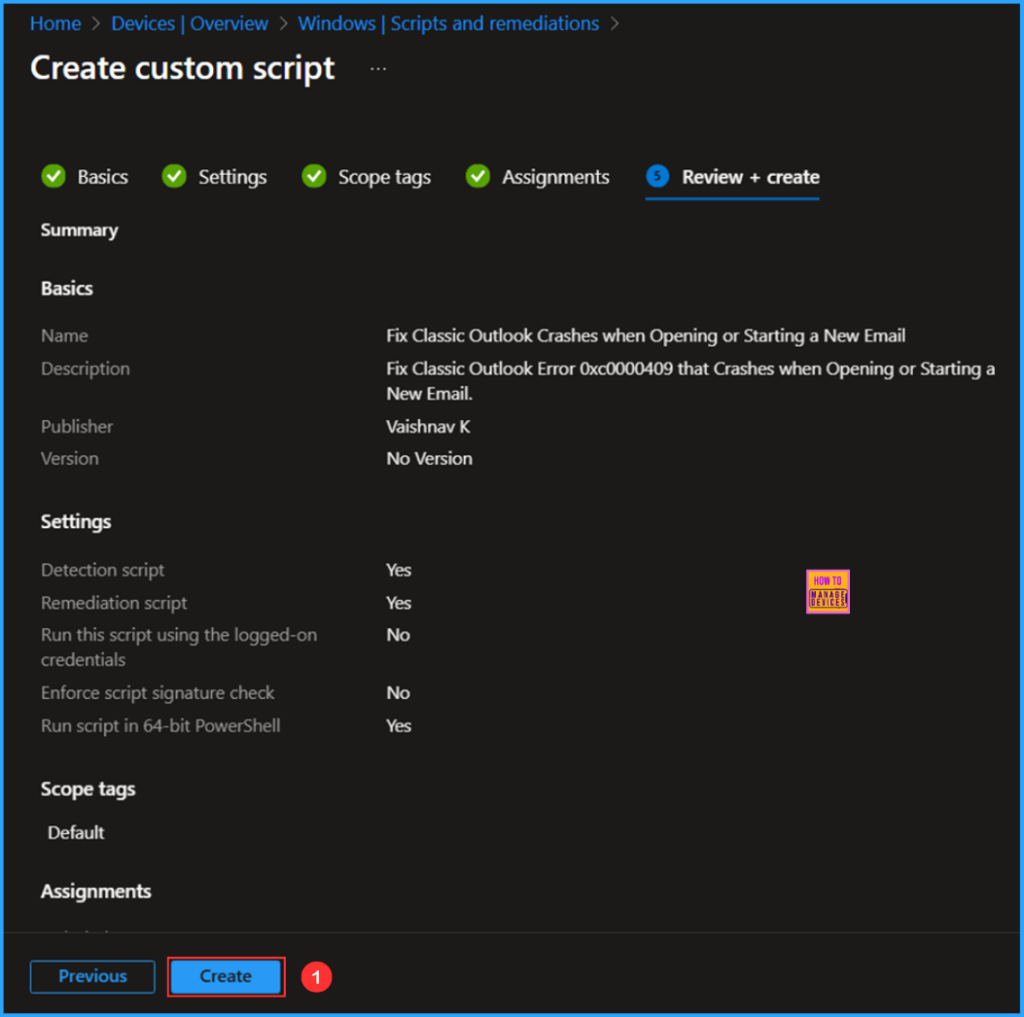
On the Review + create pane, thoroughly check all the settings you have defined for Fix Classic Outlook Crashes when Opening or Starting a New Email. Once you confirm everything is correct, select Create to implement the changes.
- Easy way to Enable Fast Startup using Intune PowerShell Script
- Simple Method to Disable Office Online Repair with Intune PowerShell Script
- Easy Way to Install a Language Pack using Intune PowerShell Script
Monitor the Fix Classic Outlook Crashes when Opening or Starting a New Email Deployment
This Intune PowerShell Script has been deployed to the Microsoft Entra ID group (HTMD – Test Computers). The policy will take effect based on our configured Schedule. To monitor the policy deployment status from the Intune Portal, follow the steps below.
- Navigate to Devices > Windows > Scripts and remediations > Remediations
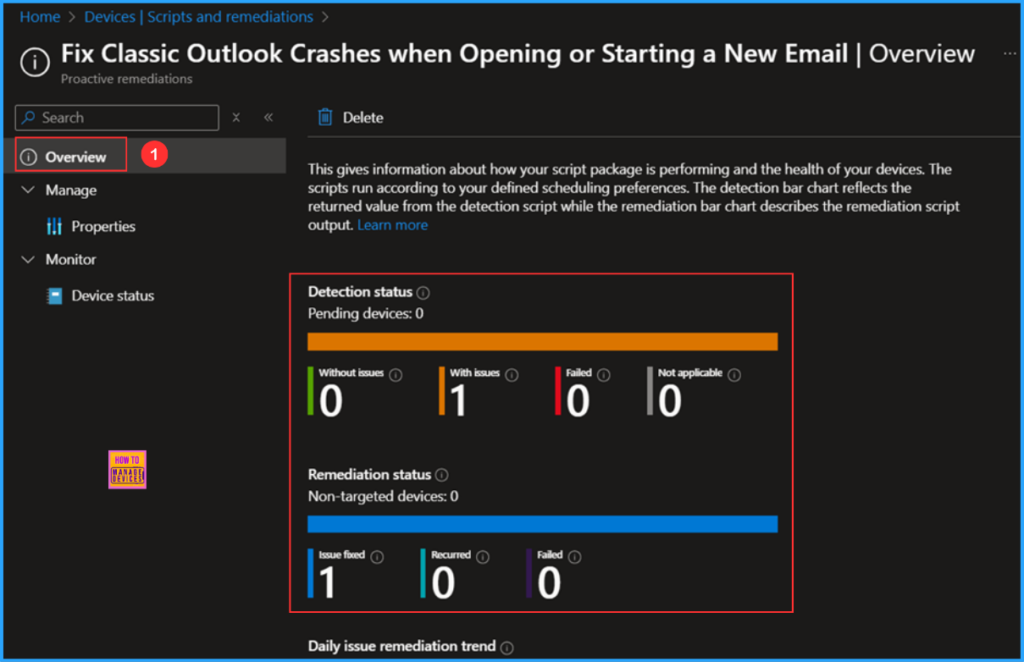
Search for the “Fix Classic Outlook Crashes when Opening or Starting a New Email” Script. The deployment status for this script can be seen under the Overview status. We can see that both the Detection status and the Remediation status and both are worked as expected!
End User Experience
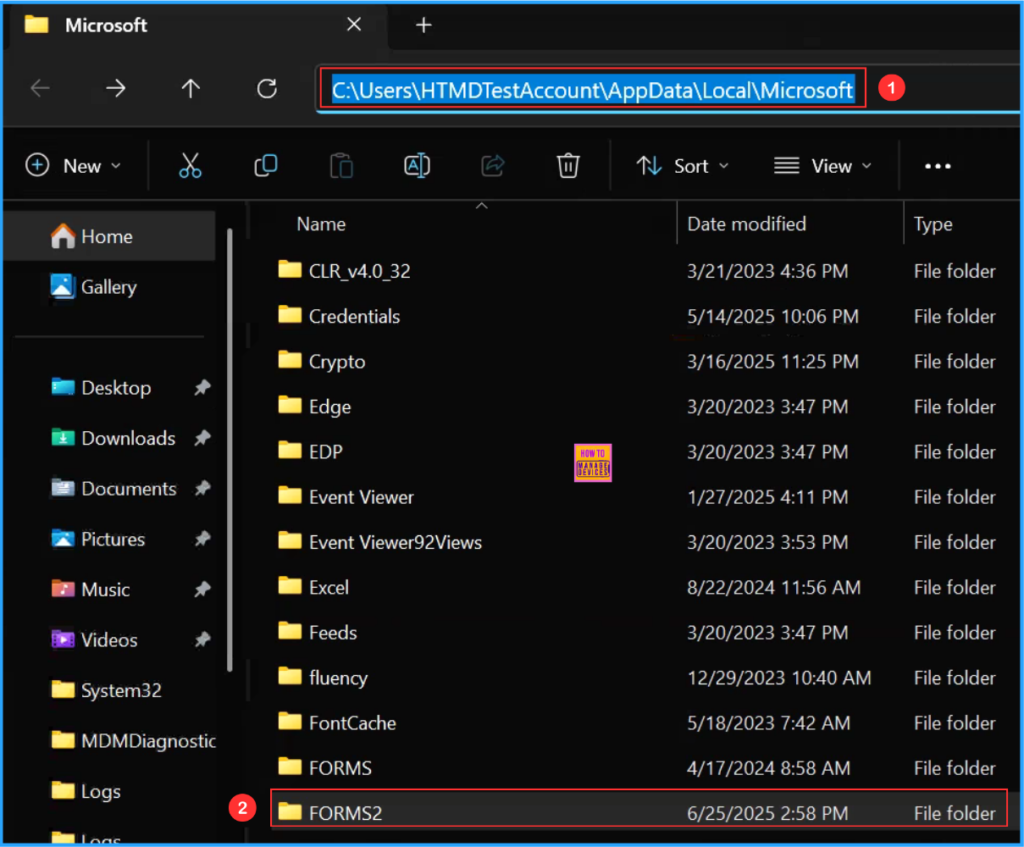
We need to verify if the Intune PowerShell Script has Fix Classic Outlook Crashes when Opening or Starting a New Email. Log in to one of the targeted devices for the policy. Open the File Explorer and follow the path below.
- C:\Users\HTMDTestAccount\AppData\Local\Microsoft or Open Run and type %localappdata%\Microsoft
We can see the “FORMS2” folder has been successfully created and our PowerShell Remediation script deployment is working as expected!
Note! You can also run this remediation script on-demand for individual devices. To do this, navigate to Device > Windows. Click on the device you want to run the script, click on the three dots in the upper right corner, select the script titled “Fix Classic Outlook Crashes When Opening or Starting a New Email,” and then choose “Run remediation“
Need Further Assistance or Have Technical Questions?
Join the LinkedIn Page and Telegram group to get the latest step-by-step guides and news updates. Join our Meetup Page to participate in User group meetings. Also, join the WhatsApp Community to get the latest news on Microsoft Technologies. We are there on Reddit as well.
Author
Vaishnav K has over 11 years of experience in SCCM, Device Management, and Automation Solutions. He writes and imparts knowledge about Microsoft Intune, Azure, PowerShell scripting, and automation. Check out his profile on LinkedIn.


Discussion