






Windows Sign-In Traffic Shows Microsoft Owned IP Address Instead of Public IP
Let’s discuss Windows sign-In Traffic Shows Microsoft Owned IP Address Instead of Public IP. Windows sign-in traffic can now go through Microsoft Global Secure Access (GSA) using mutual TLS (mTLS), even before a user logs in. This means that your login information is protected from the very beginning.
Microsoft started rolling out this feature in November 2024, and it’s being added slowly to all Microsoft Entra tenants. If your organisation recently got this update, you can now take advantage of this added layer of security during the Windows sign-in process.
When you power on a Windows laptop and enter your login credentials, your device reaches out to Microsoft Entra (Azure AD) to authenticate you. This happens before the desktop loads and is essential for password verification.
Previously, when you signed in to your laptop, your login details were sent over the internet. While the data was encrypted, using public Wi-Fi in places like airports or cafes still carried risks. Hackers on the same network could try to see, change, or steal your sign-in information.

Table of Contents
Windows sign-In Traffic Shows Microsoft Owned IP Address Instead of Public IP
In this post, you will find all the details about a recent change where Windows sign-in traffic now shows a Microsoft-owned IP address instead of the device’s public IP. This change is part of Microsoft’s enhanced security model using Global Secure Access (GSA) and mutual TLS (mTLS).
With the new Microsoft Global Secure Access (GSA) and mutual TLS (mTLS) feature, your laptop’s sign-in traffic now goes through Microsoft’s secure network instead of the public internet. Global Secure Access is Microsoft’s new unified platform that combines two key security tools: Microsoft Entra Internet Access and Microsoft Entra Private Access. Together, these form Microsoft’s Security Service Edge (SSE) solution.
- Mutual TLS (mTLS) is a stronger way to secure connections by having both sides prove who they are.
- In regular TLS, only the server shows its certificate, and the client trusts it.
- With mTLS, your device also presents its own certificate so the server can verify it.
- This two-way certificate check makes sure that both the client and server are genuine before any data is exchanged.
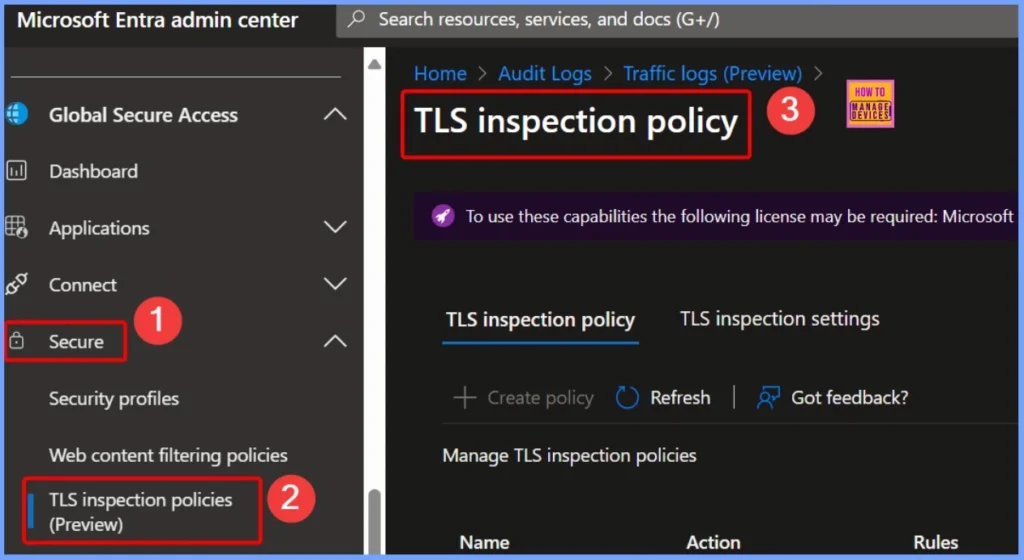
Read More – How Transport Layer Security TLS Inspection Works in Microsoft Entra Internet Access to Empower Security
| Benefits of Microsoft Owned IP Address | Details |
|---|---|
| Secured Sign-In | Protects Windows login from network-based attacks |
| Zero Trust Aligned | Applies Zero Trust principles right from the sign-in stage |
| Safe on Public Wi-Fi | Ideal for users on untrusted networks |
| Traffic Visibility | Microsoft can monitor and control sign-in traffic before it reaches Entra |
- How to Allow or Block Web Authentication Requests on Sites with Broken TLS Certificates in Edge Browser using M365 Admin Center
- Enable Disable Search Bar Allowed in Edge Through Microsoft 365 Admin Center Policy
- Configuration Profile for Edge Browser Extensions and Sidebar Management using Microsoft 365 Admin Center
- Enable Autofill For Addresses In MS Edge Browser Using Microsoft 365 Admin Center Policy
Prerequisites to Enable Windows Sign-in Traffic using GSA
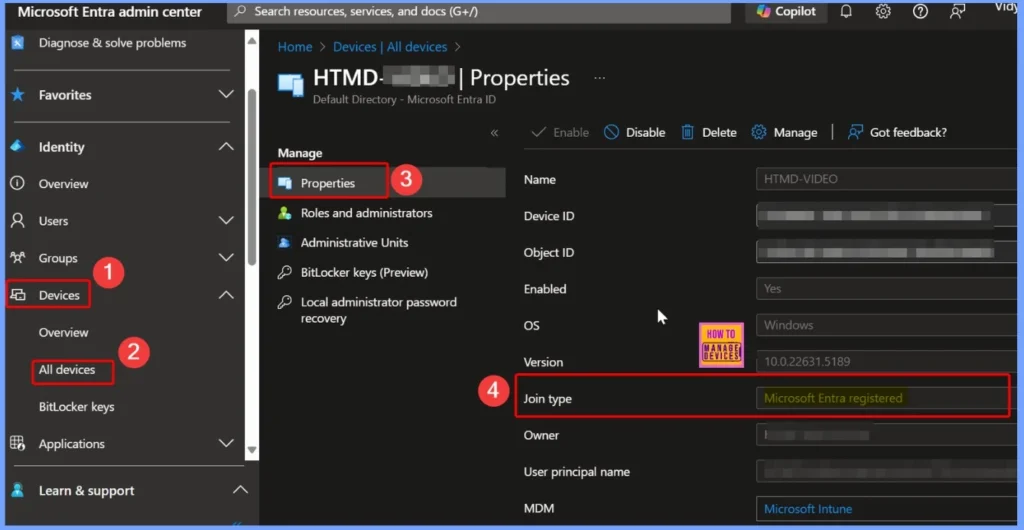
You can easily use this new secure sign-in feature, but a few setup requirements must be met. First, the device must be Microsoft Entra joined, ensuring it is registered and managed through your organisation’s identity system. Next, the GSA client (version 2.8.45 or higher) must be installed on the device to enable secure routing of traffic. Finally, the Microsoft 365 App profile must be enabled within the Global Secure Access configuration.
- Go to the Microsoft Entra admin center using the link https://entra.microsoft.com
- In the left pane, click on “Devices”
- Under “All devices”, search for your device by name
- Click on the device from the list to view its details
- Look for the field “Join type“
How to Confirming GSA is Active – Check for Microsoft-Owned IP in Sign-In Logs
You can easily confirm the Windows sign-in traffic is being routed through Global Secure Access (GSA), go to your Microsoft Entra sign-in logs. Check the IP address listed for recent sign-ins. If the feature is active, you will notice that the IP address is no longer your device’s public IP. Instead, it will show a Microsoft-owned IP address, which indicates that the sign-in traffic was securely routed through Microsoft’s GSA network instead of going directly over the internet.
Why Mutual TLS Adds Strong Protection
The Mutual TLS strengthens security by making sure both your device and Microsoft verify each other’s identity using digital certificates. Before any data is exchanged, your device must prove it’s trusted, and Microsoft must confirm it’s a genuine server.
This two-way authentication builds strong trust between both sides and helps block any fake or unauthorized systems. As a result, it significantly increases the security of the Windows sign-in process even before the user reaches the desktop.
Need Further Assistance or Have Technical Questions?
Join the LinkedIn Page and Telegram group to get the latest step-by-step guides and news updates. Join our Meetup Page to participate in User group meetings. Also, join the WhatsApp Community to get the latest news on Microsoft Technologies. We are there on Reddit as well.
Author
Anoop C Nair has been Microsoft MVP for 10 consecutive years from 2015 onwards. He is a Workplace Solution Architect with more than 22+ years of experience in Workplace technologies. He is a Blogger, Speaker, and Local User Group Community leader. His primary focus is on Device Management technologies like SCCM and Intune. He writes about technologies like Intune, SCCM, Windows, Cloud PC, Windows, Entra, Microsoft Security, Career, etc.
Discussion