






How to Fix Set Time Zone Automatically Greyed Out on Windows 11
Let’s discuss How to Fix Set Time Zone Automatically Greyed Out on Windows 11. Windows 11 users facing issues on Set time zone automatically” option. This setting is either not visible or is “greyed out” in the Settings app.
Due to this issue, users cannot make manual changes on this settings. This similar issue occurred on Windows 10 devices and users are reporting about this. But today we are going to discuss about how to fix Set Time Zone Automatically Greyed Out on Windows 11.
As we know that Microsoft allows users to manually change Time Zone Automatically. There are many time zones available on Windows 11. This is by design as the Set time zone automatically setting is a system wide setting that applies to all user profiles on a machine.
Windows 11 settings option to set the time zone automatically is greyed out or not, is not just dependent on admin rights. There is another reason for this issue and here I will shows different way to fix Time Zone Automatically Greyed Out issue.

Table of Contents
How to Fix Set Time Zone Automatically Greyed Out on Windows 11
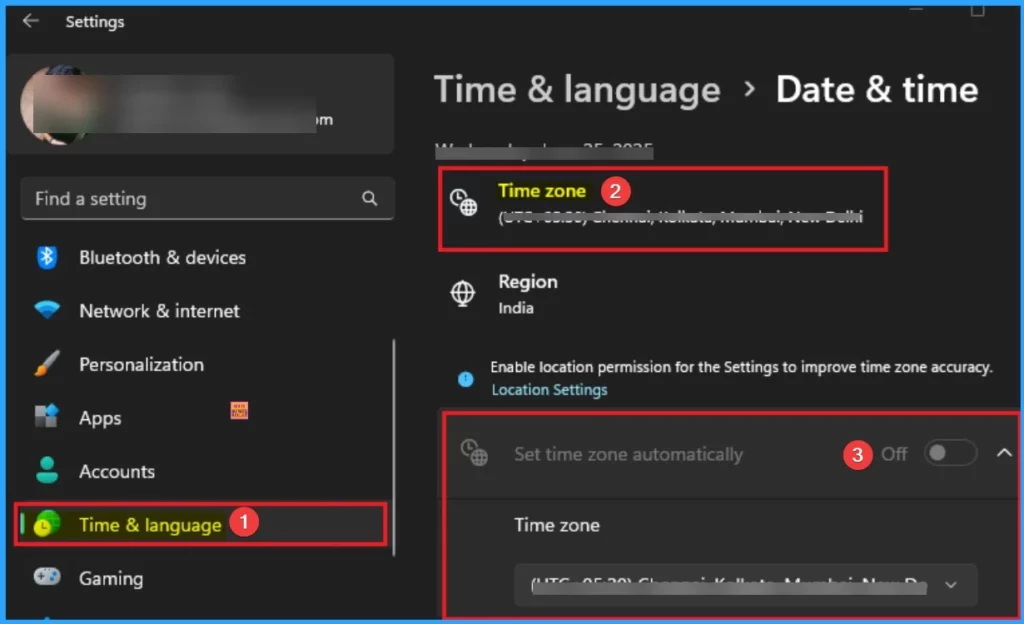
There are different methods available to fix set time zone automatically option greyed out. Try these methods according to your preferences. The following imgae shows set time zone automatically feature is greyed out in Windows 11 PC.
- Configure Time Zone for Windows 11 Machines using Intune through Microsoft Graph API
- Windows 11 Add Additional Clocks Time Zone Easiest Option
- How to Set Time Zone using Intune MEM
Fix Time Zone Automatically Greyed Out using Settings App
Using Settings Application you can quickly fix the set time zone automatically option greyed out issue.
To do this click on the Start menu then Open Settings Application. After opening settings Application, you can easily access time zone setting. Here set time zone automatically option is greyed out.
- Go to Privacy and Security Settings
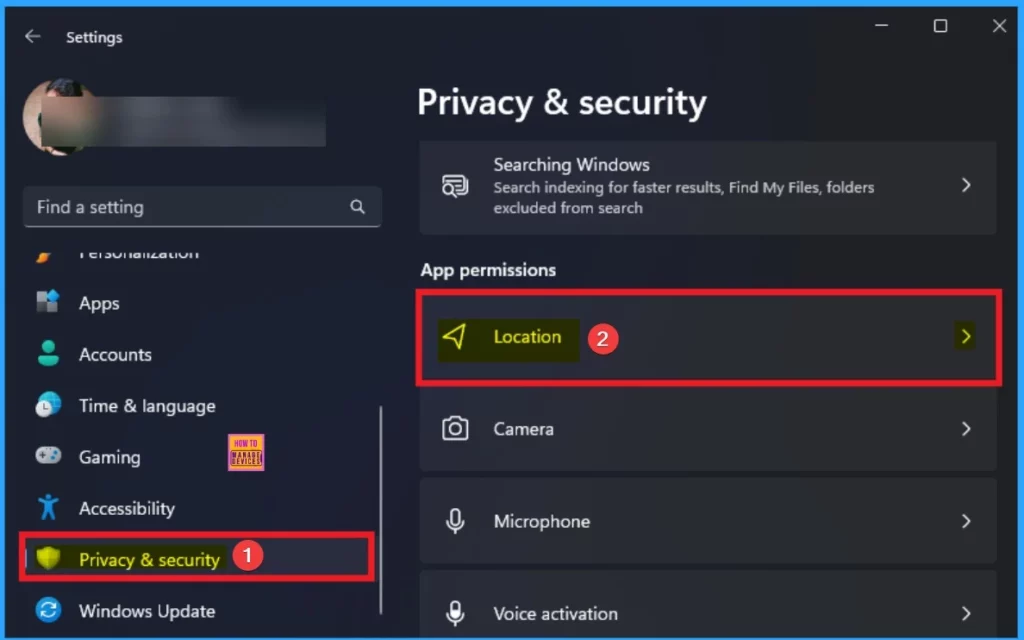
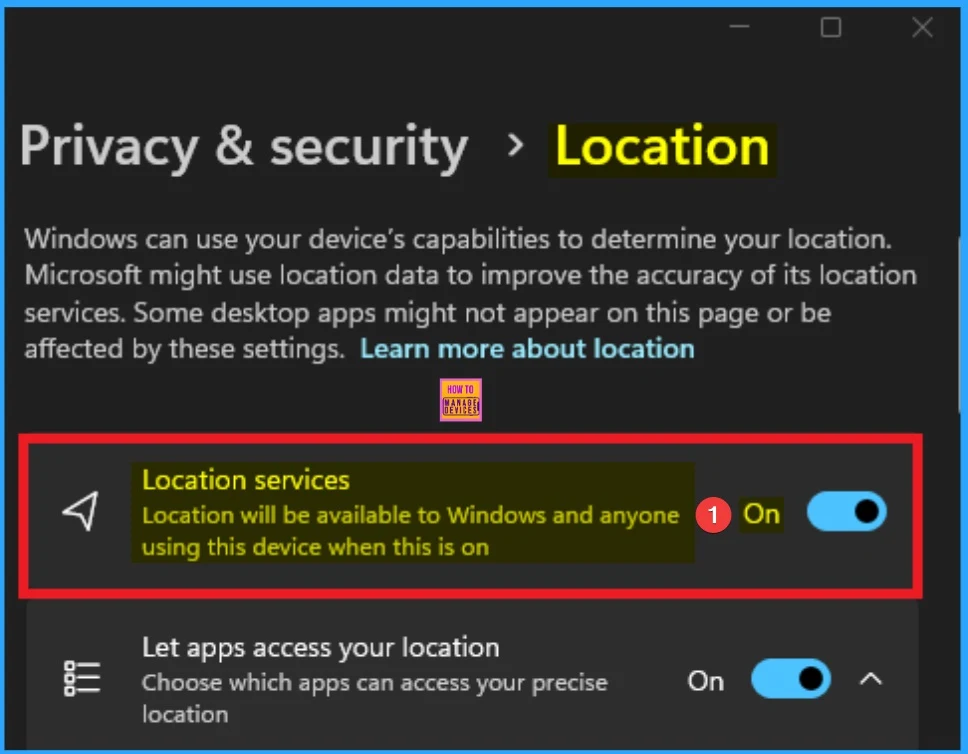
To fix issue enable the location services. Follow the below steps to fix set time zone automatically option. Select Location feature from Privacy & security. Under Location you can see location services.
Enable this feature by toggle the pane to the right side. After enabling location service you can check if the set time zone automatically option accessible or not.
Fix with Registry Editor
With Registry settings fixing set time zone automatically feature is a easiest way. If you are not able to work any other methods, you can try this method. Open the Registry Editor. Look at the table below to get the registry path for fix Set time zone automatically option greyed out.
| Registry Path |
|---|
| Computer\HKEY_LOCAL_MACHINE\SYSTEM\CurrentControlSet\Services\tzautoupdate |
From the tzautoupdate, double click on the Start Registry key. Look at the below screenshot for more clarity.
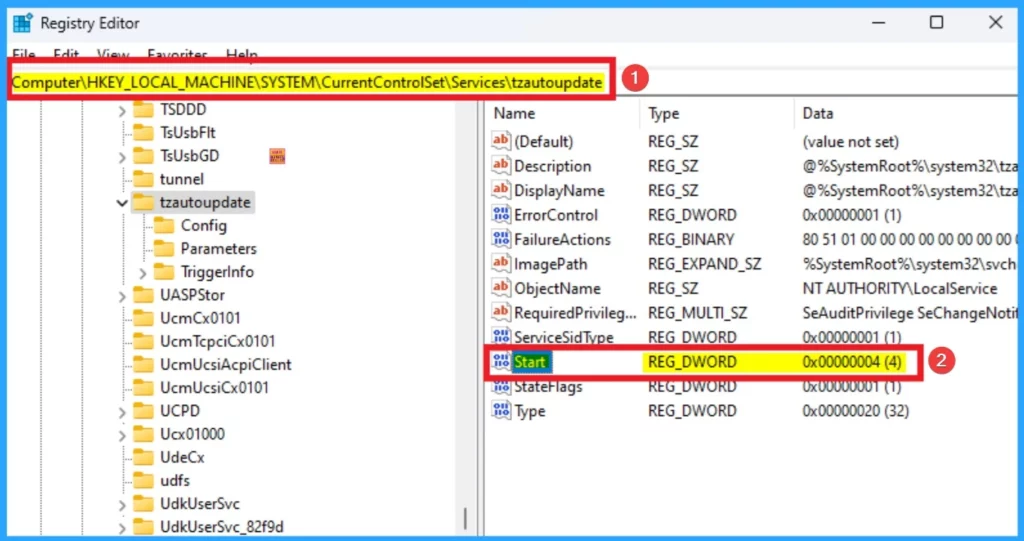
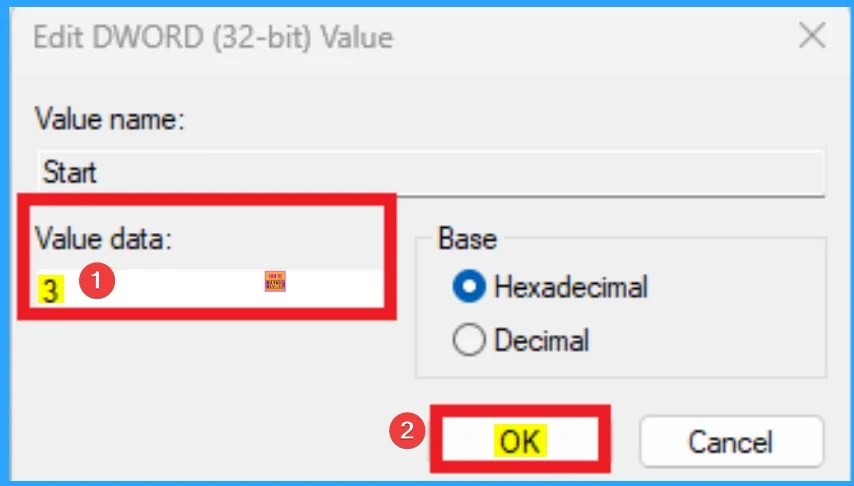
After clicking on the Start key you will get a new windows to set value for the key. Here Change the Value data as 3 to fix the issue. After that click on the Ok Button. After bring changes on the registry key, Restart the PC.
Control Panel
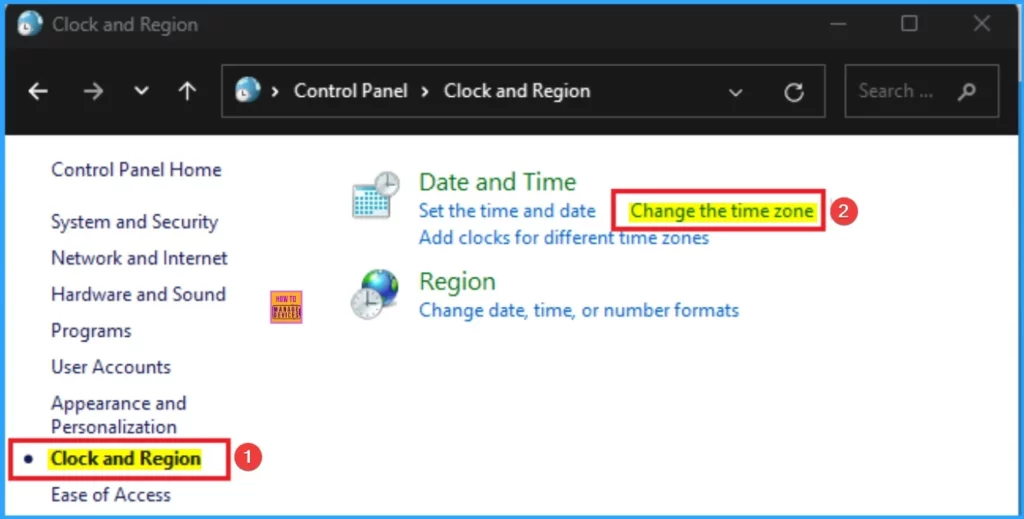
Control Panel also helps you to fix the issue on set time zone automatically. Open the Control Panel and go to Clock and Region and select Change the time zone under Date and Time.
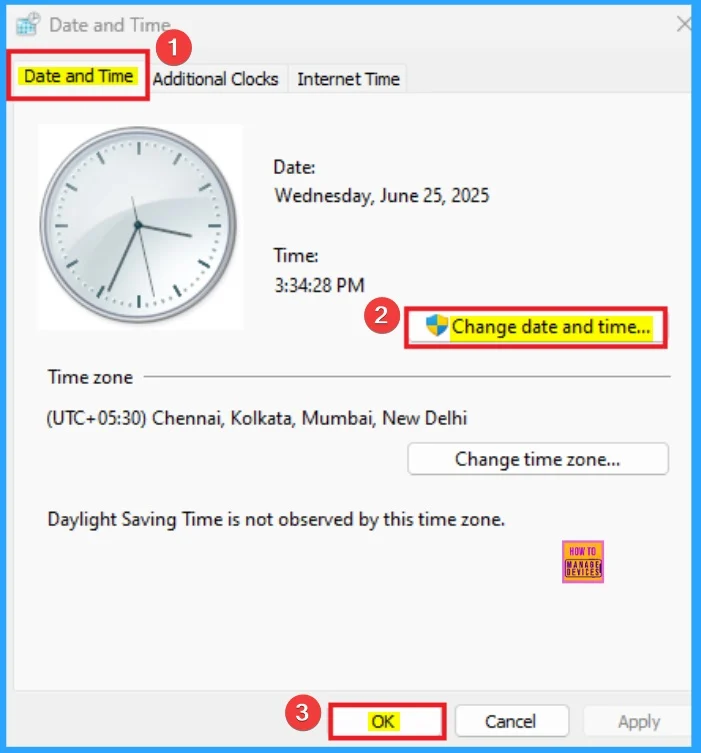
Then you will get another window that shows the Date and Time setting. Click on the Change date and time option and make the necessary Changes. After that, click on the Next button.
Group Policy Editor
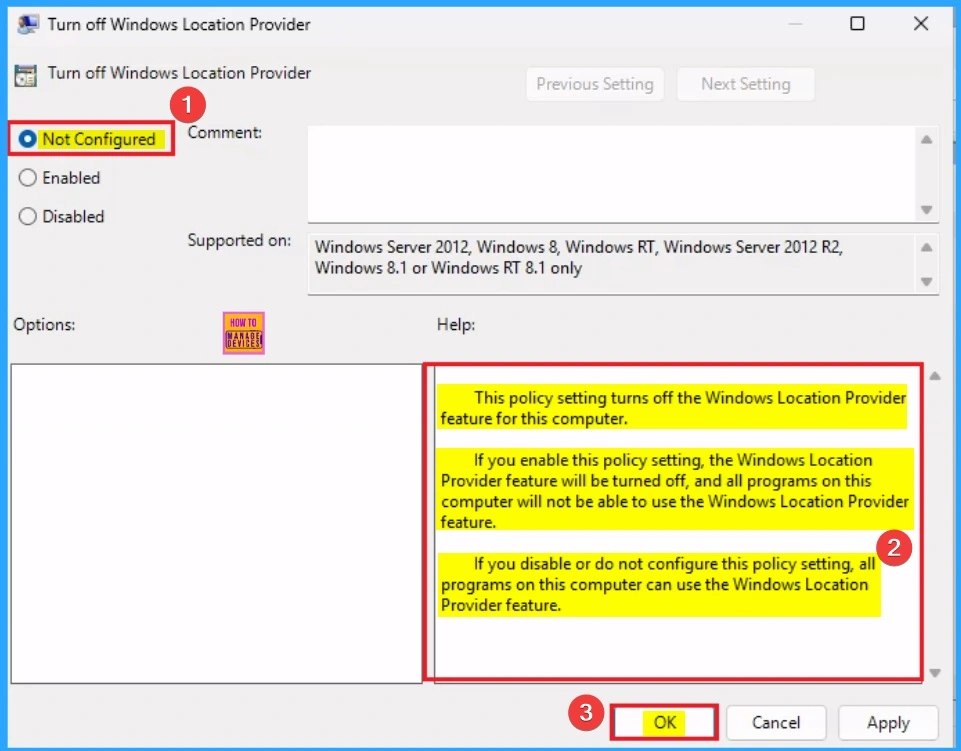
GPO method helpful for you to fix time zone automatically option. To do this, open the Group Policy Editor on your Device. Follow the below steps.
Computer Configuration > Administrative Templates > Windows Components > Location and Sensors > Windows Location Provider > Turn off Windows Location Provider
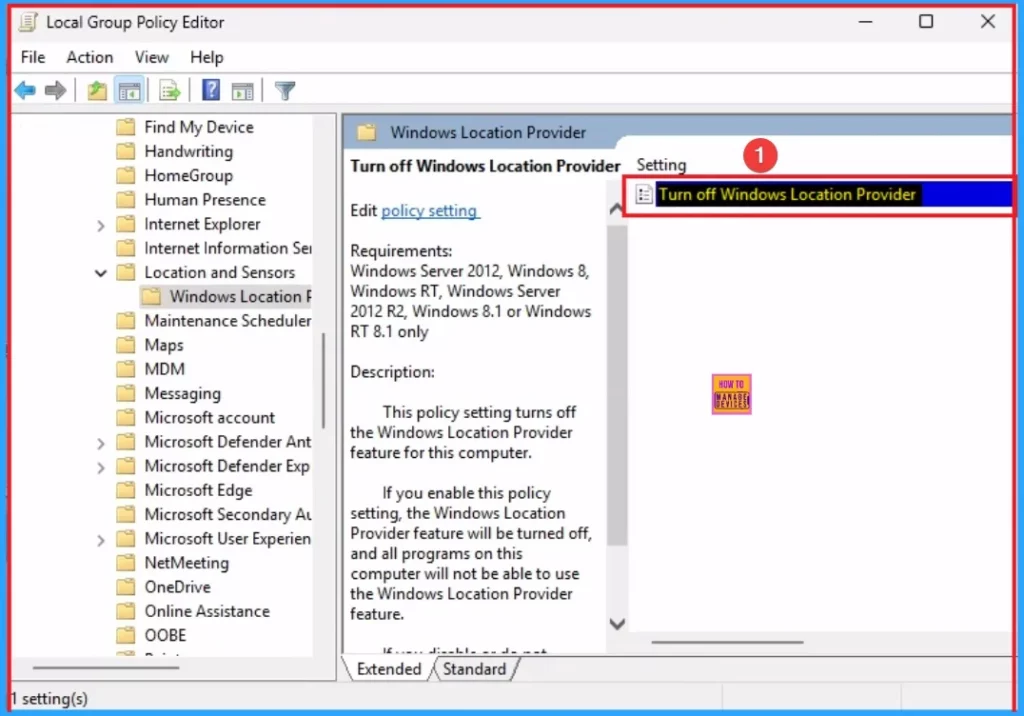
After selecting Turn off Windows Location Provider, Set Turn off Windows Location Provider to Not Configured. After selecting Not Configured option, all programs on the this computer can use the Windows Location Provider feature. Click on the OK button.
Using Intune Settings Catalog
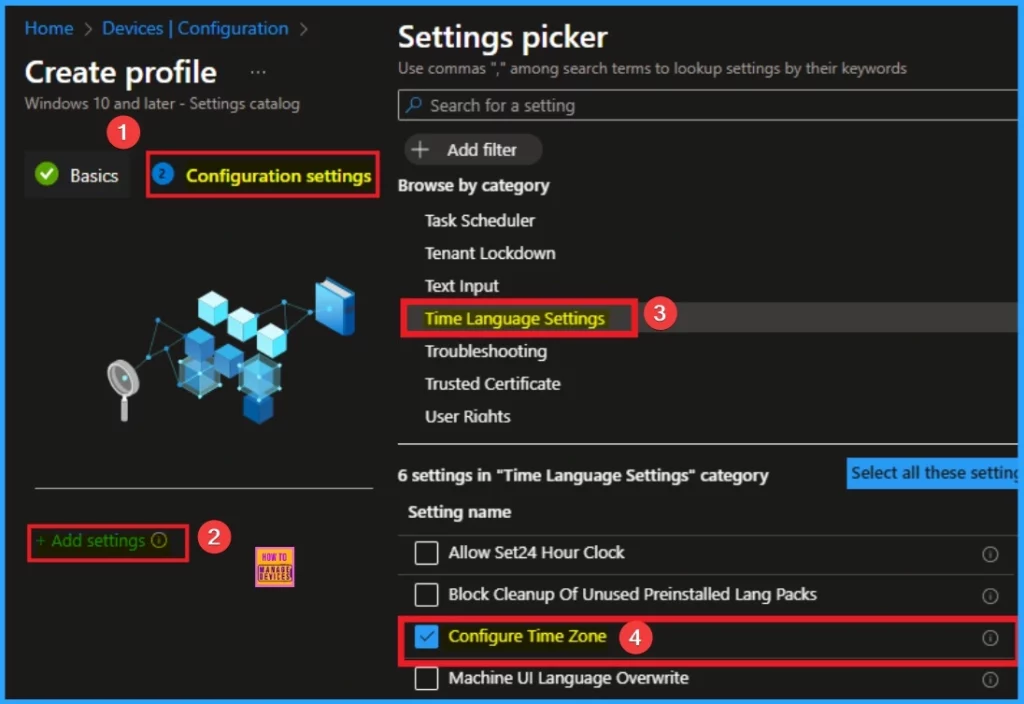
Using the Intune Settings catalog, you can quickly access Time Zone settings. Intune helps you to fix the set time zone automatically option greyed out issue for assigned devices. As an Admin you can prefer this method to fix this issue on your organisation. Follow the below table to access the setting.
| Steps for Accessing Time Zone Settings in Settings Catalog |
|---|
| Sign in the Microsoft Intune admin center |
| Go to Devices > Configuration > Policies > New Policy |
| Select Windows 10 and Later as Platform |
| Settings Catalog as Profile Type and click on the Next button |
| On the Basic Tab enter the Name and Description and click on the Next button |
| On the Configuration Settings Tab click on the +Add settings hyperlink |
| Select Time and Language category from the settings Picker |
| Select the Configure Time Zone setting |
| Enter the Time Zone in the Text Box and click on the Next button |
| Add necessary sections like, Scope tags, Assignments and Create the Policy |
Result Image
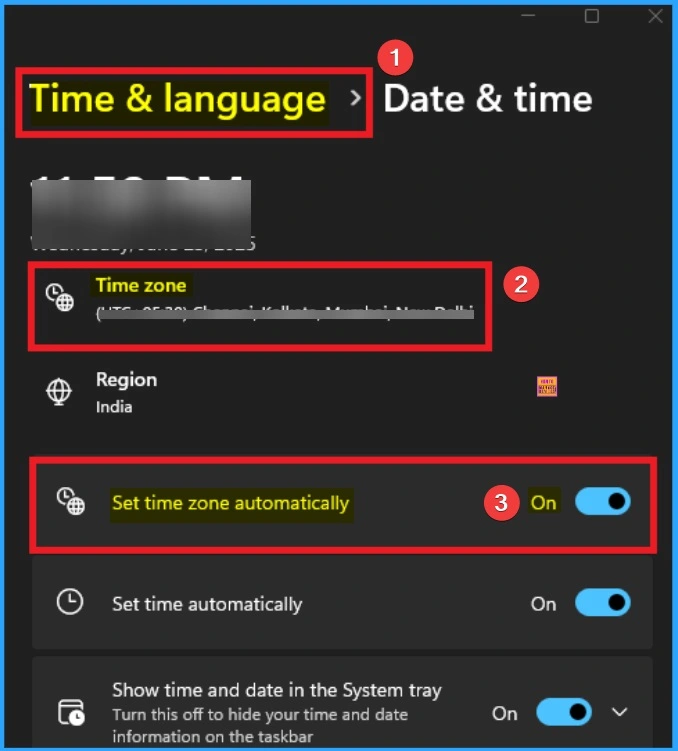
After applying above mentioned methods I can access Set Time Zone Automatically. This option now not Greyed out and I can make changes. Look at the screenshot below.
Need Further Assistance or Have Technical Questions?
Join the LinkedIn Page and Telegram group to get the latest step-by-step guides and news updates. Join our Meetup Page to participate in User group meetings. Also, join the WhatsApp Community to get the latest news on Microsoft Technologies. We are there on Reddit as well.
Author
Anoop C Nair has been Microsoft MVP for 10 consecutive years from 2015 onwards. He is a Workplace Solution Architect with more than 22+ years of experience in Workplace technologies. He is a Blogger, Speaker, and Local User Group Community leader. His primary focus is on Device Management technologies like SCCM and Intune. He writes about technologies like Intune, SCCM, Windows, Cloud PC, Windows, Entra, Microsoft Security, Career, etc.


Discussion