






How to use Intune to Collect BIOS Information from Windows Devices
Let’s discuss how to use Intune to Collect BIOS Informations from Windows Devices. The Properties Catalog in Intune is a list of hardware details collected from devices. It shows this information in the Device Inventory for corporate-owned, Entra-joined Windows 10 and 11 devices.
For IT admins, BIOS information is very helpful because it gives them a clear view of the devices in their organization. They can easily find devices with outdated BIOS versions that may need updates, plan firmware upgrades to improve performance and reliability, and identify devices that don’t follow company standards or may not be approved.
From a security point of view, keeping the BIOS updated is very important. The BIOS updates help you to fix problems that could let hackers get around security settings, take control of the device, or install harmful software that doesn’t go away even after restarting or cleaning the system. Updating the BIOS regularly helps protect devices from these risks and keeps the organization’s systems safer.
In this post, you will learn how to collect BIOS information using the Intune Properties Catalog. Intune allows you to gather important BIOS details such as the version, release date, and manufacturer from your managed Windows devices.

Table of Contents
How to Collect Bios Info using Intune Properties Catalog
BIOS Info helps you to give basic details about a device’s BIOS, like the version, release date, and who made it. This feature works on Windows devices and can be used in three ways. They are as follows.
- To check BIOS details for many devices at once
- To view BIOS info for one device when needed
- To collect BIOS data automatically through the regular device inventory in Microsoft Intune
- This helps IT teams keep an eye on BIOS versions and manage devices more effectively.
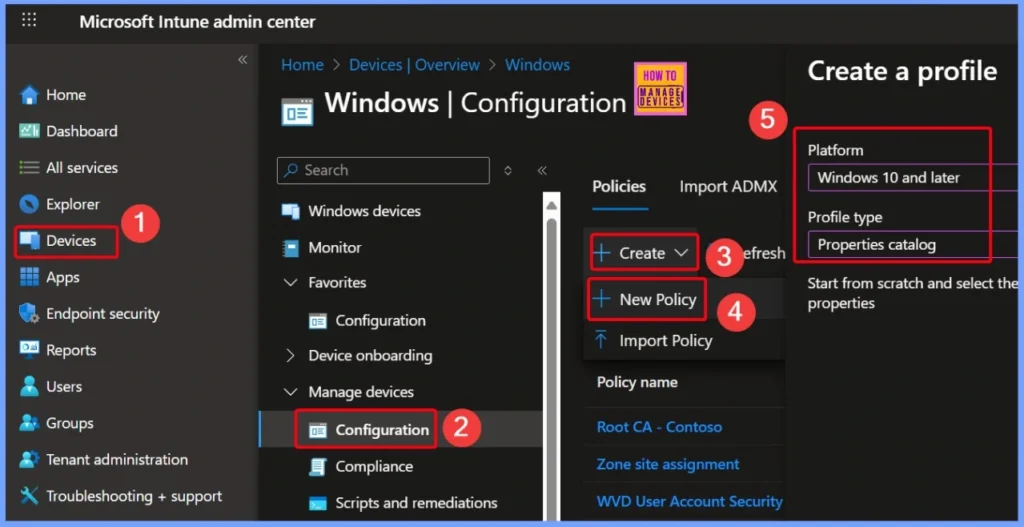
| Steps | Action |
|---|---|
| 1 | Sign in to the Microsoft Intune admin center |
| 2 | From the left-hand navigation pane, click on Devices |
| 3 | Select Windows devices |
| 4 | Click on Configuration |
| 5 | Choose Create and then click New Policy |
| 6 | In the Platform dropdown, select Windows 10 and later |
| 7 | Under Profile type, choose Properties catalog |
- How to Track Device Battery Information using Intune Property Catalog
- How to Collect Physical and Virtual Memory Information using Intune Properties Catalog
- Intune Managing OneDrive File Downloads for Low Disk Space
BIOS Basic Information Details
By creating a device configuration profile and enabling the right settings, you can automatically collect this data as part of the regular device inventory. This helps IT admins keep track of BIOS versions across all devices, plan updates, ensure compliance, and improve overall device security and management.
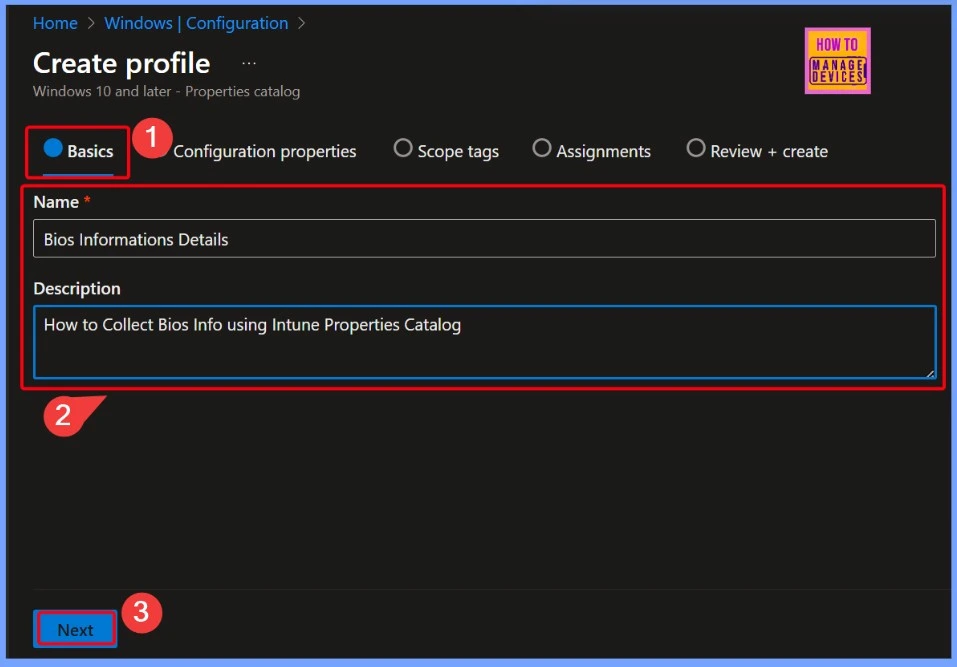
- In the Basics section of the policy creation, enter a clear and descriptive name and description to help identify the purpose of the policy.
- For example, set the Name as “BIOS Information Details“.
- In the Description field, you can write “How to collect BIOS info using Intune Properties Catalog”.
Configuration Properties
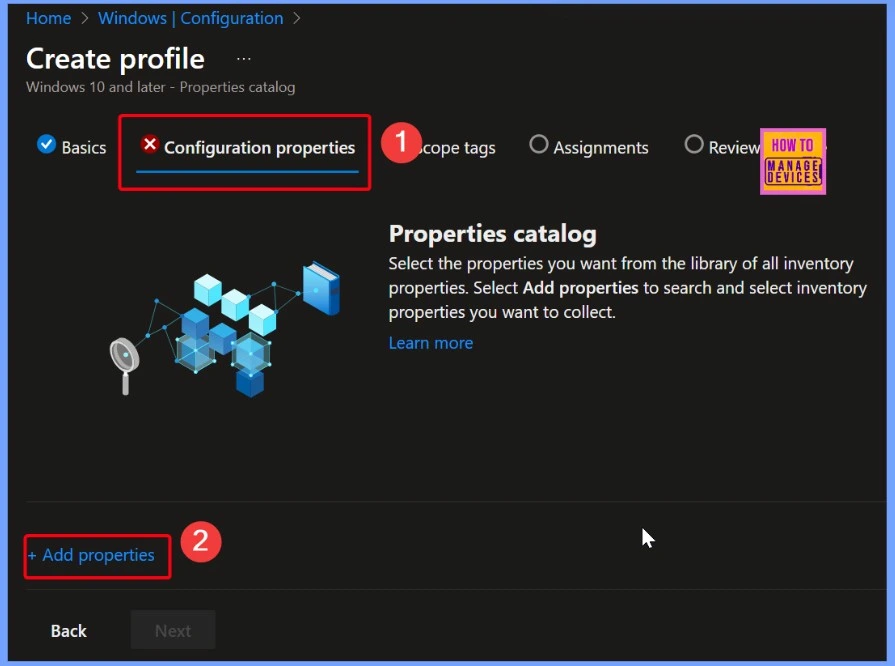
In the Configuration settings tab, you will find a + Add properties link. Clicking this link opens the full list of available settings included in the Properties Catalog. From here, you can browse or search for specific settings to include in your policy, allowing you to select and apply the exact configuration options needed for your devices.
BIOS Information Related Selected Properties
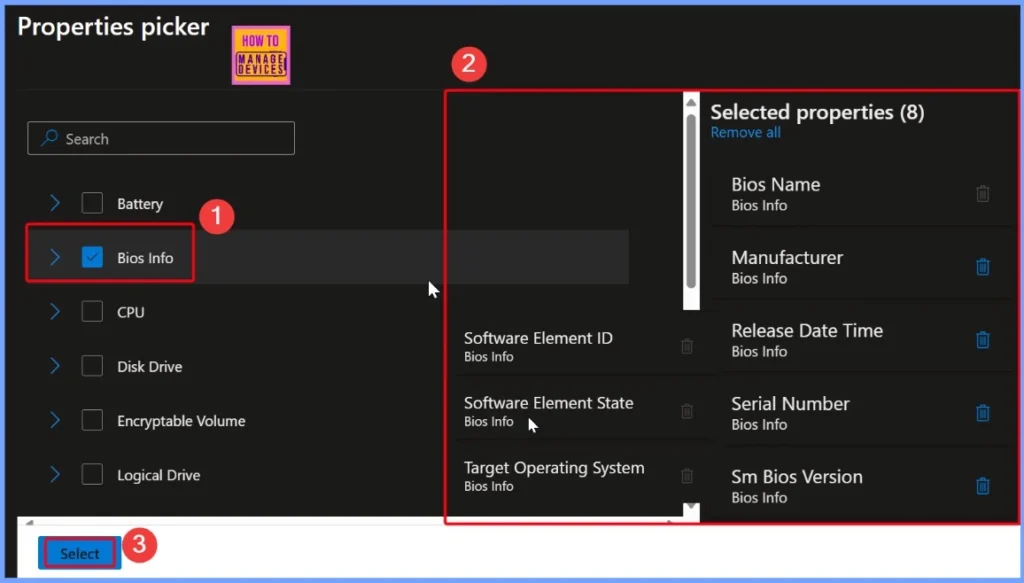
The Properties Catalog in Intune includes several BIOS-related settings that can be collected from managed devices. These properties give important details about the BIOS, such as the BiosName, which shows the name used to identify the BIOS, and the Manufacturer, which tells who made it. The ReleaseDateTime shows when the BIOS was released, and the SerialNumber is the unique number assigned to that BIOS.
| Property | Description | Platform |
|---|---|---|
| BiosName | Name used to identify the BIOS instance. | Windows multi-device query |
| Manufacturer | Manufacturer of this BIOS/software element. | Windows single device query, Windows multi-device query |
| ReleaseDateTime | BIOS release date. | Windows single device query, Windows multi-device query |
| SerialNumber | The assigned serial number of this BIOS element. | Windows single device query, Windows multi-device query |
| SmBiosVersion | BIOS version as reported by SMBIOS. | Windows single device query, Windows multi-device query |
| SoftwareElementId | Identifier for the BIOS instance | Android, iOS, iPadOS, macOS, Windows multi-device query |
| SoftwareElementState | State of the BIOS instance. | Android, iOS, iPadOS, macOS, Windows multi-device query |
| TargetOperatingSystem | Target operating system of the owning software element. | Android, iOS, iPadOS, macOS, Windows multi-device query |
BIOS Settings you have Added to the Policy
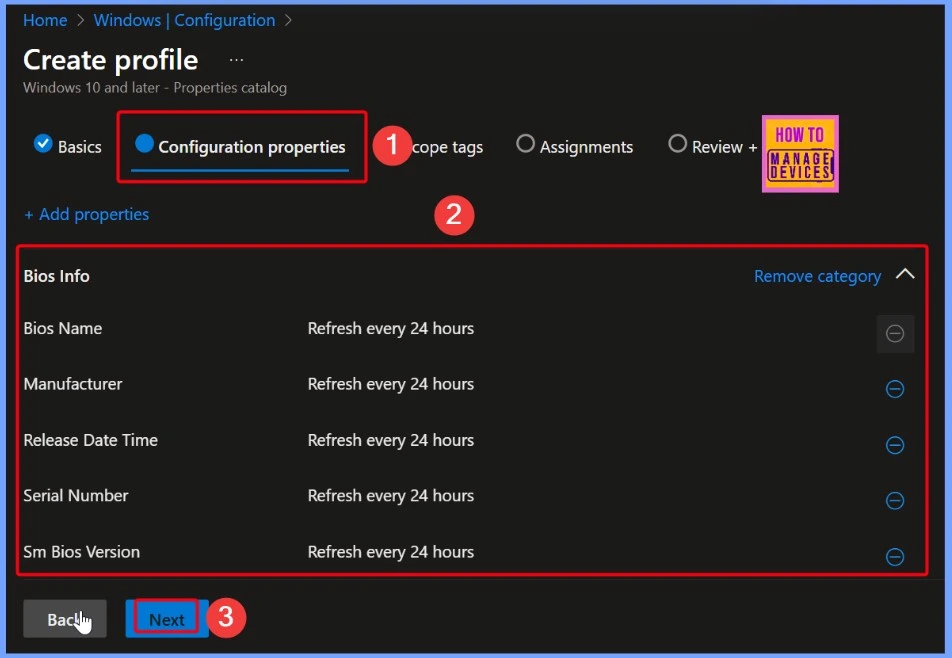
In the Configuration properties section, you will see a list of the BIOS settings you have added to the policy. If you want to remove any category, simply click on the Remove category link next to it. Once you’ve reviewed and confirmed all the selected settings, click the Next button to continue with the policy setup process.
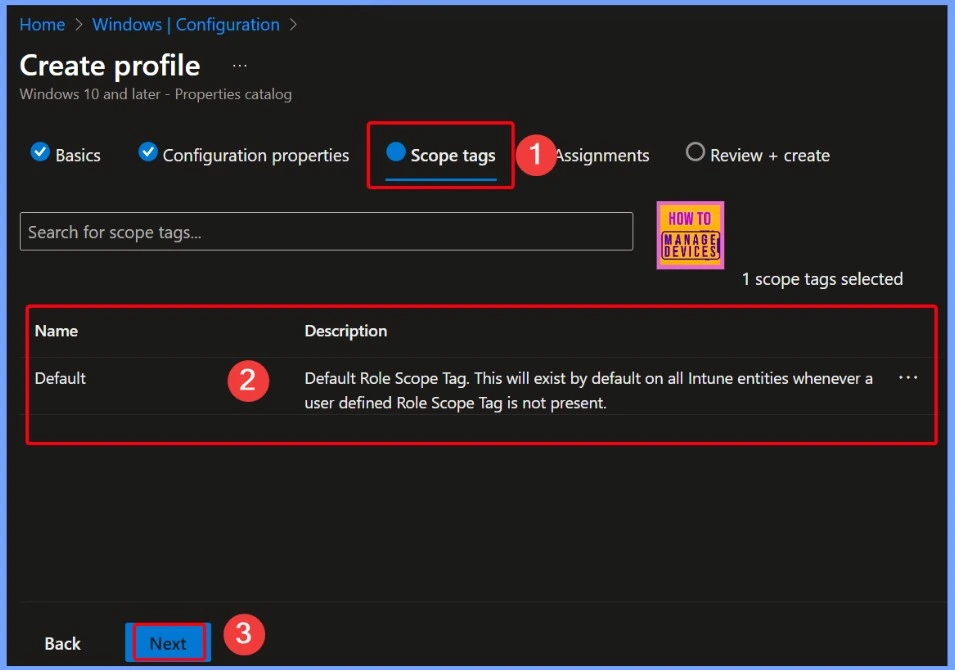
Scope Tags are Important
Scope tags are important because they help organizations manage Intune resources more securely and efficiently. They allow IT teams to delegate tasks to specific regional or departmental admins while ensuring those admins only see and manage the resources relevant to their role.
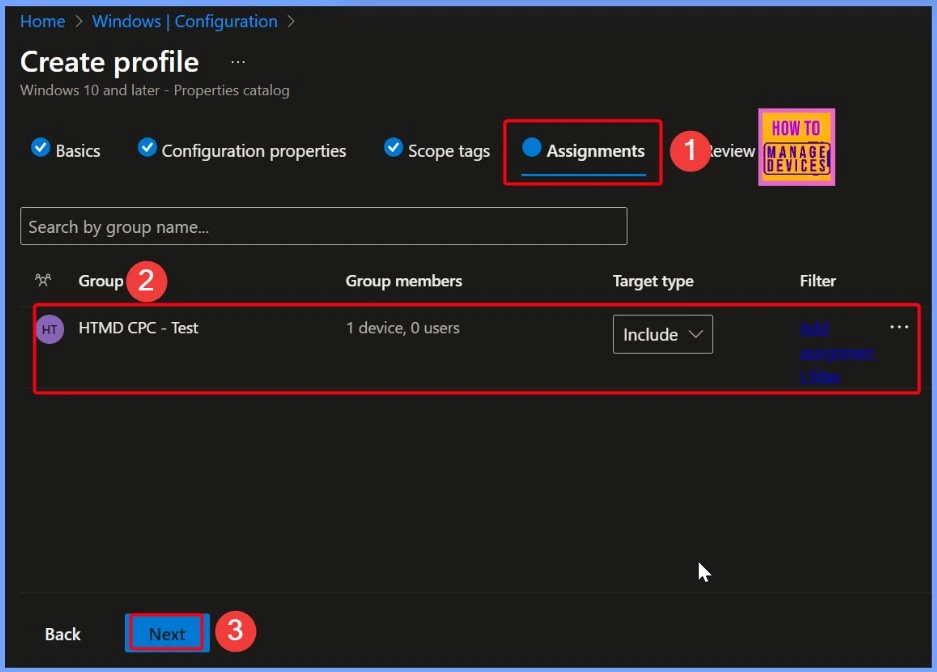
Decide Who or What will Receive a Specific Policy
Assignments in Intune allow you to decide who or what will receive a specific policy, app, or configuration. You can target individual users, specific devices, or entire groups, whether user-based or device-based. You also have the option to exclude certain groups if needed.
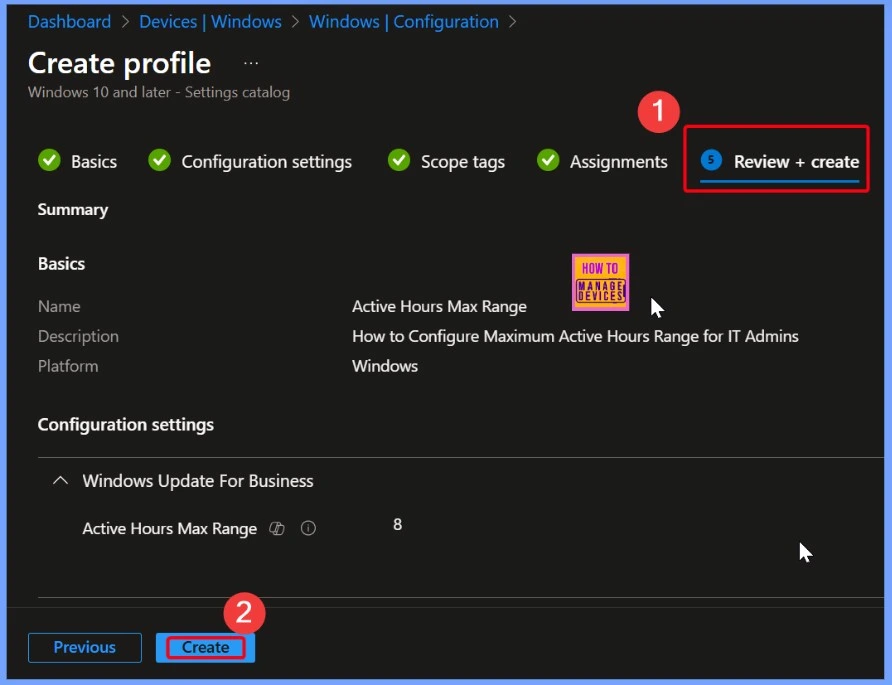
Final Checkpoint
Review + Create is the final checkpoint where you verify all details before Intune pushes the policy or setting to the targeted devices or users. It helps reduce mistakes and ensures your configuration is complete.
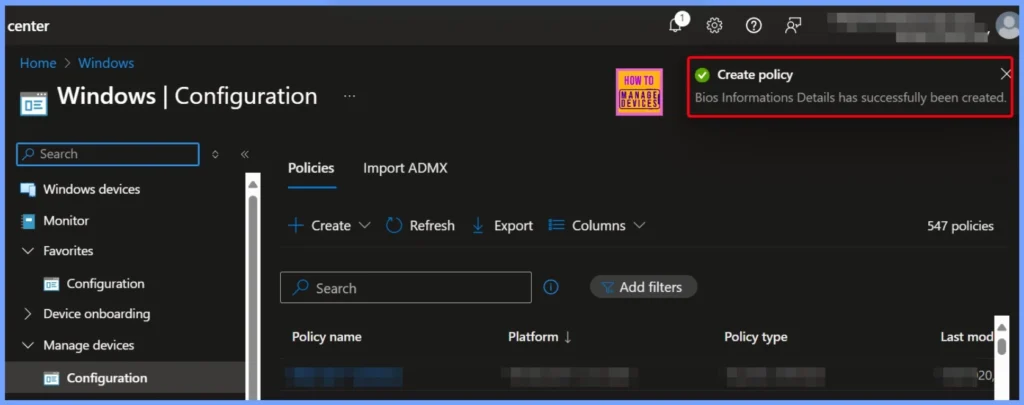
Bios Informations Policy is Created
Once the Bios Informations policy is created, a confirmation message will appear to let you know that the policy has been successfully saved. This notification means all your chosen settings and configurations have been recorded, and the policy is now ready to be deployed to the devices you assigned it to.
End Result
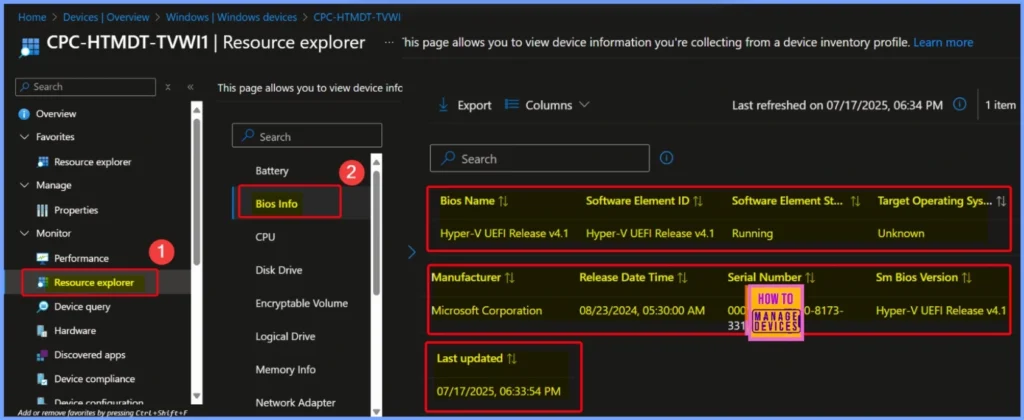
To see the collected BIOS data, open the Intune admin center and go to Devices > Windows Devices. Choose the device you want to check. Then, in the Monitor section, click on Resource Explorer. Here, you can view detailed hardware information, including BIOS Info details for that device.
- Bios Name – Hyper-V UEFI Release v4.1
- Software Element ID – Hyper-V UEFI Release v4.1
- Software Element Status – Running
- Target Operating System – Unknown
- Manufacturer – Microsoft Corporation
- Release Date Time – 08/23/2024, 05:30:00 AM
- Serial Number – 0000-0008-9430-8173-3312-8250-63
- SM Bios Version – Hyper-V UEFI Release v4.1
- Last Updated date – 07/17/2025, 06:33:54 PM
Need Further Assistance or Have Technical Questions?
Join the LinkedIn Page and Telegram group to get the latest step-by-step guides and news updates. Join our Meetup Page to participate in User group meetings. Also, join the WhatsApp Community to get the latest news on Microsoft Technologies. We are there on Reddit as well.
Author
Anoop C Nair has been Microsoft MVP for 10 consecutive years from 2015 onwards. He is a Workplace Solution Architect with more than 22+ years of experience in Workplace technologies. He is a Blogger, Speaker, and Local User Group Community leader. His primary focus is on Device Management technologies like SCCM and Intune. He writes about technologies like Intune, SCCM, Windows, Cloud PC, Windows, Entra, Microsoft Security, Career, etc.


Discussion