






What is Cloud Sourced Notifications Policy to Enhance Privacy and User Experience using Intune
Hey, let’s discuss about What is Cloud Sourced Notifications Policy to Enhance Privacy and User Experience using Intune. Microsoft Intune provides many types of Policies. The Disallow Cloud Notification Policy is important because it stops apps and devices from sending messages or alerts through cloud services.
This policy helps IT admins by giving them more control over what apps and devices can do. It stops users from using unknown or risky cloud apps to send messages. This makes the whole system more secure and helps the organisation stay in control of its data and devices.
Blocking cloud notifications can reduce the risk of cyberattacks or data leaks. Hackers sometimes try to use cloud notifications to sneak into systems or steal information. By turning off cloud notifications, the company closes one way for attackers to get in, making the system safer for everyone.
It’s especially useful in places where keeping data safe is very important, like banks or hospitals. This blog post provides complete guidance on managing the Disallow Cloud Notification in Microsoft Intune. It is a step-by-step instruction on how to enable or disable this policy, monitor its status, and understand client-side verification.

Table of Contents
What are the Advantages of Disallowing Cloud Notification Policy using Intune?
1. Stops apps from sending or receiving data online
2. Keeps important data safe
3. Reduces the chance of apps doing things without permission
4. Helps follow security and privacy rules
5. Makes it easier for admins to manage devices
6. Avoids risks from internet-based notifications
What is Cloud Sourced Notifications Policy to Enhance Privacy and User Experience using Intune – CSP Details
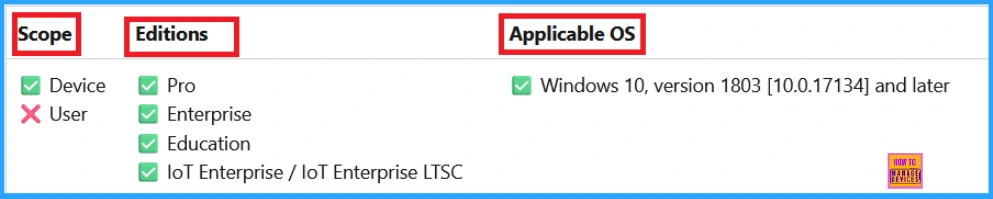
The Policy Configuration Service Provider (CSP) is a feature used by organisations to manage and control settings on Windows 10 and 11 devices. It explains the Description framework properties, assigned values and group Policy Mapping.
Description framework properties: The following list shows the description framework properties of the Disallow Cloud Notification policy.
- Format – Int
- Access type – Add, Delete, Get, Replace
- Default value – 0
Allowed values: The following table shows the Allowed Values of the Disallow Cloud Notification Policy.
| Value | Description |
|---|---|
| 0(Default) | Enable Cloud Notification |
| 1 | Disable Cloud Notification |
Group Policy Mapping
| Name | Value |
|---|---|
| Name | NoCloudNotification |
| Friendly Name | Turn off notifications and network usage |
| Location | Computer Configuration |
| Path | Start Menu and Taskbar > Notifications |
| Registry Key Name | SOFTWARE\Policies\Microsoft\Windows\CurrentVersion\PushNotifications |
| Registry Value Name | NoCloudApplicationNotification |
| ADMX File Name | WPN.admx |
./Device/Vendor/MSFT/Policy/Config/Notifications/DisallowCloudNotification
- How to Configure Telemetry Opt-in Change Notification Policy using Intune
- How to Configure Do not Show Feedback Notifications using Intune Policy Settings
- How to Block or Allow Toasts Notifications in Windows using Intune Settings Catalog
Creating a Profile
For deploying the Intune policy, we need to create a profile first. Then log in to the Microsoft Intune admin center with our credentials. Then, we need to navigate the Devices section, click Configurations, and create a new policy.
When we click the New Policy option, the Create Profile window will open. Here, we need to select the platform as Windows 10 and later, and the profile type is Settings Catalog from the list. Finally, click the Create option to continue.
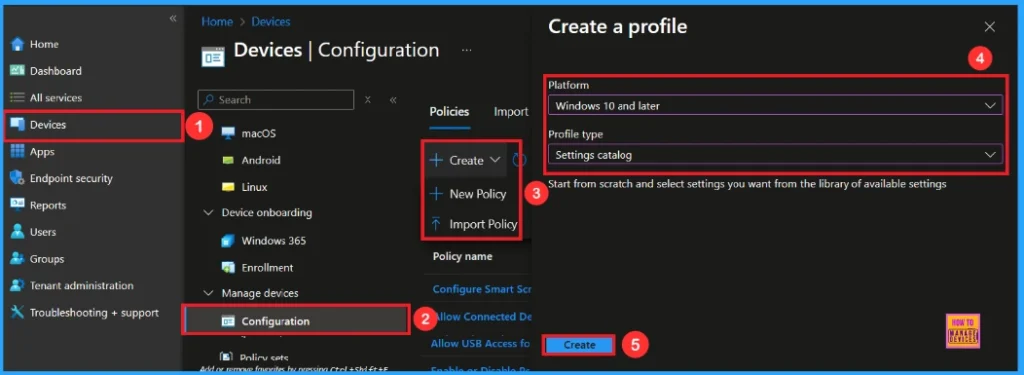
First Step for Cloud Notification Policy
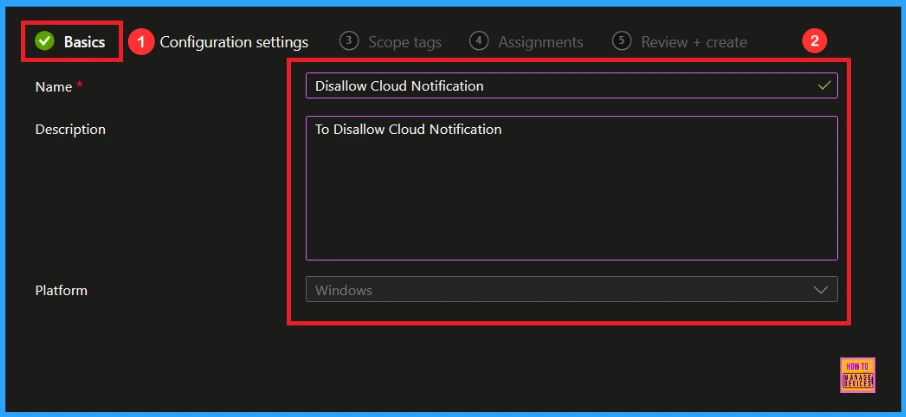
In this section, we provide the proper Name(e.g Disallow Cloud Notification) and Description(e.g To Disallow Cloud Notification) of the policy we want to deploy. This is a required section, and users must add it to continue creating Profiles.
Configuration Settings
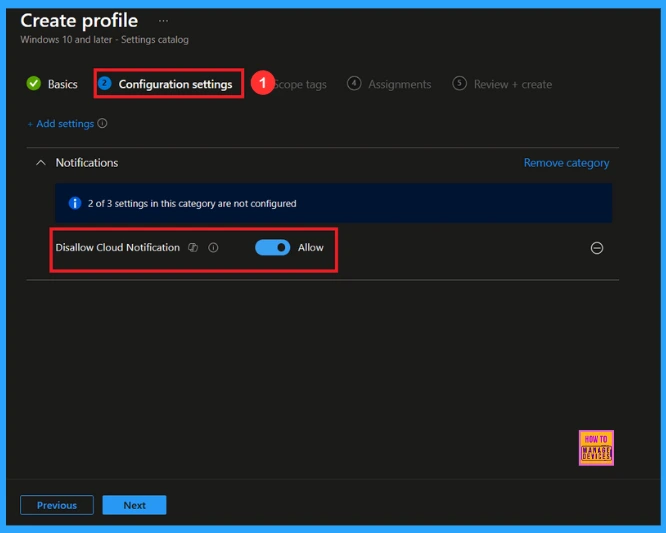
In the Configuration Settings section, you can see the Add Settings option. Click the Add Settings option, and then the Settings Picker window will open. Type Notifications in the search box and select Disallow Cloud Notification from the search results.
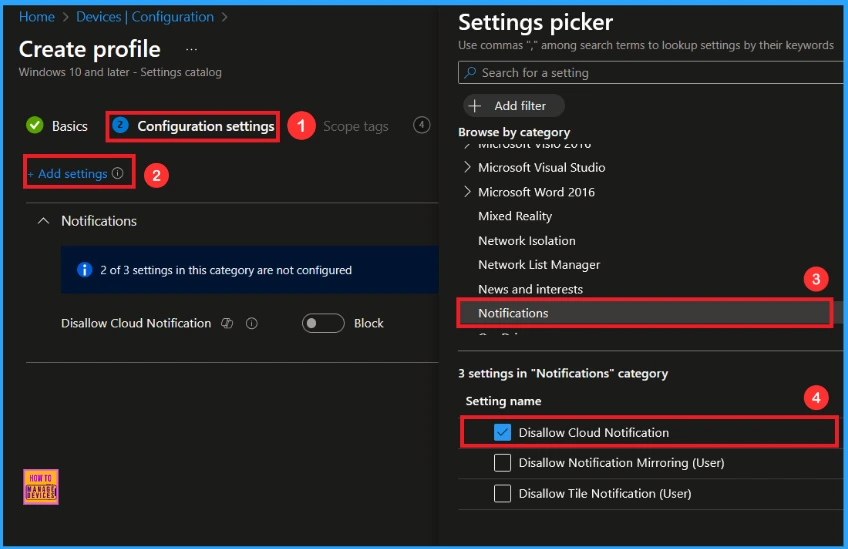
After selecting the settings, we can close the settings picker window. Then we will be in the configuration settings. Here, we can see that the Disallow Cloud Notification is Allow. We need to click the next button to continue.
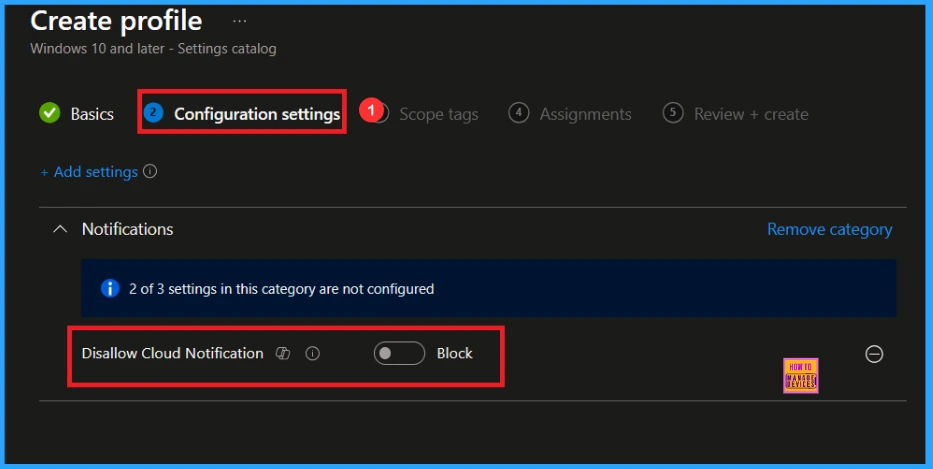
Block Cloud Notification Policy
In the configuration settings, if we block or don’t configure this policy, you can block the Cloud Notification policy by toggling the switch.
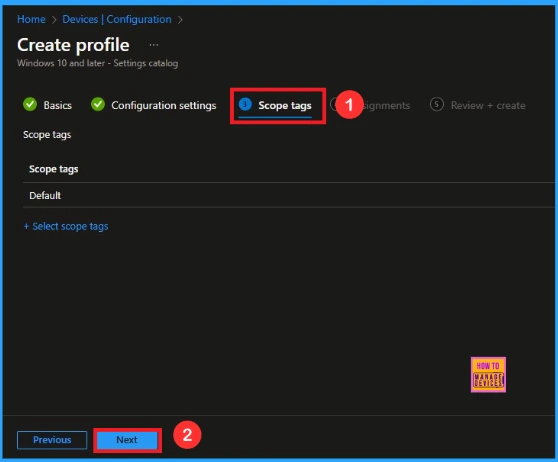
Scope tag
We can skip this section, or we can add Scope Tags to your profile if we wish. It helps to assign this policy to a defined group of users or devices. Please note that adding Scope Tags is optional. If we decide to skip this section, simply click the Next button to continue.
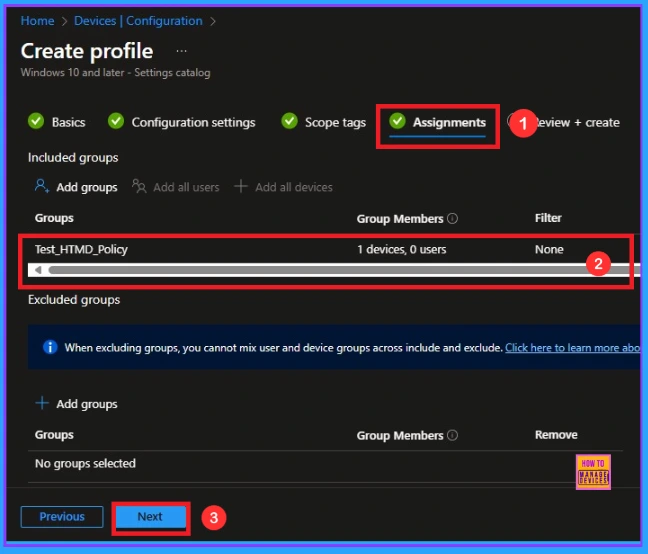
Assignments
In this section, we can add groups. Click the Add Group option under the Include Groups section to do this. After that, a new window will appear, and we can select a group from here. Then click on the Select button and click on the Next button.
Final step for Disallow Cloud Notification Policy
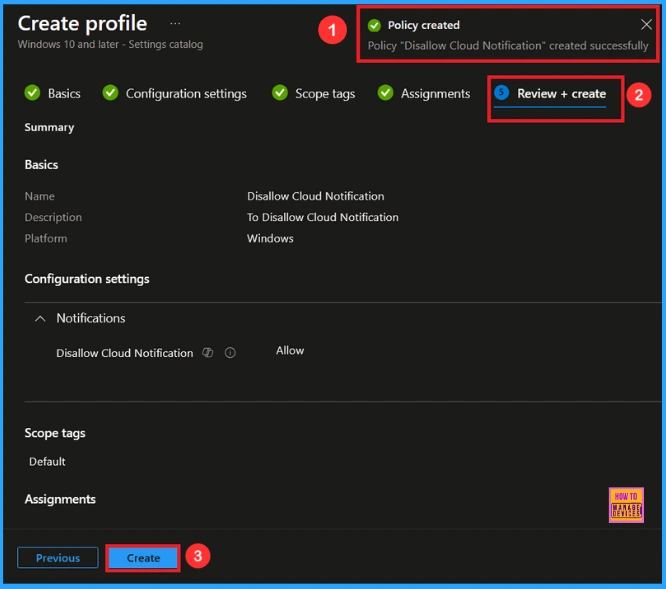
The “Review + Create” is the final step in the policy creation process. In this stage, we will see a summary of the policy we are deploying, including the policy name, descriptions, platform, and other details. All the policy settings we entered will be displayed for our review.
After the review, just click Create, and then we can see the notification(Disallow Cloud Notification created successfully).
Monitoring Status
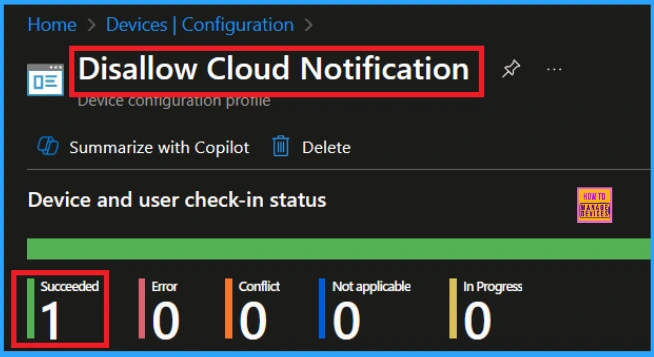
To check the monitoring status, go to Devices > Configuration Policies. In the Configuration policies section, search for the policy we created, which is “Disallow Cloud Notification“. We can find the result as 1 Succeeded. Use manual sync in the Company Portal to speed up the process.
Client Side Verification
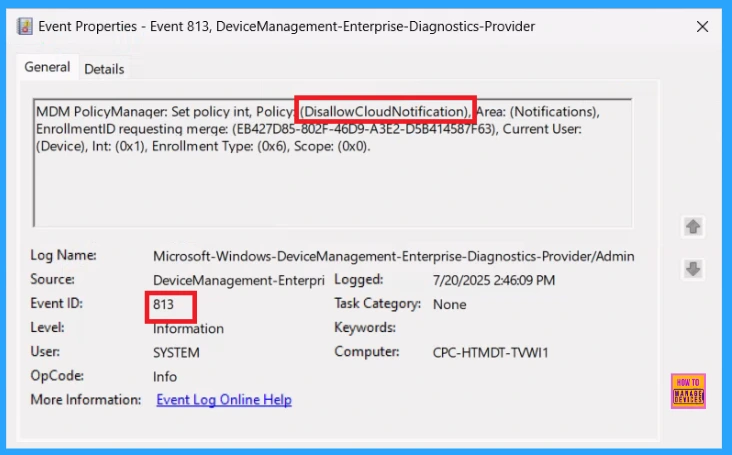
To check the Client Side Verification, we can use the Event Viewer. Go to Applications and Services Logs > Microsoft > Windows > Device Management > Enterprise > Diagnostics > Provider > Admin to open it. From the list of policies, use the Filter Current Log option and search for Intune event 813.
MDM PolicyManaqer: Set policy int, Policy (DisallowCloudNotification), Area: (Notification
EnrollmentID requesting merqe: (EB427D85-802F-46D9-A3E2-D5B414587F63), Current User:
(Device), Int: (0x1), Enrollment Type: (0x6), Scope: (0x0).
How to Remove an Assigned Group from the Disallow Cloud Notification Policy
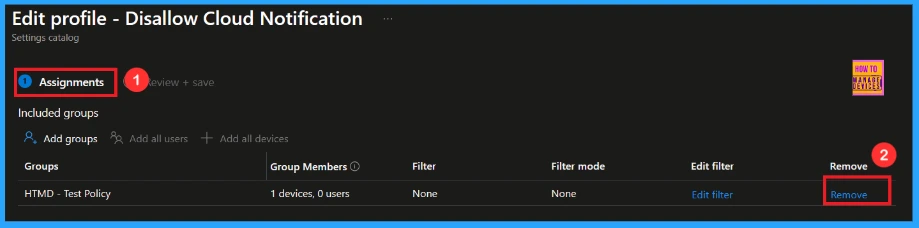
Removing an assigned group from a policy is sometimes necessary for security, compliance, or operational efficiency. Open the policy from the Configuration tab and click on the Edit button on the Assignment tab. Click on the Remove button on this section to remove the policy. Click Review + Save after making the change.
For detailed information, you can refer to our previous post – Learn How to Delete or Remove App Assignment from Intune using by Step-by-Step Guide.
How to Delete the Disallow Cloud Notification Policy from the Intune Portal
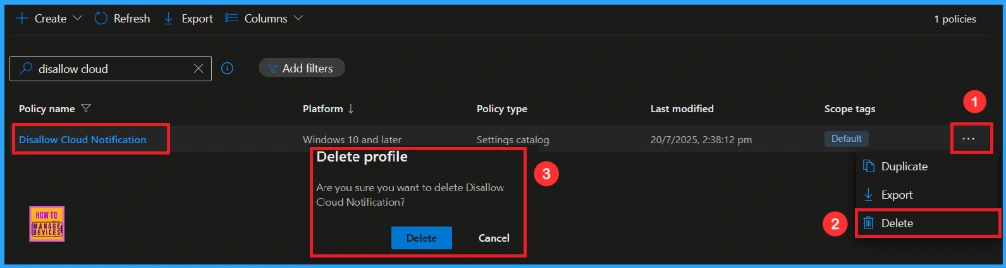
To delete an Intune policy for security or operational reasons. I will demonstrate how to delete an Intune policy through the Disallow Cloud Notification. Click the three dots, then click the Delete option. You can see a confirmation message, click the Delete button.
For detailed information, you can refer to our previous post – How to Delete Allow Clipboard History Policy in Intune Step by Step Guide.
OMA-URI Settings to Power Sleep Policy
An OMA-URI is a unique string used to configure specific settings on Windows 10 or 11 devices through a Configuration Service Provider (CSP). Its format is determined by the CSP and is used to apply custom device configurations.
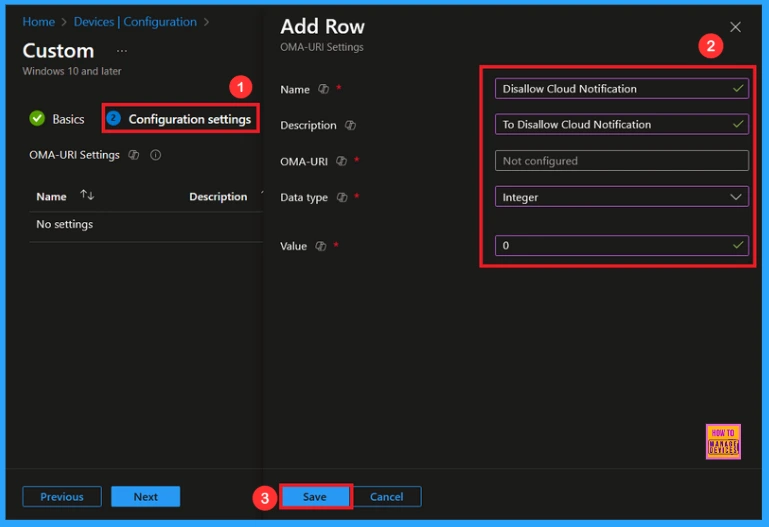
To create a new policy in Microsoft Intune, sign in and navigate to Devices > Configuration. Click on Create to start a new policy. Choose the platform as Windows 10 or later. For the Profile type, select Templates, then choose Custom. Provide a name for the policy, such as Disallow Cloud Notification and add a description if needed.
- Click on + Add under OMA-URI Settings to configure the specific setting.
- To Configure the OMA-URI Setting, do the following
- Enter a name for this setting, such as Disallow Cloud Notification.
- Description of the setting: To Disallow Cloud Notification.
- Enter the following OMA-URI path: ./Device/Vendor/MSFT/Policy/Config/Notifications/DisallowCloudNotification
- Set the Data type to Integer.
- Enter the value
- 1. To Disable Cloud Notification Policy.
- 0 to Enable Cloud Notification Policy.
- After entering the above details, click the Save button.
Need Further Assistance or Have Technical Questions?
Join the LinkedIn Page and Telegram group to get the latest step-by-step guides and news updates. Join our Meetup Page to participate in User group meetings. Also, Join the WhatsApp Community to get the latest news on Microsoft Technologies. We are there on Reddit as well.
Author
Anoop C Nair has been Microsoft MVP from 2015 onwards for 10 consecutive years! He is a Workplace Solution Architect with more than 22+ years of experience in Workplace technologies. He is also a Blogger, Speaker, and Local User Group Community leader. His primary focus is on Device Management technologies like SCCM and Intune. He writes about technologies like Intune, SCCM, Windows, Cloud PC, Windows, Entra, Microsoft Security, Career, etc.


Discussion