






Setup Risk-Based Conditional Access for Entra Agents to Automatically Protect against Compromised Agents
Let’s discuss Setup Risk-Based Conditional Access for Entra Agents to Automatically Protect against Compromised Agents. On the Ignite event 2025 Microsoft introduced Microsoft Entra Agent designed to interacts with enterprise resources.
Risk-Based Conditional Access for Entra Agents is one of the important concept that helps admins to Automatically Protect against Compromised Agents in environment. It leverage User Risk and Sign-in Risk signals from Entra ID Protection.
These policies automatically block or require remediation when an agent identity is flagged as high risk, ensuring compromised agents cannot access organizational resources. Risks signals are Probability that a specific authentication attempt is malicious.
Admins can easily understand Risk Signals in many ways. User Risk can be quickly Indicates the likelihood that an agent identity has been compromised (e.g., leaked credentials). Sign-in Risk are evaluates the probability that a specific authentication attempt is malicious (e.g., unusual location, impossible travel).

Table of Contents
Setup Risk-Based Conditional Access for Entra Agents to Automatically Protect against Compromised Agents
Protecting Entra Agents with risk-based Conditional Access means combining risk signals (User & Sign-in) with policy enforcement (block or remediate), supported by governance through Agent ID lifecycle management.
The purpose of Risk-Based Conditional Access for Entra Agents is Prevent Compromised Agents from Acting. If an agent identity shows signs of compromise (e.g., leaked credentials, unusual sign-in), the policy can block access immediately.
| Purpose |
|---|
| By preventing Compromised Agents from Acting, admins can ensures malicious actors cannot use agent accounts to interact with your apps or data. |
| Instead of outright blocking, policies can require remediation actions like MFA, |
| Risk-based policies continuously evaluate user risk and sign-in risk. |
- Introduction To App Lifecycle Management Agent In Entra For Unified App Control And Visibility
- Explicit Forward Proxy In Microsoft Entra Internet Access Helps Secure VDI BYOD And Clientless Browsing
- How to Manage Agents through Microsoft Entra Agent ID Interface for Security and Zero Trust Enforcement
- Understanding Entra Agentic AI in Security From Manual Work to Fully Autonomous Agents
- How Windows 365 for Agents Performs Intelligent PowerPoint Editing in Cloud PC
How to Setup Risk Based Conditional Access Control Policy
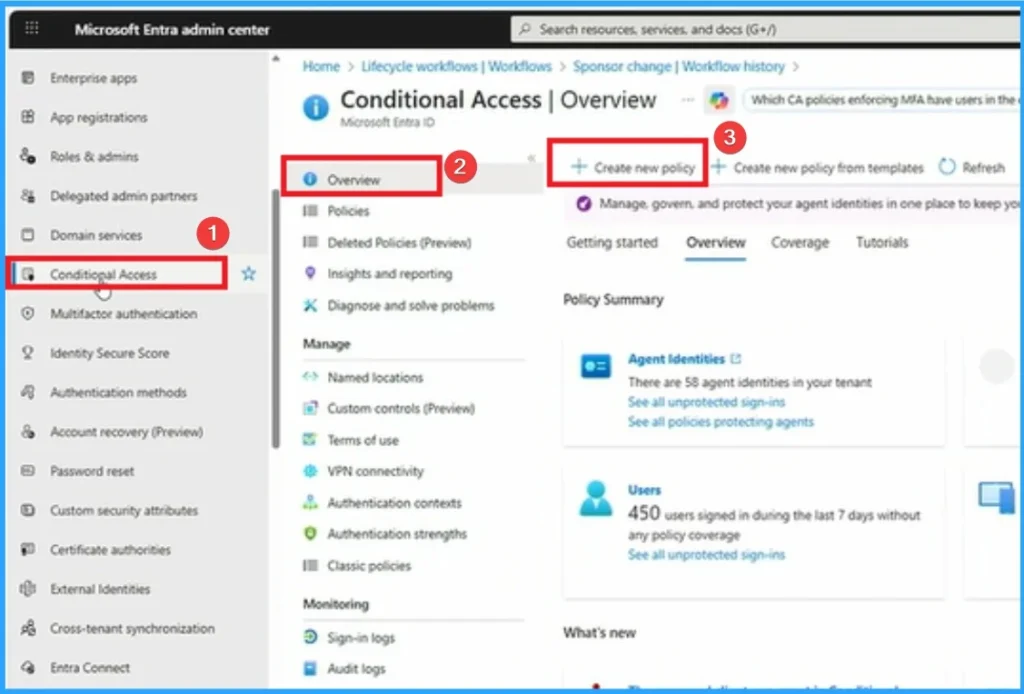
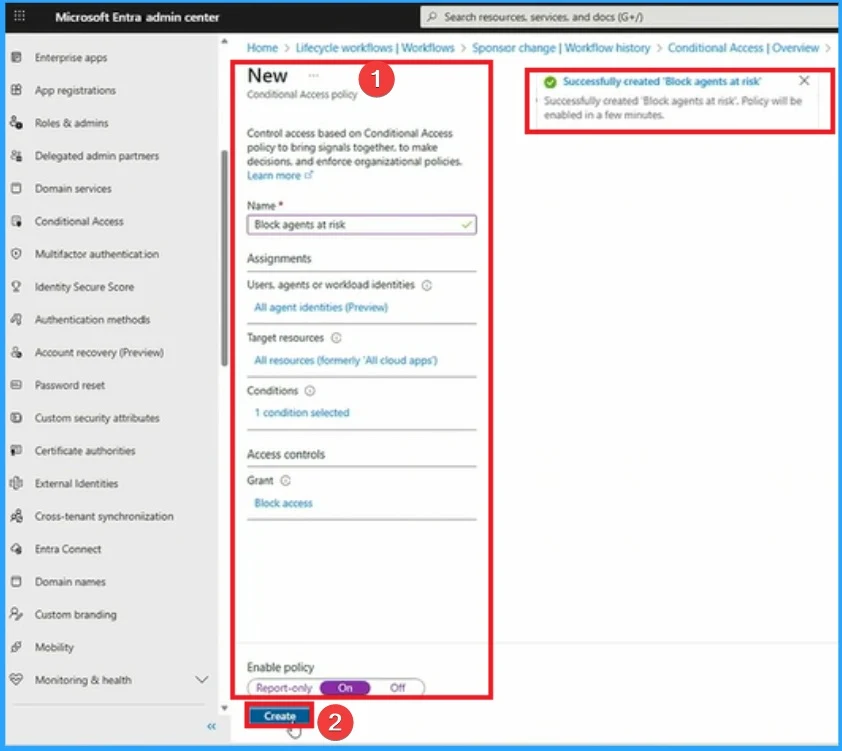
To create Risk Based Access Conditional Control Policy, Sign in to the Microsoft Entra admin center as a Conditional Access Administrator. Navigate to Entra ID > Security > Conditional Access > Policies > Create New Policy.
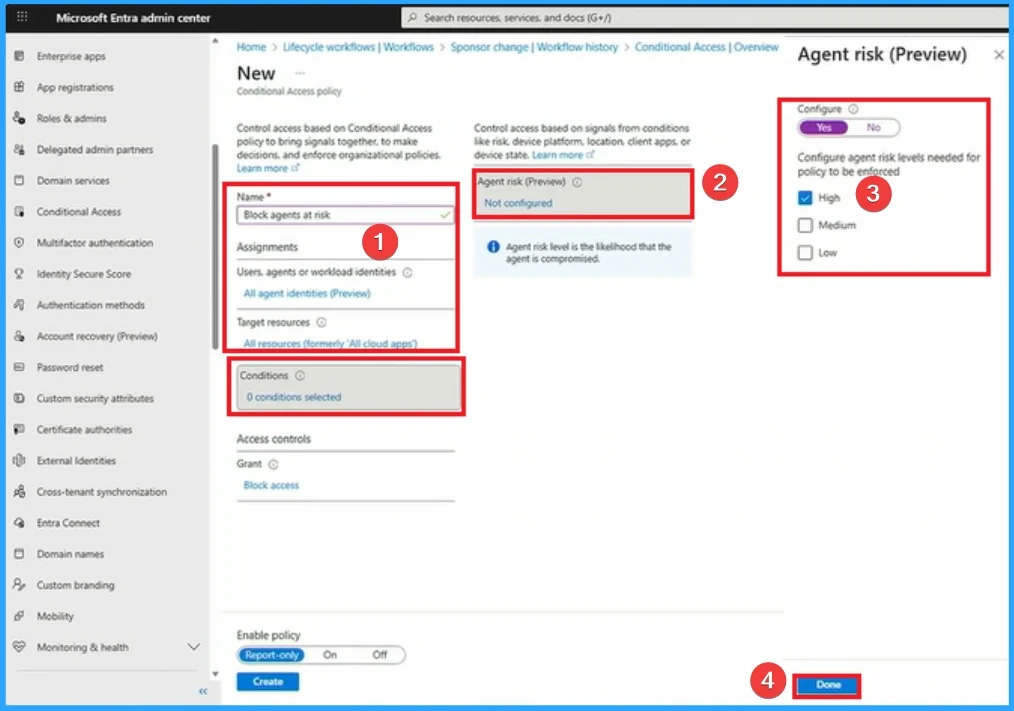
Adding Name, Assignments, Conditions and Target Resources
On the New page you can add Name, Assignments, Conditions and Target Resources etc. Here added the name as Block Agents at risk, assignments as Users,agents, workloaded identities. Target Resources is All resources.
Here conditions is used Agent risk which is available on preview. The agent risk levels needed for policy to be enforced as High. Then click on the Next button.
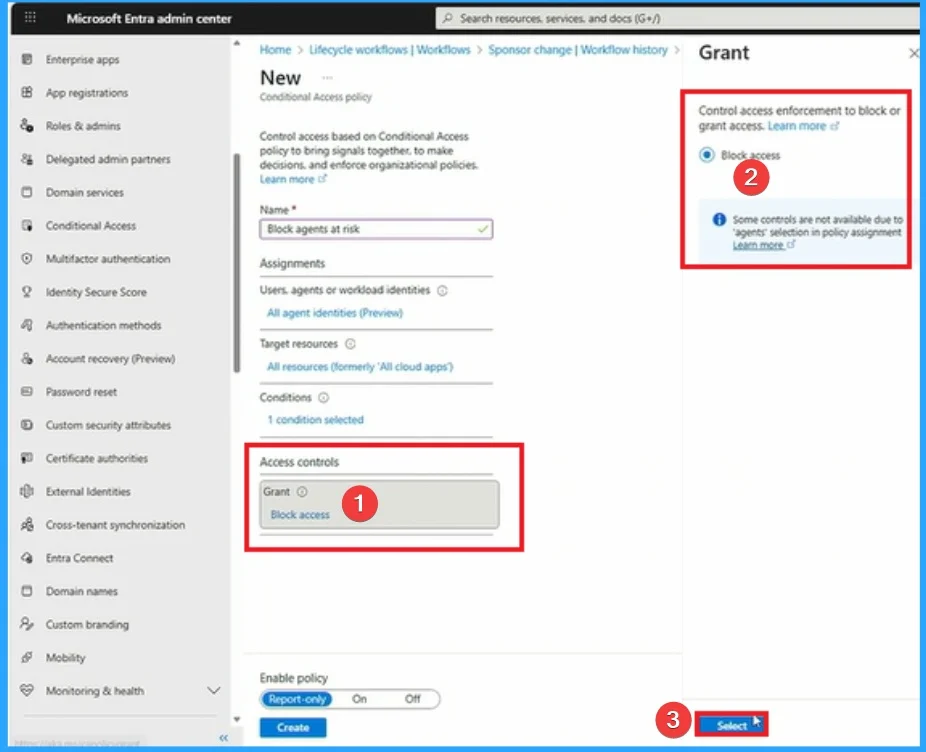
Block Access
After that, you can choose Access Control. Here you can control access enforcement to block or grant access. Click on the Radio button near Block access and click on the Next button.
Enable Policy
After adding all the details above mentioned, you can Enable the Risk-based conditional access policy by enabling Report-only mode as “ON“. Then click on the Next button. Then the policy success notification will get on the portal.
With this policy, admins can ensure that, any agent that shows high risk of being compromised won’t be able to access resources in organization.
Need Further Assistance or Have Technical Questions?
Join the LinkedIn Page and Telegram group to get the latest step-by-step guides and news updates. Join our Meetup Page to participate in User group meetings. Also, Join the WhatsApp Community to get the latest news on Microsoft Technologies. We are there on Reddit as well.
Author
Anoop C Nair has been Microsoft MVP from 2015 onwards for 10 consecutive years! He is a Workplace Solution Architect with more than 22+ years of experience in Workplace technologies. He is also a Blogger, Speaker, and Local User Group Community leader. His primary focus is on Device Management technologies like SCCM and Intune. He writes about technologies like Intune, SCCM, Windows, Cloud PC, Windows, Entra, Microsoft Security, Career, etc.
Discussion