






Improving Network Protection with the Minimize Simultaneous Connections Policy in Intune
Today we are discussing Improving Network Protection with the Minimize Simultaneous Connections Policy in Intune. Every device in a company connects to the internet in different ways like Wi-Fi, mobile data, or a cable. When a device uses more than one connection at the same time, it can create small risks without the user even knowing. Keeping things simple and using only one safe connection helps protect the company’s data.
Many laptops try to connect automatically to the strongest network. This is helpful for normal use, but sometimes it can connect to Wi-Fi even when a cable is already plugged in. When this happens, information can move between two networks at the same time, which is not always safe. Avoiding this situation makes the device more secure.
The goal of this policy is not to make things difficult for users. It is meant to stop any unintentional or unsafe connection from happening in the background. When the device follows a clear rule for how it connects to the internet, the chance of mistakes or hidden risks becomes much smaller.
One very important rule is preventing Wi-Fi from turning on when the device is already connected through a cable. A cable connection is usually safer and more stable. If Wi-Fi stays active, it opens a second door for threats. So this rule makes sure only the safer connection is used.

Table of Contents
Improving Network Protection with the Minimize Simultaneous Connections Policy in Intune
This policy brings several benefits for the organization. It keeps the device from accidentally joining weak or unknown Wi-Fi networks. It also makes sure all traffic goes through the stronger and more trusted connection. This gives better control and makes it easier to protect important data.
- Block Untrusted and Unsigned Processes that Run from USB using Attack Surface Reduction Rules in Intune
- How to Allow or Block Email Scanning using Intune Policy
- Monitoring Defender Updates using Intune Portal
Create Policy
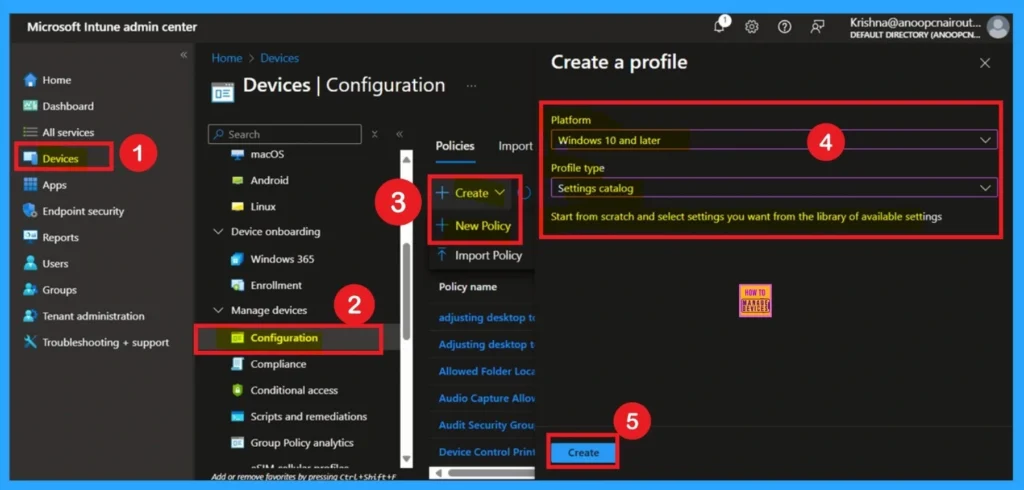
To begin, open the Intune admin center and go to Devices. Then select Configuration profiles and click Create profile. Choose Windows 10 and later as the platform and select Settings catalog as the profile type. This step is basically the starting point of configuration. Then click on the Create.
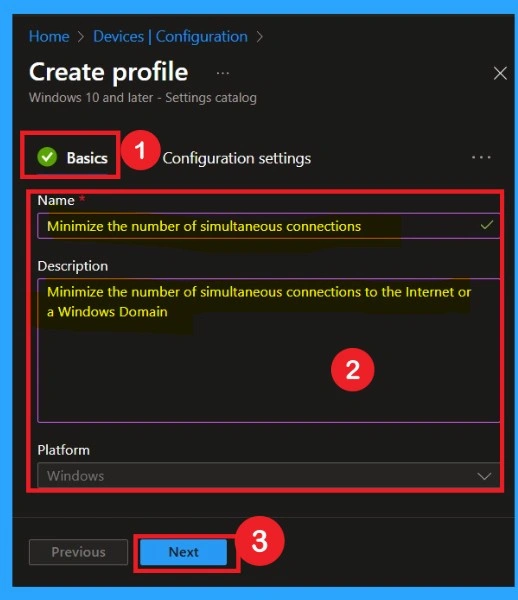
Basics
On the Basics page, you give the profile a clear name and description, so it is easy to identify later. In the Name box, the policy name Minimize the number of simultaneous connections is entered, and the same text is added in the Description box to explain the purpose of the profile. This helps administrators quickly understand what the policy does when viewing it in the Intune console.
- The platform is automatically set to Windows, and once the details are confirmed, you can click Next to move to the configuration settings.
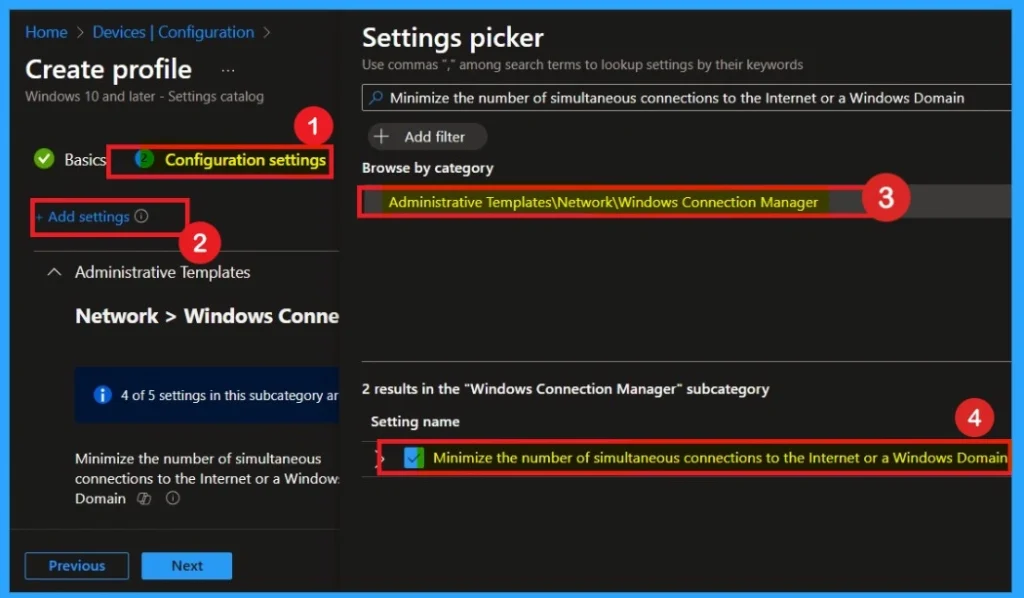
Configuration Settings
On the Configuration settings page, the Settings picker is used to search for the required policy. In the search bar, policy name is entered. This helps quickly locate the exact setting without browsing through every category manually. The system then shows the results under the Windows Connection Manager section, making it easy to identify the correct option.
After the search completes, the setting appears in the list under Administrative Templates > Network > Windows Connection Manager. The option is selected by marking the checkbox next to it. This means the policy will now be added to the configuration profile.
Disabled the Policy by Default
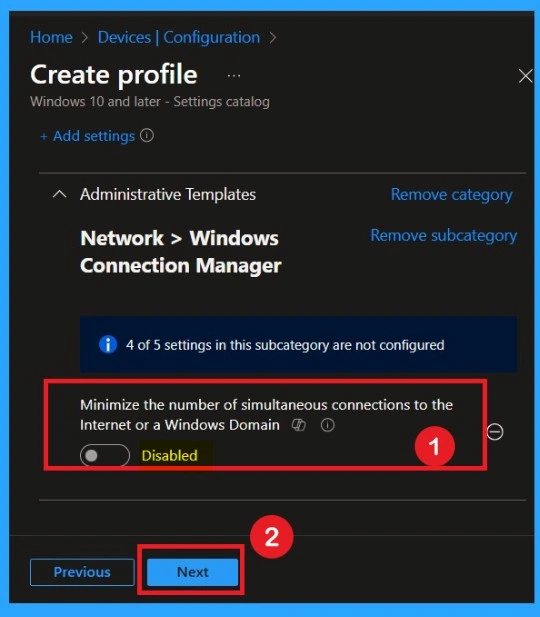
In this step, the policy Minimize the number of simultaneous connections to the Internet, or a Windows Domain is set to Disabled. When a policy is disabled, Windows will not apply any restrictions on how many network connections the device can use at the same time.
- This means the device is free to stay connected to multiple networks such as Wi-Fi, Ethernet, or cellular without any limits.
Enable Configuration Settings
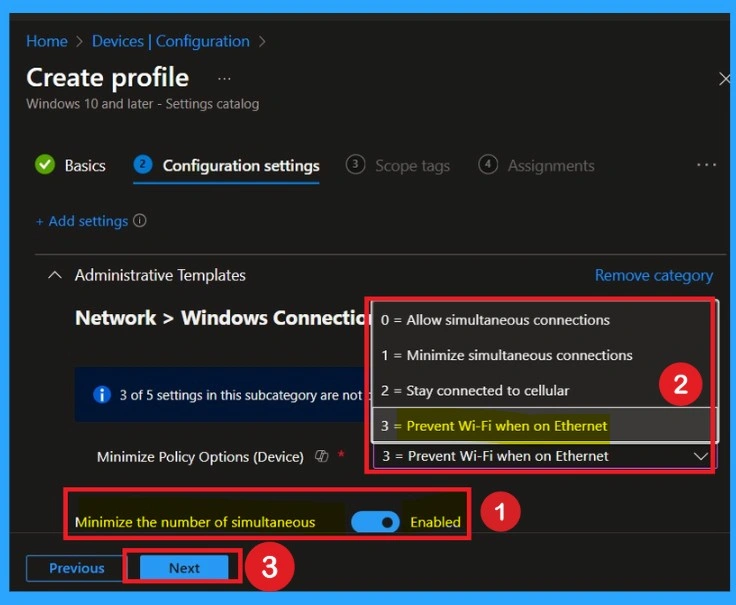
In this step, you choose how Windows should manage network connections when different networks are available at the same time. This setting helps control whether a device can stay connected to multiple networks or whether it must disconnect from one when another becomes active.
When you enable the policy, a dropdown list appears with different options. Each option decides how the device behaves when Wi-Fi, Ethernet, or cellular networks are available. This allows administrators to enforce consistent and secure network usage across all managed devices.
| Policy Options | Info |
|---|---|
| 0 = Allow simultaneous connections | The device is allowed to stay connected to multiple networks at the same time, such as both Wi-Fi and Ethernet. This provides flexibility but may not be as secure. |
| 1 = Minimize simultaneous connections | The device will try to avoid staying connected to more than one network. It will disconnect |
| 2 = Stay connected to cellular | The device will always keep the cellular network active even when Wi-Fi or Ethernet is available. |
| 3 = Prevent Wi-Fi when on Ethernet | When the device is plugged into an Ethernet cable, Wi-Fi will automatically turn off. |
Scope Tags
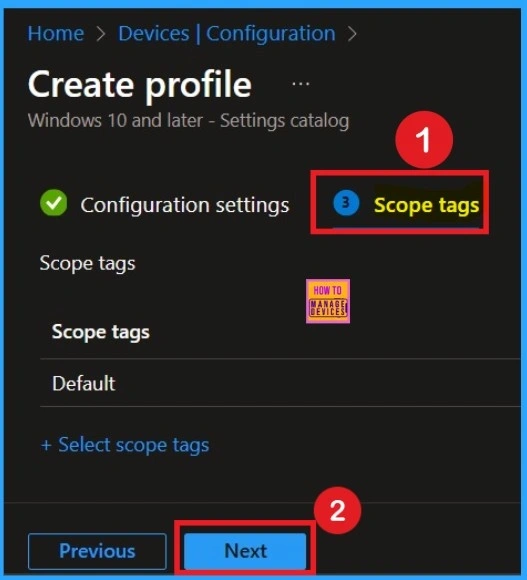
In Intune, Scope Tags are used to control who can view and modify a policy. The scope tag is not mandatory, so you can skip this section. It functions as a tool for organisation and access management but assigning it is optional. Click Next if they’re not required for your setup.
What is Assignments
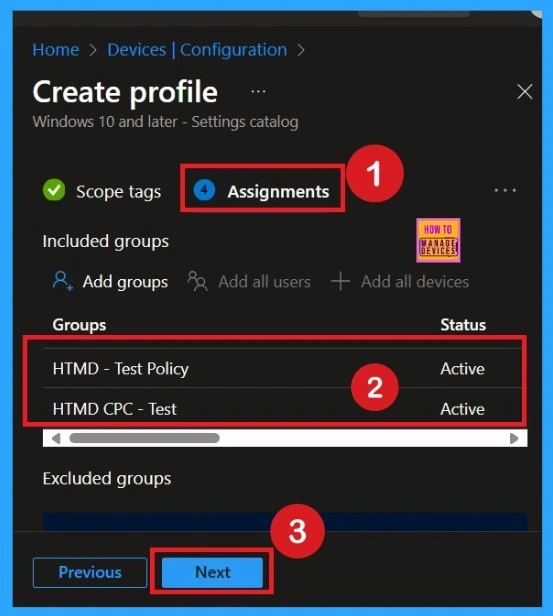
To assign the policy to specific groups, you can use the Assignment Tab. Here I click, +Add groups option under Included groups. I choose a group from the list of groups and click on the Select button. Again, I click on the Select button to continue.
Review + Create
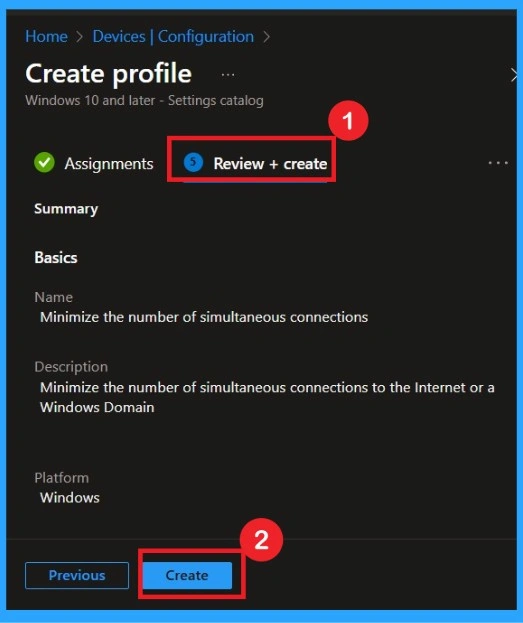
On the Review and create page, you can see all the details of the policy you set up. It shows the name, description, and the platform you selected. This page is only for checking that everything is correct before you apply the policy. If the information looks right, you can click Create to finish and lead the policy to the assigned devices. If something needs to be changed, you can go back and edit it before creating the profile.
Monitoring Status
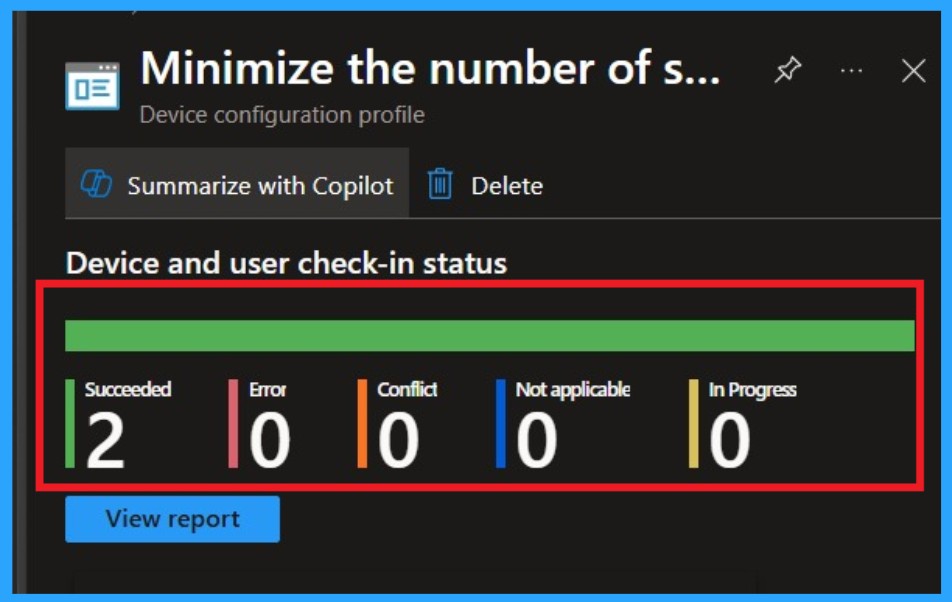
After the policy is live, open the profile again and check the Device status and User status sections. These pages show which devices successfully applied the policy and which ones did not. We can verify the policy’s status directly in the Intune Portal. Policy deployment usually takes about 8 hours. To avoid the time consumption, try a manual sync from the Company Portal app on the device, then recheck the status.
- We can see its status as succeeded (2).
- Navigate to Devices, then Configuration and Select the policy name from that.
- We can see its status as succeeded
Client Side Verification
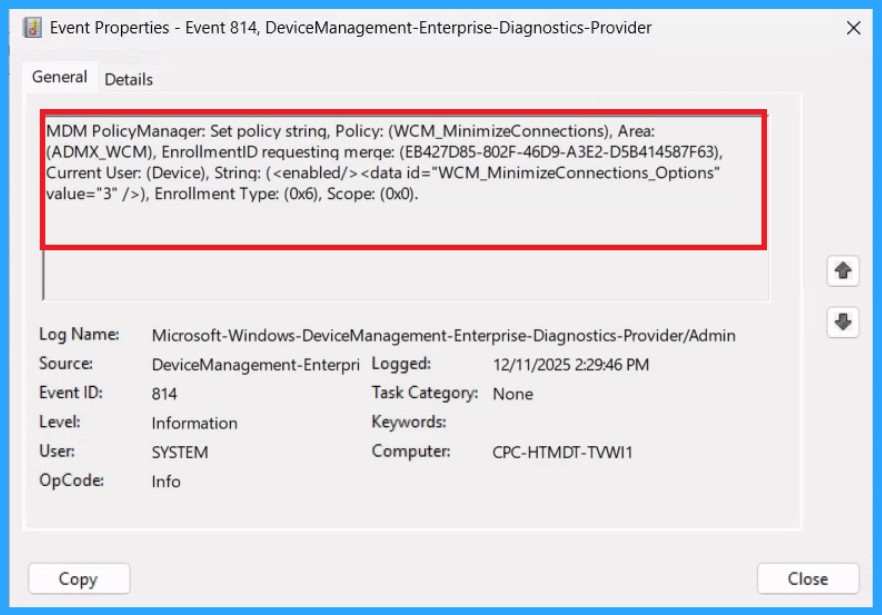
To confirm if a policy has been applied, use the Event Viewer on the client device. Go to Applications and Services Logs > Microsoft > Windows > Device Management > Enterprise Diagnostic Provider > Admin. From the list of policies, use the Filter Current Log option and search for Intune event 814.
| Policy Details |
|---|
| MDM PolicyManager: Set policy string, Policy: (WCM_MinimizeConnections), Area: (ADMX_WCM), EnrollmentID requestinq merqe: (EB427D85-802F-46D9-A3E2-D5B414587F63), Current User: (Device), Strinq: (), Enrollment Type: (0x6), Scope: (0x0). |
Remove the Policy
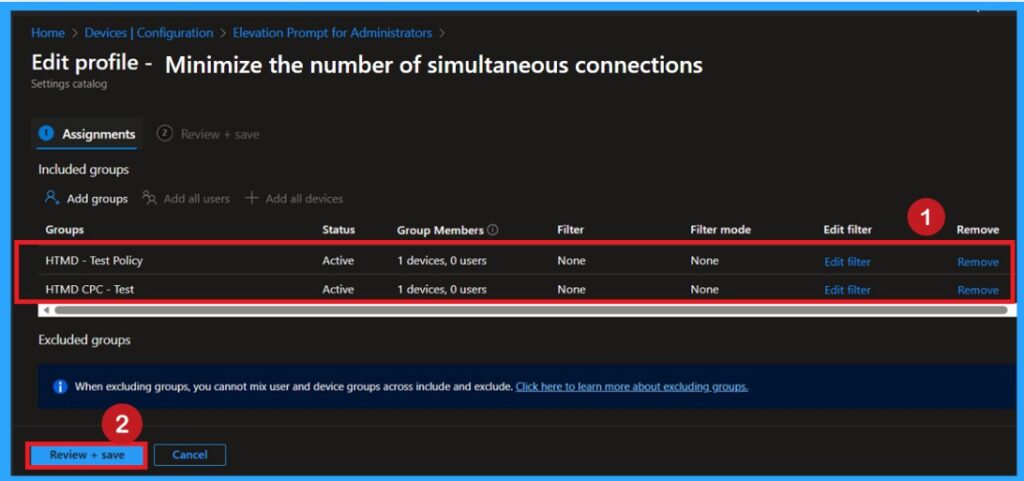
We can easily remove groups from a policy. Just open the policy from the Configuration section, then click the Edit button on the Assignments. From there, click the Remove button to unassign the policy from the desired groups.
For detailed information, you can refer to our previous post – Learn How to Delete or Remove App Assignment from Intune using by Step-by-Step Guide.
Delete the Policy Permanently
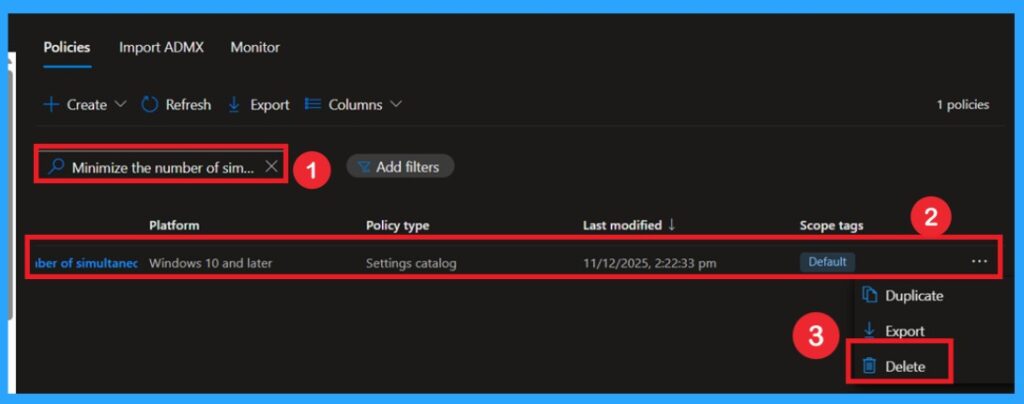
To delete a policy in Microsoft Intune, first sign in to the Microsoft Intune Admin Center. Navigate to Devices and then select Configuration. Locate and select the specific policy you want to remove. Once you’re on the policy details page, click the 3 -dot menu in the top right corner and choose Delete from the available options. This makes the intention of the policy easy to understand.
Need Further Assistance or Have Technical Questions?
Join the LinkedIn Page and Telegram group to get the step-by-step guides and news updates. Join our Meetup Page to participate in User group meetings. Also, Join the WhatsApp Community to get the latest news on Microsoft Technologies. We are there on Reddit as well.
Author
Anoop C Nair has been Microsoft MVP for 10 consecutive years from 2015 onwards. He is a Workplace Solution Architect with more than 22+ years of experience in Workplace technologies. He is a Blogger, Speaker, and Local User Group Community leader. His primary focus is on Device Management technologies like SCCM and Intune. He writes about technologies like Intune, SCCM, Windows, Cloud PC, Windows, Entra, Microsoft Security, Career, etc


Discussion