Skip to content
AVD Workspace URL | How to Use Microsoft Store Remote Desktop App | Azure Virtual Desktop Tips

AVD Workspace URL | How to Use Microsoft Store Remote Desktop App | Azure Virtual Desktop Tips

Written By Anoop C Nair
Last Updated August 19, 2024
Posted In AVD
SHARE

Let’s quickly look at the AVD Workspace URL and Microsoft Store Remote Desktop App. You can log in to the AVD workspace using a Microsoft Remote Desktop client. Different client versions, including your mobile smartphone, can run on almost any device.

I also shared some quick tips about the Remote Desktop “Preview” app from the Microsoft Store at the bottom of this post. You can also Learn How to Access AVD Resources from iOS Devices.

In this post, you’ll find everything about the AVD Workspace URL and how to use the Microsoft Store Remote Desktop App for Azure Virtual Desktop.

These tips will help you maximise your Azure Virtual Desktop experience.

Patch My PC

Download Microsoft Remote Desktop AVD

Download Microsoft Remote Desktop AVD from the Microsoft Store.
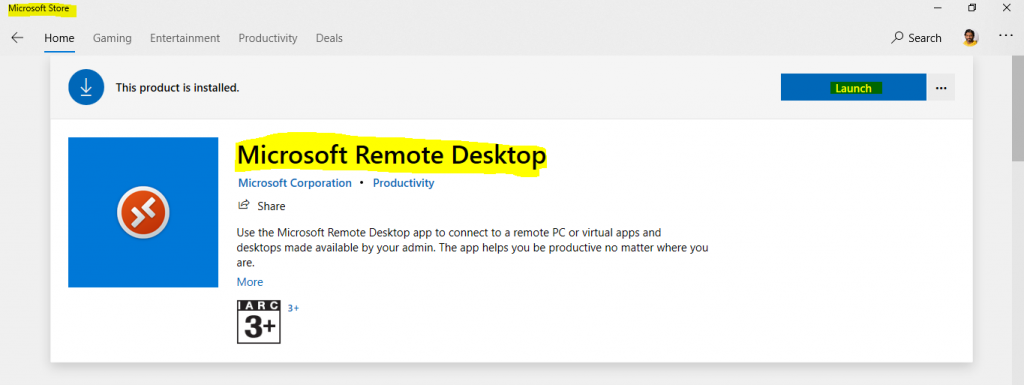
AVD Workspace URL | How to Use Microsoft Store Remote Desktop App | Azure Virtual Desktop Tips - Fig.1
AVD Workspace URL | How to Use Microsoft Store Remote Desktop App | Azure Virtual Desktop Tips – Fig.1

Add Workspace for Azure Virtual Desktop

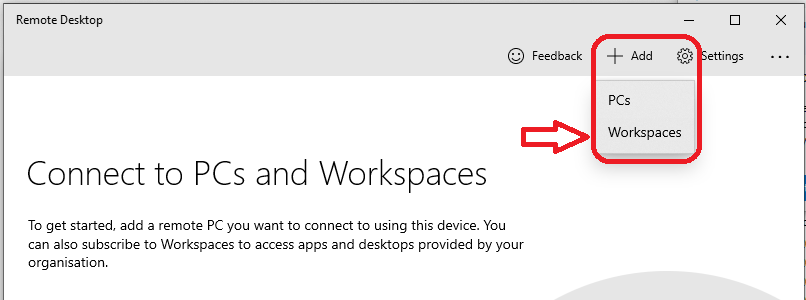
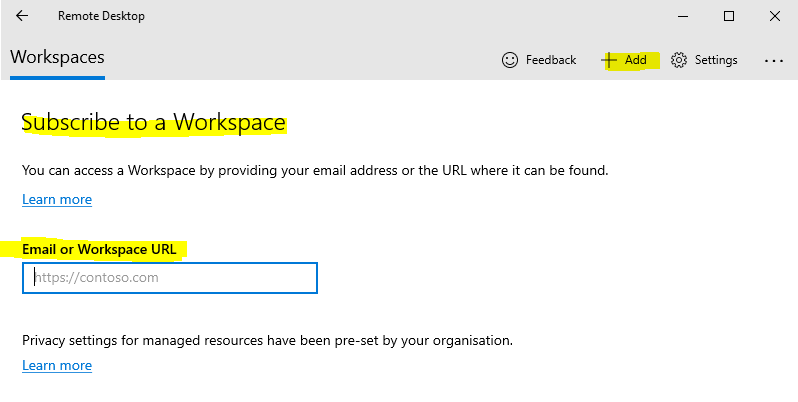
How to Use Microsoft Store Remote Desktop App? Click the + ADD button to add a new workspace to the Remote Desktop App.

Add Workspace for Azure Virtual Desktop
Click the Add Button
Select Workspaces
AVD Workspace URL | How to Use Microsoft Store Remote Desktop App | Azure Virtual Desktop Tips – Table 1
AVD Workspace URL | How to Use Microsoft Store Remote Desktop App | Azure Virtual Desktop Tips - Fig.2
AVD Workspace URL | How to Use Microsoft Store Remote Desktop App | Azure Virtual Desktop Tips – Fig.2

Add Workspace URL for Azure Virtual Desktop

I tried entering the email ID but couldn’t find any associated subscriptions. (More configuration is required via email for workspace auto-discovery.)
AVD Workspace URL | How to Use Microsoft Store Remote Desktop App | Azure Virtual Desktop Tips - Fig.3

AVD Workspace URL | How to Use Microsoft Store Remote Desktop App | Azure Virtual Desktop Tips – Fig.3

Enter the following workspace URL for ARM-based host pools. ARM -> https://rdweb.wvd.microsoft.com/api/arm/feeddiscovery. Click on the Subscribe button.
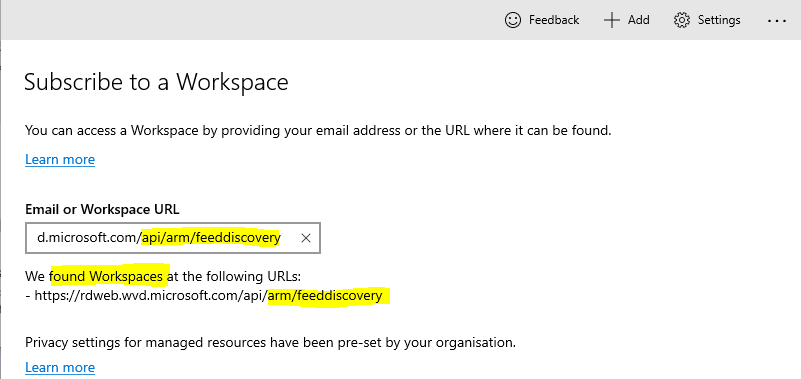
AVD Workspace URL | How to Use Microsoft Store Remote Desktop App | Azure Virtual Desktop Tips - Fig.4
AVD Workspace URL | How to Use Microsoft Store Remote Desktop App | Azure Virtual Desktop Tips – Fig.4

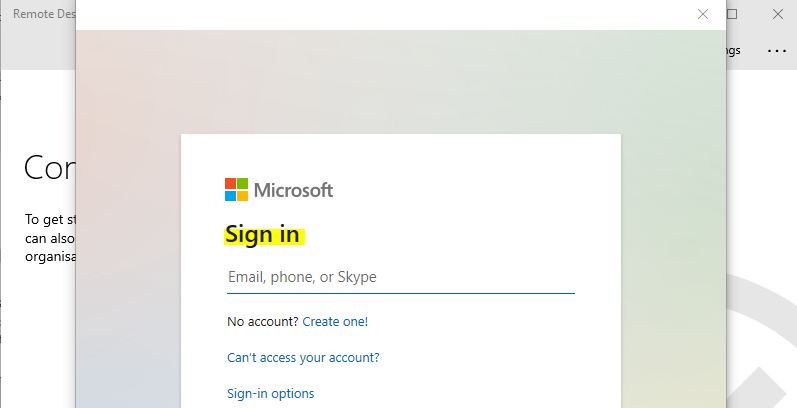
Enter the username and password.

AVD Workspace URL | How to Use Microsoft Store Remote Desktop App | Azure Virtual Desktop Tips - Fig.5
AVD Workspace URL | How to Use Microsoft Store Remote Desktop App | Azure Virtual Desktop Tips – Fig.5

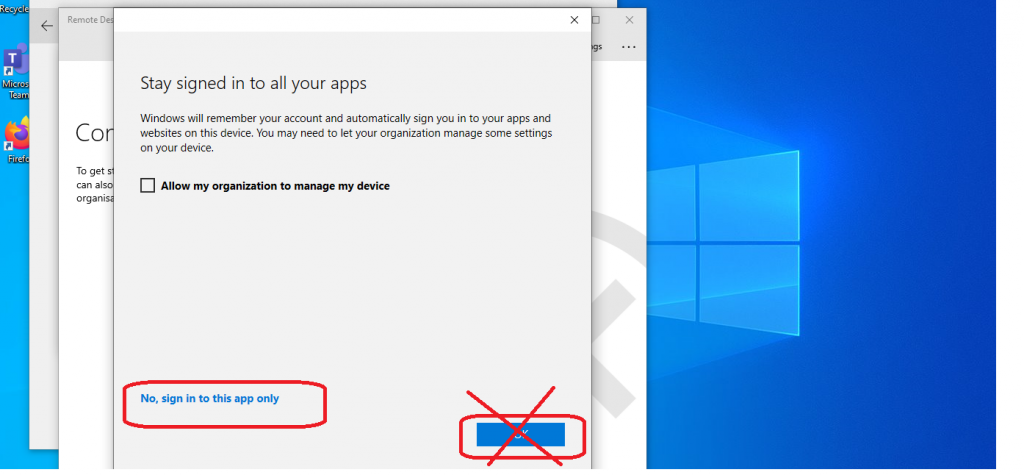
I usually don’t allow my organization to manage my device. Selected No, sign in to this app only.

AVD Workspace URL | How to Use Microsoft Store Remote Desktop App | Azure Virtual Desktop Tips - Fig.6
AVD Workspace URL | How to Use Microsoft Store Remote Desktop App | Azure Virtual Desktop Tips – Fig.6

Launch AVD Session Host from Microsoft Store Remote Desktop Client

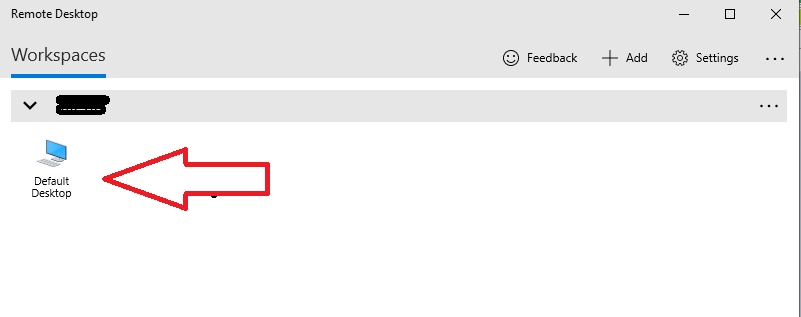
Click on the Remote Desktop icon.

AVD Workspace URL | How to Use Microsoft Store Remote Desktop App | Azure Virtual Desktop Tips - Fig.7
AVD Workspace URL | How to Use Microsoft Store Remote Desktop App | Azure Virtual Desktop Tips – Fig.7

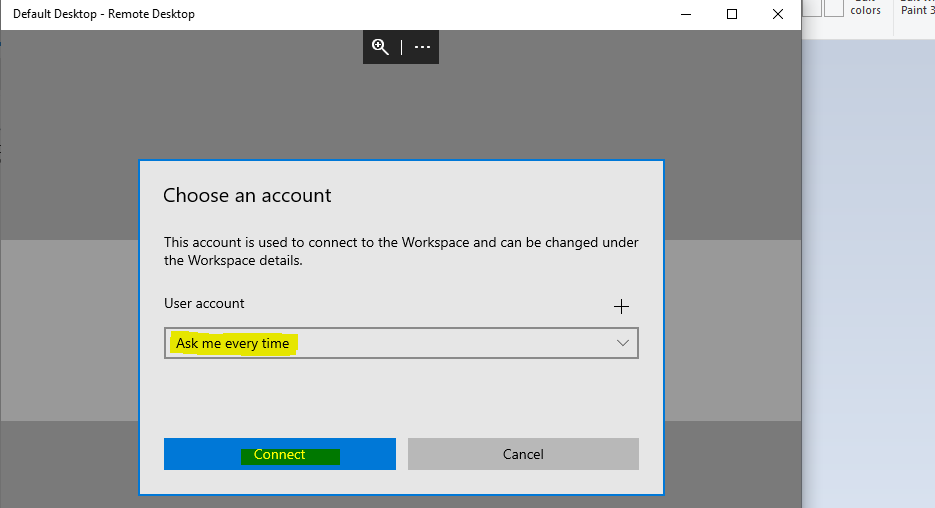
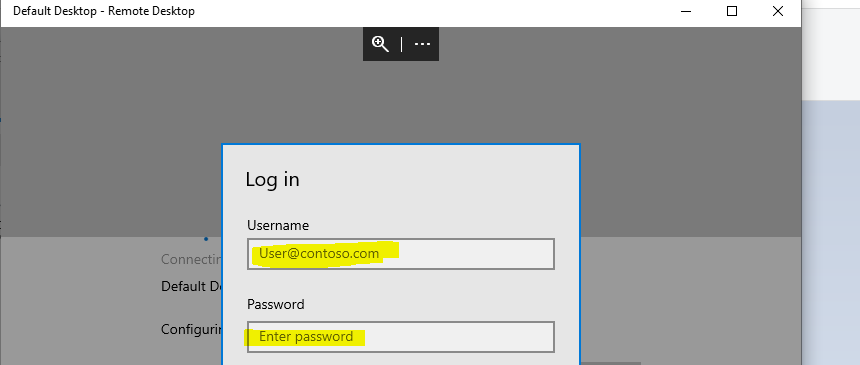
Log in to Remote Desktop – Session Host. Click on the Connect button.

Enter the username and password.
If you get the following error, try reconnecting:

Disconnect code: UnknownError, legacy code: 0x300006D, legacy extended code: 0x0, activityId: {ce29c30c-0686-40b4-869e-5f8573dd0000}

Results

It is connected successfully to the Remote Desktop using AVD. The below screenshot shows more details.
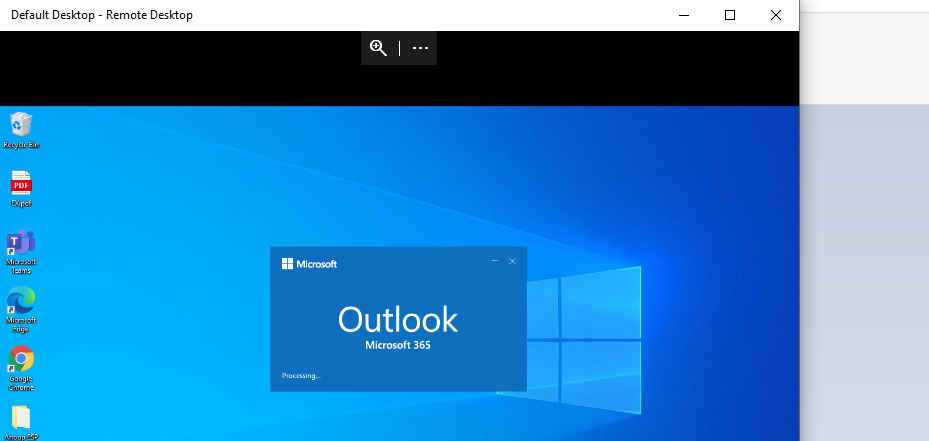
AVD Workspace URL | How to Use Microsoft Store Remote Desktop App | Azure Virtual Desktop Tips - Fig.8
AVD Workspace URL | How to Use Microsoft Store Remote Desktop App | Azure Virtual Desktop Tips – Fig.8

Additional Settings for Remote Desktop Client

Let’s discuss the Additional Settings for Remote Desktop Client. Click on Settings
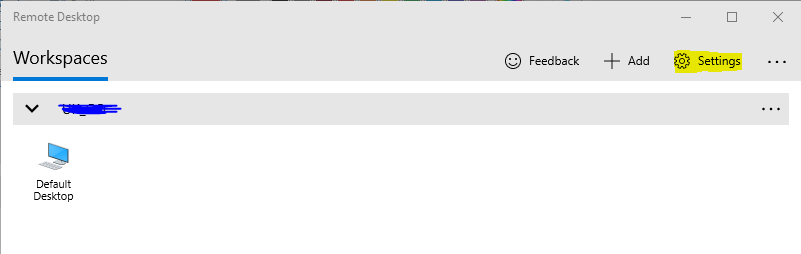
AVD Workspace URL | How to Use Microsoft Store Remote Desktop App | Azure Virtual Desktop Tips - Fig.9
AVD Workspace URL | How to Use Microsoft Store Remote Desktop App | Azure Virtual Desktop Tips – Fig.9

Click on the + button from the User Account section.
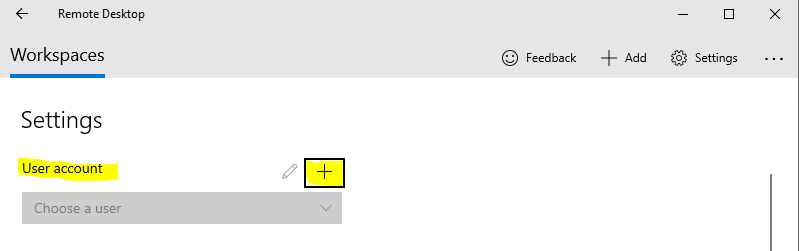
AVD Workspace URL | How to Use Microsoft Store Remote Desktop App | Azure Virtual Desktop Tips - Fig.10
AVD Workspace URL | How to Use Microsoft Store Remote Desktop App | Azure Virtual Desktop Tips – Fig.10

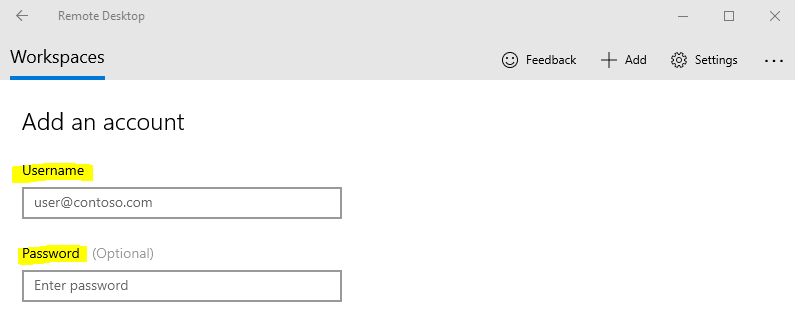
Here, you should enter the account details, Username, and password and then Click the Save button.

  • Enter the account details
  • Enter the Username
  • Enter Password
  • Click on the Save button

Remote Desktop Preview

There is another Remote Desktop preview application available in the Microsoft store. Let’s have a quick review of the review app.
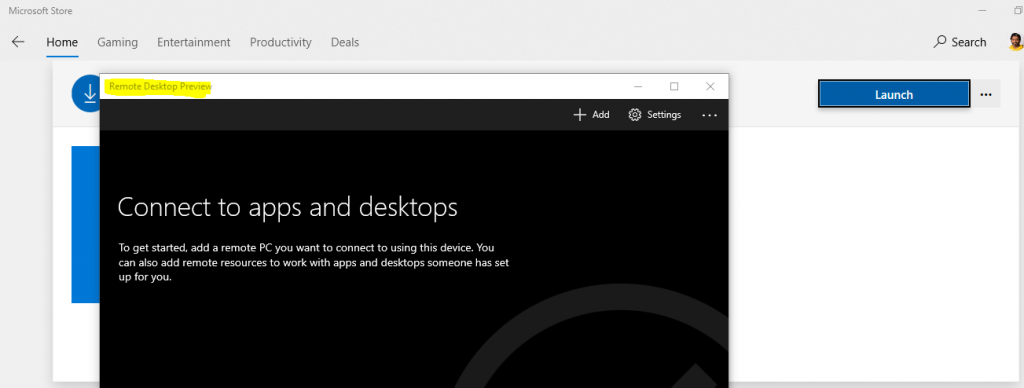
AVD Workspace URL | How to Use Microsoft Store Remote Desktop App | Azure Virtual Desktop Tips - Fig.11
AVD Workspace URL | How to Use Microsoft Store Remote Desktop App | Azure Virtual Desktop Tips – Fig.11

Click the + Add button to add remote AVD resources/host pools. Click Find Feeds.
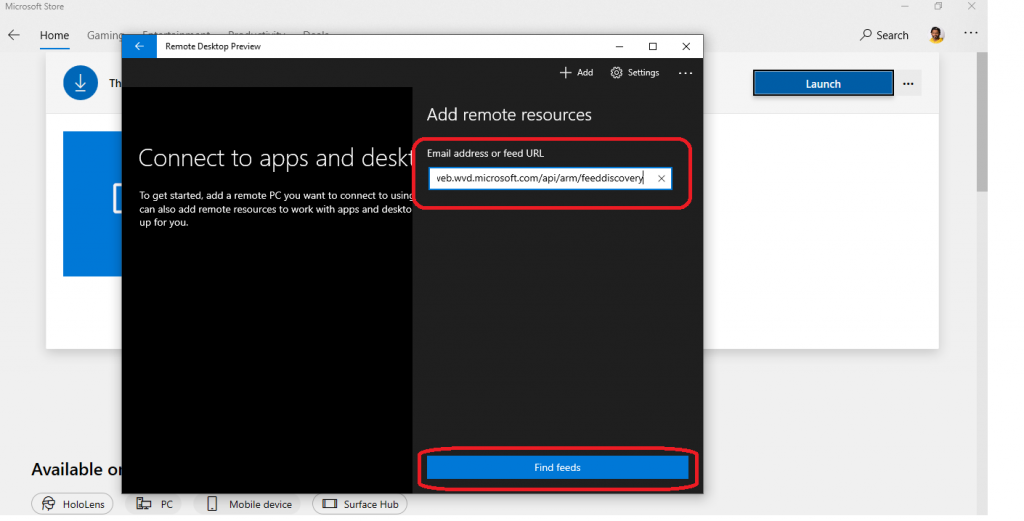
AVD Workspace URL | How to Use Microsoft Store Remote Desktop App | Azure Virtual Desktop Tips - Fig.12
AVD Workspace URL | How to Use Microsoft Store Remote Desktop App | Azure Virtual Desktop Tips – Fig.12

Select the Work or School account option. Click on Continue.
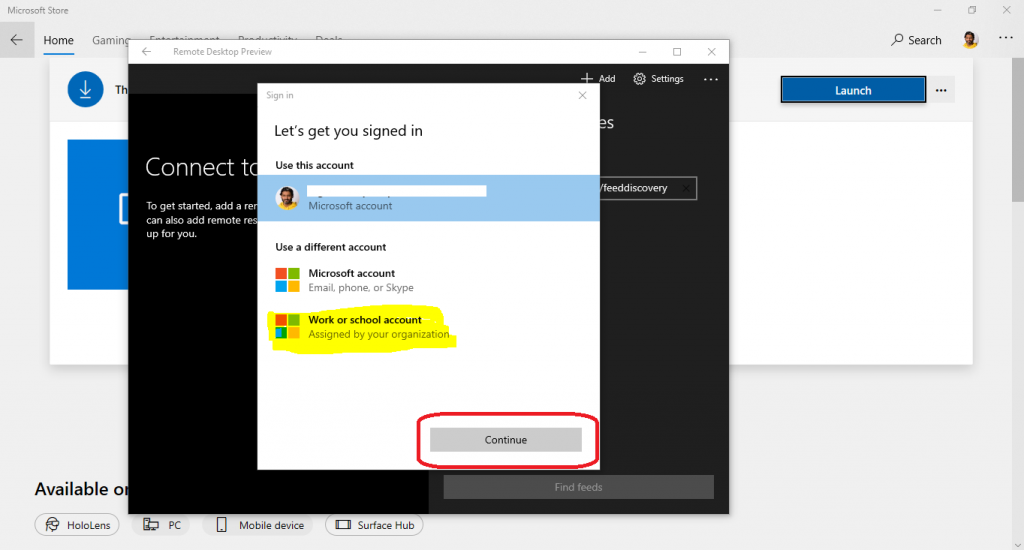
AVD Workspace URL | How to Use Microsoft Store Remote Desktop App | Azure Virtual Desktop Tips - Fig.13
AVD Workspace URL | How to Use Microsoft Store Remote Desktop App | Azure Virtual Desktop Tips – Fig.13

AVD Error CAA2002—This could be caused by Conditional Access policies. I will cover this in a future post.
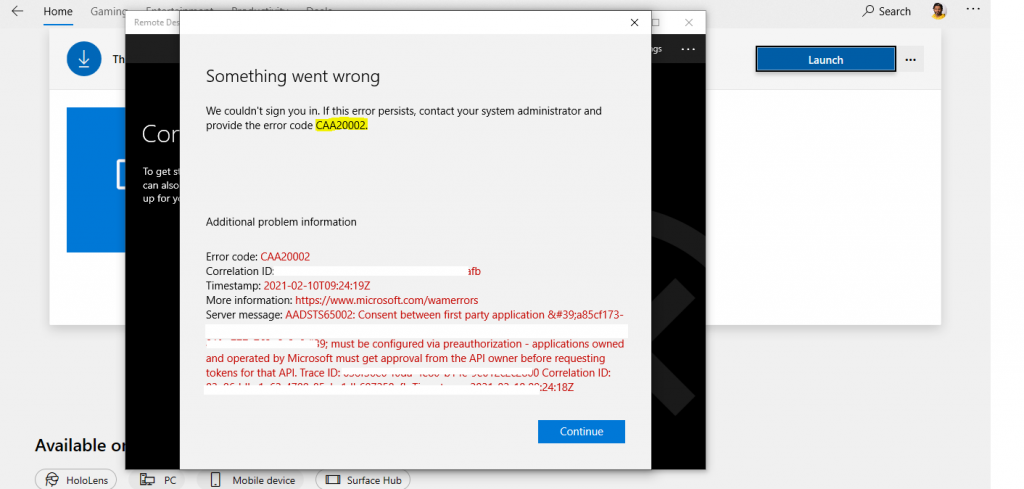
AVD Workspace URL | How to Use Microsoft Store Remote Desktop App | Azure Virtual Desktop Tips - Fig.14
AVD Workspace URL | How to Use Microsoft Store Remote Desktop App | Azure Virtual Desktop Tips – Fig.14

Resources

We are on WhatsApp now. To get the latest step-by-step guides, news, and updates, Join our Channel. Click here – HTMD WhatsApp

Author

Anoop C Nair is Microsoft MVP! He is a Device Management Admin with more than 20 years of experience (calculation done in 2021) in IT. He is a Blogger, Speaker, and Local User Group HTMD Community leader. His primary focus is Device Management technologies like SCCM 2012, Current Branch, and Intune. He writes about ConfigMgr, Windows 11, Windows 10, Azure AD, Microsoft Intune, Windows 365, AVD, etc.
Written by

Anoop C Nair is Workplace Technology solution architect with 25+ years of experience in global enterprise organizations such as JP Morgan, Capgemini, etc. Microsoft Certified Trainer. Microsoft MVP from 2015 onwards for consecutive 11+ years! He also conducts Intune and modern workplace tech training for enterprise organizations. He is Blogger, Speaker, and Founder of HTMD Community and HTMD Conference. His main focus is on Device Management technologies like Intune, Windows, Cloud PC. He writes about technologies like Intune, SCCM, Windows, Cloud PC, Windows, Entra, Microsoft Security.

Discussion

Join the discussion

Your email address will not be published. Required fields are marked *

Related guides

AVD

Windows 365 Frontline is Now Windows 365 Flex with No Change to Features or Licensing

Key Takeaways Windows 365 Frontline is Now Windows 365 Flex with No Change to Features or Licensing! Hey, let’s discuss about Windows 365 and Azure Virtual Desktop Expanding Access to Cloud Windows for Every Workstyle. The way people work is evolving, and so are cloud-delivered Windows solutions. From small businesses to enterprises and shift workers, […]

AC Anoop C Nair 4 min read
AVD

How RDP Multipath Improves Azure Virtual Desktop Connectivity Using Dynamic UDP Path Selection

Key Takeaways How RDP Multipath Improves Azure Virtual Desktop Connectivity Using Dynamic UDP Path Selection! RDP Multipath creates multiple connection paths between your device and the remote desktop instead of relying on just one. It continuously checks which path is performing best and automatically switches if one becomes slow or drops. This ensures a smoother […]

AC Anoop C Nair 4 min read
AVD

Resilient Connectivity Architecture with Multiple Service Instances in Azure

Key Takeaways Resilient Connectivity Architecture with Multiple Service Instances in Azure! This architecture helps IT administrators by providing a more reliable and scalable connectivity platform for cloud services. Because multiple service instances run independently within each region, the platform can continue operating even if one component fails. This reduces service disruptions and ensures that users […]

AC Anoop C Nair 3 min read