






Azure AD Dynamic Device Group Using Display Name Property | Azure Virtual Desktop | VM Name
Let’s learn how to create an Azure AD Dynamic Device Group Using the Display Name Property. I have seen that the display name property is useful for creating Azure AD dynamic device groups for Azure Virtual Desktop VMs.
AAD dynamic Device groups are similar to dynamic device collections in SCCM. Azure AD (AAD) dynamic device group is a set of devices grouped based on a common attribute value.
I agree that query using display name is an old way of grouping devices or virtual machines into a dynamic group.
You know there are better (not optimal) options for tagging physical devices in the Autopilot world using devicePhysicalIds.

Table of Contents
Create Azure AD Dynamic Device Group
Let’s create Azure AD Dynamic Device Group for Azure Virtual Desktop (a.k.a WVD). This dynamic Azure AD device group is based on host names.
- Open portal.azure.com
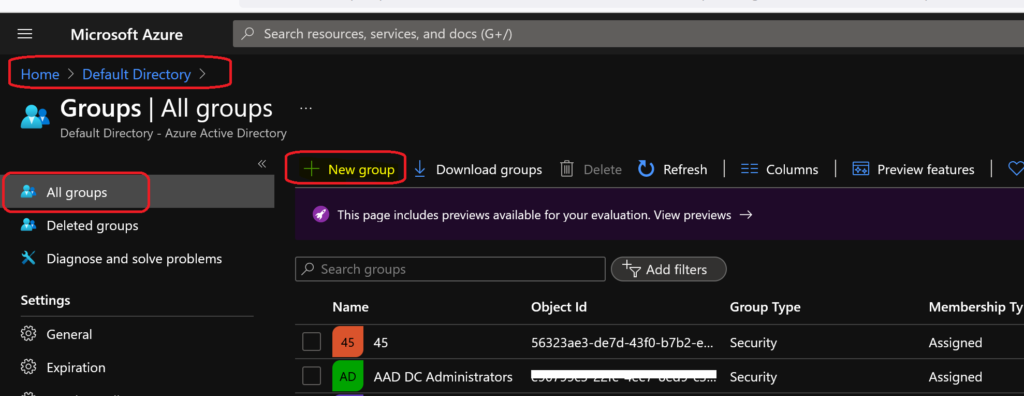
- Navigate to Azure AD (Azure Active Directory) -> Groups – All Groups.
- Click on “+ New Group“.
- Azure AD Dynamic Device Group Managed by MDE Defender for Endpoint | MicrosoftSense
- Create AVD Azure AD Dynamic Device Group using systemLabels Property
- Create Cloud PC Azure AD Dynamic Device Group
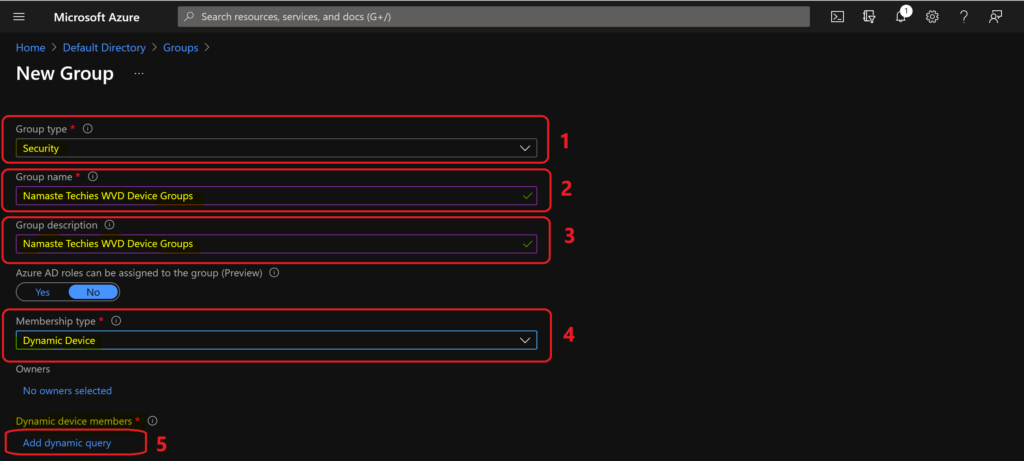
Select Security -Group Type from the drop-down menu. Enter the Group Name “Namaste Techies WVD Device Groups” (any name is fine).
- Enter Group Description “Namaste Techies WVD Device Groups” (any description is fine).
- Select Dynamic Device as the Membership type.
- Click on Add Dynamic Query under Dynamic Device Members.
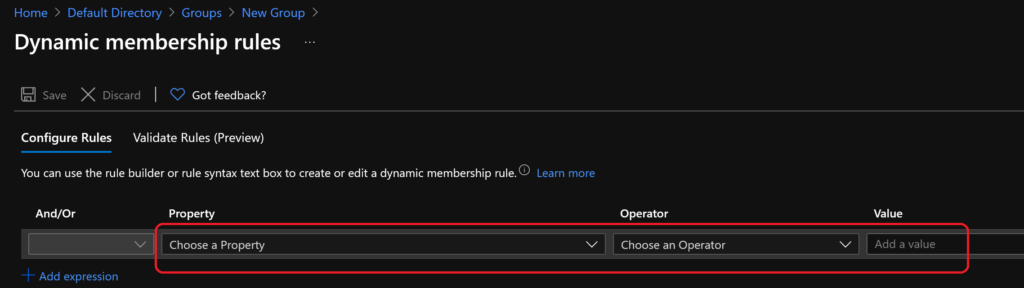
Hover over the properties column so that you get an option to select Azure AD dynamic device groups based on naming standards AVD (a.k.a WVD) VMs.
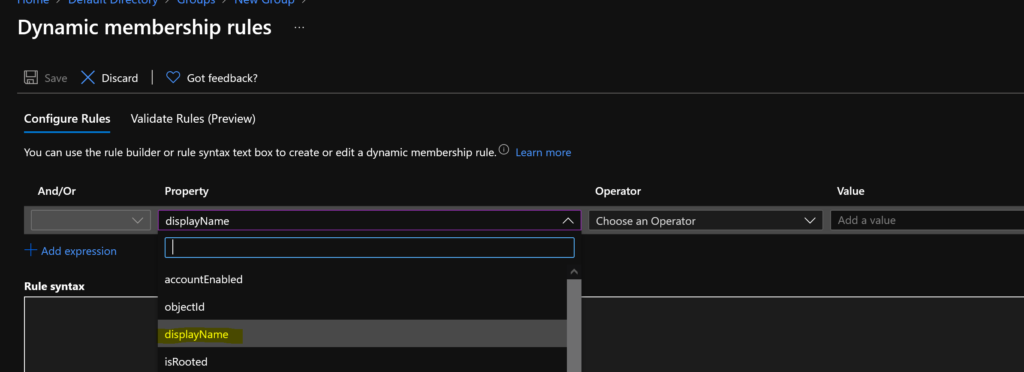
On the Dynamic Membership Rules blade, select the DisplayName property column drop-down options. As shown in the following screenshot, you must select the displayName property from the Property drop-down.
NOTE: To be safer, don’t rely only on one condition when you create Azure AD Dynamic device groups in WVD. However, it would help if you were mindful of not making complex dynamic queries, which could impact the automatic update of the Azure AD dynamic device group.
You can select the option ” Starts With ” from the operator column to select the hostname of Azure Virtual Desktop (a.k.a AVD) session hosts.
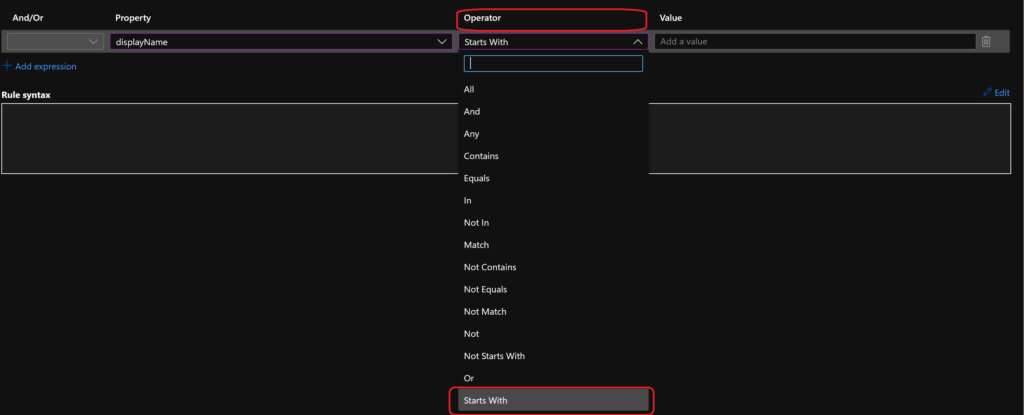
The hostname of my AVD VM starts with “namaste”.
In the value column, you can enter the hostname “Namaste” shown in the screenshot below. This Azure AD dynamic query

- Click on the SAVE and CREATE buttons to complete the process of building Azure AD dynamic device group creation.
Validate AAD Dynamic Device Query?
You can validate the Azure AD dynamic device query using the method explained in the following blog post. Validate Azure AD Dynamic Group Rules | Intune.

AAD Dynamic Device Group Query using Display Name
The following AAD Dynamic Device Group Query uses the Display Name property column. The rule syntax is given below:
(device.displayName -startsWith "namaste")

Result
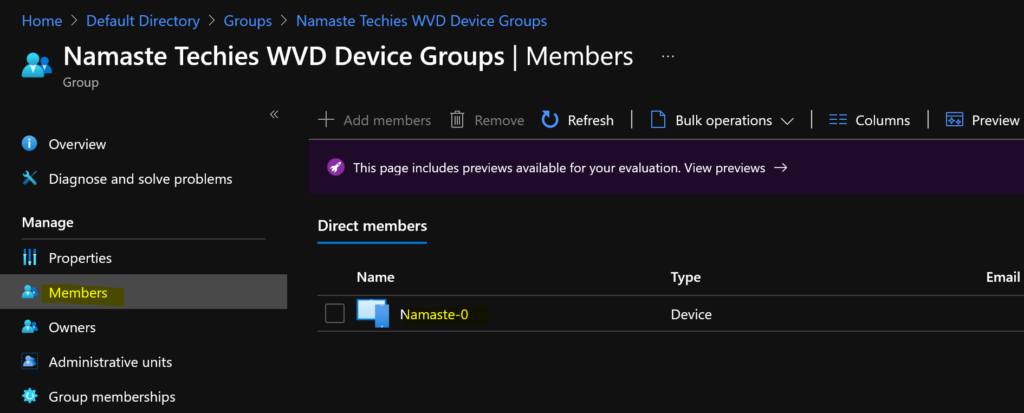
You can check the members of the dynamic device group from the Members tab in the Azure AD Device group.
Resources
- https://docs.microsoft.com/en-us/azure/active-directory/enterprise-users/groups-dynamic-membership#using-attributes-to-create-rules-for-device-objects
- Validate Azure AD Dynamic Group Rules | Intune
- How to Create Azure AD Dynamic Device Groups for Windows BYOD CYOD Devices Microsoft Intune
We are on WhatsApp. To get the latest step-by-step guides and news updates, Join our Channel. Click here –HTMD WhatsApp.
Author
Anoop C Nair has been Microsoft MVP for 10 consecutive years from 2015 onwards. He is a Workplace Solution Architect with more than 22+ years of experience in Workplace technologies. He is a Blogger, Speaker, and Local User Group Community leader. His primary focus is on Device Management technologies like SCCM and Intune. He writes about technologies like Intune, SCCM, Windows, Cloud PC, Windows, Entra, Microsoft Security, Career, etc.



Discussion