






Turn Off or On Microsoft Teams Suggested Replies Feature Available on Windows 11 Desktop
Let’s check the Turn Off or On Microsoft Teams Suggested Replies Feature Available on Windows 11 Desktop. Microsoft has started deploying the Suggested replies option to the Microsoft Teams Desktop version.
The Suggested replies feature has already been deployed to the mobile version of Microsoft Teams. The Teams Suggested reply feature may not be available on your device if it’s on a network and the Teams administrator has turned off this feature.
I see this feature enabled on the Microsoft Teams desktop version on Windows 11 devices. I like this option as per my initial testing so that you don’t have to type standard reply messages such as Thank You, OK, Looks Good, etc.
You have Microsoft Teams Version 1.5.00.9163 (64-bit). My Teams version was last updated on 4/20/2022. But I saw the suggested reply box on 28th April 2022.

- Best Option To Disable Or Enable Read Receipts In Microsoft Teams
- Disable Or Enable Keyboard Shortcut To Temporarily Unmute In Microsoft Teams
What is Microsoft Teams Suggested Replies?
The feature called suggested replies on the desktop version of Microsoft Teams. You get a suggested replies box at the bottom of the chat message box, as shown in the below screenshot.
You can reply to a chat message in Teams with a click of a button. Some incoming messages in Teams only need a quick confirmation or a routine reply.
NOTE! – Suggested replies present users with up to three recommended responses to choose from.
This helps users save time by avoiding typing standard replies instead of responding to a message by typing the reply. You can just click on one of the suggested replies buttons above the box where you type.
You can start clicking on a suggested reply and sends it immediately. As you can see in the below picture, you can just click on the Ok, Thanks, or Looks Good options.

Another example of suggested replies in the Teams desktop app is given below. As mentioned above, there would 3 suggested replies, and you can click any one of them according to your context.
- OK
- Take your time
- Ok, Sure

Turn On Microsoft Teams Suggested Replies Feature
Let’s check how to Turn On Microsoft Teams Suggested Replies Feature in the desktop version. The Suggested replies in Teams chat use assistive AI to create short responses based on the context of the previous message.
- Click on the Three Horizontal Dots (…) on the Right Topside of Microsoft Teams.
- Click on the Settings button.
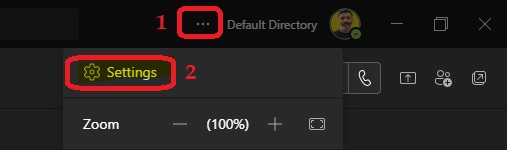
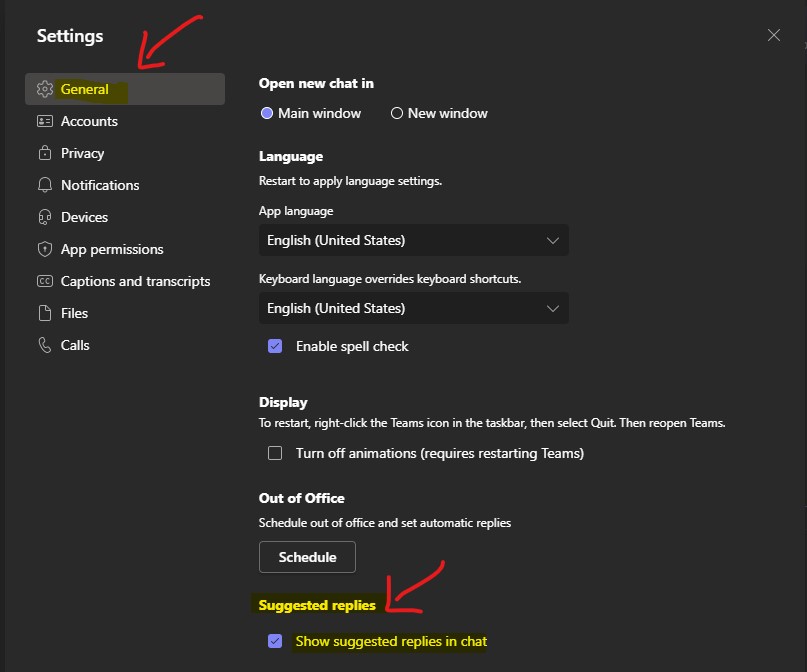
You can scroll down until you see the following option suggested replies from the General tab. The following are the steps to turn on the Suggested Replies.
- Click on the General tab from the settings page.
- Scroll down to the bottom of the page from Windows 11 device using the Teams desktop version from the General tab.
- Enable the checkmark for the option called “Show Suggested Replies in chat.”
This will enable the suggested reply for your individual Microsoft Teams desktop application. There could be a Teams admin policy available to disable suggested replies for all the users in the Teams tenant.
Turn Off Microsoft Teams Suggested Replies Feature for Teams Desktop
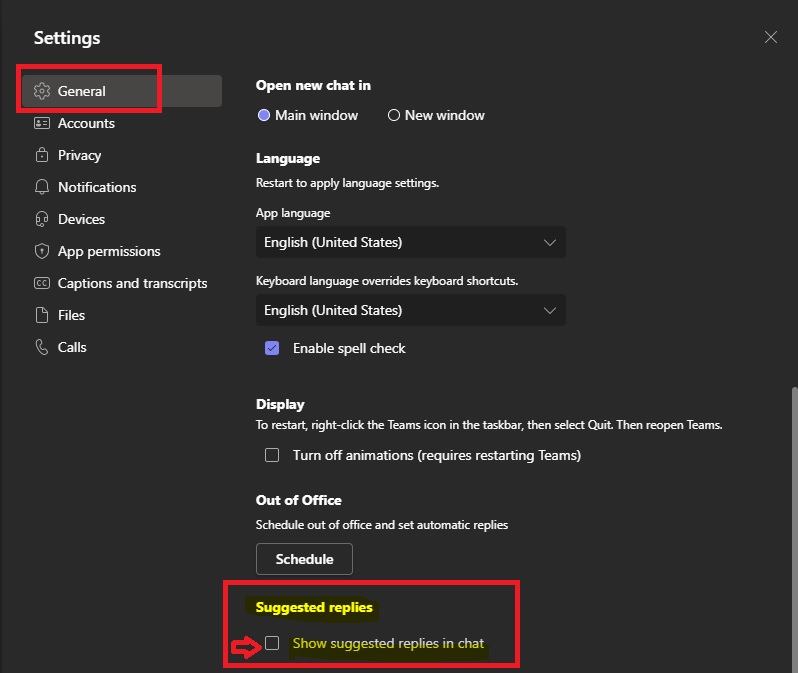
You can Turn Off the Suggested Replies Feature for the Teams Desktop application version. Follow the steps mentioned below to turn off the suggested reply from Microsoft Teams desktop version.
- Click on the Three Horizontal Dots (…) on the Right Topside of Microsoft Teams. Near the profile picture.
- Click on the Settings button.
- Click on the General tab from the settings page.
- Scroll down to the bottom of the page from Windows 11 device using the Teams desktop version from the General tab.
- Remove the checkmark for the option called “Show Suggested Replies in chat” under the suggested replies section.
Teams Mobile App – Turn Off or On Microsoft Teams Suggested Replies Feature
Let’s check how to Turn Off or On Microsoft Teams Suggested Replies Feature from the Teams Mobile application. The setting is different in the Teams mobile application.
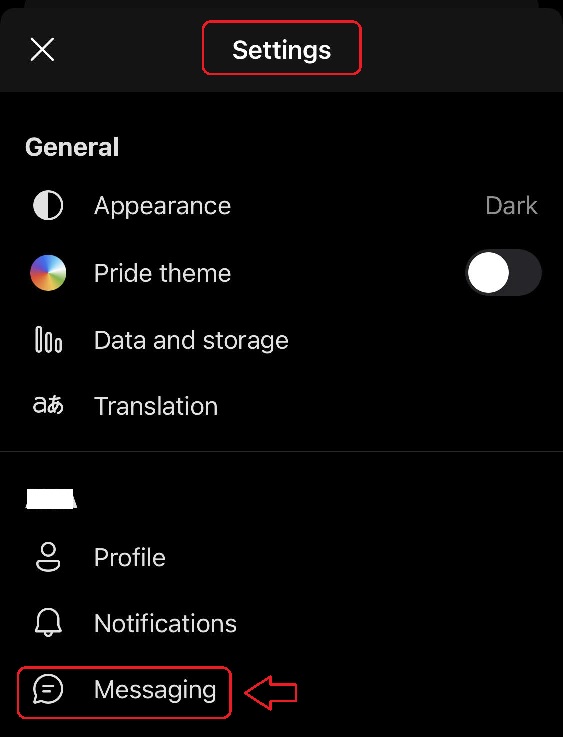
- Tap on the profile picture from Teams mobile application to open th fly-out menu.
- From the fly-out menu, tap on the Settings option.
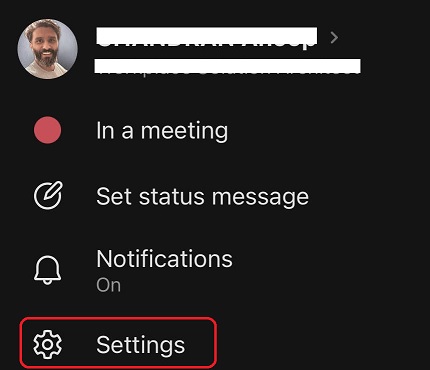
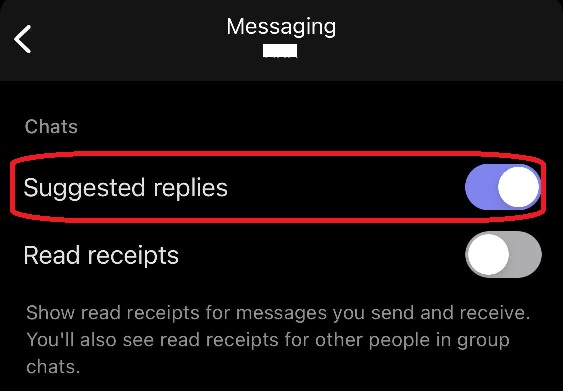
You can now scroll down a bit and tap on the messaging option to go to the next page, where you can turn on or off the suggested replies feature.
Tap on the Suggested replies toggle to Turn ON or Turn OFF this feature, as you can see below.



Thanks for the info.
Can’t tell why this should be a mandatory (active by default) feature – it’s distracting.
From Enterprise perspective the question may be: is Suggested Replies in MS Teams part of connected experiences for O365? Connected experiences can send enterprise data to Microsoft which in some cases need to be stopped.
Which connected experience is Suggested Replies in MS Teams part of (Analyze experience probably).
Can it be blocked by disabling COnnected Experiences that Analyze content?
Any clarification on this would be quite helpful.