





Active Directory PowerShell Script to Add Computers To AD Group
Active Directory PowerShell Script to Add Computers To AD Group. One of my friends helped me get a PowerShell script that will help Add Computer Accounts To A Security Group.
I thought of sharing the same so that it would be helpful to somebody.
- SQL Query For SCCM Configuration Baselines Results | ConfigMgr
- Modern Vs Legacy Azure Active Directory Authentication Methods
- SCCM Collection based on Active Directory OU | The Easy Way
| Index |
|---|
| Active Directory PowerShell Script to Add Computers To AD Group |
Active Directory PowerShell Script to Add Computers To AD Group
This will work only on Windows 2008 R2 Domain Controllers.
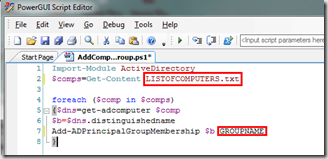
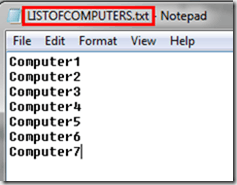
The LISTOFCOMPUTERS.txt file is the input file, and it should contain a list of computers (hostnames), as shown in the screenshot below.

Replace the GROUPNAME with the actual group name which you want to use.
Download the script from – TechNet Gallery
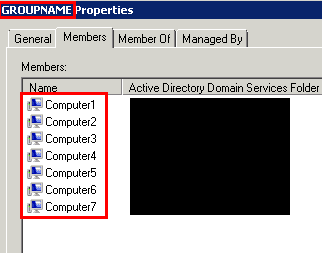
The output will be as shown below.
We are on WhatsApp. To get the latest step-by-step guides and news updates, Join our Channel. Click here –HTMD WhatsApp.
Author
Anoop C Nair has been Microsoft MVP from 2015 onwards for 10 consecutive years! He is a Workplace Solution Architect with more than 22+ years of experience in Workplace technologies. He is also a Blogger, Speaker, and leader of the Local User Group Community. His main focus is on Device Management technologies like SCCM and Intune. He writes about technologies like Intune, SCCM, Windows, Cloud PC, Windows, Entra, Microsoft Security, Career, etc.
I recieve a cannot validate argument error!! Are you missing a parameter is your script?
Add-ADPrincipalGroupMembership : Cannot validate argument on parameter ‘Identity’. The argument is null. Supply a non-null argument and try the command again.
At I:\Office365\Scripts\bldg500 computers1.ps1:10 char:31
+ Add-ADPrincipalGroupMembership <<<< $b tjxg-laptop-computers-bldg-500c
+ CategoryInfo : InvalidData: (:) [Add-ADPrincipalGroupMembership], ParameterBindingValidationException
+ FullyQualifiedErrorId : ParameterArgumentValidationError,Microsoft.ActiveDirectory.Management.Commands.AddADPrincipalGroupMembership
$Computers = Get-Content -Path ‘C:\list.txt’
foreach ($computer in $computers)
{$dns=get-adcomputer $computer
$b=$dns.distinguishedname
Add-ADPrincipalGroupMembership $b ‘GROUPNAME’
}
How do you copy to multiple groups – not just one?
This worked on windows server 2022.