






Easy Steps to Delete Application In Intune MEM Portal
In this post, you will learn how to delete application in Intune MEM Portal. When you delete an application, it’s no longer available in the portal. Intune deleted the active assignment for the application.
There are a few scenarios where you may want to delete the application if you no longer need the older or unused application. Another reason would be that you have an updated application available for deployment.
It’s important to review all associated details of the application which you are choosing to delete, and you must remove all references to it. However, you can delete the apps if any conditions or assignments exist.
If you want to stop the deployment of an application, you can either delete the app assignment temporarily or delete it entirely, Check the steps to delete application deployment or assignments from Intune MEM portal.

You can share applications with users in Intune company portal. The share option in the Company Portal allows you to share a direct link to an application with users, Learn how to share applications in Intune company portal.
- Enable Device Restart Grace Period for Intune Win32 App
- Intune Win32 App Failure Log Collection Backend Secrets
- Create AAD Dynamic Groups based on MDM Intune SCCM Management
Easy Step to Delete Application In Intune MEM Portal
Here’s how you can delete application deployment from Intune portal. You have two options to navigate to the application node either you can navigate to the All Apps or Apps -> By Platform –
- Sign in to Microsoft Endpoint Manager Admin Center https://endpoint.microsoft.com
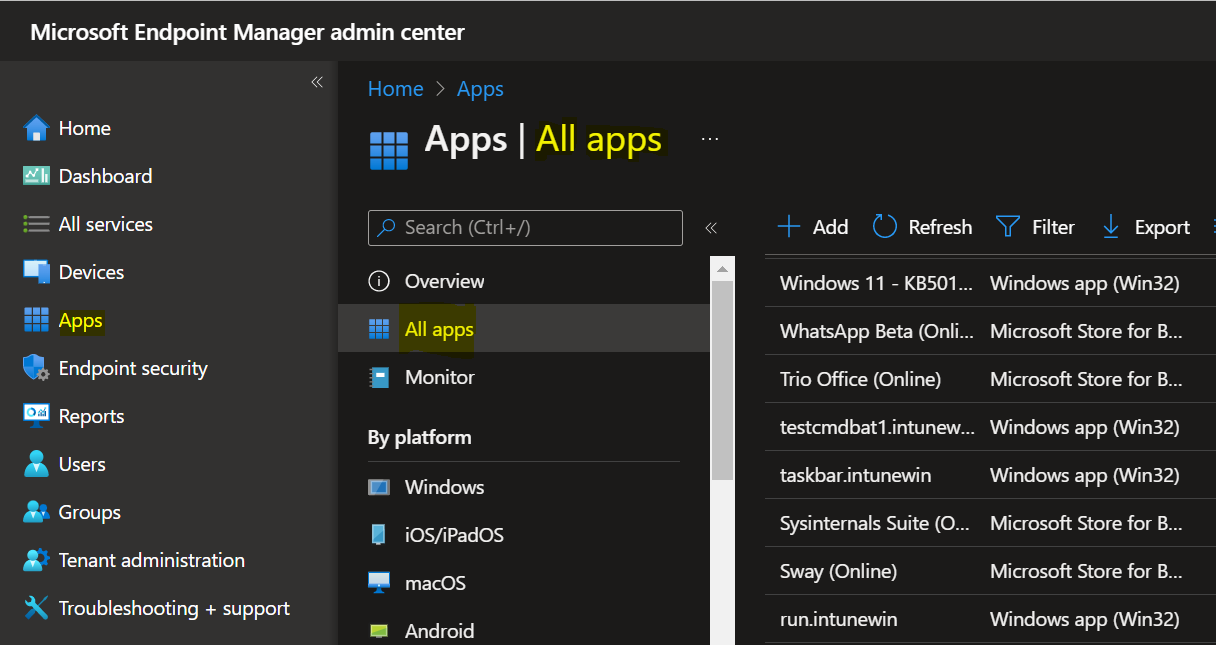
- Navigate to Apps > All apps. Here you can see the lists of available applications in the portal.
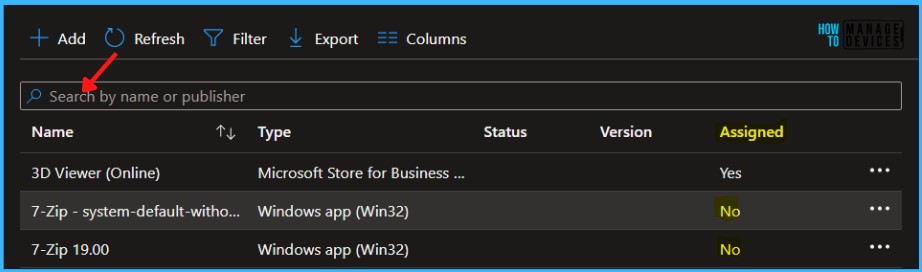
Choose the application from the list which you want to delete. You can also use the search option to locate the application by Name or Publisher.
Note – It’s good to remove any active group assignments or references before the application can be successfully deleted. You can refer to the Assigned column indicating Yes for the active group assignment or No.
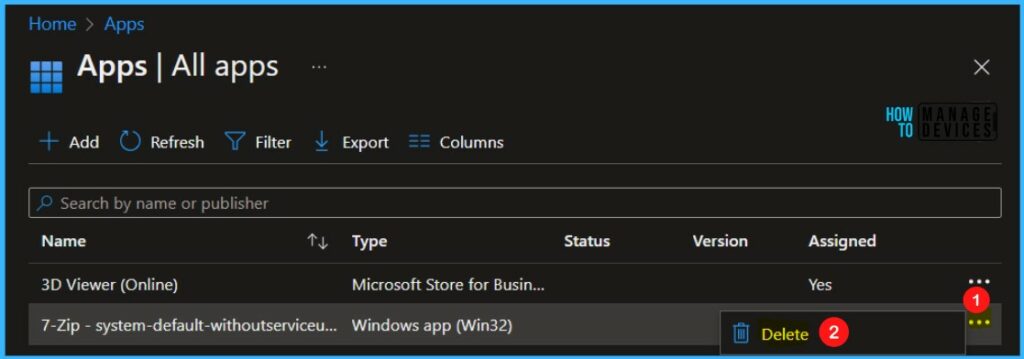
The easiest method is to delete the application by clicking on the three dots and selecting Delete. Only the applications you have highlighted will be deleted.
When you attempt to Delete an application, you see a message box. Are you sure? This will delete the selected applications. Click on Yes to confirm the deletion.
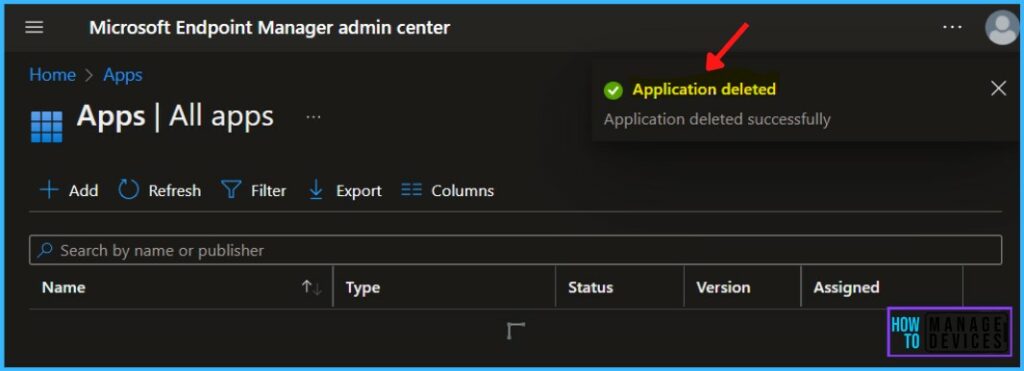
A notification will appear automatically in the top right-hand corner with a message. You can see “Application deleted successfully”. You can also monitor the deletion process by clicking on Notification Icon.
The App will automatically be removed from the listed app.
#Option 2
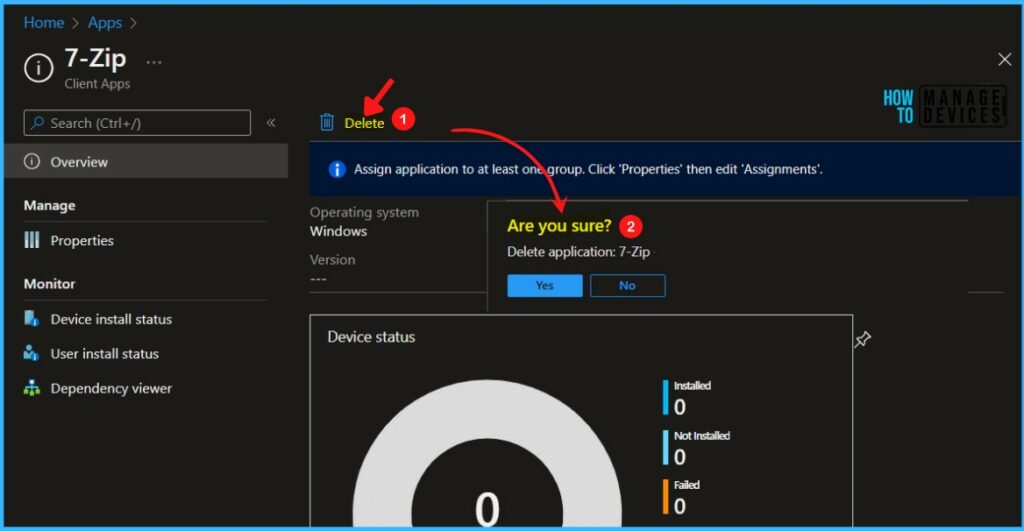
Another method is to delete an application from the Apps Overview section in MEM Portal.
In the MEM Admin Center, Navigate to Apps > All Apps. Select the application from the list which is available for you and no longer needed.
Once you select an application, you will directly jump to the Overview pane. Here you can validate the assignment status and properties of an application and go for deletion.
Click on the Delete button and confirm the deletion of the application by clicking Yes on the message box.
A notification will appear automatically in the top right-hand corner with a message. You can see “Application deleted successfully”. You can also monitor the deletion process by clicking on Notification Icon.


Discussion