






Learn How to Add Applications to Windows 10 Machine Startup Menu
Learn how to Add Applications to Windows 10 Machine Startup Menu. In Windows 10, we can’t use “MSCONFIG” to disable or enable the system startup programs/applications.
If you’re a Windows 8 user, you must be familiar with this. So, let’s make it clear that this is not new in Windows. Microsoft removed system startup options from MSConfig.exe. In Windows 10, we need to use the task manager (taskmgr.exe) to control startup applications/programs/files, etc.
How do you add or remove applications/programs/files to startup options in Windows 10? I’ve done this using PowerShell for a change. In this post, you will also get some tips about How to add/create shortcuts to applications or programs using PowerShell in Windows 10.
Powershell is Super cool 🙂 Probably, Deepak (PowerShell MVP) can help us to improve the PS commands used below:)

- Free Generic Windows 10 Product Keys from Microsoft
- Windows 10 Product Key Change Home to Professional Upgrade | Activate
- Apps Show Open with Dialog Issues on Taskbar or Start Menu Icons
- Windows 10 21H2 Support is Ending in June
Learn How to Add Applications to Windows 10 Machine Startup Menu
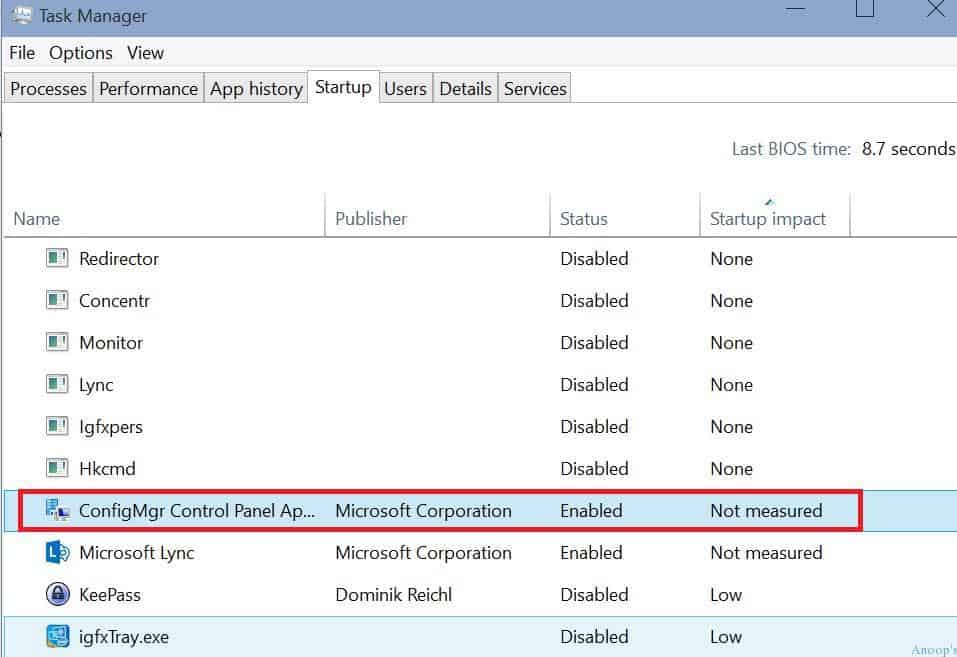
You can turn off startup applications from Windows 10 Task Manager (taskmgr.exe). Also, when you want to enable one application like Lync, every time a Windows 10 machine starts up, you can use the task manager StartUp tab.
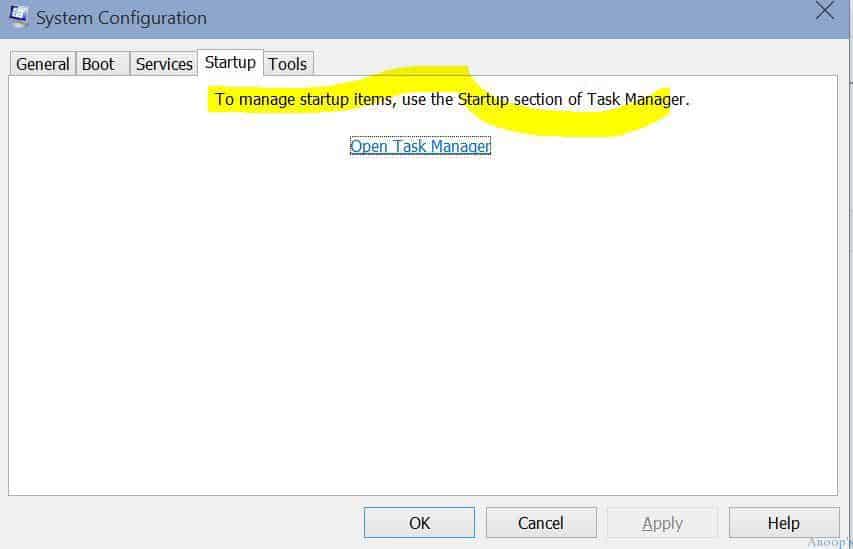
Windows 10 Machine Startup Menu
So, what are system startup applications/programs, and what is the advantage of using startup applications? Startup applications are apps that get started/launched automatically whenever a Windows 10 machine restarts or the user logs in.
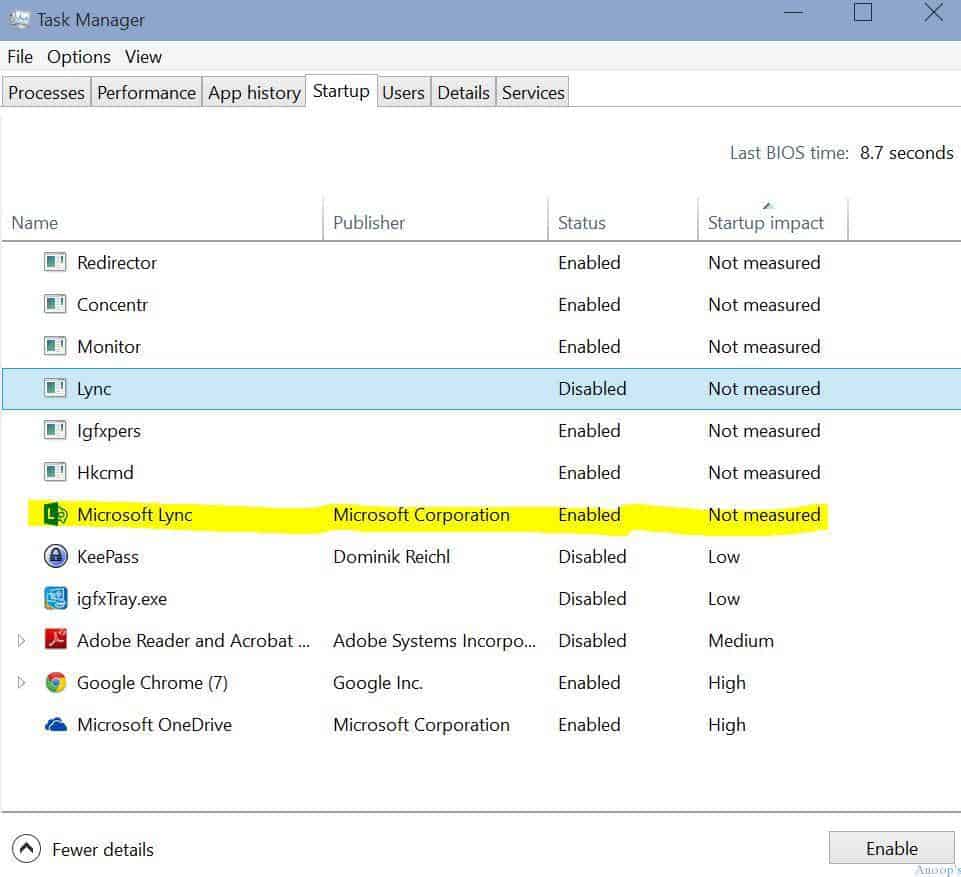
How about adding a new application or program to the Windows 10 Startup menu for a user? How do you add an application to a Windows 10 machine startup? So, there is no easy way to add applications or programs to the startup menu in Windows 10. Also, no Windows 10 – Task Manager – Startup tab button exists to add a new application.
Microsoft doesn’t promote users by adding loads of startup applications in Windows 10. Because this will probably impact the machine’s performance, I would also suggest NOT adding lots of applications to the startup menu on your Windows 10 machine.
How Do You Add Apps, Programs, or Files to a System Startup in Windows 10? Follow the Steps !!
So, if you’re using PowerShell to create shortcuts, you can directly go to STEP 4!
1. Press Windows Key + R to launch RUN. Log in with that user’s ID and password to add an application to Windows 10 startup options.

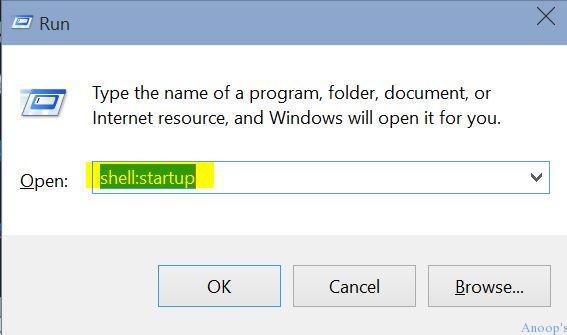
2. Type “shell:startup” in the “Run” windows and click/tap the OK button.
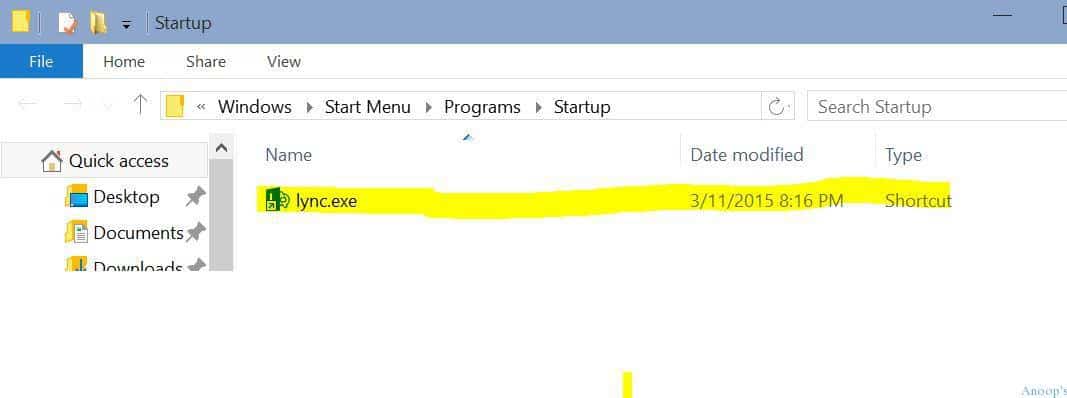
3. The above command, “Shell:Startup“, will launch a new File Explorer window on your Windows 10 machine. In my scenario, the startup folder for my profile Anoop was located in the following location C:\Users\Anoop\AppData\Roaming\Microsoft\Windows\Start Menu\Programs\Startup or %userprofile% (environment variable to get into current user profile).
Log in with that user’s ID and password when you want to add an application to Windows 10 system startup options. The next step is to create a shortcut for that application in the Startup folder (to launch a user’s Startup folder in Windows 10, use the RUN command “Shell:Startup“).
As you can see in the following screen capture, I created a shortcut for Lync 2013.
4. How Do You Add/Create a Shortcut for an Application or Program using PowerShell in Windows 10?
I’ve created a variable called STARTUP and assigned it to the current user’s Startup folder path. Then, use the following command to create the shortcut for the calculator.
In this example, you need to run the following 2 PowerShell commands to create a calculator shortcut on the Windows 10 machine startup folder (you need to run the PS commands with administrative privileges)—so 2 or 3 things you need to remember here.
- a) $Startup is a PowerShell variable
- b) -Name “Calculator.lnk” is the place where you want to enter the name of the Shortcut (Startup) Application name. In my scenario, it’s a Calculator! Extension must be the same for all the shortcut files, and that is .LNK.
- c) -value “c:\windows\system32\calc.exe” is where you want to enter the actual file path of the application or program EXE. In my scenario, it’s “c:\windows\system32\calc.exe“
$StartUp="$Env:USERPROFILE\AppData\Roaming\Microsoft\Windows\Start Menu\Programs\Startup"
New-Item -ItemType SymbolicLink -Path "$StartUp" -Name "Calculator.lnk" -Value "c:\windows\system32\calc.exe"
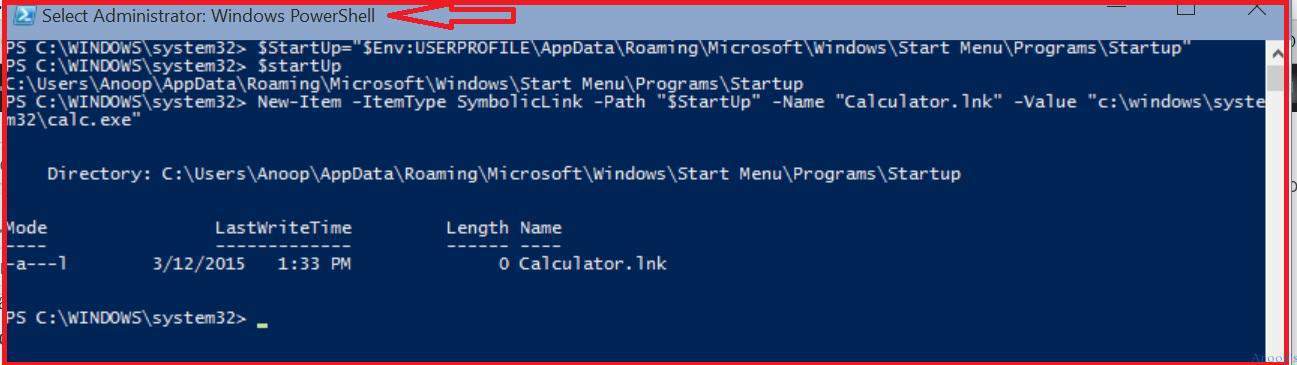
PS C:\WINDOWS\system32> $StartUp="$Env:USERPROFILE\AppData\Roaming\Microsoft\Windows\Start Menu\Programs\Startup"
PS C:\WINDOWS\system32> $startUp
C:\Users\Anoop\AppData\Roaming\Microsoft\Windows\Start Menu\Programs\Startup
PS C:\WINDOWS\system32> New-Item -ItemType SymbolicLink -Path "$StartUp" -Name "Calculator.lnk" -Value "c:\windows\system32\calc.exe".
Directory: C:\Users\Anoop\AppData\Roaming\Microsoft\Windows\Start Menu\Programs\Startup.
Mode LastWriteTime Length Name
---- ------------- ------ ----
-a---l 3/12/2015 1:33 PM 0 Calculator.lnk
So, with PowerShell, we can create shortcuts within a few seconds rather than going through all the Wizards mentioned below.
| How Do You Add/Create a Shortcut for an Application |
|---|
| Windows |
| Start Menu |
| Programs |
| Startup |

If you don’t want to use PowerShell, you can follow the screenshots below to create a shortcut for applications in Windows 10. Remember that I couldn’t find any way to add a modern/universal app in Windows 10 to the Windows 10 startup.
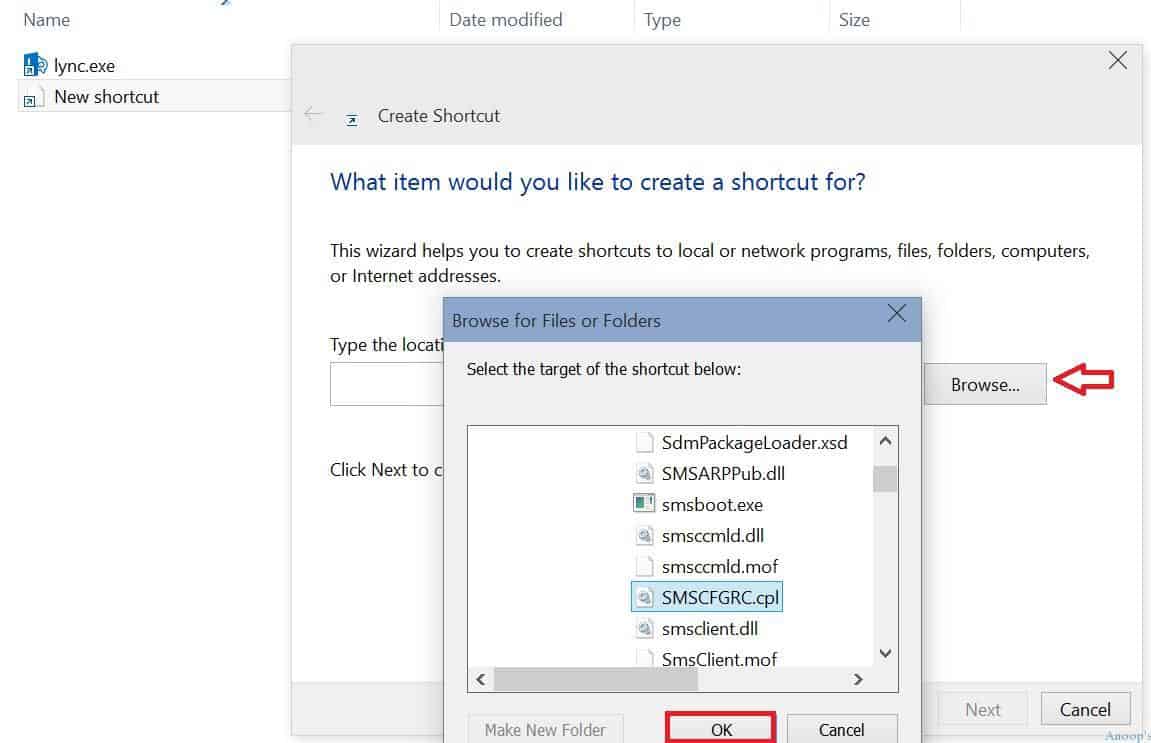
This wizard helps you to create shortcuts to local or network programs, files, folders, computers, or internet addresses.
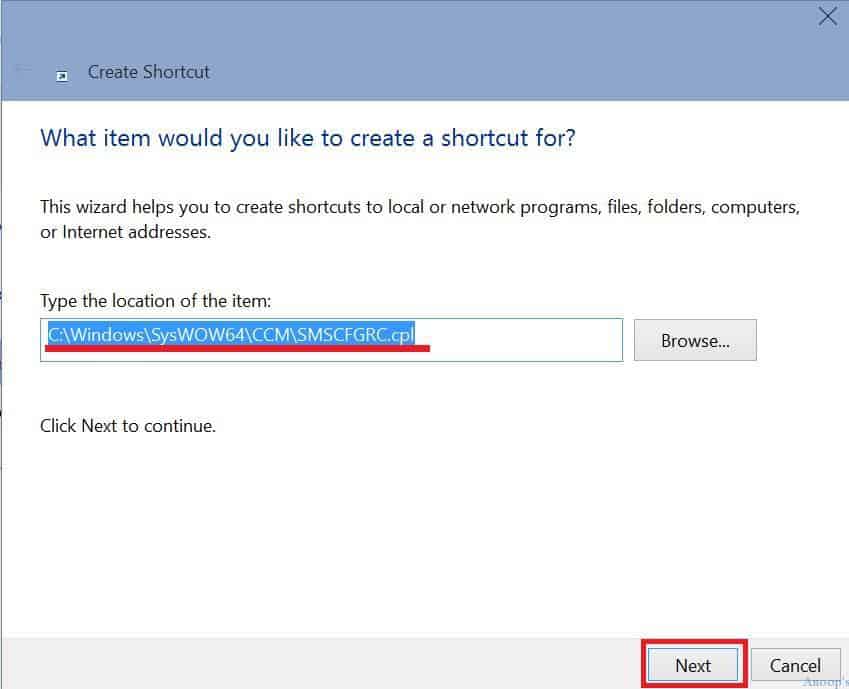
What item would you like to create a shortcut for? Browse for files or folders. Select the target of the shortcut below. Here, we selected the SMSCFGRC.cpl.
From the window below, you should type the location of the item. The Location is C:\Windows\SysWOW64\CCM\SMSCFGRC.cpl.
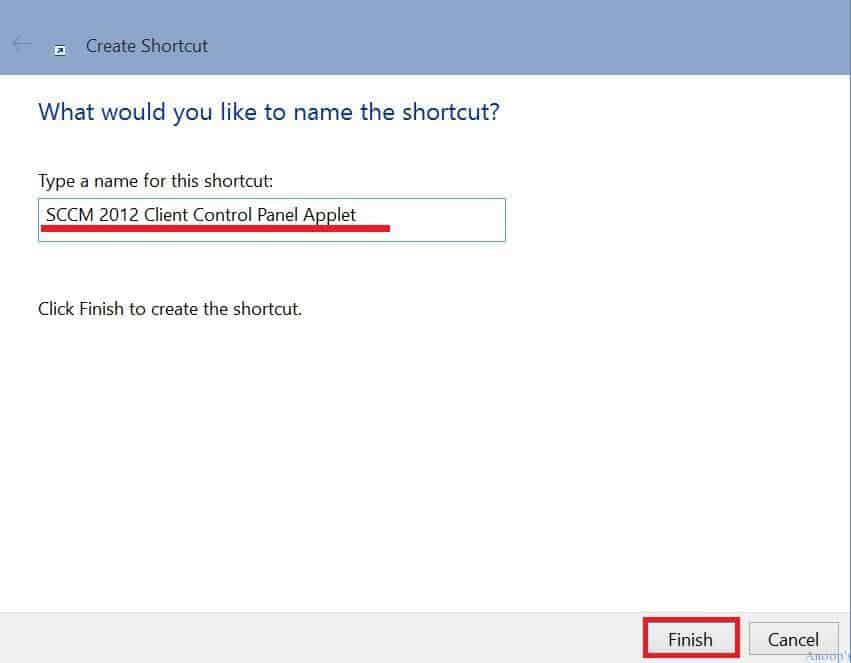
What would you like to name the shortcut? Type a name for this shortcut. The shortcut is called the SCCM 2012 Client Control Panel Applet.
This is the Task Manager window; select the Startup menu here. Under the Startup menu, you should see the Name, Publisher, Status, and Startup Impact information.
Resources
Windows 10 Latest Version Of Client Operating System From Microsoft (anoopcnair.com)
We are on WhatsApp now. To get the latest step-by-step guides, news, and updates, Join our Channel. Click here. HTMD WhatsApp.
Author
Anoop C Nair is Microsoft MVP! He is a Device Management Admin with more than 20 years of experience (calculation done in 2021) in IT. He is a Blogger, Speaker, and Local User Group HTMD Community leader. His main focus is on Device Management technologies like SCCM 2012, Current Branch, and Intune. He writes about ConfigMgr, Windows 11, Windows 10, Azure AD, Microsoft Intune, Windows 365, AVD, etc.


Great Going ! Anoop !
I explored a bit and stumbled across interesting result , when I run below:
Get-CimInstance -ClassName Win32_StartupCommand
I will soon add a Technet Wiki Article on this 🙂
StaffThank you Deepak ! Nice to hear that !!
Hello Sir,
I need one small help, i want to deploy one application from SCCM using MSI file which is succeeded. But at same time my client want to make this application available in start-up every time.
Please help me how can i manage this from SCCM or any other way i can make this app available in start-up for all devices.
StaffIt seems you need to go through the “re packaging” process for that MSI to make the shortcuts available in Desktop and other places. I hope you have a packaging team who does the repackaging of applications
I don’t have packaging team, but can I do this using advanced installer tool
Thanks so far for this but with your PowerShell solution there’s one little drawback: A ‘new-item -itemtype symboliclink’ does NOT create an classic *.lnk shortcut file. It creates a – what wonder – symbolic link A.K.A. ‘ln -s’ in other OSes and file systems.
Thus you can’t change the icon, can’t create a oneliner behind this shurtcut, can’t create a keyboard shortcut etc, it’s not even a file.
So, in fact, it’s nearby completely different, istn’t it?