






Fix Microsoft Store Error 0x000001F4 0x80131500 in Windows
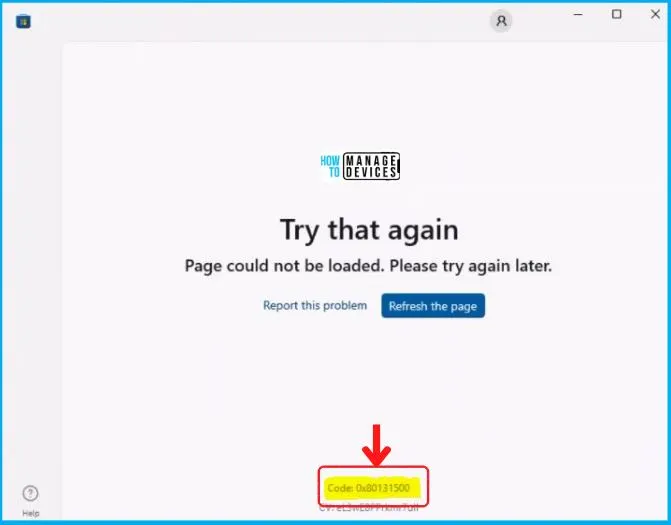
In this post, we will look into Fix Microsoft Store Error 0x000001F4 0x80131500 with Windows 11 or Windows 10 PCs. You may also encounter problems opening Microsoft Store after upgrading to Windows 10 22H2.
Microsoft started rolling out the production version of Windows 10 22H2. Some users confirm that when they recently upgraded to the recently released Windows 10 22H2 operating system, they encountered problems opening Microsoft Store.
Two errors in Microsoft Store have also greeted Martin Himken. First, it was error code 0x000001F4; later, he encountered an error 0x80131500.
The first error you will see while opening the Microsoft Store is 0x000001F4. This error can be resolved by resetting the Microsoft Store. We explore the options to fix this error in detail.

The second error which occurs during Microsoft Store opening is 0x80131500. Thanks to Martin for sharing the resolution taken; the error was related to the private store setting. If you are using the managed device review the policies settings you specified for Windows 10/11 (Device Restriction in Intune or Group Policy) and set it to not configured.
- Microsoft Store Apps Fail to Install with Error Code 0x80190194
- Intune Microsoft Store Repository First Look Of Windows Package Manager Integration
Fix Microsoft Store Error 0x000001F4 0x80131500
Now let’s see what possible solutions one can try in case you have been prompted by these 0x000001F4 0x80131500.
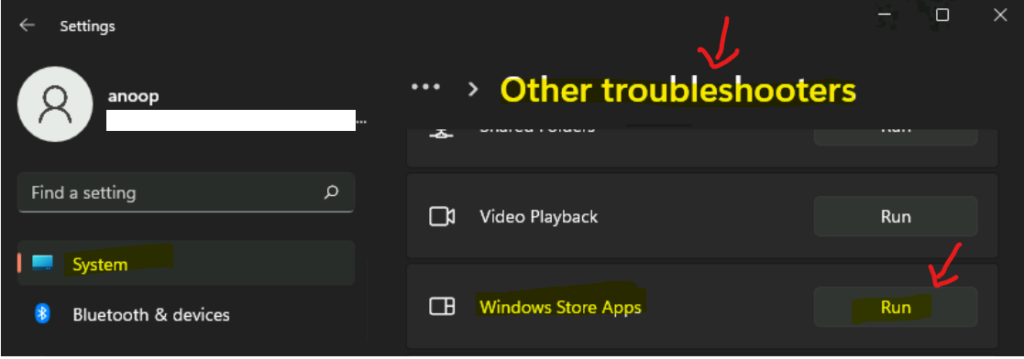
Fix1:Run Windows Troubleshooter
This should be the first option that you want to try to fix any of the Windows 10 issues. Also, many built-in Windows 10 or 11 troubleshooters such as Windows updates, Printers, Audio, Internet, etc., are available to help fix these issues.
- Click on the Settings app from Windows 10 or 11.
- Search with the keyword “Other Troubleshooters.”
- Click on the Other Troubleshooters.
- Scroll down until you see Windows Store Apps.
- Click on Run on the right side of Windows Store Apps.
FIX 2: Microsoft Store App Repair Reset Options
Let’s try to Reset and Repair options for Microsoft Store App to fix the Microsoft Store 0x000001F4 0x80131500.
- Navigate to the Apps & Features option by right-clicking the Start button from Windows 10 or 11.
- Use the search function to find the Microsoft Store application.
- Click on the three vertical dots menu – Select Advanced options.
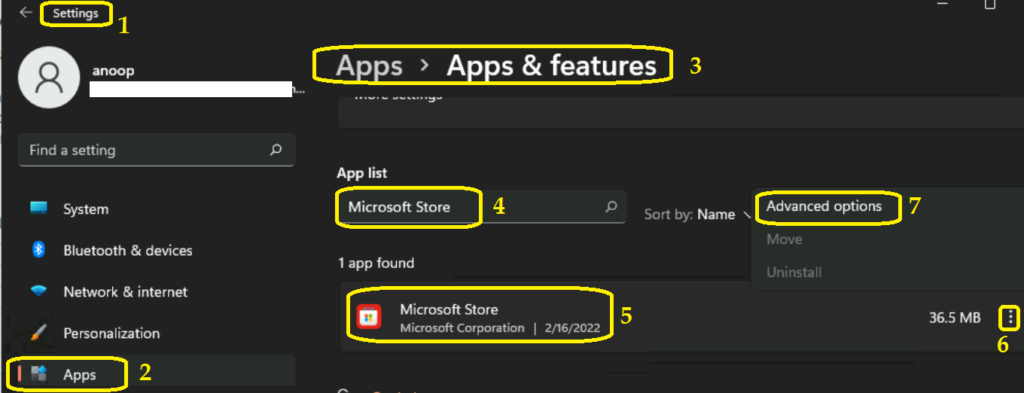
You can scroll down to the Reset section of the Microsoft Store application section from the Windows 10 or 11 Settings page.
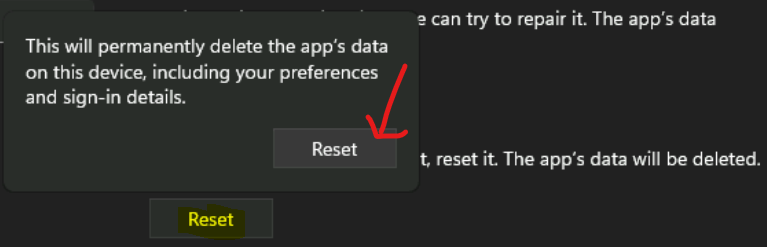
Within the Microsoft Store app Reset section, you have Repaired and Reset options. You can try to repair the Microsoft Store app. If Microsoft Store App is not working well even after the Repair option, you should try the Reset option to fix the Microsoft Store Sign-in error 0x000001F4 0x80131500.
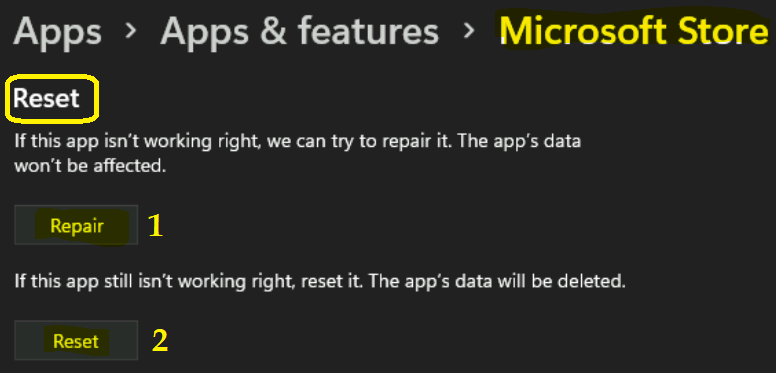
The Reset of Microsoft Store will permanently delete the app’s data on this device, including your preferences and sign-in details.
- FIX: Microsoft Store Sign in Error 0x800706d9 on Windows 11 Domain Joined Or Azure AD Joined PCs
- Install Microsoft Teams App From Windows 11 Microsoft Store | WPM Using WinGet
Fix 3: Validate Device Restriction Settings for Windows 10/11 in Intune
If you are using a device managed by Intune, There’s worth looking into the enforced device restriction policies for the devices and removing the setting. Here we need to explore the Private Store Setting in the Intune portal.
- Sign in to the Intune admin center https://endpoint.microsoft.com/.
- Select Devices > Configuration profiles. Review the device restrictions profile for Windows 10 or 11 devices.
- In the Configuration settings, Use private store only: Set to Not configured (default) and complete the process to save.
Intune doesn’t change or update this setting. By default, the OS might allow apps to be downloaded from a private store and a public store.
If you set up Allow only allows apps to be downloaded from a private store, and not downloaded from the public store, including a retail catalog.
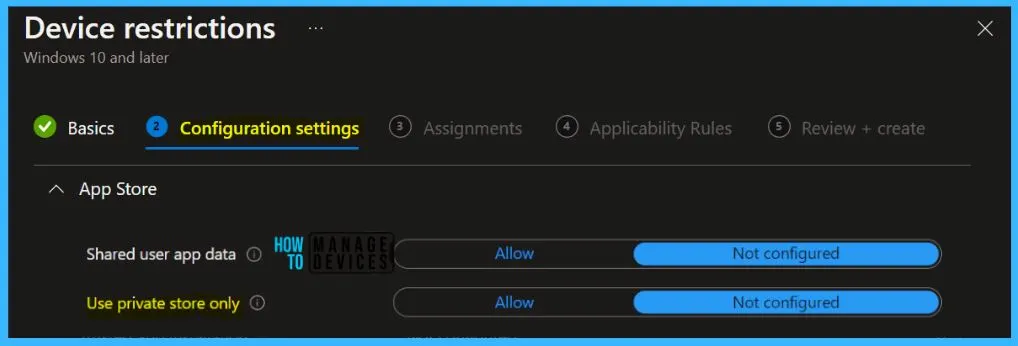
Once you complete the steps to remove the policies for the private store, you may need to reset the Microsoft store to bring back your store to working. You can follow the above mentioned step to reset the store and enjoy using Microsoft Store to search for apps, games, movies, and more.
So in this post, we have shared fixes for the error codes i.e. 0x000001F4 0x80131500. We hope that it will be able to fix these error codes for you.
Author
Abhinav Rana is working as an SCCM Admin. He loves to help the community by sharing his knowledge. He is a BTech graduate in Information Technology.




Discussion