Skip to content
Display Featured Apps in Intune Company Portal

Display Featured Apps in Intune Company Portal

Written By Jitesh Kumar
Last Updated October 21, 2022
Posted In Intune
SHARE

Let’s learn to display Featured Apps in Intune Company Portal. Microsoft Intune company portal provides a lot of branding options for Applications to provide a better user experience.

Application deployments are deployed to devices managed through Intune and available for users in the company portal based on installation behavior or requirement rules.

Company Portal allows you, as an employee or student in your organization, to securely access those resources and install, uninstall apps, and view, edit, add and remove your enrolled devices.

This helps to avoid a lot of overheads with required applications. Users can see all the available applications in the company portal. You also have a share button to give a user a direct link to an application in the company portal.

Patch My PC

Applications are represented with an icon that provides information with icons users can quickly adapt to, making it more comfortable to use from the company portal. Here’s how you can step to Configure Company Portal Icon Of An Application.

Display Featured Apps in Intune Company Portal

I will be utilizing an existing Intune Win32 App deployed to the machine to display featured apps. You can follow the same option if you want to use the new package by validating the few required parameters.

You can use the following steps to display as featured apps for an existing application directly from the Properties pane of the Application node in the Intune Admin Portal.

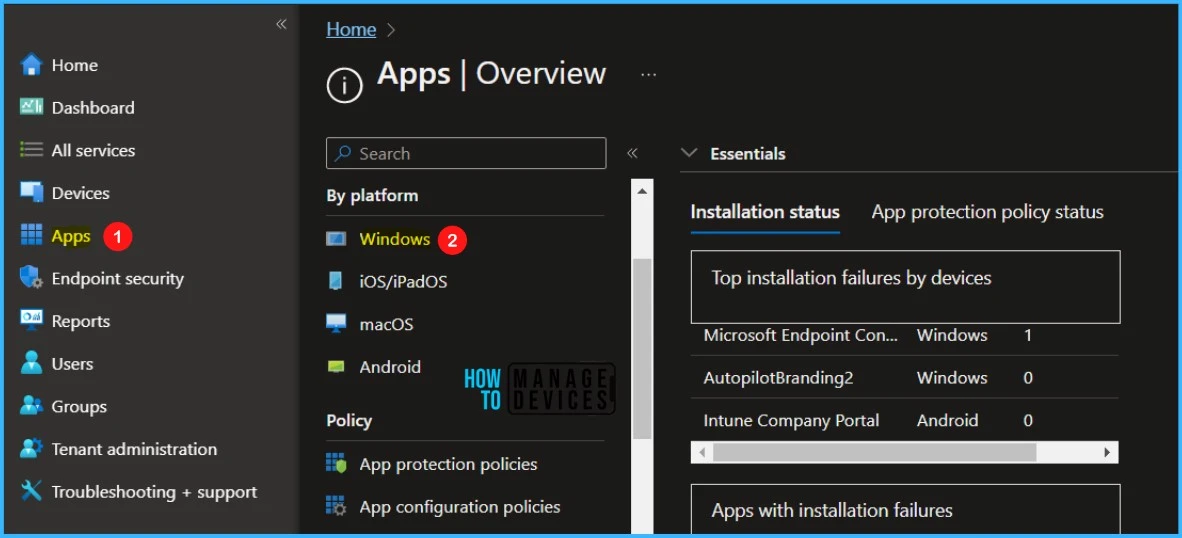
Click on Apps - Display Featured Apps in Intune Company Portal Fig. 1
Click on Apps – Display Featured Apps in Intune Company Portal Fig. 1

Select the existing application from the list if you want to appear as featured apps. Select the application from the list.
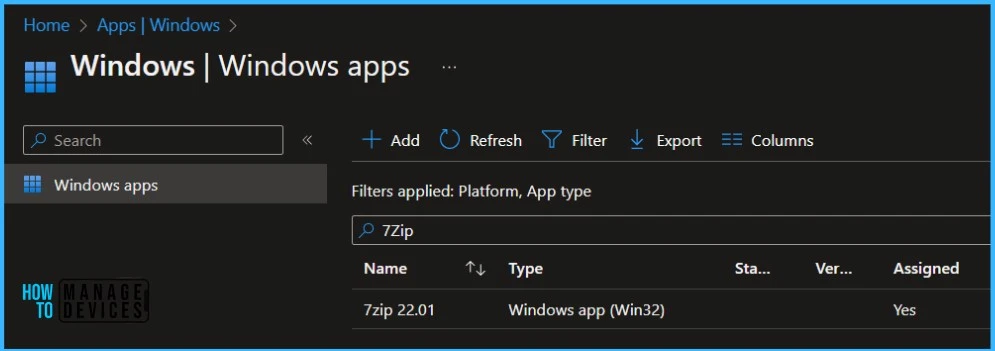
Select App - Display Featured Apps in Intune Company Portal Fig. 2
Select App – Display Featured Apps in Intune Company Portal Fig. 2

On the Application Properties. In the App information section, click Edit to modify the properties of the application.
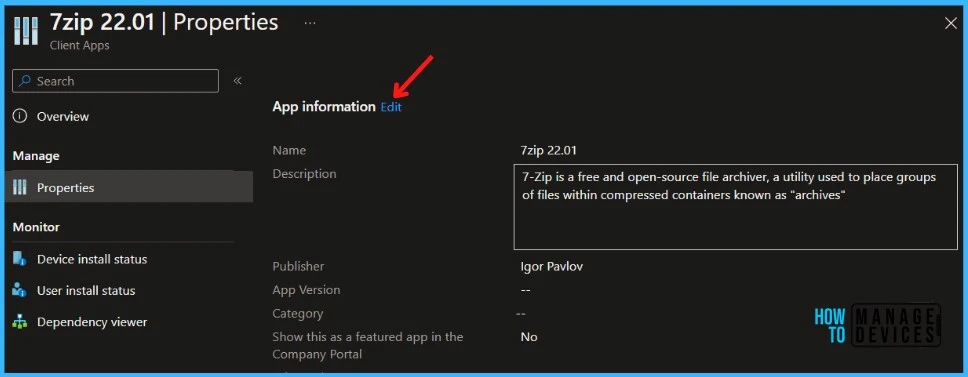
Click on Edit - Display Featured Apps in Intune Company Portal Fig. 3
Click on Edit – Display Featured Apps in Intune Company Portal Fig. 3

Under Edit application properties, Scroll down and select the Show this as a featured app in the Company Portal option, Toggle the switch to Yes.

Show this as a featured app in the Company Portal: Display the app prominently on the main page of the company portal when users browse for apps.
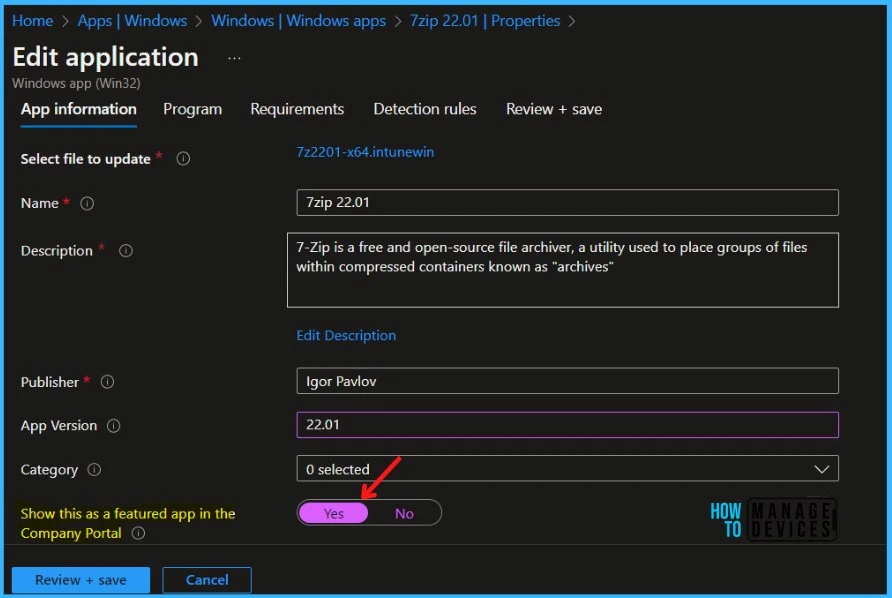
Modify App Information - Display Featured Apps in Intune Company Portal Fig. 4
Modify App Information – Display Featured Apps in Intune Company Portal Fig. 4

The next screen will appear with the Summary, Review the selection and click Save. A notification will appear automatically in the top right-hand corner with a message. Here you can see, Application “7-Zip 22.01” saved successfully.
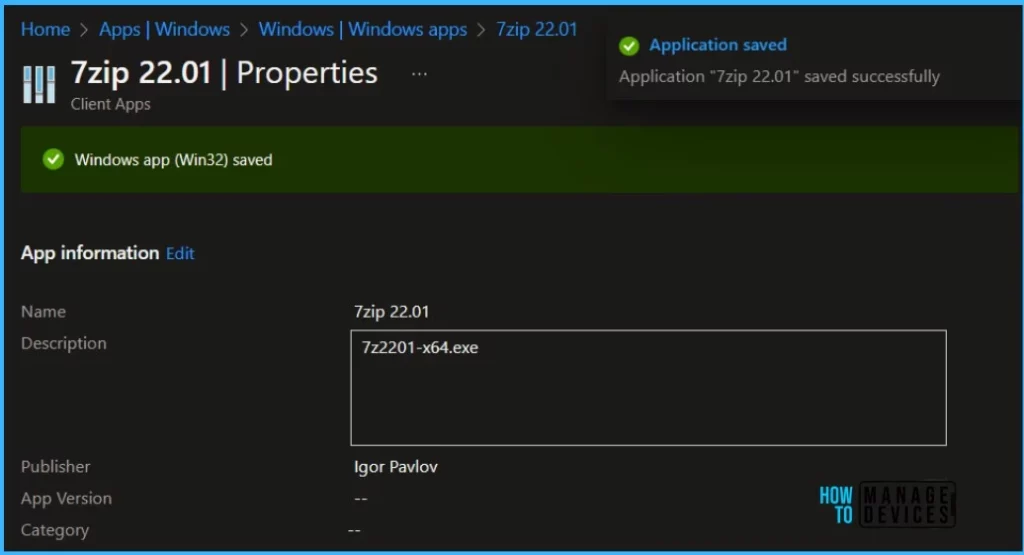
Application Saved - Display Featured Apps in Intune Company Portal Fig. 5
Application Saved – Display Featured Apps in Intune Company Portal Fig. 5

End Users Experience – Intune Company Portal

Let’s check the end-user experience in the Company Portal for Windows devices. With the Featured Apps, the IT admin can encourage end users to use these apps.

  • Launch Company Portal on the device that you manage.
  • Here you see the lists of applications If an app is marked as Featured, it will show under the Featured in Company Portal at the top of the list.

This provides the best visibility about the application and makes it more user-friendly to use from Company Portal.
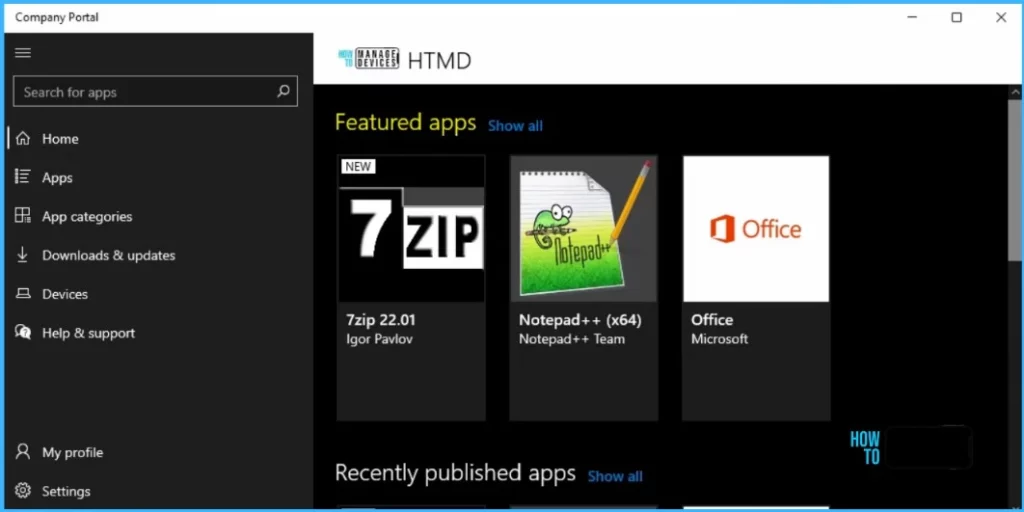
Featured Apps - Display Featured Apps in Intune Company Portal Fig. 6
Featured Apps – Display Featured Apps in Intune Company Portal Fig. 6

You can also select and install multiple apps in bulk. From the Apps tab of the Company Portal for Windows, All selected apps will install simultaneously without requiring you to right-click each app or navigate to each app’s page.

Let’s learn how to share Application from Intune Company Portal – Quickly Share Application From Intune Company Portal.
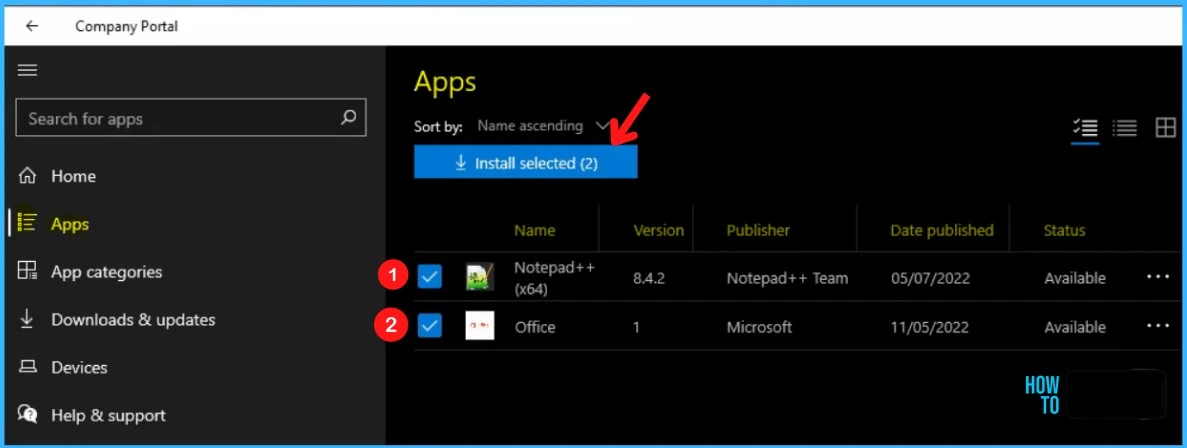
Install Bulk Apps - Display Featured Apps in Intune Company Portal Fig. 7
Install Bulk Apps – Display Featured Apps in Intune Company Portal Fig. 7

There are several ways to do this. If you want to provide a better end-user experience from Company Portal, let’s look at the steps to configure Intune company portal branding.

Author

Written by

Jitesh has over 5 years of working experience in the IT Industry. He writes and shares his experiences related to Microsoft device management technologies and IT Infrastructure management. His primary focus area is Windows 10 Deployment solution with Configuration Manager, Microsoft Deployment Toolkit (MDT), and Microsoft Intune.

Discussion

Join the discussion

Your email address will not be published. Required fields are marked *

Related guides

Intune

Simplify Windows Devices to Run Only the Required Applications using Intune

Key Takeaways Hey, let’s learn about Simplify Windows Devices to Run Only the Required Applications using Intune. This policy lets administrators replace the default windows shell with a custom or lightweight shell. it improves performance by using system resources and is useful for devices that run a dedicated application. If the policy is disabled or […]

AC Anoop C Nair 8 min read
Intune

Enhance macOS Compliance with Custom Security and Compliance Checks to Improve Device Security using Microsoft Intune

Key Takeaways In this post we are discussing about Enhance macOS Compliance with Custom Security and Compliance Checks to Improve Device Security using Microsoft Intune. Microsoft has announced the general availability of Custom Compliance Settings for macOS in Microsoft Intune. The feature helps organizations strengthen security controls while supporting many types of macOS management scenarios. […]

AC Anoop C Nair 4 min read
Intune

Manage Samsung Galaxy Firmware Versions to Improve Security and Compliance using Microsoft Intune

Key Takeaways In this post we are discussing Manage Samsung Galaxy Firmware Versions to Improve Security and Compliance using Microsoft Intune. Microsoft Intune has received a new update that expands firmware management capabilities for Samsung Galaxy devices through Firmware Versionsintegration. This enhancement gives IT administrators more control over firmware and operating system updates, helping them […]

AC Anoop C Nair 4 min read
Intune

MS Intune Adds Windows Registry Data Collection to Device Inventory for Single Values All Key Values and Subkeys

Key Takeaways Microsoft Intune 2607 introduces Windows Registry Data collection in Device Inventory, allowing IT admins to verify actual device configurations without relying on custom discovery or remediation scripts. Using the Properties Catalog, admins can collect registry information through Single Value, All Values Under a Key (Non-Recursive), or Same Value Across Subkeys. MS Intune Adds […]

AC Anoop C Nair 5 min read