






Turn On or Off Show Action Hint for Mouse Gesture in Microsoft Edge
Let’s discuss Turning on or off the Show Action Hint for Mouse Gesture in Microsoft Edge. Microsoft Edge is the best browser it owns. It has distinctive features that allow users to explore different web pages.
Microsoft is dedicated to introducing exciting features on the Microsoft Edge browser. Show Action Hint for Mouse Gesture is one of the best features of Edge. This mouse gesture feature allows you to complete tasks like scrolling forward or backward, opening a new tab, refreshing a page, etc.
Show Action Hint is a unique feature in the Microsoft Edge browser that enhances the user experience. It is available in Microsoft Edge version 121.0.2237.0 (Canary).
Users can quickly Turn On or Off the Show Action Hint for Mouse gestures in Microsoft Edge. This feature allows users to finish a task by pressing and holding the mouse’s right button to draw specific patterns on a webpage instead of clicking the buttons or using keyboard shortcuts.

- 5 Methods for Finding Memory Size Speed and Type in Windows 11
- Enable Disable Let Copilot Use Content from Microsoft Edge in Windows 11
What are the Advantages of Action Hint feature?
1. It helps to draw different patterns.
2. It shows appropriate action hints of patterns.
3. It allows you to do actions with mouse gestures.
Turn On or Off Show Action Hint for Mouse Gesture in Microsoft Edge
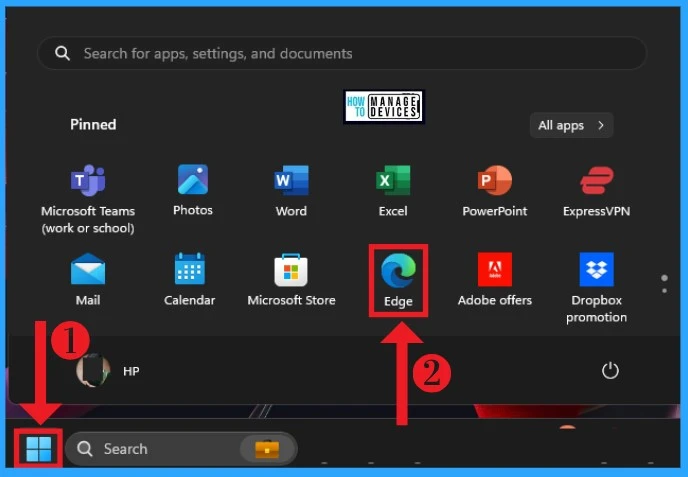
Users can quickly Turn On or off the Show Action Hint for Mouse gestures in Microsoft Edge by selecting it from the Start Menu.
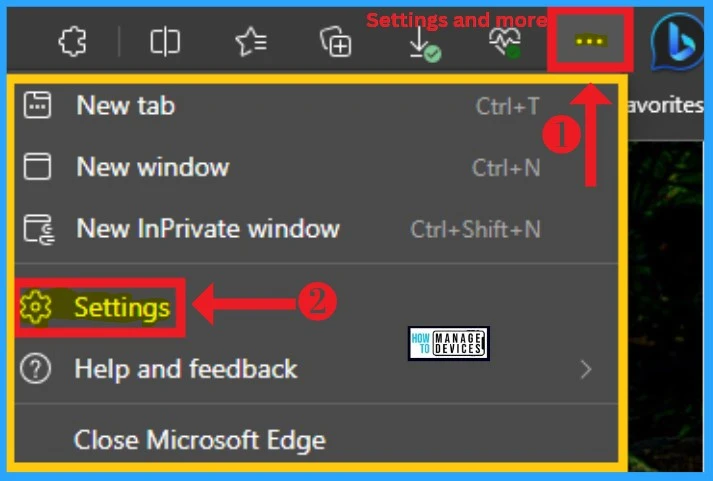
After Opening Microsoft Edge, click on the 3 dot (Settings and more) option at the top right corner of the browser. Select Settings from Settings and more.
- Add or Remove the Copilot Toolbar Icon in Microsoft Edge
- Turn On or Off Microsoft Defender SmartScreen for Microsoft Edge in Windows 11
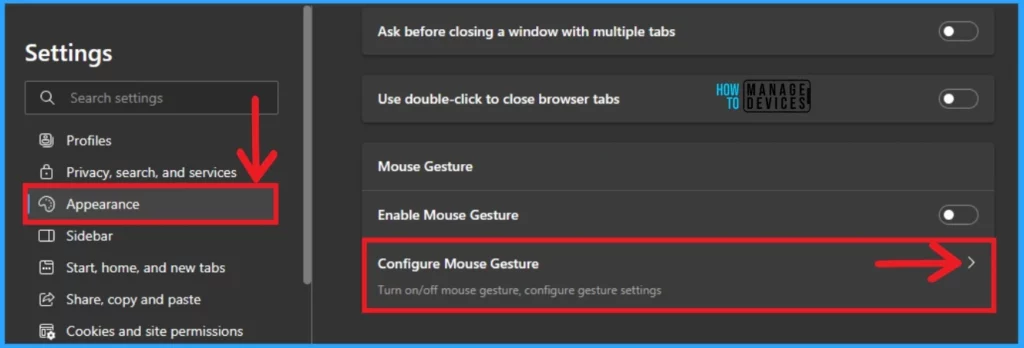
The Settings show different features, and this feature helps users modify various settings. Select Appearance on the left side of the Edge Settings and click Configure Mouse Gesture under Mouse Gestures.
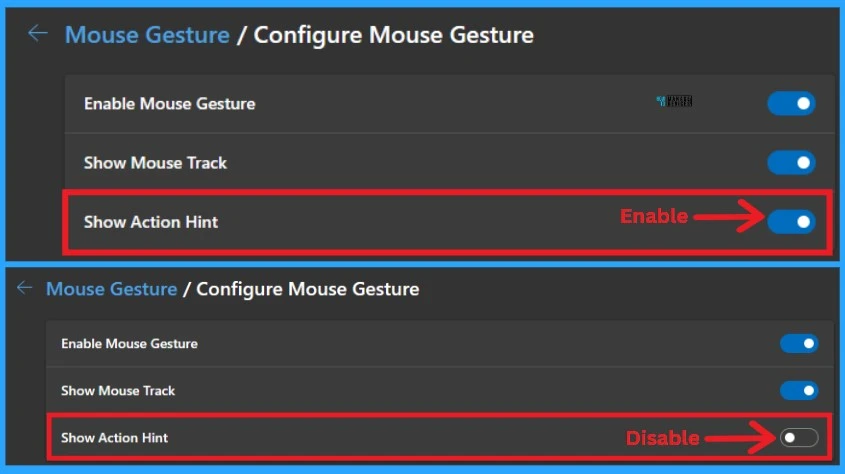
After clicking on Configure Mouse Gesture, some features are shown. These include Enable Mouse Gesture, Show Mouse Track, and Show Action Hint. Toggle the Show Action Hint option to the right to enable it. After enabling these features, you can draw patterns by pressing and holding the mouse’s right button.
Note:- The show Action Hint feature works only after enabling the “Enable Mouse Gesture” feature
- To disable Show Action Hint for Mouse Gesture, toggle the pane to the left side
End Users Experience
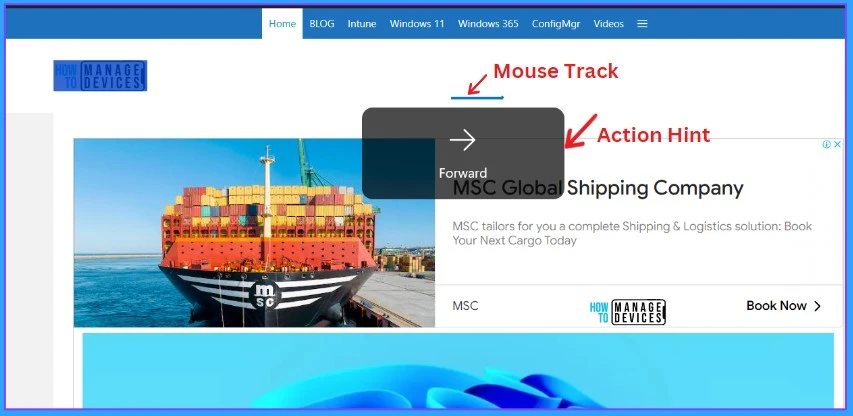
The result images below show that the Action hint feature is active when I draw a pattern by pressing and holding the mouse’s right button. You can quickly draw any pattern with this feature, and it will show an appropriate action hint. The proper action will be taken with this feature.
| Different Action hints are available on Microsoft Edge |
|---|
| Go back |
| Forward |
| Scroll Up |
| Scroll down |
| Close tab |
| Reopen closed tab |
| Open new tab |
| Refresh |
| Switch to the left tab |
| Switch to the right tab |
| Stop loading |
| Close all tabs |
| Scroll to bottom |
| Scroll to top |
| Close tab |
| Reopen closed tab |
- Android Phone or Tablet Camera in any Video Application on Windows 11 PC
- Easy Methods to Check Hardware Specifications on Windows 11
We are on WhatsApp. To get the latest step-by-step guides and news updates, Join our Channel. Click here –HTMD WhatsApp.
Author
Gopika S Nair is a computer enthusiast. She loves writing on Windows 11 and related technologies. She is here to share quick tips and tricks with Windows 11 or Windows 10 users. She is Post Graduate Diploma Holder in Computer Science.




Discussion