






Managing Activation Lock on Apple Devices with Intune
This post discusses Managing the Activation Lock on Apple Devices with Intune. Apple Business Manager or Apple School Manager is a web-based portal that helps organizations deploy and manage Apple devices.
Do you know why this activation lock is important in Apple Business Manager or Apple School Manager? It is the most secure feature for Apple devices. We all know the importance of security, and these types of activation locks always prevent unauthorized people from using Apple devices.
This feature is essential when your device is lost or stolen. We can’t imagine when our device is stolen and cannot be found. This Activation Lock gives the user hope to find the device. The significant fact of this feature is that it is used for personal use, and in the case of an organization, it is a little bit problematic because of the too many devices.
In the latest update, Microsoft revealed that users can now disable the activation lock for Apple Business Manager or Apple School Manager with Intune. Activation Lock secures devices by connecting them to an Apple ID. This post shows us how to disable the Activation Lock in Apple Business Manager or Apple School Manager with Intune.

- Enrol macOS in Intune with Step by Step Guide
- Simple Way to Add iOS to Apple Business Manager and Manage in Intune – Part 2
- Simple Way to Add iOS to Apple Business Manager and Manage in Intune – Part 1
- Simple Way to Add iOS to Apple Business Manager and Manage in Intune Part 3
- Best way to Add Mac Devices to Apple Business Manager ABM or ASM and to Intune
Table of Contents
What is an Activation Lock?
Managing Activation Lock on Apple Devices with Intune
Above, we discussed many things about the Activation lock. Activation Lock is a security feature that stops unauthorized people from using Apple devices. It is disabled automatically when you enable “Find My” on an iPhone, iPad, Mac, Apple Watch, or Apple Vision Pro.
- While Intune can disable Activation Lock, Apple also offers this feature in the Apple School Manager.
- Activation Lock secures devices by connecting them to an Apple ID.
- The main advantage is that when the Apple device is locked to a user account, accessing the account is impossible without the correct password.
How to Allow Activation Lock using Intune
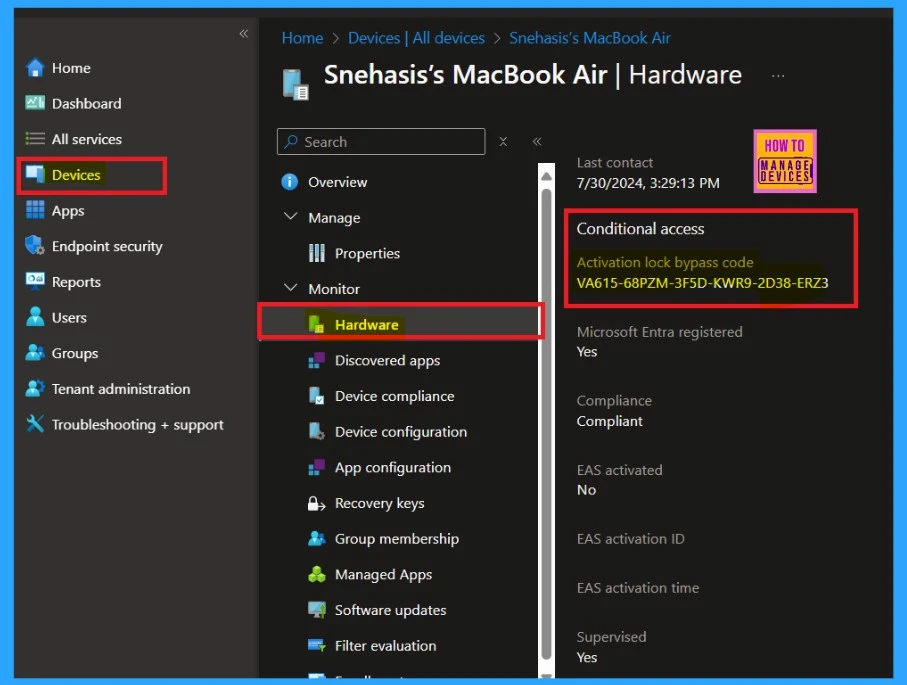
First, you need to enrol devices using Automated Device Enrollment. This sets up supervision and creates an Activation Lock bypass code. The bypass code is in the Intune admin centre; to find the code, you must Open Microsoft Intune first.
- Hardware section for each device (Devices > All devices > Select a device > Hardware).
- Under the conditional access, you can find the Activation lock bypass code.
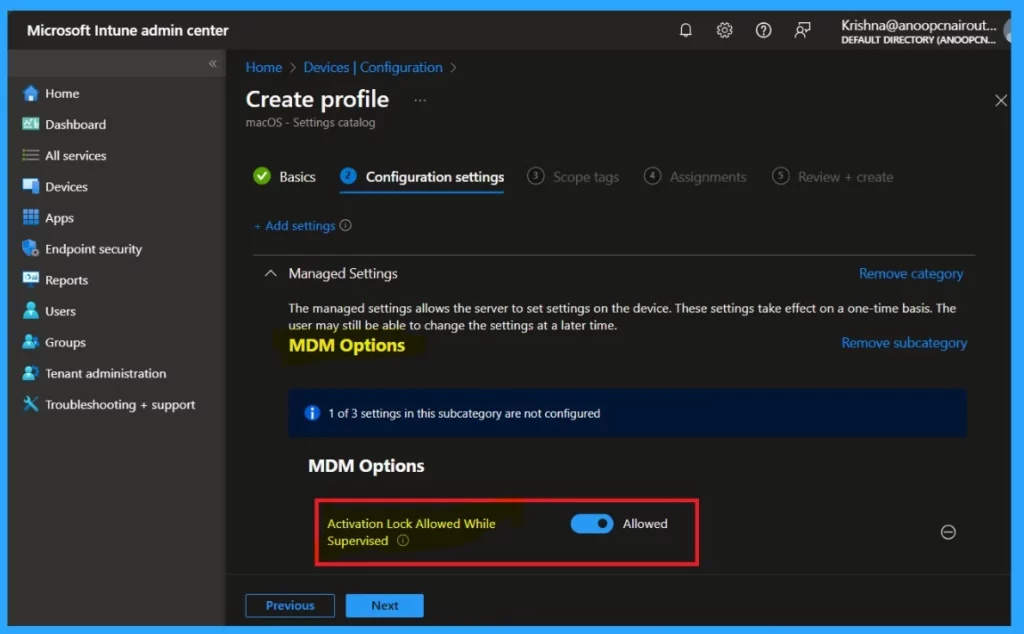
The next step is enabling the device’s activation lock by “Activation Lock Allowed While Supervised.” This is easy to do. First, you must create a policy through Device>Configuration > Create Policy by selecting iOS/iPadOS or macOS platform in the setting catalog profile type settings.
- In the configuration settings, click on the MDM options through setting catalog
- Allow the option ”Activation Lock Allowed While Supervised.”
- Learn How to Configure macOS Antivirus Policy Using Intune
- Configure macOS Compliance Policy in Intune for Devices
- How to Block macOS Enrollment in Intune
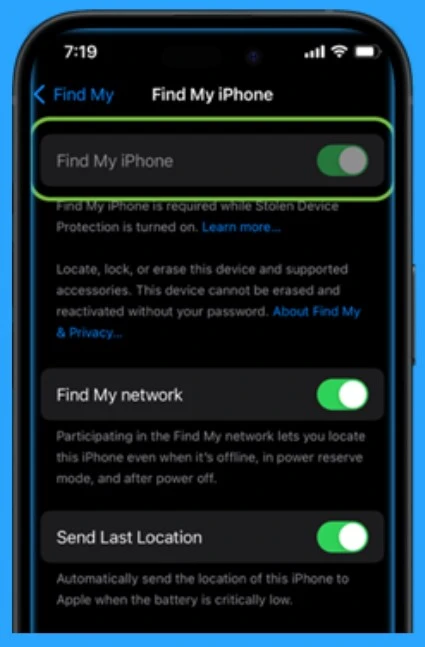
The users must be signed in to the Find My App on the device to lock it to their Apple account, which is the next step. If Find My is already on, the device will be activated-locked. Also, If Find My is never turned on, the device won’t be activation-locked.
- In the iOS/iPadOS, users can use System Settings > Apple Account > Find My.
- In the case of macOS, Users can use System Settings > iCloud > Find My Mac.
| Find My Options |
|---|
| Find My Phone activation |
| Find My Network |
| Fina my last Location |
When a device is locked to an Apple account, you need the correct password to unlock it. Solutions like an activation bypass code allow you to unlock the device without user credentials. However, if the device is removed from Intune, the bypass code does not work.
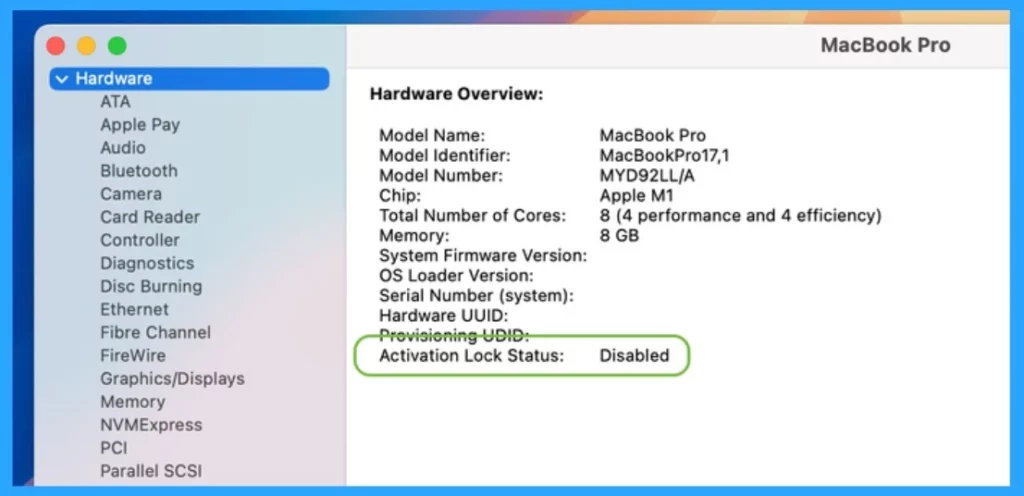
Disabling the Activation Lock Through the Intune
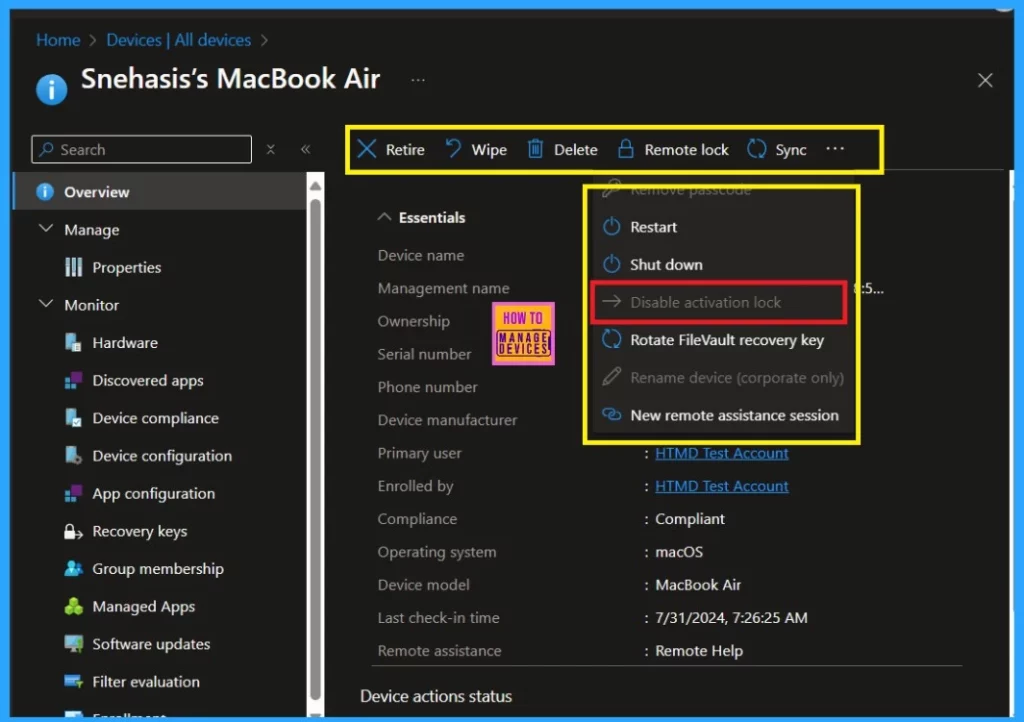
Intune has a feature that lets you remotely disable Activation Lock on supervised iOS/iPadOS and macOS devices. You don’t need the previous user’s Apple account or bypass code for this. To disable it, follow the steps below.
- Sign in to the Microsoft Intune
- Go to Devices > All devices.
- Select the specific device for which you want to disable the activation lock.
- In the Overview pane for the device, choose Disable Activation Lock from the Device action menu.
- Under Hardware, find and copy the Activation Lock bypass code value from Conditional Access.
We are on WhatsApp now. To get the latest step-by-step guides, news, and updates, Join our Channel. Click here. HTMD WhatsApp.
Author
Anoop C Nair has been Microsoft MVP from 2015 onwards for 10 consecutive years! He is a Workplace Solution Architect with more than 22+ years of experience in Workplace technologies. He is also a Blogger, Speaker, and leader of the Local User Group Community. His main focus is on Device Management technologies like SCCM and Intune. He writes about technologies like Intune, SCCM, Windows, Cloud PC, Windows, Entra, Microsoft Security, Career, etc..


Discussion