






How to Disable AI Overview in Google Search Results using Edge Browser Settings
Hi, we are discussing a new topic: How to Disable AI Overview in Google Search Results with Edge Browser Settings. As you all know, artificial intelligence is everywhere now. So we have to get many benefits from this improvement, and also we have to get many disadvantages from this improvement.
Every browser has AI integrations that create an Overview in Google Search Results. These overviews are like a quick summary report of what we search on our browser. Most users like this Overview option because it is the best way to get information quickly and gives users many new website suggestions.
Sometimes, these overviews can be very frustrating when a user tries to search because many results are misleading. Most users like traditional search patterns, but these overviews are built to help users get quick answers.
These Overviews have replaced the top of search results; most users don’t even know how to disable this new feature on their Google search. So here is a small guide for you on disabling AI Overview in Google Search using the Edge browser.

What are the Disadvantages of AI Overview in Google Search
How to Disable AI Overview in Google Search Results using Edge Browser Settings
Above, I discussed an overview of AI Overview in Google Search Results. Most users don’t know this feature will be disabled from our search results. You can easily hide this in your browser if you don’t need the AI overview in Google Search Results.
Note: This Guide is also applicable to Google Chrome
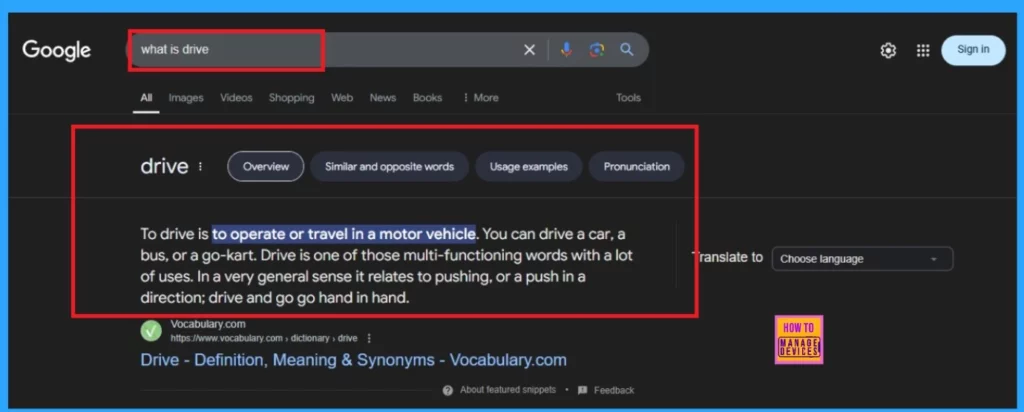
- The screenshot below is an example of an AI overview. When you search for something, it will give you a summary of the things you searched for.
- The overview will appear at the top of the search results and also
- Here, I searched What is a Drive; the results are shown in the Overview section.
- Latest AI Features of Microsoft Edge Browser | Game Changer
- Easily Set Microsoft Edge Default Search Engine Using Intune
- Microsoft Is Forcing The Use of Bing As The Default Search Engine In The Microsoft Edge Browser
How to Disable in Browser Settings ( Edge)
Here, I want to disable the AI overview. I am using the Edge browser, but you can use Google Chrome or any other browser. First, open the Edge browser and click the 3 dots option (See more options). Click the Settings option from that.
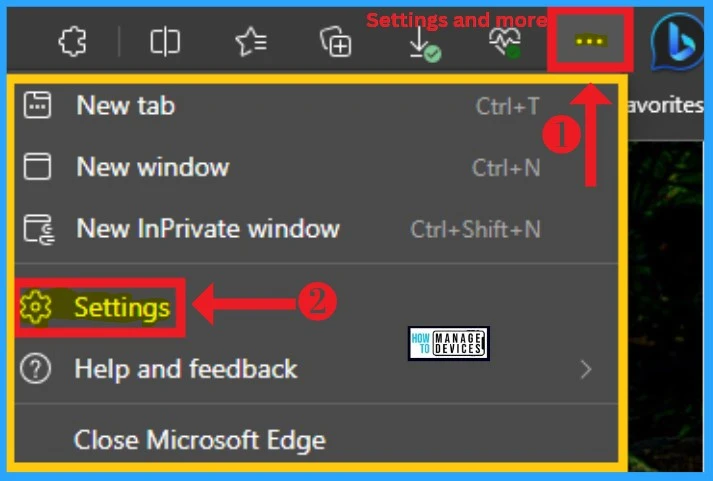
After clicking on the settings, you will be on the Edge Settings page. Usually, some users get the option to Search engines directly on the Settings page. If you get that on the settings options, Click on it. Otherwise, you can go to the Privacy, Search, and Service options and select that.
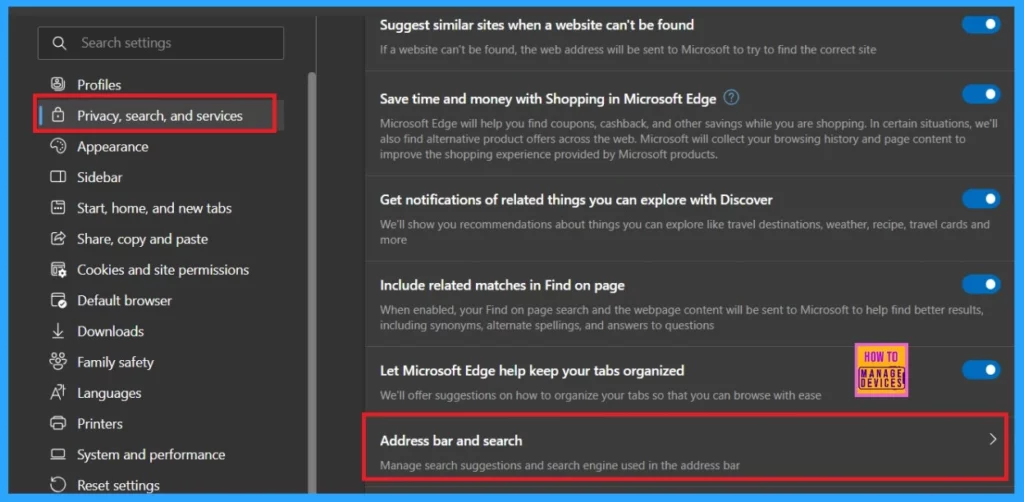
You will see the search engine option when you click Privacy, Search, and Service. 2 options are available for Search engine-related websites; you can select the Manage Search Engines option.
- Click on the Manage Search Engines
| Search Engine Options | Info |
|---|---|
| Manage Search Engines | |
| Search Suggestions and Filters |
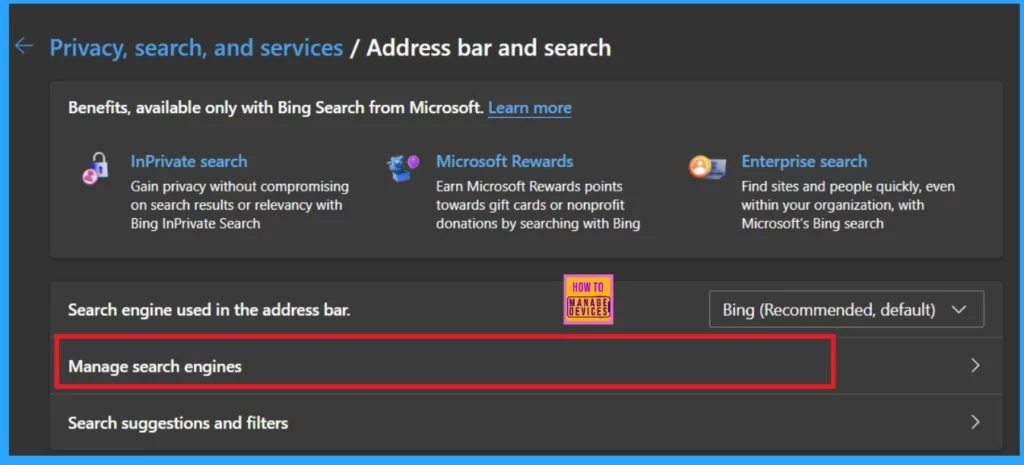
In the Manage search engine page, you can get many options for search engines, and the window provides a list of search engine results. To see more search engines, open a new tab, go to the search engine you’d like to add and search for something.
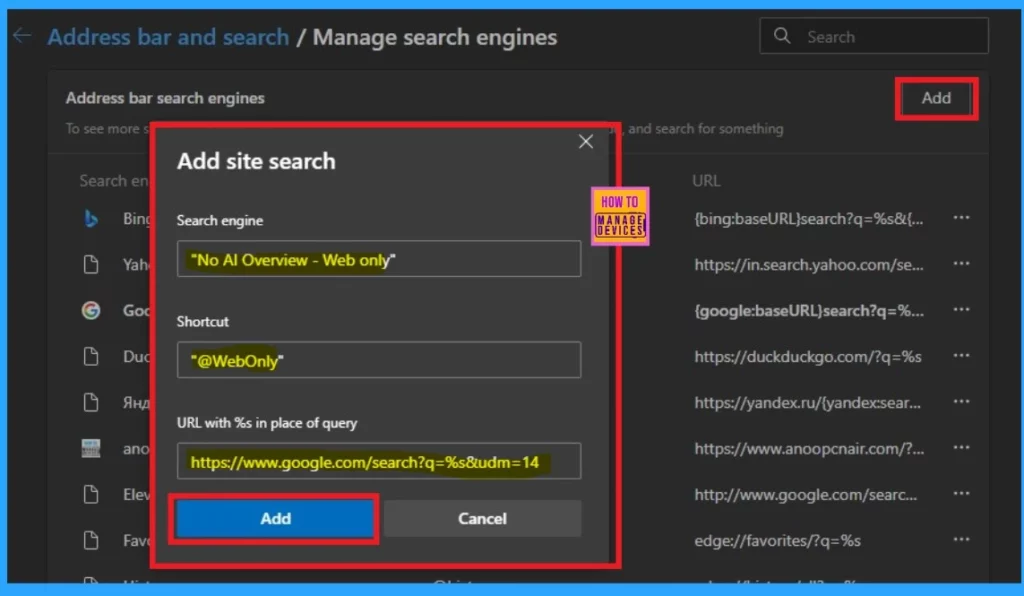
- For here, we need that Add option only, So click on that.
- After that, enter the search engine name “No AI Overview – Web Only.”
- Then, give the shortcut as“@WebOnly”
- The next step is to enter the URL https://www.google.com/search?q=%s&udm=14
- The URL includes the unique “udm=14” string, which omits AI Overviews in the Google Search results by default using the “Web” filter instead of “All.”
- In the final step, After entering the name, shortcut, and URL, click or tap on the “Add” Option.
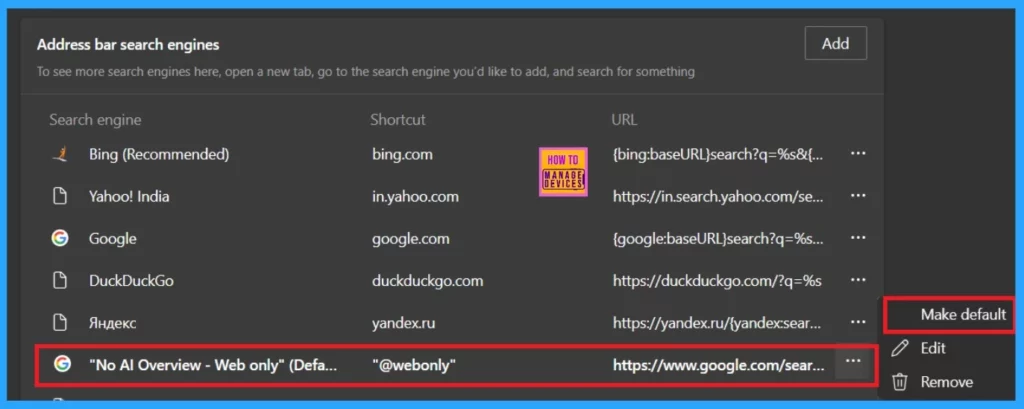
After setting up the Add option, You can check the “No AI Overview – Web Only” address bar search engine in the search engine list. You can see the screenshot below. Where you can see that 3 dot option in the newly created search engine (“No AI Overview – Web Only.”)
- Click on the see more option (3 dot option)
- Click on the Make Default option
- Then, you can close the browser settings.
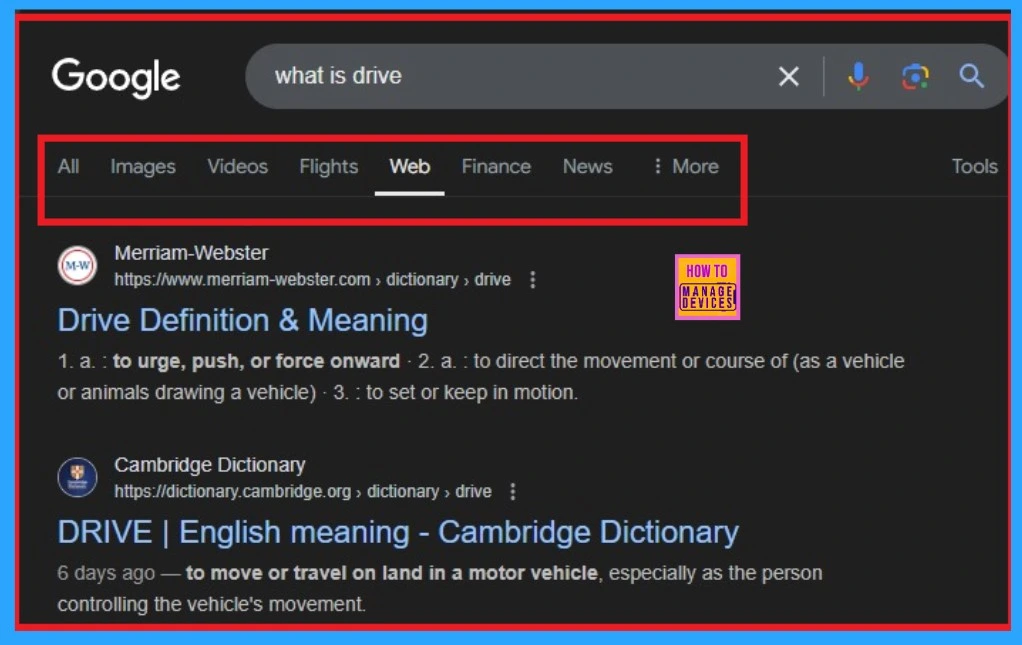
Result
The screenshot below shows the result after Disabling AI Overview in Google Search Results using Edge Browser Settings. When you search for something now, Google never shows the overview results. I think these guides are beneficial for you!
How to Enable AI Overview in Google Search Results Again
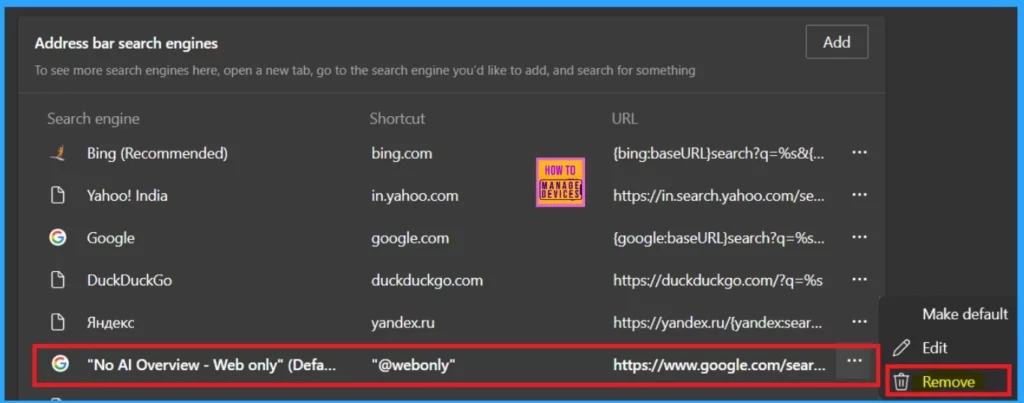
If you don’t need these changes or want to enable the AI Overview, it is very easy to do so. Go to the Manage search engine page and click on the More option for “No AI Overview—Web Only.” Select the option called Remove.
- The Remove option will remove the Search engine that you created.
Need Further Assistance or Have Technical Questions?
Join the LinkedIn Page and Telegram group to get the latest step-by-step guides and news updates. Join our Meetup Page to participate in User group meetings. Also, Join the WhatsApp Community to get the latest news on Microsoft Technologies. We are there on Reddit as well.
Author
Anoop C Nair has been Microsoft MVP from 2015 onwards for ten consecutive years! He is a Workplace Solution Architect with more than 22+ years of experience in Workplace technologies. He is also a Blogger, Speaker, and Local User Group Community leader. His primary focus is on Device Management technologies like SCCM and Intune. He writes about technologies like Intune, SCCM, Windows, Cloud PC, Windows, Entra, Microsoft Security, Career, etc.




Discussion