






How to use AI Summarization and Recent Files Feature in Notepad on Windows 11
Let’s discuss how to Summarize Content in Notepad with Generative AI in Windows 11. Microsoft introduced new enhancement in Notepad to improve the basic functionality. The Summarize Content feature was introduced on Windows Insiders in the Canary and Dev Channels on Windows 11.
By using the Capability of Generative AI, users can easily summarize the Content on Notepad. We know that Microsoft introduced Copilot on Windows 11 which helps you to create summary. With this new feature on Notepad we can simply complete the summarization of content with in Notepad.
Recently Notepad in Windows 11 has many changes and each one simplifies users efforts and ease the work. The features like Dark Mode, Spell check, Tabs for Multitasking etc are the latest capabilities available on Windows 11 PCs.
More than Summarize Content, Microsoft introduced Reopen Recent Files on Notepad. In this blog post i will also explained about Reopen Recent Files on Notepad. Also you will get the step by step guidance of using Summarize Content in Notepad.

Table of Contents
How to Summarize Content in Notepad with Generative AI in Windows 11
As mentioned above Summarize Content in Notepad and Reopen recent files are introduced in Windows Insiders in the Canary and Dev Channels on Windows 11. These feature in Notepad are beginning to rollout in these updates on version 11.2501.29.0.
So it may not be available to all Insiders in the Canary and Dev Channels just yet as Microsoft plan to monitor feedback and see how it lands before pushing them out to everyone.
| Features |
|---|
| To use Summarize, you need to sign in with your Microsoft personal account |
| Right-click and choose Summarize |
| Notepad will generate a summary of the selected text |
| Microsoft 365 Personal, Family and Copilot Pro subscribers will be able to use AI credits to use Summarize in Notepad. |
- Best Practices to Restore the Old Classic Notepad Instead of Modern Notepad in Windows 11
- Customize Alt + Tab Keys Behavior to Show the Number of App Tabs such as Notepad Edge Chrome Browsers
- How Good Notepad Spell Check for Regional Languages such as Malayalam
Steps to Access Summarize Content Feature in Notepad
To access Summarize Content Feature in Notepad you need to sign in with your Microsoft personal account. Microsoft 365 Personal, Family and Copilot Pro subscribers will be able to use AI credits to use Summarize in Notepad.
- Open the Notepad on Windows 11 PC.
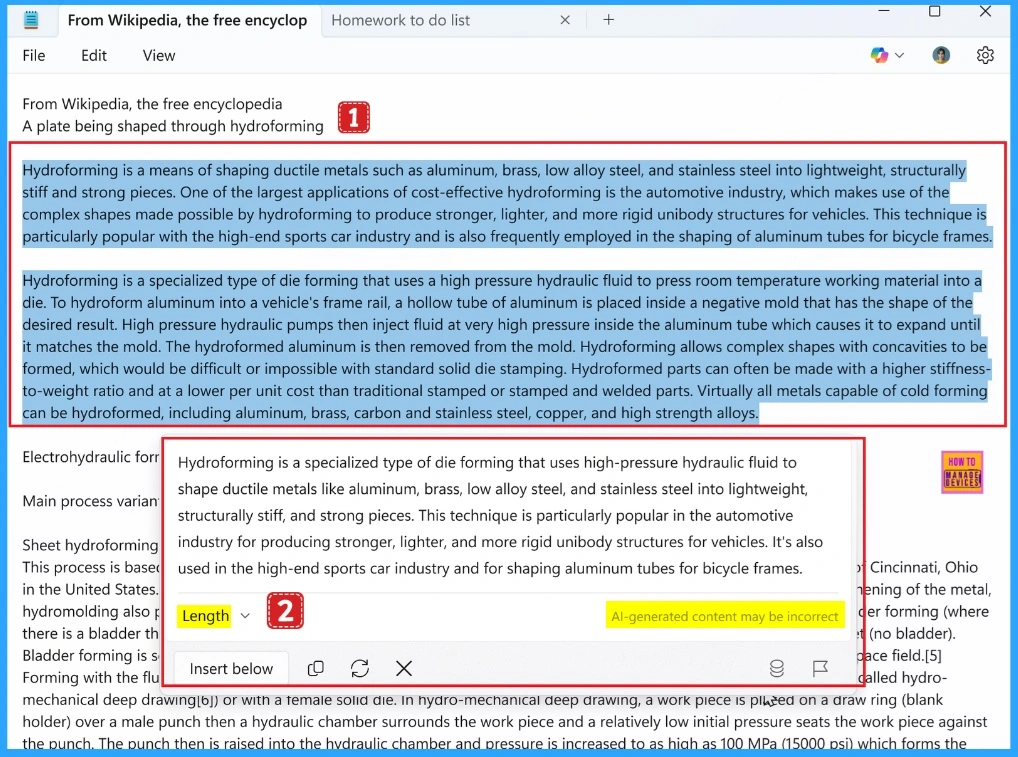
- Select the text you want to summarize.
- Then right-click and choose Summarize.
- Select Summarize from the Copilot menu, or use the Ctrl + M keyboard shortcut.
- After that Notepad will generate a Summary of the selected text.
- You can experiment with different summary lengths to refine the output.
Reopen your Recently Closed Files
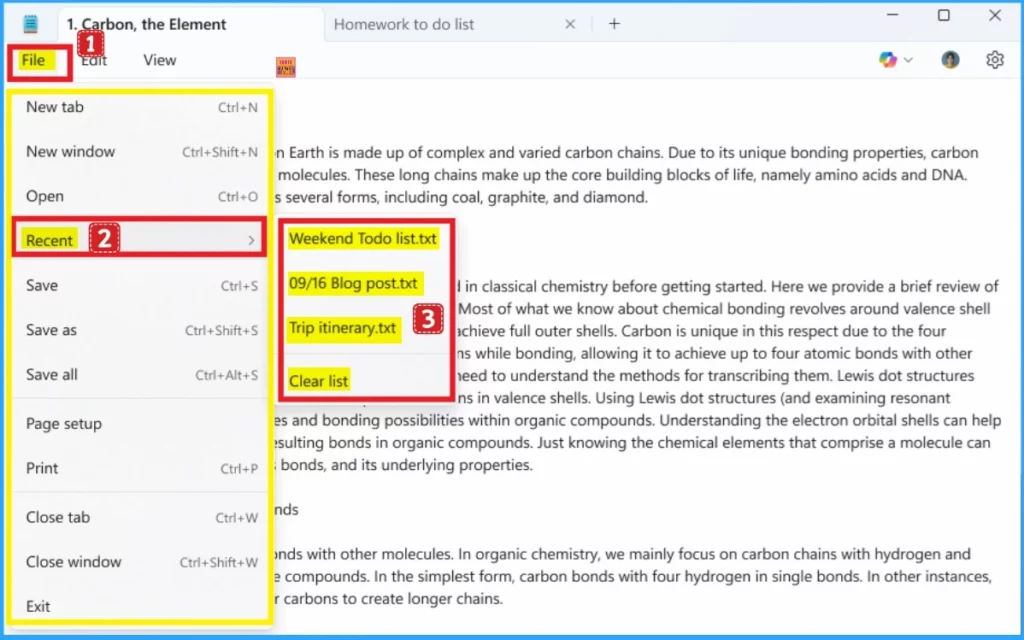
As per the New Update you can Reopen your Recently Closed Files. This is possible directly from Notepad. To access Recently Closed files go to File menu in Notepad where you will find a list of your recently used documents. Click on any file to instantly reopen and continue editing.
You can also clear the Recent list at any time or turn off the Recent Files feature in app settings if you prefer not to keep a history of recently closed files.
Need Further Assistance or Have Technical Questions?
Join the LinkedIn Page and Telegram group to get the latest step-by-step guides and news updates. Join our Meetup Page to participate in User group meetings. Also, Join the WhatsApp Community to get the latest news on Microsoft Technologies. We are there on Reddit as well.
Resource
Snipping Tool and Notepad app updates begin rolling out to Windows Insiders
Author
Anoop C Nair has been Microsoft MVP for 10 consecutive years from 2015 onwards. He is a Workplace Solution Architect with more than 22+ years of experience in Workplace technologies. He is a Blogger, Speaker, and Local User Group Community leader. His primary focus is on Device Management technologies like SCCM and Intune. He writes about technologies like Intune, SCCM, Windows, Cloud PC, Windows, Entra, Microsoft Security, Career, etc.




Discussion