






Enable or Disable Web-to-App Linking with App URI Handlers in Windows using Intune Policy
Hi, Today I would like to explore Enable or Disable Web-to-App Linking with App URI Handlers in Windows using Intune Policy. Intune’s Settings Catalog simplifies device management. Administrators use it to ensure devices are secure and compliant.
Web-to-app linking lets websites open associated apps directly, boosting user engagement. When someone clicks a website link, the app launches instead of the browser if installed. This provides a better experience, especially on mobile, where apps often offer more features than websites. If the app isn’t installed, the website opens normally, ensuring seamless access.
We have a blog post on open links in app instead of a web browser in Windows 11 that describes Web-to-app linking allows PCs to open web links directly in related applications. Please refer How to Open Links in App Instead of Web Browser in Windows 11 for more details.
This policy controls whether web links open apps or the browser. Enabling it allows links to launch apps directly while disabling it forces them to open in the browser. If you leave it unconfigured, Windows decides based on your version. Changes require a computer restart.

Table of Contents
What is a URI Handler?
A URI (Uniform Resource Identifier) handler is the software that opens a specific type of web address. For instance, clicking an ftp” link might launch a different program than clicking an “http” link. The program that opens depends on your computer’s configuration and the software you have installed.
Examples of URI handlers:
Phone apps: for
tel:Email clients (for
mailto:) ApplicationDefaults – Policy CSP
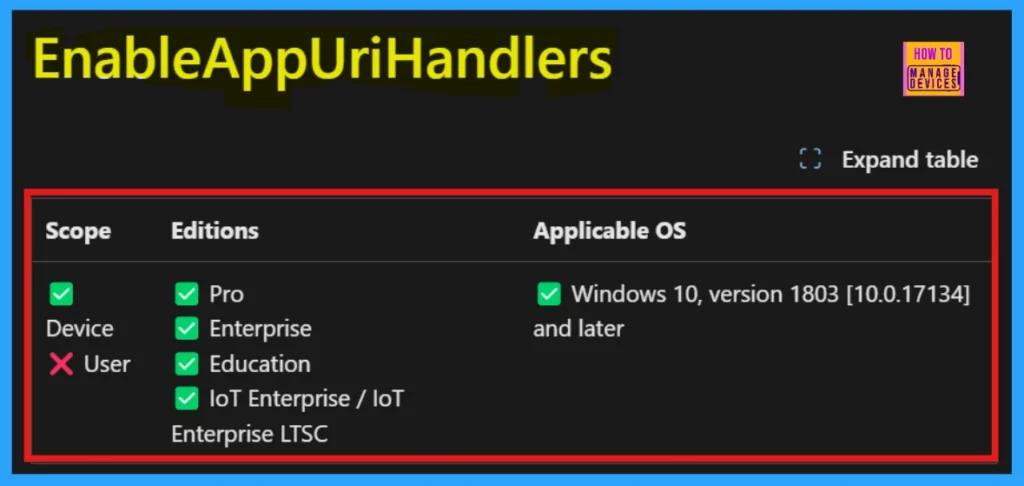
Configuration Service Providers (CSPs) are crucial for effective policy deployment. They outline the specific operating system versions that support particular settings, ensuring compatibility. The EnableAppUriHandlers setting, found within the ApplicationDefaults category, controls Web-to-App Linking via App URI handlers.
By consulting the CSP documentation, administrators can verify which Windows versions support this setting, preventing deployment failures and ensuring intended functionality.
| Property Name | Property Value |
|---|---|
| Format | int |
| Access Type | Add, Delete, Get, Replace |
| Default Value | 1 |
- Allowed Values
- 0 – Disabled
- 1 (Default) – Enabled
./Device/Vendor/MSFT/Policy/Config/ApplicationDefaults/EnableAppUriHandlers
- Best Way To Install CutePDF Writer Using Intune Application Model
- Enable Or Disable Suggested Sites In Microsoft Edge Using Intune Policy
- Windows 11 Web Apps Can Now Alert Users With Incoming Call Notifications API
Web-to-App Linking with App URI Handlers
The Web-to-App Linking with App URI Handlers setting determines whether Windows supports web-to-app linking with app URI handlers and it setting controls whether web links can open apps. If enabled, clicking a compatible link will launch the app directly, making it faster and easier to move from websites to related applications.
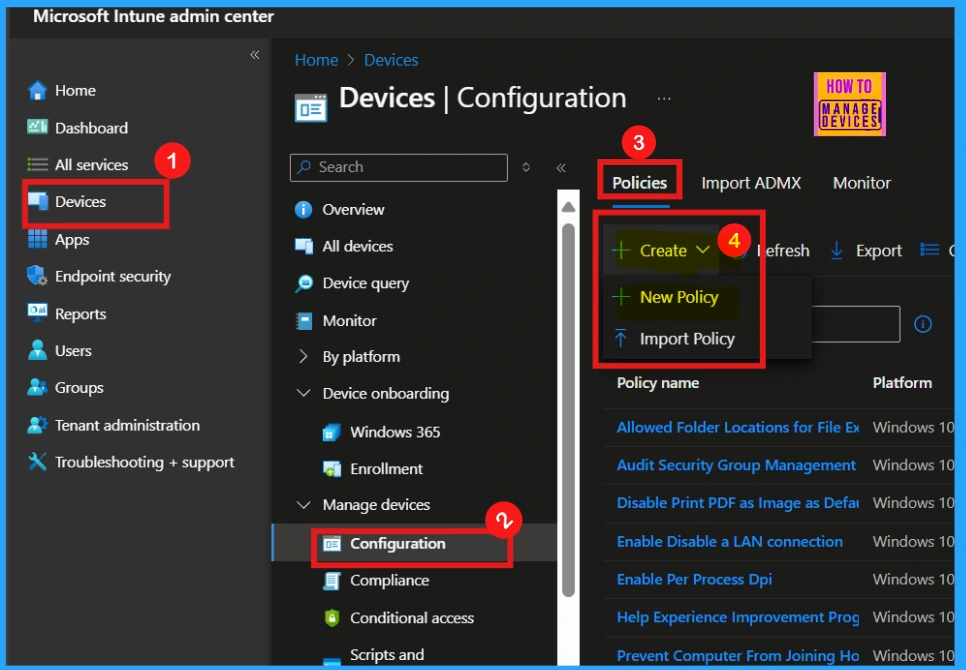
Begin deploying a policy in Microsoft Intune by signing into the Microsoft Intune admin center, navigating to Devices > Configurations, and then clicking +create followed by New Policy to initiate the configuration process.
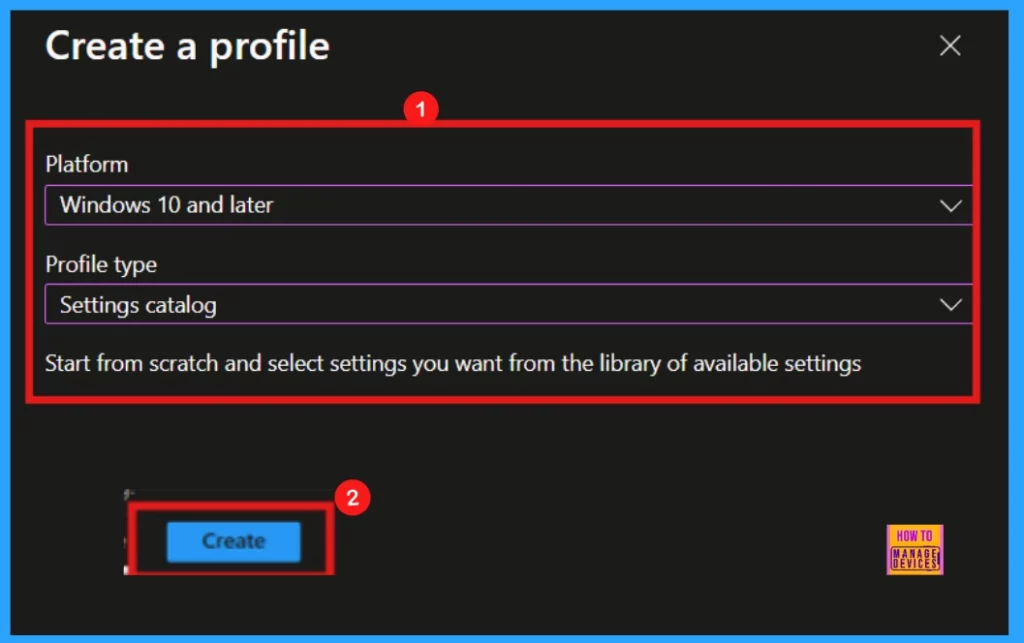
.After creating a new policy in Intune, choose the device platform (like Windows or iOS). Then, select the profile type, such as Administrative Templates or Settings catalog, which determines the specific configuration options available. The appropriate profile type depends on the settings you need and the platform you’ve chosen.
Basics
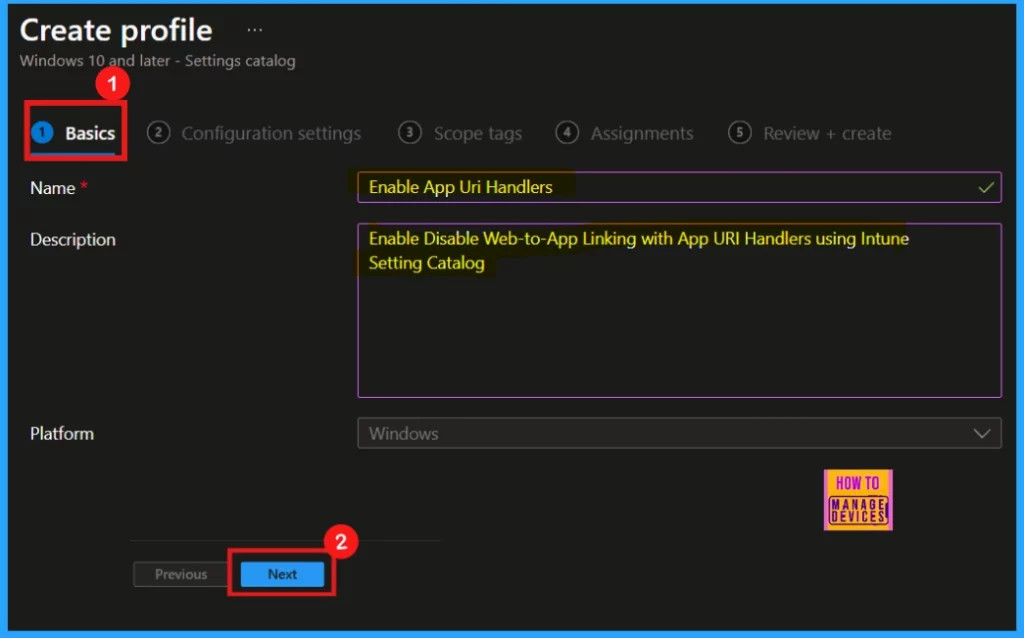
When setting up a new Intune policy, you’ll start with the basic details, which include naming the policy EnableAppUriHandlers and confirming the default platform, which is Windows. A description can be added for better identification later.
Configuration Settings
To deploy a setting, start by clicking the add settings link, which will bring up the Settings Picker. You can then find the setting you want by searching for it using keywords or by looking through the categories.
- Here, I selected Enable App Uri Handlers policy settings under the Application Defaults category.
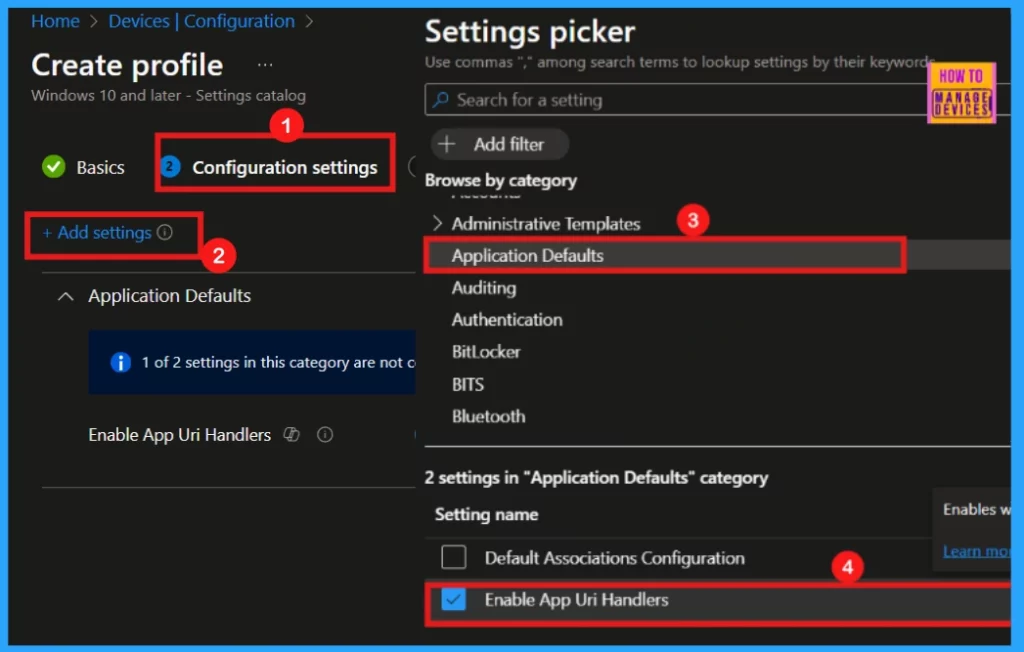
Enable or Disable App Uri Handlers
After selecting your desired setting, close the picker window to return to the main configuration page. Here, you’ll see the Enable App Uri Handlers option, which is defaulted Enabled. If you want to keep this setting enabled, click the Next option and proceed. To disable it, toggle the switch, and turn it OFF. You can then continue with the subsequent configuration steps.
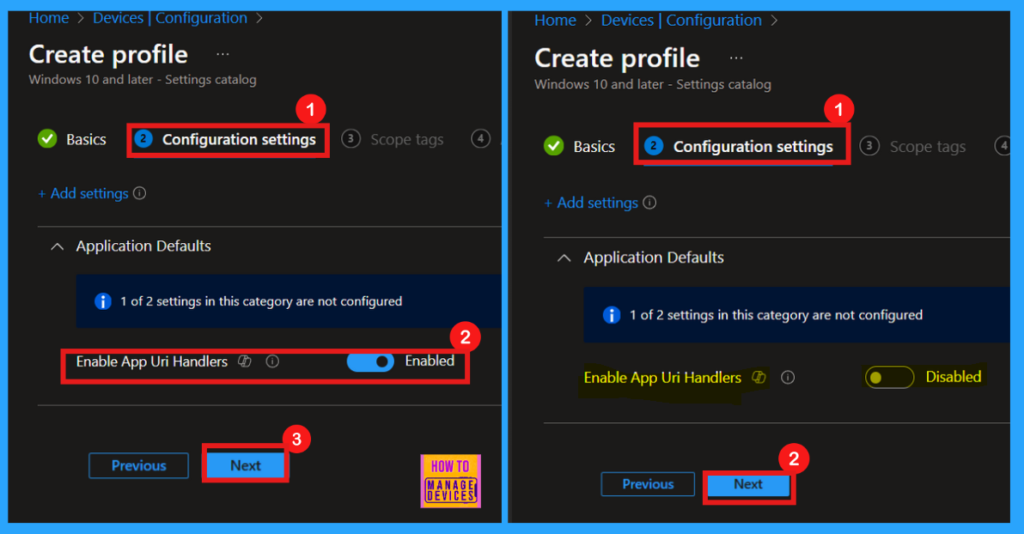
Scope Tags
Following the configuration settings, we will encounter the scope tags section. This area allows you to assign specific scope tags to your policy, which is an optional step. If you don’t require specific scope tags for this policy, you can simply avoid this section and proceed directly to the next step by clicking Next.
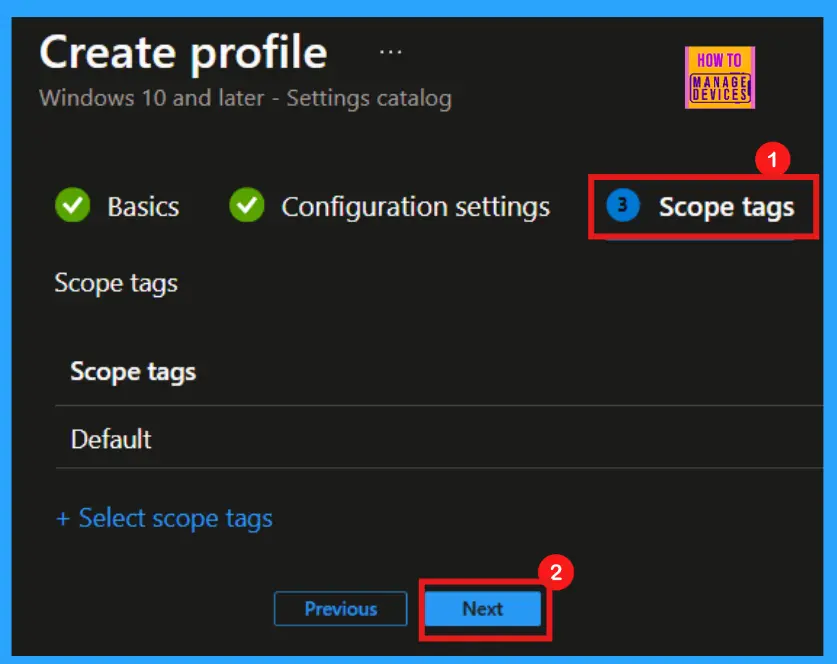
Assignments
The Assignments tab is crucial for deploying your policy. Here, you choose which group of users or devices will receive the settings. Click Add Groups and select the desired group from the list. Once chosen, the group will appear on the assignment page, indicating that the policy will be applied to them. Then, click Next to continue.
- I select Test_HTMD_Policy as the group.
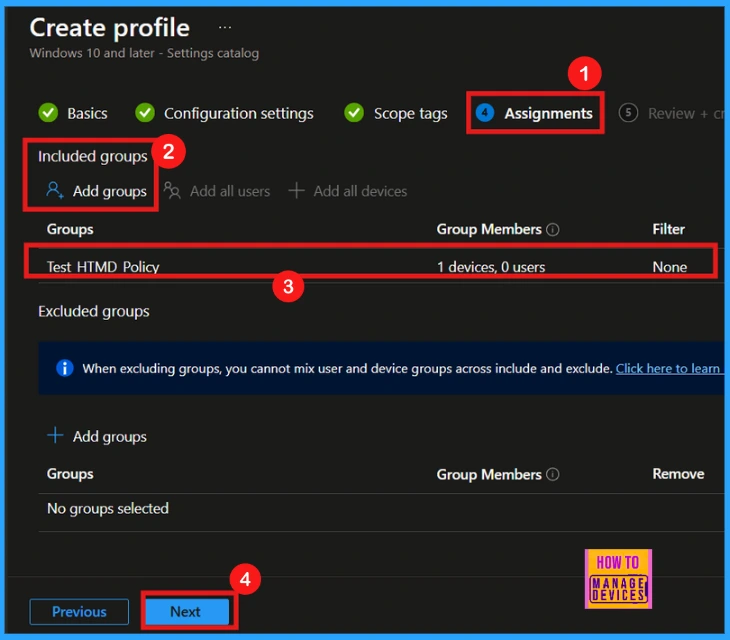
Review + Create
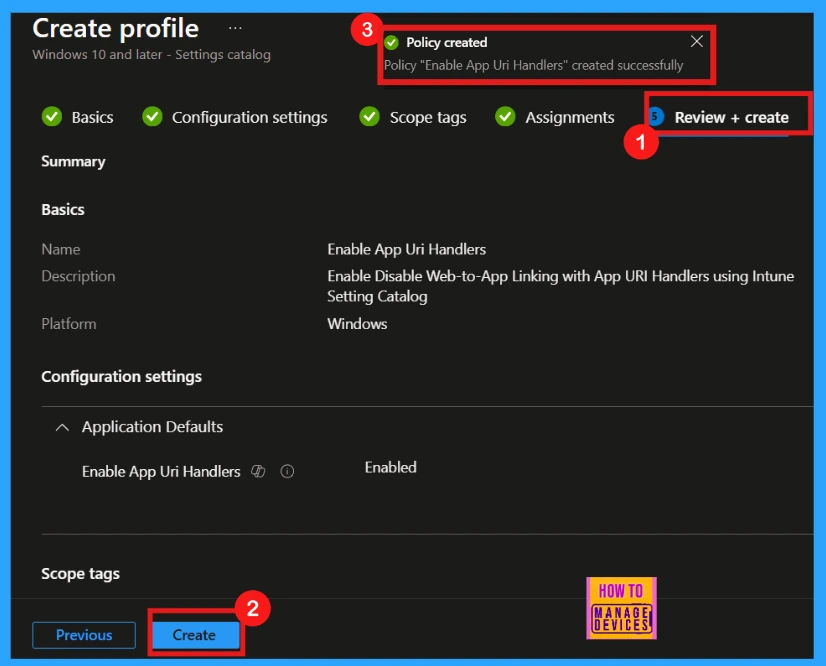
Finally, at the Review and Create step, you can thoroughly check all your policy settings. This final step summarizes the policy, including its basic information, specific configurations, and assignments. After reviewing, click Create to finalize the policy. You’ll then receive a confirmation message indicating that the policy has been successfully created.
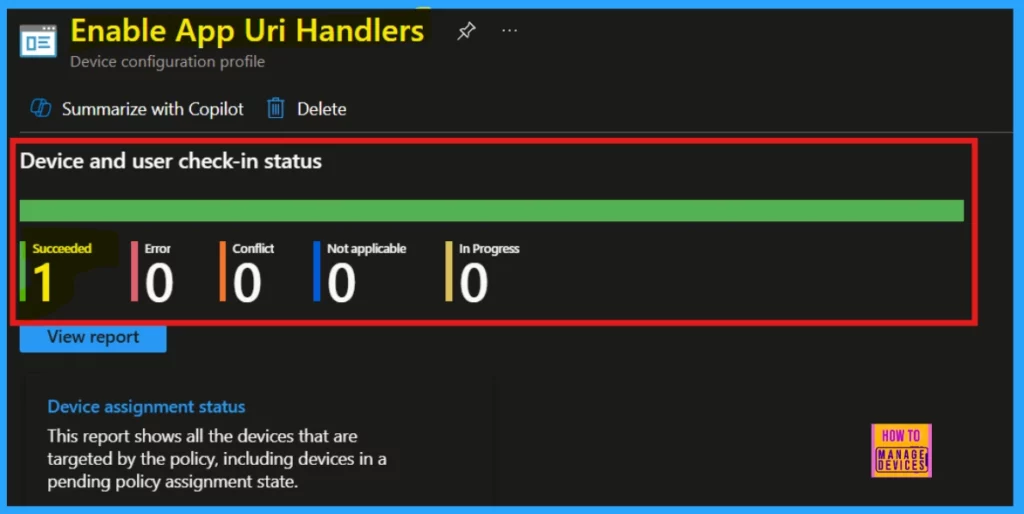
Device and User Check-in Status
New device policies can take up to 8 hours to apply, but you can speed up this process by manually syncing the device. After syncing, verify the policy’s application within Intune.
- To do this, navigate to Device > Configuration and select the policy.
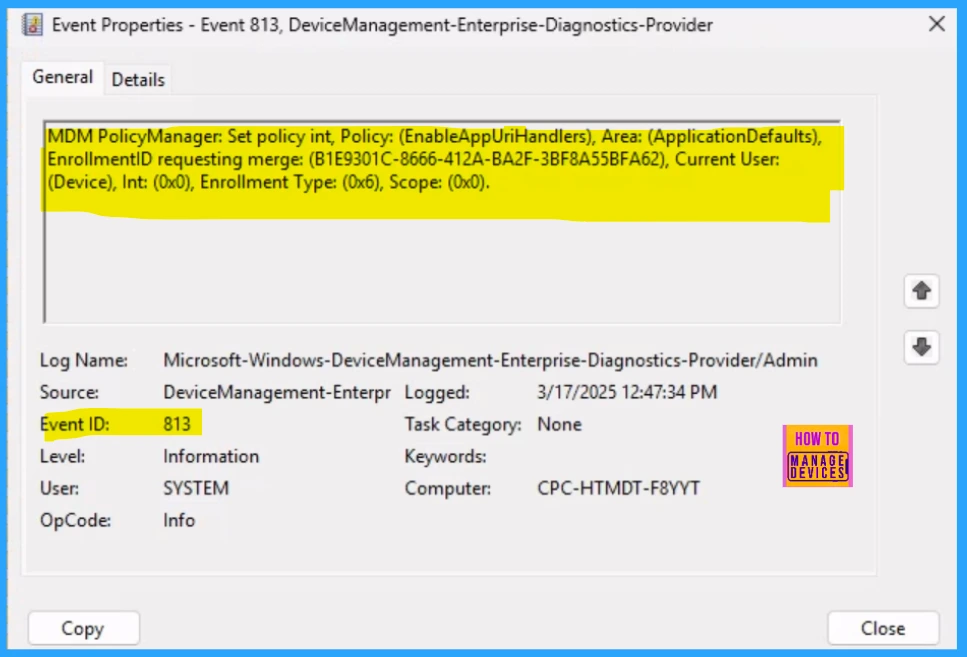
Client Side Verification
To monitor the status of Intune, you can use Event Viewer. Go to the Start menu and type Event Viewer. Then, navigate to Application and Services Logs > Microsoft > Windows > DeviceManagement–Enterprise–Diagnostics–Provider > Admin.
Need Further Assistance or Have Technical Questions?
Join the LinkedIn Page and Telegram group to get the latest step-by-step guides and news updates. Join our Meetup Page to participate in User group meetings. Also, Join the WhatsApp Community to get the latest news on Microsoft Technologies. We are there on Reddit as well.
Author
Anoop C Nair has been Microsoft MVP for 10 consecutive years from 2015 onwards. He is a Workplace Solution Architect with more than 22+ years of experience in Workplace technologies. He is a Blogger, Speaker, and Local User Group Community leader. His primary focus is on Device Management technologies like SCCM and Intune. He writes about technologies like Intune, SCCM, Windows, Cloud PC, Windows, Entra, Microsoft Security, Career, etc.


Discussion