






How to Establish the Allow Warning for Other Disk Encryption through Intune Setting Catalog
Hey there, today we will learn how to Establish the Allow Warning for Other Disk Encryption through the Intune Setting Catalog. Disk encryption is an advanced security technology created to protect sensitive information by converting it into an unreadable format, known as encrypted code.
This process makes it extremely difficult for unauthorized individuals or malicious software to convert the data. Encrypting an entire hard drive effectively safeguards against unauthorized access, ensuring that even if the physical device is lost or stolen, the contained information remains secure and inaccessible to unwanted observers.
In Microsoft Intune, the “settings catalog” serves as a comprehensive library of pre-configured settings and policies designed to facilitate the management and security of enrolled devices. This catalog includes a diverse array of configurations that help administrators enforce security measures, manage applications, and optimize network settings.
By utilizing the settings catalog, organizations can streamline the deployment of policies tailored to their specific needs, ensuring that devices operate securely and efficiently while meeting compliance requirements. In this blog, we will know more about how to Establish the Allow Warning for Other Disk Encryption Through Setting Catalog.

Table of Contents
What is Disk Encryption?
Establish the Allow Warning for Other Disk Encryption through Intune Setting Catalog
This allows the admin to disable all notifications regarding prompts for users, enabling a silent deployment of encryption. If you select “Enabled,” users will receive a warning prompt and an encryption notification. Now we will see how to deploy the allow warning for other Disk Encryption through the MS Intune portal.
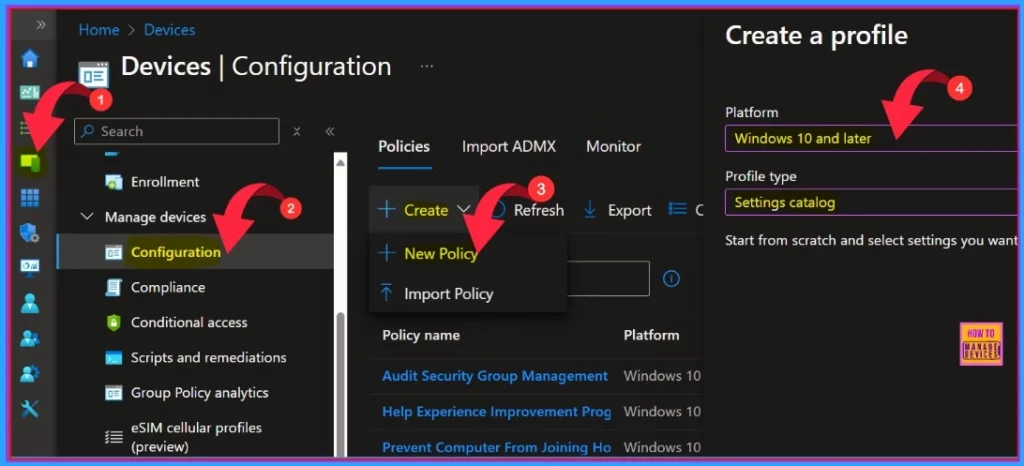
- Sign in to the Intune admin center.
- Devices >Configuration > Create > New policy
- After creating a new policy, we need to select the platform as Windows 10 and later.
- Then, select the profile type as the setting catalog.
- Allow Manual Start of Microsoft Account Sign In Assistant Using Intune Settings Catalog
- How to Block Allow Toasts Notifications in Windows using Intune Settings Catalog
- How to Allow EAP Cert SSO User in Windows using Intune Settings Catalog
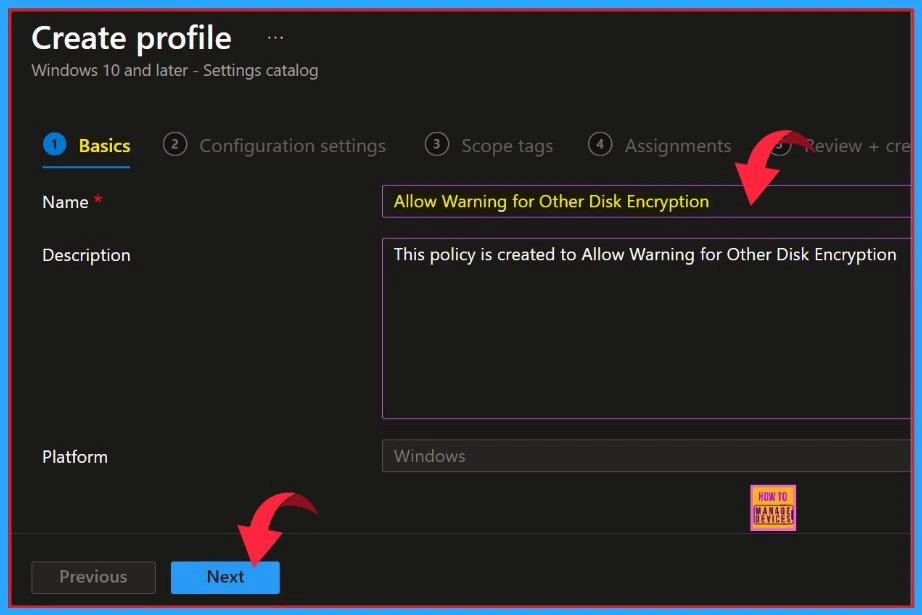
The first section of the profile creation process is Basic. In this section, we can provide the appropriate Name and Description of policy we want to deploy. This is a required section, and users must add it to continue creating Profiles.
- Click Next button after adding the Name and Description.
| Name | Description |
|---|---|
| Allow Warning for Other Disk Encryption | This Policy is created to Allow Warning for Other Disk Encryption |
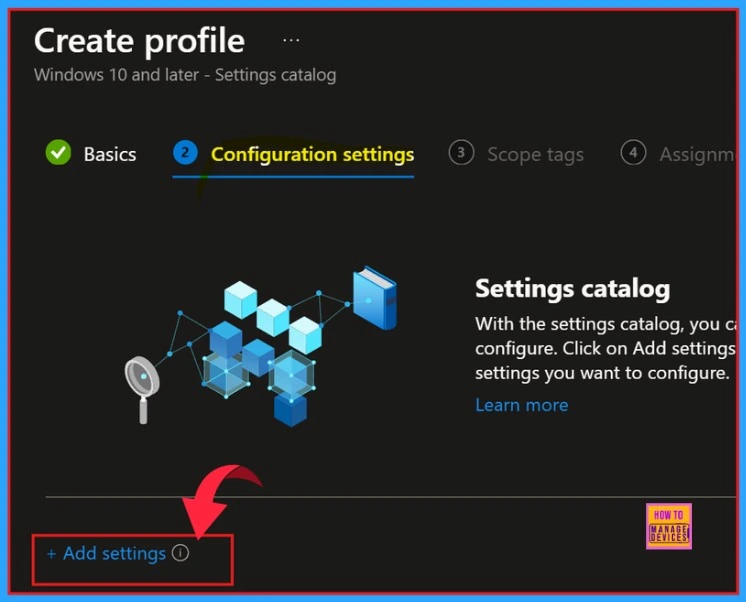
Next, go to the Configuration settings section to select +Add settings and continue creating the profile. This section allows you to choose the settings you wish to configure. This section is required and must be completed.
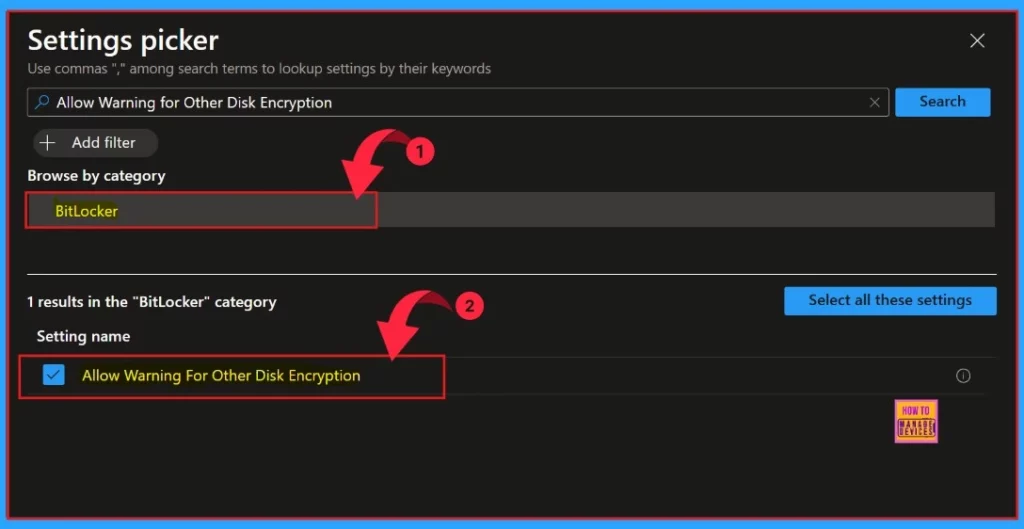
The Settings Picker window will open, allowing us to search for our desired policy. In this case, the keyword is “Allow Warning for Other Disk Encryption.” Click the Search button to proceed. Afterwards, we can browse by category and select “BitLocker.” In that category, we can find “Allow Warning for Other Disk Encryption.”
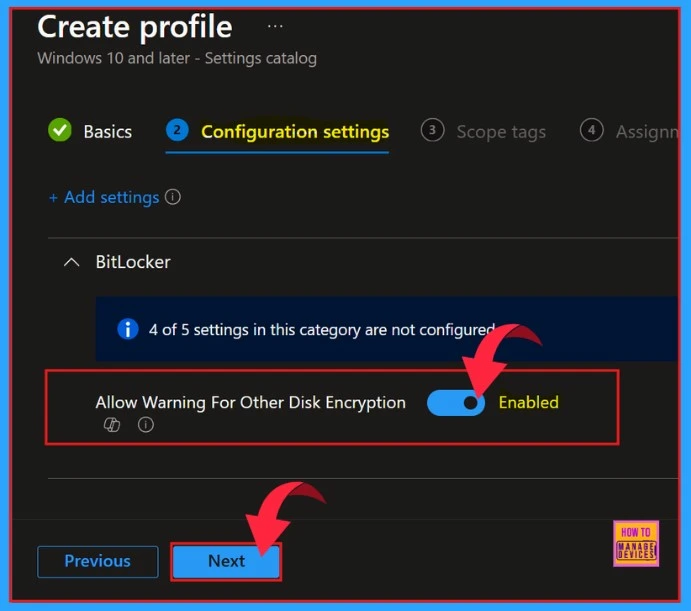
The window displayed below presents the Configuration Settings page. In this section, we can observe that the option labelled “Allow Warning for Other Disk Encryption” has been enabled. To move forward with the setup process, we should click the “Next” button located at the bottom of the page.
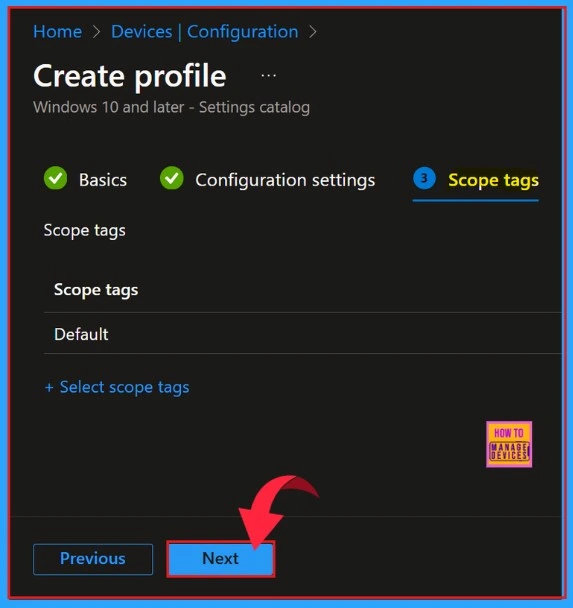
The Scope Tag section is the next step in creating your profile. We can choose to skip this section, or we can add Scope Tags to your profile if you wish. Please note that adding Scope Tags is optional. If you decide to skip this section, simply click the “Next” button to continue.
- How to Disable Wireless Display Multicast DNS Advertisement Using Intune Policy
- How to Create Secure Boot Compliance Policy with Intune
- ACME Protocol Support for macOS and Automated Device Enrollment in Intune
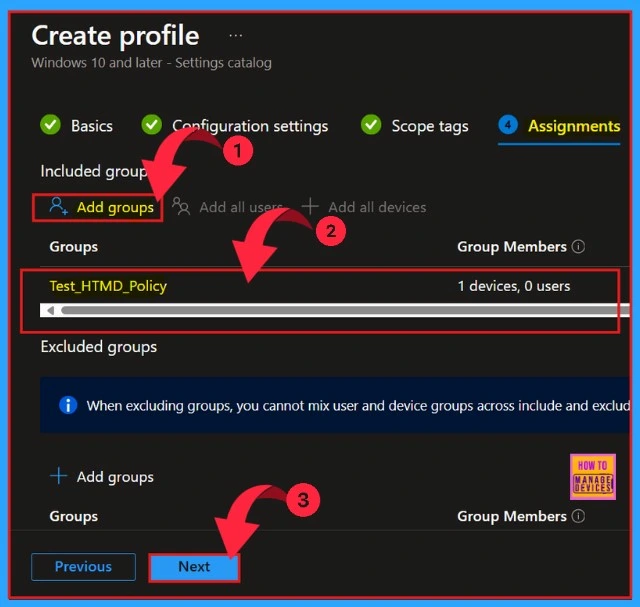
Next is the Assignments section. In this section, we can Add groups to Allow Warning for Other Disk Encryption. To do this, add groups to the included groups. After that, a new window will appear, and you can select a group from here. Then click on the Select button and click on the Next button.
The final section is Review + Create. In this window, we can see all the details of our profile. It summarises the profile and shows the previous sections of profile creation. We can quickly go to the earlier sections if any changes are necessary. After verifying all the steps, you can complete the Profile creation.
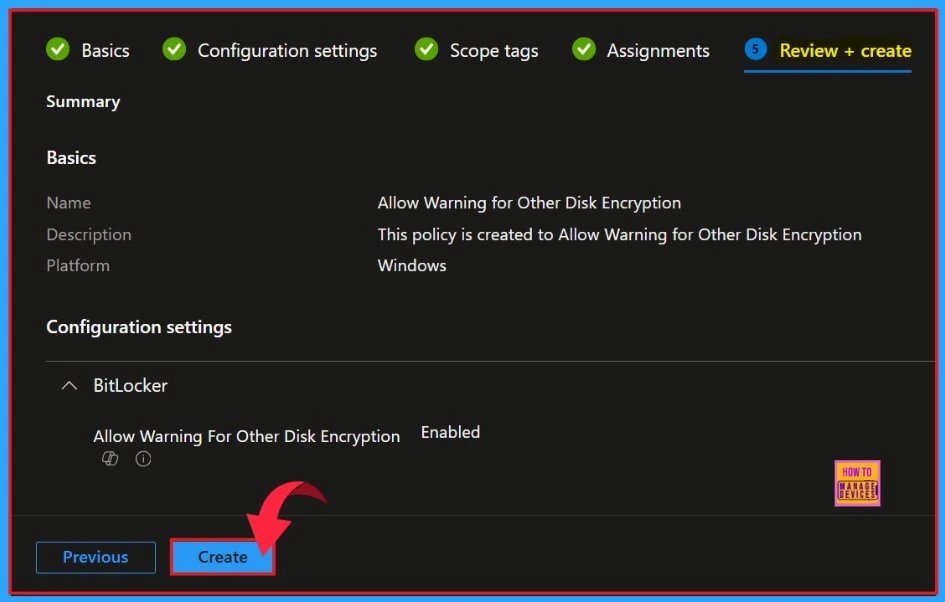
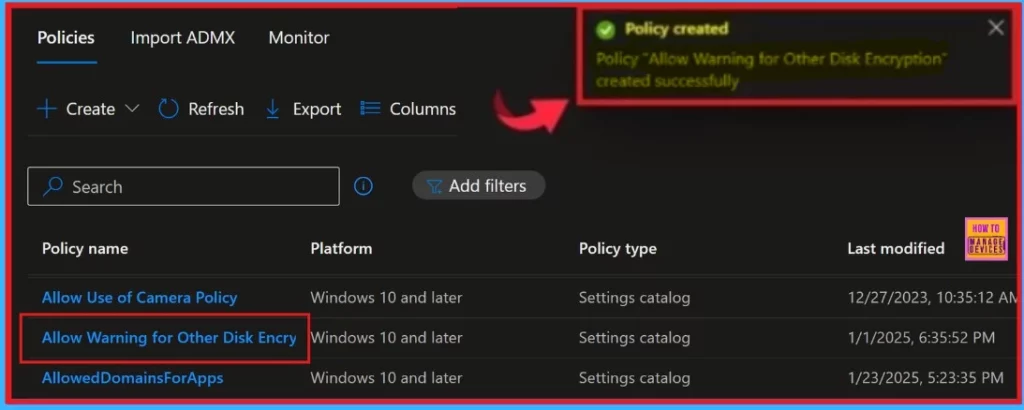
After clicking the Create button, you will be notified on the Intune Portal that the Policy “Allow Warning for Other Disk Encryption” has been “created successfully“. You can quickly check the Created policy in the Intune Portal.
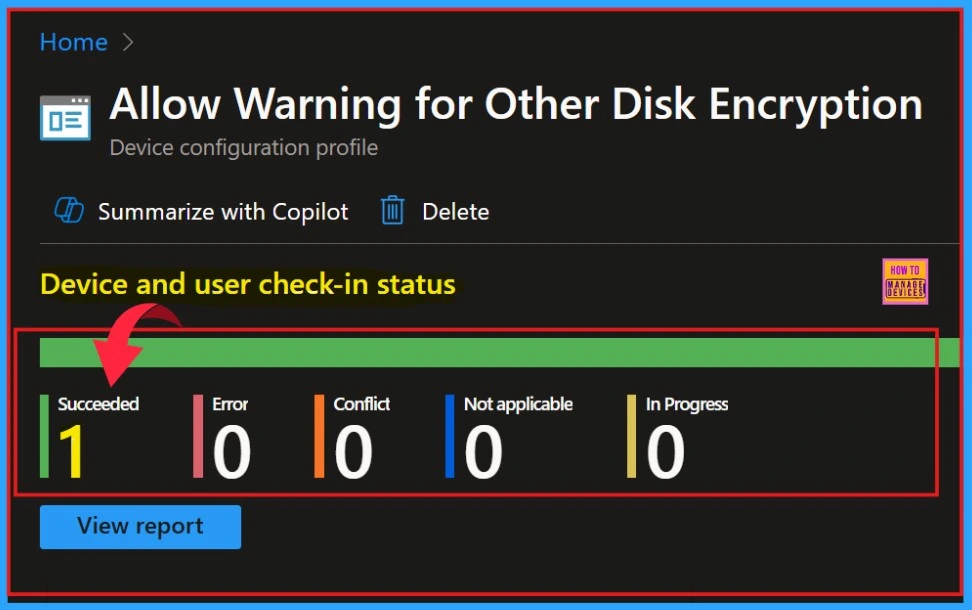
Device and User Check-in Status
When clicking on the Policy, another window will appear, and you can see an elaborate view of the policy details. Clicking the View Report option will display the Device’s name, logged-in user’s name, check-in status, Filter, and the last report modification time.
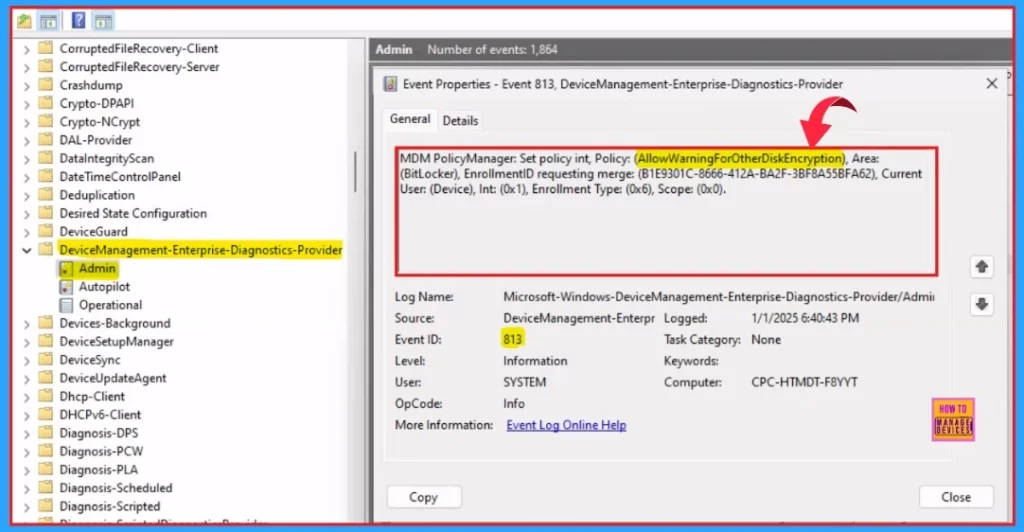
Event Log- Client Side Verification
The Intune event ID 813 assure that a string policy is applied on the Windows 11 or 10 devices. You can also see the exact value of the policy being applied on those devices.
We can check the Event log path to confirm this – Applications and Services Logs – Microsoft – Windows – Devicemanagement-Enterprise-Diagnostics-Provider – Admin.
MDM PolicyManager: Set policy int, Policy: (AllowWarningForOtherDiskEncryption), Area:
(BitLocker), EnrollmentID requesting merge: (B1E9301C-8666-412A-BA2F-3BF8A55BFA62), Current
User: (Device), Int: (0x1), Enrollment Type: (0x6), Scope: (0x0).
Need Further Assistance or Have Technical Questions?
Join the LinkedIn Page and Telegram group to get the latest step-by-step guides and news updates. Join our Meetup Page to participate in User group meetings. Also, Join the WhatsApp Community to get the latest news on Microsoft Technologies. We are there on Reddit as well.
Author
Anoop C Nair has been Microsoft MVP for 10 consecutive years from 2015 onwards. He is a Workplace Solution Architect with more than 22+ years of experience in Workplace technologies. He is a Blogger, Speaker, and Local User Group Community leader. His primary focus is on Device Management technologies like SCCM and Intune. He writes about technologies like Intune, SCCM, Windows, Cloud PC, Windows, Entra, Microsoft Security, Career, etc.


Discussion