






How to Enable Always Open All Control Panel Items When Opening Control Panel for User Policy in Intune
Let’s discuss how to Enable Always Open All Control Panel Items When Opening Control Panel for User Policy in Intune. This policy setting determines how the Control Panel appears when it’s opened, either as a category view or an icon view. This setting allows organizations to control the default layout for consistency, or leave it flexible based on user preference.
To always open the Control Panel with All Control Panel Items (icon view) for users, configure the relevant policy. When enabled, the Control Panel will display all items as icons by default, making it easier for users to see every setting at a glance. This ensures a consistent view every time the Control Panel is opened.
In this post, you will find all the steps to enable the default Control Panel view using Intune. We will guide you through setting up a policy that controls how the Control Panel appears on your devices—whether in icon or category view. This ensures users have a consistent experience when they open the Control Panel.
One of our posts explains how to block access to the Control Panel and PC Settings using Intune. Allowing users to access these settings can lead to changes in system, network, account, and privacy settings, which may affect the consistency of the user experience. By using this policy in the MEM Intune admin center, you can prevent users from making these changes.

Table of Contents
How to Enable the Default Control Panel View Using Intune
The Control Panel View refers to how the Control Panel is displayed on a Windows device. There are two main views: Category View and Icon View. The Control Panel View setting lets you choose which layout is used when opening the Control Panel.
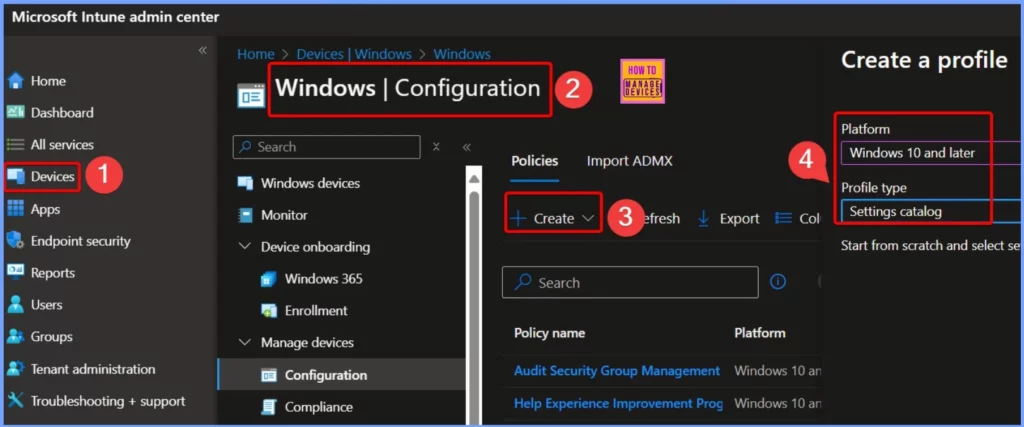
- Login to Endpoint Manager Intune portal
- Navigate to Devices -> Windows -> Configuration profiles.
- Click on +Create Profile.
| Platform | Profile Type |
|---|---|
| Windows 10 and later | Settings Catalog |
- Prohibit Access to Control Panel and PC Settings to Prevent Users from Modifying System Settings using Intune Policy
- 32 Control Panel Run Commands for Windows
- Intune User Policy Troubleshooting Tips for Prevent Changing Theme MEM
- Disable PST Access to Outlook Profile using Intune MEM
- Intune Logs Event IDs IME Logs Details for Windows Client Side Troubleshooting
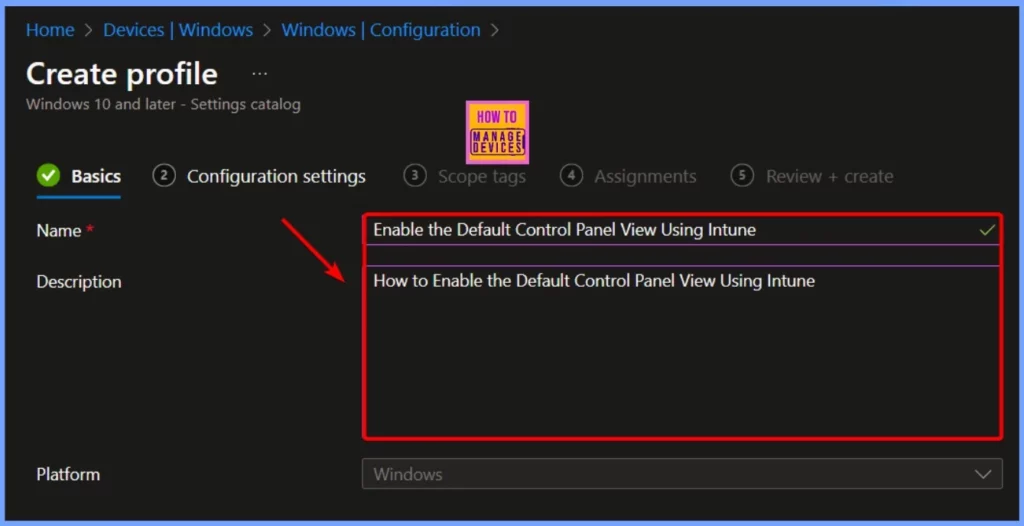
Name and Description
In the window below, you need to enter a name for the policy, such as “Enable Default Control Panel View Using Intune,” and add a description like “How to enable the default Control Panel view using Intune.” This will help you identify the policy and understand its purpose clearly.
Settings Picker Settings
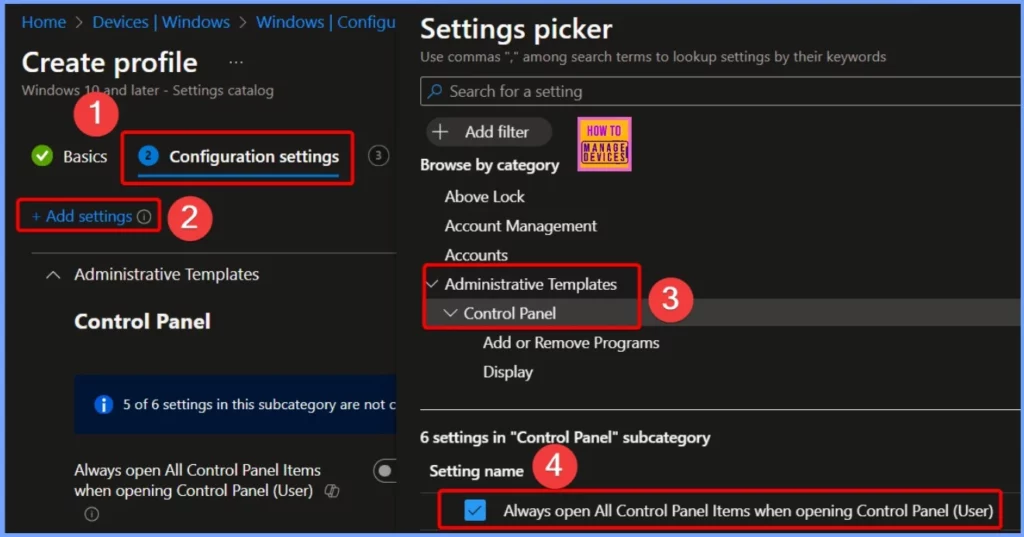
You can click on the +Add Settings link to bring up the new blade of the policy configuration wizard. This link will help you with a new blade called the Settings Picker , which has a search box. The Settings Picker is your search engine for Intune settings catalog policies.
In the Settings picker, search for Administrative Templates. Under Administrative Templates, select Control Panel. You’ll see 6 settings listed in the Control Panel subcategory. Check the box next to Always open All Control Panel Items when opening Control Panel (User) to enable this setting.
Always Open All Control Panel Items When Opening Control Panel User
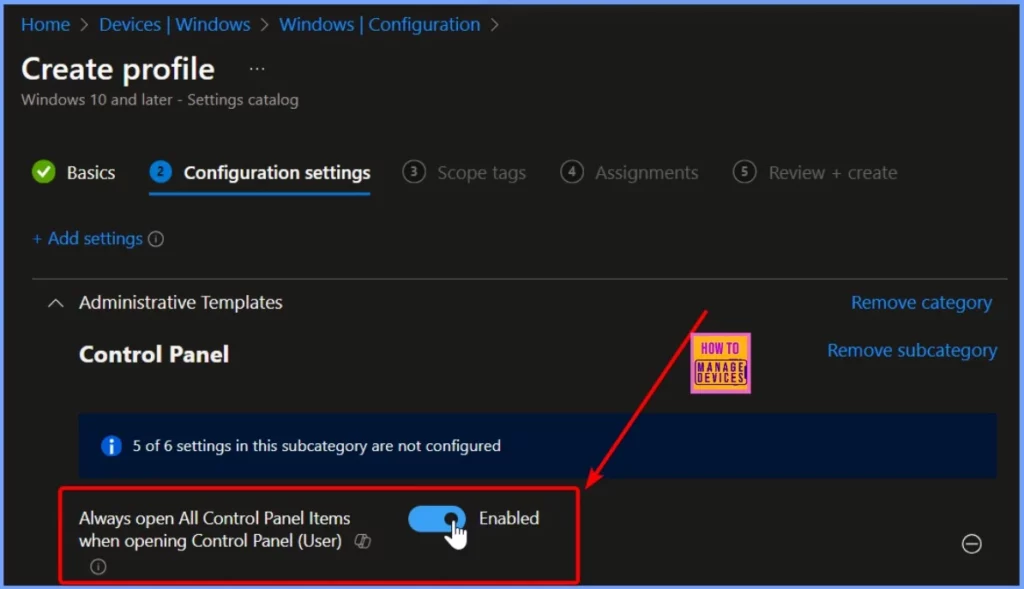
You can easily enable the Always open All Control Panel Items when opening Control Panel (User) by toggle the pane to the Right side. This policy setting controls the default Control Panel view, whether by category or icons.
- If this policy setting is enabled, the Control Panel opens to the icon view.
- If this policy setting is disabled, the Control Panel opens to the category view.
- If this policy setting is not configured, the Control Panel opens to the view used in the last Control Panel session.
Note: Icon size is dependent upon what the user has set it to in the previous session.
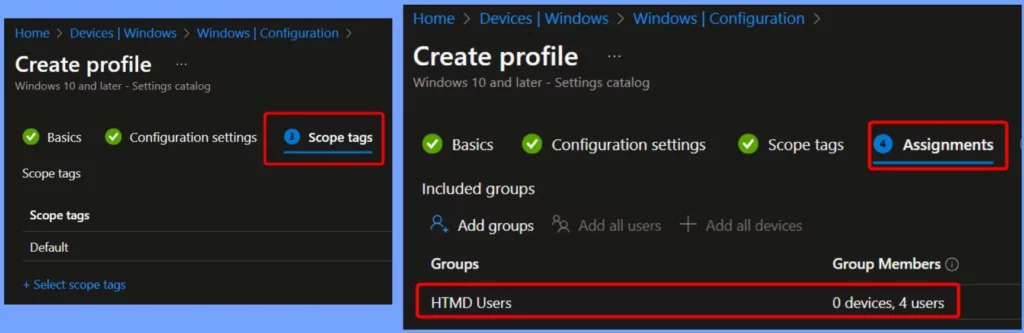
Scope Tags and Assignments
Scope Tags and Assignments are used in Microsoft Intune to manage policies and settings for different groups of devices and users. You can add one or more groups in the Assignments tab by clicking the Add Groups button. This allows you to apply policies or configurations to specific groups of users or devices.
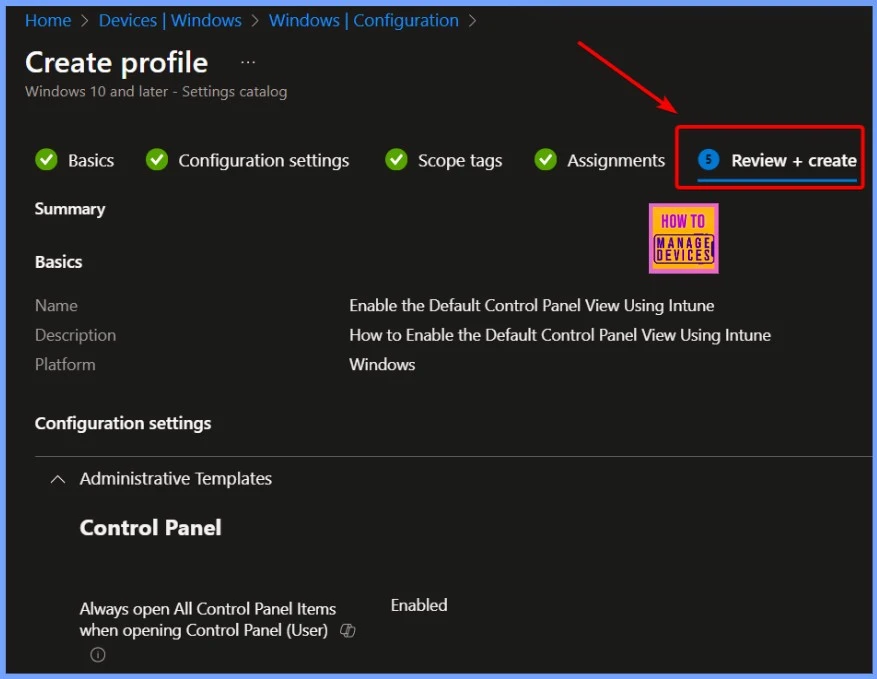
Review + Create
The Review + Create button in Intune appears when you are setting up a policy, configuration profile, or app deployment. It is the final step before applying your changes.
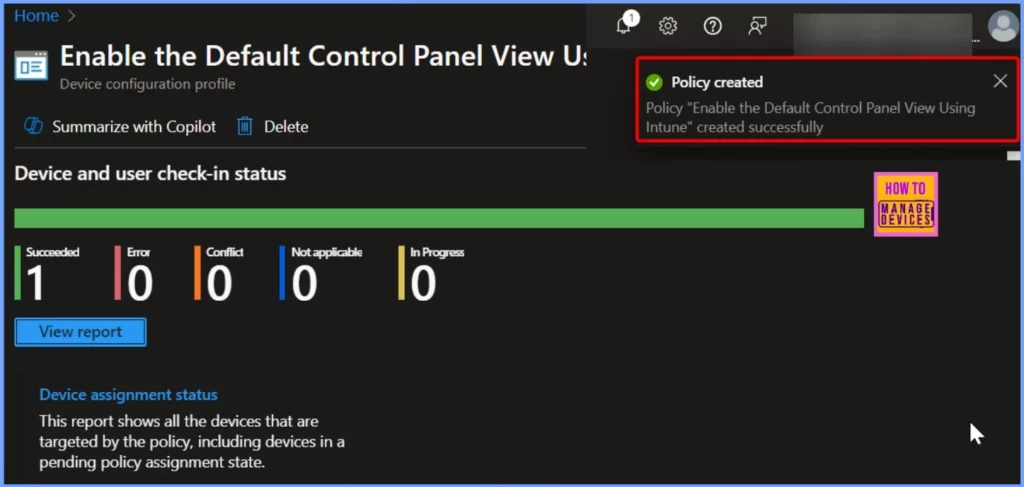
Monitor the Status
The policy to enable the default Control Panel view using Intune was created successfully. You can see that it has been successfully applied, with one instance marked as succeeded. The below screenshot shows more details.
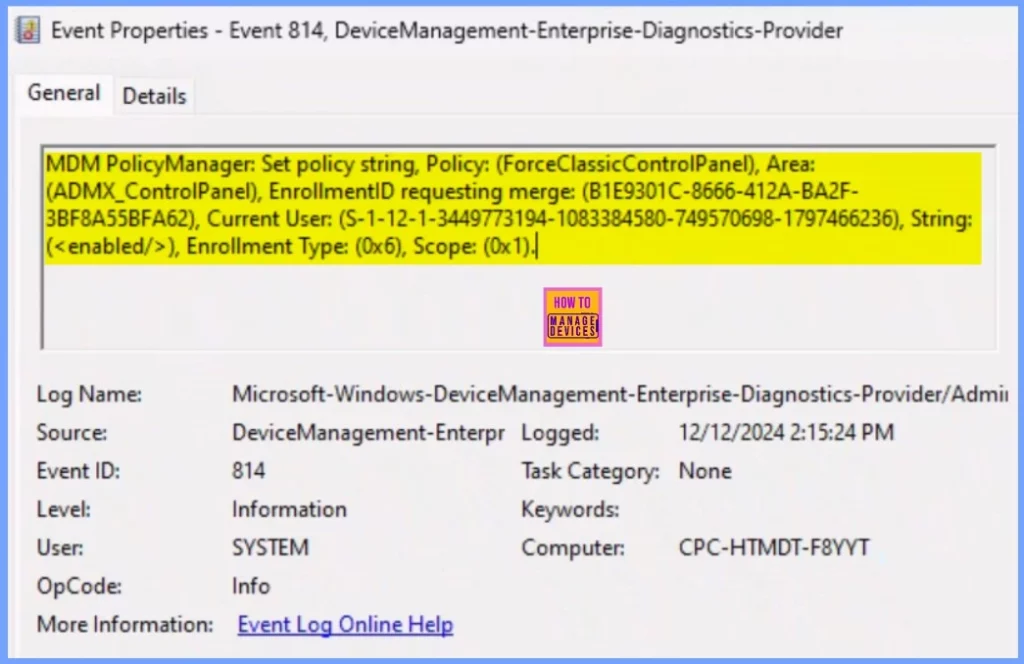
Client Side Verification
The Intune event ID 814 shows that a STRING value has been applied as part of a policy on Windows devices. This event also displays the exact policy value on those devices. You can check the Event log path to confirm this – Applications and Services Logs – Microsoft – Windows – Devicemanagement-Enterprise-Diagnostics-Provider – Admin.
MDM PolicyManager: Set policy string, Policy: (ForceClassicControlPanel), Area:
(ADMX_ControlPanel), EnrollmentID requesting merge: (B1E9301C-8666-412A-BA2F-
3BF8A55BFA62), Current User: (S-1-12-1-3449773194-1083384580-749570698-1797466236), String:
(<Enabled/>), Enrollment Type: (0x6), Scope: (0x1).|
End User Experience
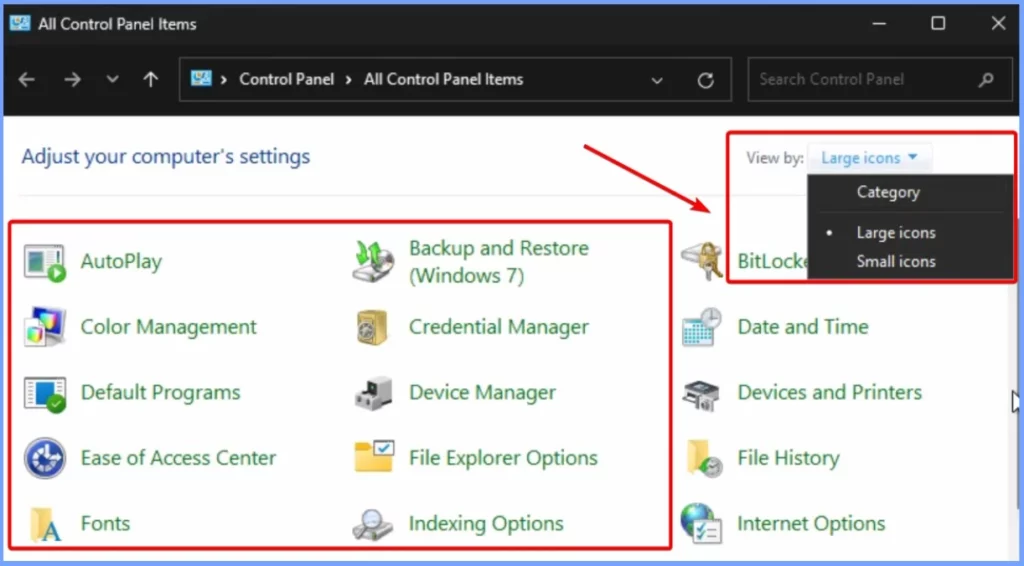
The “Always open All Control Panel Items when opening Control Panel (User)” policy controls how the Control Panel appears. When enabled, it opens in the icon view, displaying all items as large icons instead of in categories.
Need Further Assistance or Have Technical Questions?
Join the LinkedIn Page and Telegram group to get the latest step-by-step guides and news updates. Join our Meetup Page to participate in User group meetings. Also, Join the WhatsApp Community to get the latest news on Microsoft Technologies. We are there on Reddit as well.
Author
Anoop C Nair has been Microsoft MVP from 2015 onwards for 10 consecutive years! He is a Workplace Solution Architect with more than 22+ years of experience in Workplace technologies. He is also a Blogger, Speaker, and Local User Group Community leader. His primary focus is on Device Management technologies like SCCM and Intune. He writes about technologies like Intune, SCCM, Windows, Cloud PC, Windows, Entra, Microsoft Security, Career, etc.


Discussion