






New updates for Android users! The Android AOSP Devices Support with Intune. Intune now supports all types of Android devices, even specialized ones that run on Android open-source projects (AOSP).
Microsoft is expanding its support for various AOSP devices. It enables users to manage device settings like configuration, compliance, certificates, and network profiles. The latest update allows users to deploy mandatory business apps to these devices, enhancing their functionality and management capabilities.
Microsoft Intune will extend support to Android 10 and later in October 2024. Microsoft has announced that its Intune platform will now support Android 10 and later versions starting October 2024.
The Intune Working Time Limit Access Feature for Android Devices lets you decide when your work stuff appears on your Android device. The new working time feature is a helpful tool for businesses, especially those with employees working different shifts.

- Intune Device Staging option for Android Devices
- Android Devices and Intune Remote Help Walkthrough Guide
- Intune End of Support for Android Device Administrator
- Intune Shared Device Mode for Android and iOS Devices
What is the Latest Update Regarding AOSP Management?
The latest update allows users to deploy a mandatory line of business apps to AOSP devices, enhancing their functionality and management capabilities.
Android AOSP Devices Support with Intune
Let’s explore the Android AOSP Devices Support feature with Intune. This feature allows you to manage Android devices, including specialized ones like the Meta Quest 2, using Intune. As part of this process, you will be able to create a new Line of Business (LOB) app in Intune.
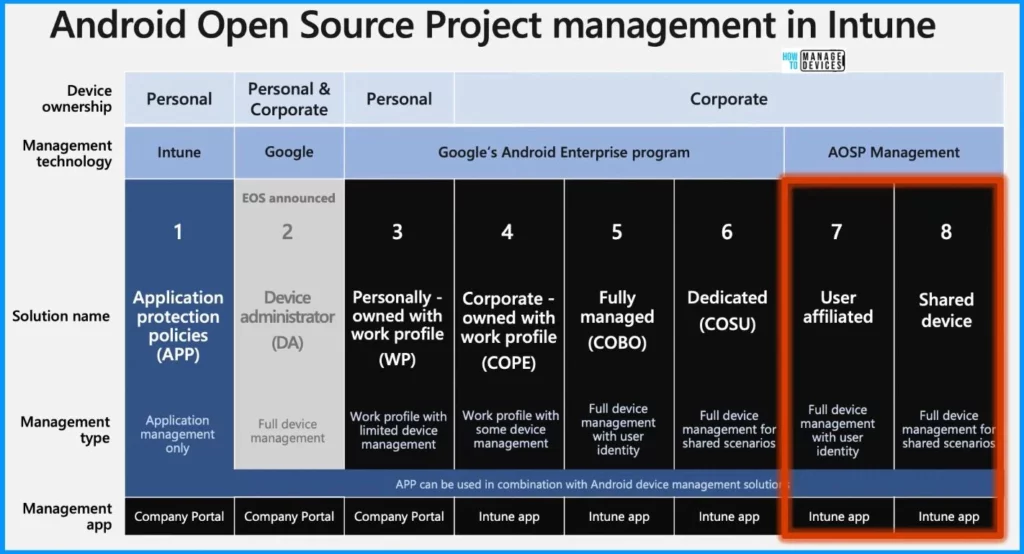
The below screenshot helps you to show the supported 3rd party devices. The table below indicates the OEM and the device.
| OEM | Device |
|---|---|
| HTC® | HTC Vive® Focus 3 |
| HTC® | HTC Vive® XR Elite |
| Meta | Quest 2 |
| Meta | Quest Pro |
| PICO | PICO Neo3 Pro/Eye |
| PICO | PICO 4 Enterprise |
| RealWear® | HMT-1® |
| RealWear® | HMT-1Z1® |
| RealWear® | Navigator500® |
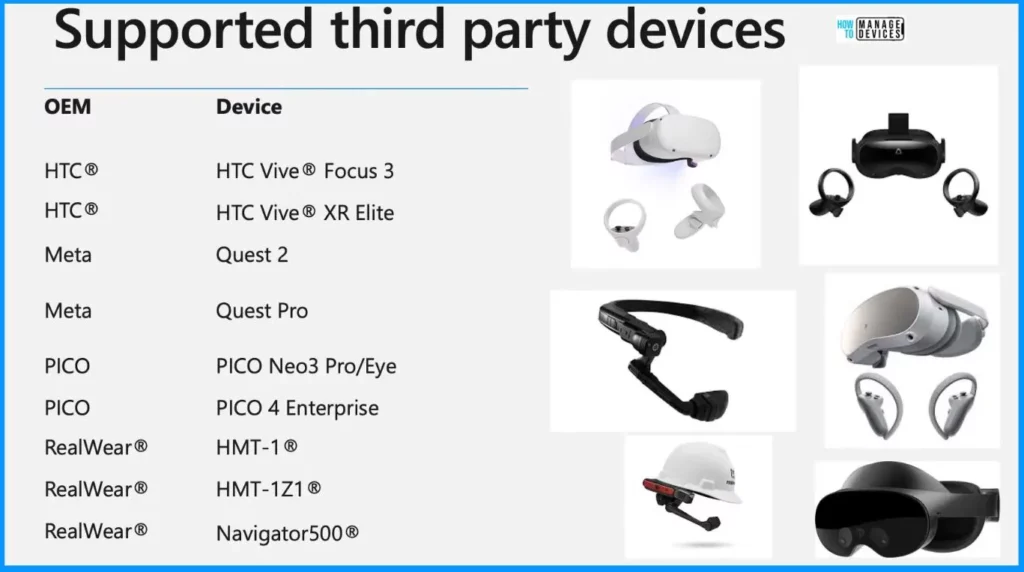
Sign in to the Intune Admin Center portal https://intune.microsoft.com/. Once logged in, navigate to the App section on the left side of the Intune admin center. Under App, select “Android.” On the Android, you will find a set of menus, including options like Add, Refresh, Export, and more.
- Select the Add button from the screenshot below
- Select the Line of business app as an App type
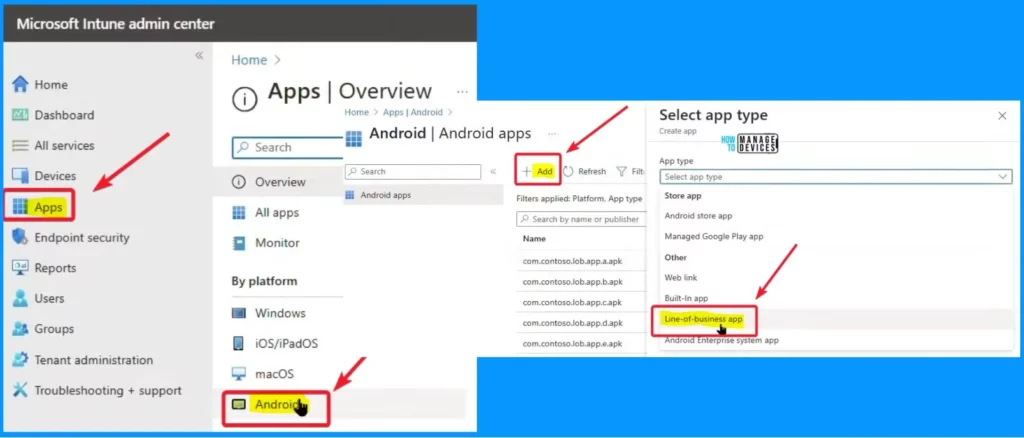
To add a custom or in-house app, upload the app’s installation file. Make sure the file extension matches the app’s intended platform. Intune supports the following Line of business app platforms and extensions.
- Android (APK)
- iOS (IPA)
- macOS (.pkg)
- Windows (.msi, .appx, .appxbundles, .msix, and .masixbundle)
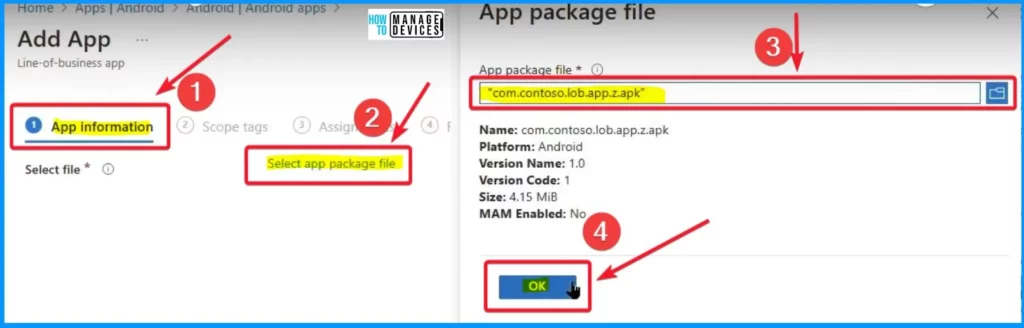
In Intune, when creating a new app, you’ll find various tabs for app creation. The first tab is “App Information.” Under this tab, you’ll see an option labelled “Select app package file.”
Click on this option, then add the app package file by selecting it from your device. After adding the file, click the “OK” button to proceed with the app creation process.
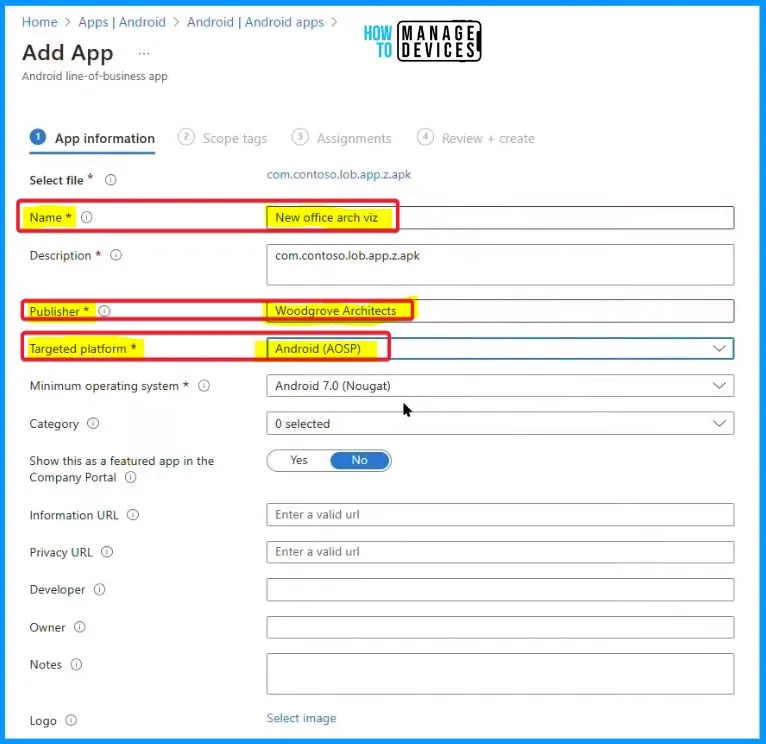
In the “Add App” tab below, you must enter specific details about the app. First, input the app’s name, “New Office Arch Viz.” Then, specify the publisher name as “Woodgrove Architects.” Lastly, select the targeted platform as “Android (AOSP).”
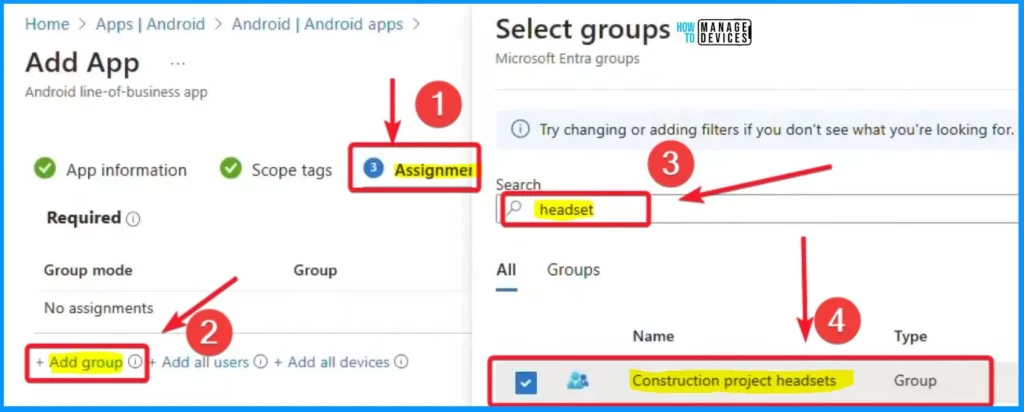
The “Assignments” section is crucial in the app deployment process. You can efficiently assign the app to specific users, devices, or groups. Under “Assignments,” choose the “Add group” option. This will prompt a window titled “Select groups.”
- In this window, type “headset” in the search bar and select the “Construction project headsets” option from the search results.
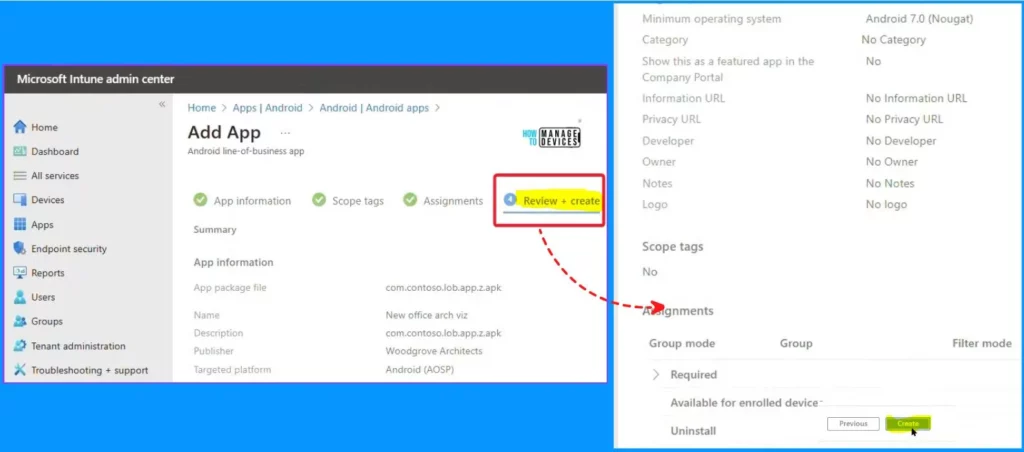
You can double-check all your settings in the “Review + Create” tab before finalizing. Once you are satisfied with everything, click the “Create” button.
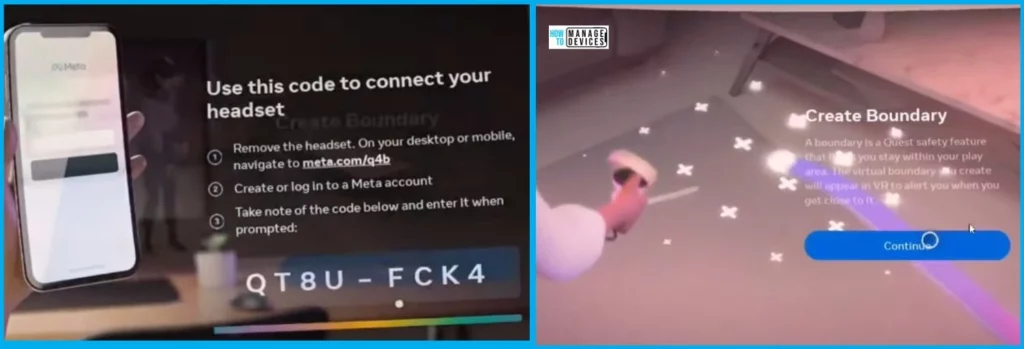
Let’s switch to the headset and explore how the app deployment process works. Here, Meta Quest 2 devices enrolled with Intune using integration with the Meta IT admin portal. To expedite, we need to skip through the enrollment steps to reach the home environment of Quest 2.
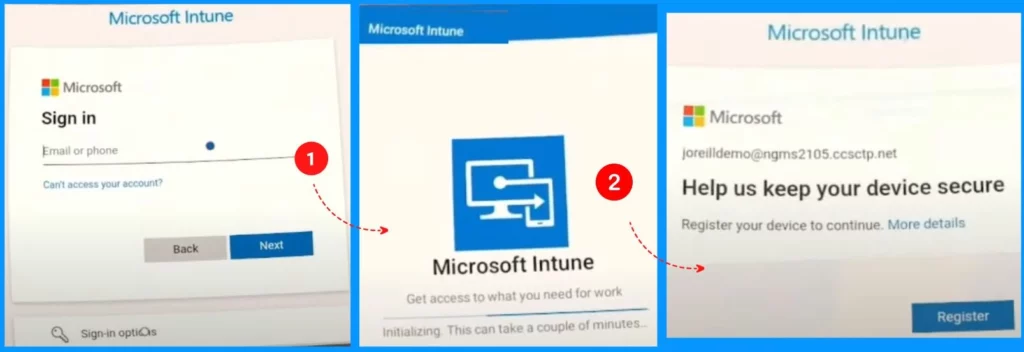
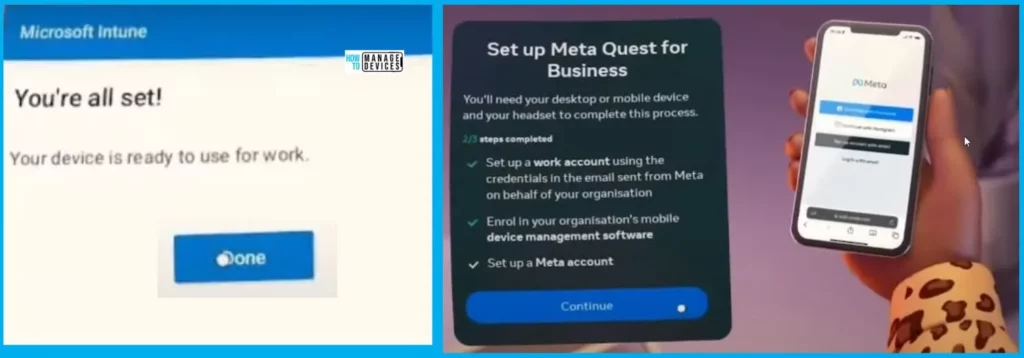
The screenshot below shows that the device is already used for work. The 2nd screenshot shows the set-up process of Meta Quest for business. You will need your desktop or mobile device and headset to complete this process.
- Set up a work account using the credentials in the email from Meta on your organisation’s behalf.
- Enrol in your organisation’s mobile device management software
- Set up a Meta account
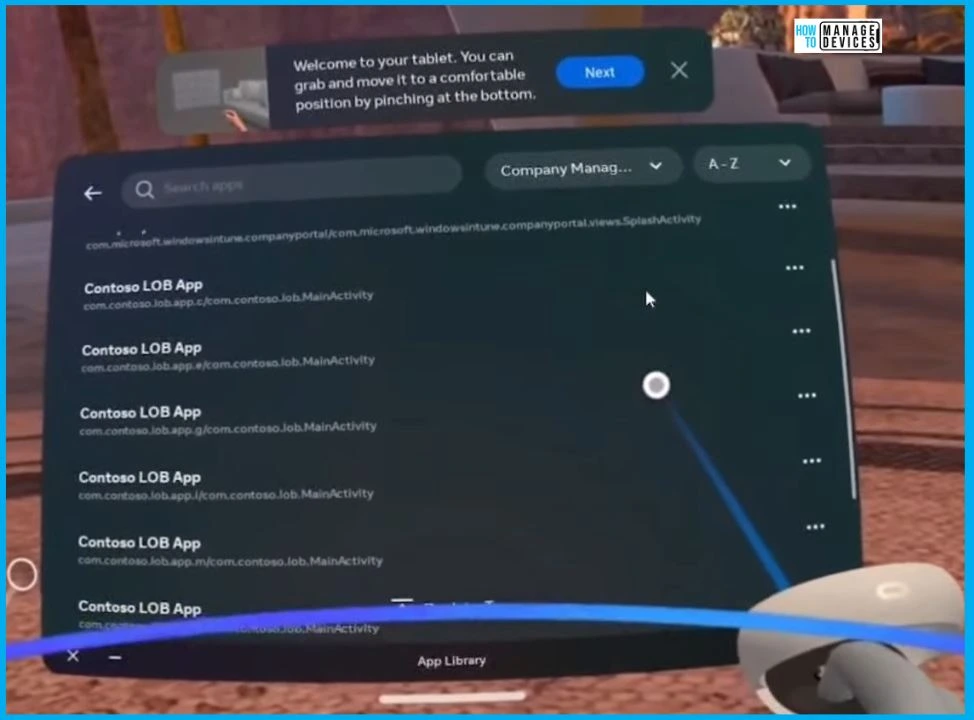
In the background, the Intune agent is already in action, installing the Line of business apps that were just deployed. You can observe them directly on the device, listed neatly under “Company managed apps.”
This means the apps you deployed using Intune are now automatically installed on the Meta Quest 2 device. Integrate between Intune and the Meta IT admin portal. This process ensures that your apps are swiftly and securely distributed across your managed devices, providing users access to the tools they need for their tasks.
Resources
We are on WhatsApp now. To get the latest step-by-step guides, news, and updates, Join our Channel. Click here. HTMD WhatsApp.
Author
About the Author – Vidya is a computer enthusiast. She is here to share quick tips and tricks with Windows 11 or Windows 10 users. She loves writing on Windows 11 and related technologies. She is also keen to find solutions and write about day-to-day tech problems.


Discussion