






New Shapes Feature in Snipping Tool How to Use Guide
Let’s discuss How to Use New Shapes Feature in the Snipping Tool. Microsoft Introduces Shapes Feature in Snipping Tool that enhances users’ abilities. This feature is available for users with Snipping Tool version 11.2401.32.0.
Snipping Tools is the most popular application for Windows users that provides different features. Microsoft released many features for the Snipping Tool in many updates. Snipping Tool is the best and most flexible tool for every user to capture screenshots.
The Snipping Tool helps you to take a snapshot to copy words or images from all or part of your PC screen. Snipping Tool provides many other features, such as extracting text from images, redacting text, etc. The screen recording is the highlighting feature in the Snipping Tool.
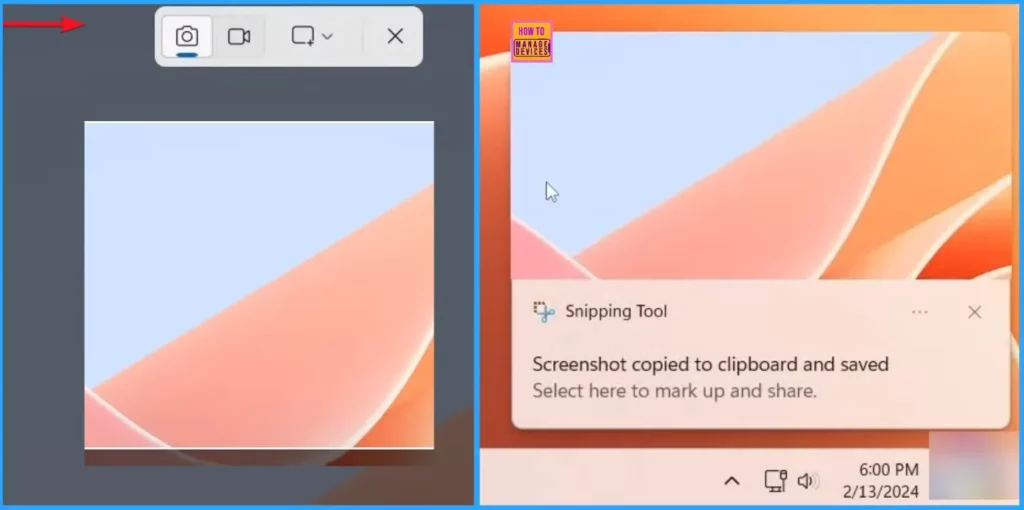
Different modes of Screenshot-capturing methods are available on the Snipping tool. The shape capture in the Snipping Tool will give you a new experience. The blog post will help you learn more about how to Use New Shapes Feature in Snipping Tool.

- New Sticky Notes App for OneNote in Windows
- New Shared Links Feature in Microsoft Edge for Business
- Reset Windows Security App in Windows 11
New Shapes Feature in Snipping Tool
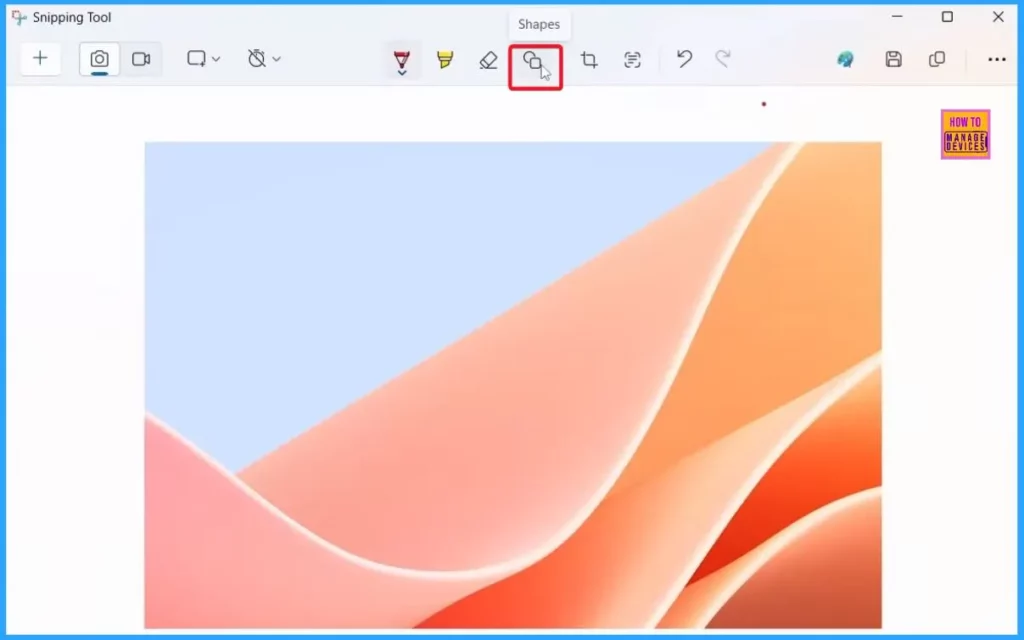
The Shapes feature in the Snipping Tool allows you to mark different shapes in the screenshots. It is very beneficial for users to mark essential parts in screenshots without the help of other applications. The following table shows different options available in Shapes features.
- Select the Shapes tool from the Snipping Tool
- Select the desired shape
- Click and drag anywhere over your image to draw a new shape
| Different Options in Shapes Feature |
|---|
| Shapes such as Square, Oval, Line, or Arrow |
| Fill |
| Outline |
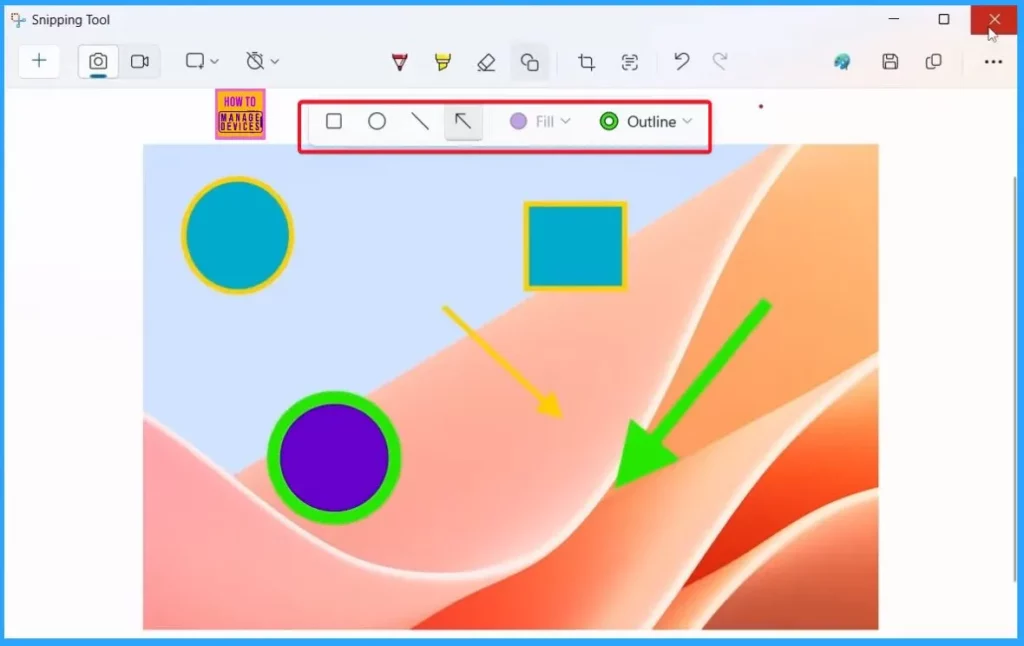
Different Shapes in Snipping Tool
Many shapes are available on the Snipping Tool, which helps you easily mark shapes. It allows you to identify essential sections. The shapes feature includes Square, Oval, Line, or Arrow shapes. You can resize, move, or change your shape before clicking away.
- Windows WMI Command Line WMIC Reaching End of Life
- Microsoft Defender Zero Day Vulnerability and FIX
- Reset Local Security Policy Settings to Default in Windows 11
2. Fill Option in Shapes Feature
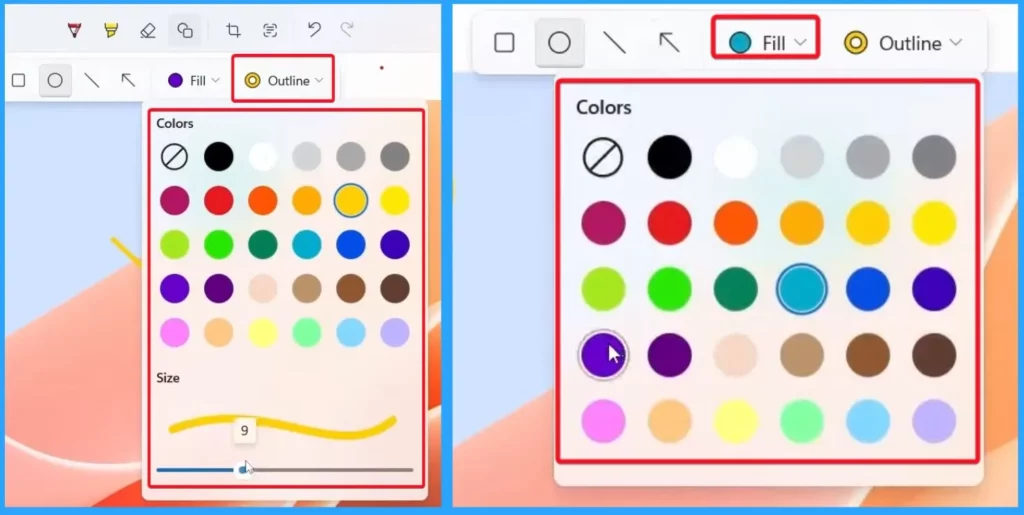
The fill option is an essential factor in the Shapes feature in the Snipping Tool. It helps you to make the screenshot transparent or fill it with a specific colour. There are many colours available in the fill option.
- Select the Fill option in the Snipping Tool
3. Outline Option in Shapes
This feature helps you to give an outline for your shapes in the snipping tool. You can easily adjust the thickness of the outline in shapes. Select the outline option in the Snipping tool.
We are on WhatsApp. To get the latest step-by-step guides and news updates, Join our Channel. Click here –HTMD WhatsApp.
Author
Gopika S Nair is a computer enthusiast. She loves writing on Windows 11 and related technologies. She is here to share quick tips and tricks with Windows 11 or Windows 10 users. She is Post Graduate Diploma Holder in Computer Science.




Discussion