






Enable or Disable Auth Negotiate Port Policy in MS Edge using M65 Admin Center
Hi, let’s discuss Enable Auth Negotiate Port Policy in MS Edge using M65 Admin Center. The Auth Negotiate Port policy in Microsoft Edge lets you control whether the browser includes special port numbers when trying to log in to websites using Kerberos authentication.
You can Enable this policy easily using the Microsoft 365 Admin Center, where browser settings are managed. Setting it up the right way helps IT admins to prevent login issues and makes sure users can access internal apps smoothly.
This is useful for companies that run internal websites or apps on ports other than the usual 80 or 443. The Auth Negotiate Port policy in Microsoft Edge helps when apps use special port numbers. If this policy is turned on, Edge will include that port number in the login request using Kerberos. This helps the browser match the exact login details the app needs to work properly.
If you don’t enable it or not configured Edge won’t include the port number in the login request. It will just send HTTP/server, no matter what port is used. This could cause login issues if the app or website needs the port to be there to work effectively.

Table of Contents
What Happens if this Policy is Not Configured or Disabled?
If the policy is not configured or is disabled, the generated Kerberos SPN will not include any port, even if the URL uses a non-standard port.
Enable Auth Negotiate Port Policy in MS Edge using M65 Admin Center
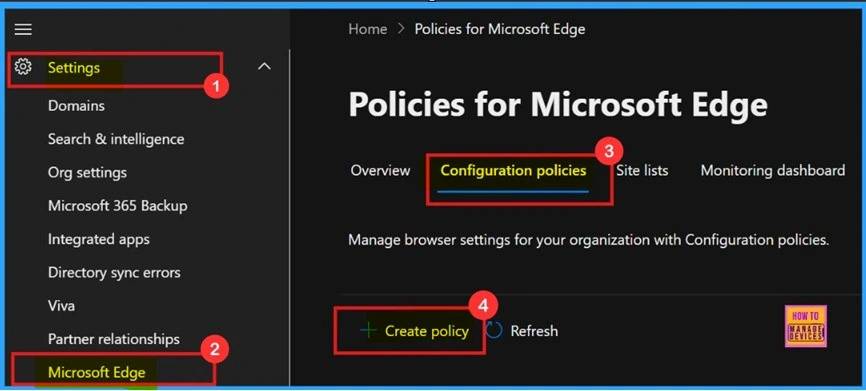
Above discussed enabling the OAuth Negotiate port policy in Microsoft using the Microsoft 365 Admin Center. Now, let’s look at how this policy can be deployed in Microsoft 365.First, admins need to log in to the Microsoft 365 Admin Center. Then, go to Settings, Under Settings, you’ll find the Microsoft Edge option and click on it.
- Next, on the right pane, click on Configuration Policies.
- After that, click on + Create Policy.
- You can now proceed to create and configure the desired policy in the Microsoft 365 Admin Center.
- New Windows 11 Configure Hash Algorithms for Certificate Logon Authentication Group Policy for Kerberos
- Disable Enable TLS 1.0 And 1.1 For Internet Explorer EdgeHTML
- Windows 11 New LSA Local Security Authority Policies
Add a Basic Details for the Policy
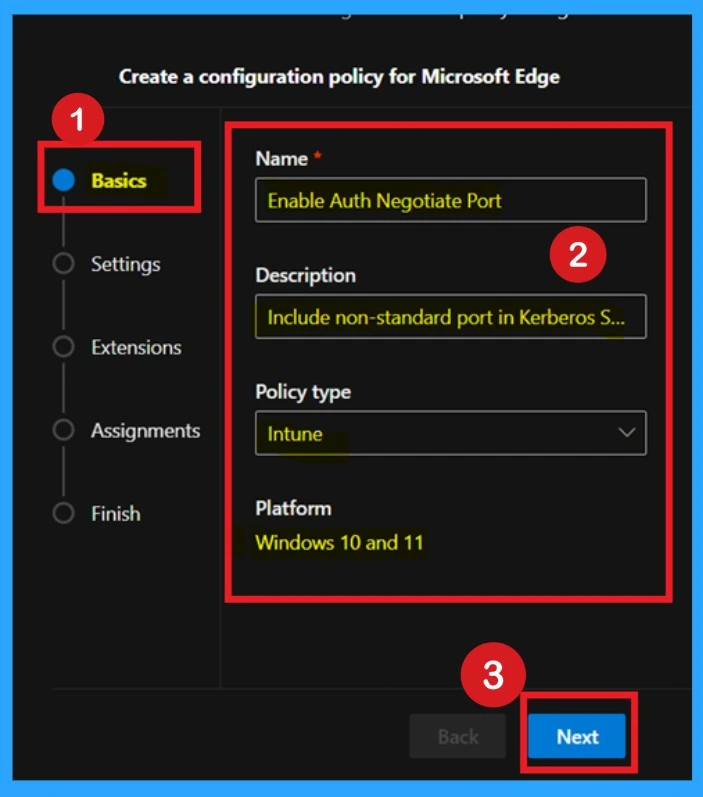
The next step is to fill in the Basic Details for the policy. This includes essential information such as the Name, Description, Policy Type, Platform, and other details. By default, the Platform is set to Windows 10 and 11. For the Policy Type, you need to make a selection. In Intune, there are 2 options available: Intune and Cloud. You should select Intune.
You can provide any description that helps you identify the policy later. Make sure to give the policy an appropriate and meaningful Name. Once all the basic details are entered, click Next to continue the procedure.
How to Add a Settings
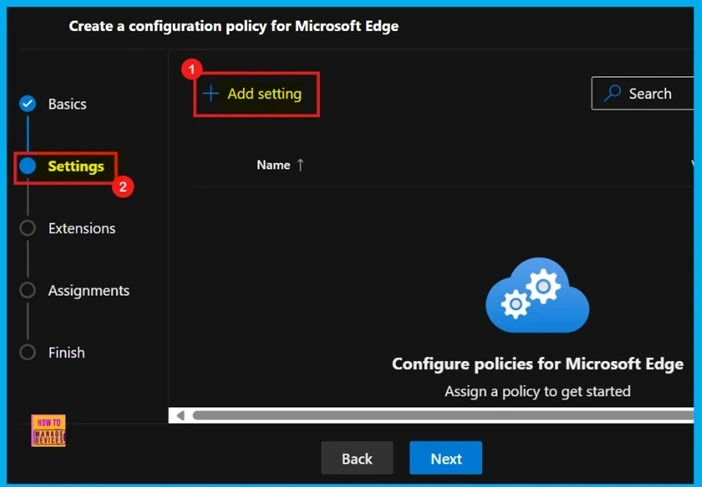
The next step, after entering the basic details, is to add a setting. You will now be on the Settings tab. Here, you will see a + Add Settings option and you can click on it. When you click on this option, you will see a list of policy settings that you can configure.
How to Configure a Settings
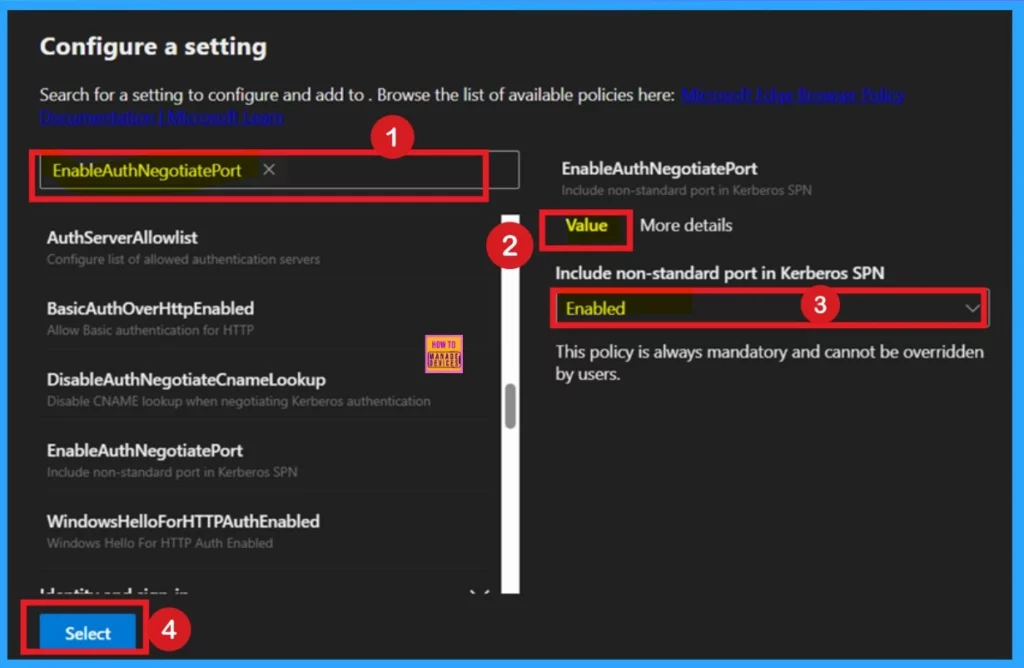
There are 2 ways to do Configure a Settings. You can either use the search bar to find the policy name, or manually browse through the different categories listed. In this case, I chose to search for the policy name using the search bar. Once you find the policy, you will see the Value and More details sections on the right-hand pane.
- The Value tab is especially important.
- This is where you can enable or disable the policy.
Importance of a More Information – More Details
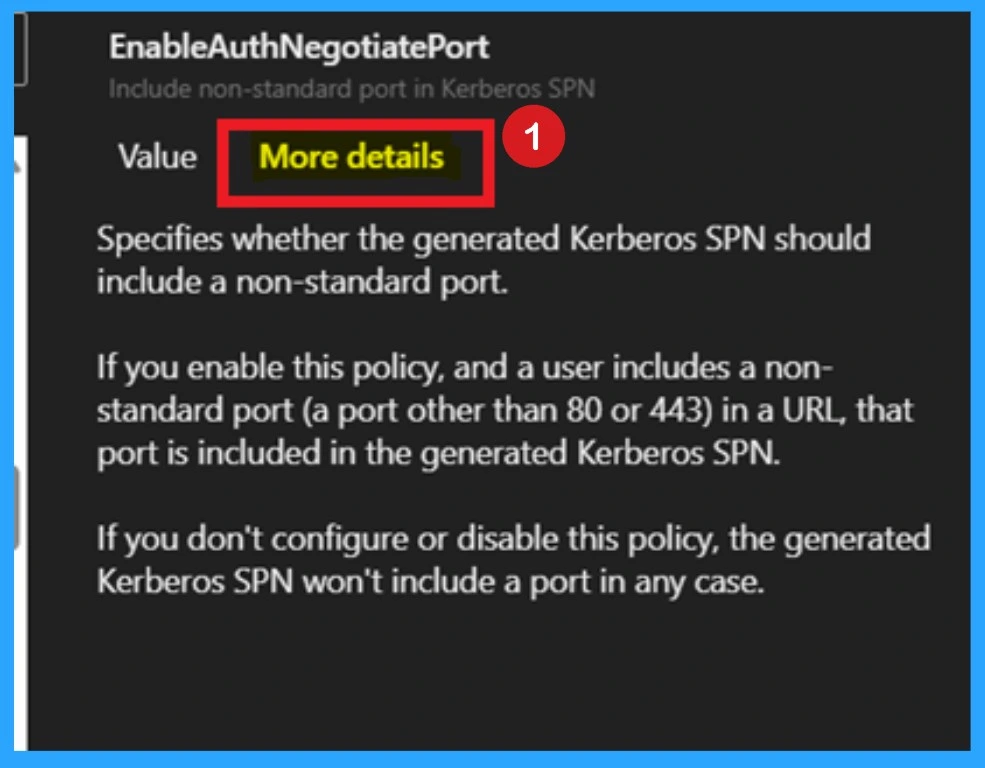
Now, you are on the More Details tab. In this tab, you will find more information about the policy. This section is very important because it tells you whether the policy is deprecated and what happens when the policy is deployed. for example, how it behaves when it is set to Enabled or Disabled. This helps you understand the impact of the policy before creating the configuration.
How to Add Extensions
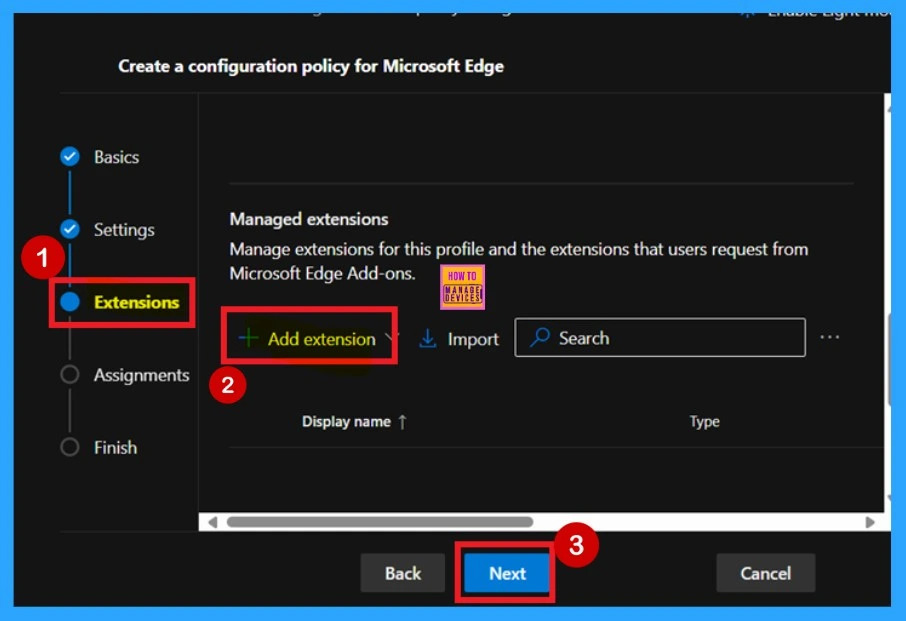
The Extensions tab is the next step in the policy creation process. This tab allows you to add extensions to your policy. In this tutorial, we will skip this section and click “Next” to continue.
Assignments
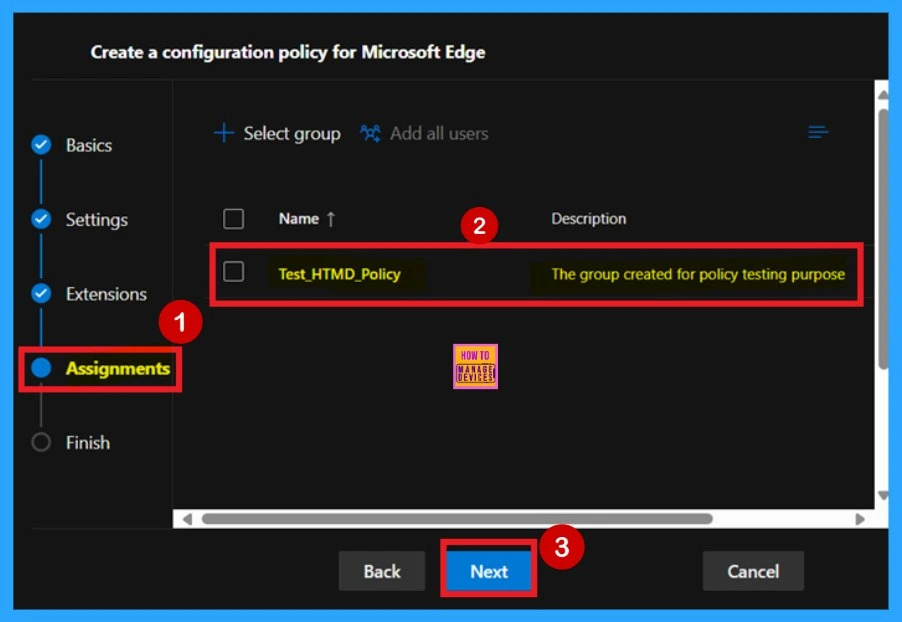
After the Extensions tab, you will reach the Assignments tab. This tab allows you to assign the policy to a specific group. When the policy is assigned to a selected group, the settings will only apply to that group. Here, I selected the group named “Test_HTMD Policy,” then clicked “Next” to continue.
Review and Create
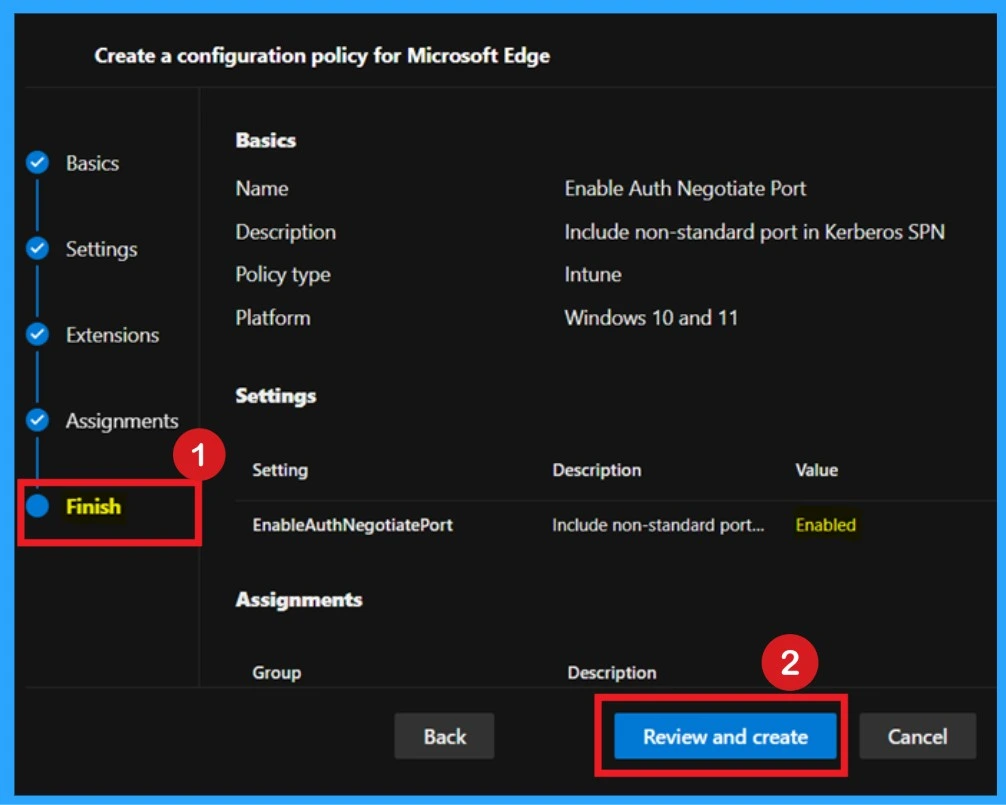
Review + Create is the final step in the policy creation process. In this tab, you can see a summary of all the settings you configured in the previous steps. If you want to change or edit anything, you can go back to the Previous tab and make the changes.
- This page act like a summary page where you can review all the details you entered.
- If everything looks good, click on the Create button to finish.
- If you need to edit something, make sure to do it before clicking Create, as you won’t be able to make changes after this step.
Device and User Check-in Status
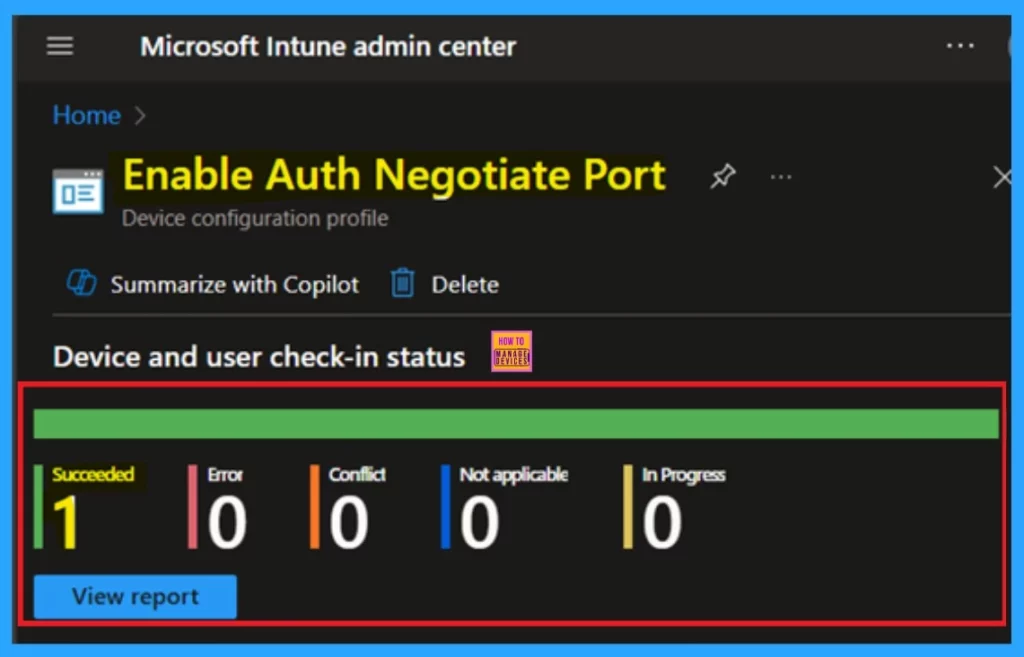
After creating the policy, the next step is to check whether it was created successfully. To do this, go to the Microsoft Intune admin center, then click on Devices and select Configuration Policies. In the list of configuration policies, search for the policy you created.
- When you click on the policy name, you’ll see a screen like below. Here, you can verify that the policy was succeeded in 1.
Client Side Verification
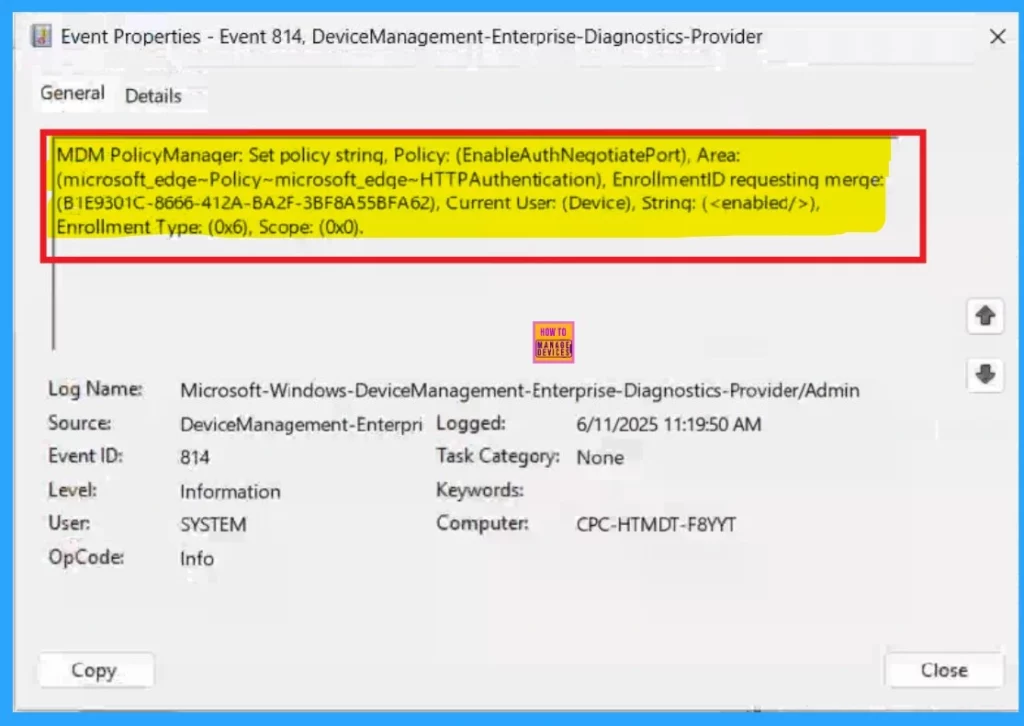
Administrators can also verify if the policy is applied correctly on a specific device by using the Windows Event Viewer. To do this, open Event Viewer and navigate to: Applications and Services Logs > Microsoft > Windows > DeviceManagement-Enterprise–Diagnostics-Provider > Admin.
- Once get it, you can filter the log by Event ID 814 or 813, which indicates that the device has successfully received and applied the policy settings.
- Here you can see that I get the details from 814 Event ID.
I hope this Guide will helpful for you!
Need Further Assistance or Have Technical Questions?
Join the LinkedIn Page and Telegram group to get the latest step-by-step guides and news updates. Join our Meetup Page to participate in User group meetings. Also, join the WhatsApp Community to get the latest news on Microsoft Technologies. We are there on Redidit as well.
Author
Anoop C Nair has been Microsoft MVP for 10 consecutive years from 2015 onwards. He is a Workplace Solution Architect with more than 22+ years of experience in Workplace technologies. He is a Blogger, Speaker, and Local User Group Community leader. His primary focus is on Device Management technologies like SCCM and Intune. He writes about technologies like Intune, SCCM, Windows, Cloud PC, Windows, Entra, Microsoft Security, Career, etc.




Discussion