






Backup and Restore SCCM Custom Collections
Have you tried the easiest option to Backup and Restore SCCM Custom Collections. Let’s understand how to take backup of SCCM Collections and restore it to a different environment.
The SCCM device export and import options are available. You can export the device details from collection to a CSV file using the copy (CTRL + C) and paste (CTRL + V) option from a device collection or the All Devices node.
Don’t worry, and we are not going to provide the details of the export of devices in this post. However, this post is more about the Backup and Restore of SCCM custom collections from staging to the production environment.
Microsoft provided the option to export the custom and default collections to a MOF file and import the MOF in other SCCM environments so that you can avoid going through the manual creation of custom collections.

The export and import of device and user collections help to avoid manual errors when recreating collections that are in the staging environment to production one. In my experience, you can create 10 collections within 2 minutes if you have the details of all those 10 collections in the MOF file.
- Create SCCM Collection for Windows 11 Upgrade Readiness Devices
- SCCM Collection Based on Installed Application Version
- Fix SCCM Limiting Collection Issue | Stop Using Collections Limited to All Systems or All Users
Export SCCM Collections using Admin Console
Let’s check how to export SCCM Collections using Admin Console. The export option is the other option to backup SCCM custom collections. You can use this method for default collections as well.
- Open Configuration Manager console.
- Navigate to \Assets and Compliance\Overview\Device Collections
- You can also Search for the collections with the name “Test.”
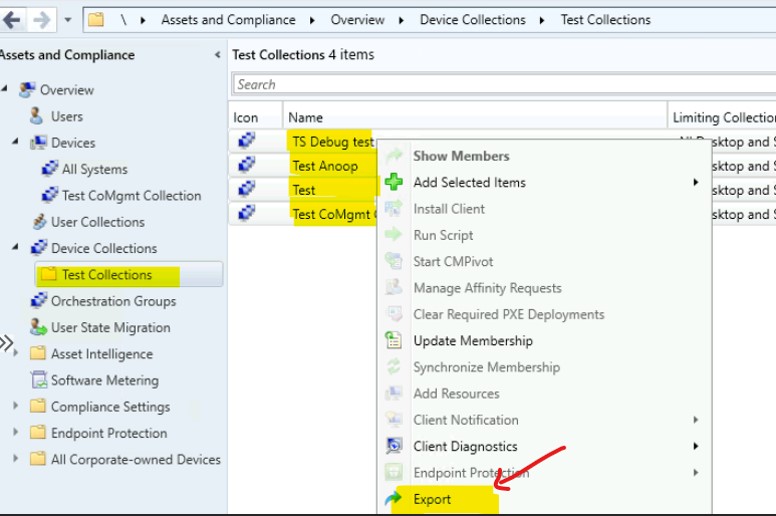
You can also export or backup custom collections from the Collection folder (e.g., Test Collections), as shown below. Using folder structure in collections would help organize staging to production migration of custom collections.
- Select all the collections that you want to export or backup.
- Right-Click on the selected collections and select the Export option as shown in the below screenshot.
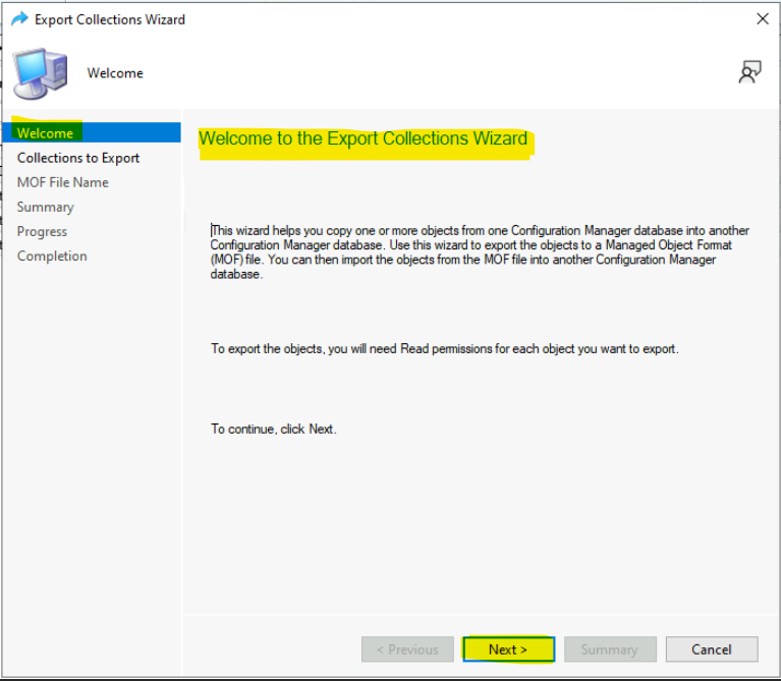
SCCM Export Collections Wizard – Backup and Restore SCCM Custom Collections Step 1
SCCM Export Collections Wizard helps admins to copy one or more collections from SCCM Database into another SCCM environment. This wizard export the objects to the MOF file. You can use the MOF file to restore the collections.
You can use SCCM Export Collections Wizard to backup SCCM custom collections. To export the collections to MOF files, you will need READ permissions for the collections you want to export/backup.
- Click on the Next button to continue.
NOTE! – You need to select the right pane in the console before pressing CRTL + A to select all the objects from the right pane.
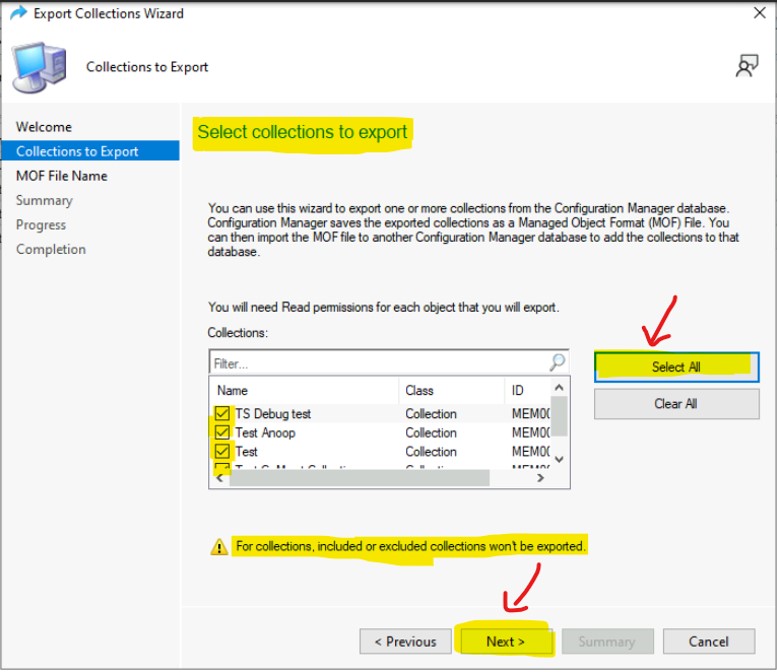
Select SCCM Collections to Export or Backup
On this page of Export Collections Wizard, you get an option to select the SCCM collections to backup or export. You have chosen more than one collection to export in the above section. You can remove some of the collections you have already selected on this page.
NOTE! – For SCCM collections, included or excluded collections won’t be exported.
- Click on the Select All button to export or backup all the SCCM collections from the list.
- Click on the Next button to continue.
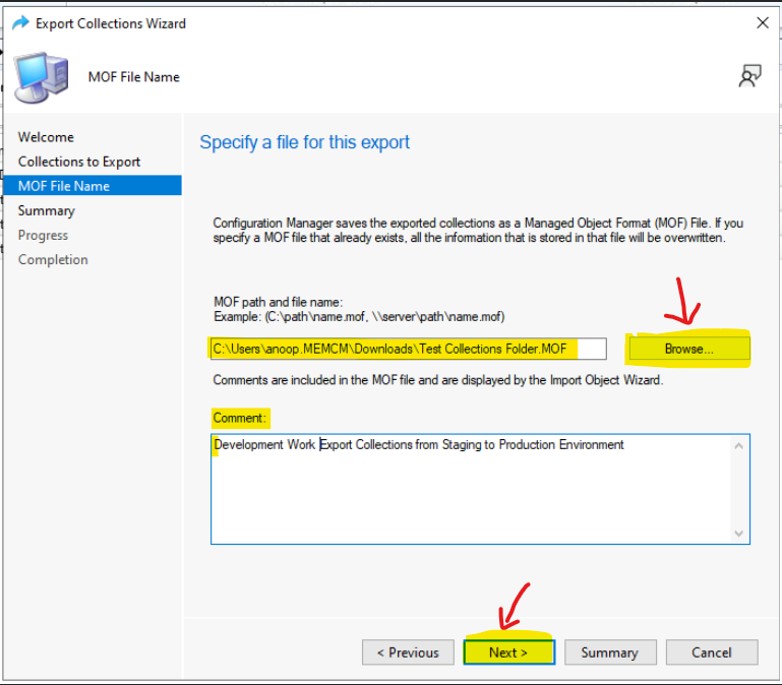
Specify the MOF File Name to Export or Backup SCCM Custom collections from the Specify a File for this export page.
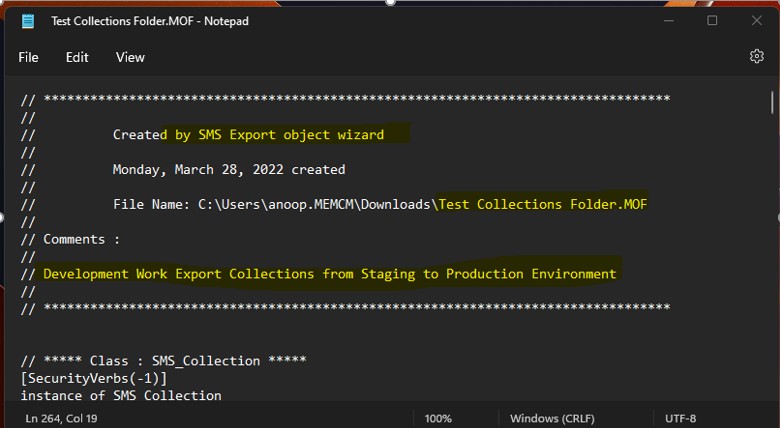
- Enter the MOF File path and File name – C:\Users\anoop.MEMCM\Downloads\Test Collections Folder.MOF.
- Comment or Description – Development Work Export Collections from Staging to Production Environment.
You can click on the Next button to continue.
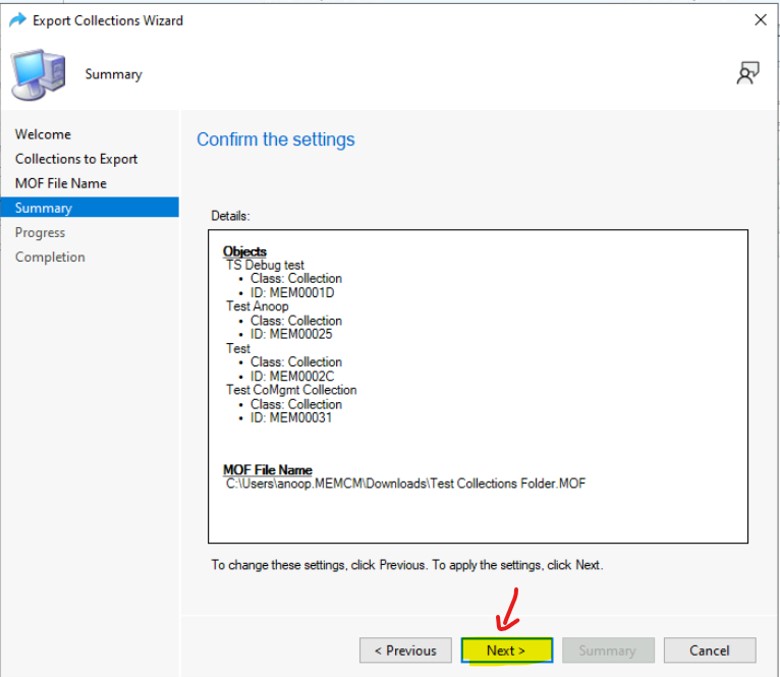
Well, you can check the Summary and verify whether this is what you want to export or back.
Objects
TS Debug test
• Class: Collection
• ID: MEM0001D
Test Anoop
• Class: Collection
• ID: MEM00025
Test
• Class: Collection
• ID: MEM0002C
Test CoMgmt Collection
• Class: Collection
• ID: MEM00031
Backup Collection MOF File Name – C:\Users\anoop.MEMCM\Downloads\Test Collections Folder.MOF. Click on the Next button to continue.
The Task “Export Collections Wizard” to export or backup SCCM custom collection is successfully completed. The MOF file for the 4 collections has been created.
- Click on the CLOSE button to complete the Backup or Export of SCCM collection to MOF File.
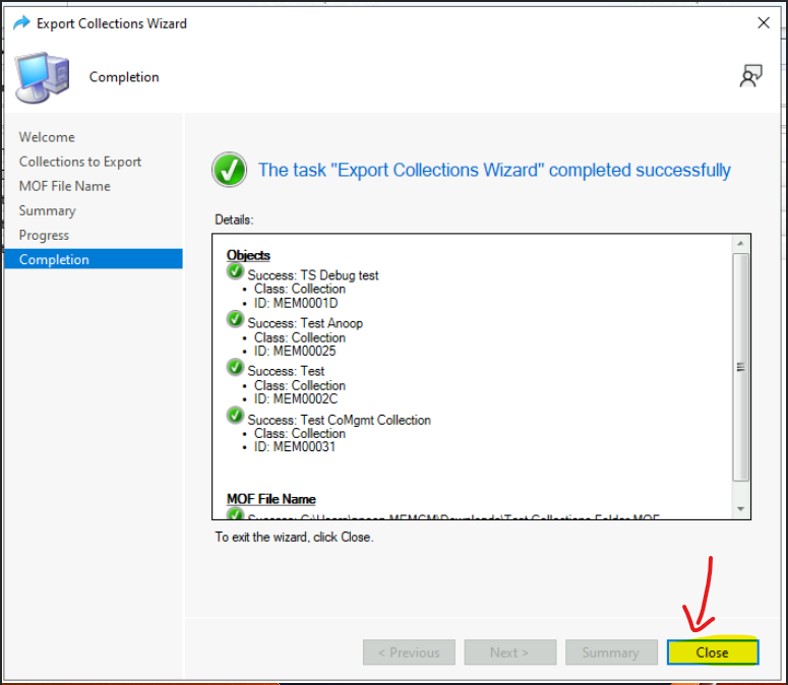
Backup SCCM Custom Collections to MOF File
Let’s quickly check the sample MOF file created as part of the export or Backup of the SCCM Custom Collections process.
// ***** Class : SMS_Collection *****
[SecurityVerbs(-1)]
instance of SMS_Collection
{
	CollectionID = "";
	CollectionRules = {
instance of SMS_CollectionRuleQuery
{
	QueryExpression = "select SMS_R_SYSTEM.ResourceID,SMS_R_SYSTEM.ResourceType,SMS_R_SYSTEM.Name,SMS_R_SYSTEM.SMSUniqueIdentifier,SMS_R_SYSTEM.ResourceDomainORWorkgroup,SMS_R_SYSTEM.Client from SMS_R_System inner join SMS_G_System_INSTALLED_SOFTWARE on SMS_G_System_INSTALLED_SOFTWARE.ResourceId = SMS_R_System.ResourceId where SMS_G_System_INSTALLED_SOFTWARE.ARPDisplayName = \"Zoom\"";
	QueryID = 1;
	RuleName = "Test";
}};
	CollectionType = 2;
	CollectionVariablesCount = 0;
	Comment = "";
	CurrentStatus = 0;
	FullEvaluationLastRefreshTime = "20220221172540.000000+***";
	FullEvaluationMemberChanges = 1;
	FullEvaluationMemberChangeTime = "20220221172540.000000+***";
	FullEvaluationNextRefreshTime = "19700101000000.000000+***";
	FullEvaluationRunTime = 1265;
	HasProvisionedMember = TRUE;
	IncludeExcludeCollectionsCount = 0;
	IncrementalEvaluationLastRefreshTime = "19700101000000.000000+***";
	IncrementalEvaluationMemberChanges = 0;
	IncrementalEvaluationMemberChangeTime = "19700101000000.000000+***";
	IncrementalEvaluationRunTime = 0;
	IsBuiltIn = FALSE;
	IsReferenceCollection = FALSE;
	ISVData = NULL;
	ISVDataSize = 0;
	ISVString = "";
	LastChangeTime = "20220221172530.000000+***";
	LastMemberChangeTime = "20220221172540.000000+***";
	LastRefreshTime = "20220221172540.000000+***";
	LimitToCollectionID = "SMSDM003";
	LimitToCollectionName = "All Desktop and Server Clients";
	LocalMemberCount = 1;
	MemberClassName = "";
	MemberCount = 1;
	MonitoringFlags = 0;
	Name = "Test";
	ObjectPath = NULL;
	OwnedByThisSite = TRUE;
	PowerConfigsCount = 0;
	RefreshSchedule = {
instance of SMS_ST_NonRecurring
{
	DayDuration = 0;
	HourDuration = 0;
	IsGMT = FALSE;
	MinuteDuration = 0;
	StartTime = "19700201000000.000000+***";
}};
	RefreshType = 1;
	ServicePartners = 0;
	ServiceWindowsCount = 0;
	UseCluster = FALSE;
};
// ***** End *****
Restore SCCM Custom Collections – Import SCCM Collections
Let’s check the options to Restore SCCM Custom Collections or Import SCCM Collections from a MOF file. You must have a backup or export of SCCM collections in a MOF file to continue with the following steps.
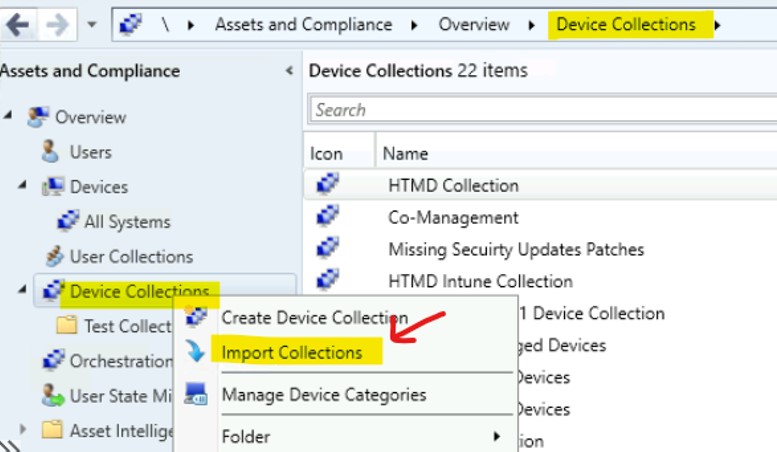
NOTE! – You don’t have Import collections options to a particular Collection Folder, as you see in the below screenshot. The Import Collections option is disabled from the folder.
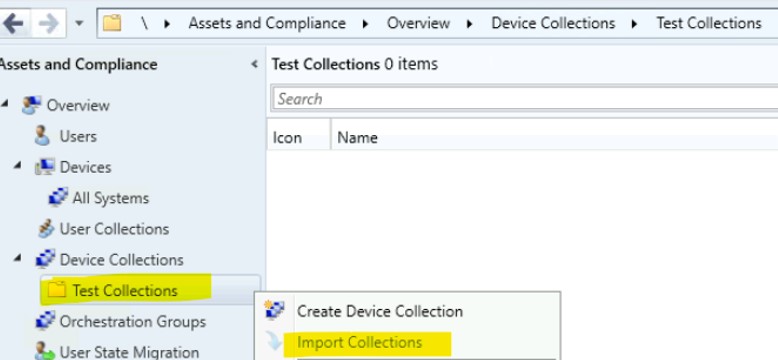
Import SCCM Collections or restore SCCM Custom Collections using the following method. Follow the steps explained below to restore SCCM custom collections from a MOF file.
- Navigate to \Assets and Compliance\Overview\Device Collections.
- Right-Click on the Device Collections node and Select Import Collections option.
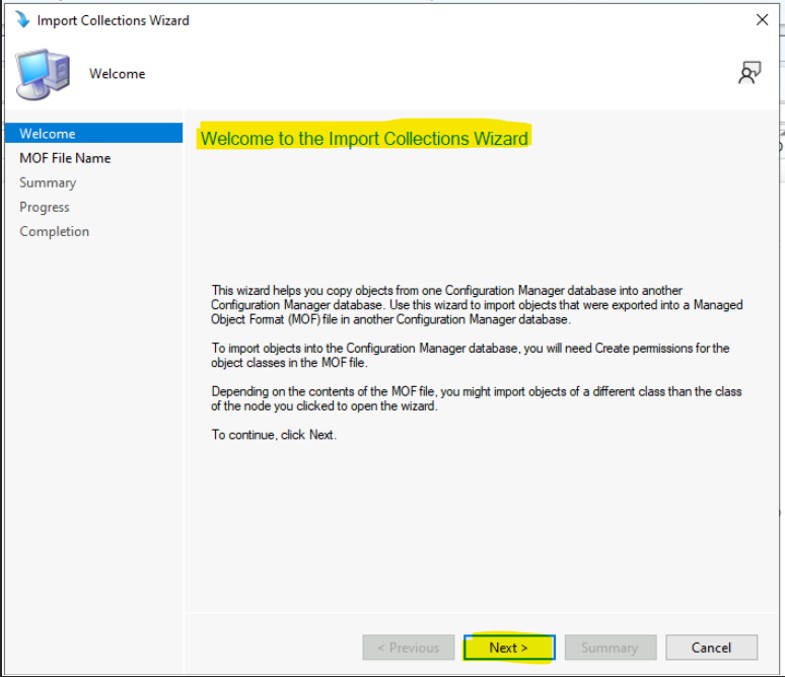
Import Collections Wizard
The import collections wizard in SCCM helps you restore the backup of the SCCM collections from a staging environment to a production environment using a MOF file.
NOTE! – To import the collections from MOF files, you will need to have CREATE permissions for the collections that you want to export/backup.
- Click on the Next button to continue.
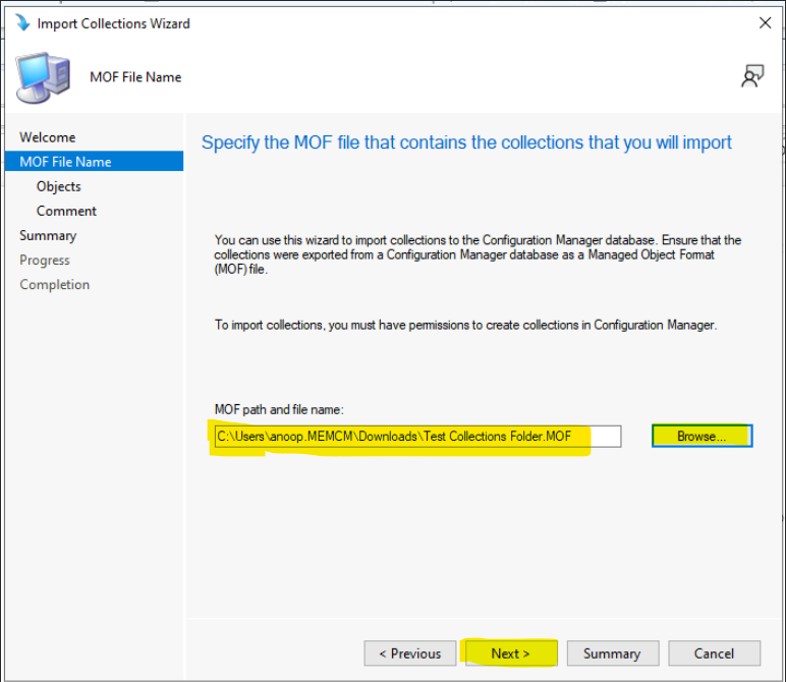
You can specify the MOF file containing the collections you want to import or restore. You can use this Wizard to import custom collections to an SCCM DB. The mandatory requirement to import collections is to export collections MOF file.
- Click on the Browse button and Select the MOF file to import Collections (restore collections).
- Enter the MOF path and File Name and Click on the Next button to continue.
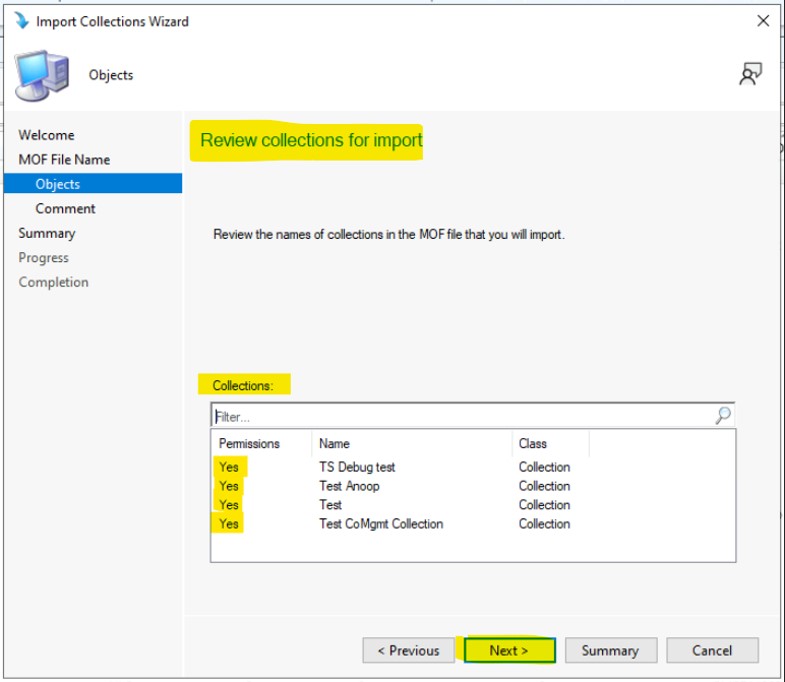
You can review the collections for Import and review the names of the collections in the MOF file that you want to restore in the production SCCM environment. This page also verifies the permission to create SCCM collections using the import collections wizard.
- Click on the NEXT button to continue.
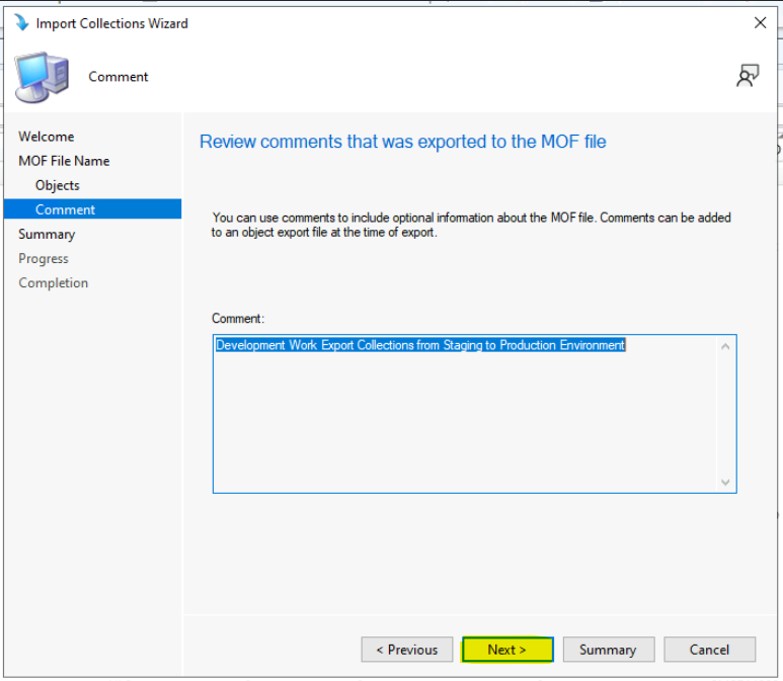
Review the comments that were exported to the MOF file. You can use comments to include optional information about the MOF file. You can add comments to an object export file at the time of export, as explained above.
- Click on the Next button to continue.
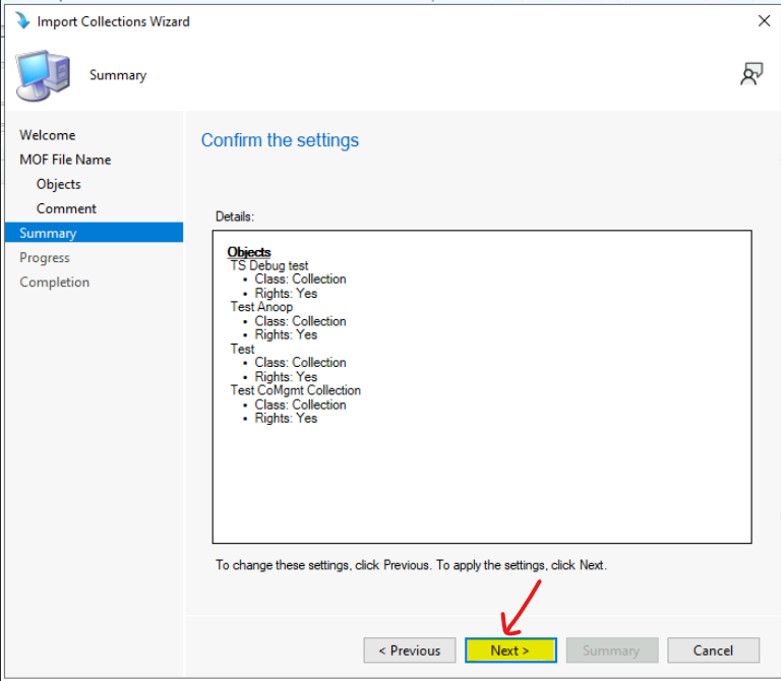
Summary of SCCM collections import wizard to restore the collections from the backup MOF file. On this page, you can verify and confirm that it’s ok to continue with the creation of the collections.
Objects
TS Debug test
• Class: Collection
• Rights: Yes
Test Anoop
• Class: Collection
• Rights: Yes
Test
• Class: Collection
• Rights: Yes
Test CoMgmt Collection
• Class: Collection
• Rights: Yes
- Click on the Next button to continue.
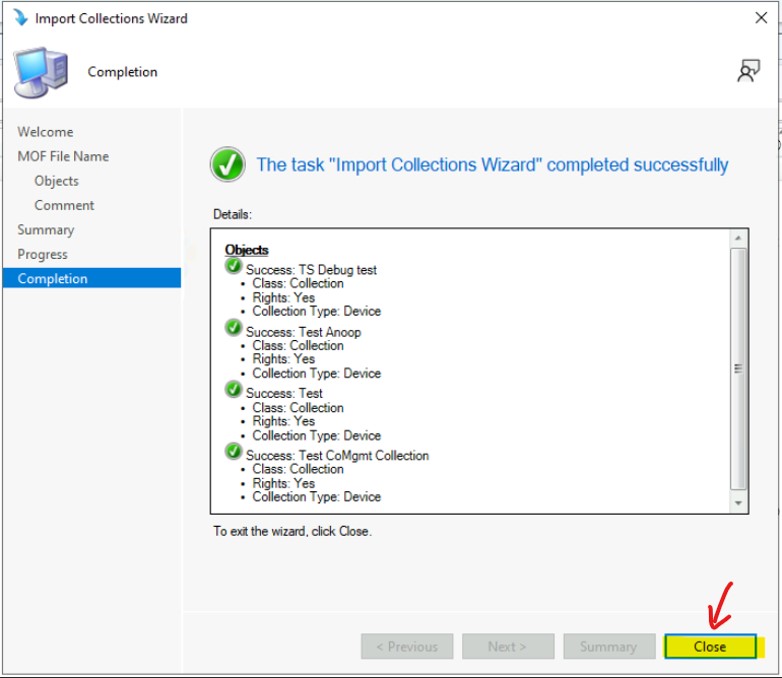
The task “Import Colections Wizard” was completed successfully, and all the collections were imported or restored successfully using Import Collections Wizard.
- Click on the Close button to find the import SCCM collection process.
PowerShell Script to Export SCCM Collections
Let’s find out PowerShell Script to Export SCCM Collections. There is a simple PowerShell command to export individual collections to the MOF file. You need to launch the PowerShell and connect to the SCCM site to run the SCCM command-lets.
- Launch Connect via Windows PowerShell ISE from SCCM console with administrator permissions.
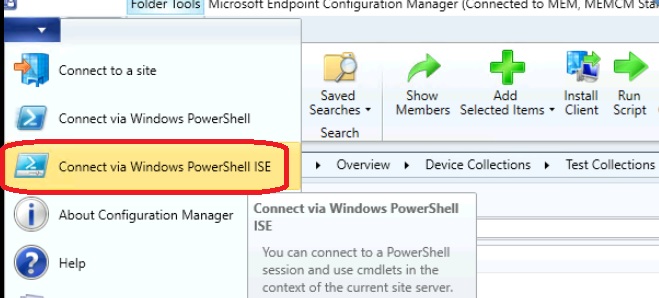
Execute the following command to export one collection called Test CoMgmt Collection from SCCM to MOF file using the PowerShell command.
Export-CMCollection -Name "Test CoMgmt Collection" -ExportFilePath "C:\Test CoMgmt collection.mof"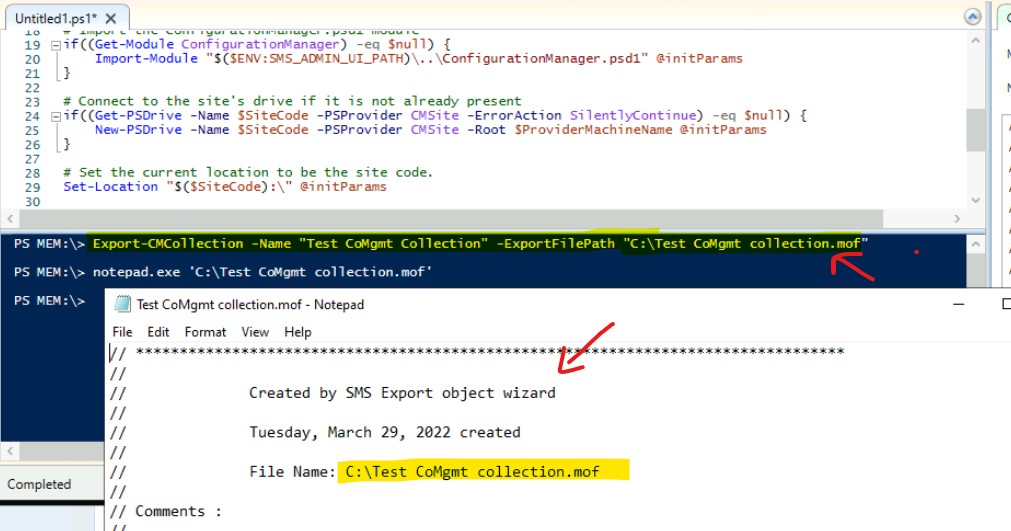
Results – Backup and Restore SCCM Custom Collections
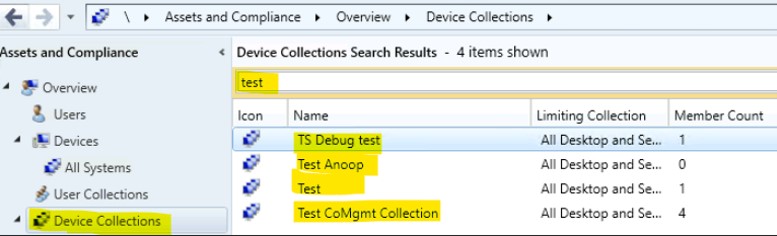
You have learned how to create a backup of the SCCM custom collections and how to restore the custom collections to the production environment. You can confirm that the following collections got created in the production environment.




Hi, I followed this and was able to export and import the collections. However, once I import them, they are retaining the information. When I set the limiting collections and query types. click apply or ok, then I reopen to check the properties, it discarded all I did but only kept the information it was exported/imported with. The good thing is I get to copy the query information and create new collections. To give some context, these exports/imports are not on the same site/consoles, the instances are in separate/different domains.