






SCCM Application User Experience Options | Deployment Type
This post explains how you can improve SCCM Application User Experience Options. The Deployment type User Experience options allow you to specify how the client installs the application on devices and what the user sees.
In SCCM Application Deployment Types, A Configuration Manager application defines the metadata about the application. An application has one or more deployment types. These deployment types include the installation files and information required to install software on devices.
An application needs at least one deployment type, as it determines how to install the app. Use more than one deployment type to configure different content and installation program for the same application. The SCCM Application Supported Deployment Types post covers all the supported deployment types.
The user experience settings help you define the installation behavior of an SCCM app. The other user experience options are covered in SCCM Install Behavior For Applications post.

SCCM provides many options for Application Deployment to provide a better user experience. You can also use Software Center Icon for SCCM Application Deployment.
- Best Place to Find Package IDs for SCCM Application
- Install Multiple Applications using ConfigMgr Task Sequence SCCM
- SCCM Application Deployment Based on System Description | ConfigMgr
SCCM Application User Experience Options | Deployment Type
Let’s follow the below steps to modify SCCM Application user experience options for deployment types –
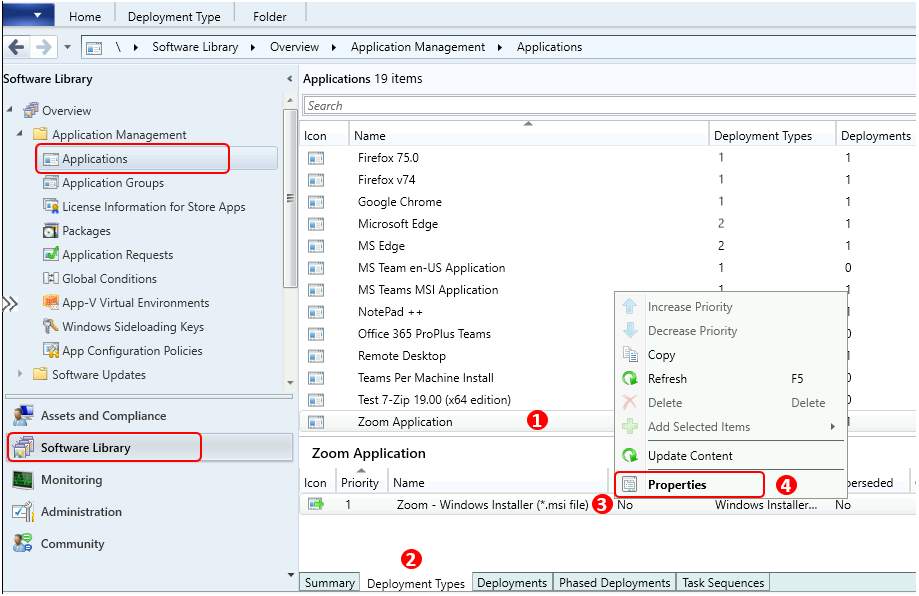
In the SCCM Console, Navigate to the Software Library workspace in the Configuration Manager console, expand Application Management, and select the Applications node.
Select an existing application in the Applications node and select the Deployment Types tab. Right-click on the existing deployment type and select Properties.
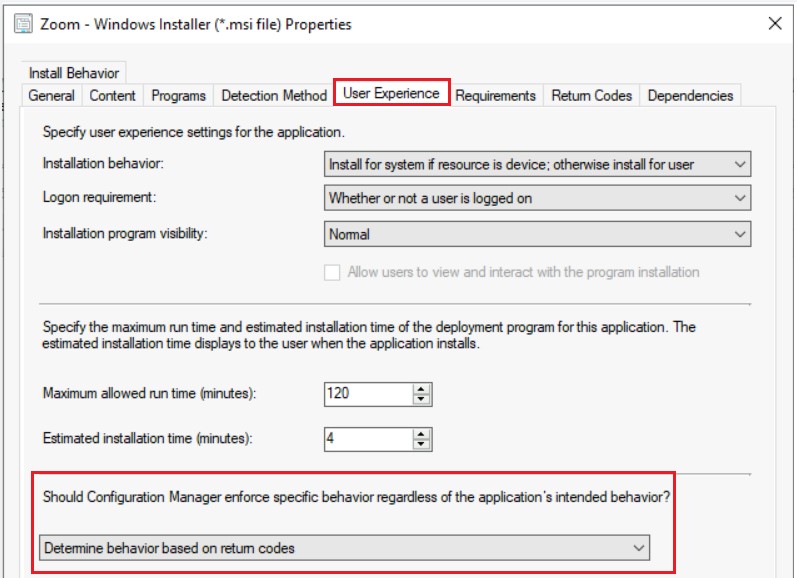
Switch to the User Experience tab, In the properties of a deployment type. Here you can specify the various information to improve the end-user experience:
- Installation behaviour: Per User Vs, Per Device SCCM App Deployment Options, Here you can check more details and behaviour Per User Vs Per Device SCCM App Deployment Options | User Experience Settings
- Maximum allowed run time (minutes): By default, the Maximum allowed run time (minutes) is set to 120 minutes for every application you create in SCCM. Here’s how you can modify SCCM Application Maximum Run Time.
- Estimated installation time (minutes): Specify the estimated installation time of the deployment type. Users see this time in Software Center.
- Enforce specific post-installation behavior: By deafult selected to Determine behavior based on return codes.
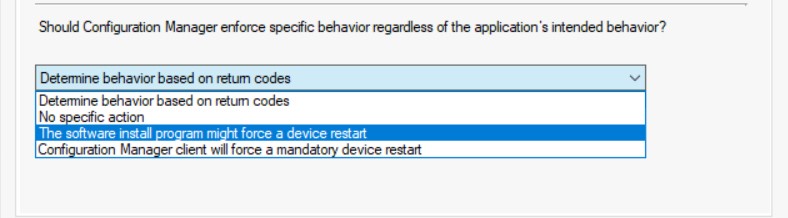
Enforce specific post-installation behavior. Select one of the following options that appear on the User Experience tab –
- Determine behavior based on return codes: Handle reboots based on the codes configured on the Return Codes tab.
- Software Center displays Might Require a Reboot. If a user is signed in during the install, they’re prompted depending on the deployment’s User Experience configuration.
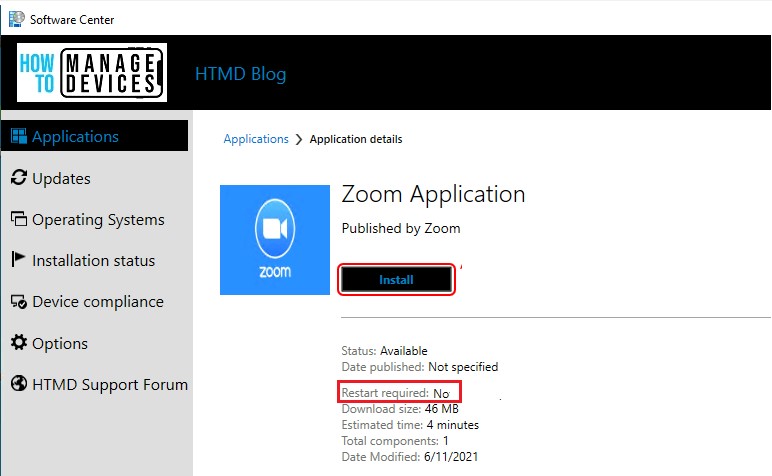
- No specific action: No reboot required after installation. Software Center reports that no reboot is required.
- The software install program might force a device restart: Configuration Manager doesn’t control or initiate a reboot, but the actual installation might do so without warning.
- Use this setting to prevent Configuration Manager from reporting installation failure when the installer initiates a reboot. Software Center displays Might Require a Reboot.
- Configuration Manager client will force a mandatory device restart: Configuration Manager forces a device reboot after successful installation.
- Software Center reports that a reboot is required. If a user is signed in during the install, they’re prompted depending on the deployment’s User Experience configuration.
End Users Experience- SCCM Application Restart Behaviour
Let’s check the end-user experience of SCCM Software Center Applications.
- Launch Software Center on Windows Device that you manage.
- Select the Applications tab to find and install applications that you deploy to this device.
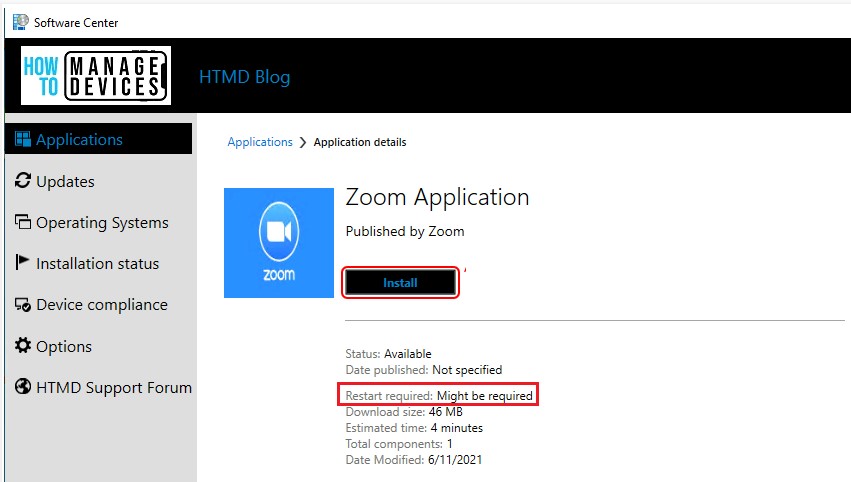
- Here you see the Zoom application configured above. Click on the Zoom Application.
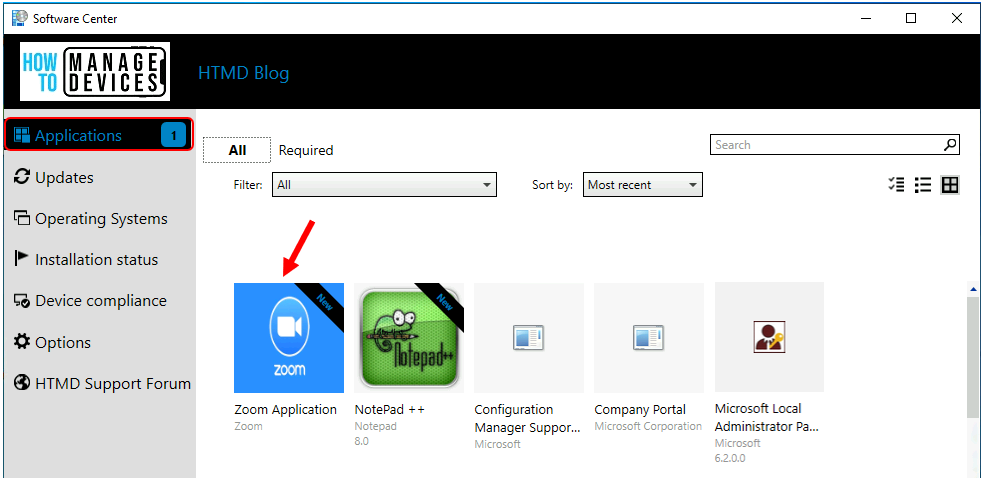
The application deployment type configured with either Determine behavior based on return codes or The software install program might force a device restart.
The Restart required information for the application displays Might Require a Reboot when the end-user opens the installation from Software Center.
Deployment type with No specific action. The Restart required information for the application displays no reboot is required when the end-user opens the installation from Software Center.
Similarly, when you set up the option Configuration Manager client will force a mandatory device restart, Software Center reports that a reboot is required.




Discussion