






How to Block Allow Toasts Notifications in Windows using Intune Settings Catalog
Let’s discuss how to Block Allow Toasts Notifications in Windows using Intune Settings Catalog. This setting determines if toast notifications can appear on the screen when the device is locked. Setting it to “0” means notifications will not show above the lock screen, providing the highest level of restriction.
Toast notifications in Windows are small messages that appear in the corner of your screen, usually at the bottom-right. They give quick updates, alerts, or reminders from apps, system events, or settings configured by an administrator.
The Intune Settings Catalog is a tool in Microsoft Intune that offers a detailed list of settings for configuring and managing devices like Windows, macOS, and others. It allows administrators to customize device behavior and enforce policies to meet organizational requirements.
In this post you will get all the details of the how to Block Allow Toasts Notifications in Windows using Intune Settings Catalog.

Table of Contents
Windows CSP AllowToasts
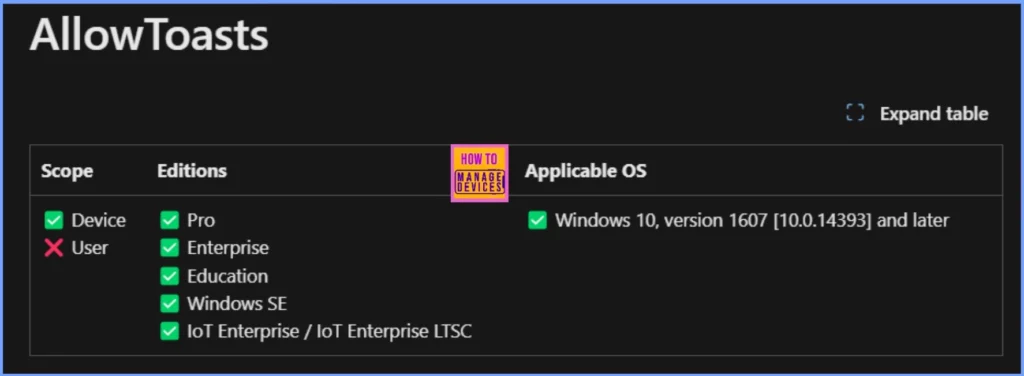
In Windows, CSP policies let you configure various settings on Windows 10 and later devices using MDM tools like Intune. These settings are applied through OMA-URI configurations. The AllowToasts setting controls whether toast notifications are allowed above the device lock screen.
It applies to devices running Windows 10 version 1607 or later, including Pro, Enterprise, Education, Windows SE, and IoT Enterprise editions. The default value is 1, meaning notifications are allowed, while setting it to 0 blocks them.
This setting can be managed through Intune by using the OMA-URI: ./Device/Vendor/MSFT/Policy/Config/AboveLock/AllowToasts, with options to add, delete, get, or replace the configuration.
- Allow Cortana Above Lock Screen Policy using Intune
- Help Experience Improvement Program Policy using Intune
- Turn Off the Picture Password Sign-In Policy using Intune
How to Block Allow Toasts Notifications in Windows
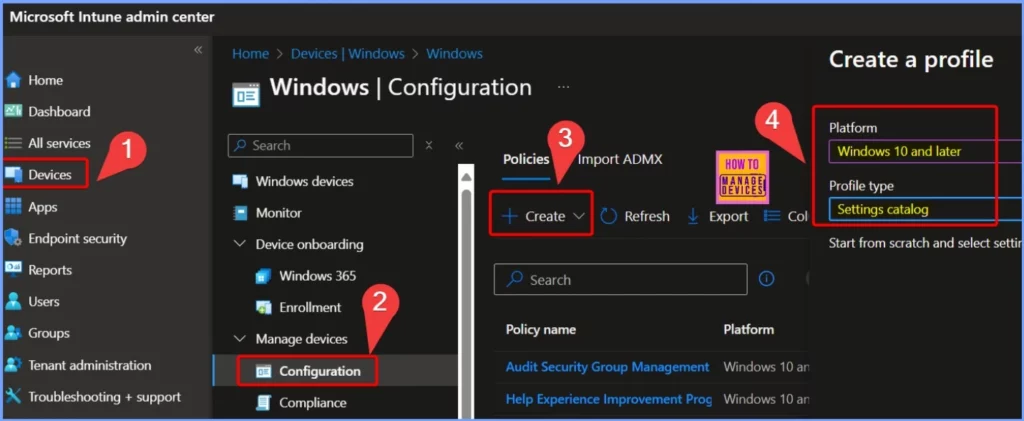
You can easily block or allow toast notifications in Windows using the Intune Settings Catalog, follow these steps. Log in to the Microsoft Intune admin center. Go to Devices > Configuration Profiles.
- Select the +Create button and choose New Policy
- Platform: Select Windows 10 and later.
- Profile type: Choose Settings Catalog.
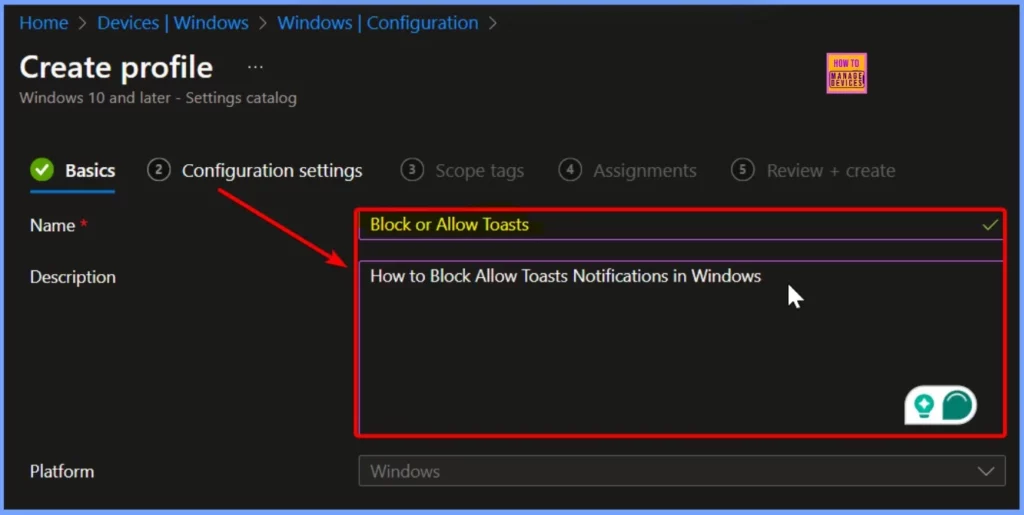
Block or Allow Toasts
In the Basic settings, you can enter the required information, such as the name and description. After that, click Next to move on.
Above Lock
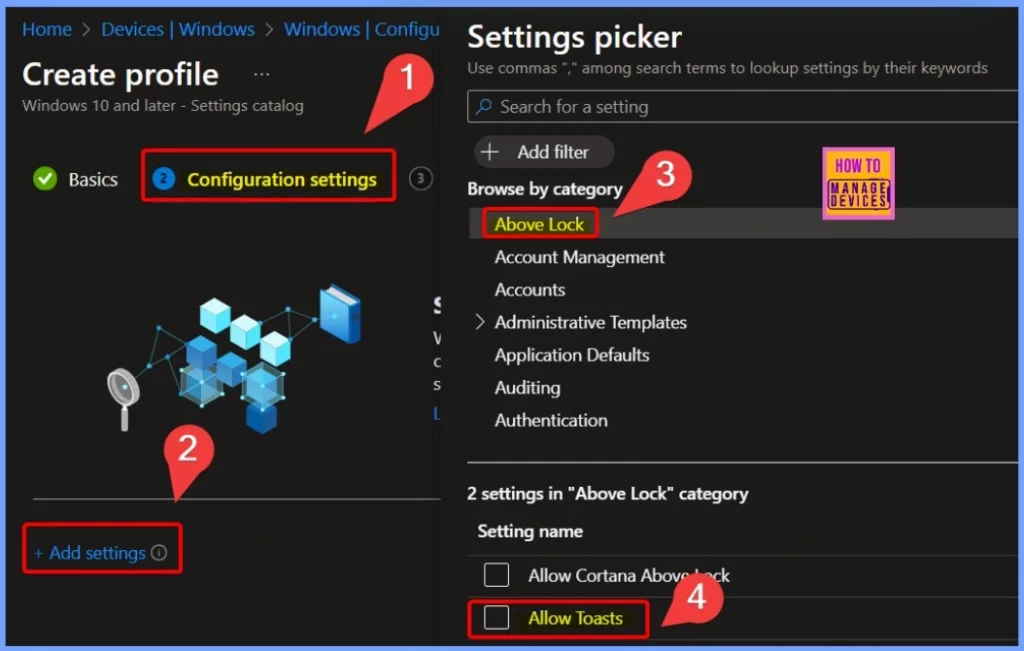
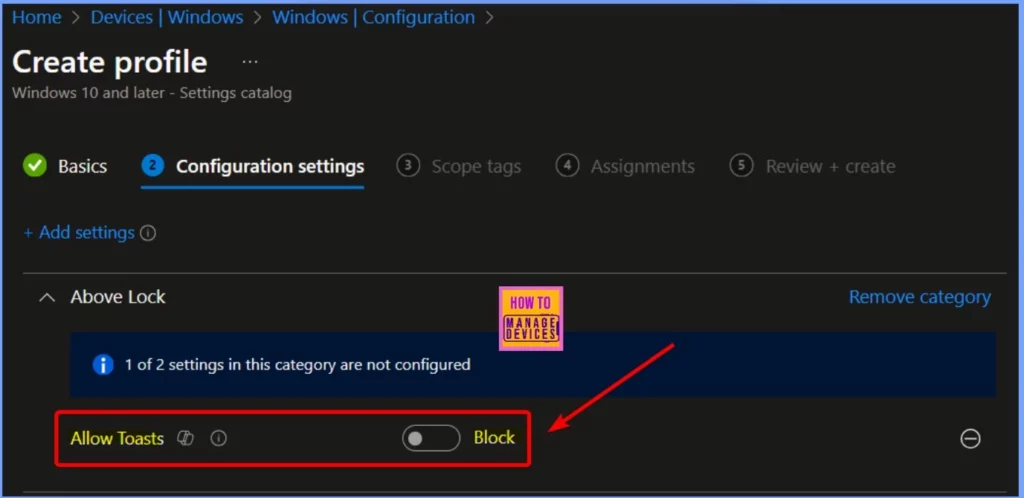
In the Configuration settings, click the +Add settings link. Then, search for “Above Lock” in the Settings picker and select Allow Toasts. Finally, check the box next to Allow Toasts to enable it.
Allow Toasts
Specifies whether to allow toast notifications above the device lock screen. Most restrictive value is “Block“. You can easily Block the Allow Toasts by toggle the pane to the Left side. The below screenshot shows more details.
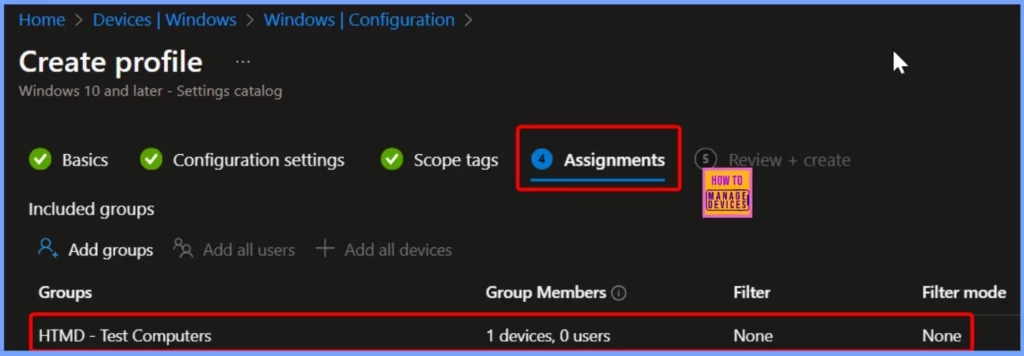
Assignments Settings in Intune
In Intune, the Assignments settings let you choose which devices or users will get a specific policy, app, or configuration profile. This ensures the right settings are applied to the correct groups in your organization.
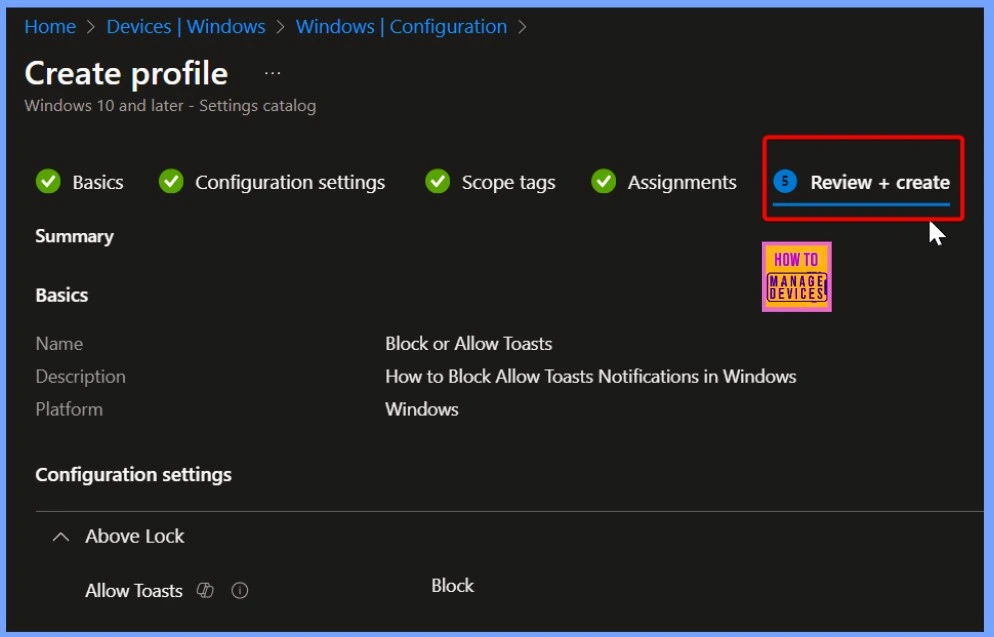
Final Step
In Intune, the Review + Create step is the last part of setting up a policy, app, or profile. It lets you check all the settings to make sure everything is correct before applying them.
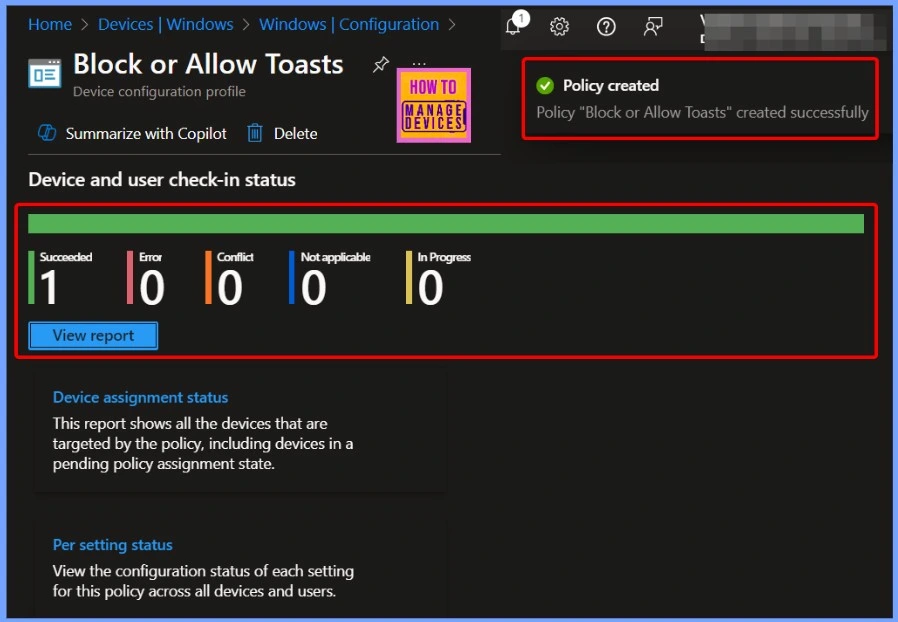
Device and User Check in Status
In the monitoring window, you can see that the policy was successfully deployed to one device, as the succeeded number shows “1.” There’s also a notification confirming that the “Block or Allow Toasts” policy was created successfully.
End User Experience
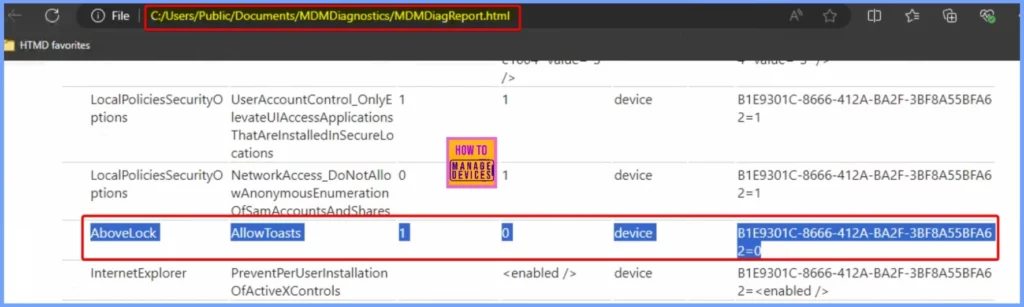
The MDMDiagReport.html is a report generated on Windows devices enrolled in mobile device management (MDM) solutions. This report provides detailed information about the enrolled device’s MDM configuration, policies, and status.
It shows all MDM policies applied to the device, including their status and details. Also shows the Shows OMA-URI settings, configuration profiles, and compliance policies deployed.
| Settings | Policy | Allow Value | Block Value | Scope | Device ID |
|---|---|---|---|---|---|
| AboveLock | AllowToasts | 1 | 0 | Device | B1E9301C-8666-412A-BA2F-3BF8A55BFA6 2=0 |
C:/Users/Public/Documents/MDMDiagnostics/MDMDiagReport.html
Need Further Assistance or Have Technical Questions?
Join the LinkedIn Page and Telegram group to get the latest step-by-step guides and news updates. Join our Meetup Page to participate in User group meetings. Also, Join the WhatsApp Community to get the latest news on Microsoft Technologies. We are there on Reddit as well.
Author
Anoop C Nair has been Microsoft MVP from 2015 onwards for 10 consecutive years! He is a Workplace Solution Architect with more than 22+ years of experience in Workplace technologies. He is also a Blogger, Speaker, and Local User Group Community leader. His primary focus is on Device Management technologies like SCCM and Intune. He writes about technologies like Intune, SCCM, Windows, Cloud PC, Windows, Entra, Microsoft Security, Career, etc.


Discussion