






Block Android Device Manufacturer Enrollment in Intune
In this post, you will learn about the process to Block Android Device Manufacturer Enrollment in Intune. Device platform restrictions let you restrict enrollment based on device models.
There are two types of device enrollment restrictions you can configure in Microsoft Intune, Device platform restrictions define which platforms, versions, and management types can enroll and Device limit restrictions define how many devices each user can enroll.
Each restriction type comes with one default policy that you can edit and customize as needed. Intune applies the default to all user and userless enrollments until you assign a higher-priority policy.
If you are interested to know how the management has evolved and the different management modes that are on Android Enterprise, Joy will be talking about Android Management in general with Intune Android Management With Intune | Android Enterprise.

Let’s learn how to create enrollment notifications in Intune MEM Admin portal. Set up enrollment notifications in Microsoft Intune to notify users of newly enrolled devices, Configure Device Enrollment Notifications In Intune.
- Block Personal Windows Devices Enrollment Enrollment restrictions Options
- How To Add Android Managed Google Play App In Intune
Block Android Device Manufacturer Enrollment in Intune
This restriction blocks device made by specific manufacturers and is applicable to Android devices only. It is in the admin center under Enrollment device platform restrictions.
- Sign in to the Microsoft Intune admin center https://endpoint.microsoft.com.
- Select Devices, and under Device enrollment click on Enroll Devices to configure the restrictions in the Intune admin center.
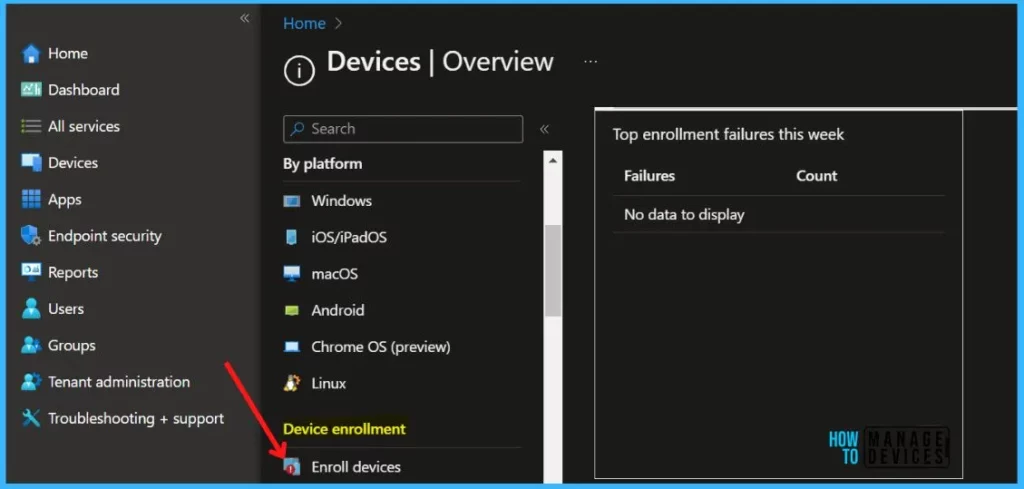
There are two options to create Intune Device-type policies. You can update the default policy, which is deployed to All Users. This policy would be a tenant-wide setting for all users. Or you can create a custom device type policy and deploy it to a set of groups.
In the Enrollment device platform restrictions, Under Android restrictions, select the device type restrictions -> Default -> or choose the Custom restriction that you want to set.
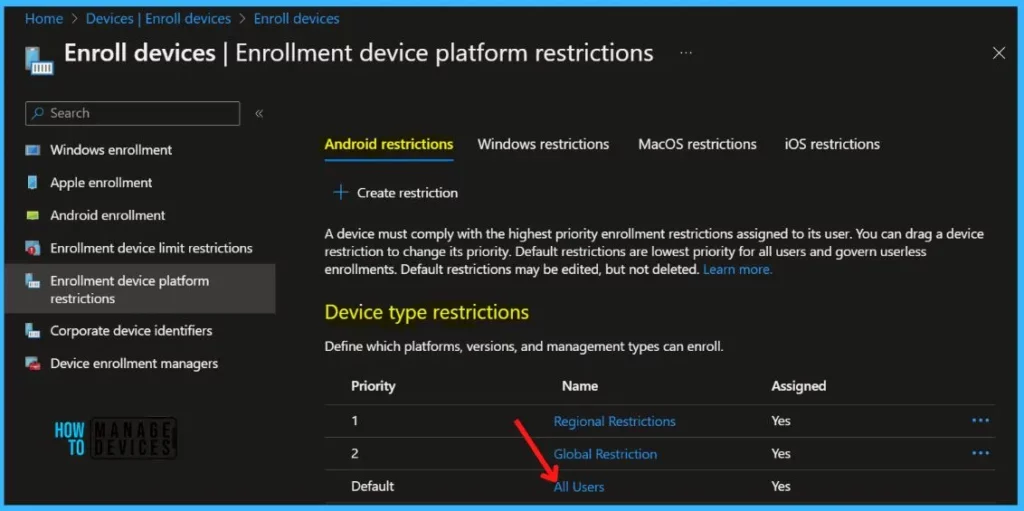
Select Properties. Scroll down and click on Edit in the Platform settings.
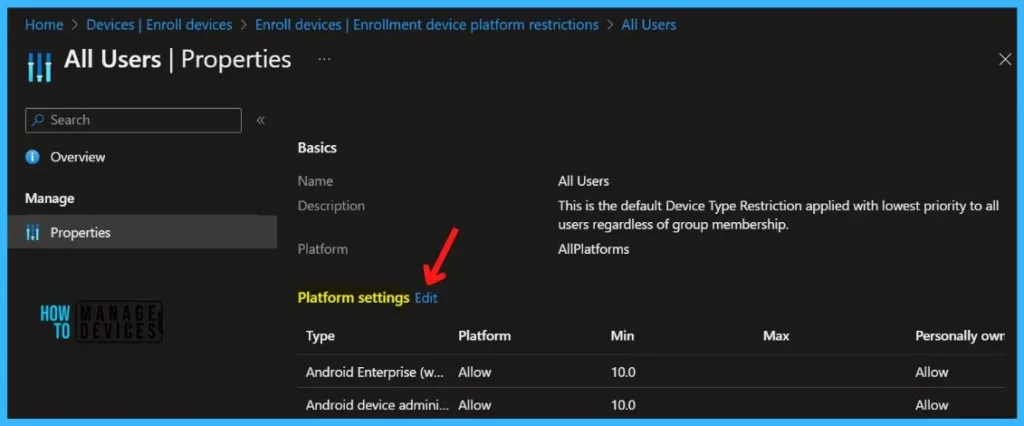
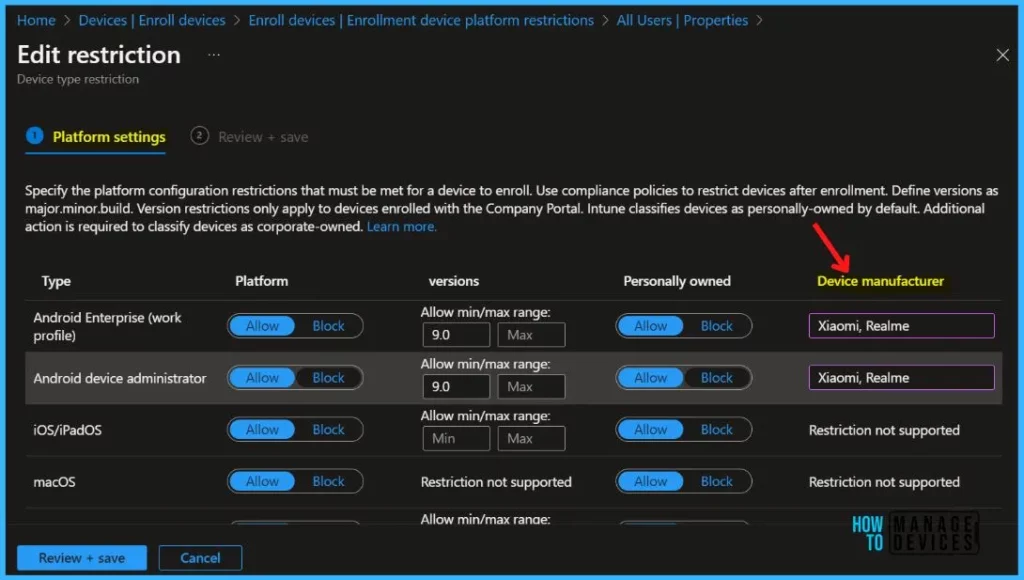
Device platform restrictions define which platforms, versions, and management types can enroll. Here, you can restrict device platforms, OS versions, manufacturer, and personally owned devices.
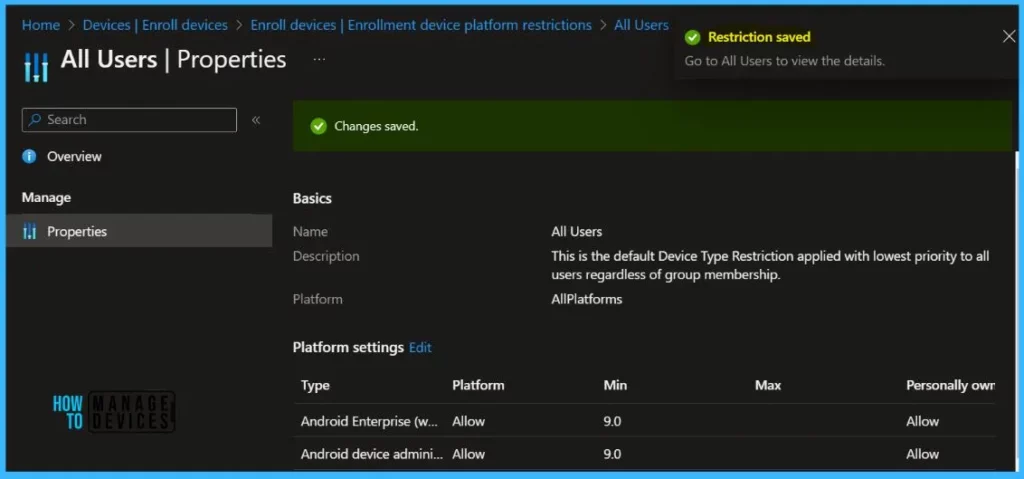
The Minimum OS version is already configured here, Let’s block android devices by providing specific manufacturers, For Example I want to block Xiamoi and Realme manufacturer to not enroll in Intune. Added Xiaomi, Realme together separated by commas and space in between, and click on Review + Save.
A notification will appear automatically in the top right-hand corner with a message. Here you can see, Restriction saved successfully. Here you can also see the configured settings.
End User Experience
On an Android device, As soon as you install Intune Company Portal app on the device model (Xiaomi or Realme) based on our inputs above. In the enrollment process, you may receive the below message in case the device model is not supported to use by your organization.
Intune Company Portal helps and allows you, as an employee or student in your organization, to securely access those resources and install, uninstall apps, and view, edit, add and remove your enrolled devices.
Read more, Intune Company Portal App for Windows 11 Android | Install and Uninstall
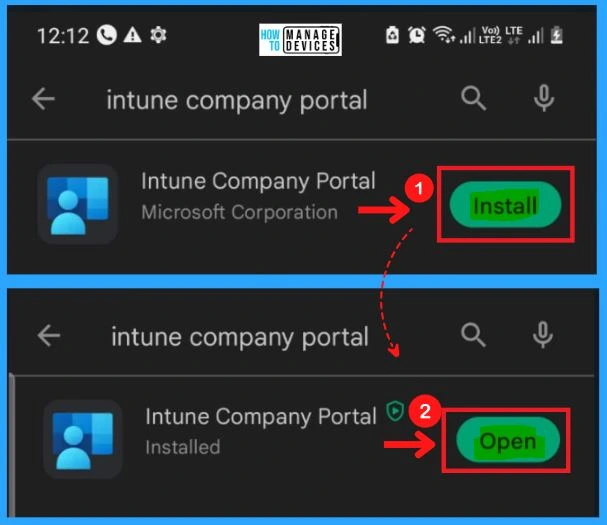
After clicking the Open, you should sign in to your Company portal. The Company portal helps you access company resources and keep them secure.
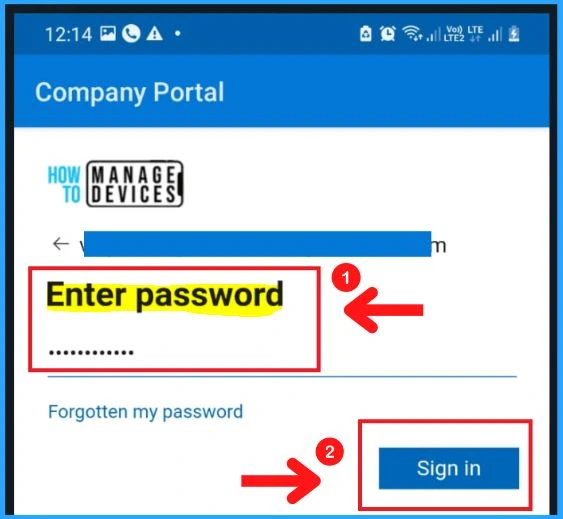
Select Sign IN from the Company portal Window. Enter your Email address and password to Sign in to the Company Portal app on your Mobile.
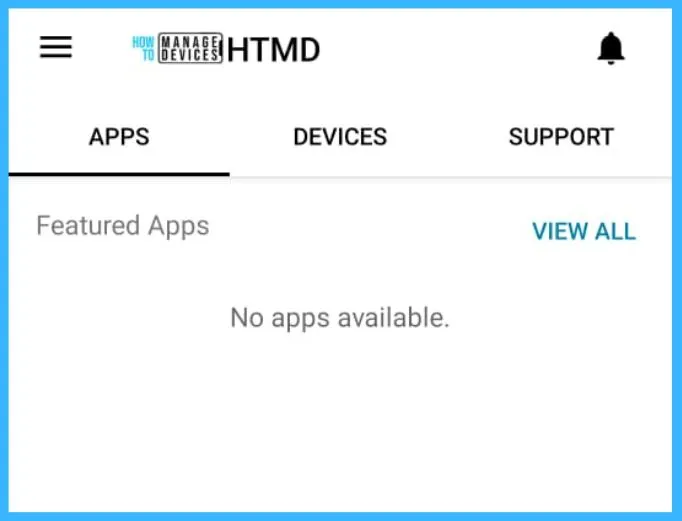
After entering your work account, you may directly land on the Company Portal App without asking to set up your device to access it. You will no longer be able to manage or access company resources. Let us know your experience with the enrollment, Am I missing some prompt here?


Hi
Great article, do you know if it is possible to use an allow list? Like I would only allow Samsung Android Phones?
StaffYou can block all the common device manufacturers except Samsung! I don’t think, any specific settings for allowing specific models are present for now.