






Block Executable Files with Prevalence Age or Trusted List Criteria using Intune ASR Rules
Let’s discuss how to block Executable Files with Prevalence Age or Trusted List Criteria using Intune ASR Rules. This Attack Surface Reduction (ASR) rule helps you to stop potentially unsafe programs from launching on managed devices.
It specifically targets common executable file types such as .exe, .dll, and .scr, which are often used by attackers to run malicious payloads. Instead of blocking all executables, the rule uses intelligent criteria such as file prevalence, file age, and trusted sources to determine whether a file is likely to be safe or risky.
Prevalence means how widely a file is used across many devices. If a file, such as an .exe or .dll, is commonly seen and trusted by millions of users, Microsoft treats it as safe. However, if the file is uncommon or rarely seen, it may be treated as suspicious and blocked.
Age works in a similar way. Files that have existed for a long time without causing issues are considered trustworthy, while newly created or recently downloaded files are treated with caution, as they could be freshly developed malware.

Table of Contents
Block Executable Files with Prevalence Age or Trusted List Criteria using Intune ASR Rules
Organizations sometimes use their own custom applications that are not widely known outside their company. Since these apps may not appear as popular in Microsoft’s intelligence. The ASR rule might mistakenly block them. To avoid this blocking, IT admins can create a trusted list. This means they tell Intune that these specific apps or file paths are safe don’t block them.
- Sign in to the Microsoft Intune Admin Portal with your credentials.
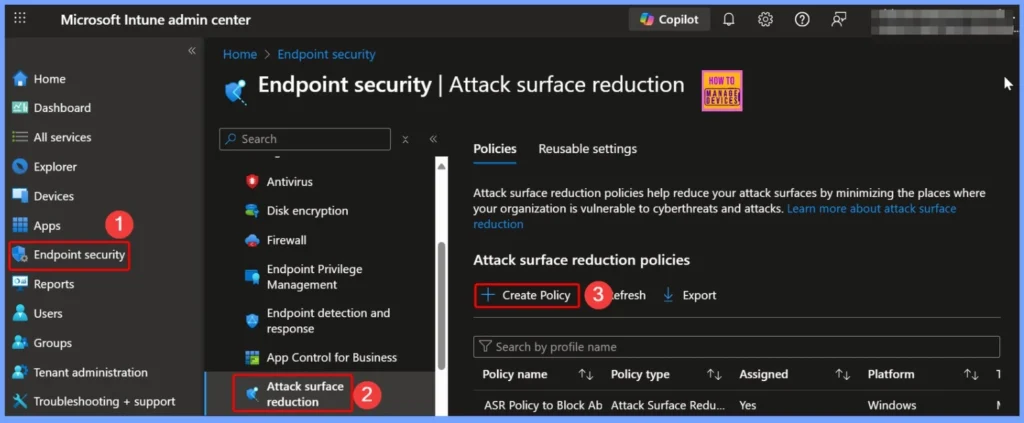
- Select Endpoint security> Attack surface reduction> Create Policy
- Block Attempts To Restart Devices In Safe Mode Using Intune ASR Rule
- Block Executables Impersonating Or Copying System Tools And Binaries Using Intune ASR Rules
- Configure Attack Surface Reduction ASR Rules in Intune
- What is Microsoft Defender XDR?
- Microsoft Defender ASR Rules to Block Rebooting Machine in Safe Mode
- MDE Microsoft Defender for Endpoint Telemetry Issues
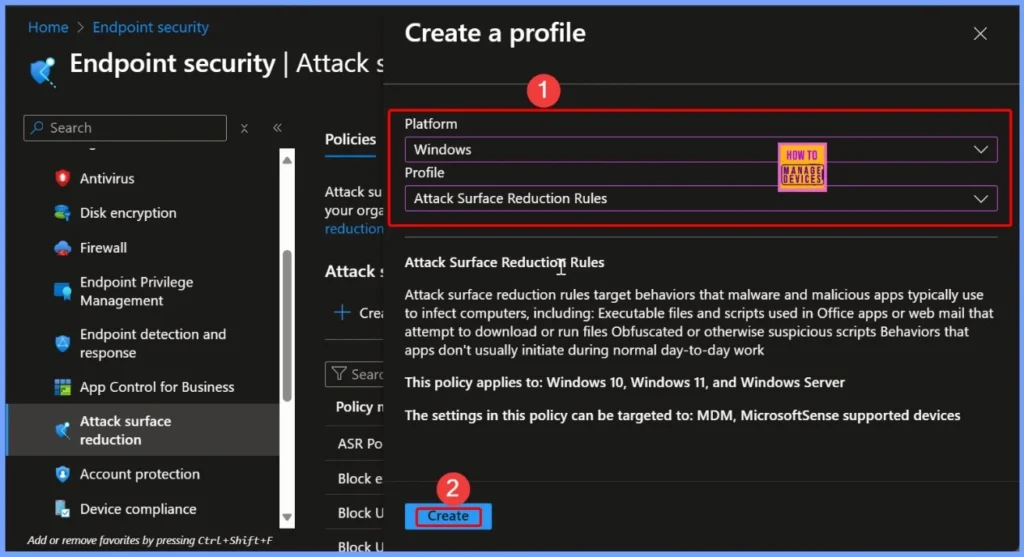
How to Create Attack Surface Reduction
Some malicious files try to hide inside Office documents or emails and then attempt to download or run harmful programs in the background the ASR rules helps you to blocks that behavior. It also stops confusing or hidden scripts that attackers often use to bypass security.
| Platform | Profile |
|---|---|
| Windows | Attack Surface Reduction Rules |
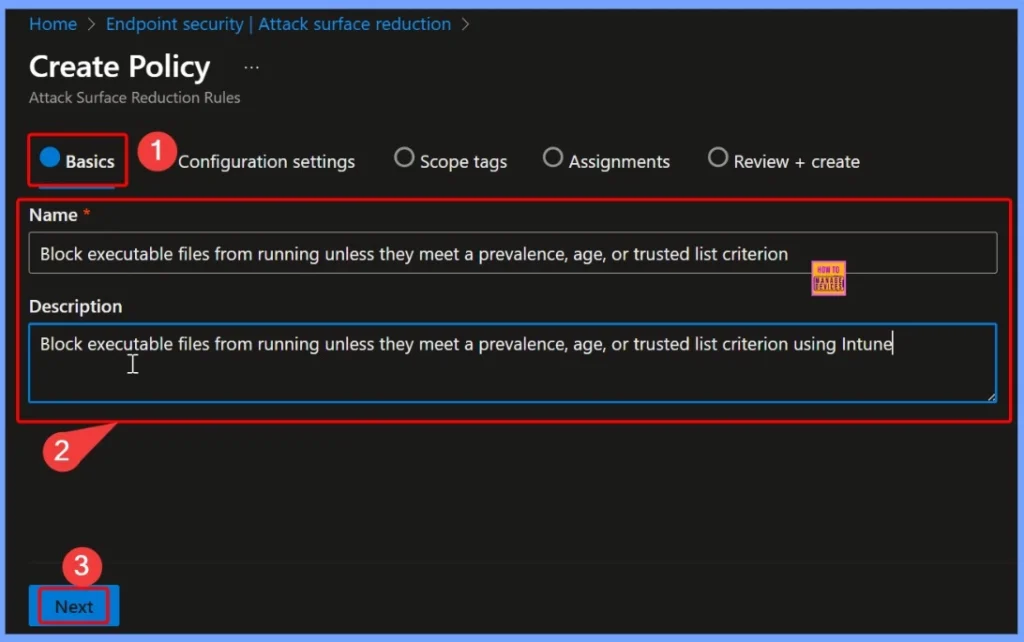
Enter Policy Details in the Basics Tab
Additionally, if a program suddenly starts doing something unusual that normal applications don’t typically do during everyday work, ASR treats it as suspicious and blocks it. In short, instead of waiting for malware to fully install, ASR rules stop dangerous behavior before it causes harm.
In the Basics tab, you need to provide the essential details for your policy. In the Name field, enter Block executable files from running unless they meet a prevalence, age, or trusted list criterion. In the Description field, write Block executable files from running unless they meet a prevalence, age, or trusted list criterion using Intune. These details help clearly identify the purpose of the policy when managing it later.
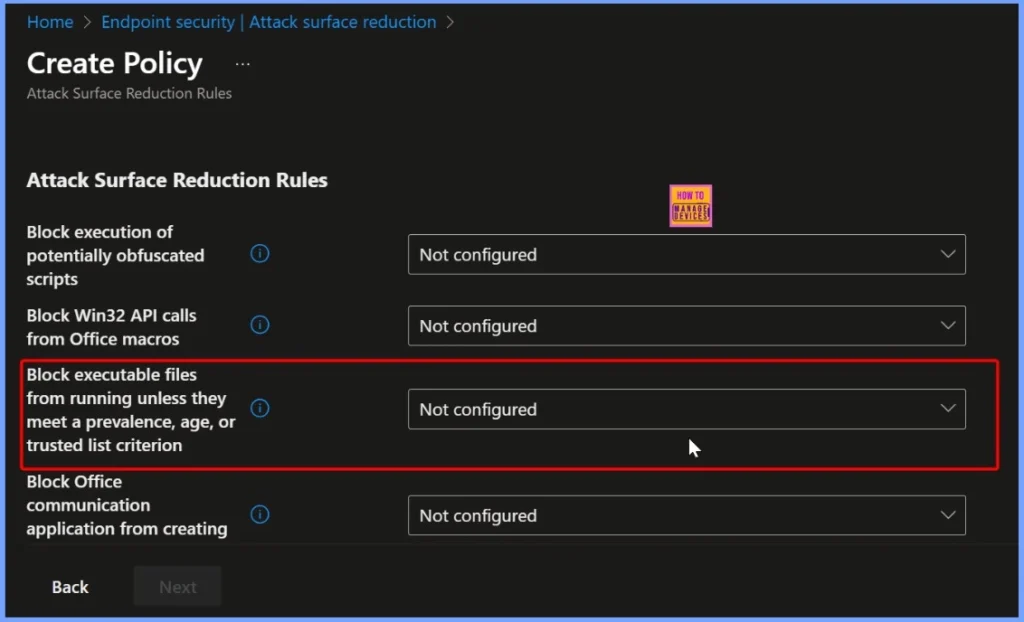
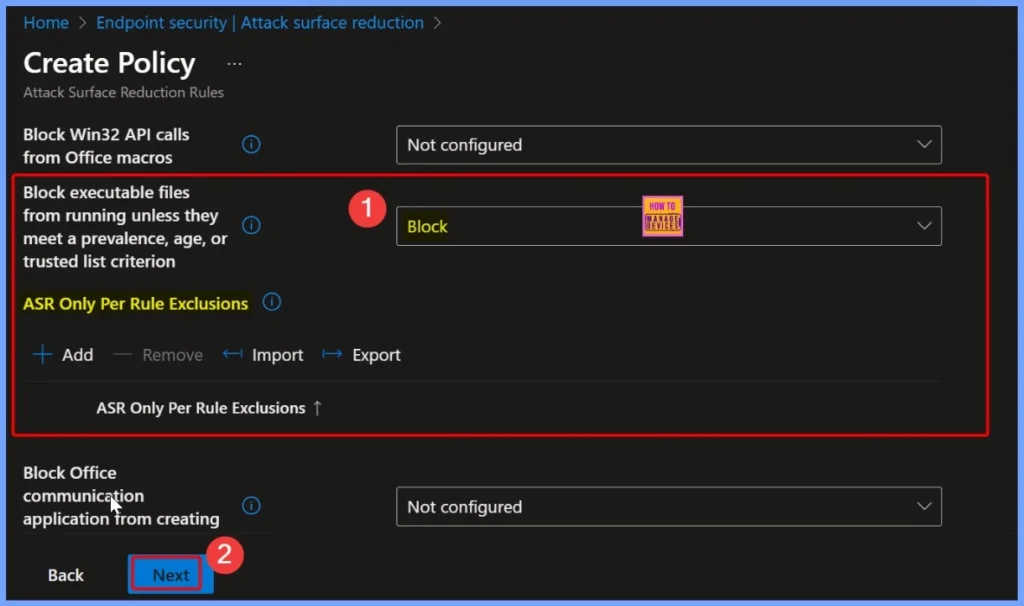
Block Executable Files from Running Unless they Meet a Prevalence, Age, or Trusted List Criterion
The policy Block executable files from running unless they meet a prevalence, age, or trusted list criterion comes with its default settings not configured. This means that, initially, the policy does not block or allow any files until you manually configure the rules.
How to Block this Policy Settings
If you select the Block option, it prevents any file that is not recognised as safe from running. The policy evaluates 3 key factors, such as prevalence, age and trusted list. If a file does not meet any of these factors, it will be blocked from running. This approach helps protect devices from unknown or risky programs while still allowing safe and approved files to operate normally.
| Prevalence | Age | Trusted List |
|---|---|---|
| Checks if the file is commonly used by many people | Determines if the file has been around for a while without causing problems | Includes programs approved by the organization. |
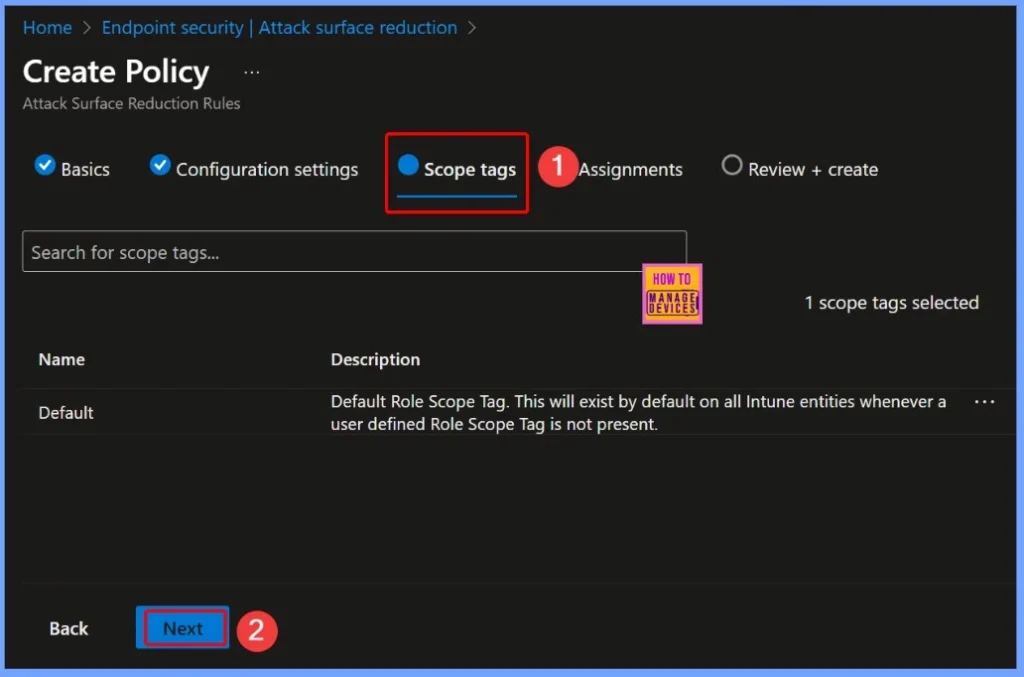
Scope Tags for the Policy
Scope tags in Intune help make administration easier by letting you filter and organize devices or policies. In this section, you can choose which scope tags to apply to your rules. After selecting, click Next to continue.
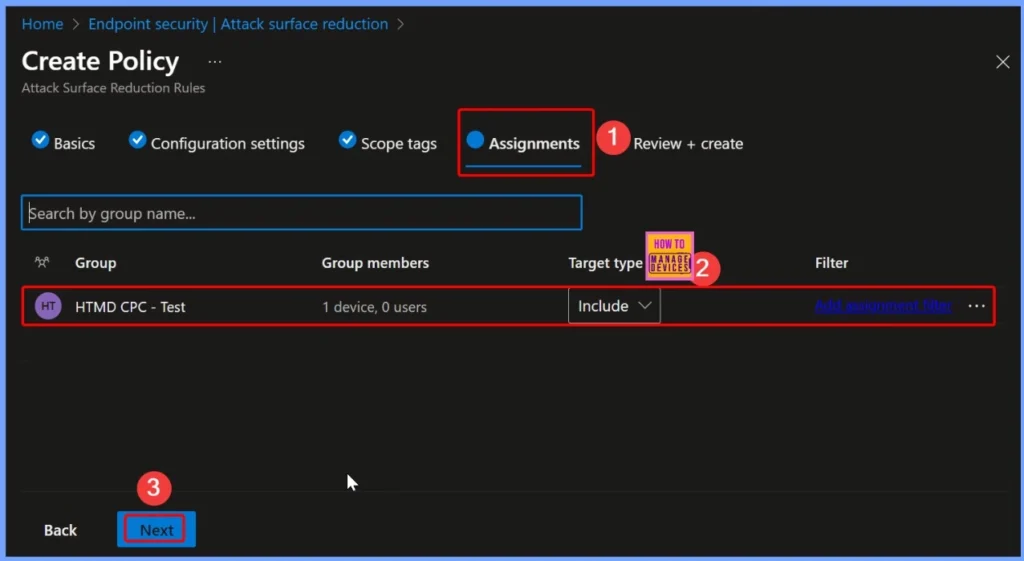
Assigning the Policy to Groups
Under Assignments, you can search for the groups you want to include or exclude from the policy. Once you select the desired groups, click Next to continue. The Assignment tab also shows the details that the Group name, Group members, Target Type, etc.
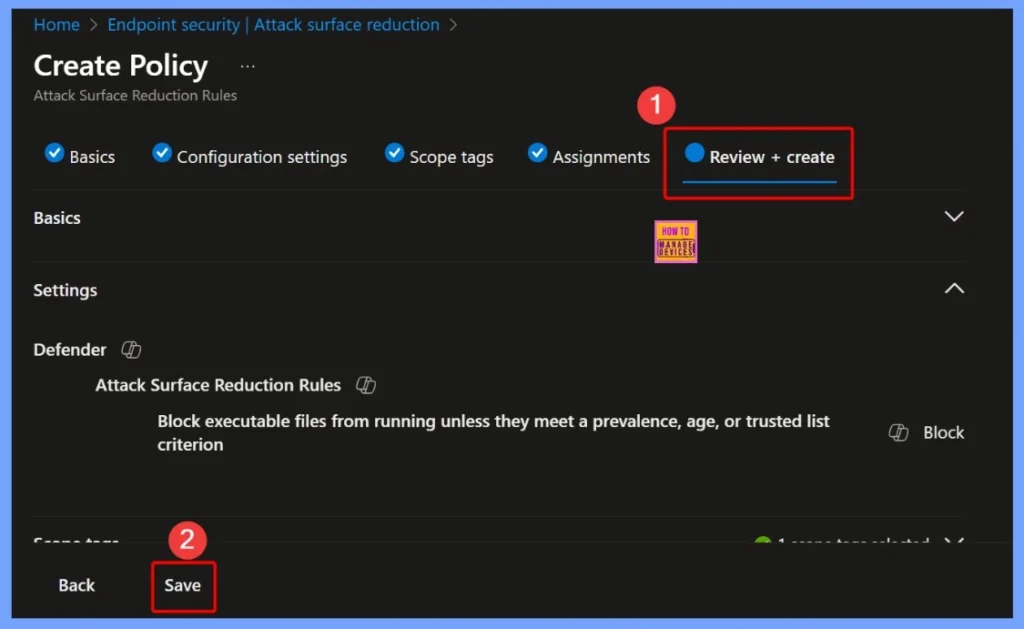
Review + Create in Intune
The Review + Create page in Intune lets you verify all the settings you have configured for a policy before actually creating it. Here, you can see the Basics, Scope Tags, and Assignments you selected. If everything looks correct, you can click Save to apply the policy.
Confirmation Notifications after Policy Creation
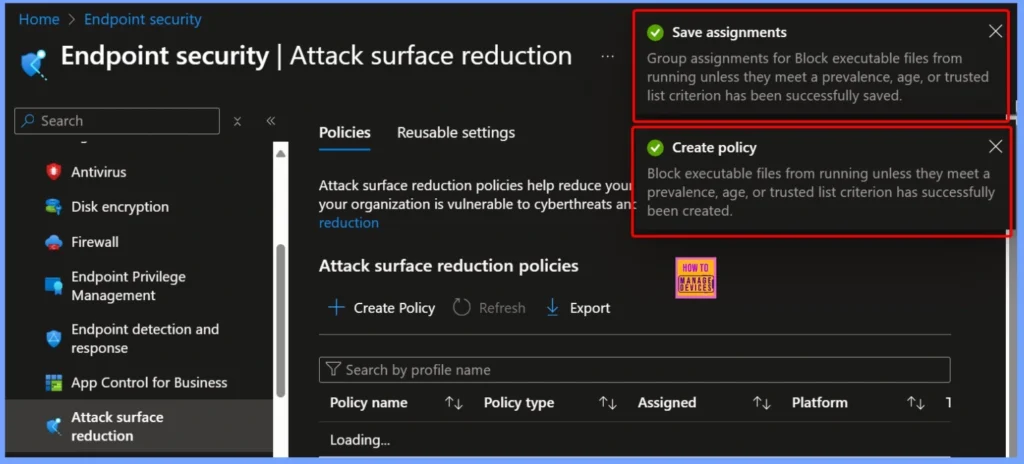
Once the policy is created, you will see two confirmation notifications. The first message confirms that the group assignments for the policy “Block executable files from running unless they meet a prevalence, age, or trusted list criterion” have been successfully saved. The second notification confirms that the policy itself has been successfully created. These messages ensure that both the configuration and the assignment steps were completed correctly.
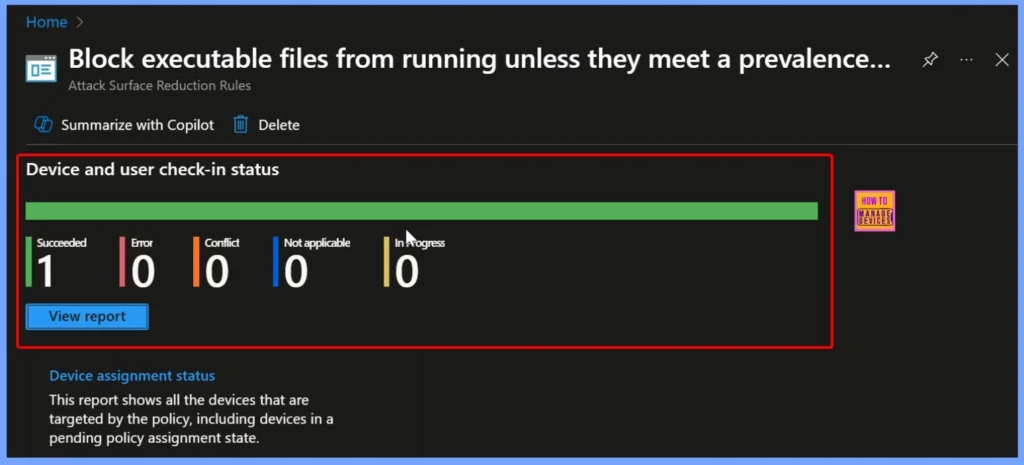
Device and User Check in Status
The device and user check-in status shows that 1 device successfully received the policy, and there were no errors, conflicts, or unsupported cases. This means the policy was applied correctly without any issues.
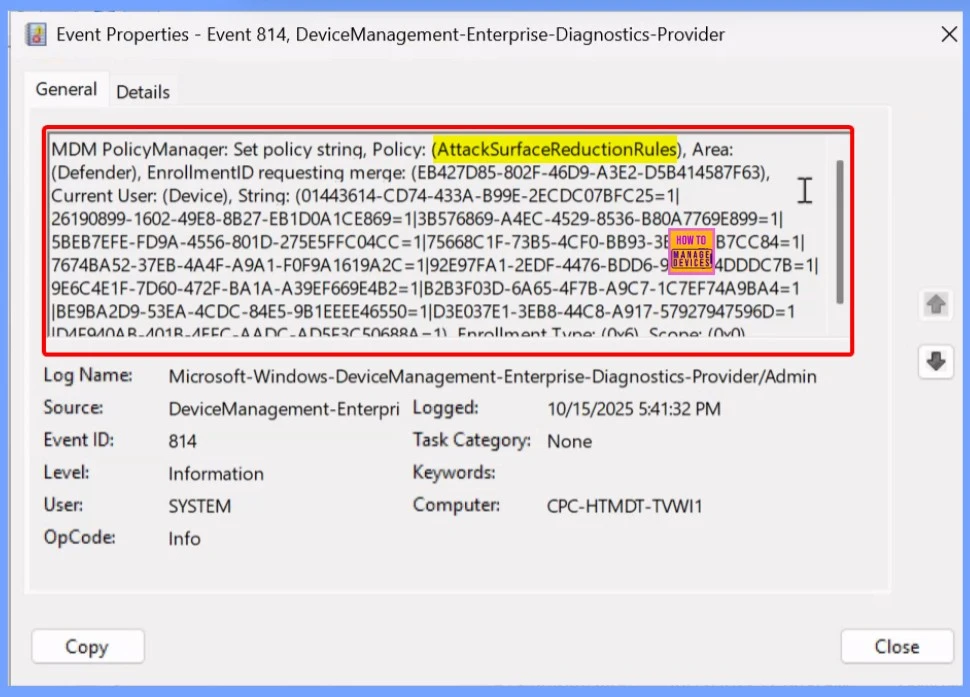
Event Viewer
This log entry shows an informational event recorded by the Device Management system. It has an Event ID of 814 and was logged by the Microsoft-Windows-DeviceManagement-Enterprise-Diagnostics-Provider. The event level is marked as Information, which means it’s not an error but just a regular status update.
To confirm this, check the Event log path – Applications and Services Logs – Microsoft – Windows – Devicemanagement-Enterprise-Diagnostics-Provider – Admin.
Need Further Assistance or Have Technical Questions?
Join the LinkedIn Page and Telegram group to get the latest step-by-step guides and news updates. Join our Meetup Page to participate in User group meetings. Also, Join the WhatsApp Community to get the latest news on Microsoft Technologies. We are there on Reddit as well
Author
Anoop C Nair has been Microsoft MVP from 2015 onwards for 10 consecutive years! He is a Workplace Solution Architect with more than 22+ years of experience in Workplace technologies. He is also a Blogger, Speaker, and Local User Group Community leader. His primary focus is on Device Management technologies like SCCM and Intune. He writes about technologies like Intune, SCCM, Windows, Cloud PC, Windows, Entra, Microsoft Security, Career, etc


Discussion