






Block or Allow Phone PC Linking using Intune Security Policy
Hey there, Let’s discuss block or allow phone PC linking using Intune setting catalog. The Intune Settings Catalog is a powerful tool that allows you to customize and fine-tune settings across a wide range of devices, including Windows, iOS/iPadOS, and macOS.
Phone Link is an innovative feature that seamlessly bridges the gap between our smartphone and Windows PC, creating a harmonious connection that enhances our digital experience. Phone Link allows us to make calls directly, transforming how we interact with our device and streamlining your daily tasks into a unified, efficient workflow.
With Phone Link, we can effortlessly integrate our mobile device with our computer, granting us the ability to manage our phone’s notifications, read and respond to messages, and browse through our photos—all from the comfort of our PC.
The policy we are going to deploy allows admins to turn on the ability to link a phone with a PC to continue reading, emailing, and performing other tasks that require linking between phone and PC. For this make sure to have both our PC and Android device nearby, turned on, and connected to the same Wi-Fi network.

Table of Contents
What are the Requirements for the Phone Link to Work?
To use this feature, you need a PC running Windows 10 (May 2019 Update or later) or Windows 11, along with an Android device operating on Android 8.0 or later. Additionally, ensure that both your phone and PC are connected to the same Wi-Fi network for seamless functionality.
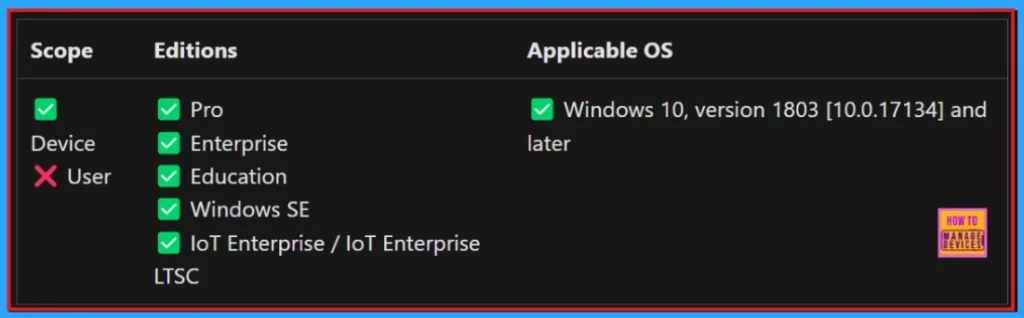
Block or Allow Phone PC Linking Policy using Intune – Windows CSP Details
Configuration Service Providers (CSPs) preferred settings to actual device configurations, assisting administrators in managing and controlling these configurations on Windows client operating systems. The screenshot below provides detailed information about the CSP policy.
| Property Name | Property Value |
|---|---|
| Format | int |
| Access type | Add, Delete, Get, Replace |
| Default Value | 1 |
- Allowed Values:
- 0 – Not allowed.
- 1 (Default) – Allowed.
./Device/Vendor/MSFT/Policy/Config/Connectivity/AllowPhonePCLinking
- Allow or Disallow Network Connectivity Active Tests using Intune Setting Catalog
- Enable or Disable TLS13 for EAP Client Authentication using Intune Settings Catalog Policy
- Enable or Disable App Install Control Policy using Intune Setting Catalog
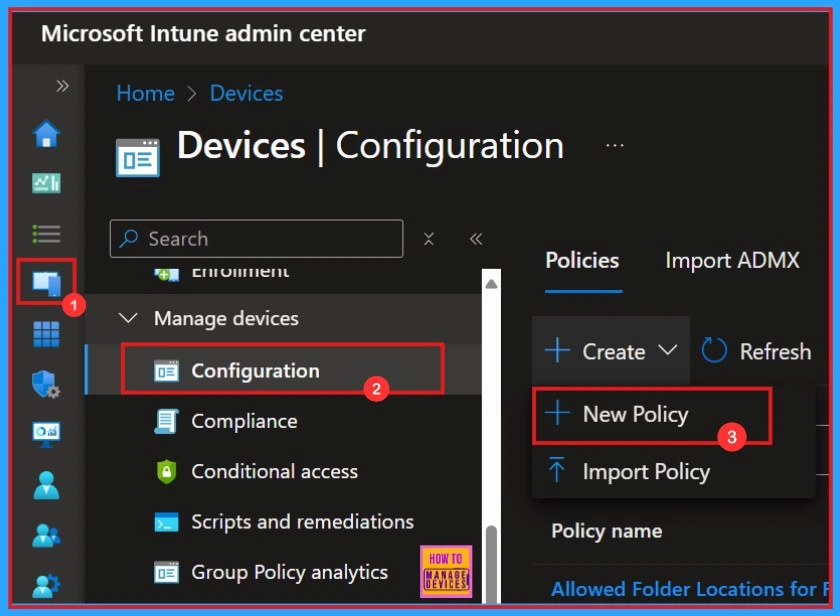
To deploy the Intune policy, we need to create a profile first. Then, we need to log into the Microsoft Intune admin center with our credentials. Then, we need to navigate to the Devices section, click Configurations, and create a new policy.
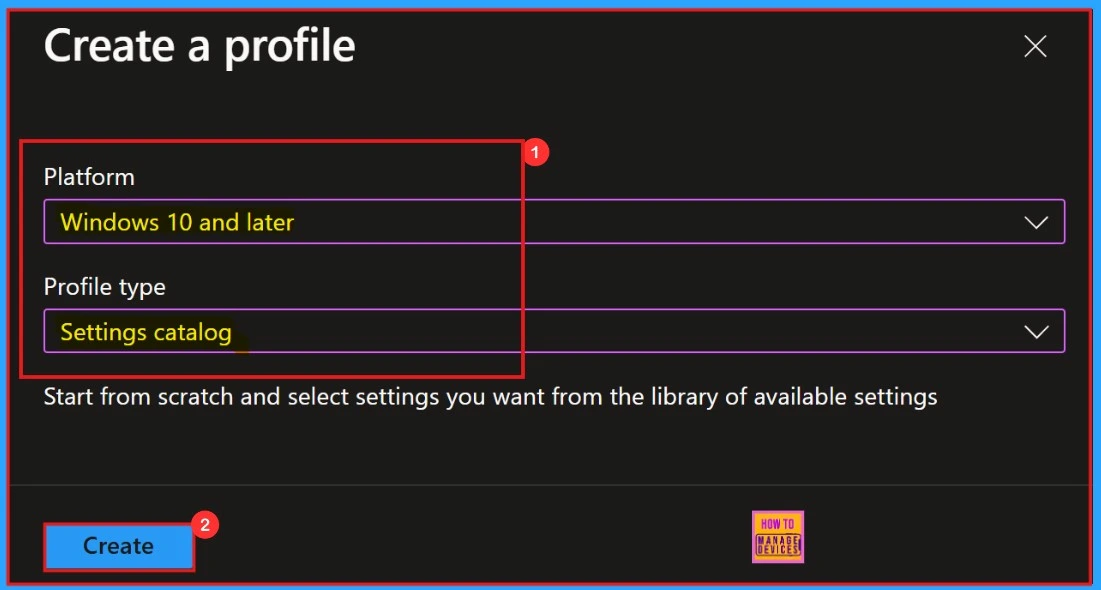
A new window will open where you can select the platform and profile type. Here we can choose “Windows 10 and Later.” Next, we must select the profile type; I selected “Settings Catalog” from the list. Finally, need to click “Create” option.
Basics
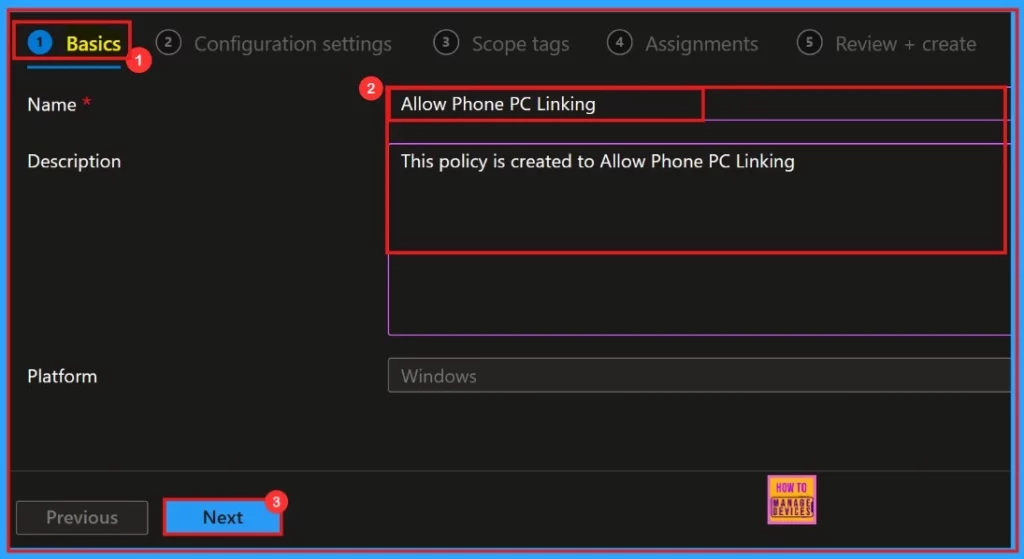
In the initial stage of the profile creation process, known as the Basic section, users are required to input essential details. Here, we need to enter a meaningful Name and a comprehensive Description of the policy we aim to implement. This is a required section, and users must add it to continue creating Profiles
| Name | Description |
|---|---|
| Allow Phone PC Linking | This Policy is created to Allow phone PC linking |
Configurations
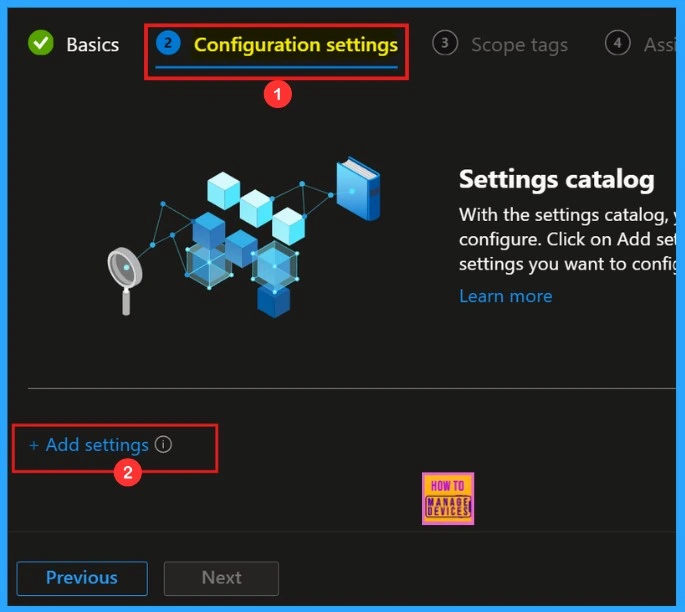
Then we proceed to the Configuration Settings section to select +Add settings and continue creating the profile. This section allows us to choose the settings you wish to configure. Completing this section is necessary.
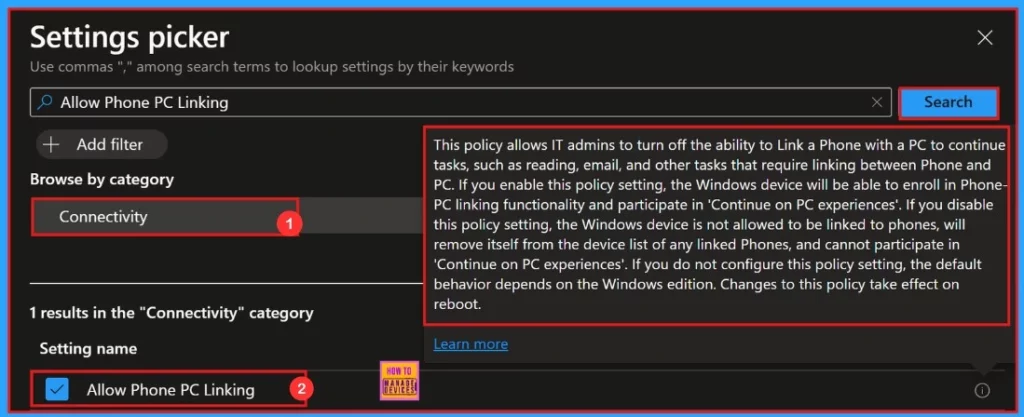
Setting Picker
Upon selecting the appropriate option, the Settings Picker window will appear on the screen. This interface provides a streamlined search functionality, enabling us to efficiently locate the specific policy we wish to explore or modify.
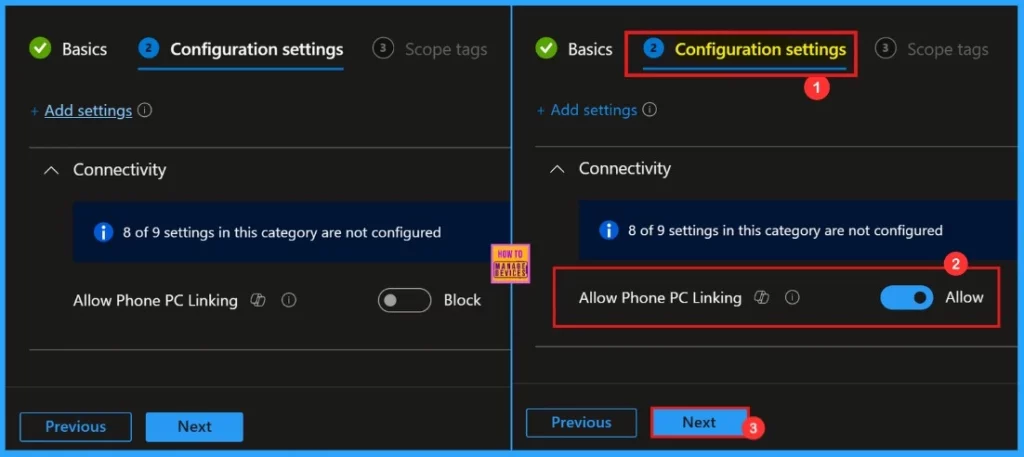
Configuration Setting
After selecting the settings, we can close the settings picker window. We will then be in the configuration settings, where we can block or allow the policy. Here, we select “allow” for the “Allow Phone PC Linking” policy.
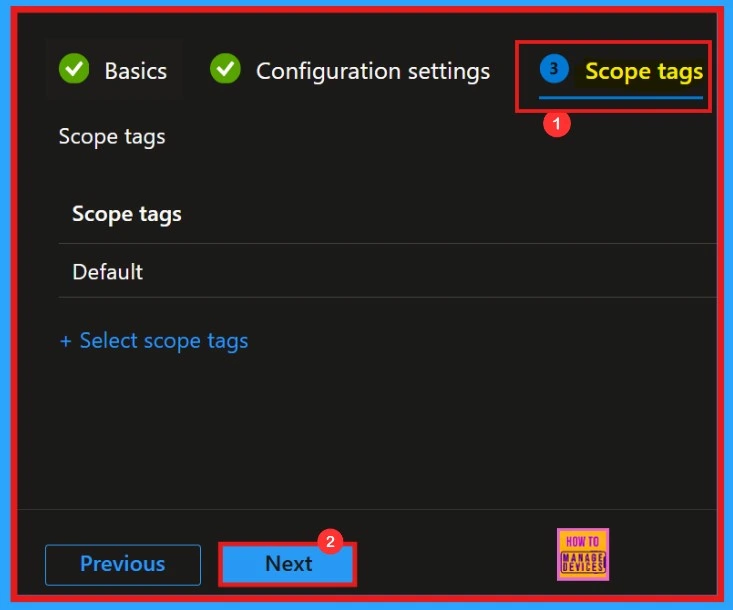
Scope Tags
After configuring the settings, we enter the Scope tags window. This section is optional for our policy, so we can skip it and click the next button to proceed.
Assignments
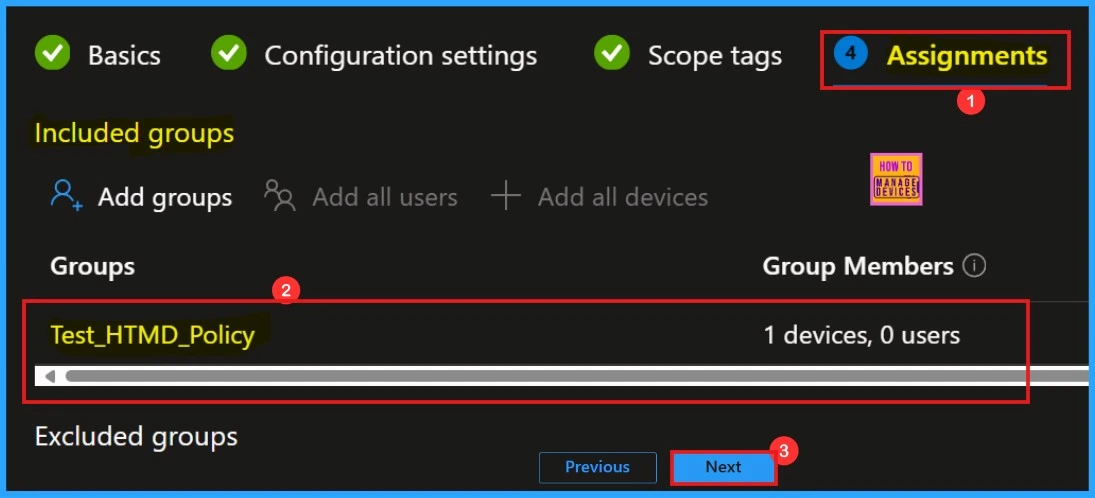
To deploy the policy, we need to add a group in the Assignments section. If we overlook this step, the deployment will fail. After selecting the group, click Next.
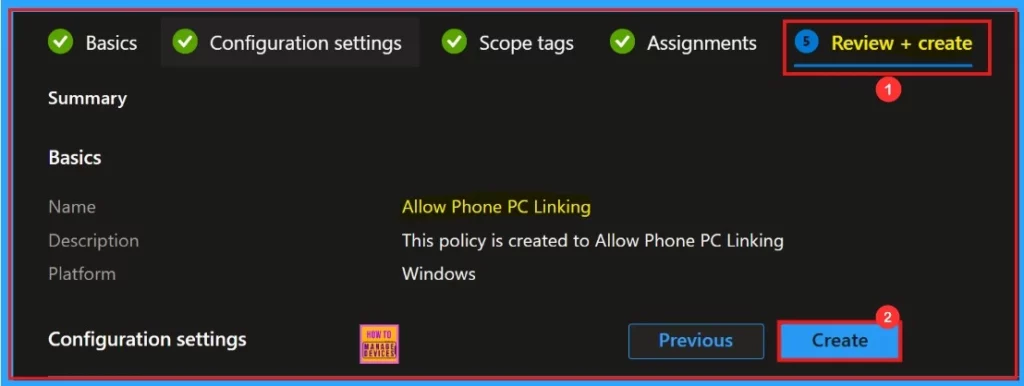
Review + Create
“Review + Create” is the final step in the policy creation process, summarizing the policy we are deploying, including the policy name, description, platform, and other details.
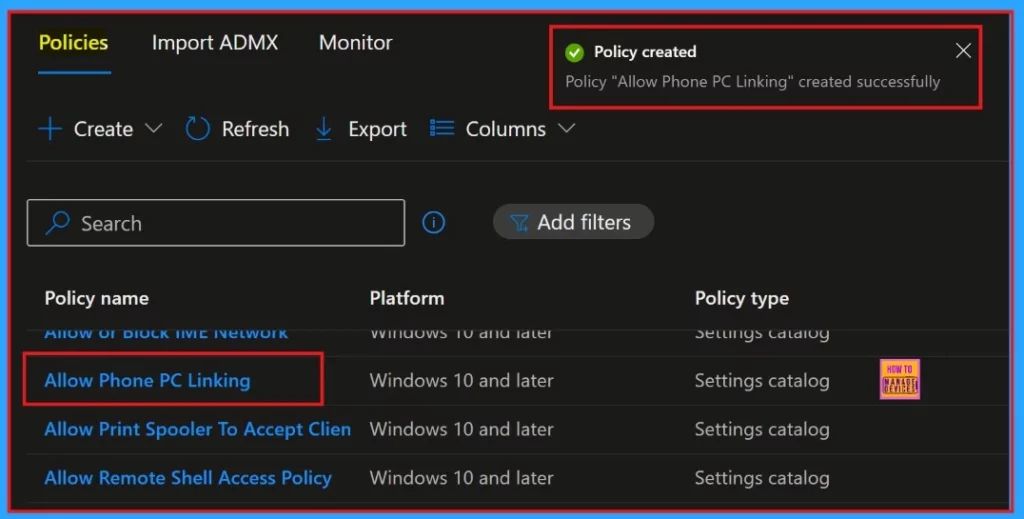
Upon clicking the Create button, a pop-up message will notify us that “ Allow Phone PC Linking” has been created successfully. We can verify the newly created policy in the Intune Portal.
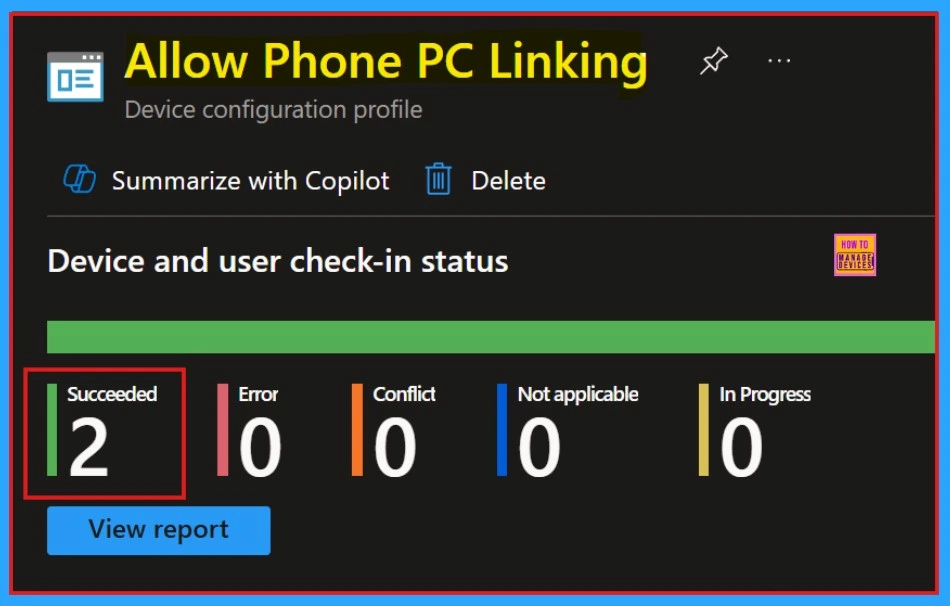
Device and User Check-in Status
Click on the policy to determine its success. After creating a policy, it’s essential to verify its successful implementation. To check the monitoring status, navigate to the device configuration and search for the policy we created.
Client Side Verification
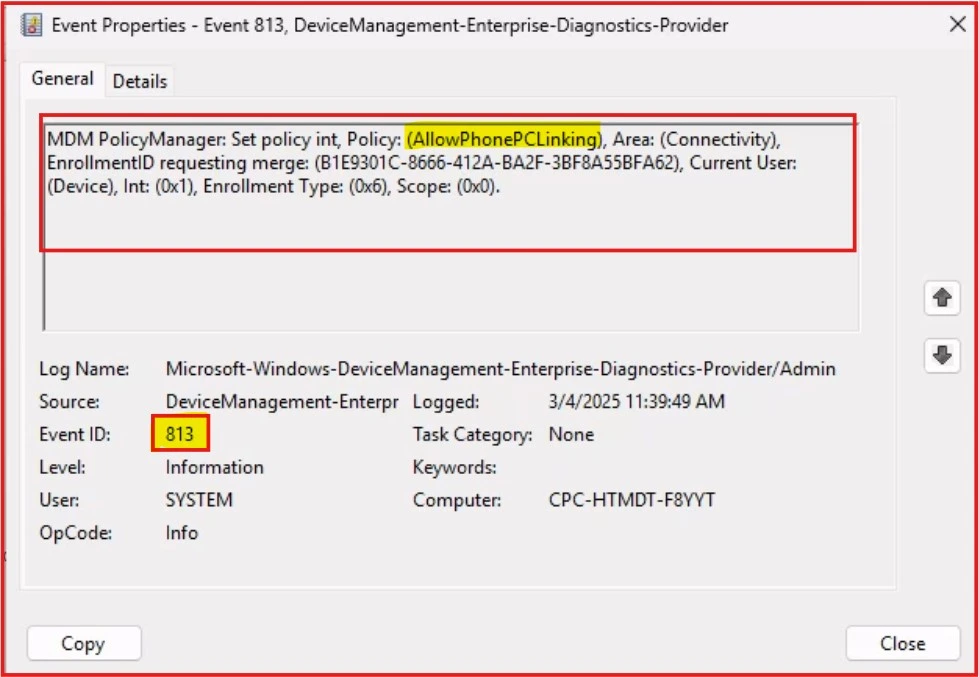
To verify client-side settings, we can use the Event Viewer. Event ID 813 indicates that a string policy is applied to Windows 10 or 11 devices.
- Applications and Services Logs > Microsoft > Windows > Devicemanagement-Enterprise-Diagnostics-Provider > Admin
Need Further Assistance or Have Technical Questions?
Join the LinkedIn Page and Telegram group to get the latest step-by-step guides and news updates. Join our Meetup Page to participate in User group meetings. Also, Join the WhatsApp Community to get the latest news on Microsoft Technologies. We are there on Reddit as well.
Author
Anoop C Nair has been Microsoft MVP for 10 consecutive years from 2015 onwards. He is a Workplace Solution Architect with more than 22+ years of experience in Workplace technologies. He is a Blogger, Speaker, and Local User Group Community leader. His primary focus is on Device Management technologies like SCCM and Intune. He writes about technologies like Intune, SCCM, Windows, Cloud PC, Windows, Entra, Microsoft Security, Career, etc.


I’m testing this possibility, but the policy seems to be doing nothing. In addition to your policy, I’ve also added administrative template – system – group policy – Phone-PC linking on this device Enabled, but phone linking in setting is still off. Also the app phone-link reports This feature has been blocked by your system administrator.
exaclty the same issue! let me know if you find a solution 🙂
I have created the same policy and pushed on the device but getting same it is still showing blocked / disabled.
If Windows store is blocked for users then this will also be blocked.