






Brave Browser Deployment Using SCCM | Step-by-Step Guide
Hello everyone, in this blog post, let’s learn Brave Browser Deployment using SCCM. We will create the application and then deploy it with the help of SCCM on Windows 10/11 Device Collection.
The brave browser is developed by Brave Software, Inc. This browser is based on Chromium. It is a free and open-source browser. With its default settings, Brave Browser automatically blocks online advertisements and website trackers.
There are other chromium-based browsers such as MS Edge, Google Chrome, etc. But Brave is a favorite among the people who like privacy the most. In this post, we will use a system-based installation of the Brave browser using a silent command line.
You must manually test any application before registering or adding it to the SCCM. Ensure you test all the use cases and check the application’s functionality during the testing phase.

Download Brave Browser
Before one can start with Application creation, you need to install the Brave browser x64 version from the internet. Set up and deploy the Brave browser in your organization with the SCCM Application model. Also, in this Step-by-Step Guide, we use the .exe setup of the browser.
Download Offline EXE Link -> https://brave-browser-downloads.s3.brave.com/latest/brave_installer-x64.exe
- One can also learn How to Deploy Google Chrome Update with SCCM Step-by-Step Guide in another blog post.
Pre-requisites
We have not seen any Brave MSI Application so far, so we need to use EXE Application to deploy and install the Brave browser. Now, before we proceed further, we must have these three things in advance, especially when we have a .exe setup:
- Installation Command
- Detection Method
- Application Icon
With the help of the internet, one can find an Install command for any application. In our case, we have to search the install command for the Brave browser. Here the install command for the Brave browser is brave_installer-x64.exe –install –silent –system-level. Before proceeding further, you must test this in your environment.
While you test and install the application with the help of the Install command, it will also help you get the Detection Code for your Application. Here I am using the Registry type for the Detection Method. The path is
- Computer\HKEY_LOCAL_MACHINE\SOFTWARE\WOW6432Node\Microsoft\Windows\CurrentVersion\Uninstall\BraveSoftware Brave-Browse
Create Brave Browser Application
Now to start with the Application creation part, copy the downloaded Brave browser .exe setup to the package source location of the SCCM Server.
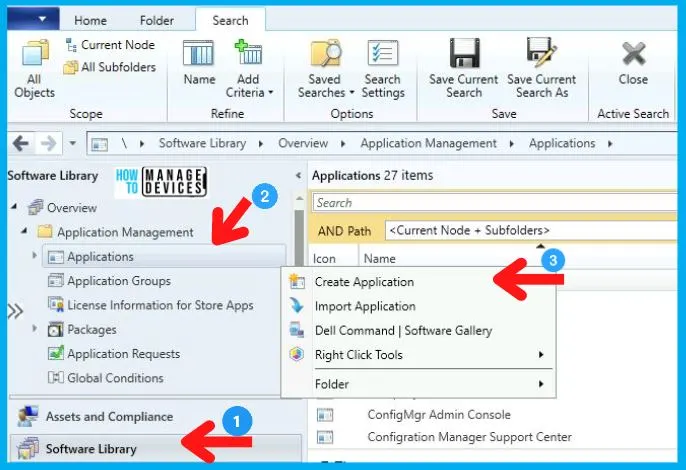
- Navigate to SCCM Console \Software Library\Overview\Application Management\Applications.
- Right-click on Applications and select Create Application.
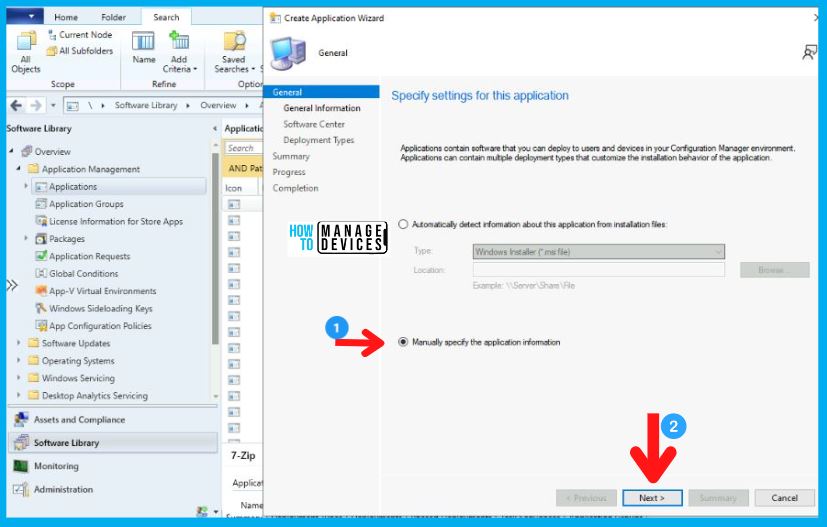
Select the Manually Specify the Application Information option and click Next.
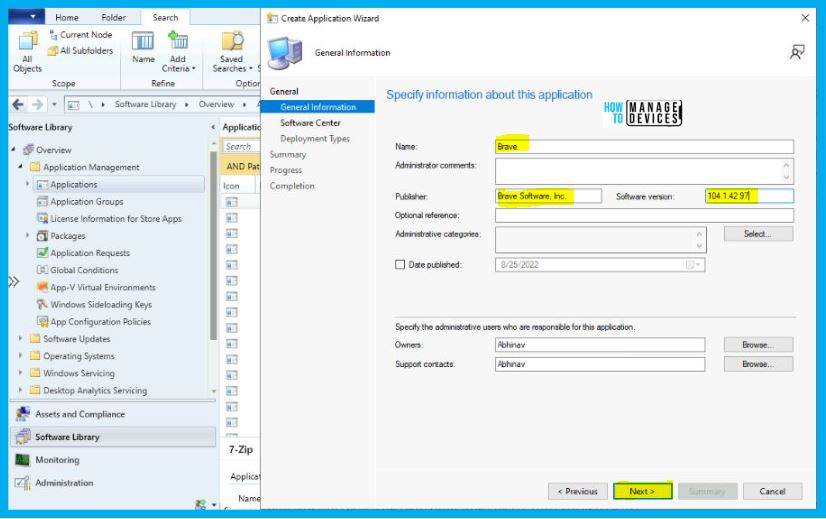
Then in the General Information Tab, enters details like :
- Name, Publisher, and Software Version
- And Click on Next.
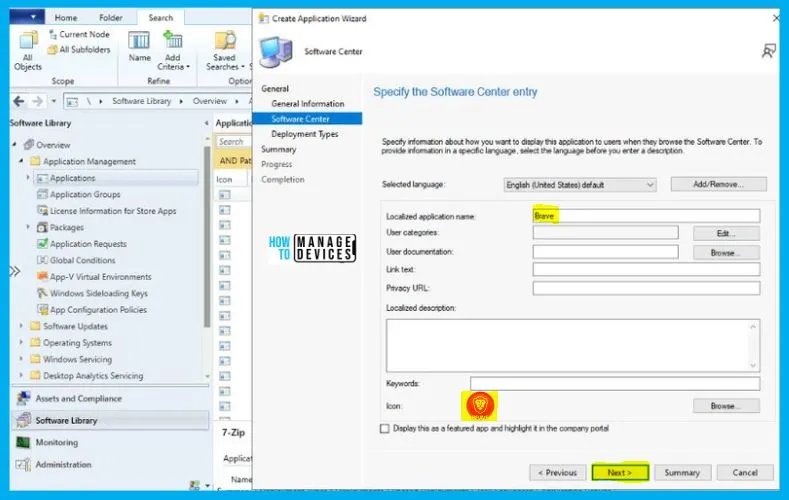
Then in the Software Center Tab, Enter the Application Name and upload the Icon by clicking on Browse. Then Click on Next as highlighted in the image.
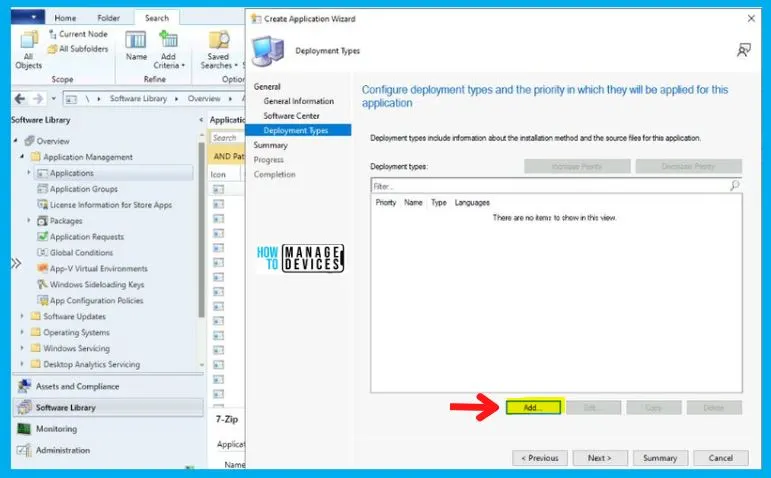
In the Deployment Types Tab, Click on Add.
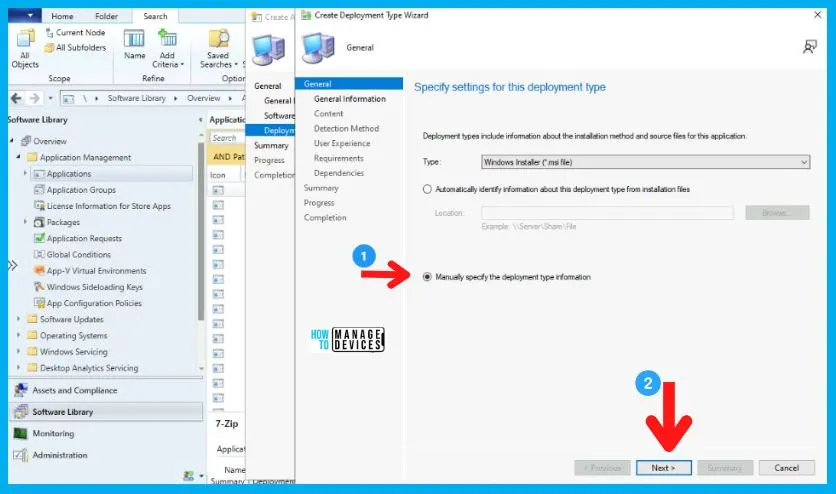
Now the Deployment Type Wizard will pop up, and in General Tab, select Manually Specify the Deployment type information and click on Next.
After this, the General Information Tab appears in which you just have to enter the name of the Application and click on Next.
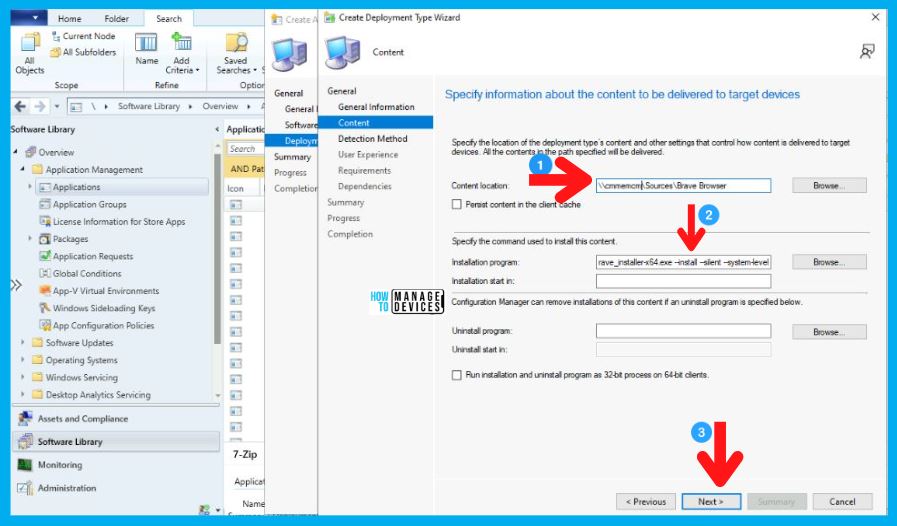
Now in Content Tab, enter two important details mentioned below and click Next.
- Content Location (Browse for the UNC path where your setup is kept)
- Installation Program
- brave_installer-x64.exe –install –silent –system-level
- Silent Command Line for Brave – brave_installer-x64.exe –install –silent –system-level
Detection Method for Brave Browser
Now in the Detection Method Tab, click on Add Clause and a new Detection Rule page will pop up. Fill all the details very carefully as mentioned below:
- Select Registry in the Setting Type.
- In the Hive section, select HKEY_LOCAL_MACHINE.
- And in the Key section, enter SOFTWARE\WOW6432Node\Microsoft\Windows\CurrentVersion\Uninstall\BraveSoftware Brave-Browse.
- Select Display Version in the Value box and Version in the Data Type.
- Now choose This registry setting must satisfy the following rule to indicate the presence of this application.
- Now set Operator to Greater than or equal to and enter the Version in the Value box and click OK.
| Setting Type | Hive | Key | Value | Data Type |
|---|---|---|---|---|
| Registry | HKEY_LOCAL_MACHINE | SOFTWARE\WOW6432Node\Microsoft\Windows\CurrentVersion\Uninstall\BraveSoftware Brave-Browse | Display Version | Version |
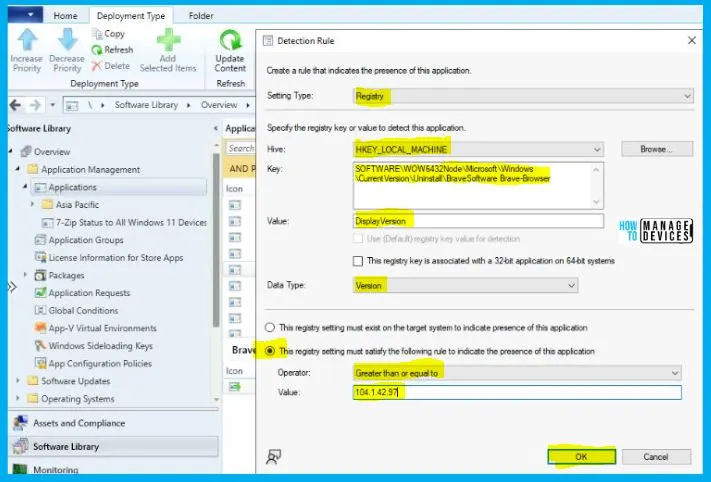
After successfully entering the details in the Detection Rule shown above, press Next on the Detection Method Tab.
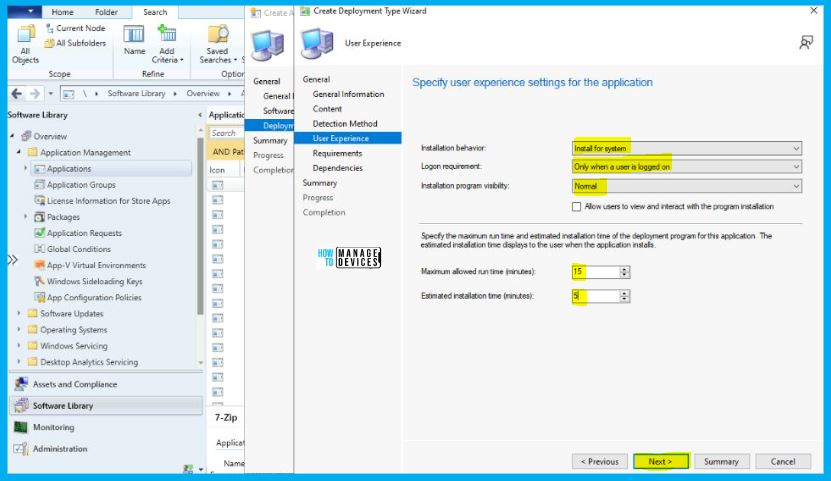
Now in the User Experience Tab, specify Install for system in Installation behavior; in the Logon requirement, choose as per your requirement and Set Installation Program Visibility to Normal. Also, provide the Maximum allowed run time and Estimated installation time as shown below and click on Next.
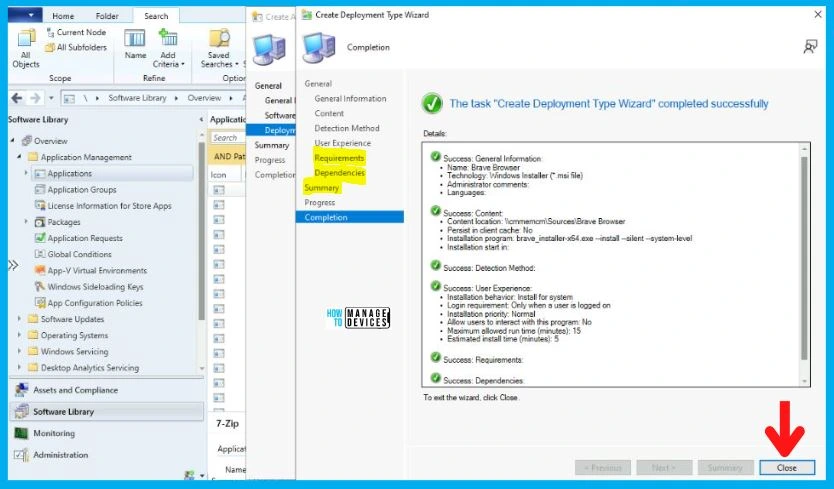
Click on Next in the Requirement, Dependencies, and Summary Tab. After this, in the end, Click on Close in the Completion Tab as shown below.
Then back in the Create Application Wizard, click Next in Deployment Tab.
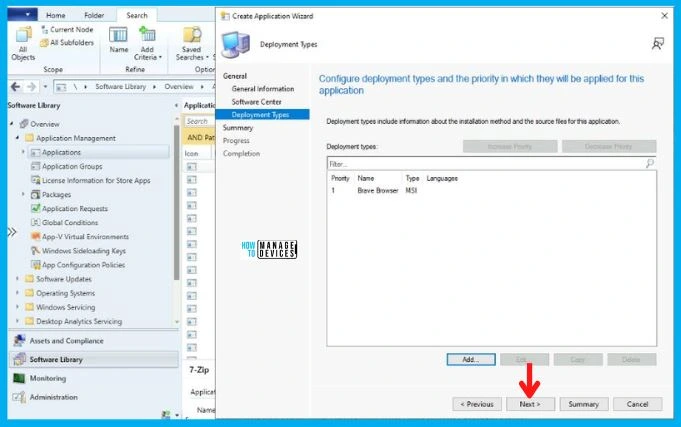
After this, click Next on the Summary Tab and end this Create Application Wizard by clicking on Close in Completion Tab.
Distribute Brave Application to the SCCM DP
After the creation of the Application, it will appear in the Application Node. To begin with, the distribution right-click on the Brave Application and select Distribute Content, as shown in the picture below.
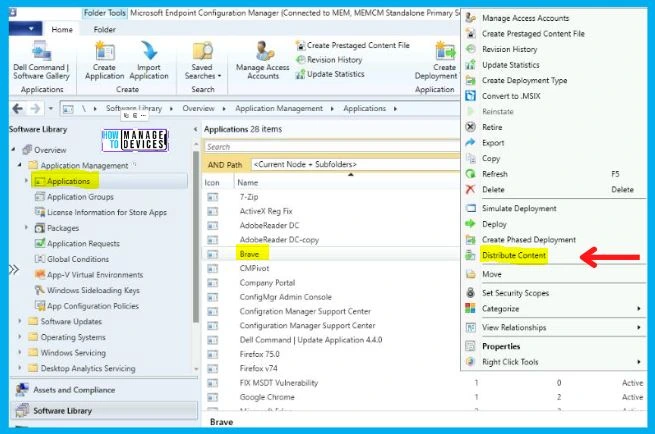
Now the Distribute Content Wizard will open, and click Next in the General Tab. Then select the Application Name in the Content Tab and Click on Next, as shown in the image below.
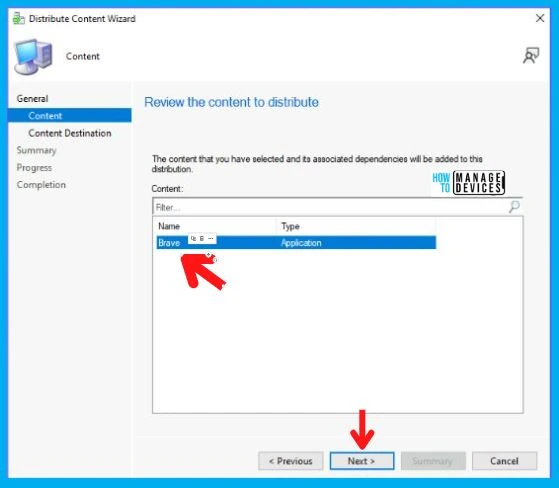
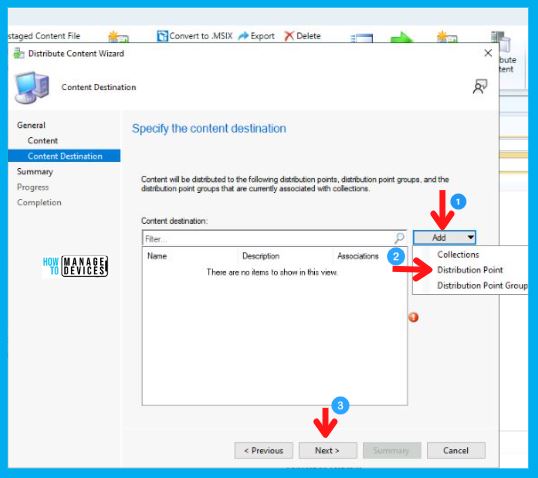
After this, in the Content Destination Tab, Click on Add and select the Distribution Point option.
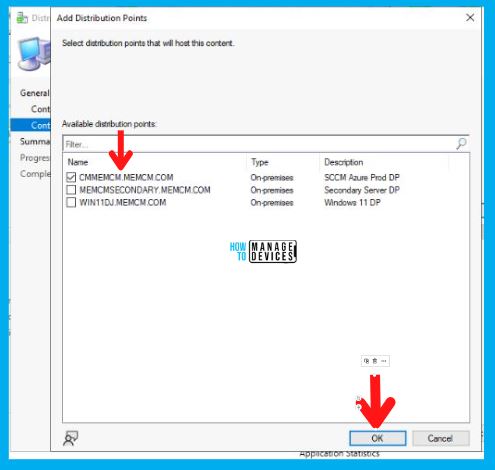
Then Add Distribution Point page will pop up, and choose the Distribution Point on which you want to distribute the Application.
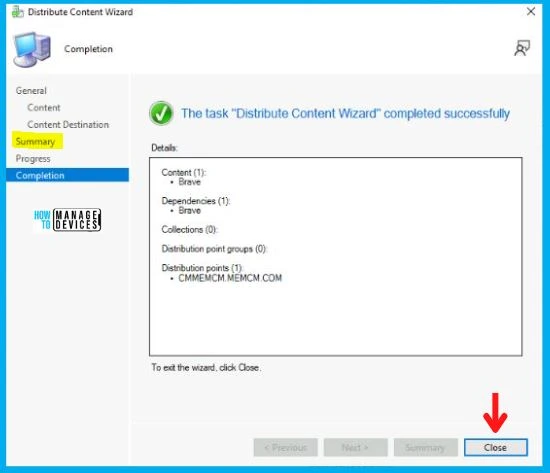
After this, Click Next on Summary Tab and complete this Distribution process by clicking Close on Completion Tab.
Deploy Brave Browser to the Target Device Collection
So far, we have accomplished two tasks, i.e., Application Creation and Application Distribution to the DP. Now all that is left is the Deployment of the Brave browser on the All Windows 10 Device Collection.
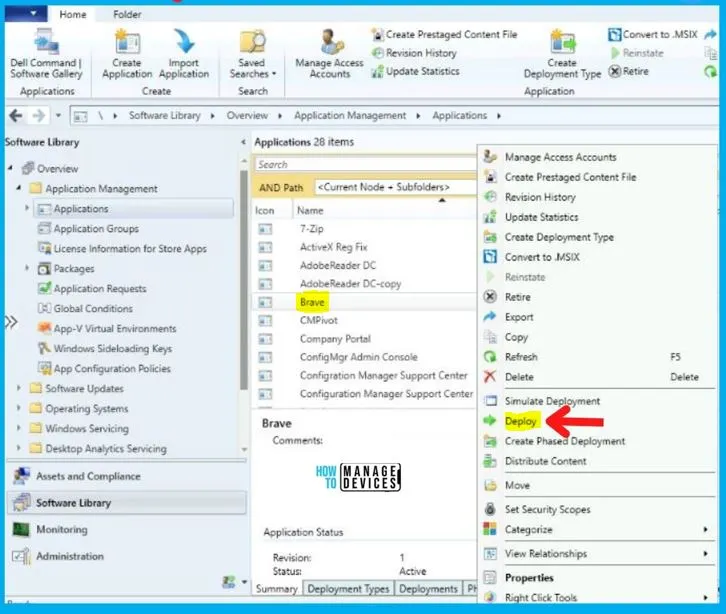
- As you can see, your Application is displaying in Application Node, Right-click on Brave Application and select Deploy.
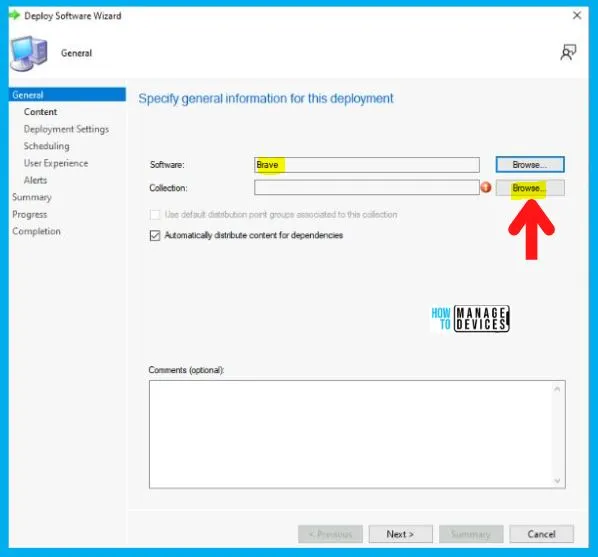
After this, Deploy Software Wizard opens and in the General Tab, enter the Name of the Application and click on Browse to select the Collection.
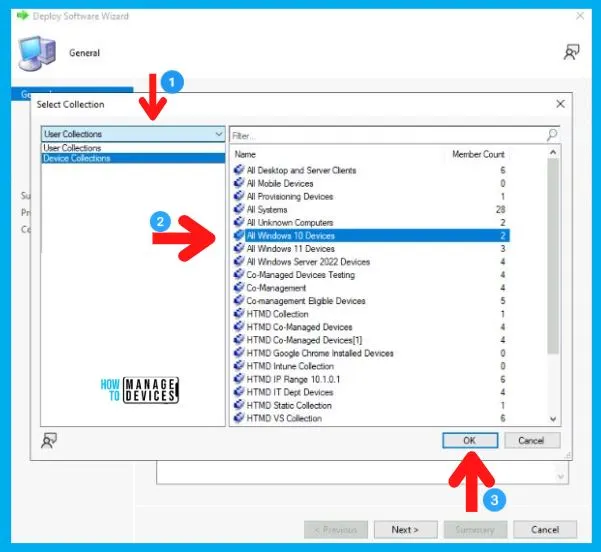
Now the Select Collection page will pop up; and choose Device Collection from the drop-down menu and then Select your targeted Device Collection and click on OK and then Next. Here I choose All Windows 10 Devices.
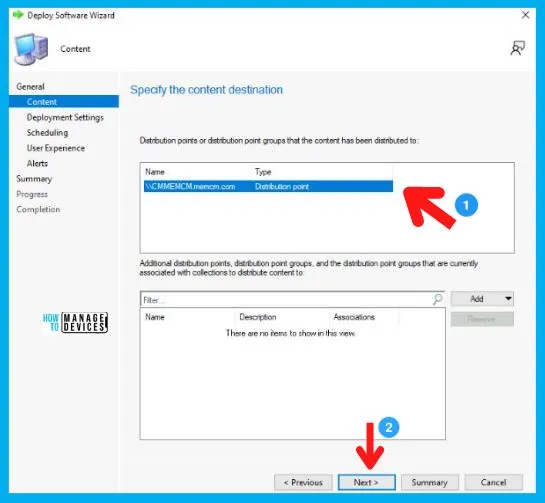
Now in the Content Tab, select the Distribution Point on which the Application is distributed and click on Next.
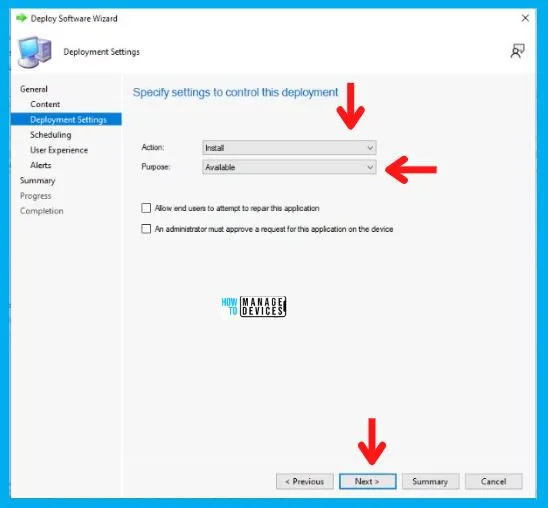
Now in the Deployment Settings Tab, select:
- Install in the Action box
- And choose Available in the Purpose category.
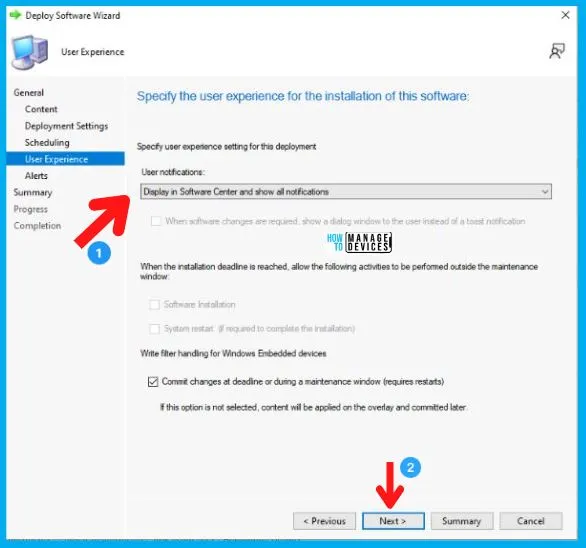
In the Scheduling Tab, enter the time details if you want it to be available at a specific time; otherwise, leave it as it is and click Next. After this, in the User Experience Tab,
- Select Display in Software Center and shows all notification options in the User notifications, and click on Next as shown below.
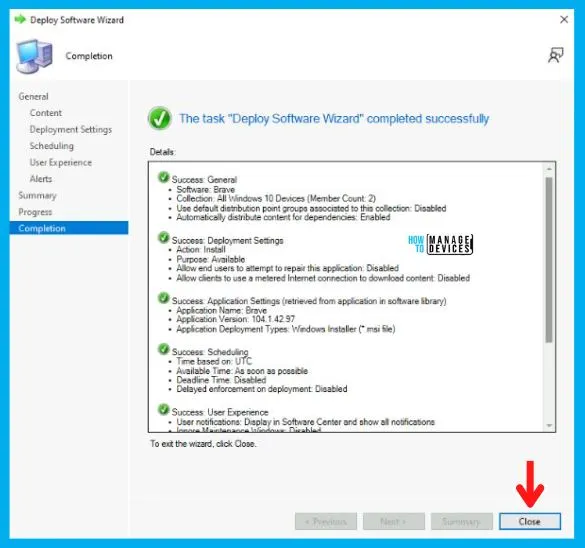
In the Alerts and Summary Tab, click on Next and to end the process, click on Close in the Completion Tab.
End User Experience
In this section, we will check the end-user experience for Brave browser Deployment and Installation. The Brave browser Application is Created, Distributed, and Deployed.
Now, if you check the Software Center of Win 10 device from the ALL Windows 10 Device Collection, you will see the application there in Available mode, and the user can install it as per the requirement.
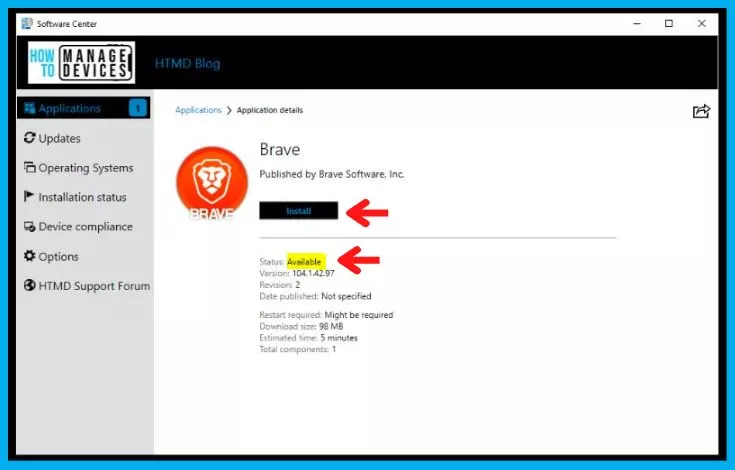
As you can see in the below screenshot, the Brave browser application is installed successfully on Windows 10/11 devices. This proves that the above silent install command and detection logic works fine for Brave browser Installation using SCCM.
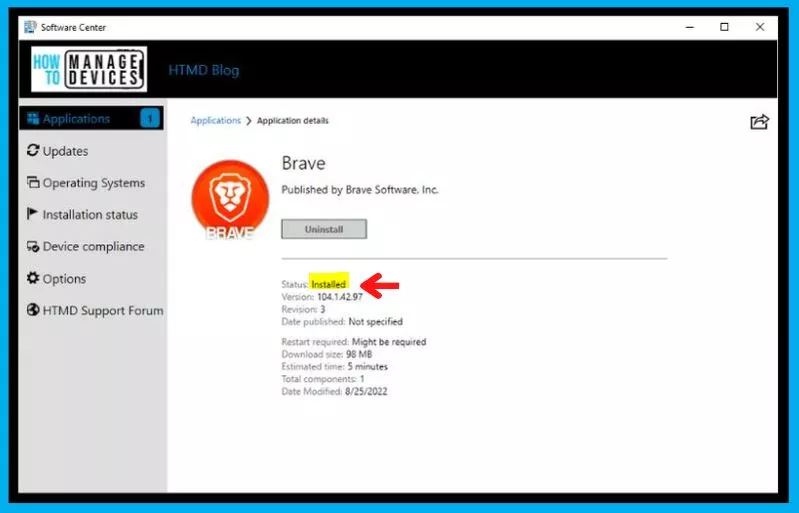
Kudos to all of you out there!!! You have successfully created, Distributed, and Deployed the Brave browser as it is available in the Software Center as shown in the above image.
Author
Abhinav Rana is working as an SCCM Admin. He loves to help the community by sharing his knowledge. He is a BTech graduate in Information Technology.




Discussion