






Enable Dark Mode for Intune Admin Portal | MEM Admin Center
In this post, you will learn how to enable dark mode for Intune Admin Portal. The dark theme delivers a simple experience across the Intune MEM Admin Center you depend on so that you can focus on your work more easily.
The dark theme for Intune Console provides a great look compared to the light theme. It’s also good If you are a person who spends a lot of time working in the Intune Admin Console, Dark mode can reduce eye strain in low-light conditions.
With dark mode in MEM Admin Center, you can enjoy a seamless visual experience across your devices, day and night. The company Portal app already supports dark mode. If you’re already using dark mode for Intune console, you don’t need to do anything else.
Let’s also look at changing the Windows 11 color theme. The easiest option is to turn on dark mode system-wide allowing your apps to be in dark mode. The dark mode can be enabled for the SCCM console, check how you can Enable Dark Theme for SCCM Console.

- Intune Managed Application Troubleshooting
- Latest Intune Admin Portal Walkthrough Guide | MEM Admin Center
Enable Dark Mode for Intune Admin Portal | MEM Admin Center
Turning on Dark Mode for the MEM Admin Center is just a few steps away, You can customize the Microsoft Endpoint Manager admin center from changing the background theme and design. Here’s how to follow the step below.
- Sign in to the Microsoft Endpoint Manager admin center https://endpoint.microsoft.com/.
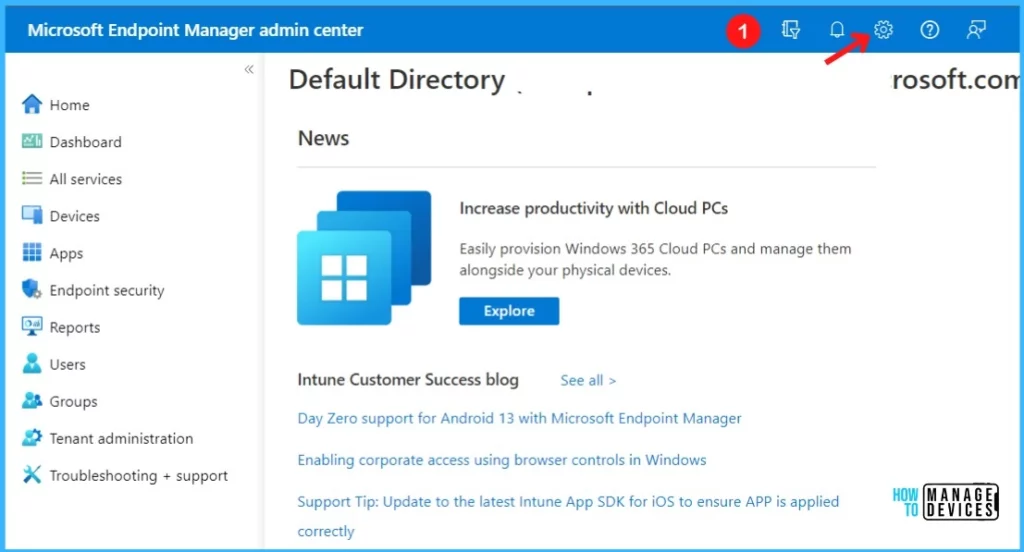
- Once logged in to MEM Admin Center, click the Settings icon in the top-right corner. Most settings are available from the Settings menu.
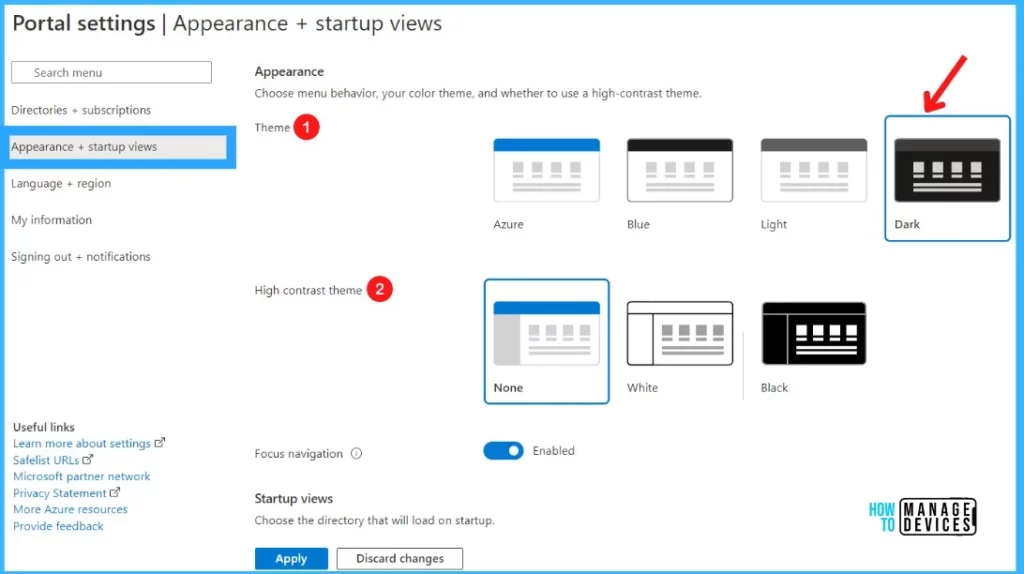
In the MEM Portal settings, Click on the Appearance + startup views tab. The Appearance section lets you choose menu behavior, your color theme, and whether to use a high-contrast theme.
Let’s choose the theme for Intune MEM Portal, The theme you select affects the background and font colors that appear in the Intune MEM portal.
When you sign in to the portal for the first time, the default theme will be selected, Azure. You can choose from one of four preset color themes Azure, Blue, Light, and Dark. Select the Dark theme from the list and apply.
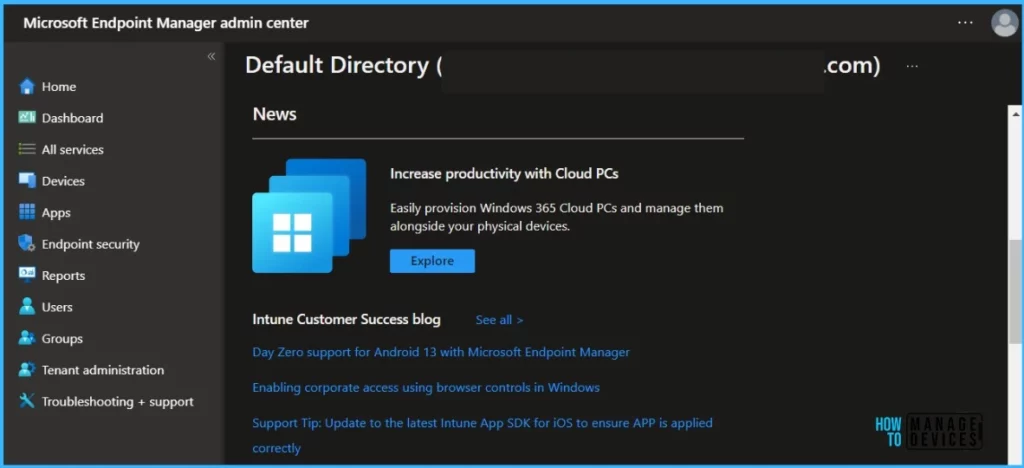
The theme for Intune MEM Center changed from Light to Dark while you stayed in the portal. Enabling the dark theme instantly changes the appearance of the Intune MEM center and turns the console to dark.
The Black theme provides the highest-contrast visual. Here’s an example of the dark theme applied to Intune admin portal Home –
Note: The changes will get applied to all your MEM nodes. The selected dark theme for the Intune console is applied. You don’t need to sign out to apply the effect.
Enable High Contrast Theme in Intune Portal
In the MEM Portal settings, Appearance + startup views tab. Alternatively, you can choose one of the high contrast themes, White or Black to make the Intune portal easier to read for people.
Note – If you choose a high contrast theme, White or Black, they override all other theme selections. By default, it’s set to None.
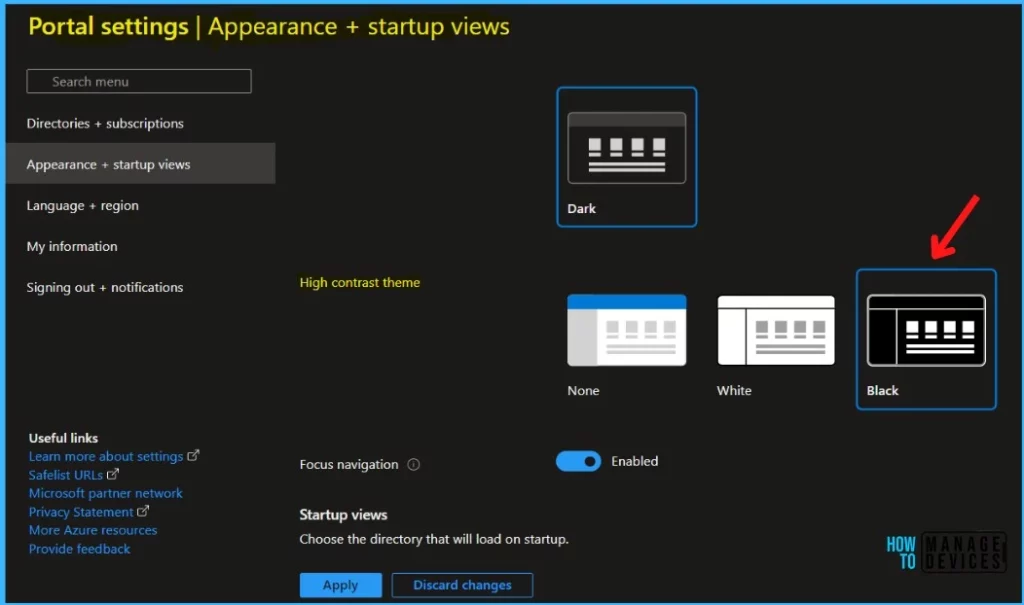
Here we have set the Black high contrast theme. When you are in Intune Admin portal with dark mode on and a black high contrast theme, you will find lines around the console nodes and the color appearance highlighting the text.
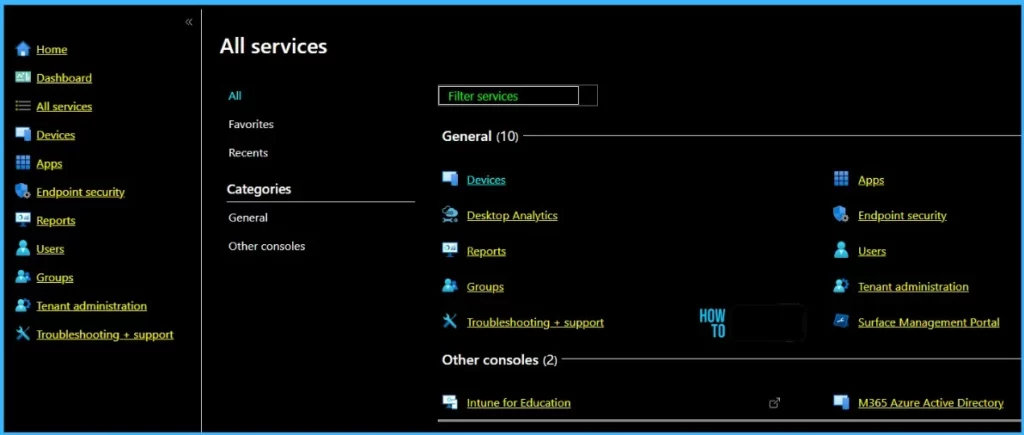
It’s a good idea to change the theme and review your settings. If you want to use any other theme or high-contrast theme in the Intune Admin console, you can easily switch by following the above steps.
Turning off the dark theme, while doing any changes you’ve made to the Intune portal theme doesn’t affect dashboard customizations.


Discussion