






Easy to Change Display Language in Microsoft Edge
Let’s learn how to change the Display Language in Microsoft Edge, which was developed by Microsoft in 2015. Edge is a proprietary cross-platform web browser created by Microsoft.
Edge is a streamlined browser built on web standards and designed for web services. MS Edge is a popular browser with unique and user-friendly features. Edge Browser is famous for its speed and security. We can use and change different languages in the Edge browser.
Microsoft Edge has several features that can help users on different occasions. It is a secure and user-friendly web browser that offers many advanced features. Microsoft Edge is the best browser for productivity and exploring tools like the collection feature, vertical tabs, etc.
We can achieve more from the Edge browser’s unique features, such as Copilot, vertical Tabs, read-aloud, and VPN. This blog post explains how to change the display language in Microsoft Edge.

| Index |
|---|
| Change Display Language in Microsoft Edge |
- Enable Disable Website Typo Protection in Edge Browser
- Best Way to Organise your Workspaces in Microsoft Edge
What are the Features of Microsoft Edge?
Edge Browser can work on any iOS, macOS, Android, or Windows platform. It is a very user-friendly browser built on the Chrome engine. Some important features are given below.
1. It helps to create multiple profiles
2. The Sidebar provides quick access to websites and apps.
3. It helps to save time and money and protect our online privacy.
4. Collections in Edge help store information
Change Display Language in Microsoft Edge
Microsoft has been continuously improving Edge with exciting new features. We can easily set up Display Language in Microsoft Edge. New Edge features help save time and money and protect our online privacy. We can do it by using Settings. To do this, follow the following steps.
- Select Edge Browser from the Start button
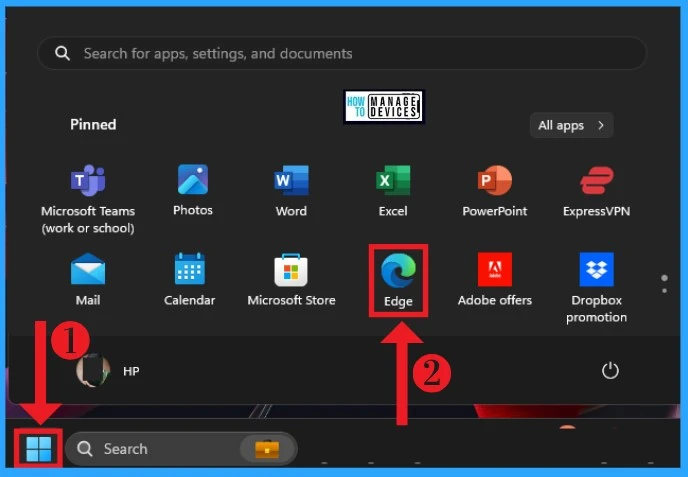
selecting Microsoft Edge in the Start Menu
After selecting Microsoft Edge in the Start Menu, Click the 3 dots on the right side of the Edge (settings and more). Select the Settings options from the window below.
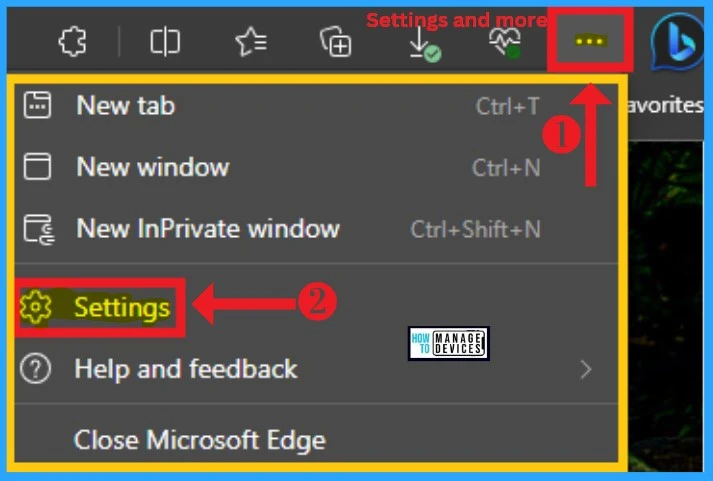
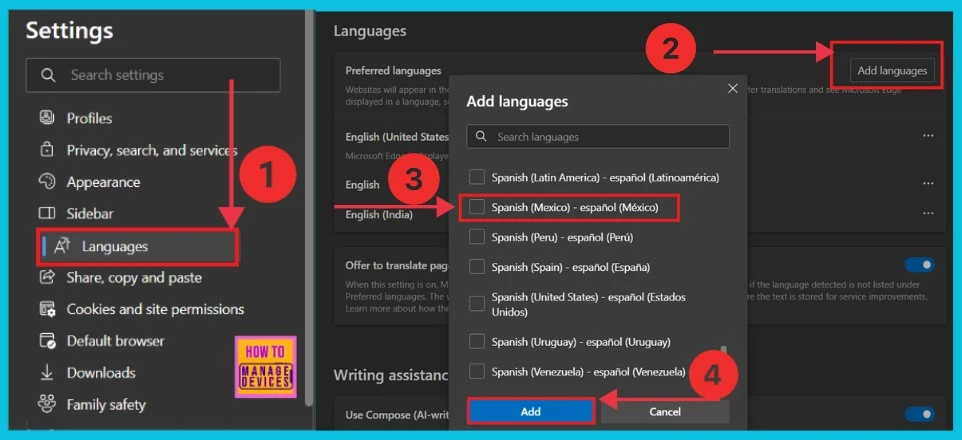
After selecting settings, select the “Languages” option. The Preferred languages are displayed on the right side of the screen. Here, we can see the Add Languages option. It helps us add languages to our PC.
- Select the Language and click the Add button
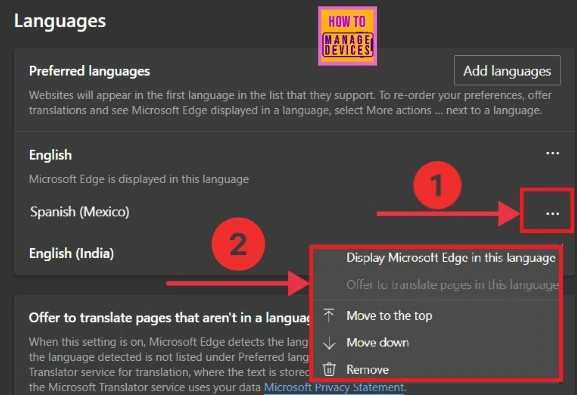
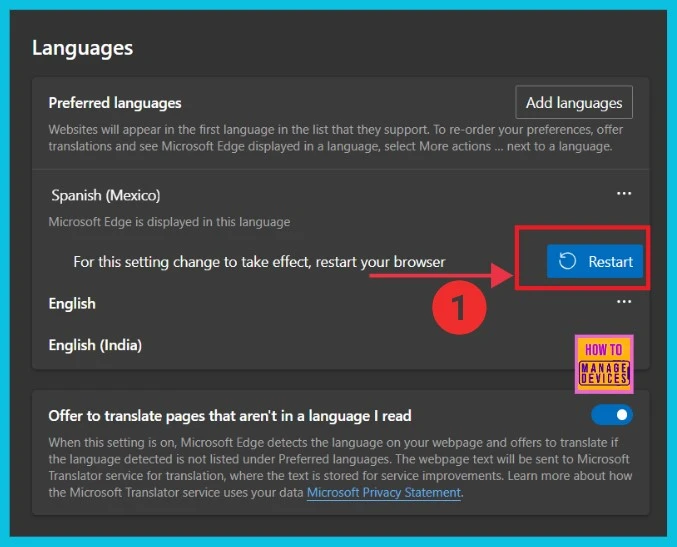
The screenshot below shows the languages that we preferred above. Select the three dots of the language (here, Spanish(Mexico). Now, we can see a small pop-up window. Select the option to Display Microsoft Edge in this language.
| Different Options | Used to |
|---|---|
| Display Microsoft Edge in this language | It offers to translate pages in this language |
| Move to the top | It helps to move the language to the top |
| Move down | It helps to move the language to the down |
| Remove | It helps to remove the language |
After clicking Display Microsoft Edge in this language, click the Restart button. For this setting change to take effect, restart the browser. The screenshot below gives the details.
End-User Experience
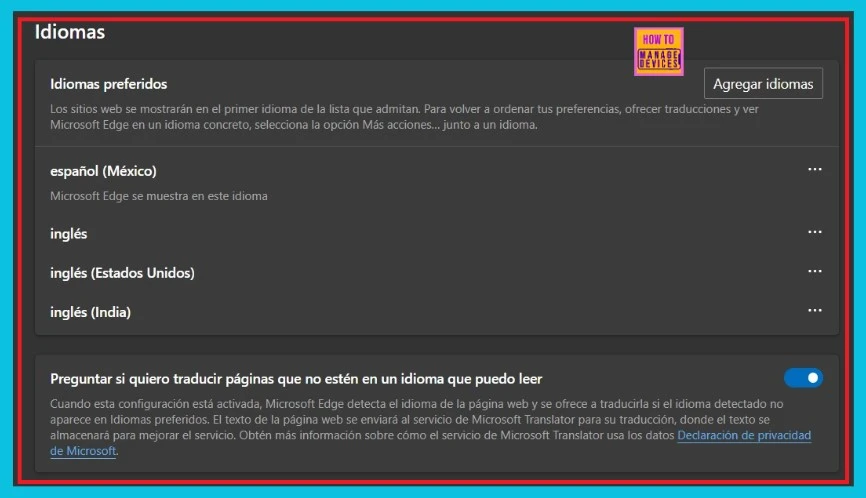
This screenshot shows the resulting image of the Spanish-Mexico language. First, we add the Spanish(Mexico) language and restart the browser. The screenshot below gives the image in Spanish(Mexico) language.
We are on WhatsApp. To get the latest step-by-step guides and news updates, Join our Channel. Click here for HTMD WhatsApp.
Author
Anoop C Nair is Microsoft MVP! He is a Device Management Admin with more than 20 years of experience (calculation done in 2021) in IT. He is a Blogger, Speaker, and Local User Group HTMD Community leader. His main focus is on Device Management technologies like SCCM 2012, Current Branch, and Intune. He writes about ConfigMgr, Windows 11, Windows 10, Azure AD, Microsoft Intune, Windows 365, AVD, etc.




Discussion