






Allow or Block Cleanup of Unused Preinstalled Language Packs using Intune
Hey there, Let’s discuss about the deploying process of allow or block cleanup of unused Preinstalled lang packs using Intune settings catalog. The settings catalog shows all the settings we can tweak in one spot. This makes it easier to set up a policy and check out all the available settings.
A language pack is an ensemble of files designed to transform our experience with an application, allowing us to engage with it in a language that resonates more with us than the original. Think of it as a linguistic bridge, rich with resource files that change the text of menus, dialog boxes, alerts, and other interactive elements into our preferred language.
It is important to remember that these packs are all about how the language is presented, there’s no change to the actual program logic. If we enable this policy setting, language packs that are installed as part of the system image will remain installed even if they aren’t used by any user on that system.
we are going to deploy the block cleanup of unused preinstalled lang pack policy here. This policy setting governs whether the LPRemove task will execute to remove language packs installed on a machine that are not utilized by any users on that machine.

Table of Contents
How Do I Change the Language in Windows 11?
2. In the Settings window, need to click on Time & Language.
3. Click on Language & Region in the left-hand menu.
4. Under Windows display language, select the language we want to use.
Cleanup of Unused Preinstalled Language Packs using Intune – Windows CSP Details
The Policy configuration service provider allows the enterprise to set up policies on Windows 10 and Windows 11. Utilize this configuration service provider to establish any corporate policies. The detailed information about the CSP policy is in the screenshot below.
./Device/Vendor/MSFT/Policy/Config/TimeLanguageSettings/BlockCleanupOfUnusedPreinstalledLangPacks
| Property Name | Property Value |
|---|---|
| Format | int |
| Accesss Type | Add, Delete, Get, Replace |
| Default Value | 0 |
- Allowed Values:
- 0 – Not Blocked
- 1- Blocked
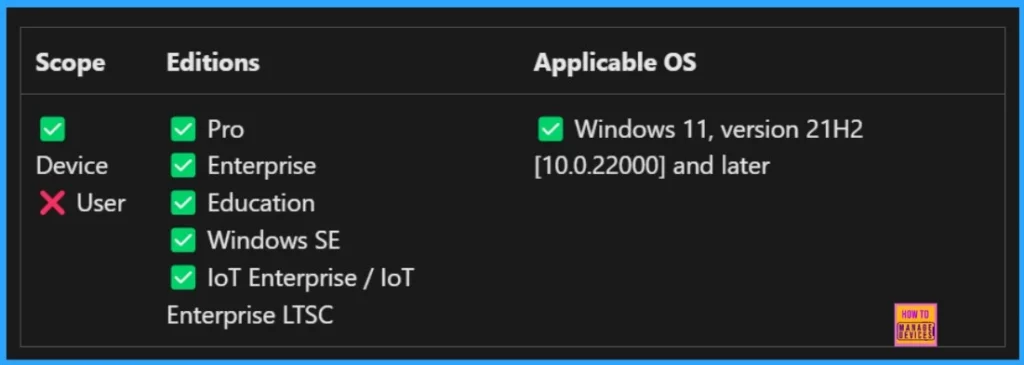
Allow or Block Cleanup of Unused Preinstalled Language Packs Policy in Time and Language Settings
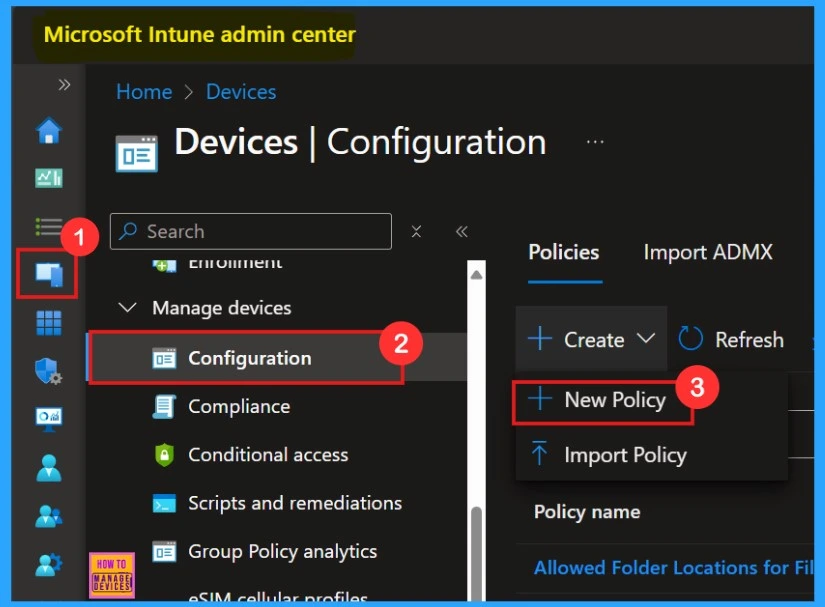
To set up the Intune policy, we are going make a profile first. After that, we log into the Microsoft Intune admin center with our info. Then, we head over to the Devices section, click on Configurations, and create a new policy.
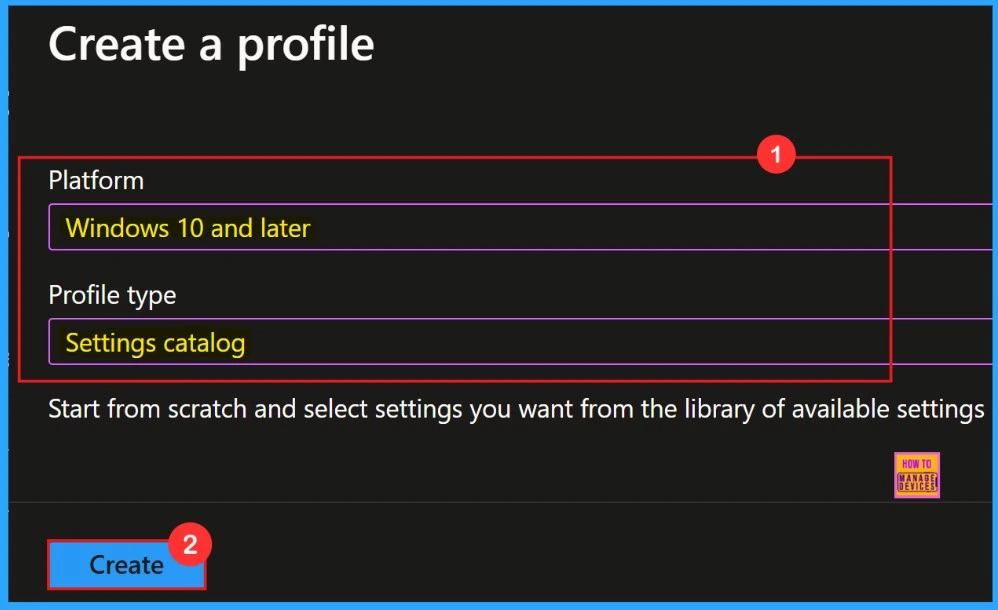
A new window will appear on the screen where you can select the Platform and Profile Type. Choose “Windows 10 and later” as the platform and “Settings catalog” as the Profile type. Then, click the “Create” button to proceed.
Basics
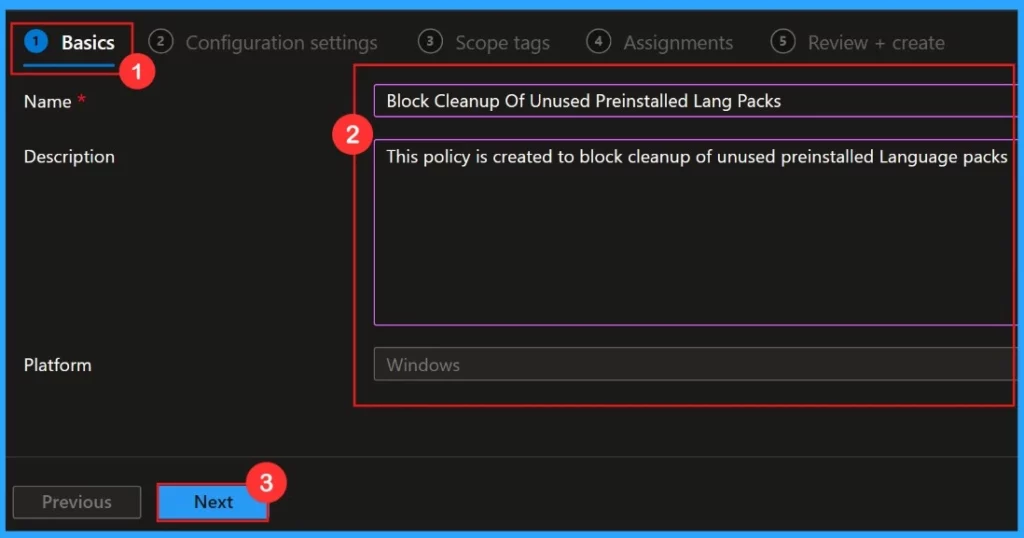
The main part of making a profile is Basic. Here, we are going to add the right Name and Description. This part is a must; we have to add it to keep creating Profiles.
| Name | Description |
|---|---|
| Block cleanup of unused preinstalled Lang packs | This policy is created to block cleanup of unused preinstalled Language packs |
Configuration Settings
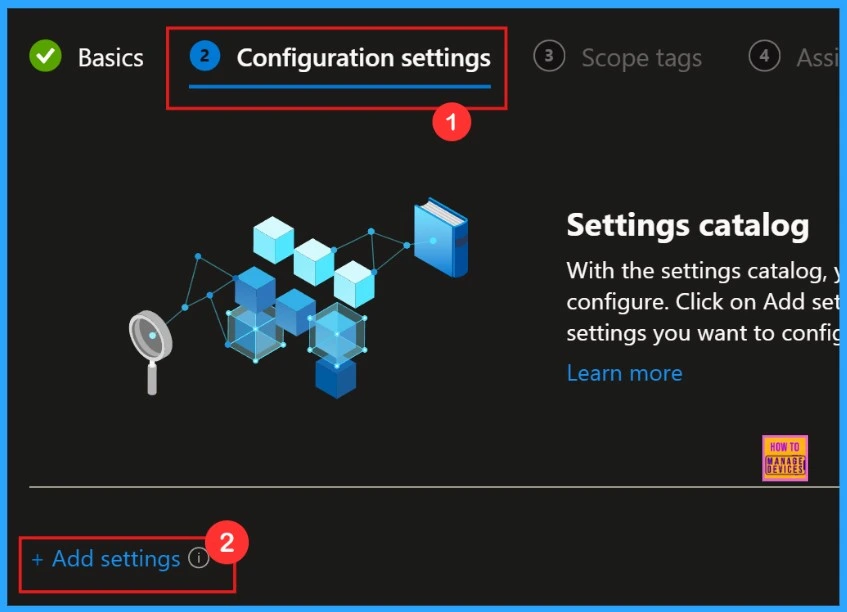
Here, in the Configuration Settings session, it is an important part of policy creation. We can select which settings to configure by using the settings catalog. Click on “+ Add Settings” to browse or search for the specific settings.
- +Add Settings
Setting Picker
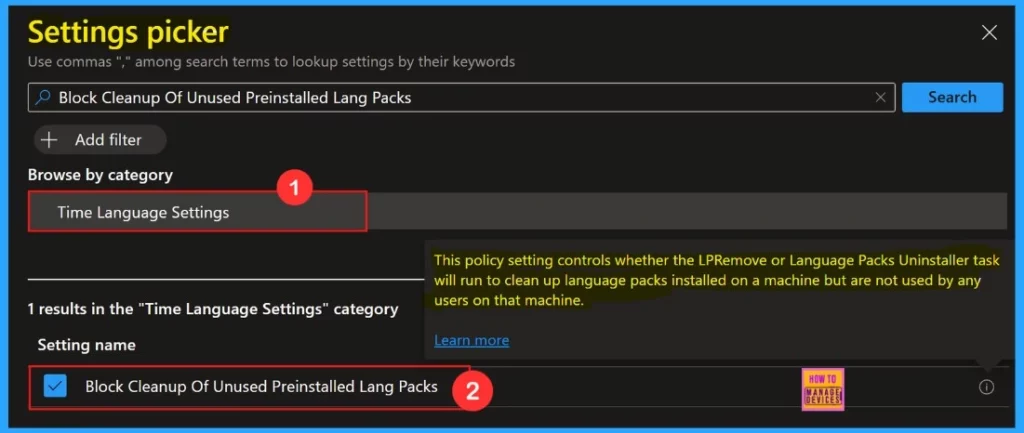
By clicking the “Add settings“, we’ll get a settings window to pick our preferred settings. Here, we can search for settings manually. Otherwise, we need to browse settings by category. Here, we will choose Time Language settings and allow or Block Cleanup of Unused Preinstalled Lang Packs.
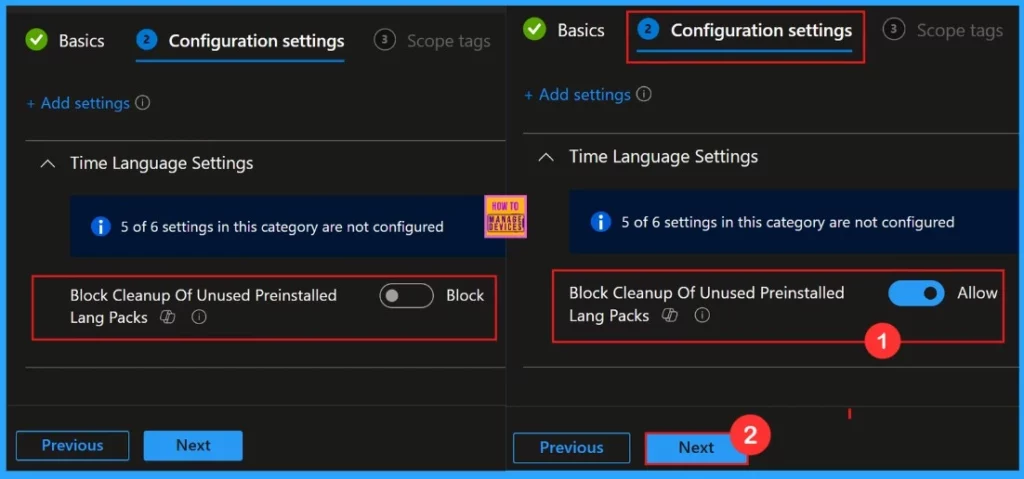
Once we pick the policy we want, it’ll show up on the configuration settings page. we can block or allow the Block Cleanup of Unused Preinstalled Lang Packs policy. Here, we select “allow” for our policy configuration settings.
Scope Tags
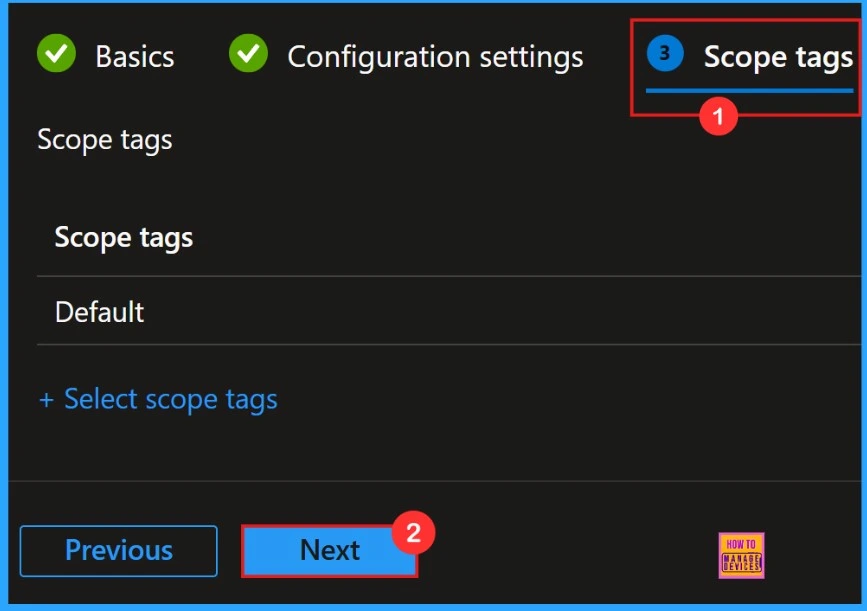
The scope tag is simply a negotiable setting for our policy deployment. If we wish to select any scope tags, we are able to do so. At this point, we will proceed to omit this section.
Assignments
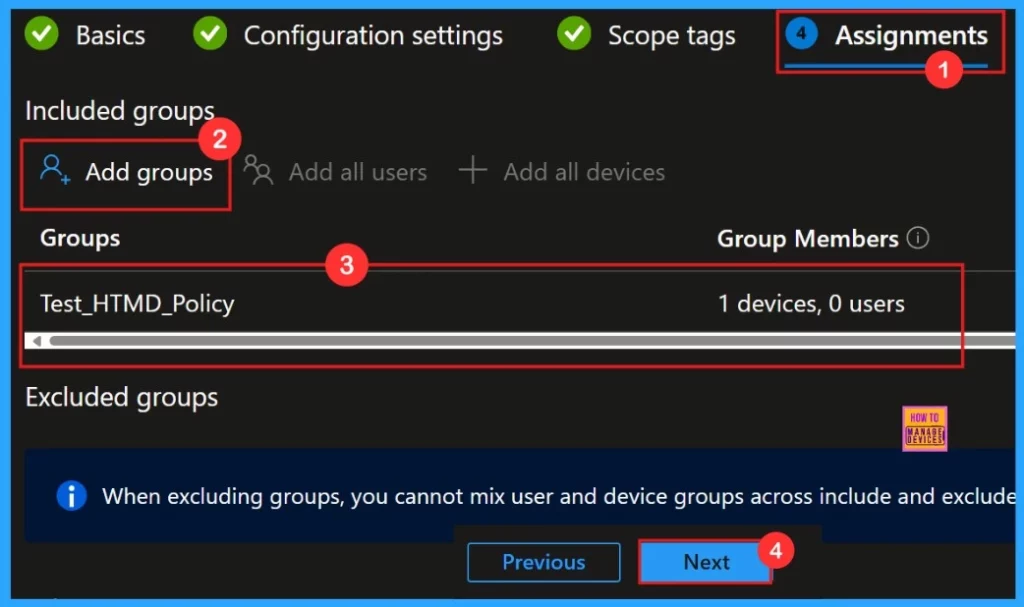
On the Assignment tab, it is possible to select groups to which the policy will be assigned. Click on the Add Groups option from the Included Groups button and choose the groups from the group list. After that, click the Select button. The chosen groups will be displayed on the Assignment tab. Subsequently, click the Next button.
Review + Create
The Review + Create tab assists us in reviewing and managing settings. We can examine each tab, and if any previous settings require modification, we can do so here. After making all necessary adjustments, click on the Create button.
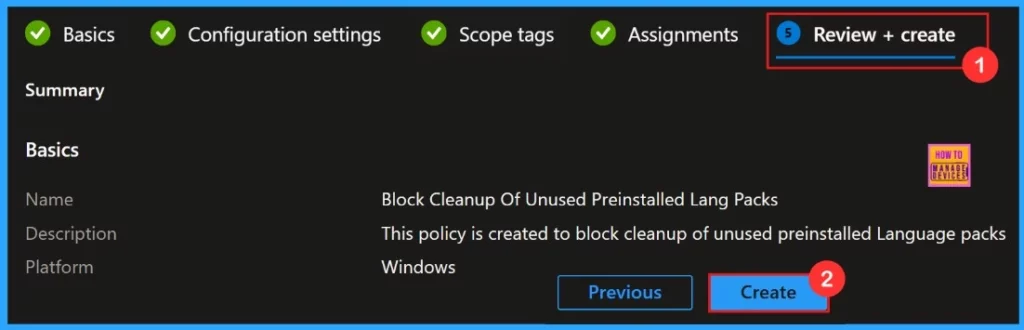
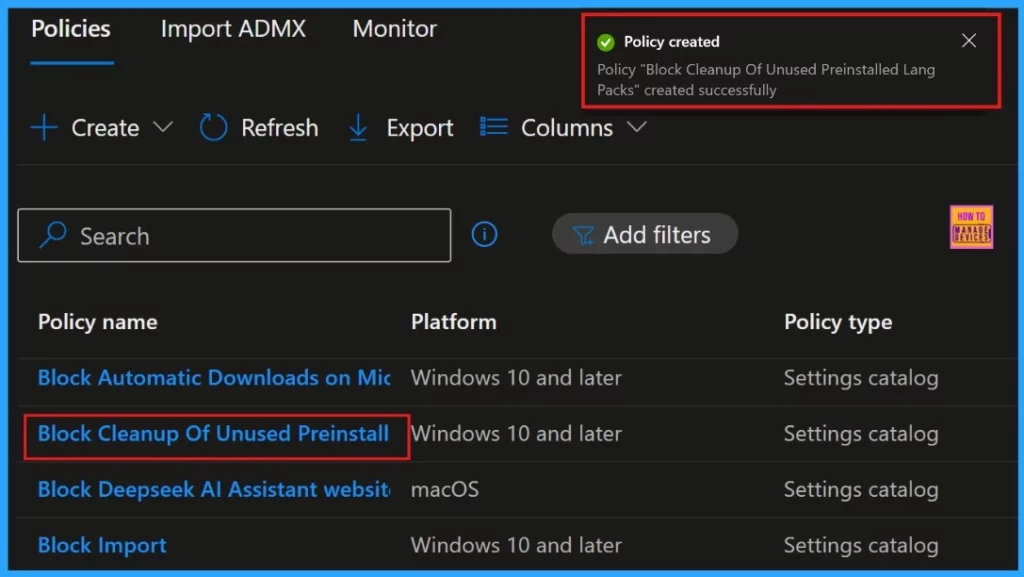
After clicking the Create button, we will receive a notification indicating that the Policy has been created successfully. We can verify the policy on the Intune Portal. To access this, please navigate to Devices and Configuration, search for our policy, and then open it.
Device and User Check-in Status
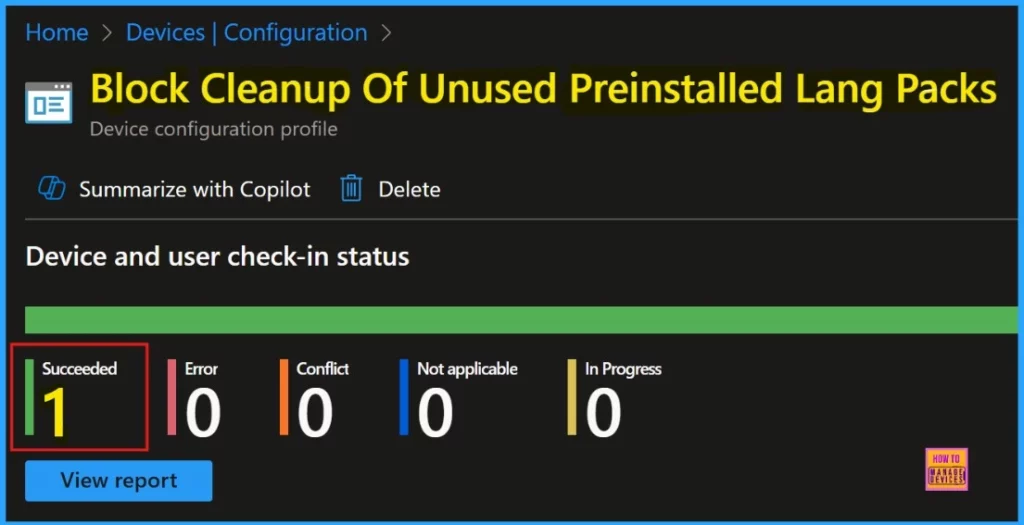
Now the Block cleanup of unused preinstalled Lang packs policy is succeeded, with 1 instance marked as succeeded. The below screenshot shows more details.
Client Side Verification
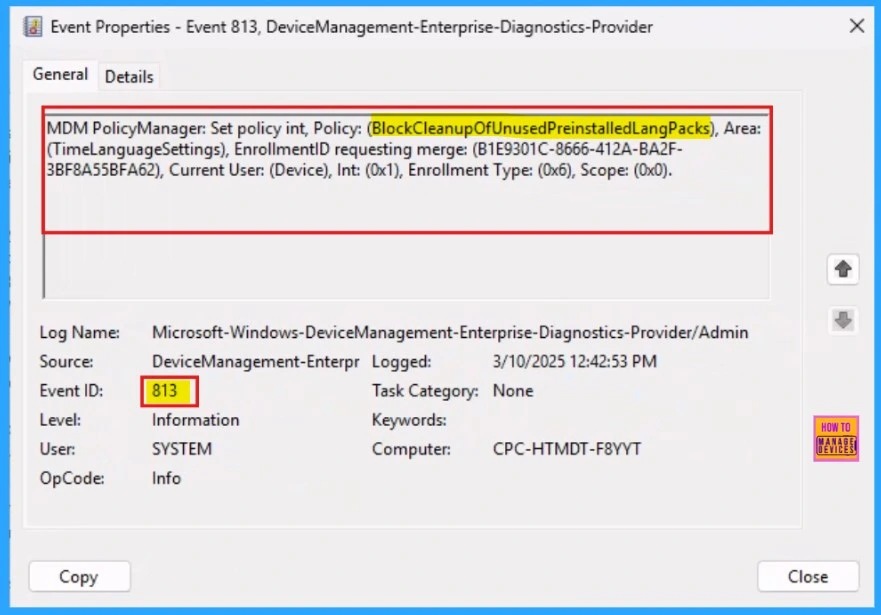
To verify client-side settings, we can use the Event Viewer in cloud PC. Event ID 813 indicates that a string policy is applied to Windows 10 or 11 devices.
- Applications and Services Logs > Microsoft > Windows > Devicemanagement-Enterprise-Diagnostics-Provider > Admin
MDM PolicyManager: Set policy int, Policy: BlockCleanupOfUnusedPreinstalledLangPacks), Area (TimeLanguageSettings), EnrollmentID requesting merge: (B1E9301C-8666-412A-BA2F-3BF8A55BFA62), Current User: (Device), Int: (0x1), Enrollment Type: (0x6), Scope: (0x0).
Need Further Assistance or Have Technical Questions?
Join the LinkedIn Page and Telegram group to get the latest step-by-step guides and news updates. Join our Meetup Page to participate in User group meetings. Also, Join the WhatsApp Community to get the latest news on Microsoft Technologies. We are there on Reddit as well.
Author
Anoop C Nair has been Microsoft MVP for 10 consecutive years from 2015 onwards. He is a Workplace Solution Architect with more than 22+ years of experience in Workplace technologies. He is a Blogger, Speaker, and Local User Group Community leader. His primary focus is on Device Management technologies like SCCM and Intune. He writes about technologies like Intune, SCCM, Windows, Cloud PC, Windows, Entra, Microsoft Security, Career, etc.


Discussion