






ConfigMgr Client Enable Verbose Logging Debug Logging | SCCM | Configuration Manager
Let’s understand how to Enable Verbose Logging and Debug Logging for ConfigMgr (a.k.a SCCM) client-side logs. This logging information is helpful in SCCM troubleshooting scenarios.
You can get more details about the ConfigMgr Client Logs to understand the logs available on the client side.
Once you enable Debug and Verbose logging for the client logs, it provides additional information on error conditions. However, you must be very careful when allowing these settings in production.
I won’t recommend keeping this logging enabled on the client’s devices for a long time. I would instead allow it only for a very short time during troubleshooting.

Table of Contents
Enable Verbose Logging for SCCM Server-side
You can log in to the SCCM server and navigate to the registry (You will need to do this for each thread if you want). More details SCCM Server-Side Logging How To Turn On Verbose SQL NAL Logging.
Follow the method mentioned below to Enable Verbose Logging for SCCM Server Components. To make the logging level verbose, change the value to 0.
LoggingLevel = 0
Computer\HKEY_LOCAL_MACHINE\SOFTWARE\Microsoft\SMS\Tracing\SMS_WINNT_SERVER_DISCOVERY_AGENT
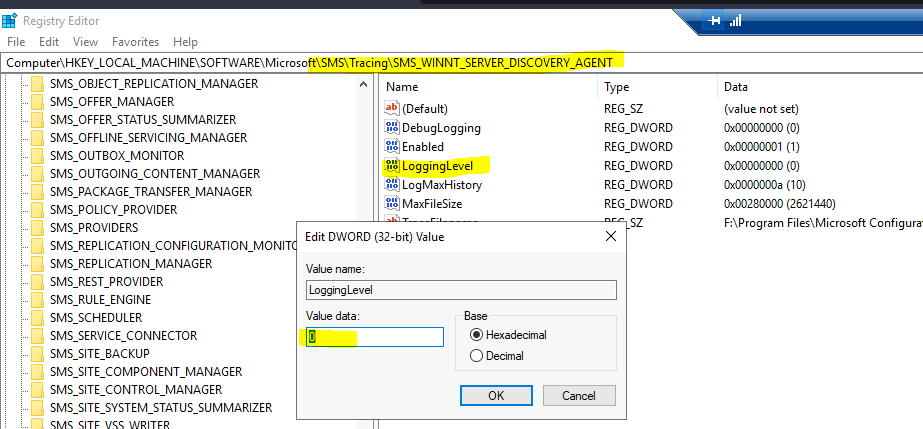
- How To Turn On Verbose SQL NAL Logging SCCM Server-Side Logging
- SCCM Server-Side Logging How to Turn On Verbose SQL NAL logging
- Enabling Debug Verbose Logging in ConfigMgr SCCM
- SCCM Server-Side Logging How to Turn On Verbose SQL NAL logging
Enable Verbose Logging for SCCM Client
Let’s see how to enable it on Windows 10 devices where the SCCM client is installed. You can use ConfigMgr functionality to deploy these registry changes or do it manually using a local admin account.
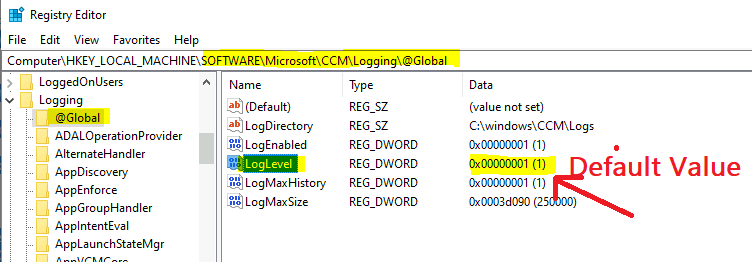
The following table gives you the registry values for enabling verbose logging. As I will explain below, it would be best to change the values of REG_DWORD.
| Type of Logging | Values |
|---|---|
| Verbose | 0 |
| Default | 1 |
| Warnings and errors | 2 |
| Errors only | 3 |
- From the Windows 10 device, click Start, and type Regedit. Then, select Registry Editor.
- Navigate to the following registry path
- HKEY_LOCAL_MACHINE\SOFTWARE\Microsoft\CCM\Logging\@Global
- Double-click on the LogLevel REG_DWORD
NOTE – We recommend you create a backup before editing the registry.
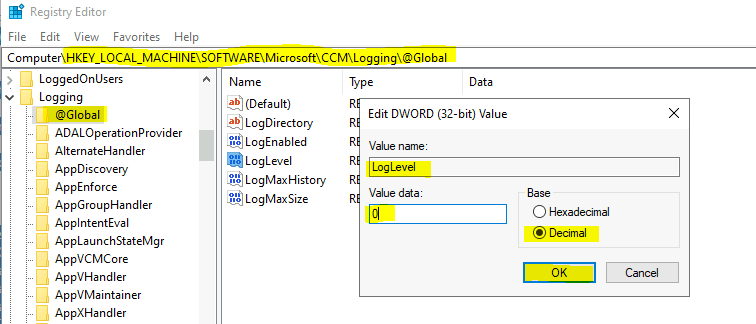
Click on the Decimal options from the base section.
- Change the value data to 0.
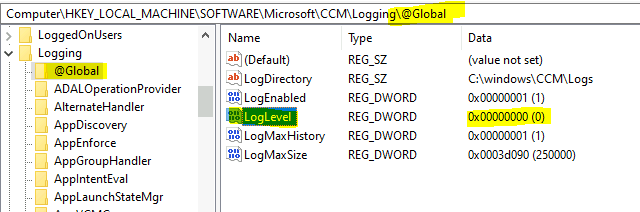
Check and Confirm the value against the REG_DWORD LogLevel is 0.
Registry Entries to Enable Verbose Logging
Here is the option to make your life easy.
- Copy the following text and save this as a filename. reg file.
- Double-click on the reg file.
- Select the Merge option to change the ConfigMgr client LogLevel to Verbose.
Windows Registry Editor Version 5.00

[HKEY_LOCAL_MACHINE\SOFTWARE\Microsoft\CCM\Logging\@Global]
"LogDirectory"="C:\\windows\\CCM\\Logs"
"LogEnabled"=dword:00000001
"LogLevel"=dword:00000000
"LogMaxHistory"=dword:00000001
"LogMaxSize"=dword:0003d090
Enable Debug Mode
Now, let’s look at the second point to help you troubleshoot ConfigMgr client issues. Yes, you can enable Debug mode logging to get all the low-level information for troubleshooting.
The following table gives you the registry values for enabling debug logging. As I explained below, you need to create a new REG_SZ value.
| Type of Logging | String Values |
|---|---|
| Enable debug logs | TRUE |
| Disable debug logs | FALSE |
NOTE: I won’t recommend keeping this logging enabled on the client’s devices for a long time. I would rather enable it only for a very short time during troubleshooting.
From the Windows 10 device, click Start, and type Regedit. Then, select Registry Editor.
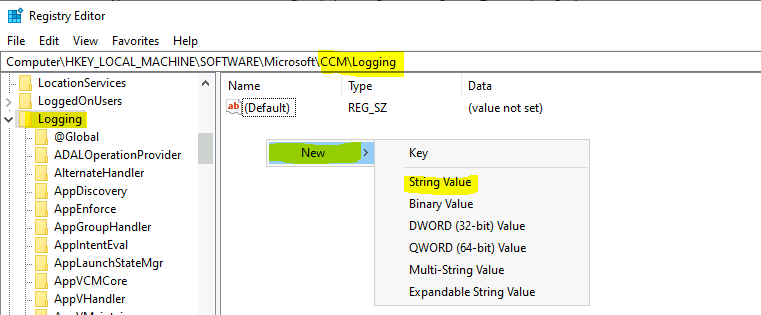
- Navigate to the following registry path.
- HKEY_LOCAL_MACHINE\SOFTWARE\Microsoft\CCM\Logging
- Right-click on the blank space as shown below.
- Click on New.
- Select the option called String Value to create the REG_SZ value.
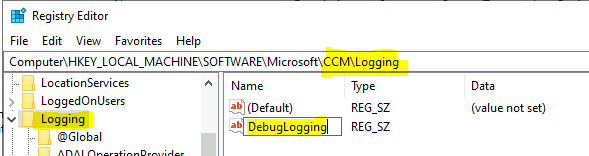
Enter the name DebugLogging for the new String Value record you created above.
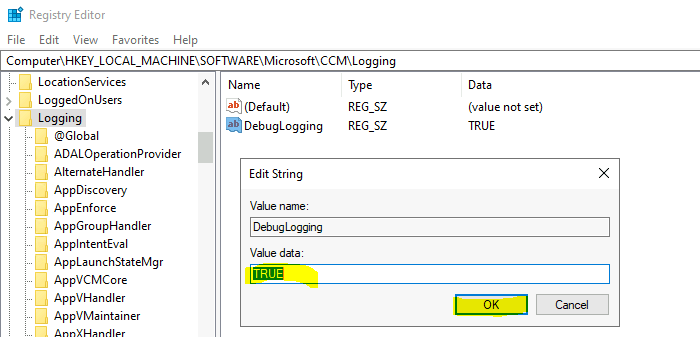
Double click on DebugLogging REG_SZ value.
- Change the string value TRUE.
- Click on OK.
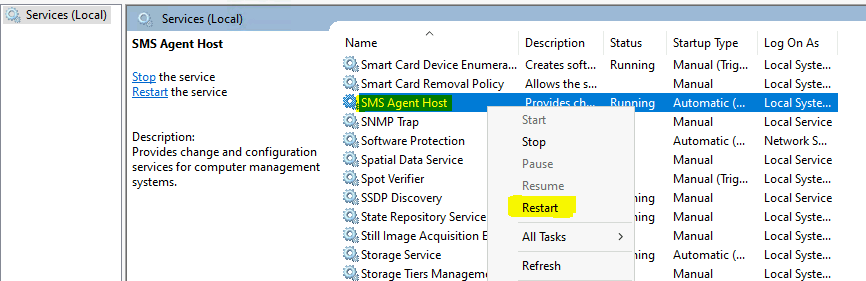
Restart SMS Agent Host Service
This is the last step you need to perform to start getting new detailed information in the SCCM client log files.
- Start Services.msc.
- Ring Click on the Service called – SMS Agent Host.
- Click on Restart.
Please check the log file to confirm whether Verbose and Debug Logging are enabled on the client devices.
Resources
- SCCM ConfigMgr How to Turn On Verbose SQL NAL logging
- ConfigMgr Client Logs Details | SCCM
- Enabling Debug and Verbose Logging in ConfigMgr SCCM
We are on WhatsApp now. To get the latest step-by-step guides, news, and updates, Join our Channel. Click here – HTMD WhatsApp
Author
Anoop C Nair has been Microsoft MVP for 10 consecutive years from 2015 onwards. He is a Workplace Solution Architect with more than 22+ years of experience in Workplace technologies. He is a Blogger, Speaker, and Local User Group Community leader. His primary focus is on Device Management technologies like SCCM and Intune. He writes about technologies like Intune, SCCM, Windows, Cloud PC, Windows, Entra, Microsoft Security, Career, etc.




The debuglogging part is actually wrong or outdated. A new SUBKEY named DebugLogging needs to be created under HKEY_LOCAL_MACHINE\SOFTWARE\Microsoft\CCM\Logging\ and then under this key a new REG_SZ value needs to be created with name = Enabled and value = True. Please see: https://learn.microsoft.com/en-us/troubleshoot/mem/configmgr/client-management/turn-on-debuglogging-key