






SCCM Toolkit Collection Evaluation Viewer CEViewer exe
By this time, you must have downloaded SCCM ToolKit (a new, updated SCCM tool kit Microsoft published in a new location). Now, this feature is included in the console itself.
The toolkit contains some awesome tools that help SCCM admin perform day-to-day activities and troubleshooting easily. One of the tools we will look into is the SCCM Collection Evaluation Viewer.
Are you looking for a GUI tool to tell you about collection evaluations happening at your primary site? Why are the collections not getting updated?
Normally, we need to look at the colleval.log and CollEval.box to check whether there is any issue in the collection evaluation or if there is some backlog in the CollEval.box. Some other SCCM 2012 Tool Kit Related Blog Posts:-

- ConfigMgr Collection Full Incremental Evaluation Status Summary from Console | SCCM
- How to Use RBA Viewer Exe in SCCM ConfigMgr 2012
- How to Use ConfigMgr SCCM 2012 Tool Client Spy CliSpy exe
- How to Use SCCM ConfigMgr 2012 Tool Policy Spy exe
- SCCM ConfigMgr 2012 How to Use Deployment Monitoring Tool
What is SCCM Collection Evaluation Viewer (CEViewer.EXE)
In this post, I will walk through the Collection Evaluation Viewer tool (CEViewer.exe), which is part of the SCCM tool kit.
In ConfigMgr with CAS (hierarchy), Collection Evaluation issues are more complex to troubleshoot. The collection evaluation is always done on the Primary site in your hierarchy. When you update the collection from CAS, there will be more delays in collection updates.
The collection Evaluation Viewer (CEViewer.exe) can only connect to the primary server. Do you know how many types of collection evaluation queues are in ConfigMgr SCCM? The answers to all your questions are below.
How to Launch SCCM Collection Evaluation Viewer
- Launch CEViewer.exe. Connect to the primary site and SQL server.
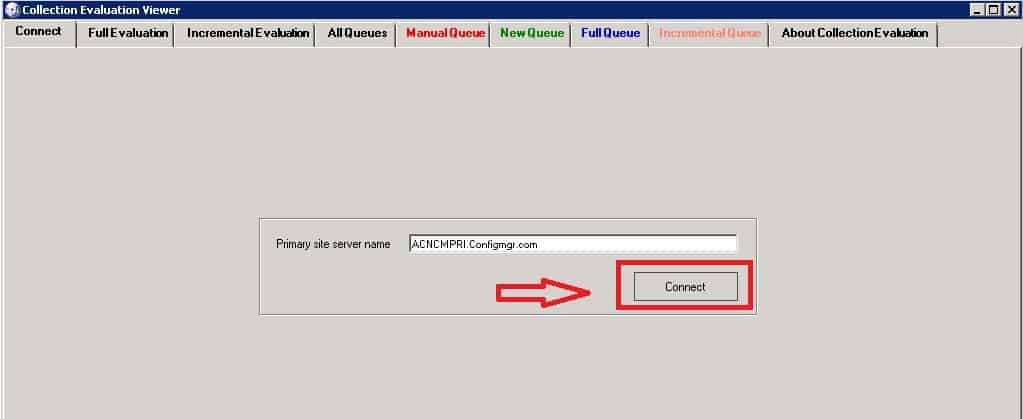
Start Using the SCCM Collection Evaluation Viewer
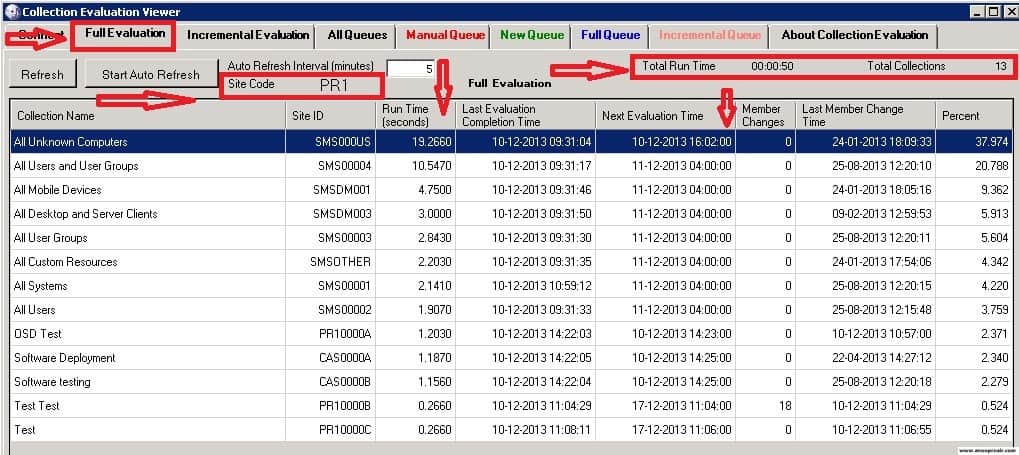
2. The Full Evaluation Tab in CEViewer.exe lists detailed information about all past full-collection evaluations.
Site Code = PRI, Total Run Time of Collection = 00:00:50, and Total Collection = 13. It also provides the following details about the Collection Name: The Site ID is Collection ID (so don’t get confused with Site ID).
It also displays how long the collection took to complete the evaluation process. This will answer the following questions: How can I determine the last collection evaluation completion time? How can I find out the next collection Evaluation Time?
How do we find several member changes during the collection evaluation for a specific collection? How to find the last member change time for a collection?
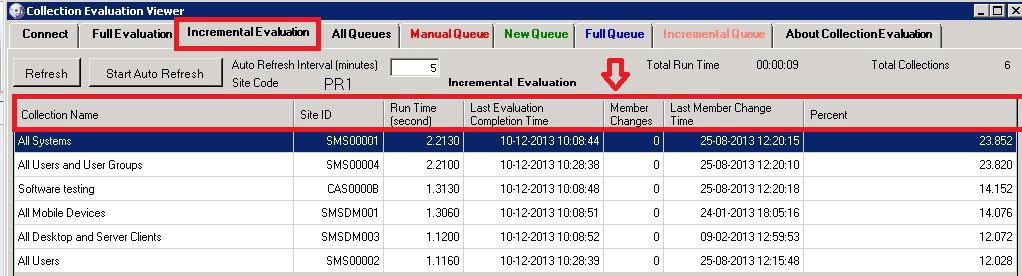
SCCM Collection Incremental Evaluation
3. The Incremental Evaluation tab in CEViewer.exe lists detailed information about all past incremental collection evaluations. This tab provides all the information about the collection’s Incremental Evaluation and answers all its questions.
The Site Code is PRI, the Total Run Time of the Collection is 00:00:50, and the Total Collection is 13. It provides the Collection Name; the Site ID is the Collection ID (so don’t get confused with Site ID).
It also displays how long the collection took to complete the evaluation process. This will answer the following questions: How can I determine the last collection evaluation completion time? How can I find out the next collection Evaluation Time?
How do we find several member changes during the collection evaluation for a specific collection? How to find the last member change time for a collection?
All Queues CEViewer.exe
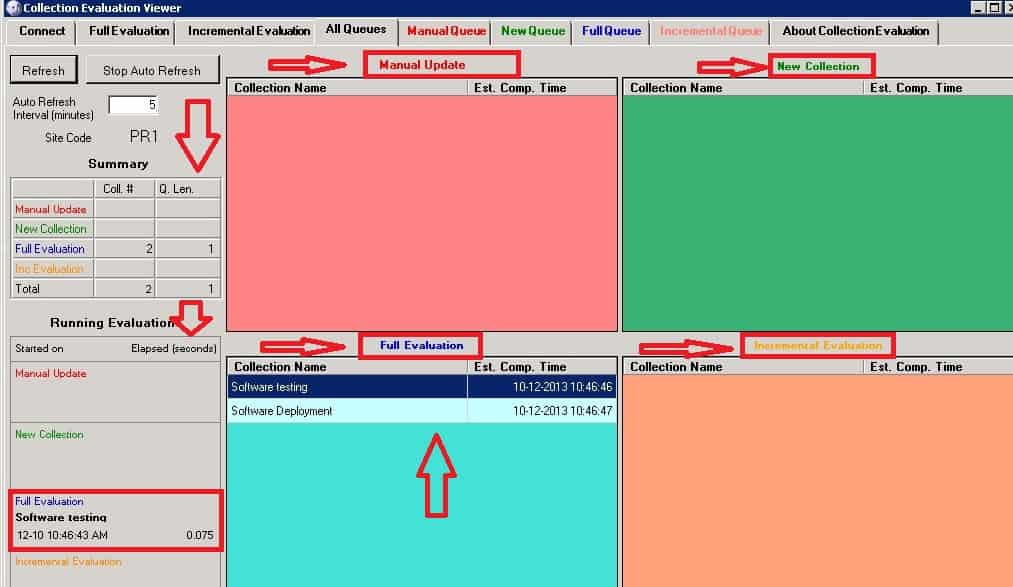
4. The All Queues tab in CEViewer.exe details all collection evaluation queues pending processing. In my example, you can see Full Evaluation collection queues. This Summarizes the current collection evaluations for all four queues.
On the right-hand side, you can see a list of collections in each section: a) Manual Update, b) New Collections, c) Full Evaluation, and d) Incremental Evaluation. On the left-hand side: – You can see the summary of collections –> Collection Numbers (Coll #) and Queue Length (Q. Len) of each collection. Full Evaluation – Coll # = 2 Queue Length = 1.
Running Evaluation:- Started on which collections. How many seconds elapsed? For example, you can see the “Software Testing” collection.
SCCM Manual Queue Option of CEViewer.exe
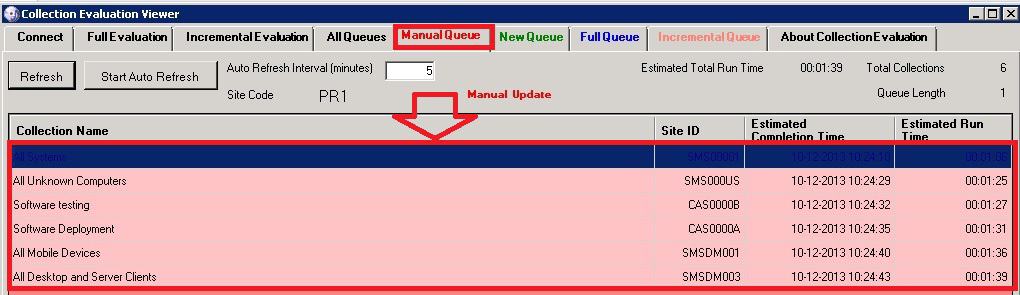
5. The Manual Queue tab in CEViewer.exe provides manual Collection Evaluation Queues pending processing. It lists detailed information about the current collection evaluation in the manual queue.
Here are some more details: Collection Name, Collection ID (Site ID), Estimated Completion Time, and Estimated Run Time.
What is the New Queue Tab CEViewer.exe?
Here is a list of collections currently in the queue to be processed for NEW Collection evaluation. This also provides the Site ID (Collection ID), Estimated Completion Time, and Estimated Run Time of new collections. I know it’s difficult to see the “Test Collection.”
6. The New Queue tab in CEViewer.exe lists new collection evaluation queues.

Full Queue Tab CEViewer.exe
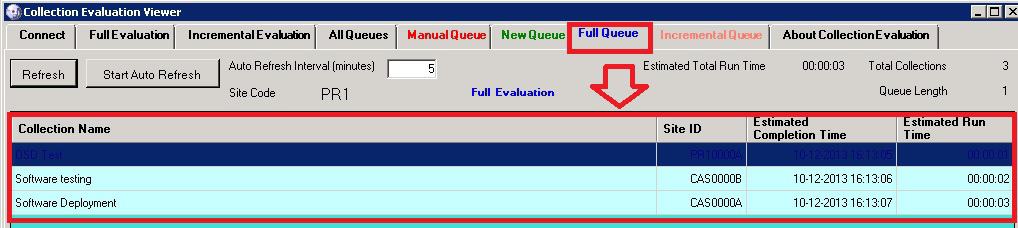
Here is a list of collections currently in the queue to be processed for FULL collection evaluation. This also provides the Site ID (Collection ID), Estimated Completion Time, and Estimated Run Time of new collections. I know seeing the “OSD Collection” and “Software Testing” is difficult.
7. The Full Queue tab in CEViewer.exe lists pending collections for FULL Collection EVALUATION.
| Full Queue Collection Name |
|---|
| Software Testing |
| Software Deployment |
SCCM Incremental Queue – CEViewer.exe
Here is a list of collections currently in the queue to be processed for Incremental collection evaluation. This also provides the Site ID (Collection ID), Estimated Completion Time, and Estimated Run Time of new collections. I know it’s difficult to see the “All Users and Groups, All User Groups, etc…”
8. The Incremental Queue tab in CEViewer.exe provides a full list of collections pending Incremental evaluation updates.
You can click the REFRESH button for the latest update on collection evaluation queues.
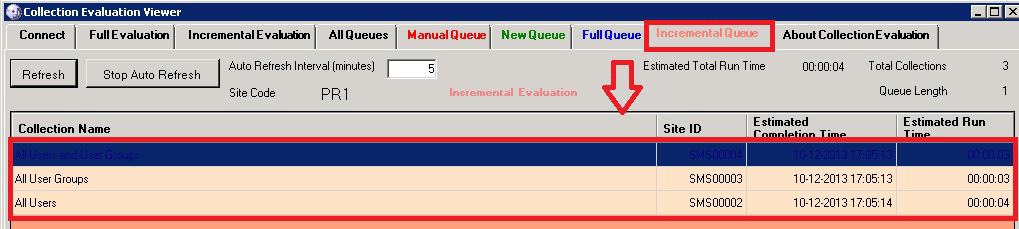
9. Click the REFRESH button for the latest collection evaluation queue update. Also, make use of the STOP AUTO REFRESH option.

We are on WhatsApp now. To get the latest step-by-step guides, news, and updates, Join our Channel. Click here. HTMD WhatsApp.
Author
Anoop C Nair is Microsoft MVP from 2015 onwards for consecutive 10 years! He is a Workplace Solution Architect with more than 22+ years of experience in Workplace technologies. He is a Blogger, Speaker, and Local User Group Community leader. His main focus is on Device Management technologies like SCCM and Intune. He writes about technologies like Intune, SCCM, Windows, Cloud PC, Windows, Entra, Microsoft Security, Career etc…




Great post Anoop! Do you know if this only works for Config Mgr 2012 R2? We’re only on SP1 CU2 and want to be able to use the Collection Evaluation Viewer without having to upgrade to R2 if possible.
StaffHi Phil! – Unfortunately, it works only with CM 12 R2 !
Once you disable the incremental refresh on a collection , it should no longer show up in the viewer. The colleval.log shows I have 77 collections currently performing incremental evaluations yet this tool continues to show even the old collections that have since been disabled. I have yet to find a supported way to clear the incremental evaluation time in the DB for those collections.
StaffHi Steve ! – It should automatically reflect in the database once we disable the incremental refresh/update on a collection (no need of any manual intervention). I’ve checked and confirmed the same in SQL DB. But not very sure why this is not getting reflected in the tool. Have you tried close and relaunch the tool ?
Regards
Anoop
I have installed the viewer on three different SCCM 2012 R2 sites and the viewer behaves the same way on all three. Once you enable incremental update on a collection, it still shows up in the viewer after disabling incremental even though I can see the status change in the collection database table.
StaffThat could probably a bug then 🙁 I’ve never noticed this. Will try to reproduce in some days.
I have the same issue, I removed “incremental updates” from ~100 collections a week ago but they still show up under “Incremental Evaluation”. “Last evaluaton time” is of course old, but the totals in the top right is wrong, so I have to manually copy out the data that is still relevant into excel to check total run time 🙂
I guess it is using some kind of cache that is never cleaned up?
The download link for the System Center 2012 R2 Configuration Manager Toolkit http://www.microsoft.com/en-us/download/details.aspx?id=36213 is not valid.
StaffThe issue has been highlighted to Microsoft already .
StaffAnd this is new location for all the tools for SCCM 2012 R2. https://www.microsoft.com/en-us/download/details.aspx?id=50012
I am getting an error when connecting to primary servers in any of the sites. The Error says “The certificate chain was issued by an authority that is not trusted.” All the certificates on the primary server where the tool is installed as well as a laptop were issued by the domain CA and is in the trusted publishers list.
How can I find which certificate this tool is trying to use?
How can I run the tool without needing a certificate?
Thanks,
Vahid, you need to export the SCCM server’s certificate and put it in your client’s trusted computers store